

CertiApp Academy - Evaluation staff
GUIDES AND RESOURCES FOR EVALUATION STAFF
Learn to manage your certification in CertiApp, step by step
Learn how to carry out your role in CERTIAPP: from conducting the audit and evaluating the Corrective Action Plan to the technical review, the certification decision and the issuance of the certificate.
Who is this for? Auditors, Technical Reviewers and Decision-Makers of Certification Bodies working under the CONFICERT scheme.
I am a…
Your role in the process
Phase 0
Setup
Phase 1
Request
Phase 2
Phase 2 – Audit
Phase 3
Phase 3 – Decision
Phase 4
Phase 4 – Certification
Your Certification Body registers the client, manages the request and creates the audit. From there, the evaluation staff take over: the auditor conducts the audit, the technical reviewer checks the file, and the decision-maker makes the final decision and issues the certificate.
Full User Guide for Auditors, Technical Reviewers and Decision-Makers
Download the complete guide with all the steps and screenshots.
Modules and lessons
All roles
Auditor
Technical Reviewer
Decision-Maker
Module 1 – Getting Started
Learn how to access CERTIAPP using the credentials provided by your Certification Body.
I. Before you start
✅ Your Certification Body must have registered you as an auditor in CERTIAPP and assigned your roles (Auditor, Technical Reviewer and/or Decision-Maker) for each Brand.
✅ You must have received your username and password from your Certification Body.
II. Process step by step
Step 1. Go to the CERTIAPP login page
Open the CERTIAPP platform at Certiapp or click on Go to the platform in CertiApp Academy.
Step 2. Enter your credentials
Enter the username and password provided by your Certification Body and click on Log in.
⚠️ Important: if you cannot log in, or you do not see the sections you need for your role, contact your Certification Body. Only its administrators can create your account and assign your roles.
✅ Done! You are now on the General Dashboard. In the next lesson, you will learn what each section of the menu is for.
III. Explanatory video
📄 Full details in the User Guide for Auditors, Technical Reviewers and Decision-Makers, section 3.1.
Get to know the CERTIAPP menu: which sections you will work in, which ones are for consultation only, and which ones you can skip.
I. Before you start
✅ You must be logged in to CERTIAPP (see Login).
✅ Keep in mind that you share the platform with your Certification Body. Many sections show its information, but only its administrators can create or modify it.
II. Process step by step
Step 1. General Dashboard
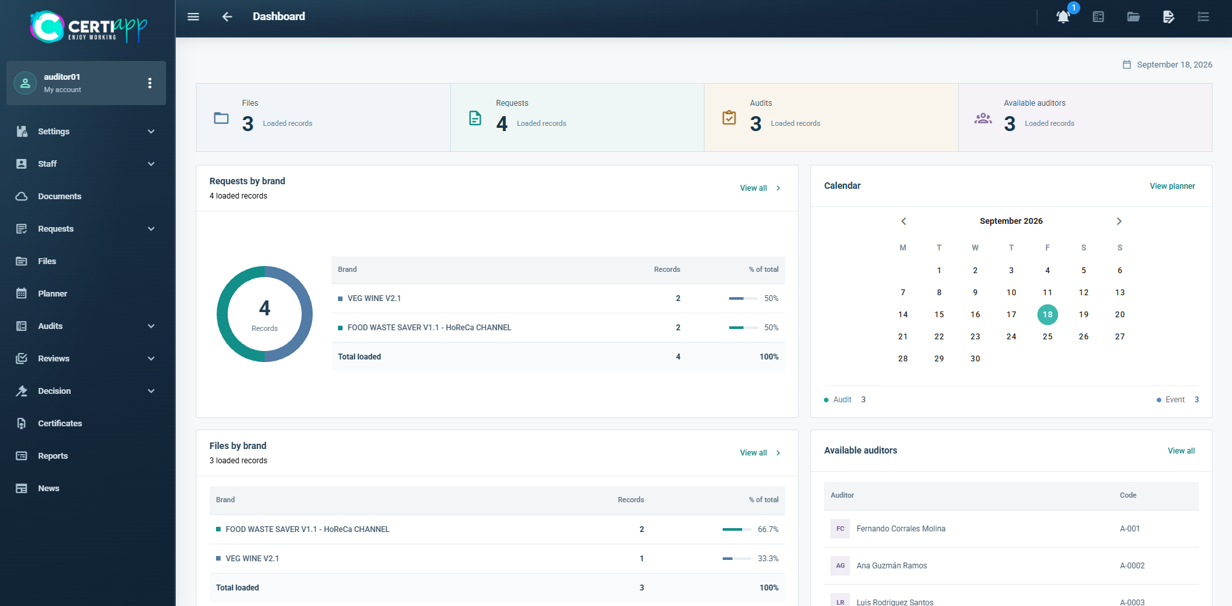
The dashboard shows a summary of your Certification Body’s activity for the CONFICERT Brands: requests and files by Brand, the activity calendar, the evaluation staff and the latest news from CONFICERT.
All evaluation staff appear under Auditors, whether they act as auditors, technical reviewers or decision-makers.
Step 2. The sections where you take action
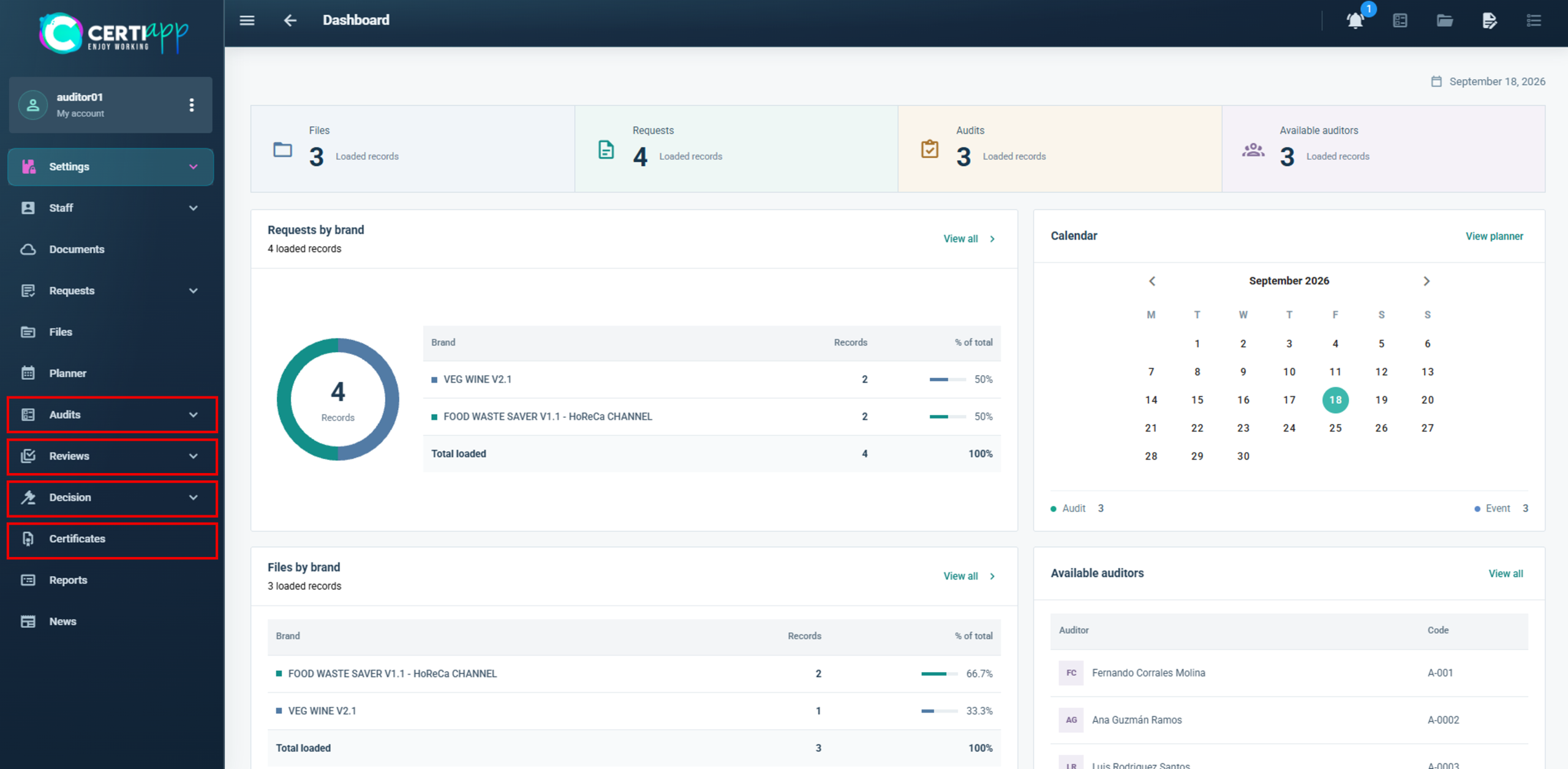
These are the sections you will use in your daily work, depending on your role:
- Audits (Auditor): all audits of all clients, with their status, Brand, file number, client and lead auditor. This is where you conduct the audit, evaluate the checklist and the CAP, and close the audit.
- Reviews (Technical Reviewer): all files pending technical review, with their status, Brand, client, assigned reviewer and audit type.
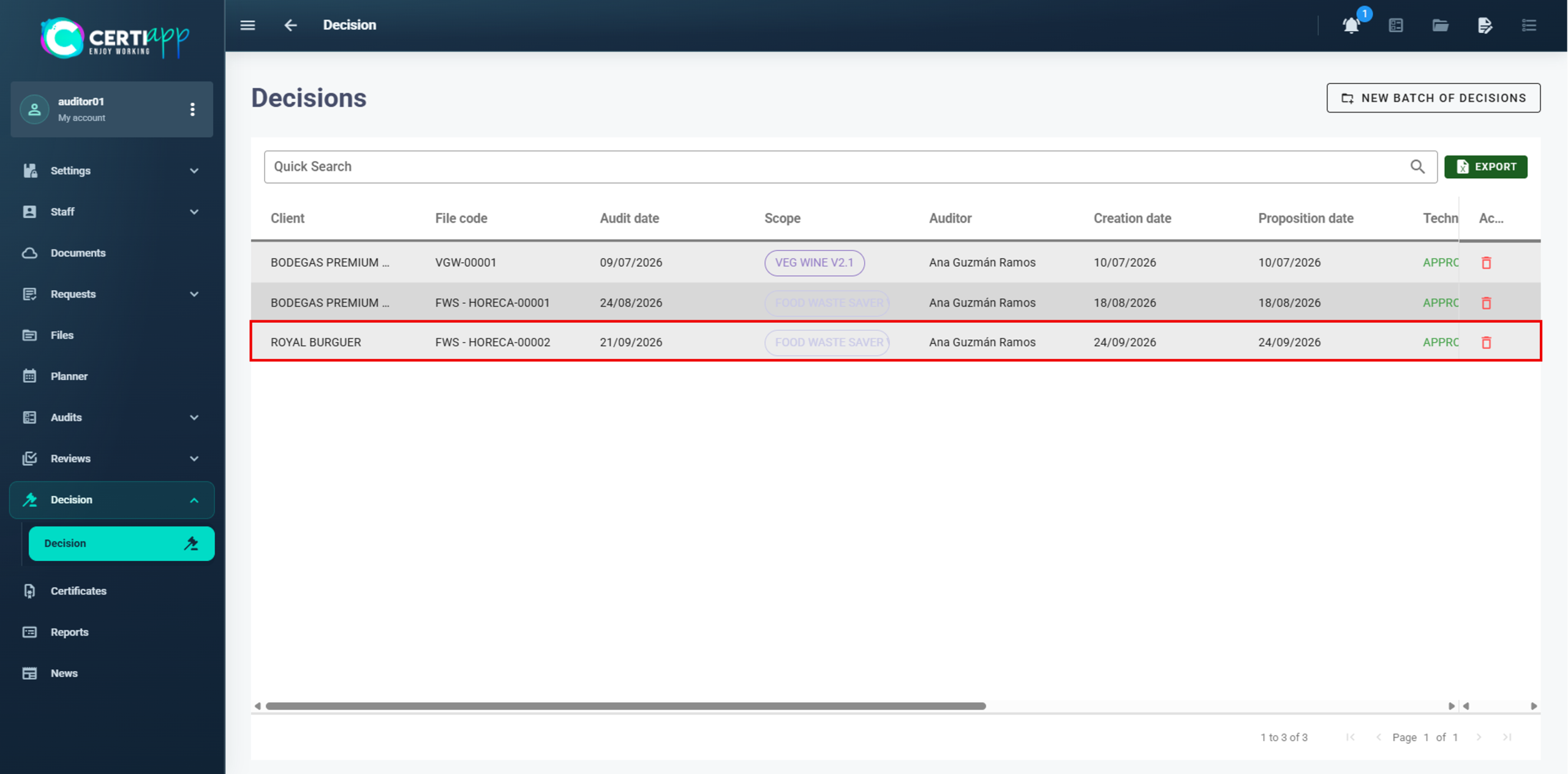
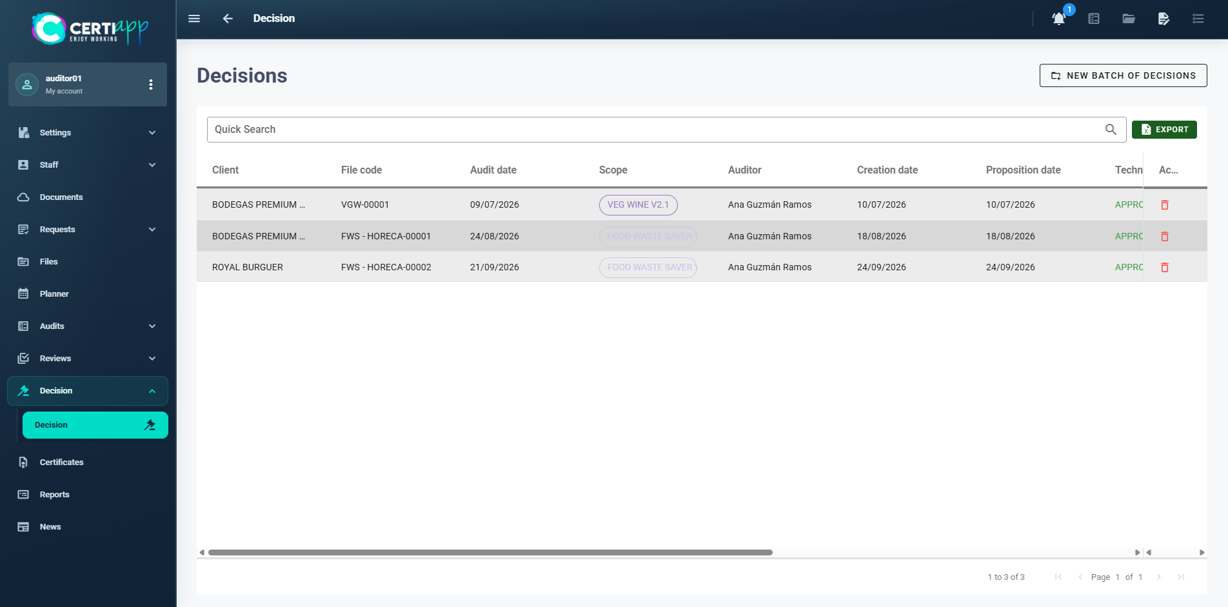
- Decision (Decision-Maker): all files pending a decision, with the client, audit date, Brand and assigned auditor.
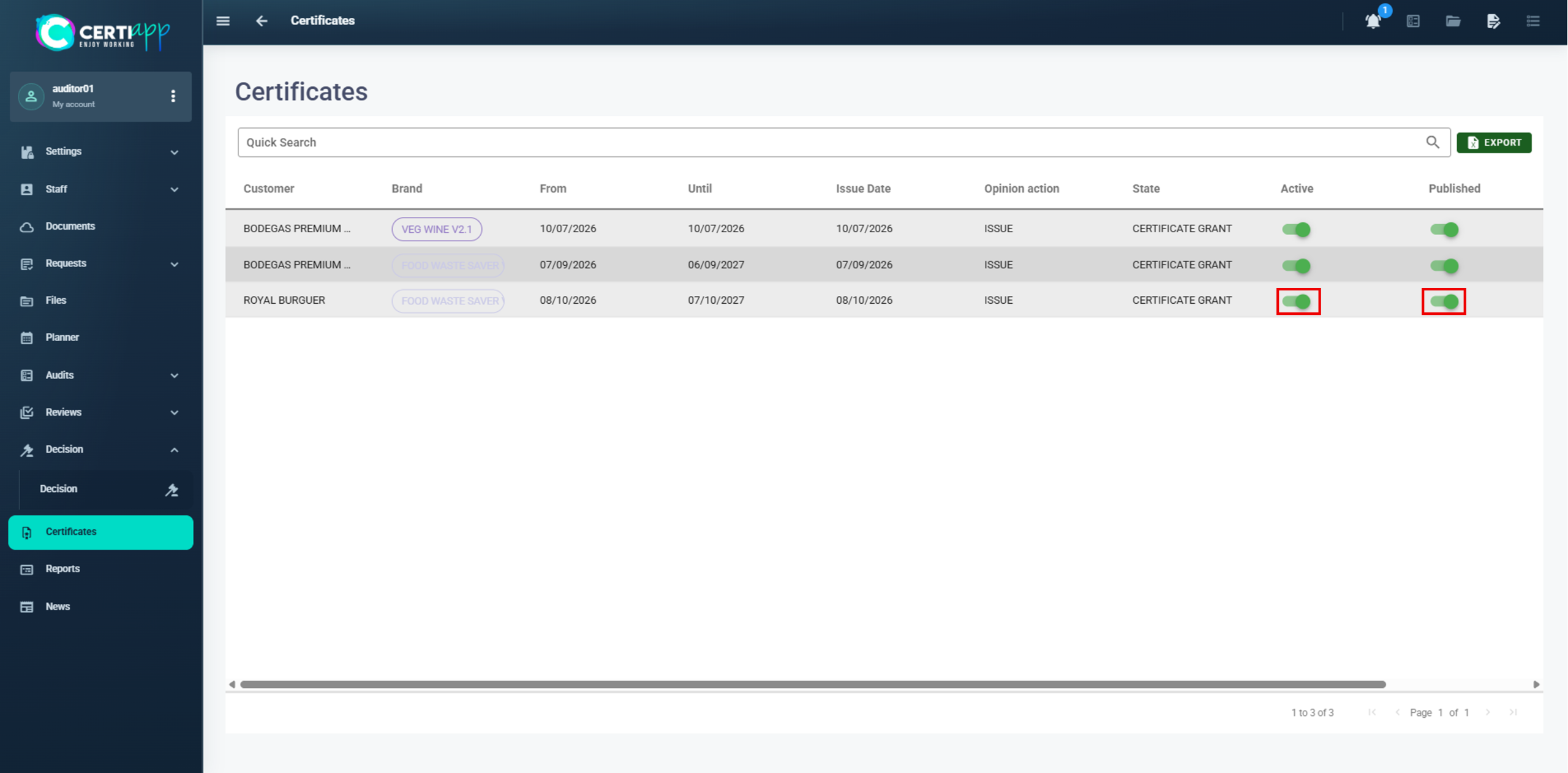
- Certificates (Decision-Maker): all certificates of the files assessed as Suitable.
Step 3. Documents
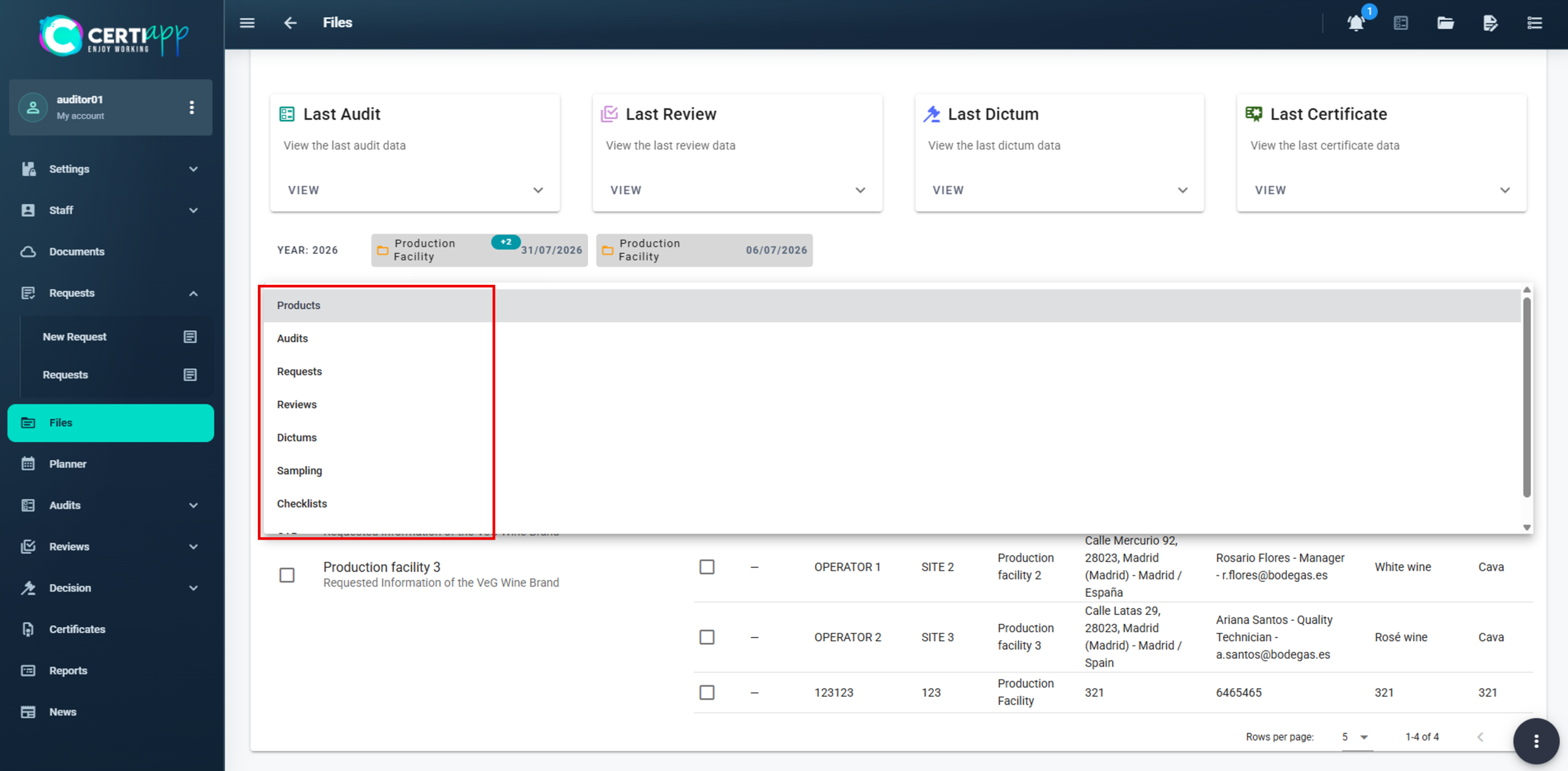
Step 4. Files
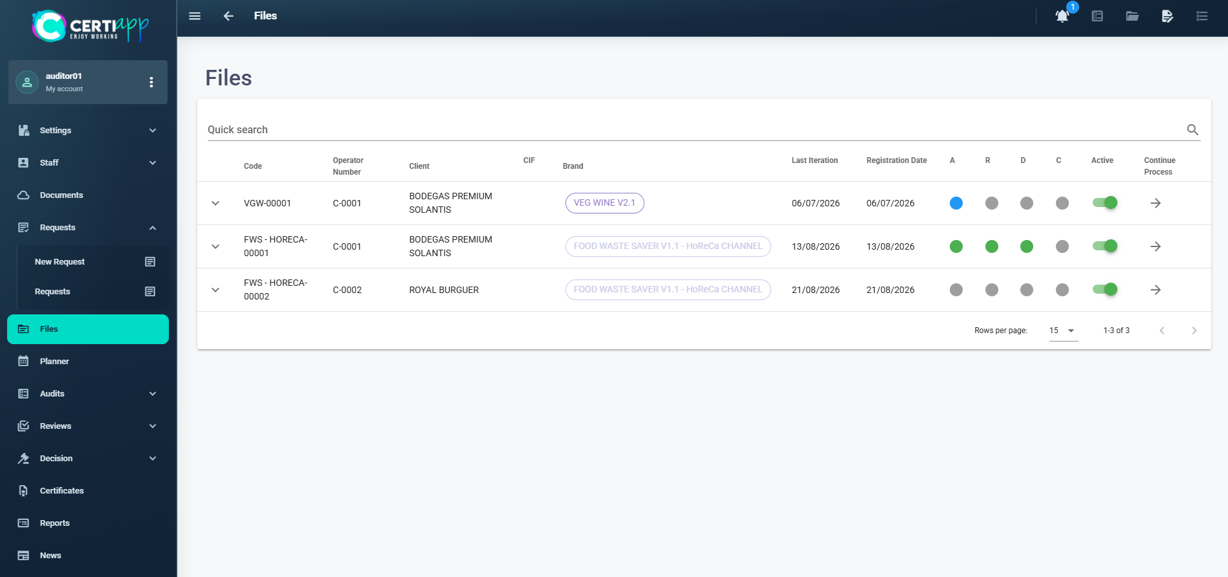
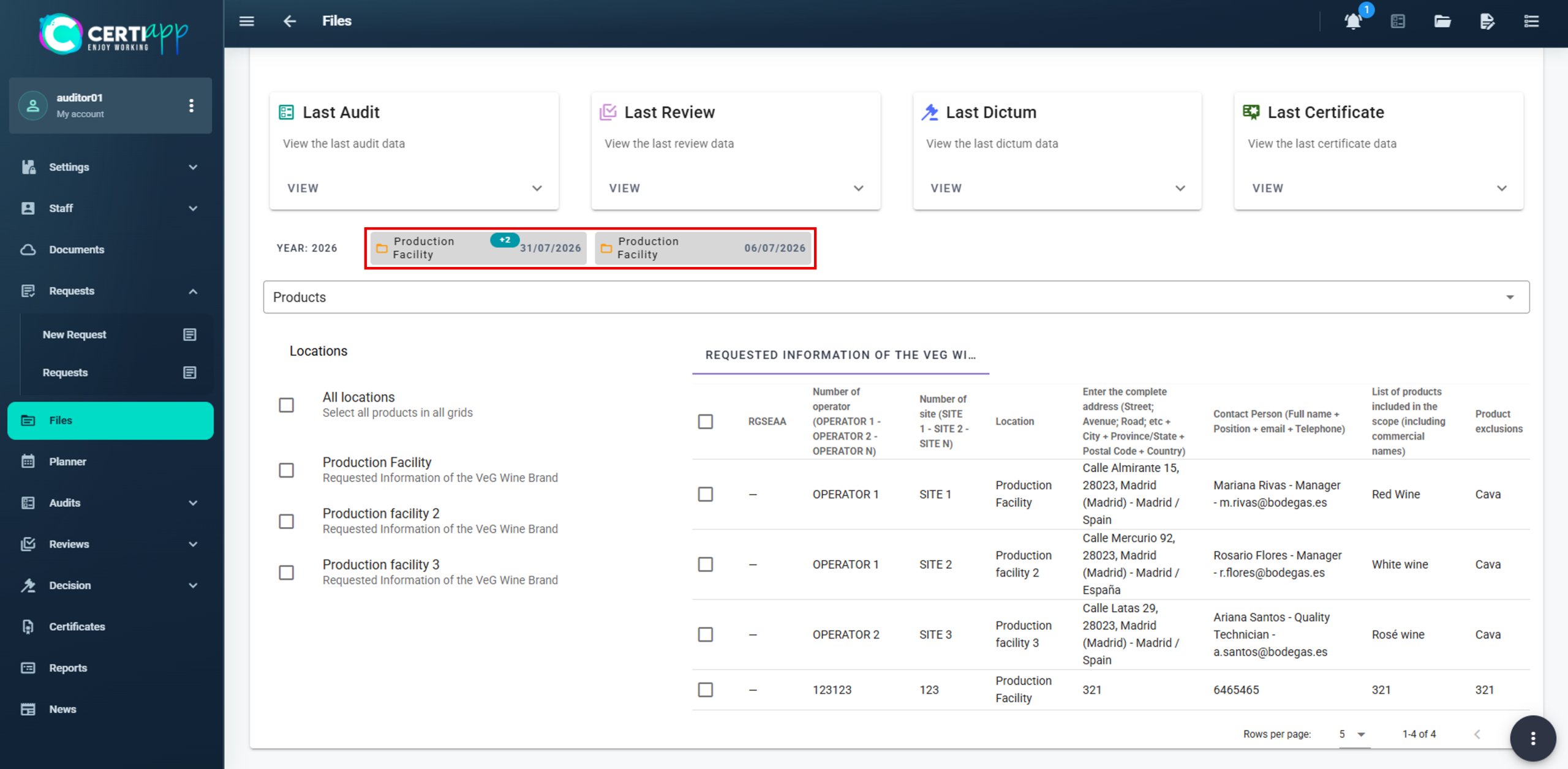
Each operator has one file per Brand, and each annual certification cycle is shown as an iteration. Click on an iteration to see its tools:
- Products: the sites declared in the request and the data that defines the audit.
- Audits: the audits of this operator and their status (Planned, Open or Closed).
- Reviews and Dictums: when the file moves to technical review and to decision, and the result (Suitable / Not Suitable).
- Samplings: the samples registered during the audit.
💡 Tip: a superscript such as (+2) next to an iteration means it covers more sites than the one shown. In this example, 3 sites in total.
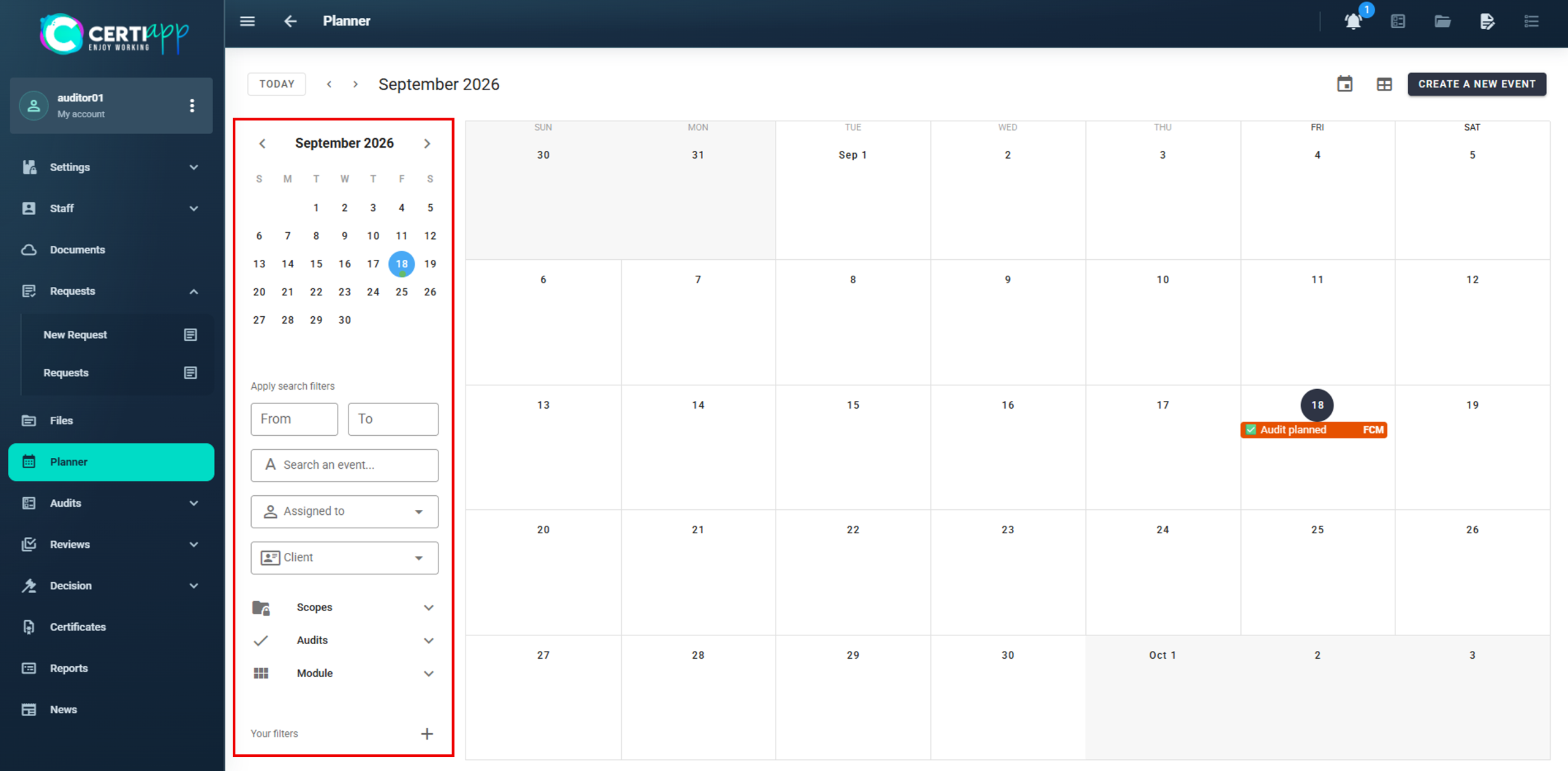
Step 5. Planner
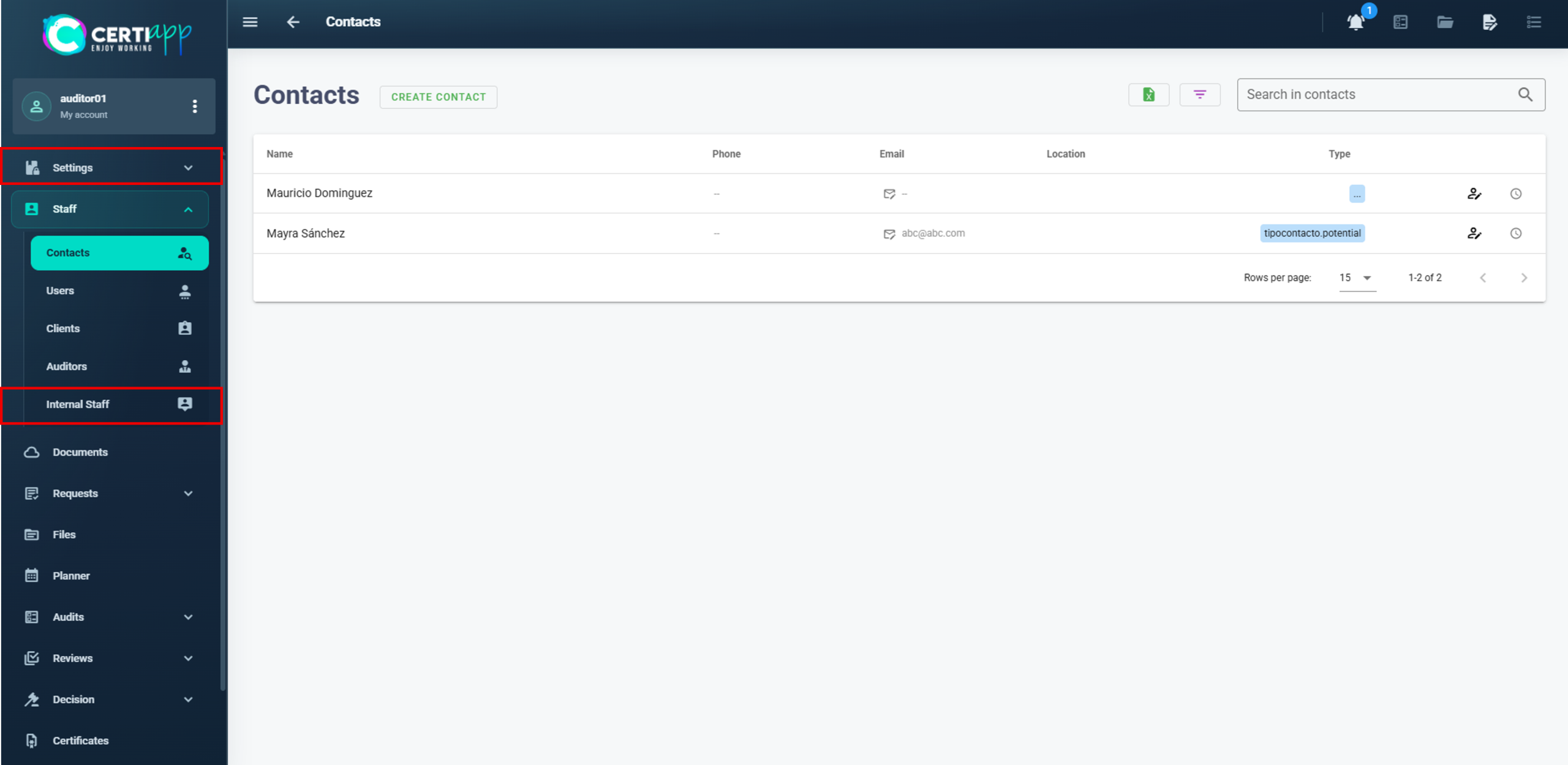
Step 6. Sections for consultation only
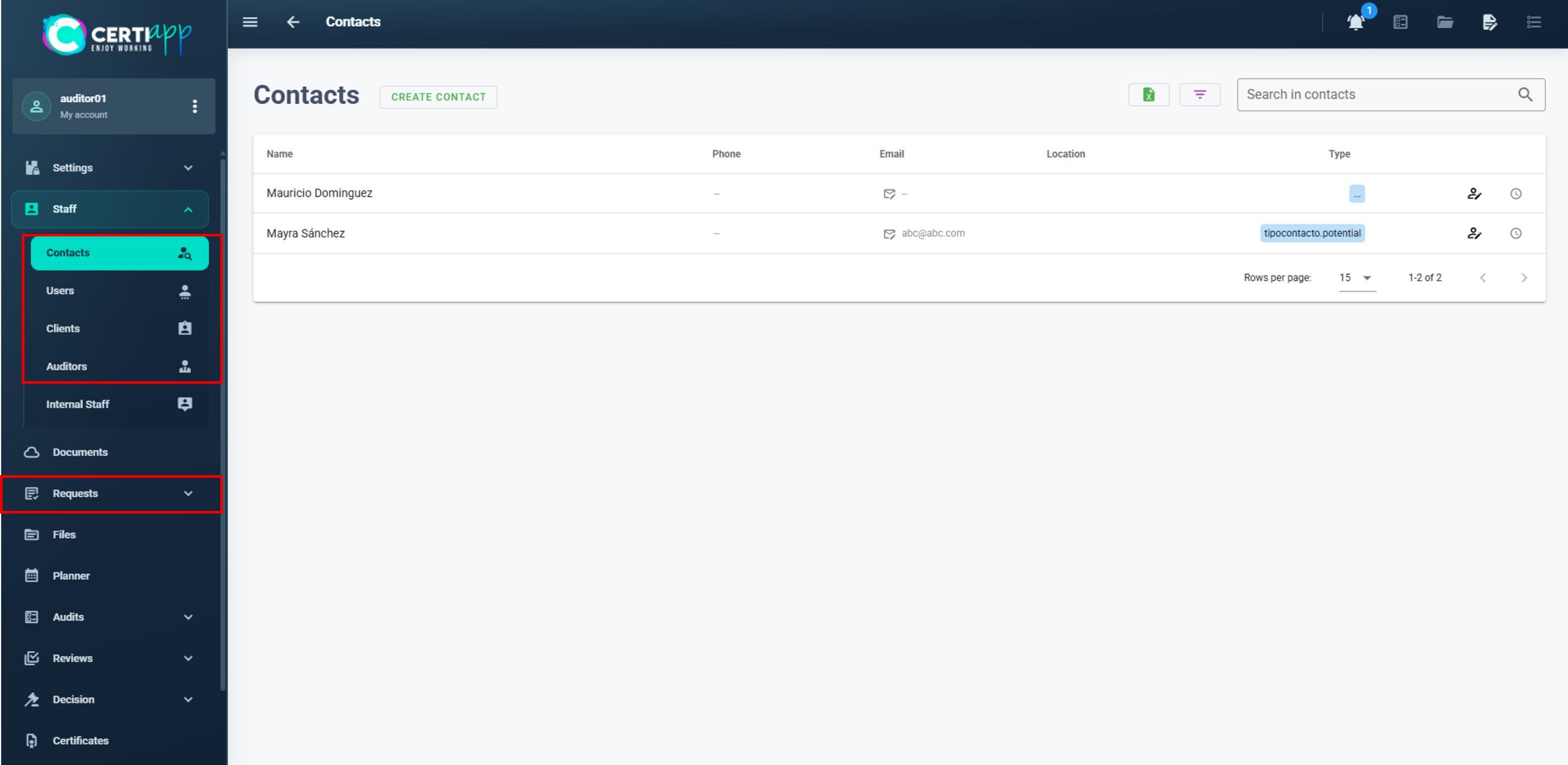
In these sections you can check information, but you must not create or modify anything:
- Clients: operator details, their files, documents, contacts, addresses and licensed Brands.
- Auditors: profiles of the evaluation staff, with their Competencies (roles by Brand) and Incompatibilities (conflicts of interest with operators).
- Users and Contacts.
- Checklist and Audit plans: the checklists of each Brand and the audit plan templates, which are set up by your Certification Body.
⚠️ Important: do not take any action in Request. Managing requests is the exclusive responsibility of your Certification Body’s administrators.
Step 7. Sections you can skip
III. Explanatory video
📄 Full details in the User Guide for Auditors, Technical Reviewers and Decision-Makers, section 2.
Learn how to quickly locate the audit, review, decision or certificate you need to work on.
I. Before you start
✅ You must be logged in to CERTIAPP.
✅ Have the operator’s name at hand. Having the file number or certificate code as well is even better.
II. Process step by step
Step 1. Open the section for your role and search for the operator
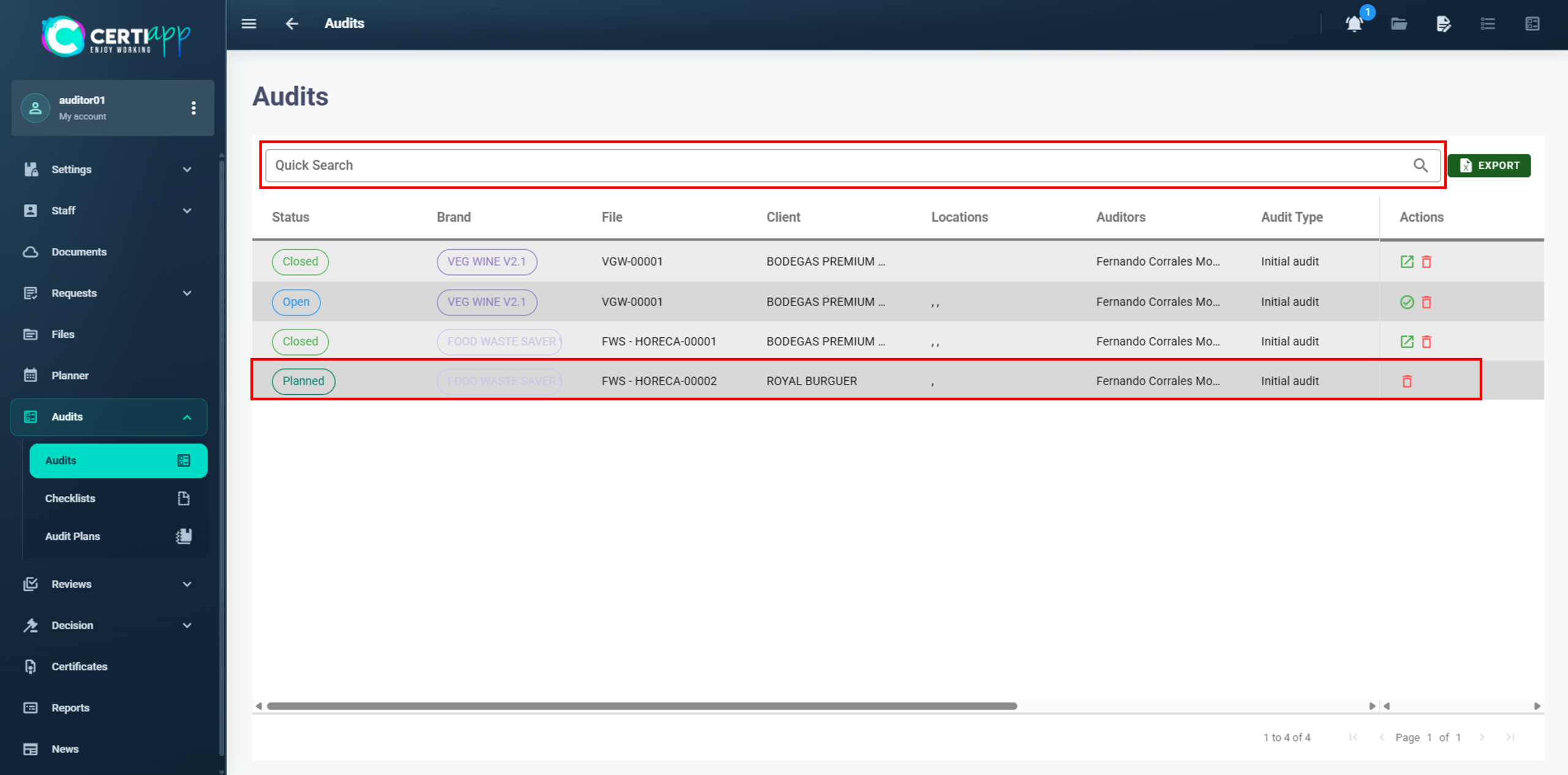
Go to the section where you need to work:
- Audits if you are the auditor.
- Reviews if you are the technical reviewer.
- Decision if you are the decision-maker.
- Certificates if you need to manage an issued certificate.
Enter the operator’s name in the Quick Search bar.
Before opening it, check the file number and the date. For certificates, check the certificate code and the date. The same operator may have several files (one per Brand) and several iterations (one per year).
Step 2. Open the file
Click on the record to open it and start working.
✅ Done! You are ready to start. If you are an auditor, continue with Module 2 – Conducting the Audit. If you are a technical reviewer, go to Module 4, and if you are a decision-maker, go to Module 5.
III. Explanatory video
📄 Full details in the User Guide for Auditors, Technical Reviewers and Decision-Makers, sections 2.8.1, 2.9.1, 2.10.1 and 2.11.
Module 2 – Conducting the Audit
Learn how to prepare the audit file: add the operator’s representatives, correct the request data if needed, and record your annotations.
I. Before you start
✅Your Certification Body must have created the audit and assigned you as auditor.
✅ The Audit Plan must already be set up. Your Certification Body’s Scheme Manager prepares it and sends it to the operator at least 48 hours before the audit.
II. Process step by step
Step 1. Open the audit
Step 2. Get to know the General tab
In the General tab, you will complete four sections:
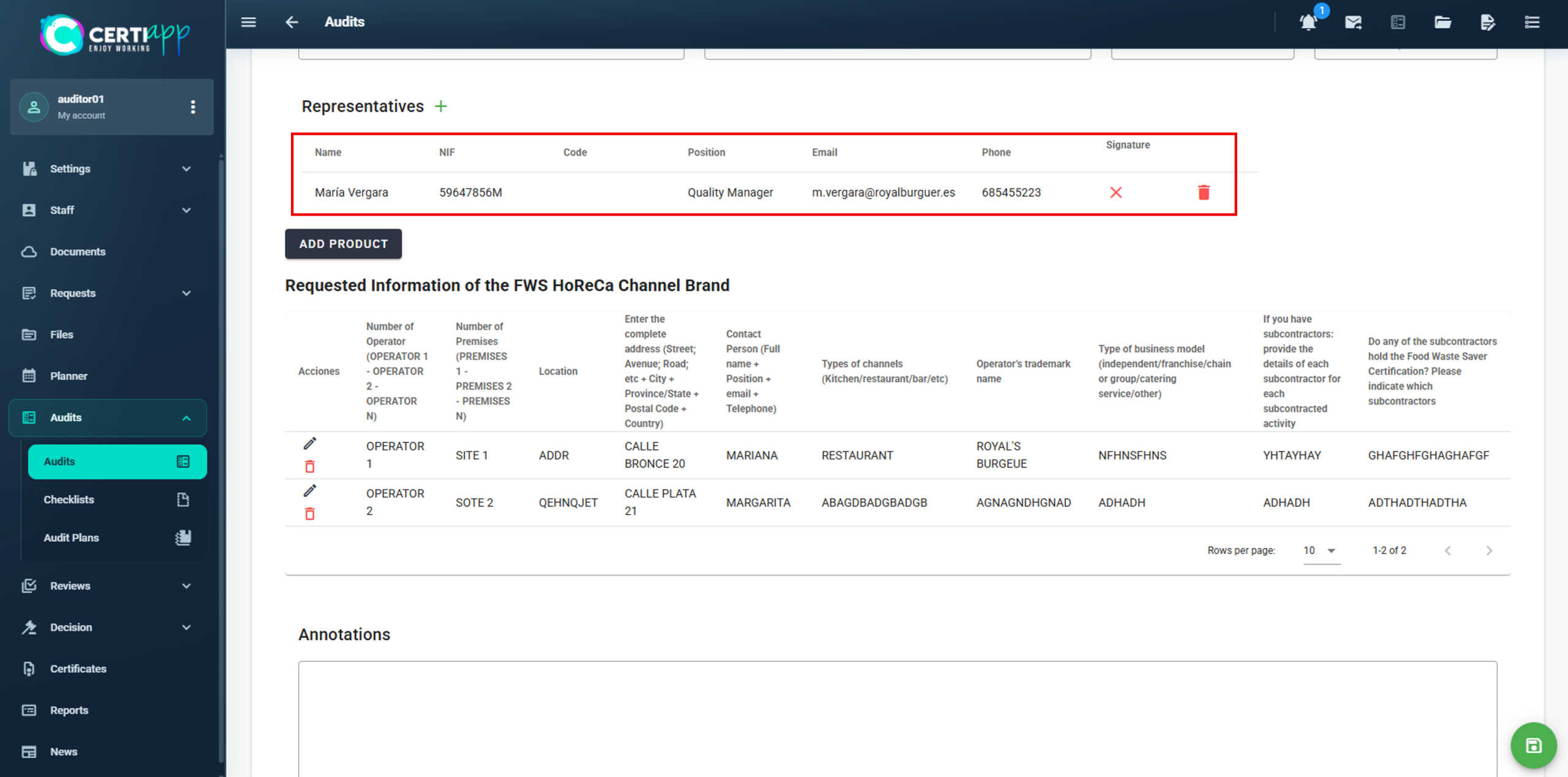
- Representative: the operator’s representatives.
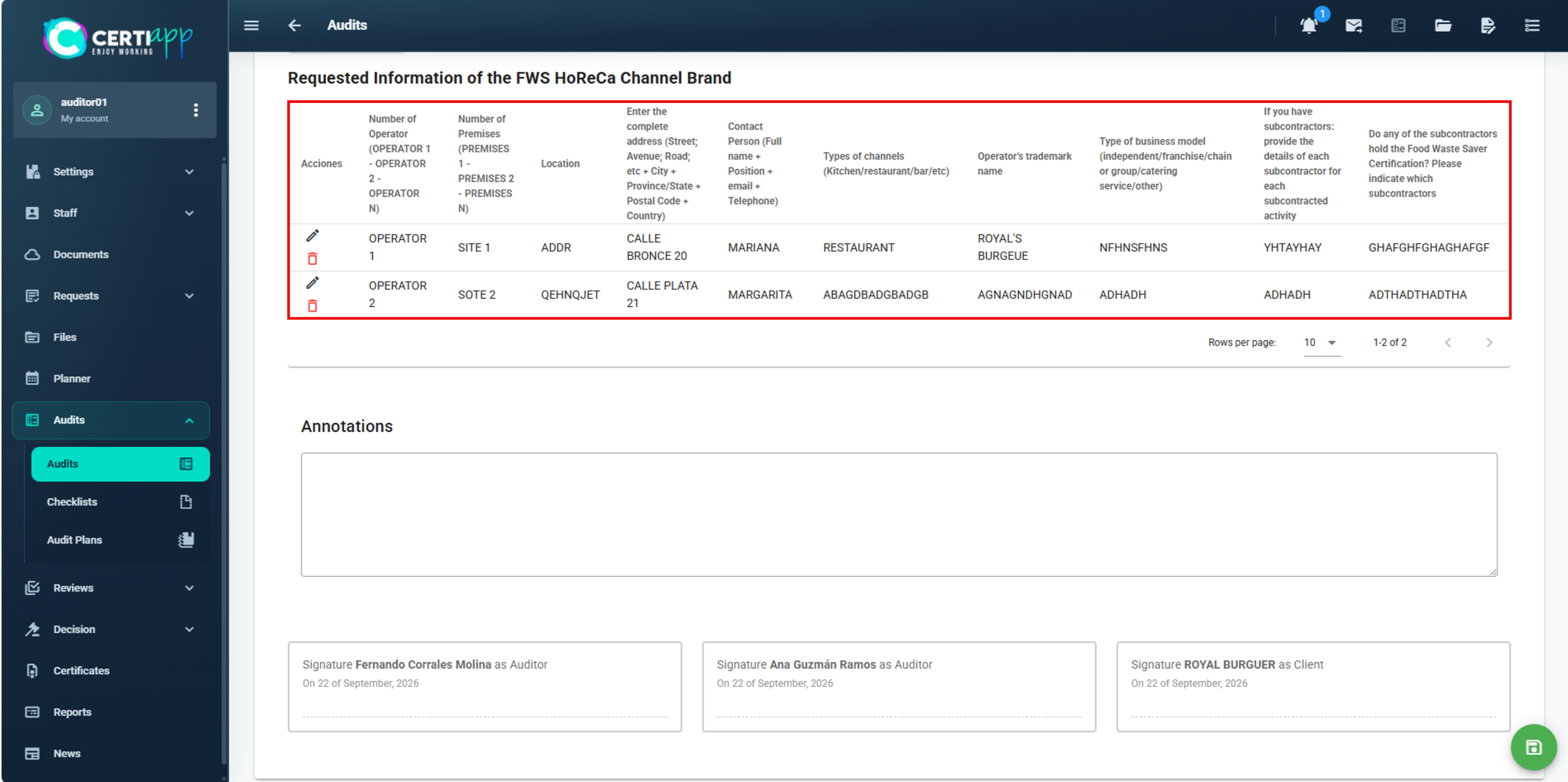
- Request information of the Brand: corrections to the data declared by the operator, if necessary.
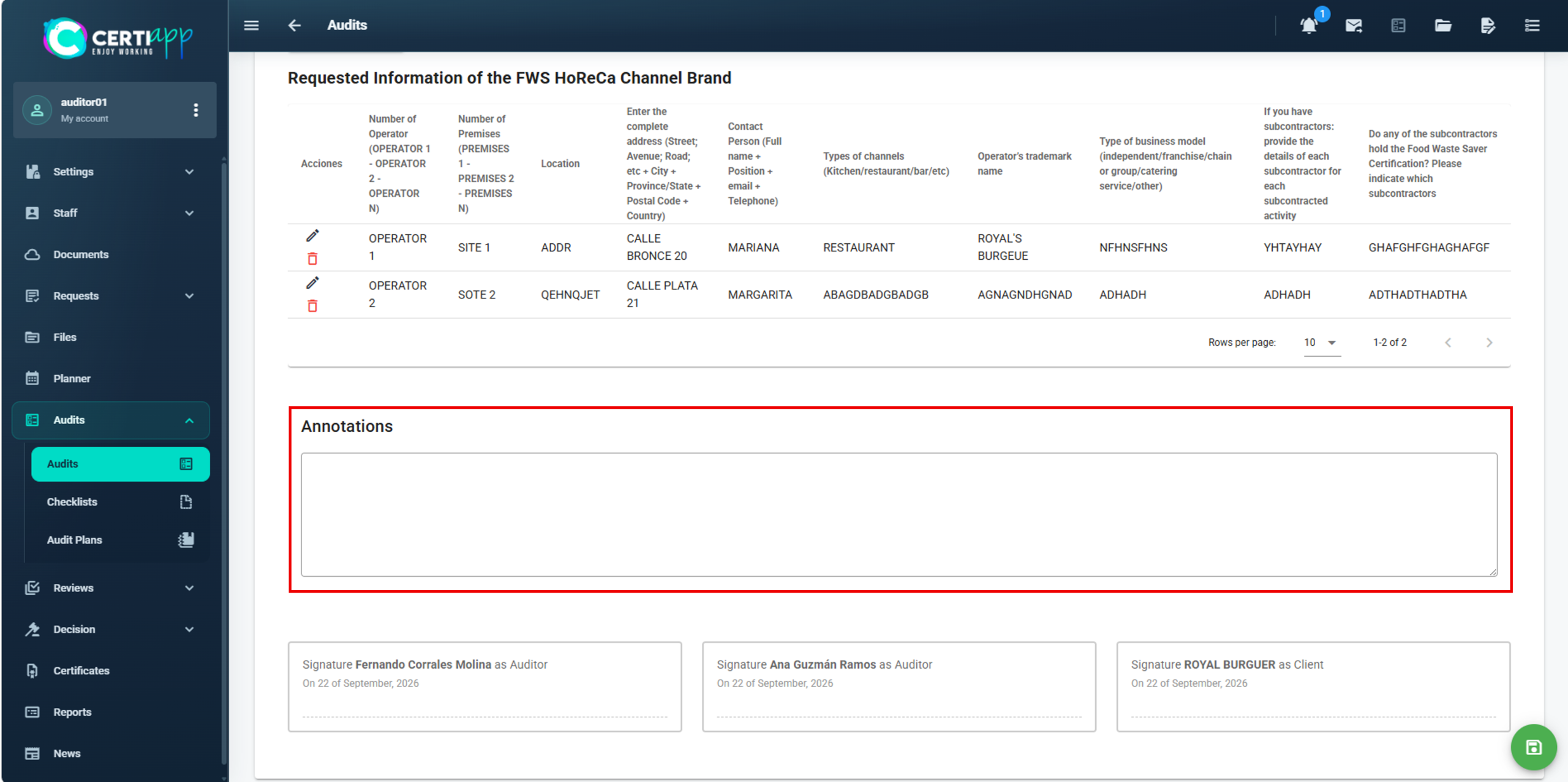
- Annotations: your notes on the audit, if applicable.
- Signatures: the closing signatures (see Closing signatures and preliminary report).
Step 3. Add the operator's representatives
Step 4. Correct the request data (if necessary)
Step 5. Record your annotations
Step 6. Save
Click on the save icon to keep the information.
✅ Done! The audit file is ready. Next, assign the checklist to the operator.
III. Explanatory video
📄 Full details in the User Guide for Auditors, Technical Reviewers and Decision-Makers, section 3.2.1.
Learn how to assign the right checklist depending on the operator type: single-site, multi-site or group of operators.
I. Before you start
✅ Check the operator type in the request: individual single-site, individual multi-site, or group of operators.
✅ Identify the main location (Site 1 declared in the request). For a group, identify the main location of each operator.
II. Process step by step
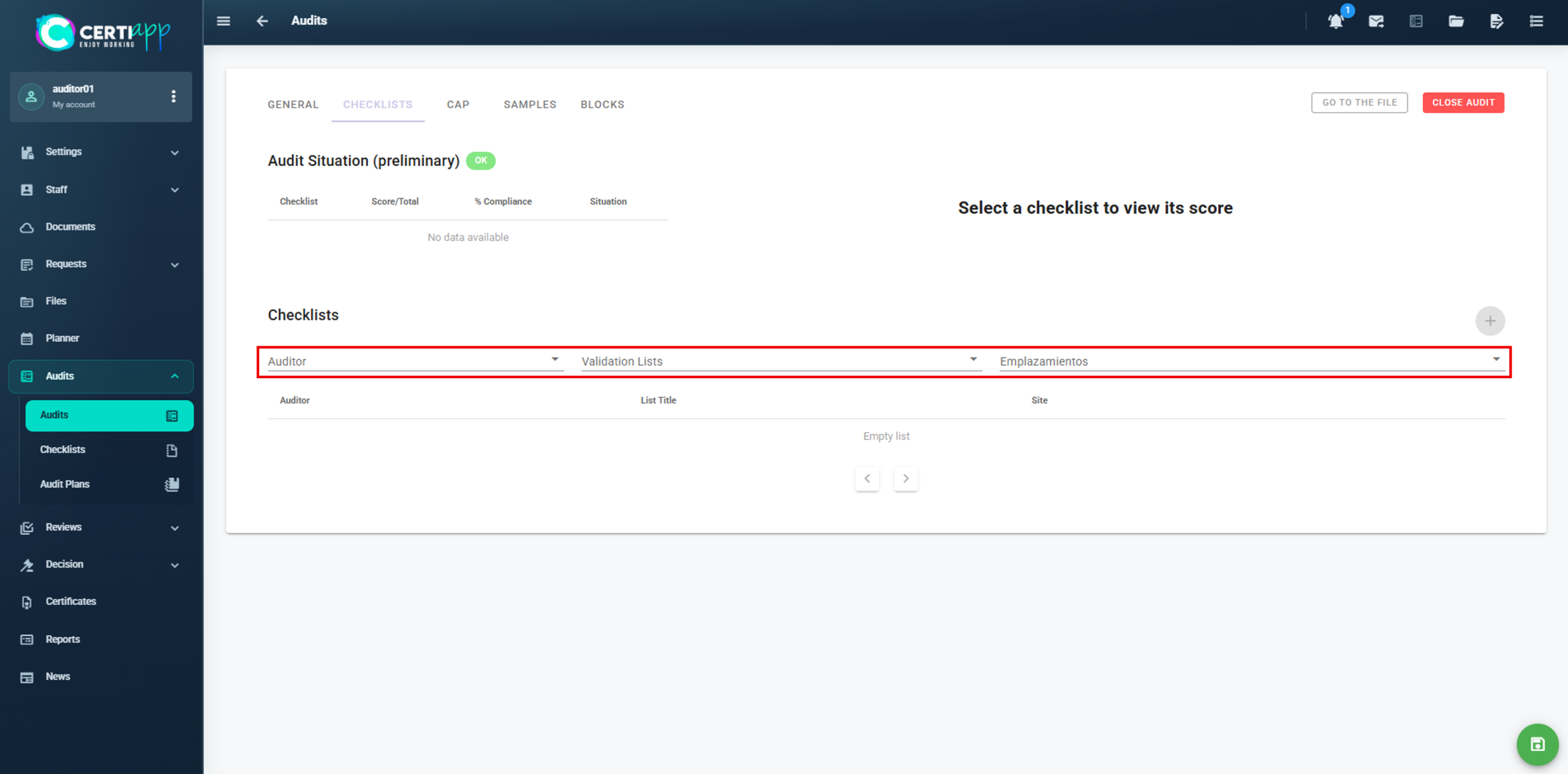
Step 1. Go to the Checklist section
Step 2. Create the checklist for your operator type
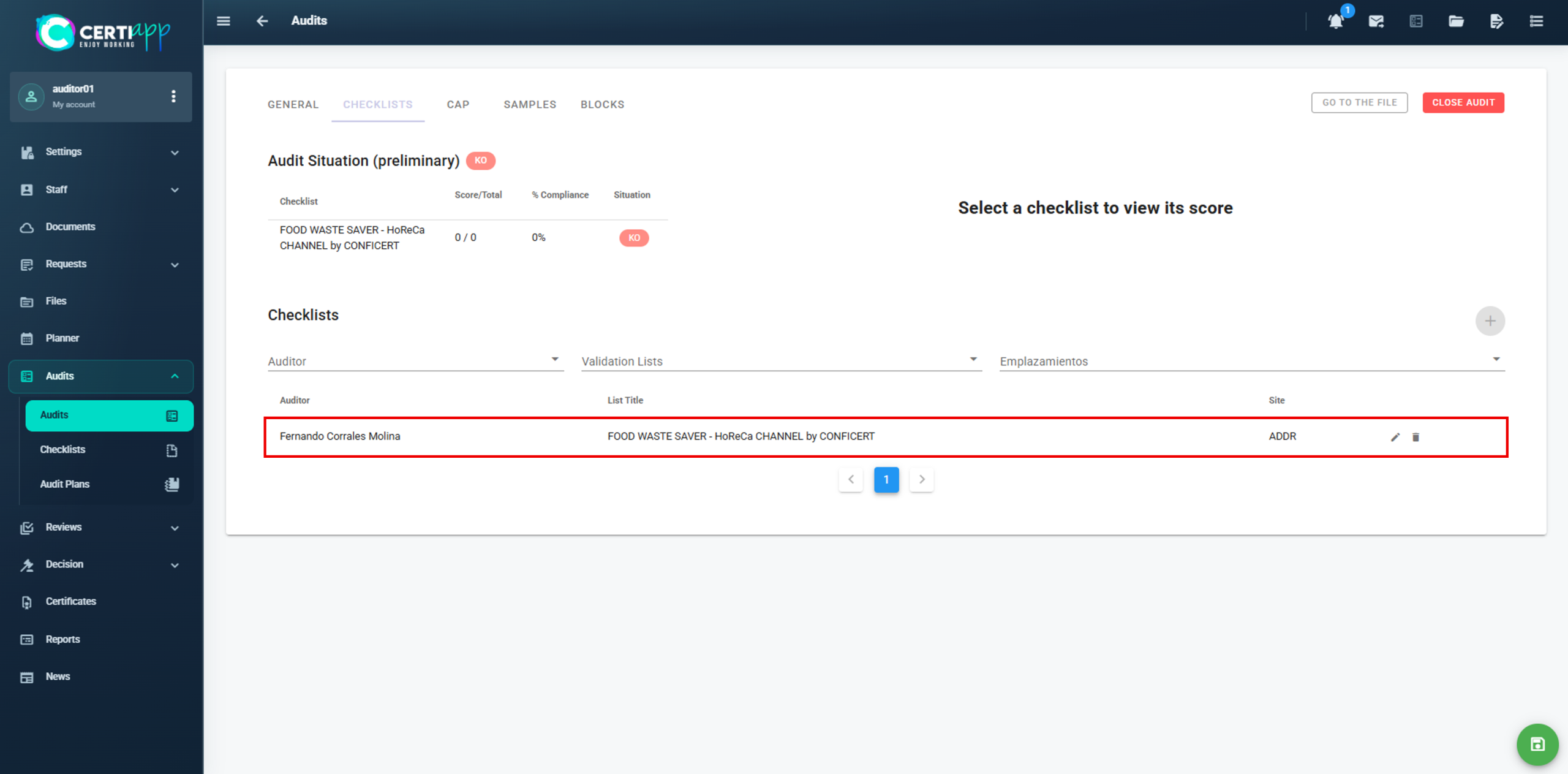
Individual operator – single site
Assign the auditor, the Brand and the location. Only one location is shown, since there is only one site. Click on ➕.
Individual operator – multi-site
Create one checklist for all sites. As established in the General Regulations, a Non-Conformity detected at one site applies to all of the operator’s sites. Assign the auditor and the Brand, select the operator’s main location (Site 1), and click on ➕.
Group of operators
Create one checklist for each operator. For Operator 1, assign the auditor and the Brand, select that operator’s main location, and click on ➕. Repeat for Operator 2 and each additional operator, selecting the main location of their own sites.
⚠️ Important: in a multi-site operator, do not create one checklist per site. The single checklist covers all sites.
Step 3. Check the audit status
Once the checklist is assigned, the audit status changes from Planned to Open.
✅ Done! The checklist is ready to be evaluated during the audit.
III. Explanatory video
📄 Full details in the User Guide for Auditors, Technical Reviewers and Decision-Makers, section 3.2.2.
Learn how to rate each requirement, how each rating translates into a Non-Conformity, and how to check whether the operator has passed the audit.
I. Before you start
✅ The checklist must be assigned (see Checklist assignment).
✅ Have the Brand’s Requirements Evaluation document at hand. It sets the rating that corresponds to each finding.
✅ The evaluation must be written in English.
II. Process step by step
Step 1. Enter the evaluation dates and the sites
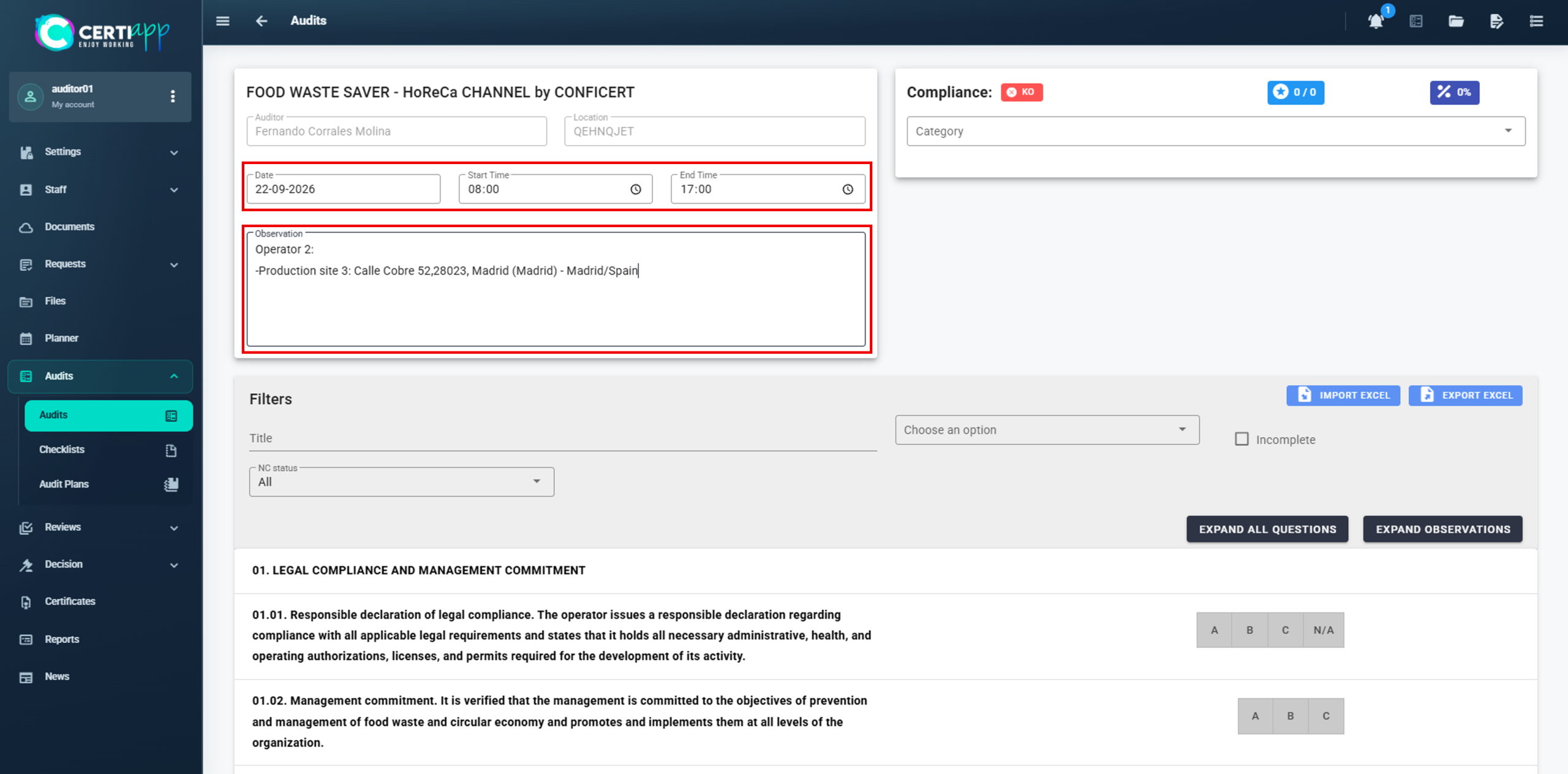
Open the checklist and enter the start and end date and time of the evaluation. Then, in the Observations box, identify what the checklist covers:
✅ Single site: the name and address of the location.
✅ Multi-site: the name and address of each site.
✅ Group of operators: in each checklist, the operator number and the name and address of each of its sites.
Step 2. Expand all requirements
Step 3. Rate each requirement
There are three types of requirements:
- Regular and major requirements: rated A, B, C or N/A.
- Essential requirements: rated only A, B or C.
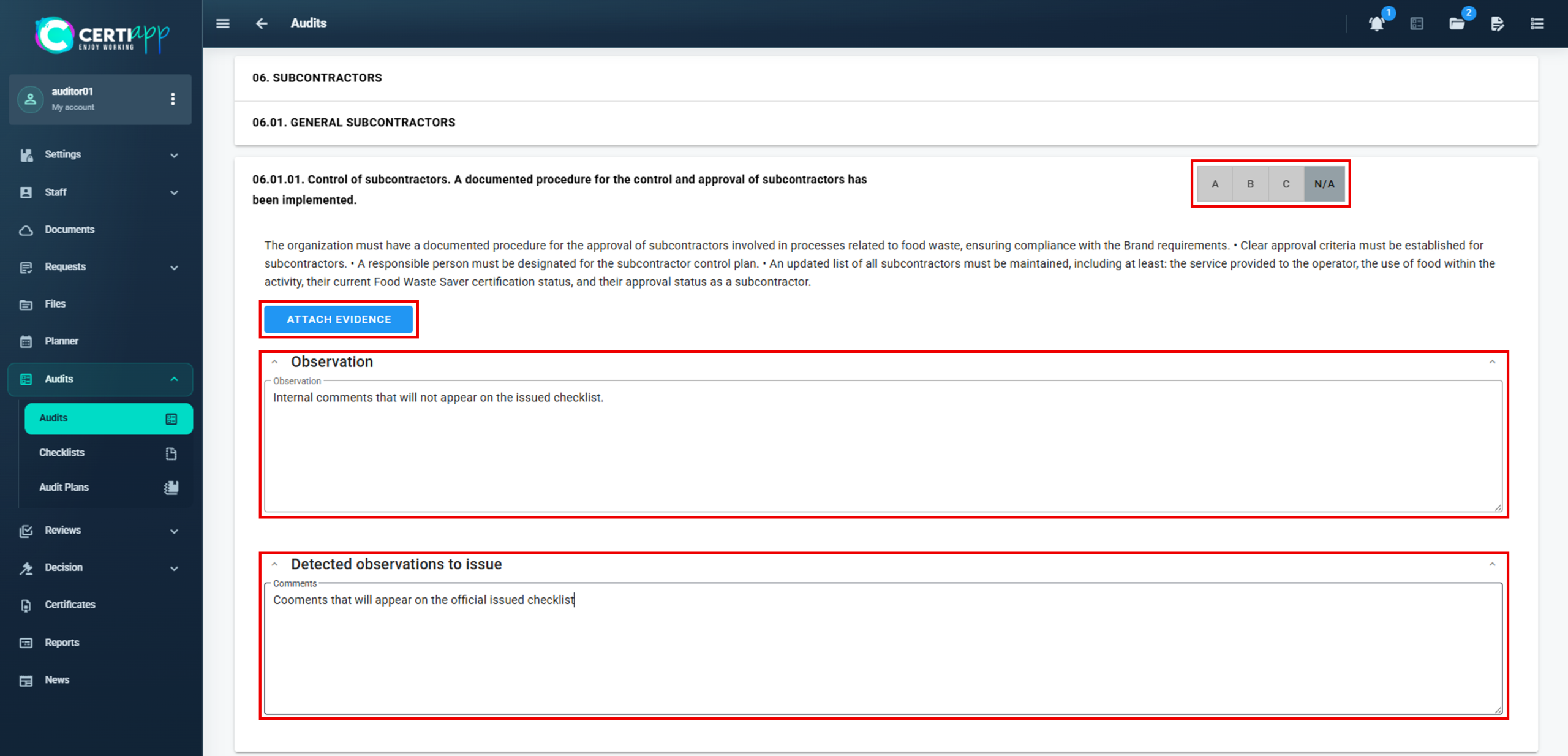
If the requirement is fully met (A):
- Observation: internal comments. They do not appear in the issued checklist and the operator does not see them.
- Comments: visible in the checklist and to the operator.
- Attach Evidence: to attach supporting documents. They are listed above Observations, and you can see all of them in the Document Manager (📁).
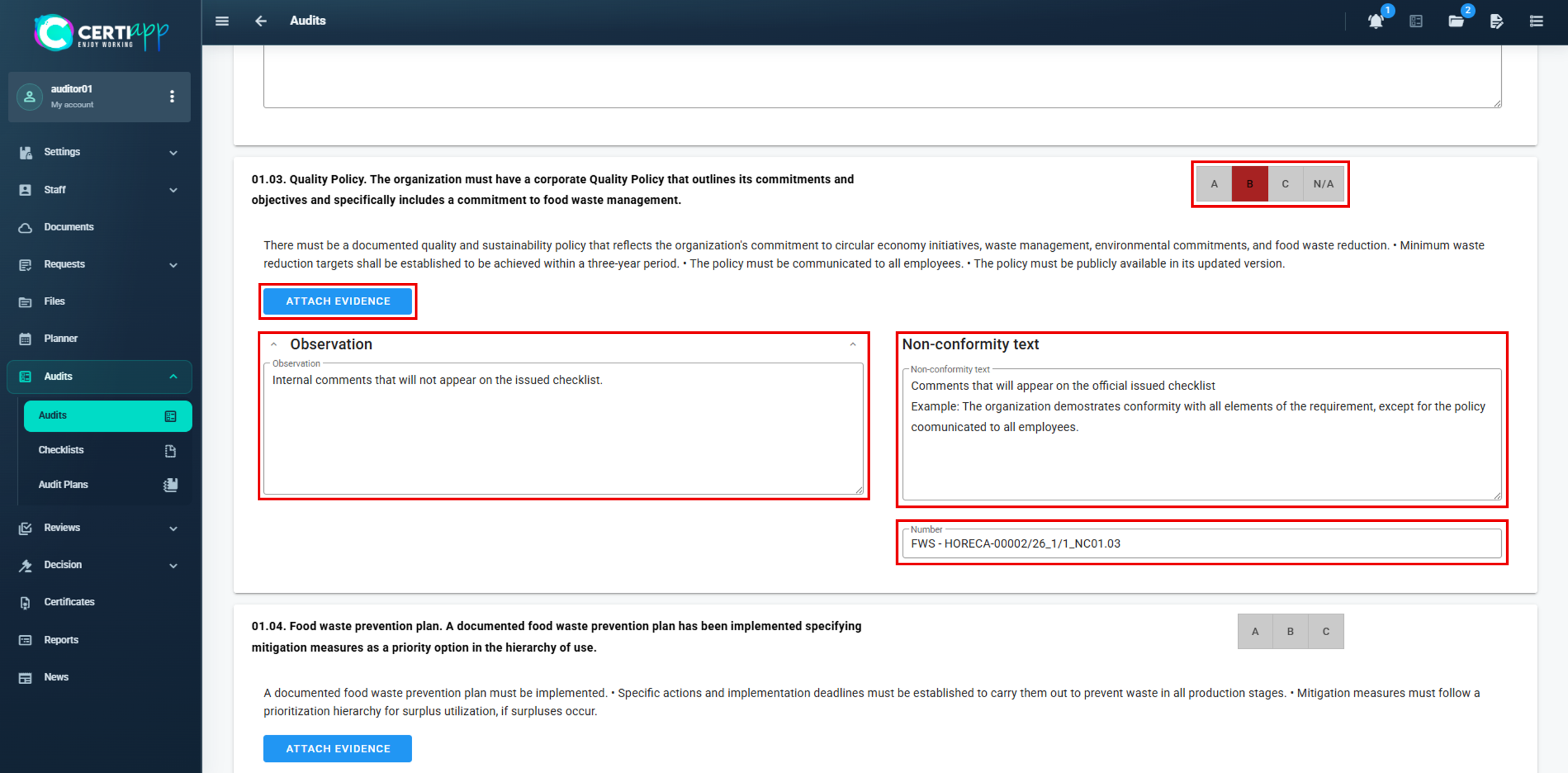
If the requirement is not met (B or C):
- Observations: internal comments, as above.
- Non-Conformity Text: why the requirement is not met.
- The Non-Conformity Number is generated automatically.
If the requirement does not apply: select N/A and add the observation and comment.
Step 4. Know what each rating means
Requirement
B
C
Regular
minor NC
minor NC
Major
minor NC
serious NC
Essential
serious NC
critical NC (K.O.)
⚠️ Important: a K.O. allows you to finish the audit that day, but the certification process cannot continue.
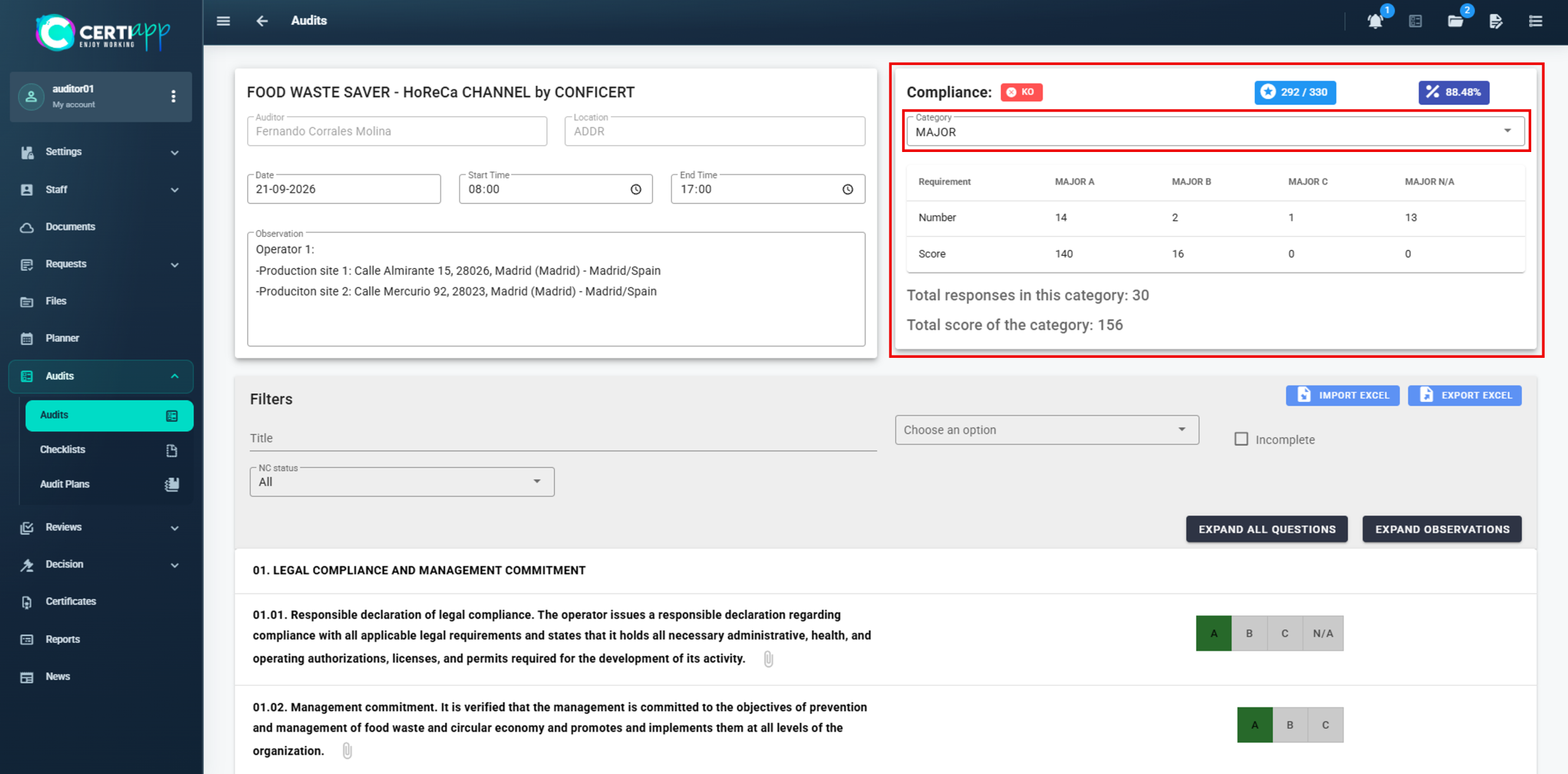
Step 5. Review the summary
Step 6. Check the preliminary audit status
Go back to the previous screen to see the preliminary status of each checklist. Click on a checklist in the Audit Situation box to see the scores by type of requirement.
The operator cannot continue with the certification process if it gets a K.O. or does not reach the minimum score:
- 70% in an initial audit.
- 80% in a renewal audit.
⚠️ Group of operators: an operator that gets a K.O. or does not reach the minimum score is removed from the group, and the others can continue. If it is the Lead Operator, the process does not continue for the whole group.
✅ Done! The checklist is evaluated. Next, download the internal and public versions.
III. Explanatory video
📄 Full details in the User Guide for Auditors, Technical Reviewers and Decision-Makers, section 3.2.2.
Learn the difference between the two checklist versions and how to prepare the public one before it is published.
I. Before you start
✅ All requirements of the checklist must be evaluated.
II. Process step by step
Step 1. Refresh the checklist
Exit the checklist and open it again, so that the system updates it with all the data you have added.
Step 2. Open the download panel
Step 3. Download the version you need
Step 4. Review the public checklist
Edit the wording of the Non-Conformities in the public checklist so that it does not disclose sensitive data or private information about the operator.
⚠️ Important: the public checklist will be visible to anyone on the Transparency Portal. Review it carefully before sharing it.
✅ Done! Next, record the closing signatures and download the preliminary report.
III. Explanatory video
📄 Full details in the User Guide for Auditors, Technical Reviewers and Decision-Makers, section 3.2.2.
Learn how to record the signatures at the closing meeting and download the preliminary audit report for the operator.
I. Before you start
✅ The checklist must be fully evaluated.
✅ The operator’s representative must be added in the General tab (see The General tab).
✅ Hold the closing meeting on the last day of the audit and read out the Non-Conformities to the operator.
II. Process step by step
Step 1. Record the representative's signature
Go back to the General tab. In the representative’s window, click on the Sign field so that the operator’s representative can sign. To repeat the signature, click on Clear and Sign Again. When it is correct, click on Sign to confirm it, and then on Add.
⚠️ Important: check the signature carefully before confirming it. Once recorded, it cannot be edited.
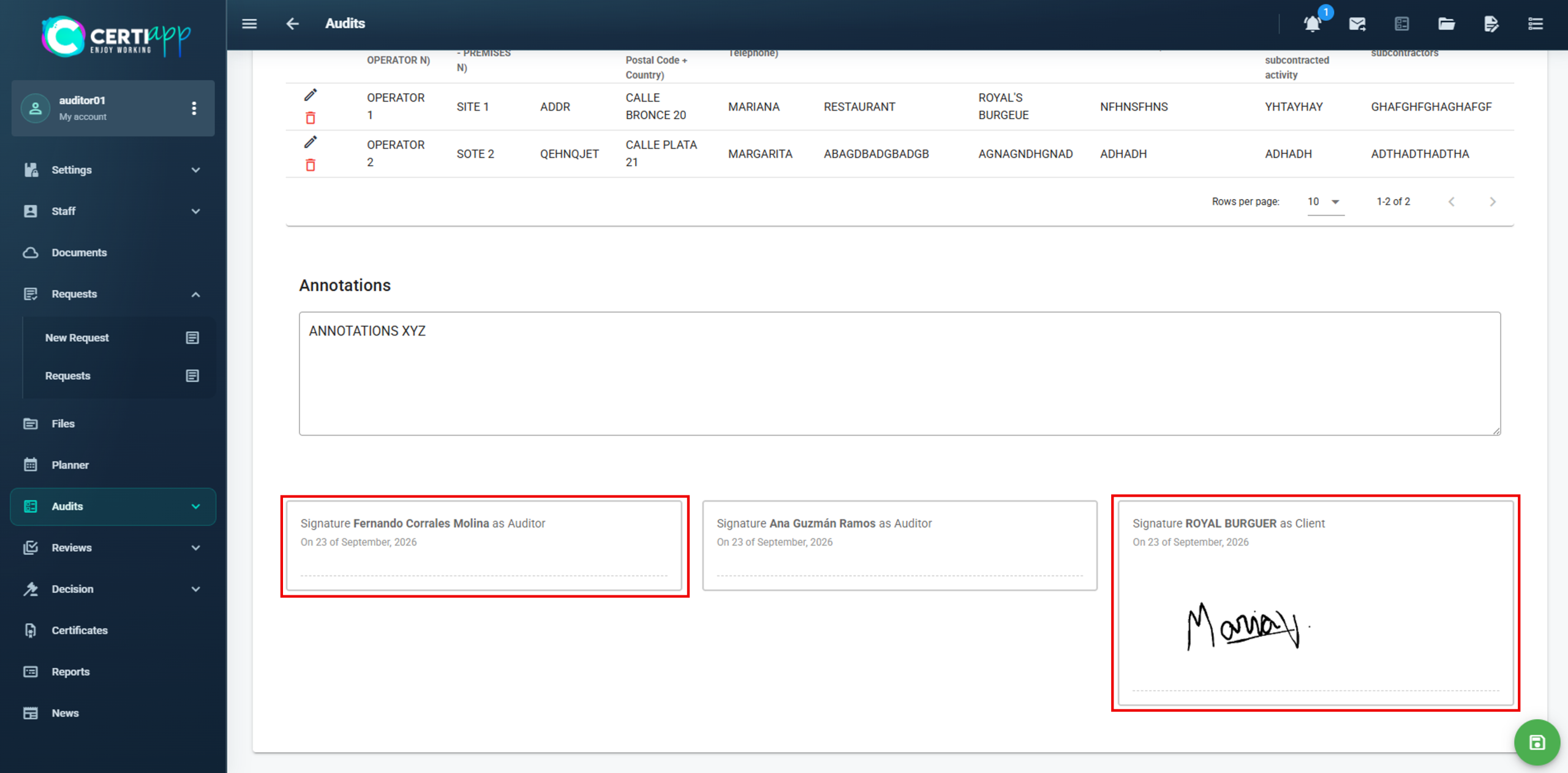
Step 2. Record your signature
Scroll down to the Signatures section. Click on the box with your name and sign in the same way. If there is more than one auditor, each one signs in their own box.
If the technical reviewer’s name appears in this section, leave their field blank.
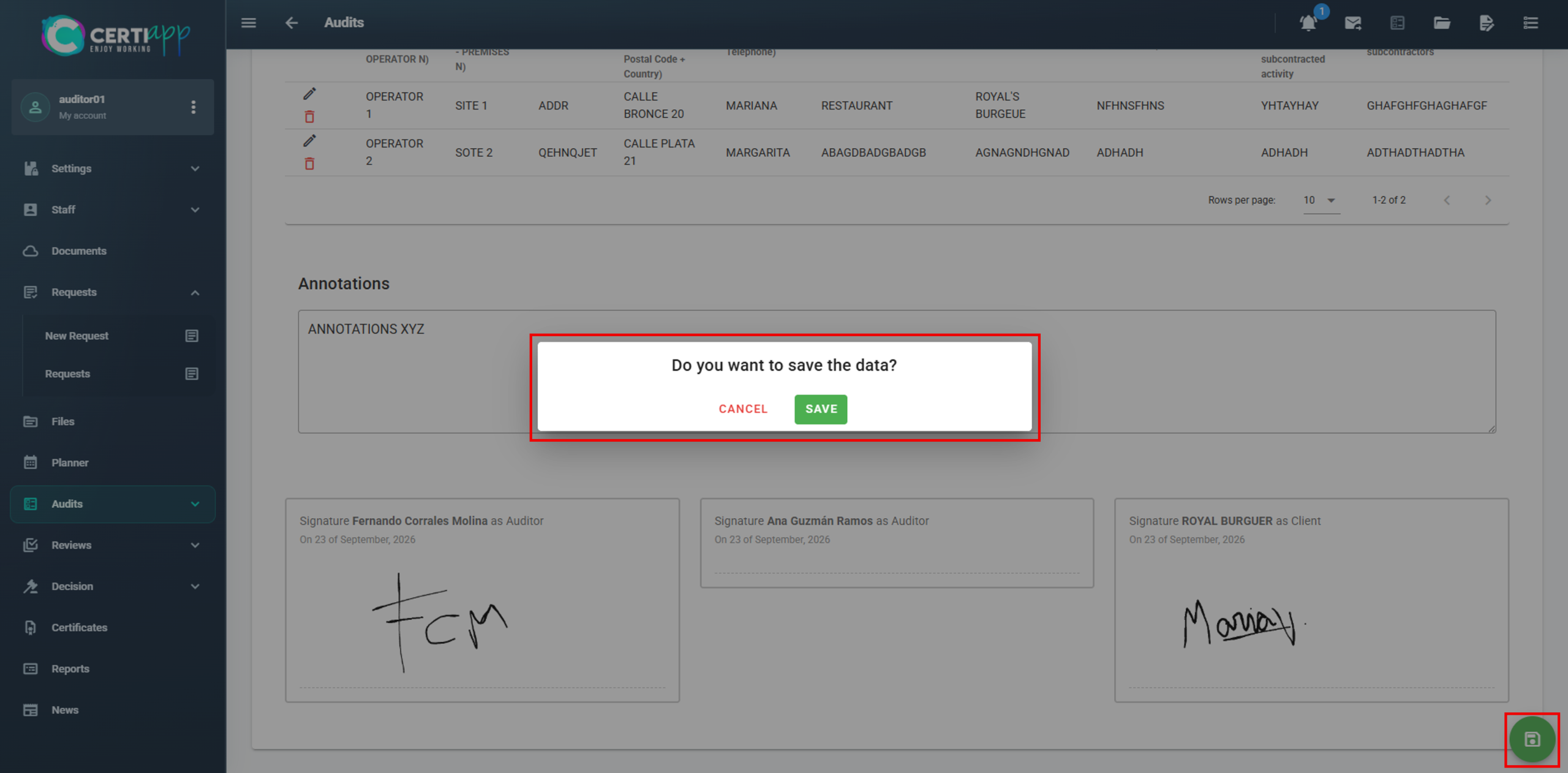
Click on Save so that all the information is recorded.
Step 3. Download the preliminary report
Step 4. Share the documents with the operator
Send the operator the Preliminary Internal Audit Report together with the internal checklist. For a group of operators, send all the checklists.
✅ Done! The audit day is complete. The next step is to create the Non-Conformity packs so that the operator can submit its Corrective Action Plan.
III. Explanatory video
📄 Full details in the User Guide for Auditors, Technical Reviewers and Decision-Makers, section 3.2.2.
Module 3 – CAP and Audit Closure
Learn how to group the Non-Conformities into packs and set the dates so that the operator can submit its Corrective Action Plan.
I. Before you start
✅The checklist must be fully evaluated, and the closing signatures recorded.
✅The operator must have passed the audit: no K.O., and at least 70% (initial audit) or 80% (renewal audit).
II. Process step by step
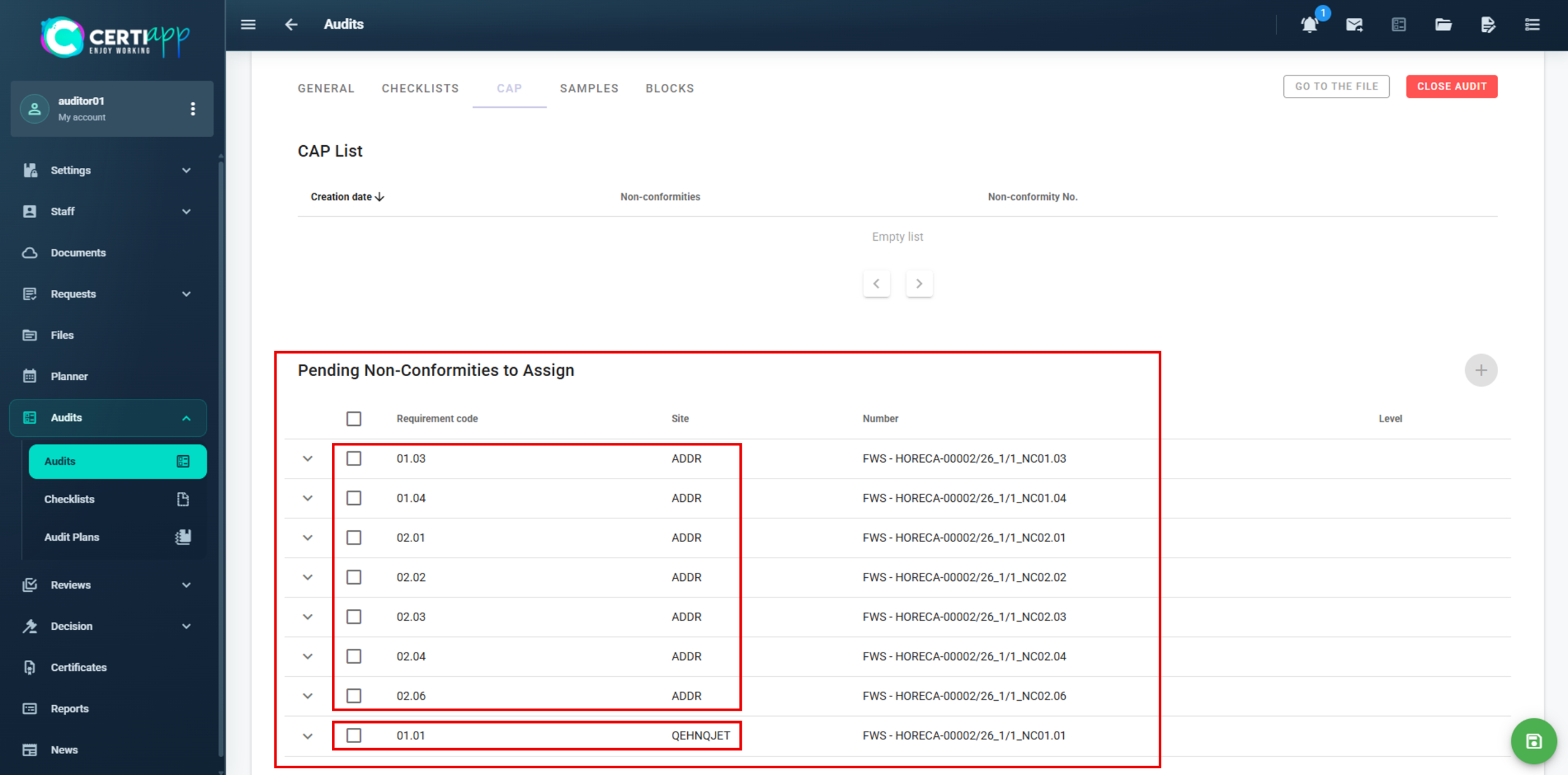
Step 1. Go to the CAP section
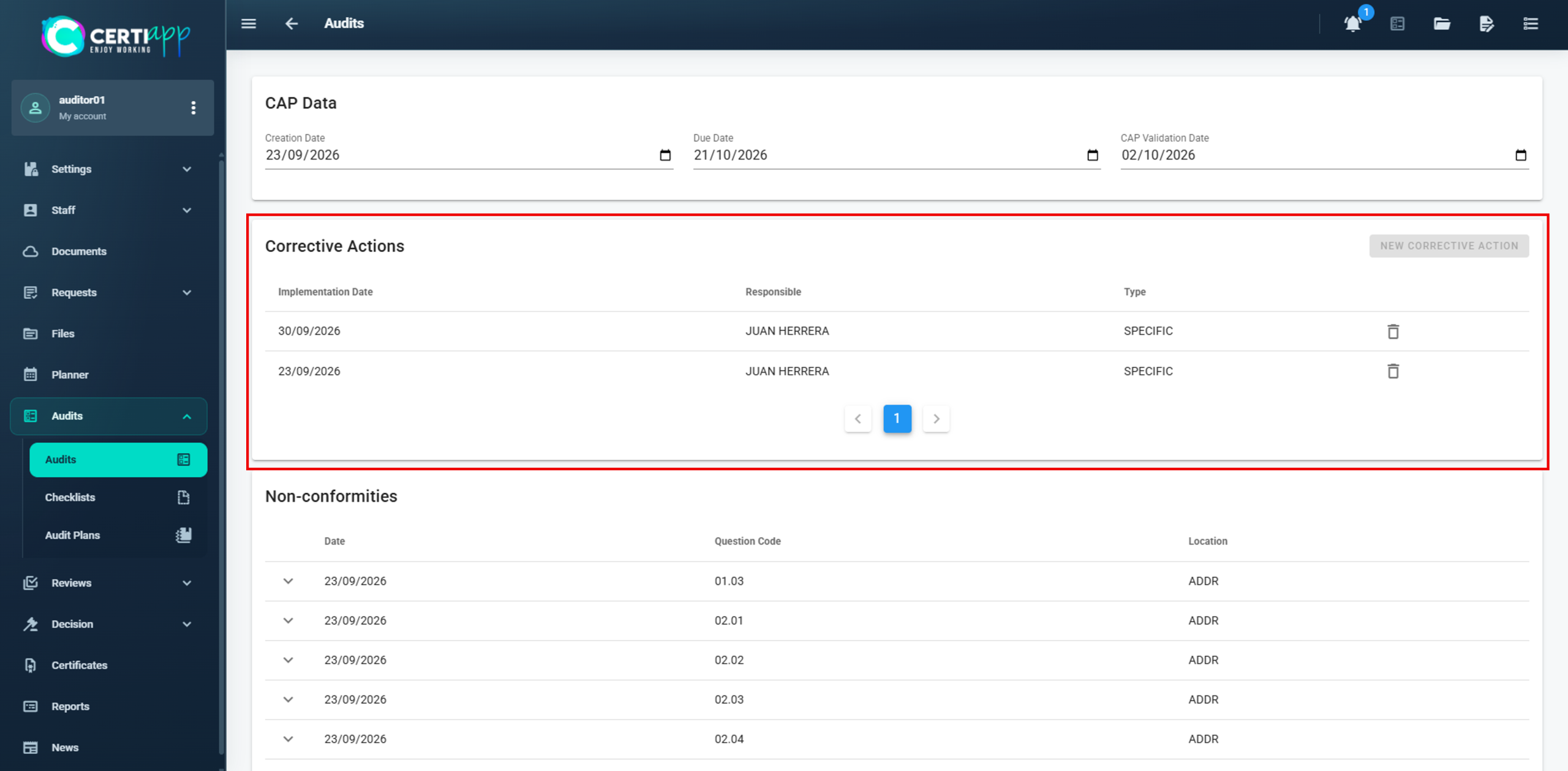
Step 2. Create the pack
Step 3. Set the dates
Step 4. Inform the operator
The pack appears automatically in the operator’s profile, where the operator uploads its corrective actions. Let the operator know that the pack is available.
✅ Done! Repeat these steps for each pack. When the operator has uploaded its corrective actions, you will be informed so that you can evaluate them.
III. Explanatory video
📄 Full details in the User Guide for Auditors, Technical Reviewers and Decision-Makers, section 3.2.2.
Learn how to evaluate the cause, action and evidence proposed by the operator for each Non-Conformity.
I. Before you start
✅ The operator must have uploaded its corrective actions.
✅ You have a maximum of 7 days to evaluate the CAP. The full period from the CAP submission to the final certification decision is 28 days, and the technical reviewer and the decision-maker need the remaining days.
II. Process step by step
Step 1. Open the corrective action
Step 2. Review what the operator proposed
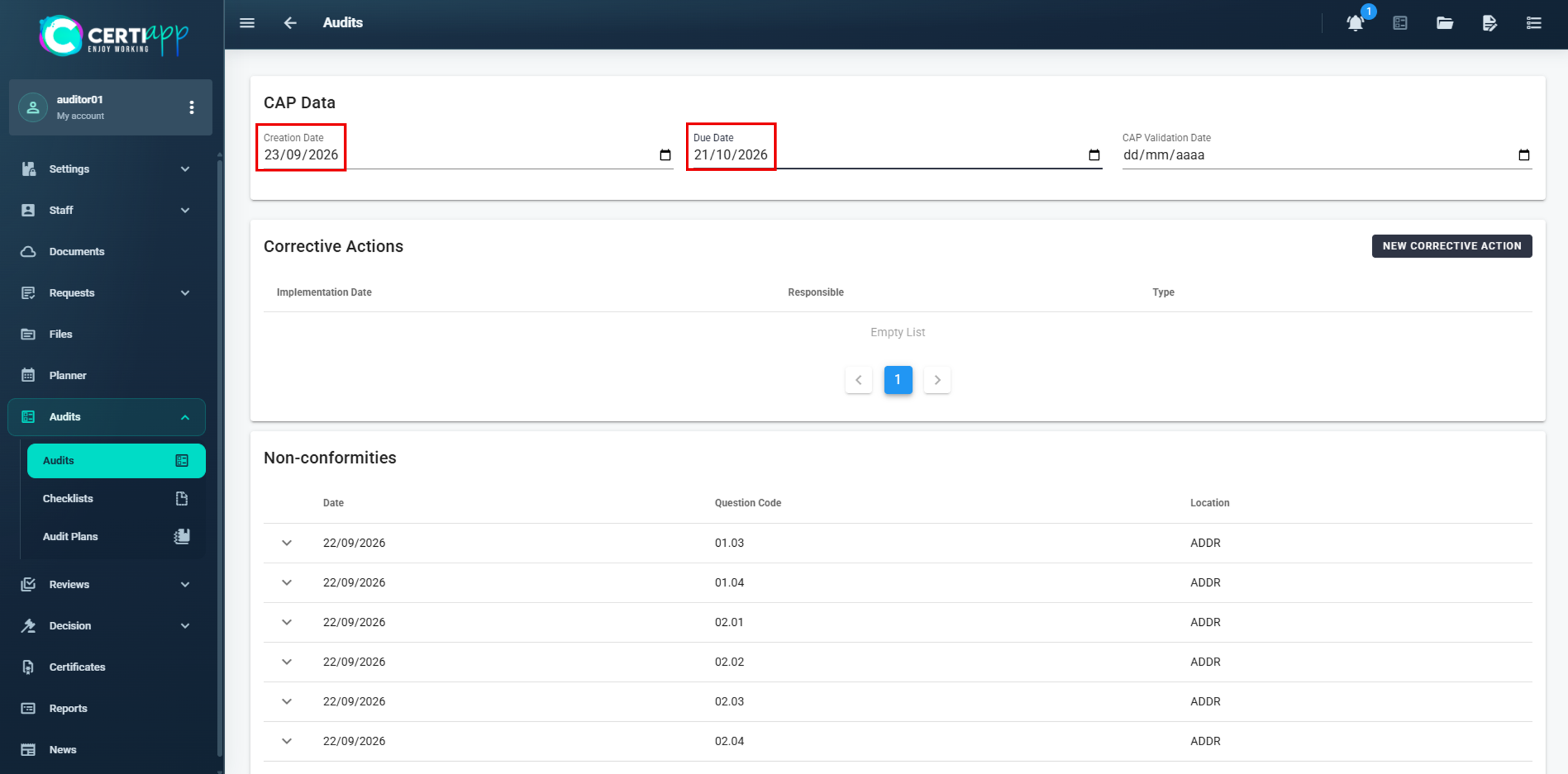
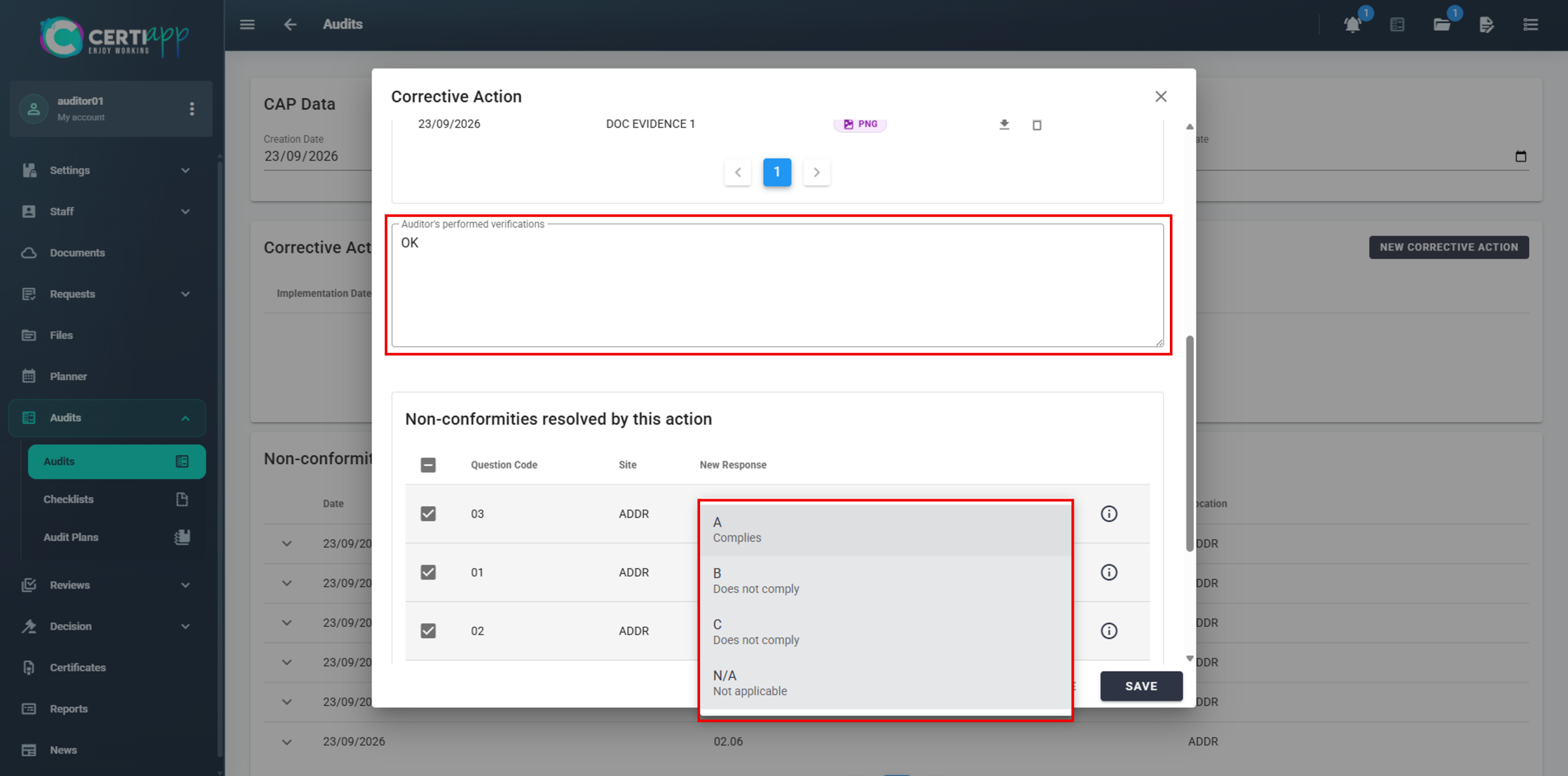
Step 3. Evaluate the corrective action
In the fields outlined in red:
- Evaluate the cause, the action and the evidence: Complies, Does Not Comply or Not Applicable.
- Enter the date of each evaluation.
- In Type, always select Specific and add a brief comment (for example, “CA OK”).
- Add your comments and assign a rating: A, B, C or N/A.
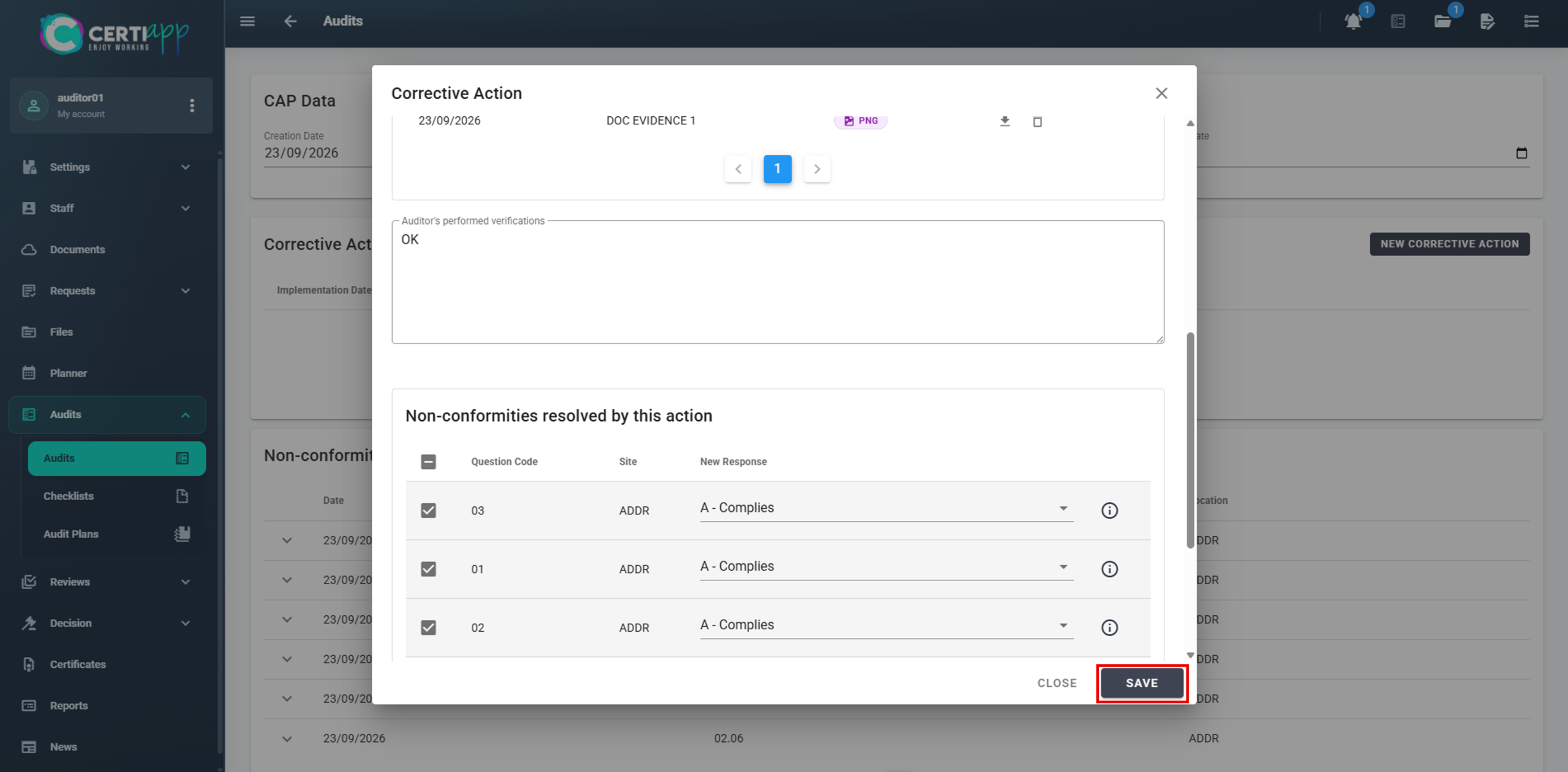
💡 Tip: if one corrective action solves several Non-Conformities, click on ℹ️ to see the requirement of each one.
Click on Save and repeat the process for each corrective action in the pack.
Step 4. Enter the CAP validation date
When you have evaluated all the corrective actions, enter the evaluation date in the pack (CAP validation date). Repeat the process for each pack sent to the operator.
⚠️ Important: if a corrective action is not enough to change the rating to A, inform the operator so that it can propose a new one before the Due Date. After that date, the operator can no longer edit its corrective actions. If necessary, you can extend the Due Date to reopen editing.
✅ Done! The CAP is evaluated. Next, check the final audit status.
III. Explanatory video
📄 Full details in the User Guide for Auditors, Technical Reviewers and Decision-Makers, sections 3.2.2 and 3.3.
Learn how to check whether the operator has achieved full compliance and which final reports to download and share.
I. Before you start
✅ All corrective actions in all packs must be evaluated.
II. Process step by step
Step 1. Check the final status
Go back to the Checklist section. Once the CAP is evaluated, the audit status changes from Preliminary to Final.
To move on to the next stage, the operator must reach 100% compliance. All requirements that were Non-Conformities must now be rated A.
⚠️ Group of operators: an operator that does not reach 100% after the CAP evaluation is excluded from the next stage of the process.
Step 2. Compare with the preliminary results
Step 3. Download the final reports
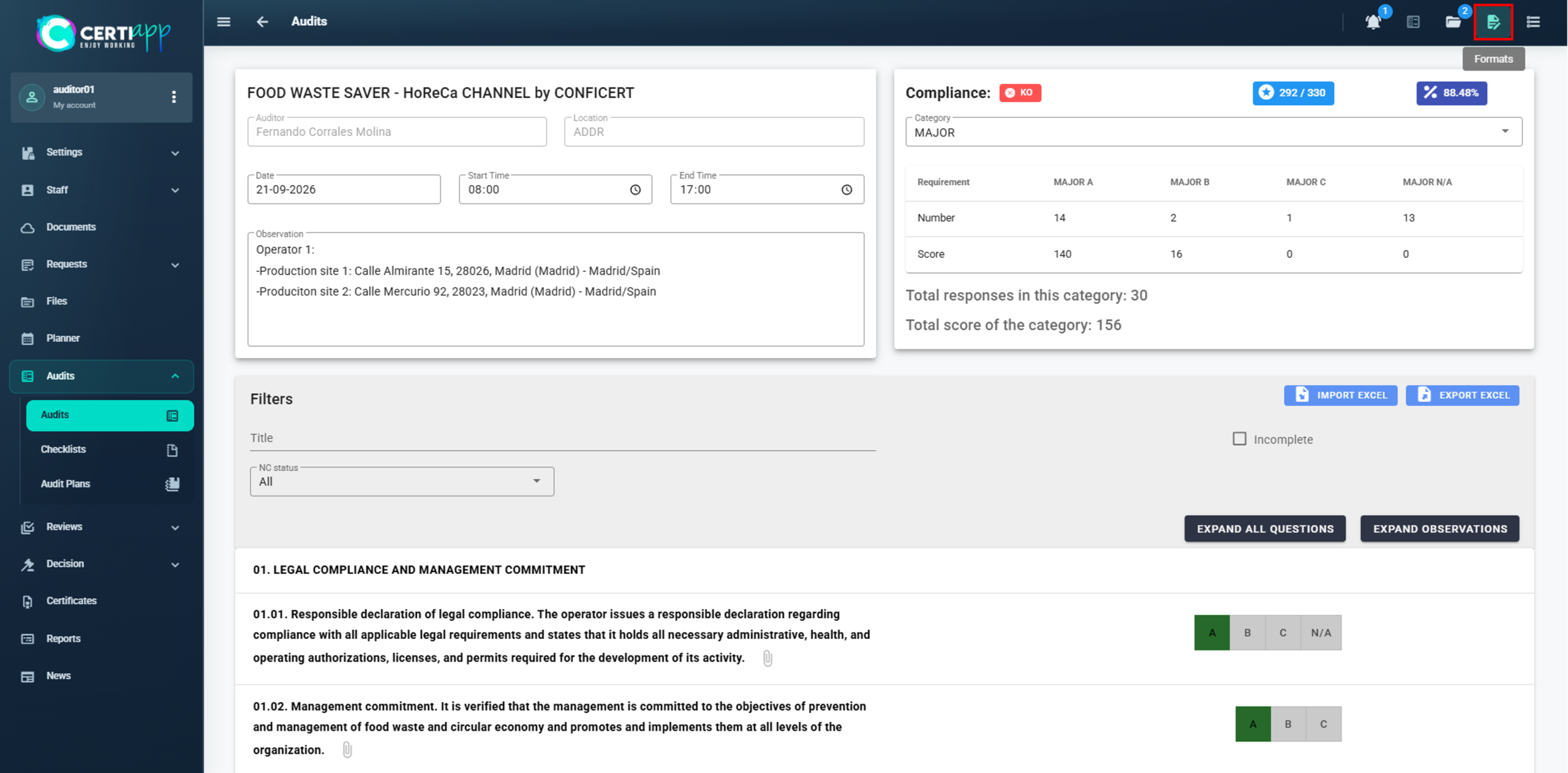
Go to the General tab and click on the 📝 icon in the top right corner.
Report
Content
Share with
Final Internal Audit Report
The operator’s explicit information from the audit
Only the auditor, the CB and the operator
Final Public Audit Report
No sensitive information. It is published on the Transparency Portal
CONFICERT administrators, only if the operator obtains the certificate
✅ Done! If you need to register samples, continue with the next lesson. Otherwise, go to Closing the audit.
III. Explanatory video
📄 Full details in the User Guide for Auditors, Technical Reviewers and Decision-Makers, section 3.2.2.
Learn how to register the samples taken during the audit and their laboratory results.
I. Before you start
✅ This record is voluntary. Use it only if samples were taken as part of the requirements verification.
✅ Have the batch number, the laboratory dates and the results at hand.
II. Process step by step
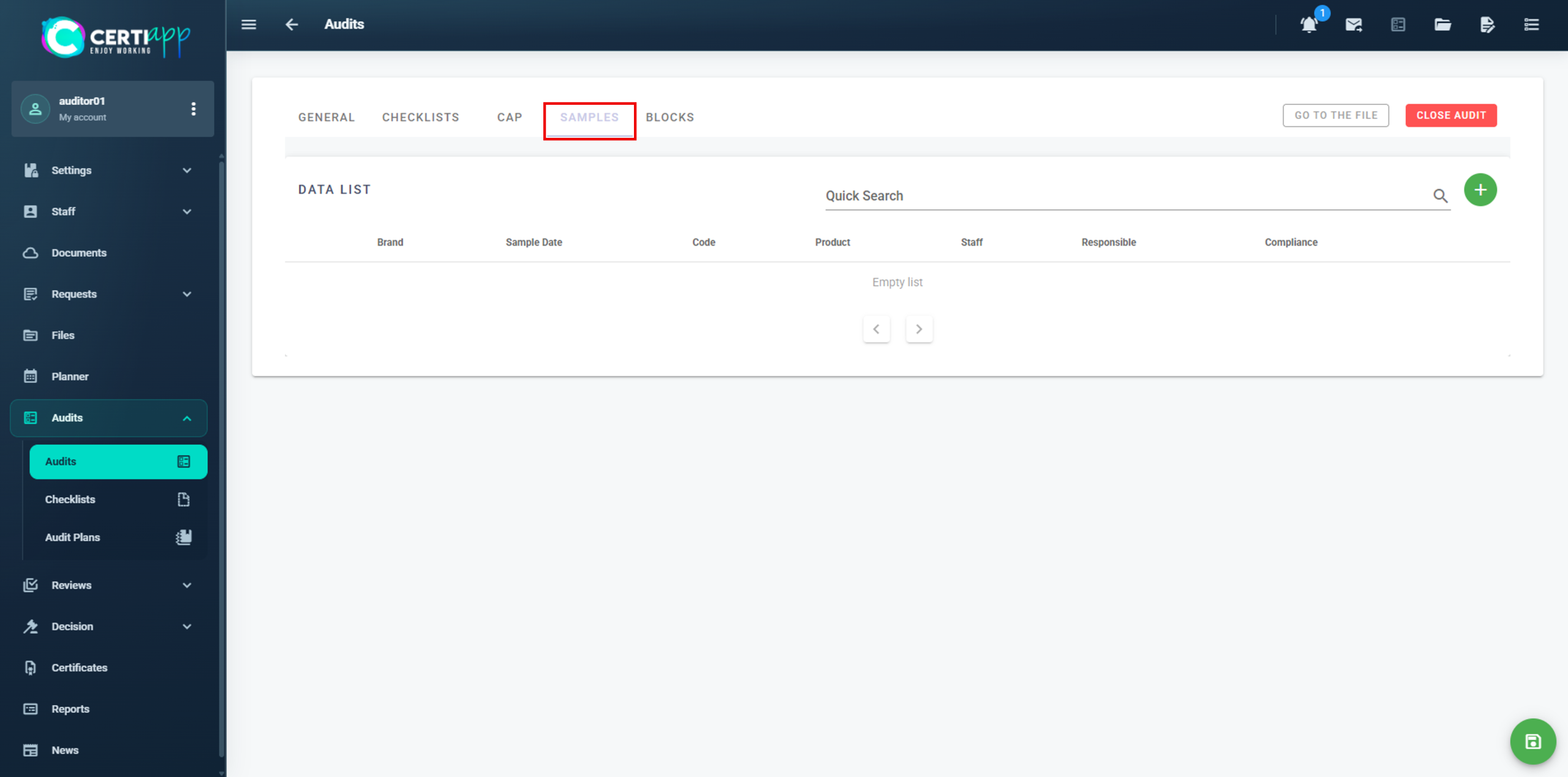
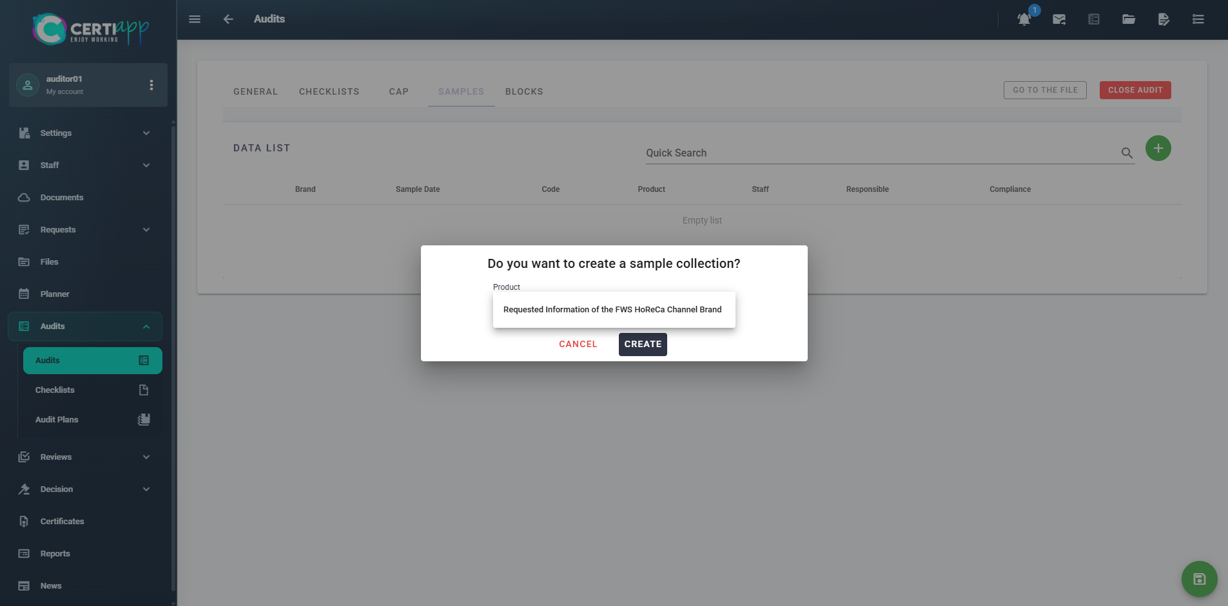
Step 1. Create the sample record
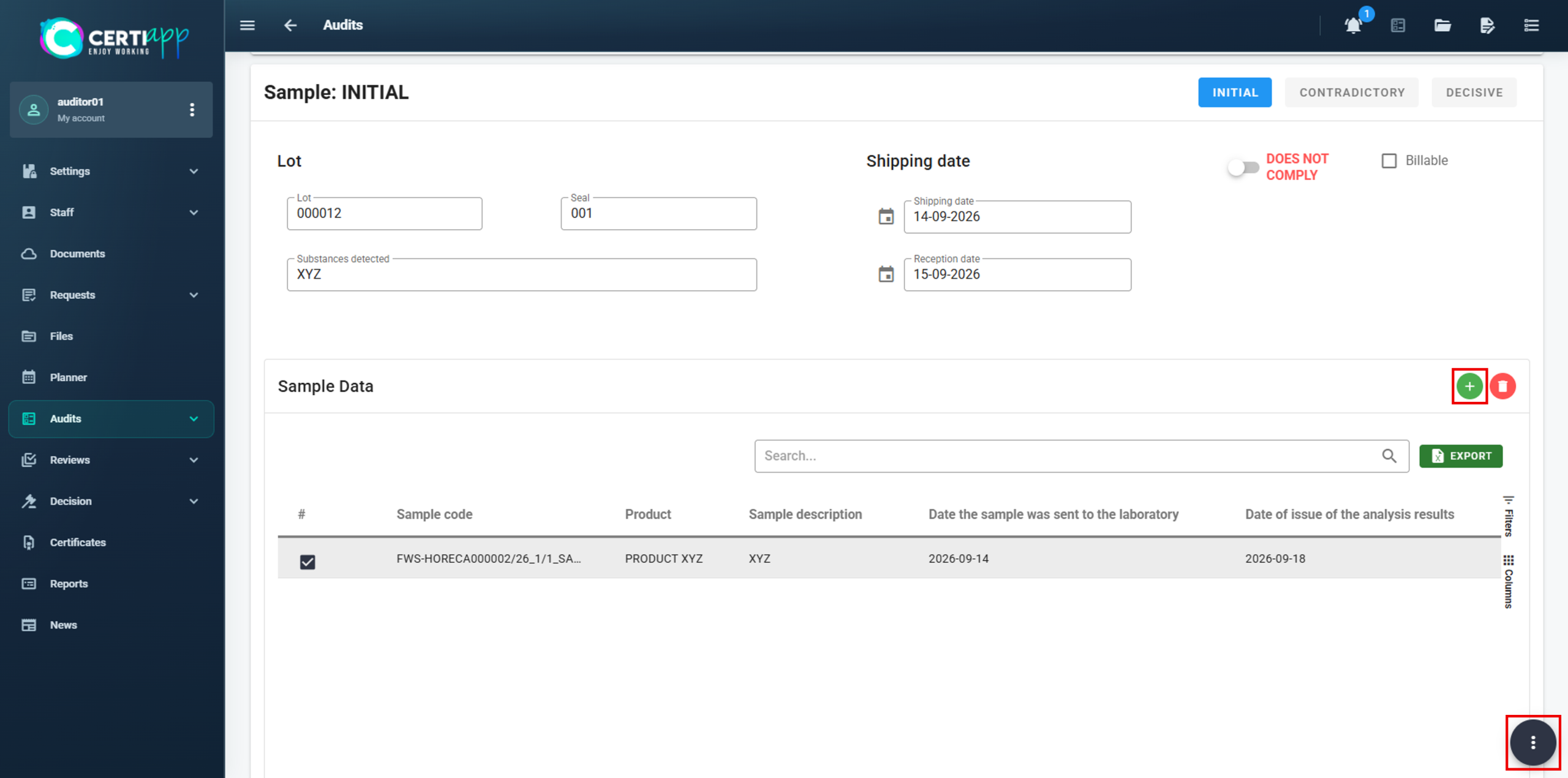
Step 2. Complete the general data
Step 3. Add each sample
Click on ➕ and enter:
- The sample code: the audit code followed by “_SA” and the sample number (for example, FWS-HORECA000001/26_1/1_SA01).
- The product it belongs to and a brief description.
- The date it was sent to the laboratory and the date of the results.
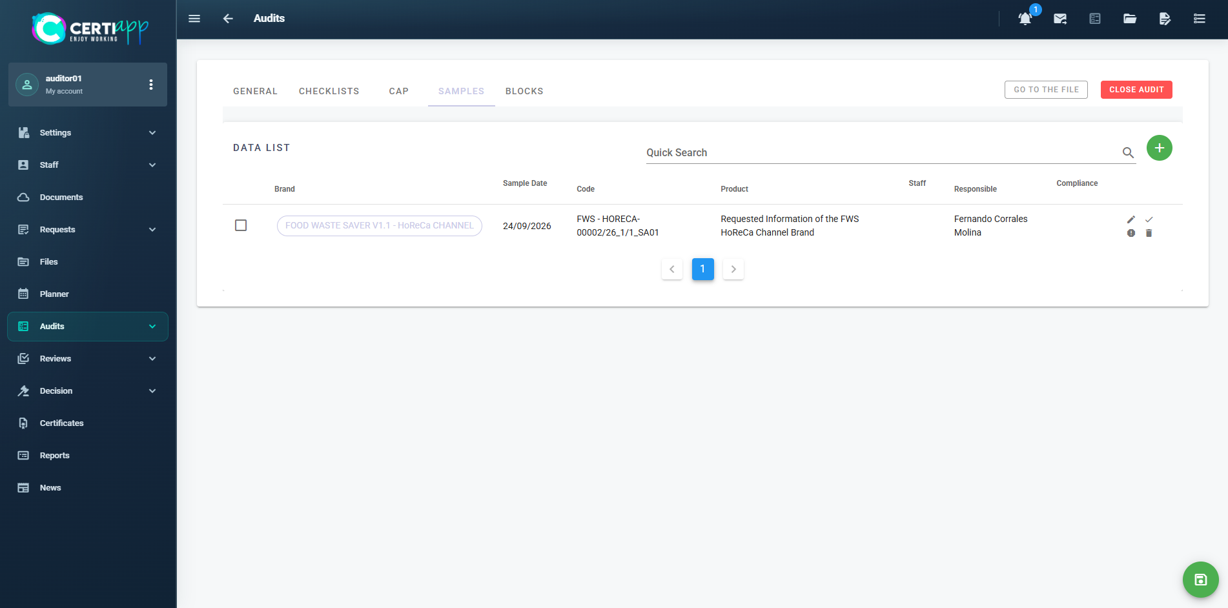
Click on Save. To delete a sample, select it and click on 🗑️.
III. Explanatory video
📄 Full details in the User Guide for Auditors, Technical Reviewers and Decision-Makers, section 3.2.2.
Learn what to check before closing the audit and what happens afterwards.
I. Before you start
✅ The CAP must be evaluated and the audit status must be Final.
✅ The final reports must be downloaded.
II. Process step by step
Step 1. Check everything
Review that all the data in the audit is complete and saved: General tab, signatures, checklists, CAP and samples.
Step 2. Close the audit
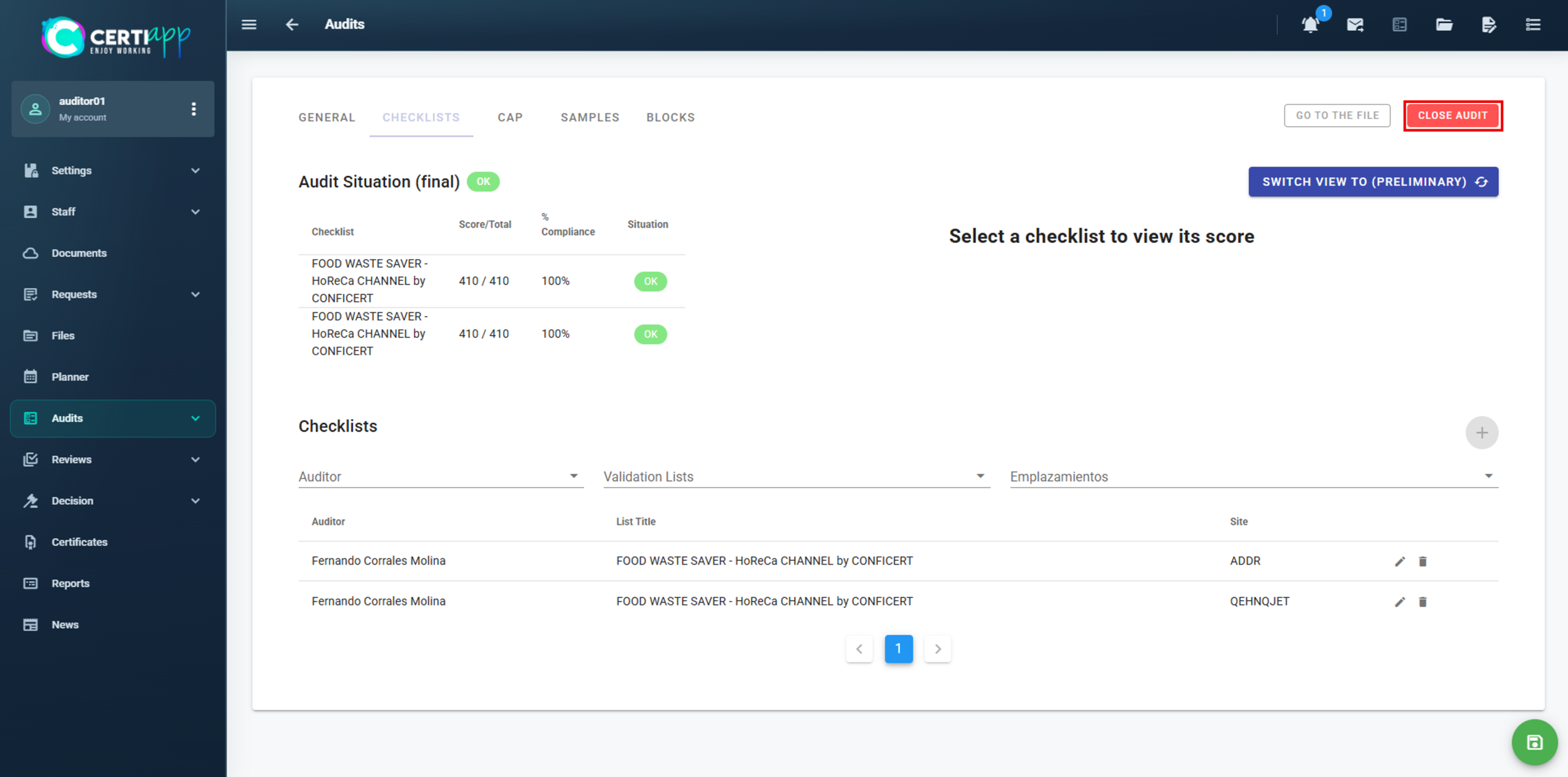
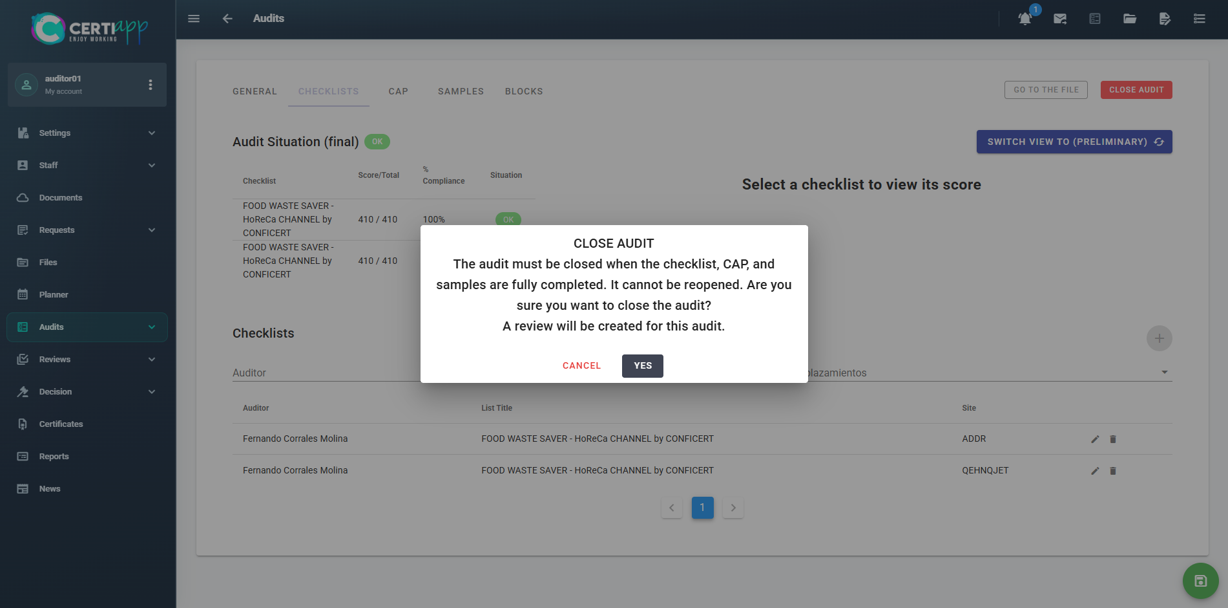
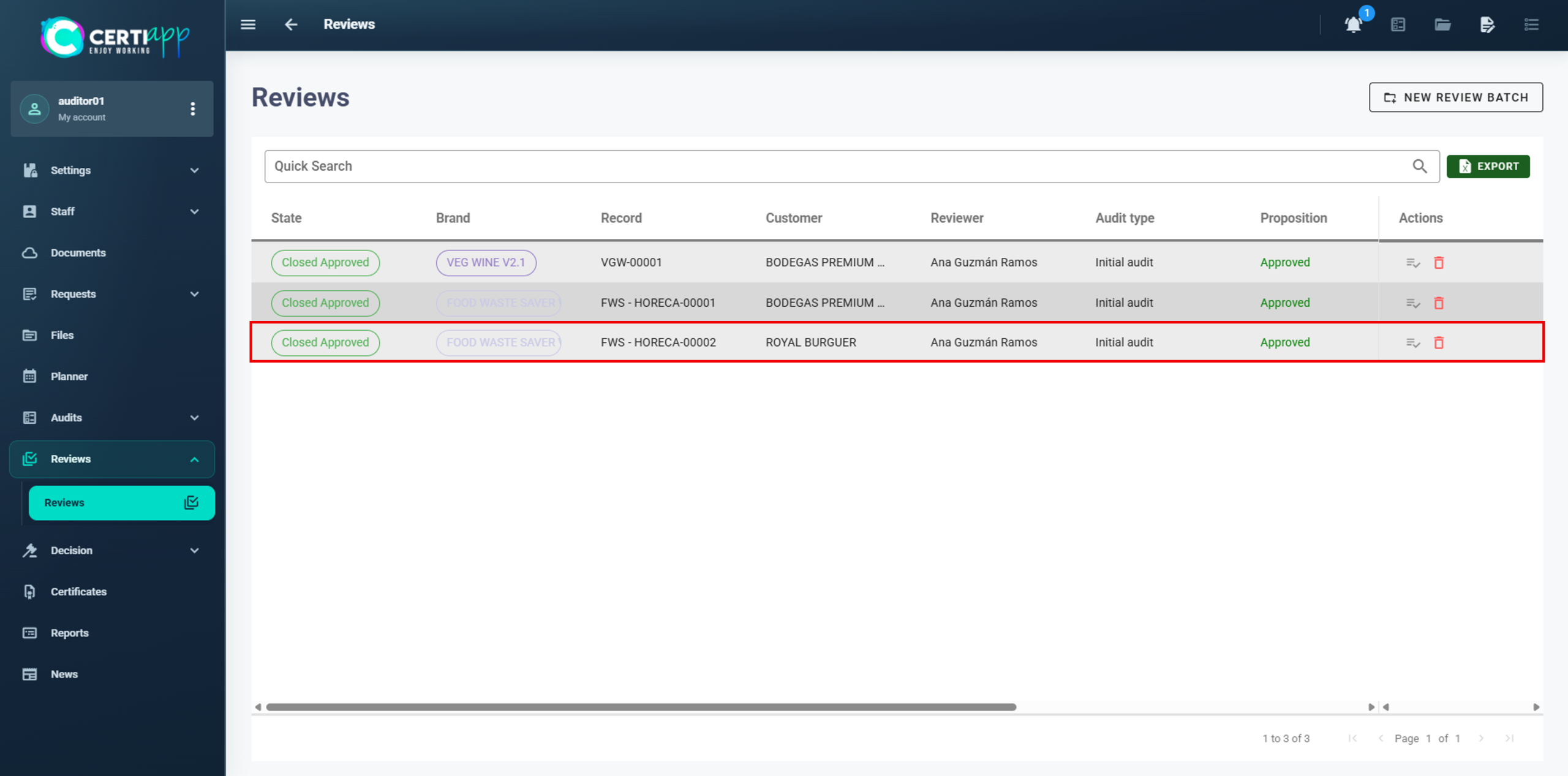
Click on Close Audit. A message warns you that, once closed, no data can be modified and that a technical review of the file is generated automatically. Confirm to continue.
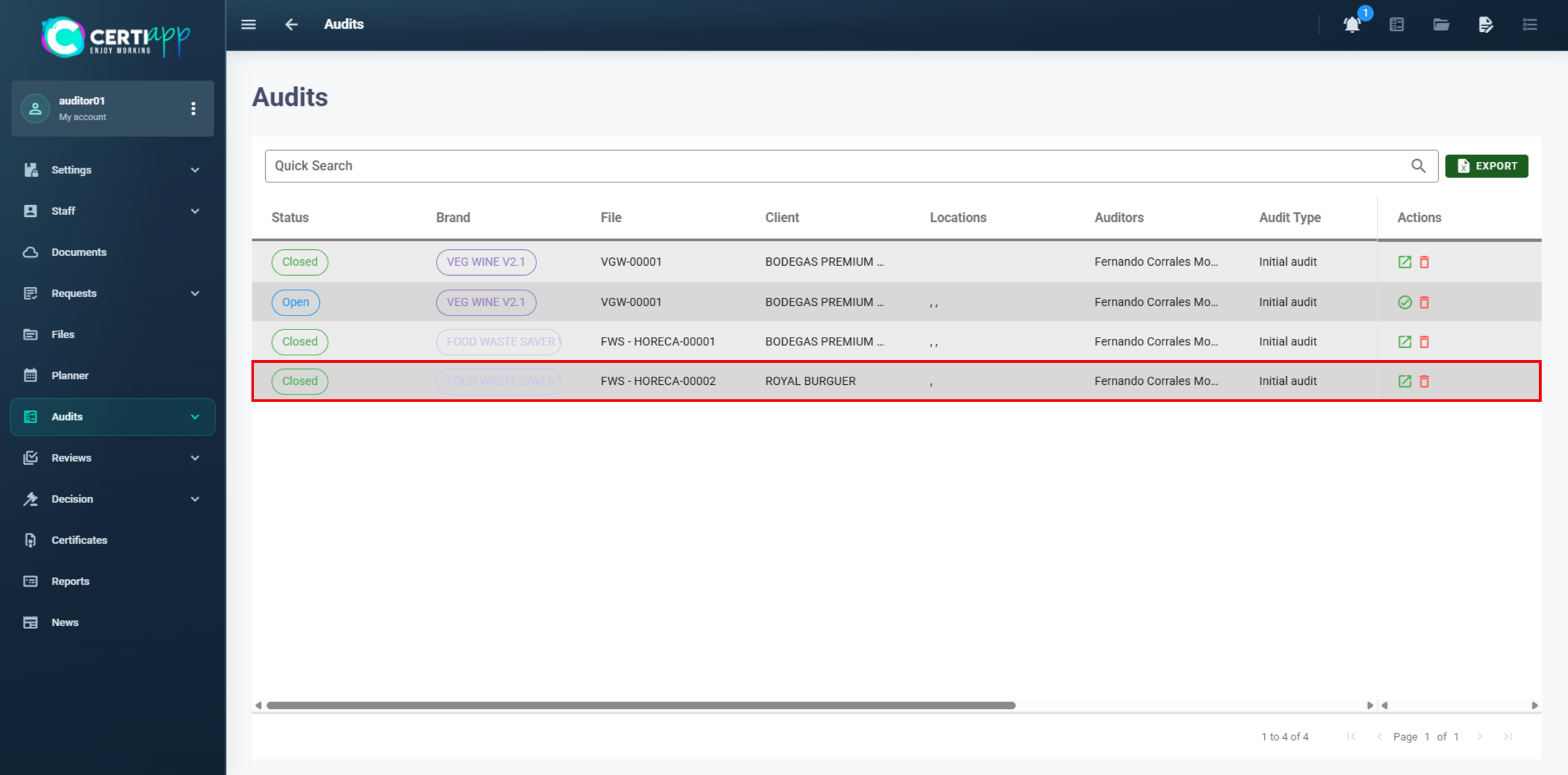
⚠️ Important: closing the audit cannot be undone easily. To reopen it, the technical review must first be deleted from Reviews, and then the audit reopened with the ↗️ icon in Audits.
III. Explanatory video
📄 Full details in the User Guide for Auditors, Technical Reviewers and Decision-Makers, section 3.2.2.
Module 4 – Technical Review
Learn where to follow your audit in CERTIAPP and what each audit status means for you.
I. Before you start
✅ Your Certification Body must have assigned you the Reviewer role for the Brand.
✅ The auditor must have closed the audit. The review is generated automatically when the audit is closed.
✅ Keep the deadline in mind: from the operator’s CAP submission, there are 28 days to reach the final decision. The auditor uses up to 7 of them, and the rest are shared between you and the decision-maker.
II. Process step by step
Step 1. Find the file
Step 2. Review the audit
Step 3. Report an issue (if needed)
Step 4. Open the review form
Step 5. Record your result
In the Technical Review window:
- Select Suitable or Not Suitable.
- Enter the date of the review.
- Select yourself as the responsible reviewer and check that your role shows as Reviewer.
- Write your observations or comments.
- Tick Mark as Reviewed.
Click on Save and Mark as Reviewed.
💡 If the result is Not Suitable: the operator is informed of the unfavorable result, and the certification process ends.
III. Explanatory video
📄 Full details in the User Guide for Auditors, Technical Reviewers and Decision-Makers, section 3.3.
Module 5 – Decision and Certificate
Learn how to record the certification decision for a file.
I. Before you start
✅ Your Certification Body must have assigned you the Decision Maker role for the Brand.
✅ The technical reviewer must have completed the review. The file appears in Decision as soon as the review shows Closed Approved.
✅ Keep the 28-day deadline from the CAP submission in mind.
II. Process step by step
Step 1. Find the file
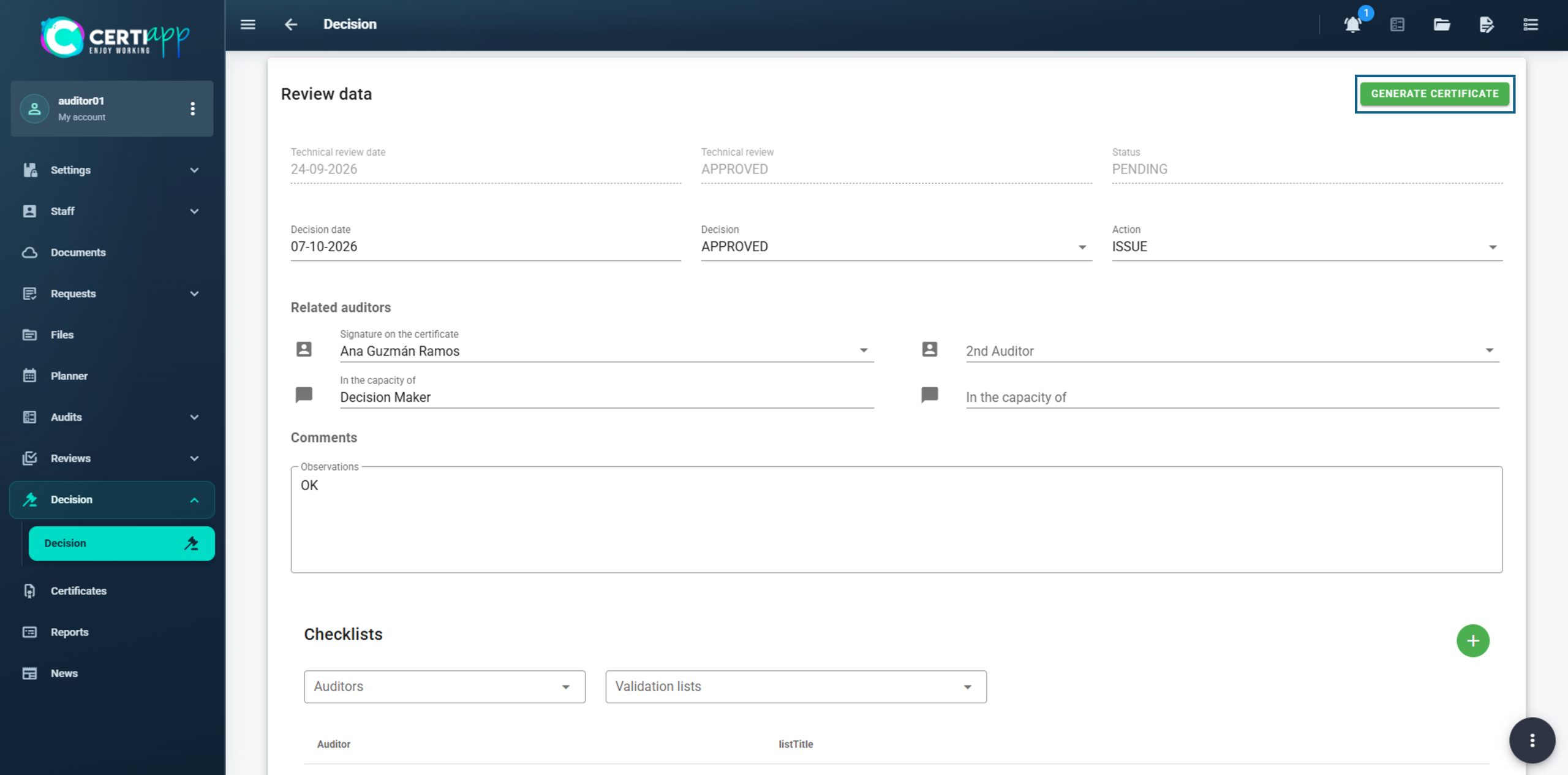
Step 2. Record the decision
- Enter the decision date.
- After reviewing all the information in the file, select Approved or Not Approved.
- Select the action to take according to the result.
- Write your comments.
💡 If the decision is Not Approved: the operator is informed of the unfavorable result, and the certification process ends.
💡 Ignore the Checklist section at the bottom of the screen. It plays no role at this stage. Click on Save.
✅ Done! If the decision is favorable, the next step is to generate the certificate. If it is unfavorable, the process ends here once the operator has been informed.
III. Explanatory video
📄 Full details in the User Guide for Auditors, Technical Reviewers and Decision-Makers, section 3.4.
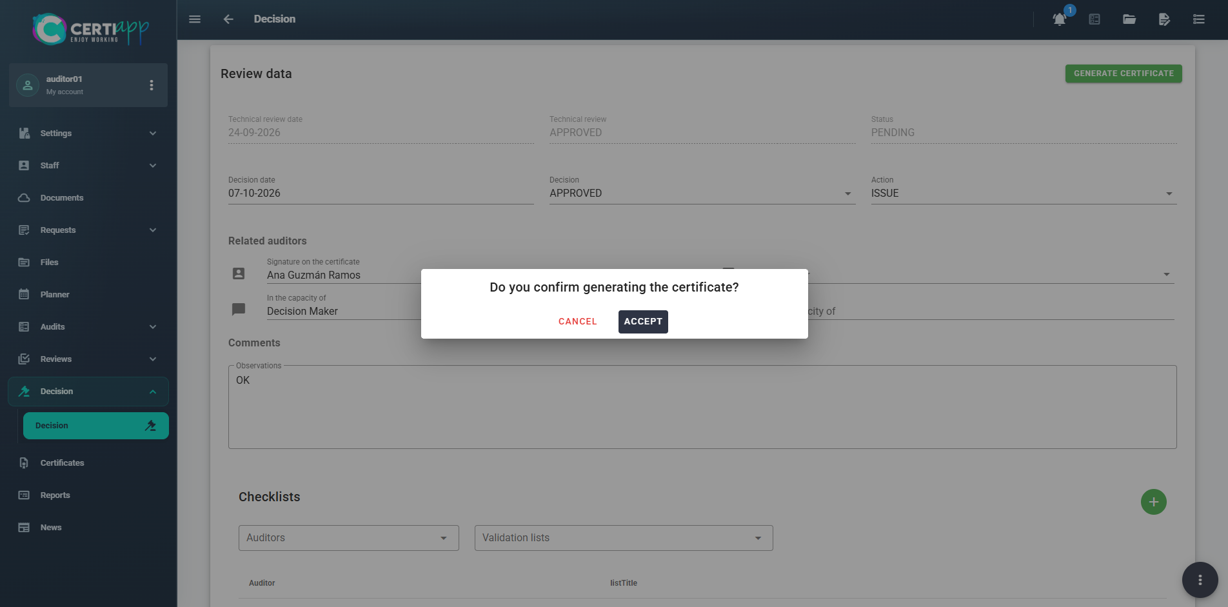
Learn what must be in place before the certificate can be generated, and how to generate it on time.
I. Before you start
The Generate Certificate button only unlocks when two conditions are met:
✅ The Royalty Fee has been paid and assigned to the operator. Your Certification Body manages this through the CONFICERT web platform.
✅ The operator has signed the Brand Use License Agreement and returned it to the Certification Body, after being informed of the favorable decision.
II. Process step by step
Step 1. Find the file
III. Explanatory video
📄 Full details in the User Guide for Auditors, Technical Reviewers and Decision-Makers, section 3.4.
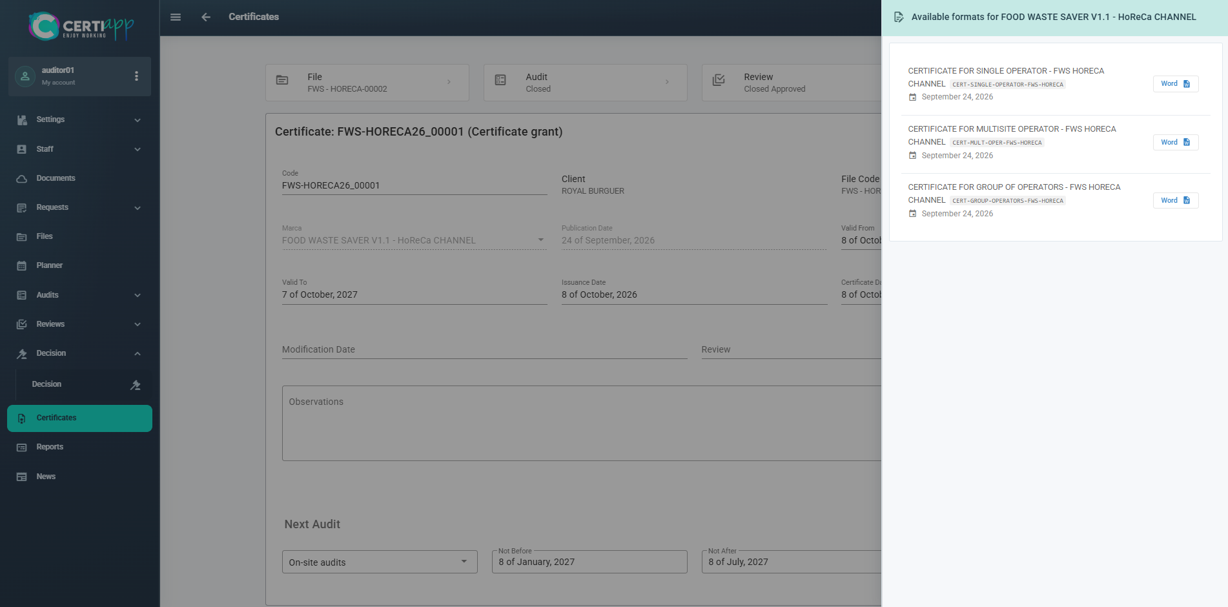
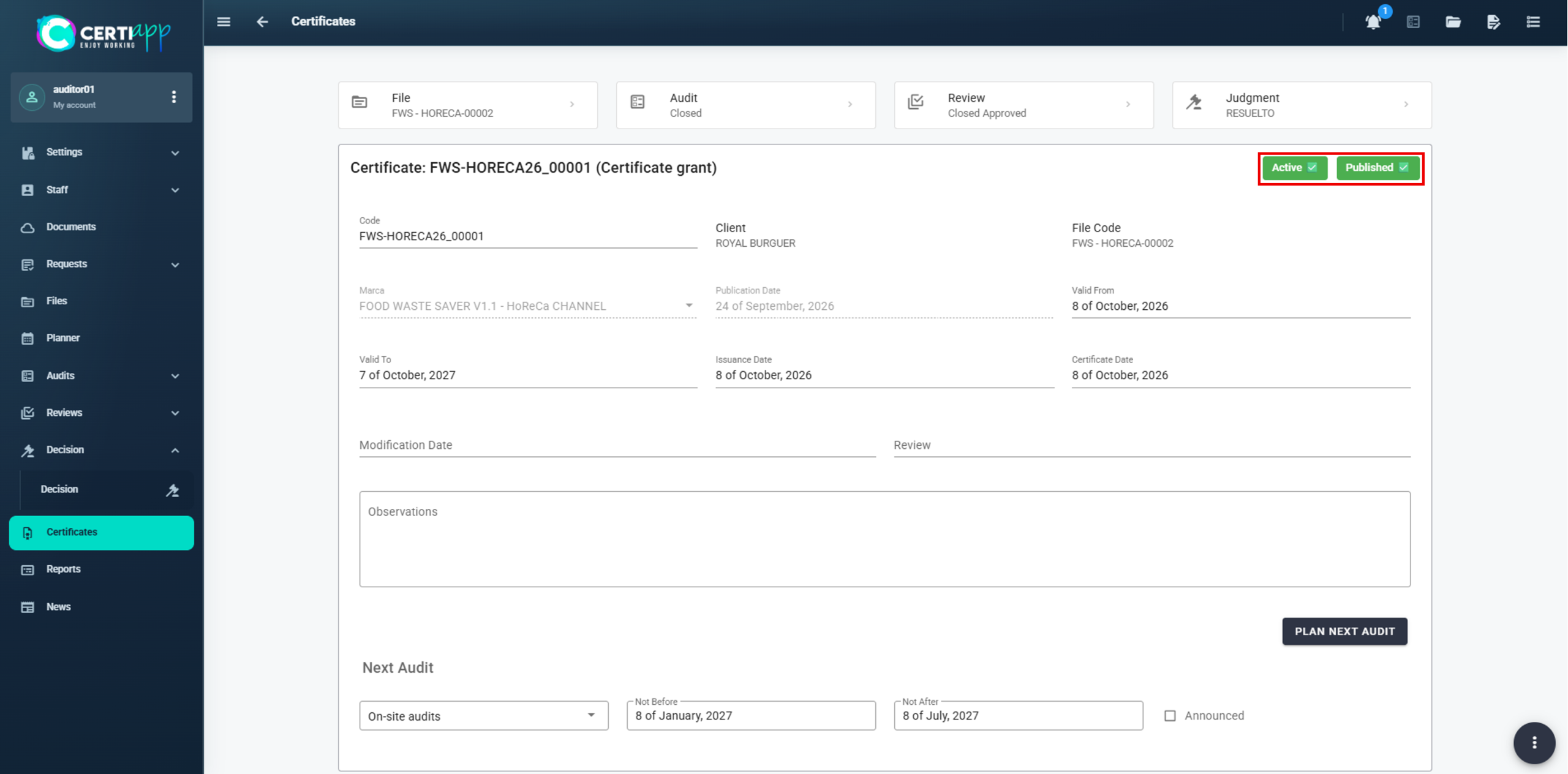
Learn how to complete the certificate data, plan the next audit, and make the certificate active and public.
I. Before you start
✅ The certificate must have been generated (see Generating the certificate).
II. Process step by step
Step 1. Complete the certificate dates
Step 2. Plan the next audit
Step 3. Activate and publish
Step 4. Check and download
Step 5. Prepare the publication on the Transparency Portal
Once the certificate is issued:
- The Certification Body sends the operator the internal and public audit reports, and informs it that the certificate is available in its Certificates section.
- The operator is asked for its graphic material: company logo, photos of the certified product or images of the service, a company description and any other relevant documents. The operator sends this material to the Certification Body or to the decision-maker.
- The Certification Body sends this material, together with the public audit report and the certificate, to the CONFICERT administration team at conficert5@conficert.org, for publication on the CONFICERT Transparency Portal.
✅ Done! The certification process for this file is complete. The certificate will soon be visible on the Transparency Portal.
III. Explanatory video
📄 Full details in the User Guide for Auditors, Technical Reviewers and Decision-Makers, section 3.5.
Still have questions?
Check the frequently asked questions or contact your Certification Body.
1. Who provides my username and password to access CERTIAPP?
Certification Bodies receive them from CONFICERT. Operators and Evaluation Staff receive them from their Certification Body.
2. In what language should information be entered on the platform?
In English: the request, the additional information, and the checklist evaluation.
3. Can I change my password?
Yes, in “My Data” › “Personal Data” › “Change Password”. The email address with which the account was registered must not be changed.
4. What do the Planned, Open, and Closed audit statuses mean?
✓ Planned: the audit has been created.
✓ Open: the auditor has started it.
✓ Closed: the CAP has been evaluated and the audit has been completed.
5. What types of Non-Conformity are there?
Minor, serious, and critical (K.O.). A critical Non-Conformity prevents the certification process from continuing, although the audit may still be completed that day.
6. Where can I find the process documents?
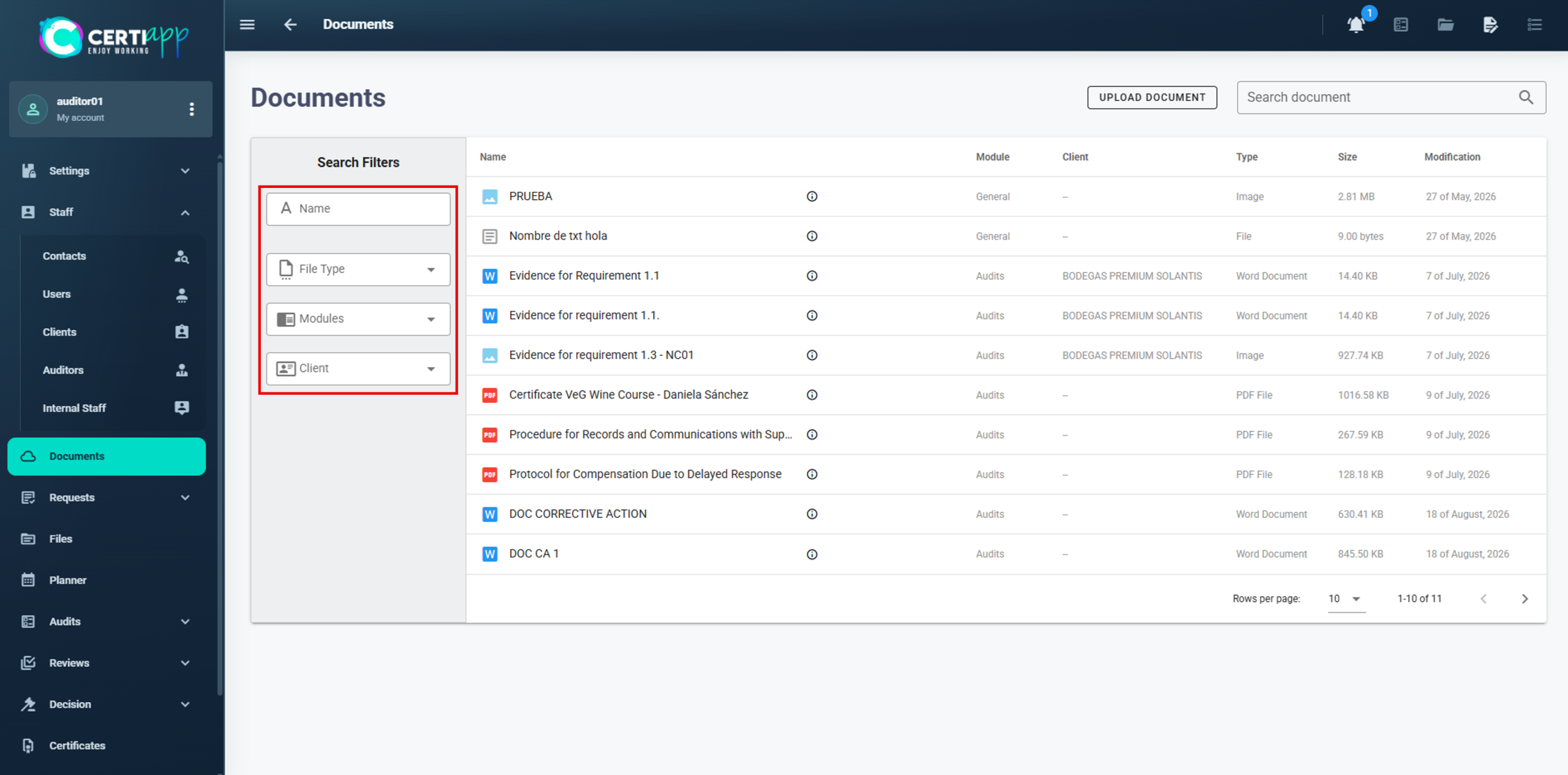
All exchanged documents (request, contract, evidence) are in “Documents” and can be filtered by name, type, or module.
1. How many checklists are created in a multi-site or group audit?
One per operator, not per site.
2. What is the difference between the "Observations" and "Comments" fields?
“Observations” is internal and is not visible to the operator. “Comments” appears in the checklist and is visible to the operator.
3. What type of Non-Conformity does each rating generate?
✓ Regular requirement: B or C generates a minor Non-Conformity.
✓ Major requirement: B generates a minor Non-Conformity, and C a serious Non-Conformity.
✓ Essential requirement: B generates a serious Non-Conformity, and C a critical (K.O.) Non-Conformity.
4. What is the minimum pass threshold for the audit?
70% for an initial audit and 80% for a renewal audit. After the CAP, the operator must reach 100% compliance.
5. What is the difference between the internal and public checklists?
The internal checklist contains all explicit comments and is for the CB’s use. The public checklist omits sensitive information and is published on the Transparency Portal. The auditor must review its wording before sending it.
6. How much time does the auditor have to evaluate the CAP?
A maximum of 7 days, within the total of 28 days until the final decision.
7. Can a signature be modified once recorded?
No. Once recorded, a signature cannot be edited.
8. Is sample registration mandatory?
No, sample registration (Samples) is voluntary and optional.
9. How do I reopen a closed audit?
First delete the technical review from “Reviews”, then click on the reopen icon.
Need help?
If you have any questions about using CERTIAPP or encounter an issue on the platform, we are here to help.
*Evaluation Staff: for questions about how the platform works, technical issues, or questions about the guides, write to us at conficert5@conficert.org
To help us respond faster, please include your role, the CERTIAPP section where the issue arises, and, if possible, a screenshot.
CertiApp Academy - Evaluation staff
GUIDES AND RESOURCES FOR EVALUATION STAFF
Learn to manage the certification process in CertiApp, step by step
Learn how to carry out your role in CERTIAPP: from conducting the audit and evaluating the Corrective Action Plan to the technical review, the certification decision and the issuance of the certificate.
Who is this for? Auditors, Technical Reviewers and Decision-Makers of Certification Bodies working under the CONFICERT scheme.
I am a…
Your role in the process
Phase 0
Setup
Phase 1
Request
Phase 2
Phase 2 – Audit
Phase 3
Phase 3 – Decision
Phase 4
Phase 4 – Certification
Your Certification Body registers the client, manages the request and creates the audit. From there, the evaluation staff take over: the auditor conducts the audit, the technical reviewer checks the file, and the decision-maker makes the final decision and issues the certificate.
Full User Guide for Auditors, Technical Reviewers and Decision-Makers
Download the complete guide with all the steps and screenshots.
Modules and lessons
Module 1 – Getting Started
Module 2 – Account Data
Module 3 – Contract & Request
Module 4 – Audit and NC
Module 5 – Certificate
Modules and lessons
All roles
Auditor
Technical Reviewer
Decision-Maker
Module 1 – Getting Started
Learn how to access CERTIAPP using the credentials provided by your Certification Body.
I. Before you start
✅ Your Certification Body must have registered you as an auditor in CERTIAPP and assigned your roles (Auditor, Technical Reviewer and/or Decision-Maker) for each Brand.
✅ You must have received your username and password from your Certification Body.
II. Process step by step
Step 1. Go to the CERTIAPP login page
Open the CERTIAPP platform at Certiapp or click on Go to the platform in CertiApp Academy.
Step 2. Enter your credentials
Enter the username and password provided by your Certification Body and click on Log in.
⚠️ Important: if you cannot log in, or you do not see the sections you need for your role, contact your Certification Body. Only its administrators can create your account and assign your roles.
✅ Done! You are now on the General Dashboard. In the next lesson, you will learn what each section of the menu is for.
III. Explanatory video
📄 Full details in the User Guide for Auditors, Technical Reviewers and Decision-Makers, section 3.1.
Get to know the CERTIAPP menu: which sections you will work in, which ones are for consultation only, and which ones you can skip.
I. Before you start
✅ You must be logged in to CERTIAPP (see Login).
✅ Keep in mind that you share the platform with your Certification Body. Many sections show its information, but only its administrators can create or modify it.
II. Process step by step
Step 1. General Dashboard
The dashboard shows a summary of your Certification Body’s activity for the CONFICERT Brands: requests and files by Brand, the activity calendar, the evaluation staff and the latest news from CONFICERT.
All evaluation staff appear under Auditors, whether they act as auditors, technical reviewers or decision-makers.
Step 2. The sections where you take action
These are the sections you will use in your daily work, depending on your role:
- Audits (Auditor): all audits of all clients, with their status, Brand, file number, client and lead auditor. This is where you conduct the audit, evaluate the checklist and the CAP, and close the audit.
- Reviews (Technical Reviewer): all files pending technical review, with their status, Brand, client, assigned reviewer and audit type.
- Decision (Decision-Maker): all files pending a decision, with the client, audit date, Brand and assigned auditor.
- Certificates (Decision-Maker): all certificates of the files assessed as Suitable.
Step 3. Documents
Step 4. Files
Each operator has one file per Brand, and each annual certification cycle is shown as an iteration. Click on an iteration to see its tools:
- Products: the sites declared in the request and the data that defines the audit.
- Audits: the audits of this operator and their status (Planned, Open or Closed).
- Reviews and Dictums: when the file moves to technical review and to decision, and the result (Suitable / Not Suitable).
- Samplings: the samples registered during the audit.
💡 Tip: a superscript such as (+2) next to an iteration means it covers more sites than the one shown. In this example, 3 sites in total.
Step 5. Planner
Step 6. Sections for consultation only
In these sections you can check information, but you must not create or modify anything:
- Clients: operator details, their files, documents, contacts, addresses and licensed Brands.
- Auditors: profiles of the evaluation staff, with their Competencies (roles by Brand) and Incompatibilities (conflicts of interest with operators).
- Users and Contacts.
- Checklist and Audit plans: the checklists of each Brand and the audit plan templates, which are set up by your Certification Body.
⚠️ Important: do not take any action in Request. Managing requests is the exclusive responsibility of your Certification Body’s administrators.
Step 7. Sections you can skip
III. Explanatory video
📄 Full details in the User Guide for Auditors, Technical Reviewers and Decision-Makers, section 2.
Learn how to quickly locate the audit, review, decision or certificate you need to work on.
I. Before you start
✅ You must be logged in to CERTIAPP.
✅ Have the operator’s name at hand. Having the file number or certificate code as well is even better.
II. Process step by step
Step 1. Open the section for your role and search for the operator
Go to the section where you need to work:
- Audits if you are the auditor.
- Reviews if you are the technical reviewer.
- Decision if you are the decision-maker.
- Certificates if you need to manage an issued certificate.
Enter the operator’s name in the Quick Search bar.
Before opening it, check the file number and the date. For certificates, check the certificate code and the date. The same operator may have several files (one per Brand) and several iterations (one per year).
Step 2. Open the file
Click on the record to open it and start working.
✅ Done! You are ready to start. If you are an auditor, continue with Module 2 – Conducting the Audit. If you are a technical reviewer, go to Module 4, and if you are a decision-maker, go to Module 5.
III. Explanatory video
📄 Full details in the User Guide for Auditors, Technical Reviewers and Decision-Makers, sections 2.8.1, 2.9.1, 2.10.1 and 2.11.
Module 2 – Conducting the Audit
Learn how to prepare the audit file: add the operator’s representatives, correct the request data if needed, and record your annotations.
I. Before you start
✅Your Certification Body must have created the audit and assigned you as auditor.
✅ The Audit Plan must already be set up. Your Certification Body’s Scheme Manager prepares it and sends it to the operator at least 48 hours before the audit.
II. Process step by step
Step 1. Open the audit
Step 2. Get to know the General tab
In the General tab, you will complete four sections:
- Representative: the operator’s representatives.
- Request information of the Brand: corrections to the data declared by the operator, if necessary.
- Annotations: your notes on the audit, if applicable.
- Signatures: the closing signatures (see Closing signatures and preliminary report).
Step 3. Add the operator's representatives
Step 4. Correct the request data (if necessary)
Step 5. Record your annotations
Step 6. Save
Click on the save icon to keep the information.
✅ Done! The audit file is ready. Next, assign the checklist to the operator.
III. Explanatory video
📄 Full details in the User Guide for Auditors, Technical Reviewers and Decision-Makers, section 3.2.1.
Learn how to assign the right checklist depending on the operator type: single-site, multi-site or group of operators.
I. Before you start
✅ Check the operator type in the request: individual single-site, individual multi-site, or group of operators.
✅ Identify the main location (Site 1 declared in the request). For a group, identify the main location of each operator.
II. Process step by step
Step 1. Go to the Checklist section
Step 2. Create the checklist for your operator type
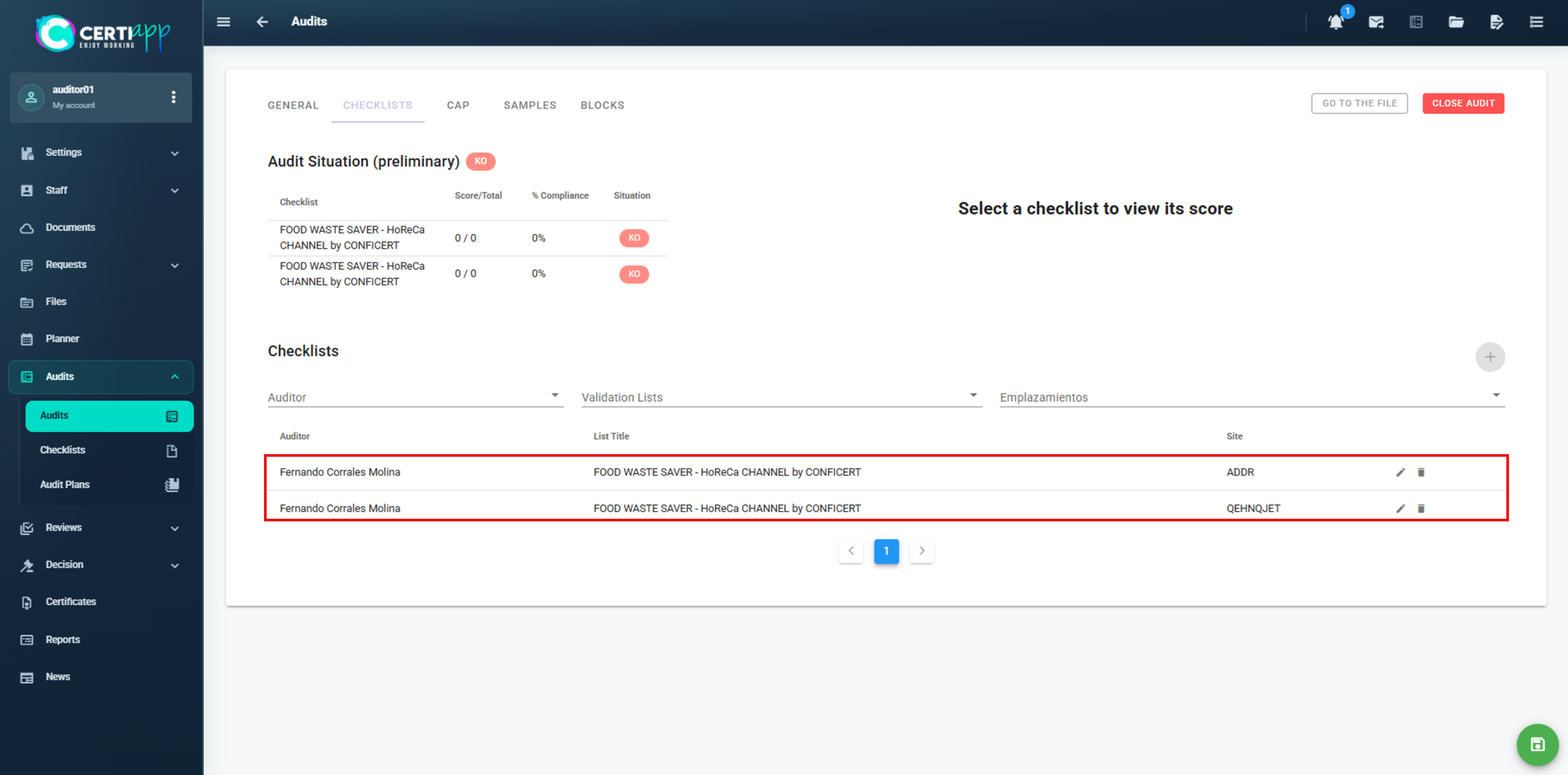
Individual operator – single site
Assign the auditor, the Brand and the location. Only one location is shown, since there is only one site. Click on ➕.
Individual operator – multi-site
Create one checklist for all sites. As established in the General Regulations, a Non-Conformity detected at one site applies to all of the operator’s sites. Assign the auditor and the Brand, select the operator’s main location (Site 1), and click on ➕.
Group of operators
Create one checklist for each operator. For Operator 1, assign the auditor and the Brand, select that operator’s main location, and click on ➕. Repeat for Operator 2 and each additional operator, selecting the main location of their own sites.
⚠️ Important: in a multi-site operator, do not create one checklist per site. The single checklist covers all sites.
Step 3. Check the audit status
Once the checklist is assigned, the audit status changes from Planned to Open.
✅ Done! The checklist is ready to be evaluated during the audit.
III. Explanatory video
📄 Full details in the User Guide for Auditors, Technical Reviewers and Decision-Makers, section 3.2.2.
Learn how to rate each requirement, how each rating translates into a Non-Conformity, and how to check whether the operator has passed the audit.
I. Before you start
✅ The checklist must be assigned (see Checklist assignment).
✅ Have the Brand’s Requirements Evaluation document at hand. It sets the rating that corresponds to each finding.
✅ The evaluation must be written in English.
II. Process step by step
Step 1. Enter the evaluation dates and the sites
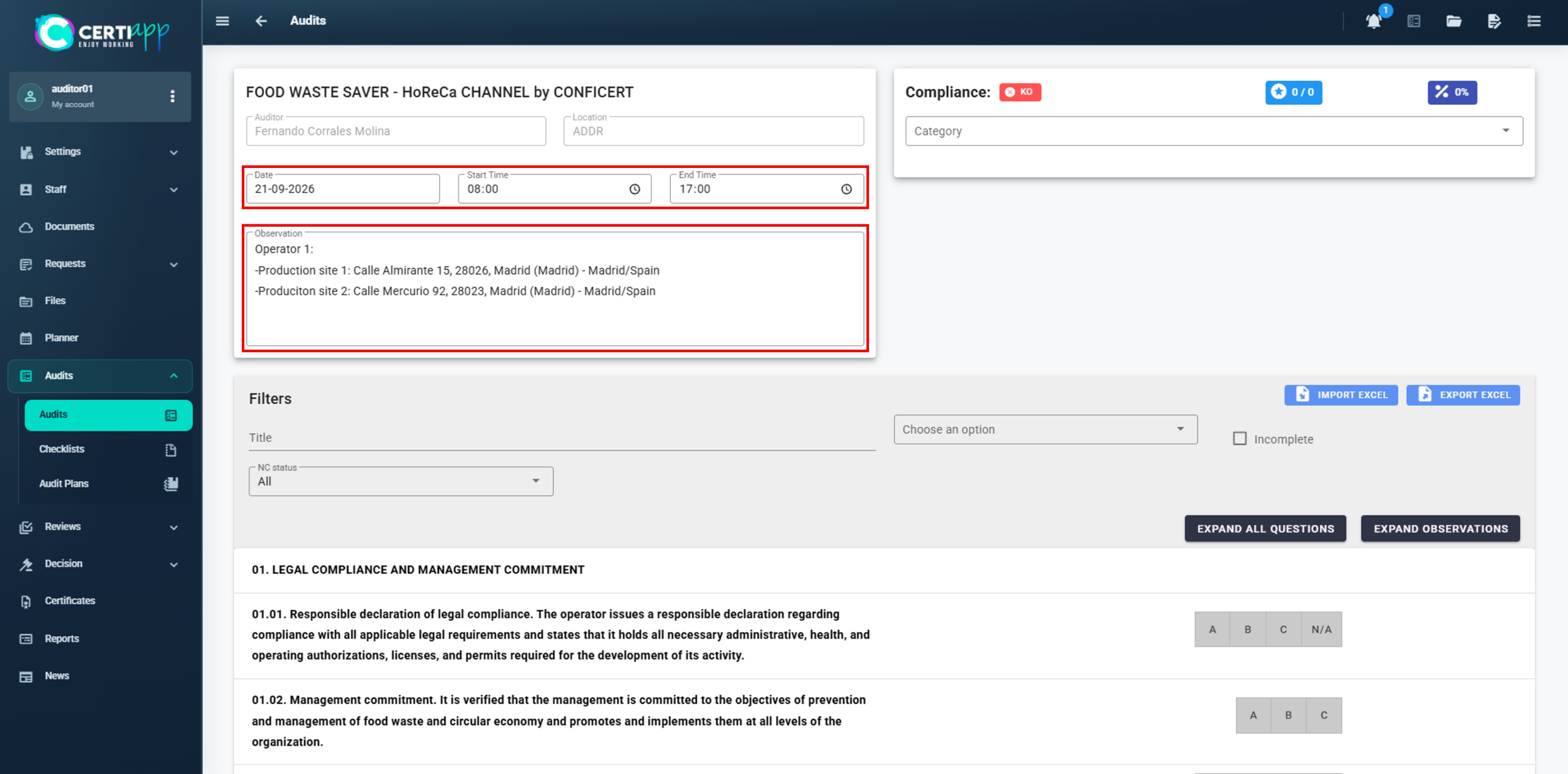
Open the checklist and enter the start and end date and time of the evaluation. Then, in the Observations box, identify what the checklist covers:
✅ Single site: the name and address of the location.
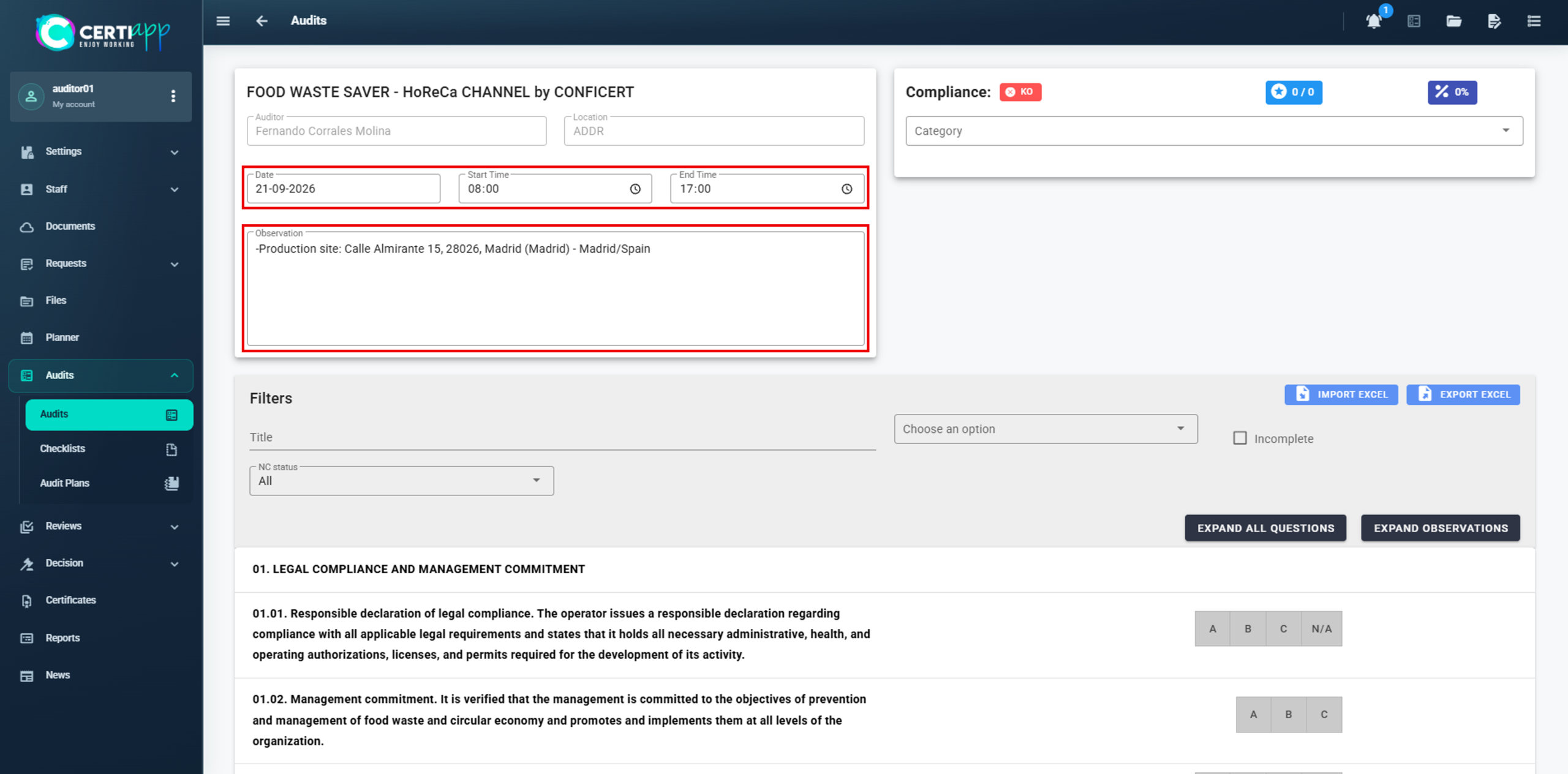
✅ Multi-site: the name and address of each site.
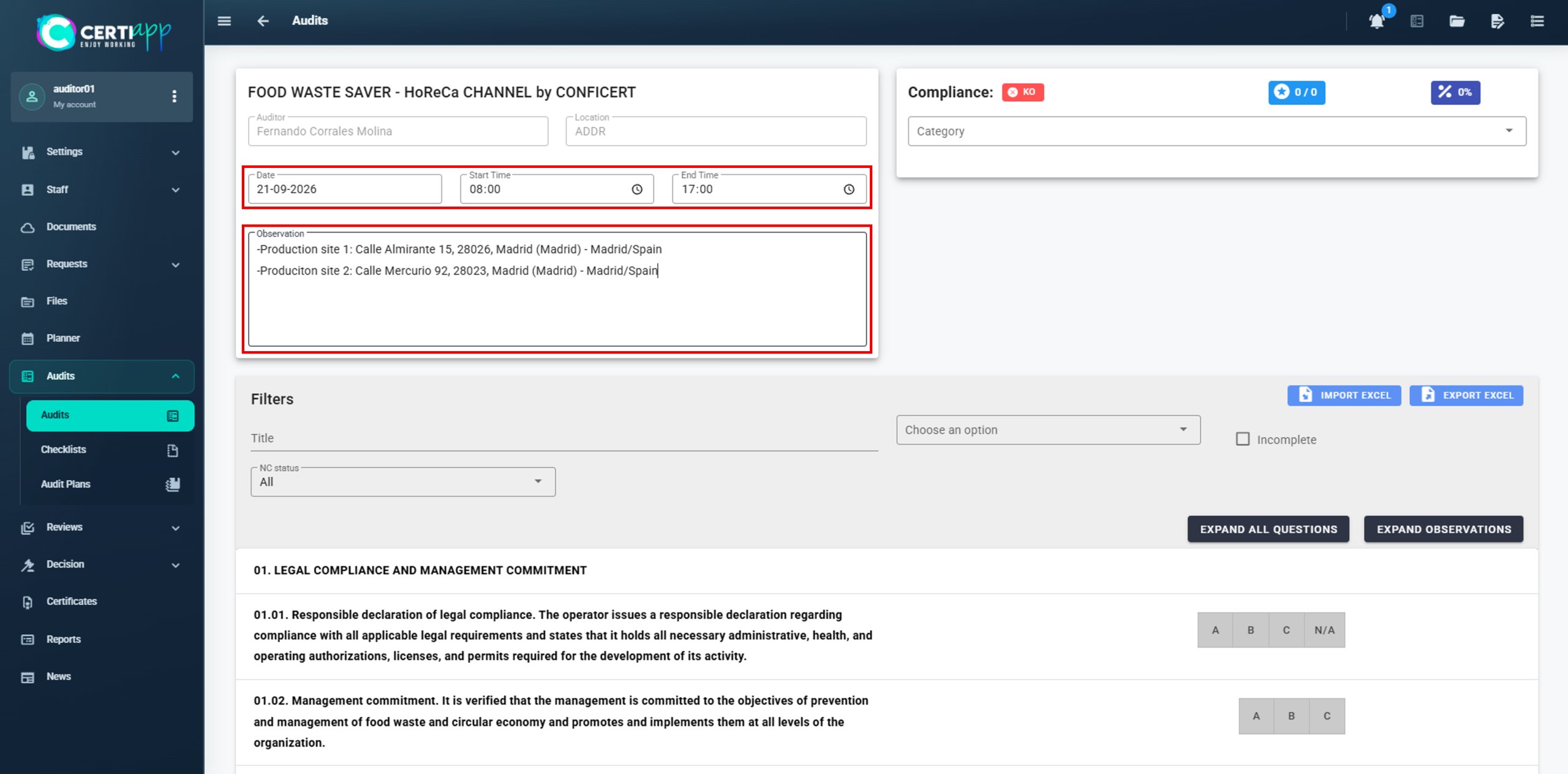
✅ Group of operators: in each checklist, the operator number and the name and address of each of its sites.
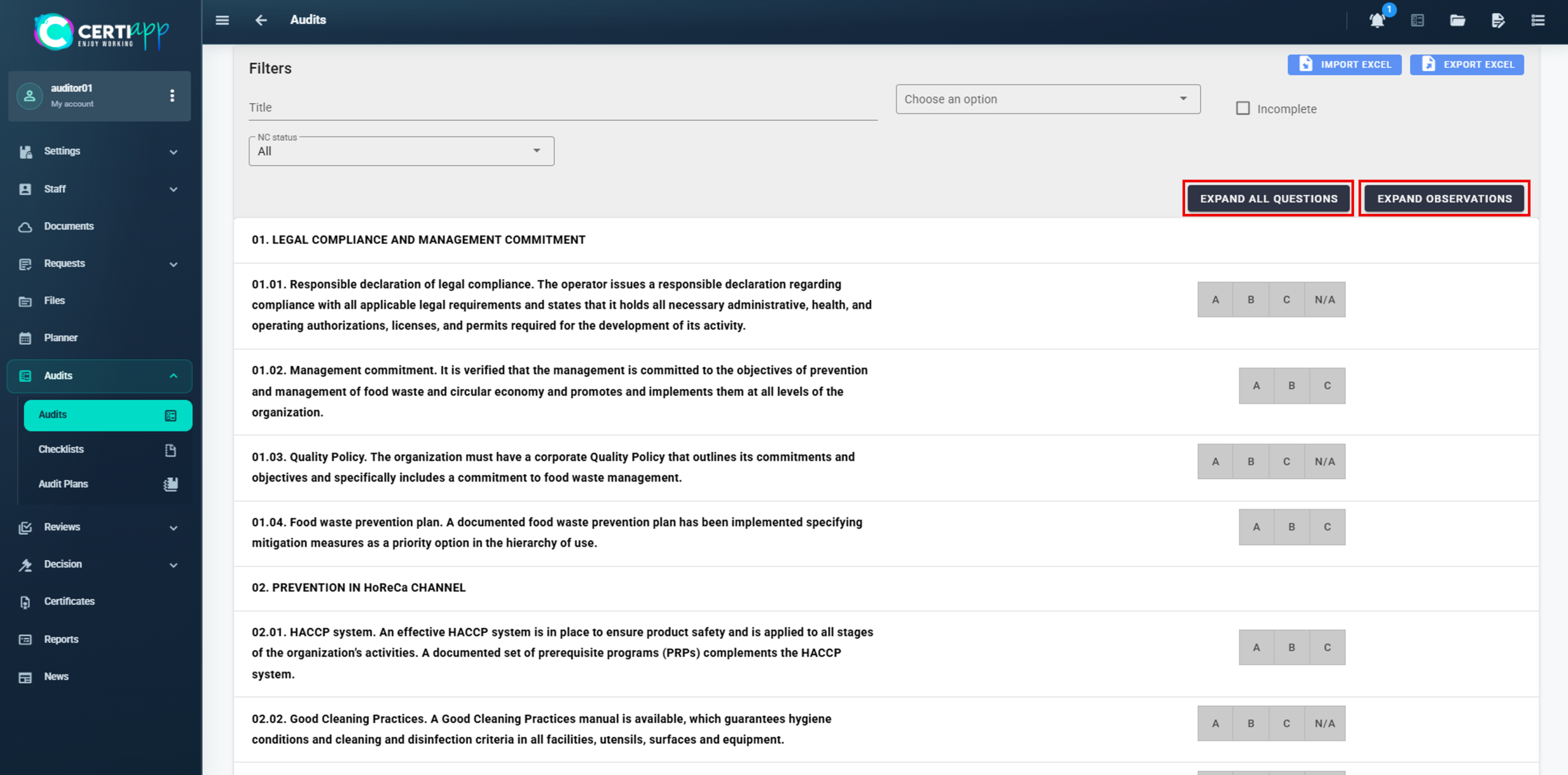
Step 2. Expand all requirements
Step 3. Rate each requirement
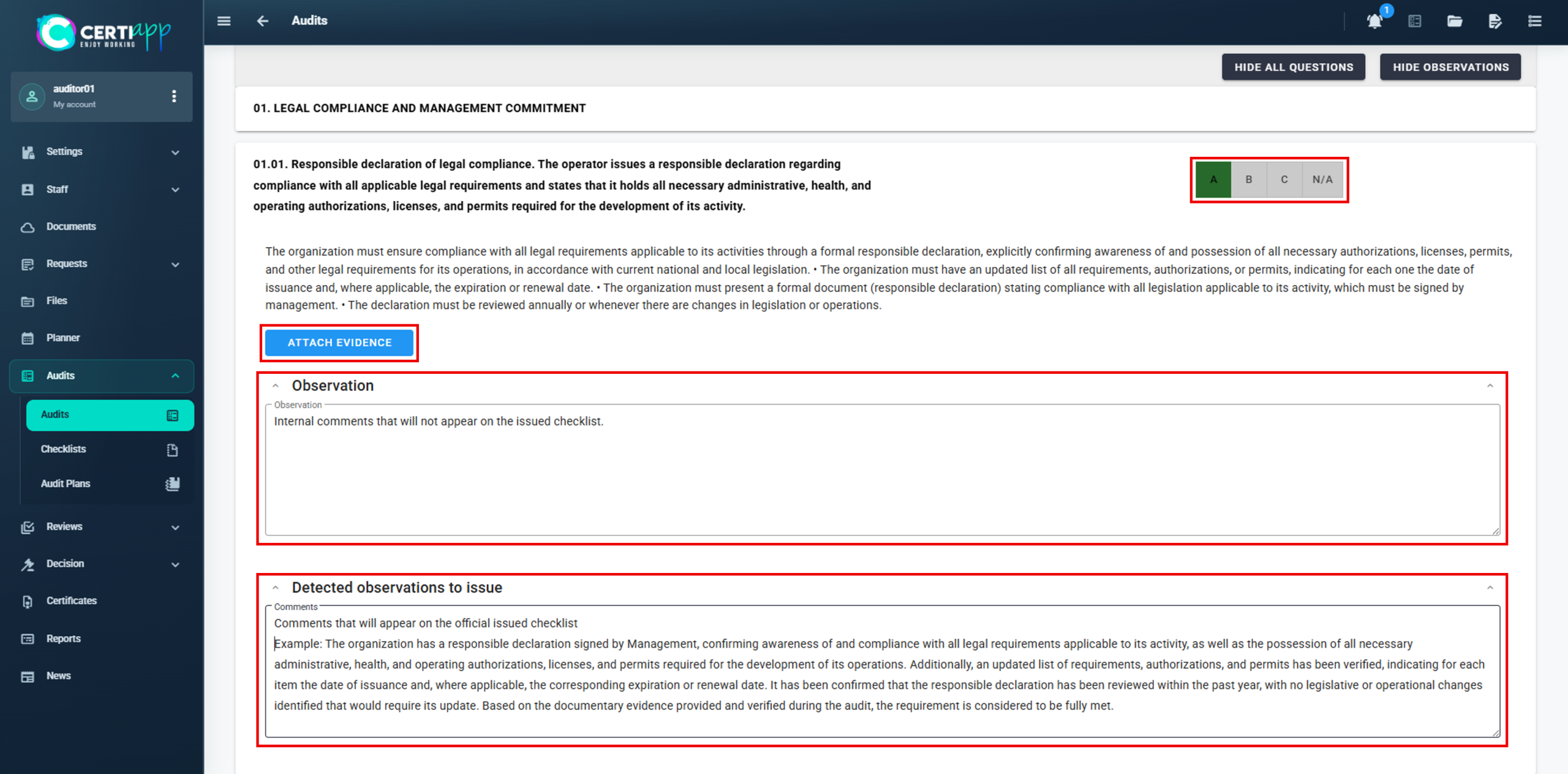
There are three types of requirements:
- Regular and major requirements: rated A, B, C or N/A.
- Essential requirements: rated only A, B or C.
If the requirement is fully met (A):
- Observation: internal comments. They do not appear in the issued checklist and the operator does not see them.
- Comments: visible in the checklist and to the operator.
- Attach Evidence: to attach supporting documents. They are listed above Observations, and you can see all of them in the Document Manager (📁).
If the requirement is not met (B or C):
- Observations: internal comments, as above.
- Non-Conformity Text: why the requirement is not met.
- The Non-Conformity Number is generated automatically.
If the requirement does not apply: select N/A and add the observation and comment.
Step 4. Know what each rating means
Requirement
B
C
Regular
minor NC
minor NC
Major
minor NC
serious NC
Essential
serious NC
critical NC (K.O.)
⚠️ Important: a K.O. allows you to finish the audit that day, but the certification process cannot continue.
Step 5. Review the summary
Step 6. Check the preliminary audit status
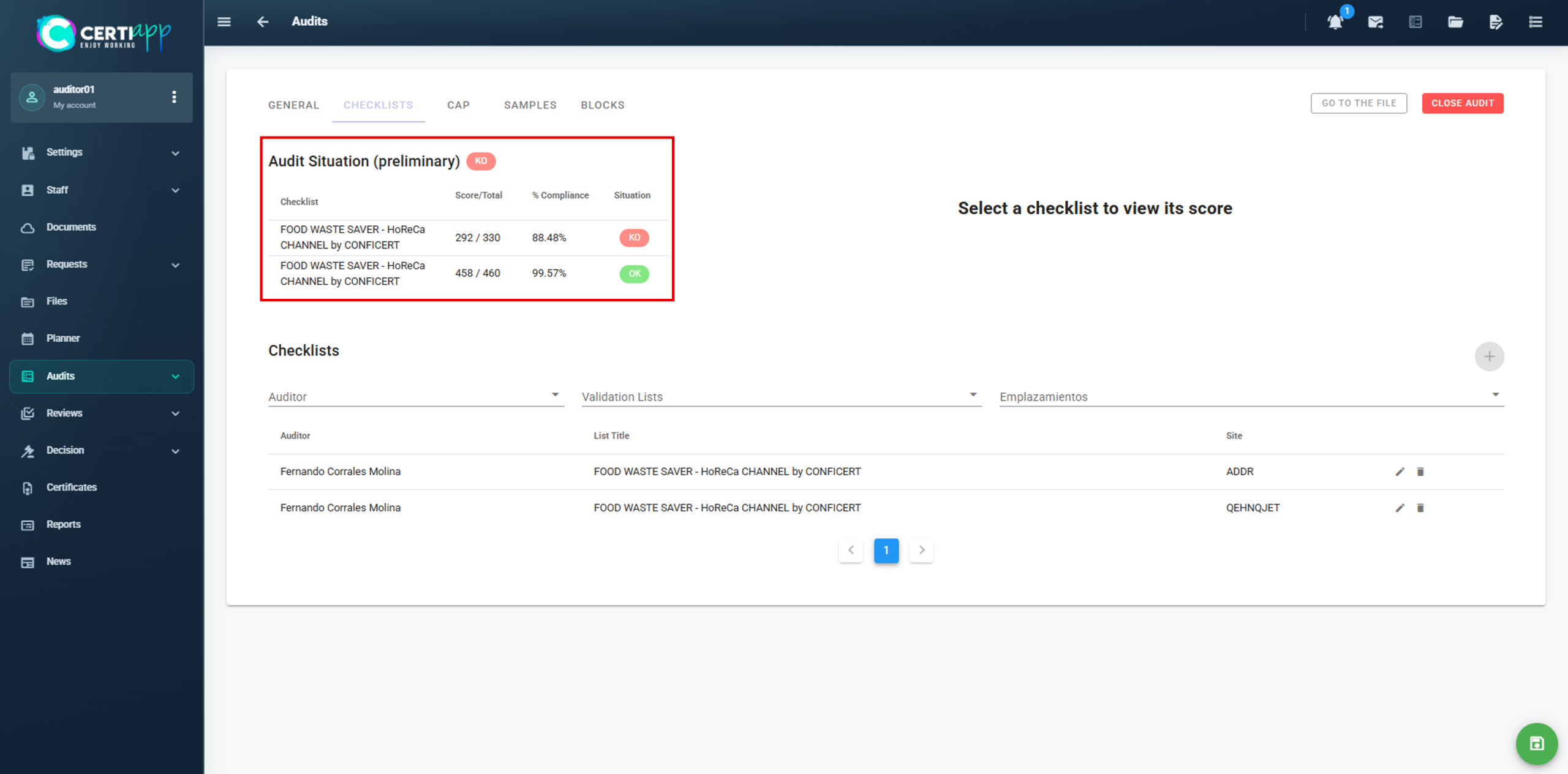
Go back to the previous screen to see the preliminary status of each checklist. Click on a checklist in the Audit Situation box to see the scores by type of requirement.
The operator cannot continue with the certification process if it gets a K.O. or does not reach the minimum score:
- 70% in an initial audit.
- 80% in a renewal audit.
⚠️ Group of operators: an operator that gets a K.O. or does not reach the minimum score is removed from the group, and the others can continue. If it is the Lead Operator, the process does not continue for the whole group.
✅ Done! The checklist is evaluated. Next, download the internal and public versions.
III. Explanatory video
📄 Full details in the User Guide for Auditors, Technical Reviewers and Decision-Makers, section 3.2.2.
Learn the difference between the two checklist versions and how to prepare the public one before it is published.
I. Before you start
✅ All requirements of the checklist must be evaluated.
II. Process step by step
Step 1. Refresh the checklist
Exit the checklist and open it again, so that the system updates it with all the data you have added.
Step 2. Open the download panel
Step 3. Download the version you need
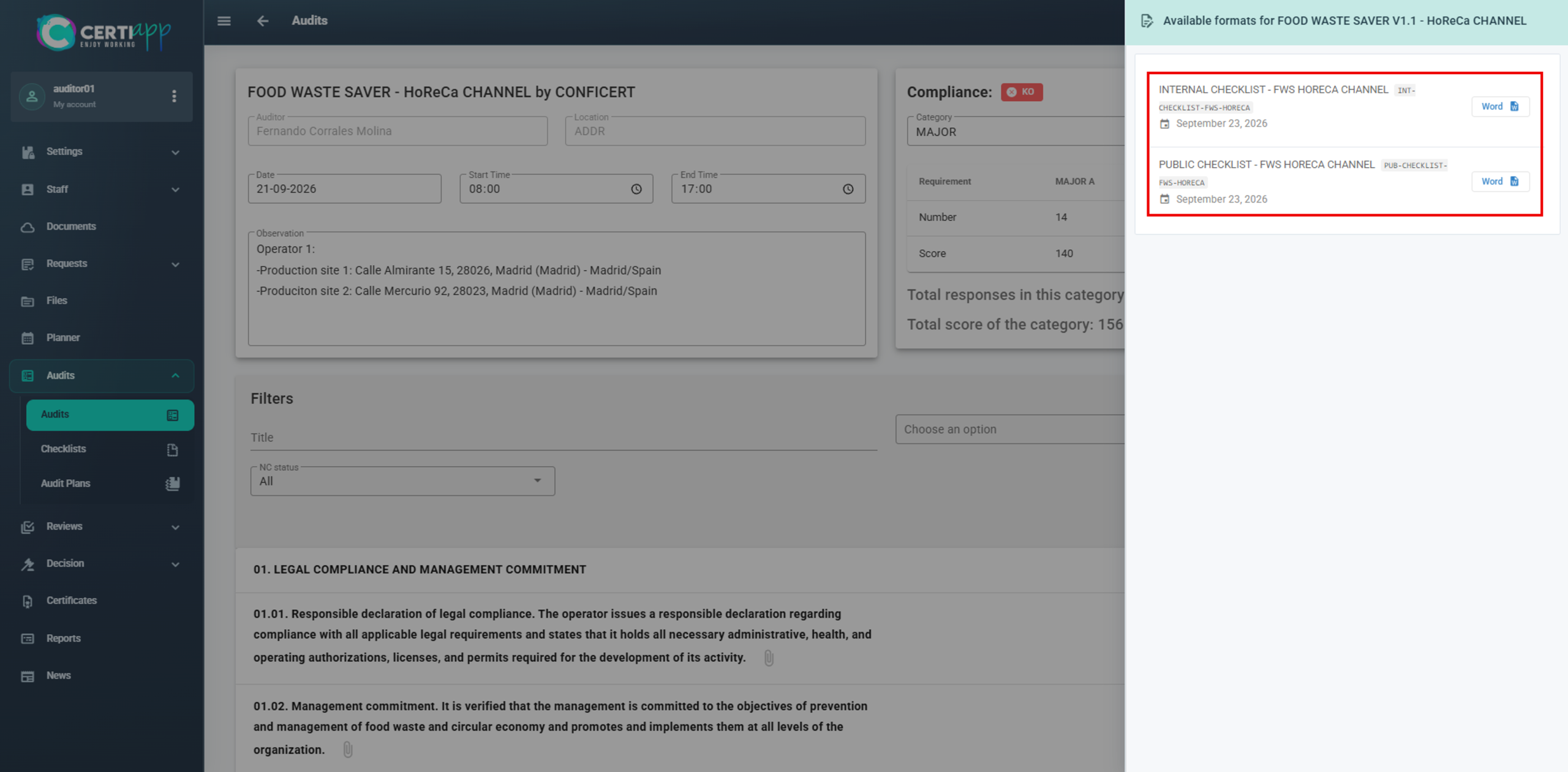
Step 4. Review the public checklist
Edit the wording of the Non-Conformities in the public checklist so that it does not disclose sensitive data or private information about the operator.
⚠️ Important: the public checklist will be visible to anyone on the Transparency Portal. Review it carefully before sharing it.
✅ Done! Next, record the closing signatures and download the preliminary report.
III. Explanatory video
📄 Full details in the User Guide for Auditors, Technical Reviewers and Decision-Makers, section 3.2.2.
Learn how to record the signatures at the closing meeting and download the preliminary audit report for the operator.
I. Before you start
✅ The checklist must be fully evaluated.
✅ The operator’s representative must be added in the General tab (see The General tab).
✅ Hold the closing meeting on the last day of the audit and read out the Non-Conformities to the operator.
II. Process step by step
Step 1. Record the representative's signature
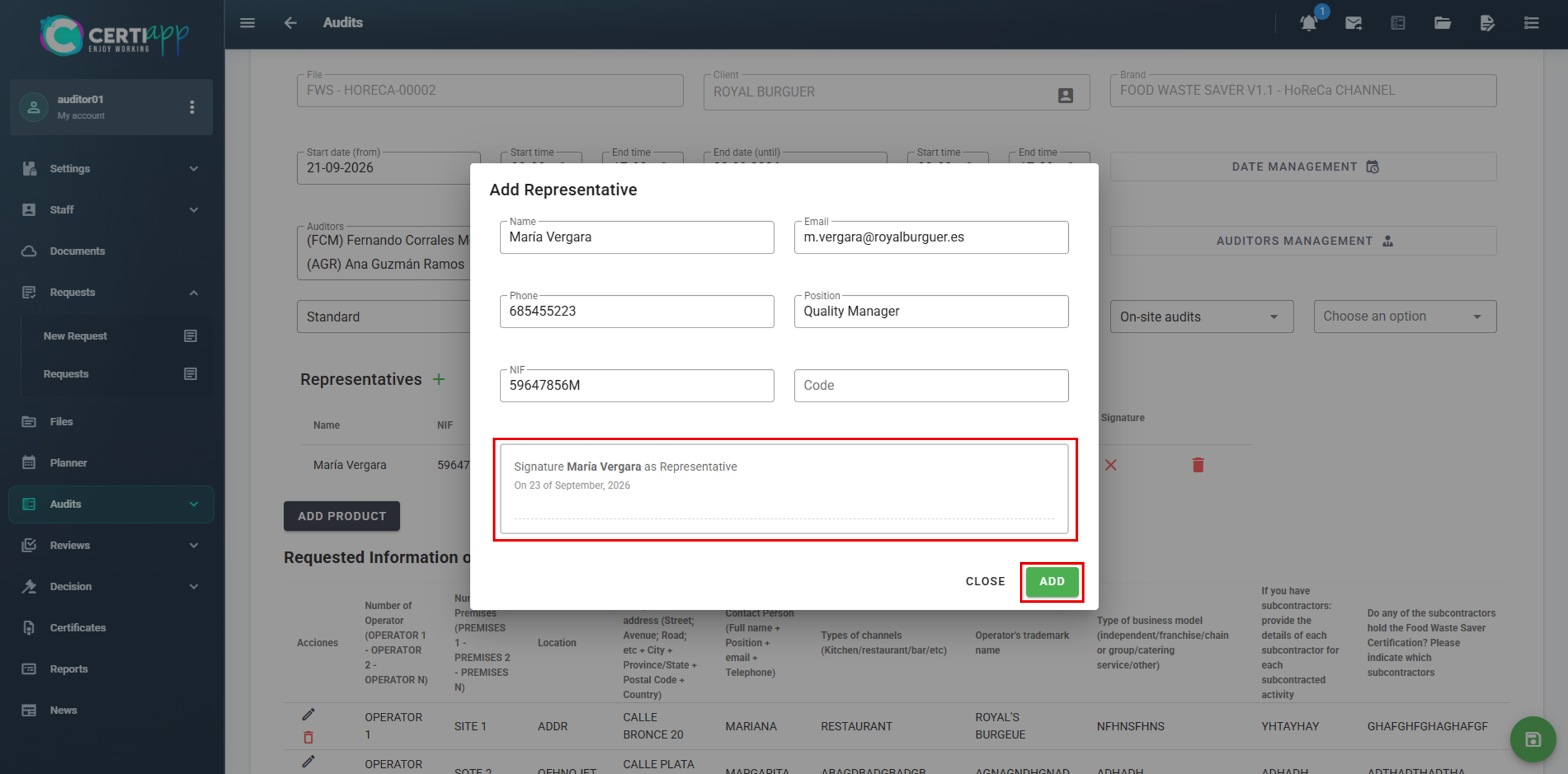
Go back to the General tab. In the representative’s window, click on the Sign field so that the operator’s representative can sign. To repeat the signature, click on Clear and Sign Again. When it is correct, click on Sign to confirm it, and then on Add.
⚠️ Important: check the signature carefully before confirming it. Once recorded, it cannot be edited.
Step 2. Record your signature
Scroll down to the Signatures section. Click on the box with your name and sign in the same way. If there is more than one auditor, each one signs in their own box.
If the technical reviewer’s name appears in this section, leave their field blank.
Click on Save so that all the information is recorded.
Step 3. Download the preliminary report
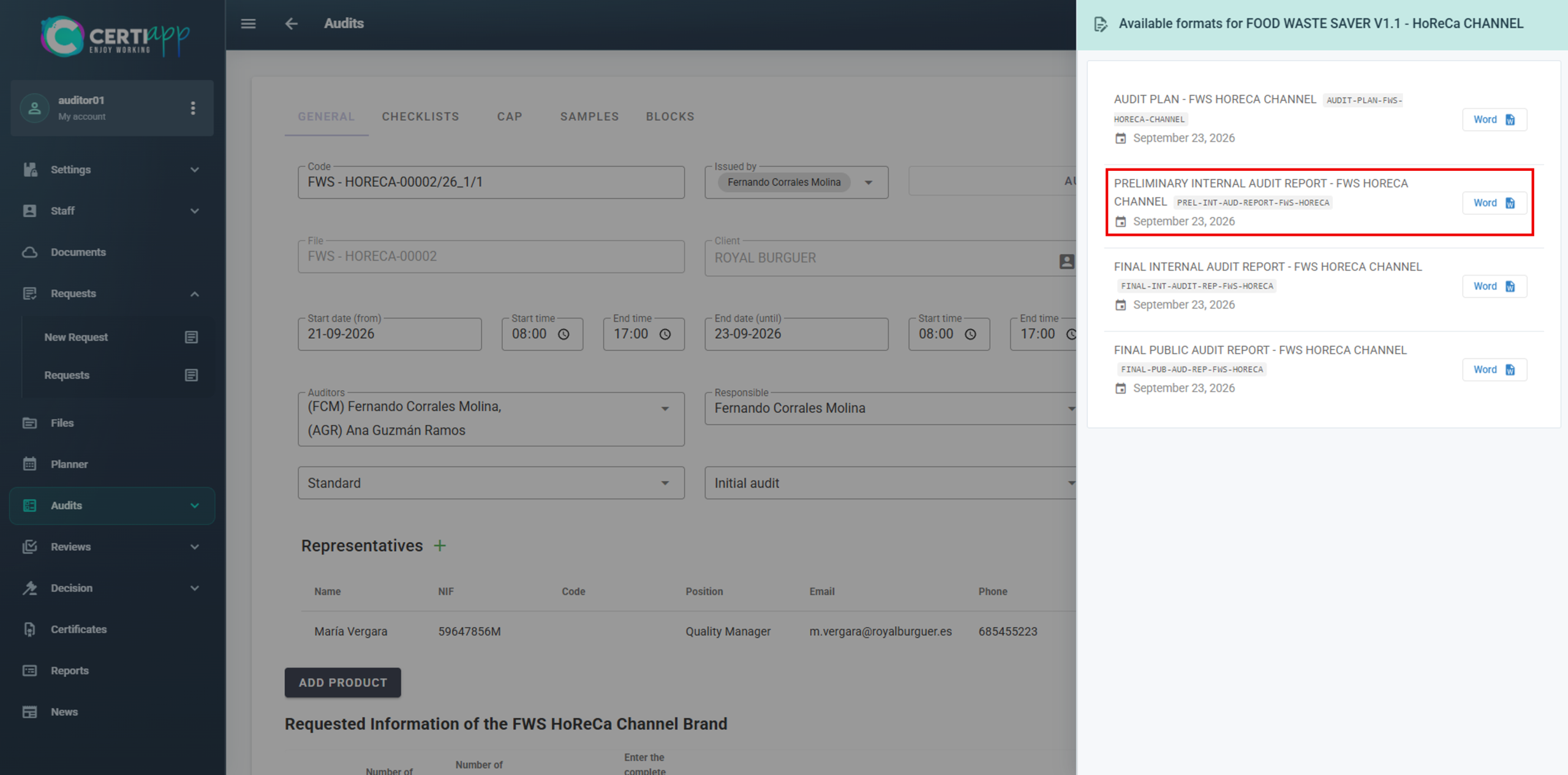
Step 4. Share the documents with the operator
Send the operator the Preliminary Internal Audit Report together with the internal checklist. For a group of operators, send all the checklists.
✅ Done! The audit day is complete. The next step is to create the Non-Conformity packs so that the operator can submit its Corrective Action Plan.
III. Explanatory video
📄 Full details in the User Guide for Auditors, Technical Reviewers and Decision-Makers, section 3.2.2.
Module 3 – CAP and Audit Closure
Learn how to group the Non-Conformities into packs and set the dates so that the operator can submit its Corrective Action Plan.
I. Before you start
✅The checklist must be fully evaluated, and the closing signatures recorded.
✅The operator must have passed the audit: no K.O., and at least 70% (initial audit) or 80% (renewal audit).
II. Process step by step
Step 1. Go to the CAP section
Step 2. Create the pack
Step 3. Set the dates
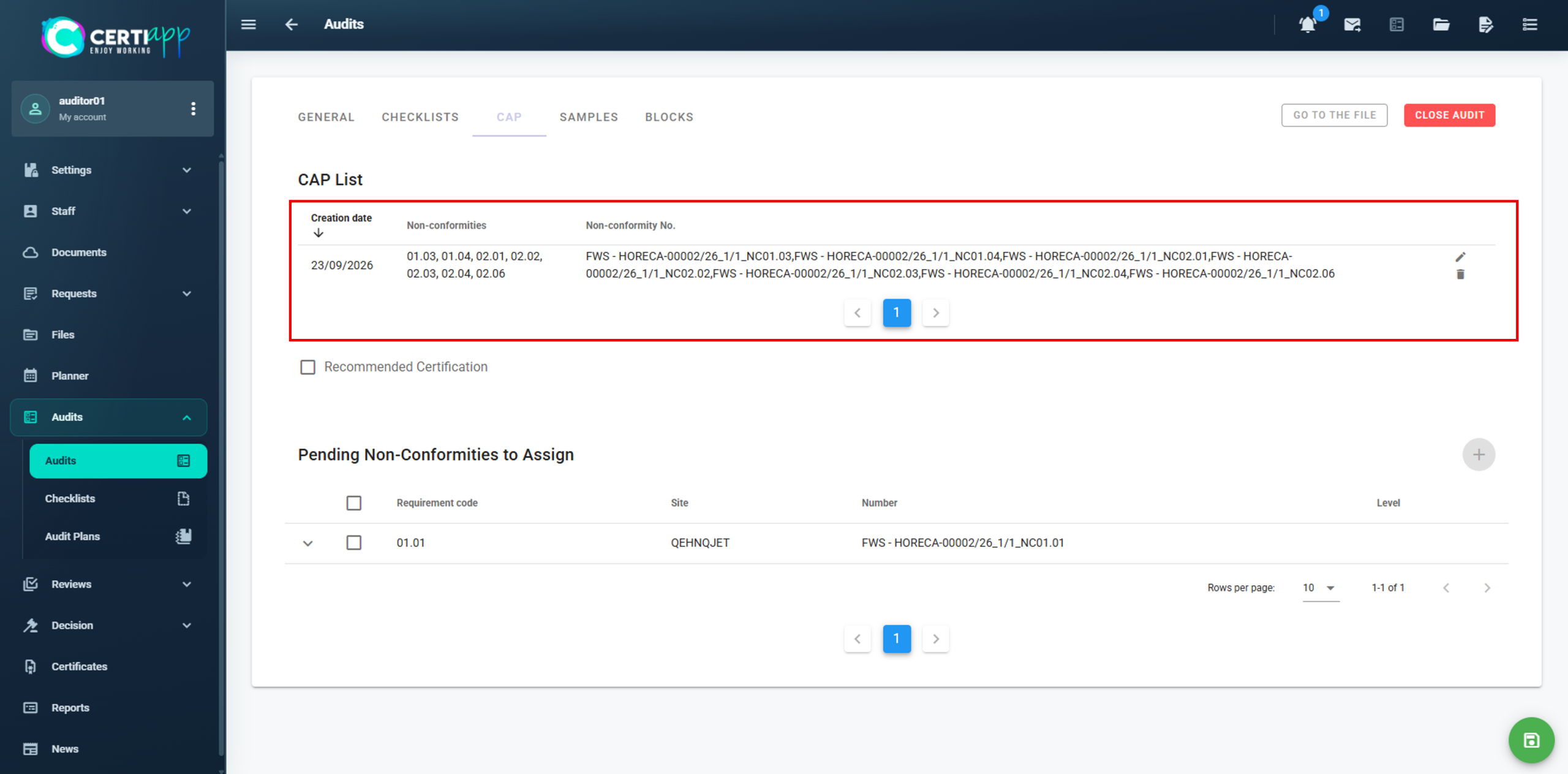
Step 4. Inform the operator
The pack appears automatically in the operator’s profile, where the operator uploads its corrective actions. Let the operator know that the pack is available.
✅ Done! Repeat these steps for each pack. When the operator has uploaded its corrective actions, you will be informed so that you can evaluate them.
III. Explanatory video
📄 Full details in the User Guide for Auditors, Technical Reviewers and Decision-Makers, section 3.2.2.
Learn how to evaluate the cause, action and evidence proposed by the operator for each Non-Conformity.
I. Before you start
✅ The operator must have uploaded its corrective actions.
✅ You have a maximum of 7 days to evaluate the CAP. The full period from the CAP submission to the final certification decision is 28 days, and the technical reviewer and the decision-maker need the remaining days.
II. Process step by step
Step 1. Open the corrective action
Step 2. Review what the operator proposed
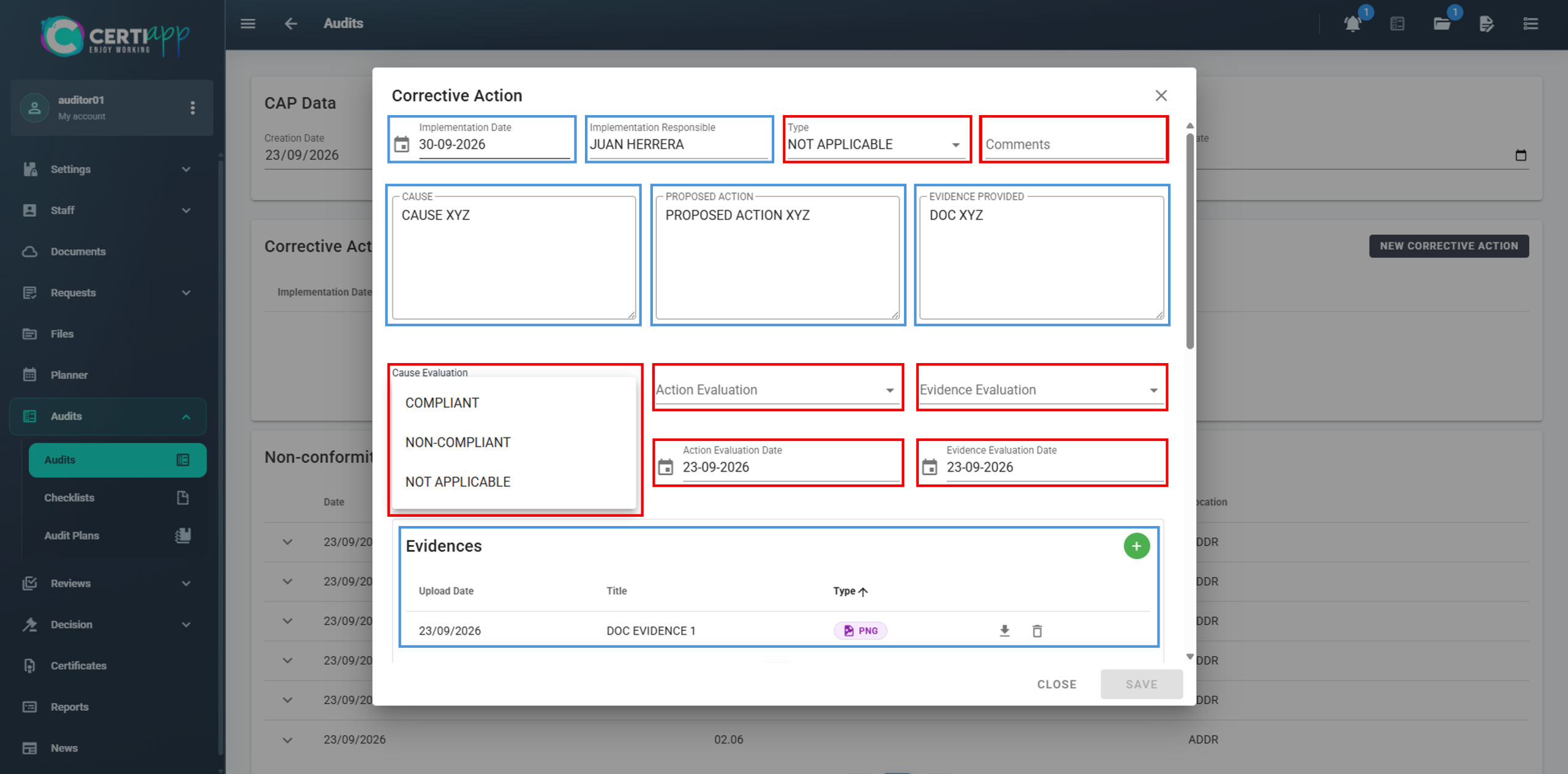
Step 3. Evaluate the corrective action
In the fields outlined in red:
- Evaluate the cause, the action and the evidence: Complies, Does Not Comply or Not Applicable.
- Enter the date of each evaluation.
- In Type, always select Specific and add a brief comment (for example, “CA OK”).
- Add your comments and assign a rating: A, B, C or N/A.
💡 Tip: if one corrective action solves several Non-Conformities, click on ℹ️ to see the requirement of each one.
Click on Save and repeat the process for each corrective action in the pack.
Step 4. Enter the CAP validation date
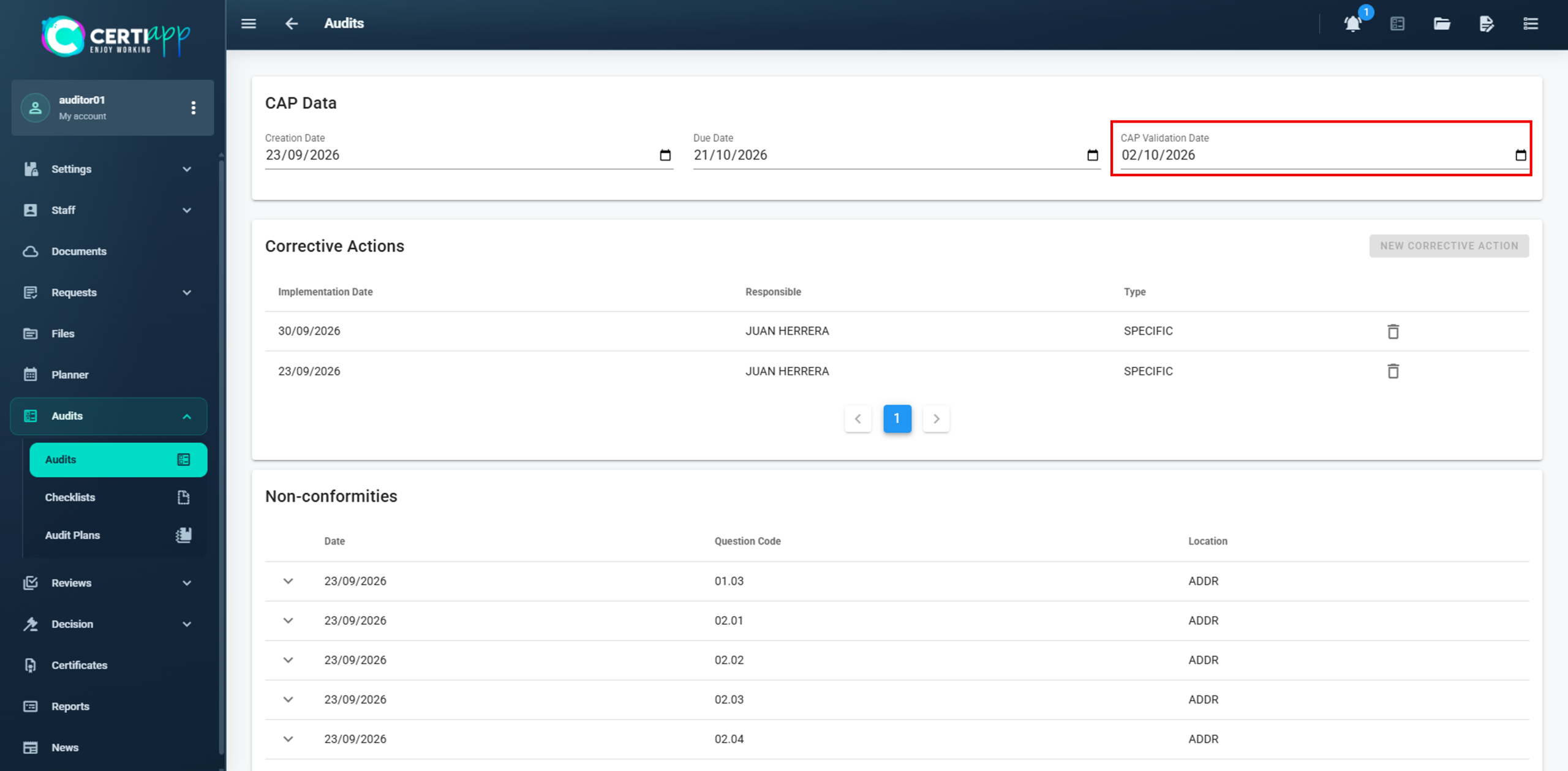
When you have evaluated all the corrective actions, enter the evaluation date in the pack (CAP validation date). Repeat the process for each pack sent to the operator.
⚠️ Important: if a corrective action is not enough to change the rating to A, inform the operator so that it can propose a new one before the Due Date. After that date, the operator can no longer edit its corrective actions. If necessary, you can extend the Due Date to reopen editing.
✅ Done! The CAP is evaluated. Next, check the final audit status.
III. Explanatory video
📄 Full details in the User Guide for Auditors, Technical Reviewers and Decision-Makers, sections 3.2.2 and 3.3.
Learn how to check whether the operator has achieved full compliance and which final reports to download and share.
I. Before you start
✅ All corrective actions in all packs must be evaluated.
II. Process step by step
Step 1. Check the final status
Go back to the Checklist section. Once the CAP is evaluated, the audit status changes from Preliminary to Final.
To move on to the next stage, the operator must reach 100% compliance. All requirements that were Non-Conformities must now be rated A.
⚠️ Group of operators: an operator that does not reach 100% after the CAP evaluation is excluded from the next stage of the process.
Step 2. Compare with the preliminary results
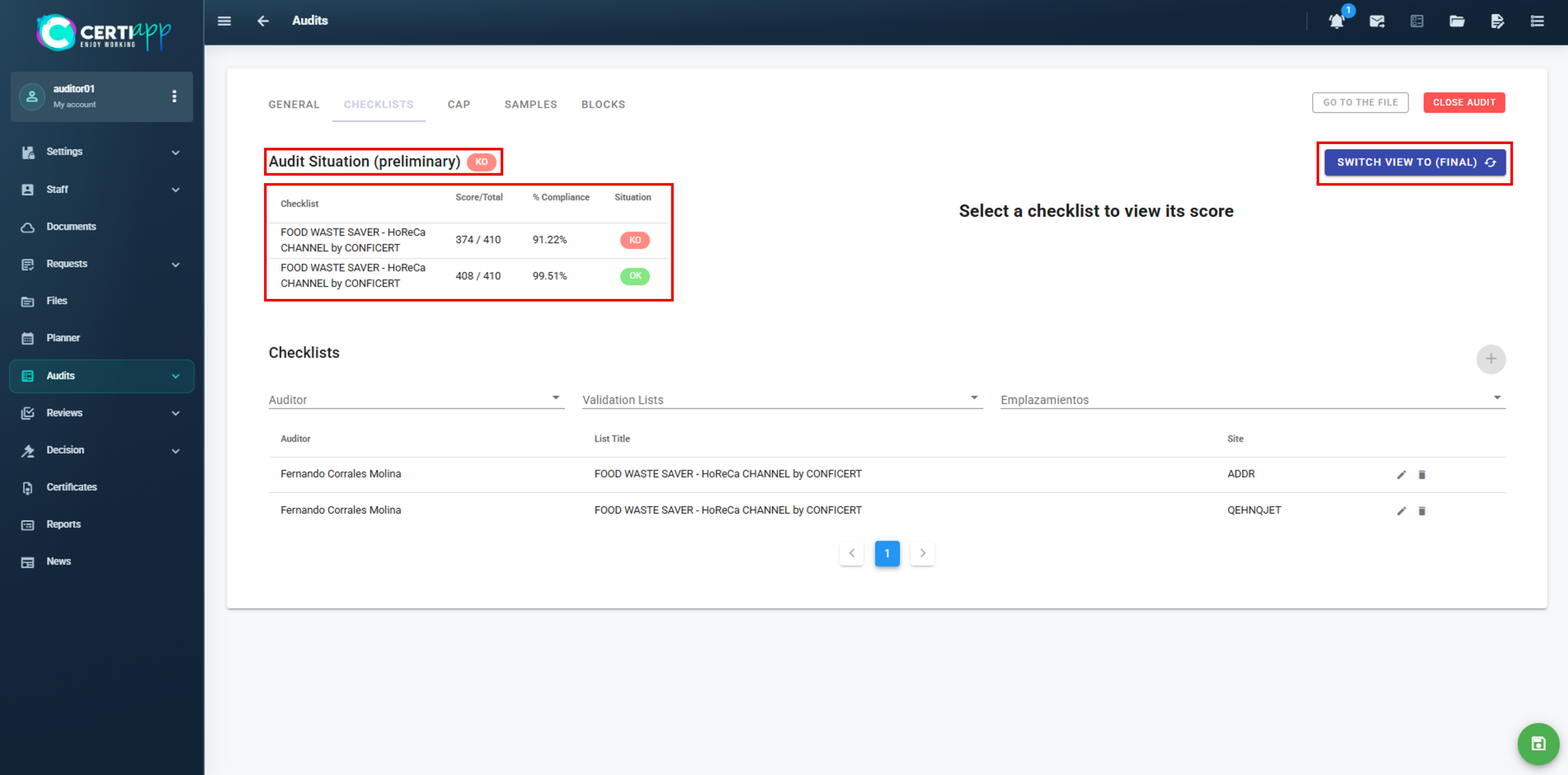
Step 3. Download the final reports
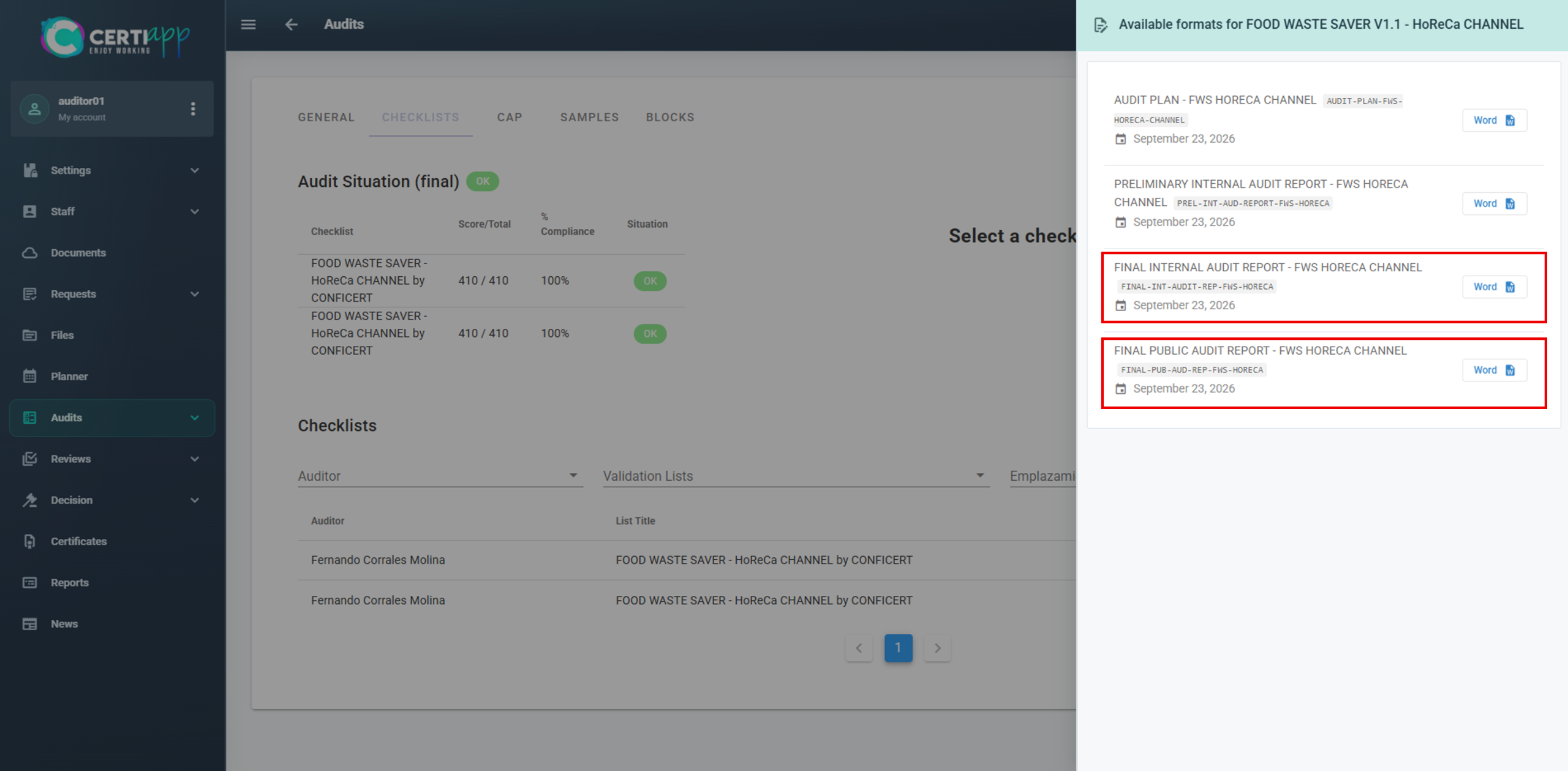
Go to the General tab and click on the 📝 icon in the top right corner.
Report
Content
Share with
Final Internal Audit Report
The operator’s explicit information from the audit
Only the auditor, the CB and the operator
Final Public Audit Report
No sensitive information. It is published on the Transparency Portal
CONFICERT administrators, only if the operator obtains the certificate
✅ Done! If you need to register samples, continue with the next lesson. Otherwise, go to Closing the audit.
III. Explanatory video
📄 Full details in the User Guide for Auditors, Technical Reviewers and Decision-Makers, section 3.2.2.
Learn how to register the samples taken during the audit and their laboratory results.
I. Before you start
✅ This record is voluntary. Use it only if samples were taken as part of the requirements verification.
✅ Have the batch number, the laboratory dates and the results at hand.
II. Process step by step
Step 1. Create the sample record
Step 2. Complete the general data
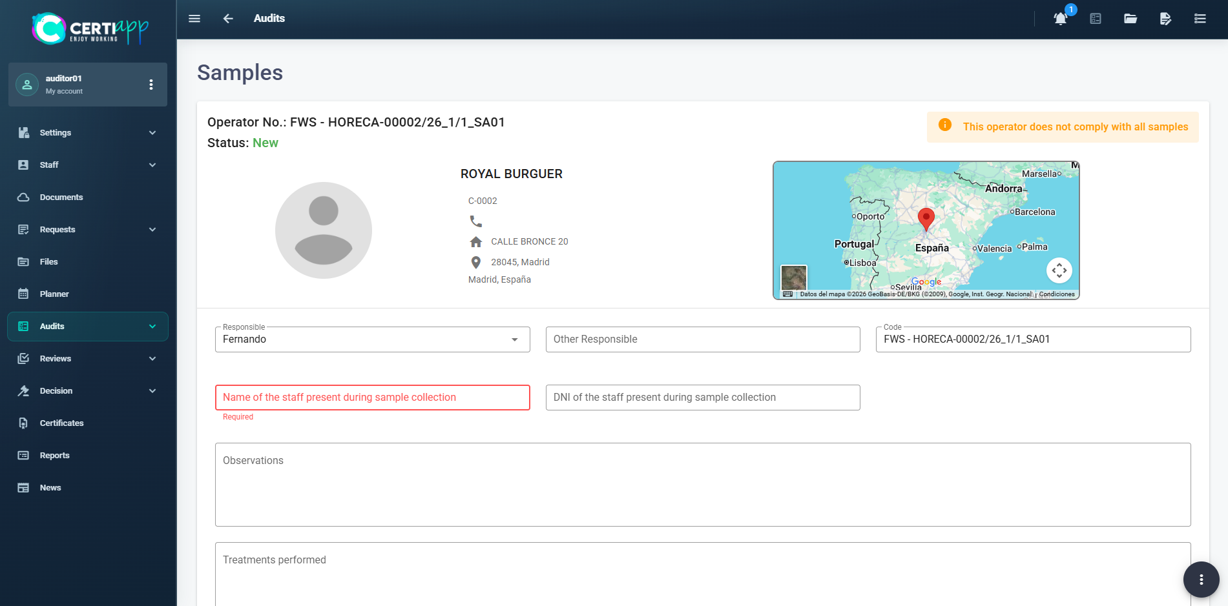
Step 3. Add each sample
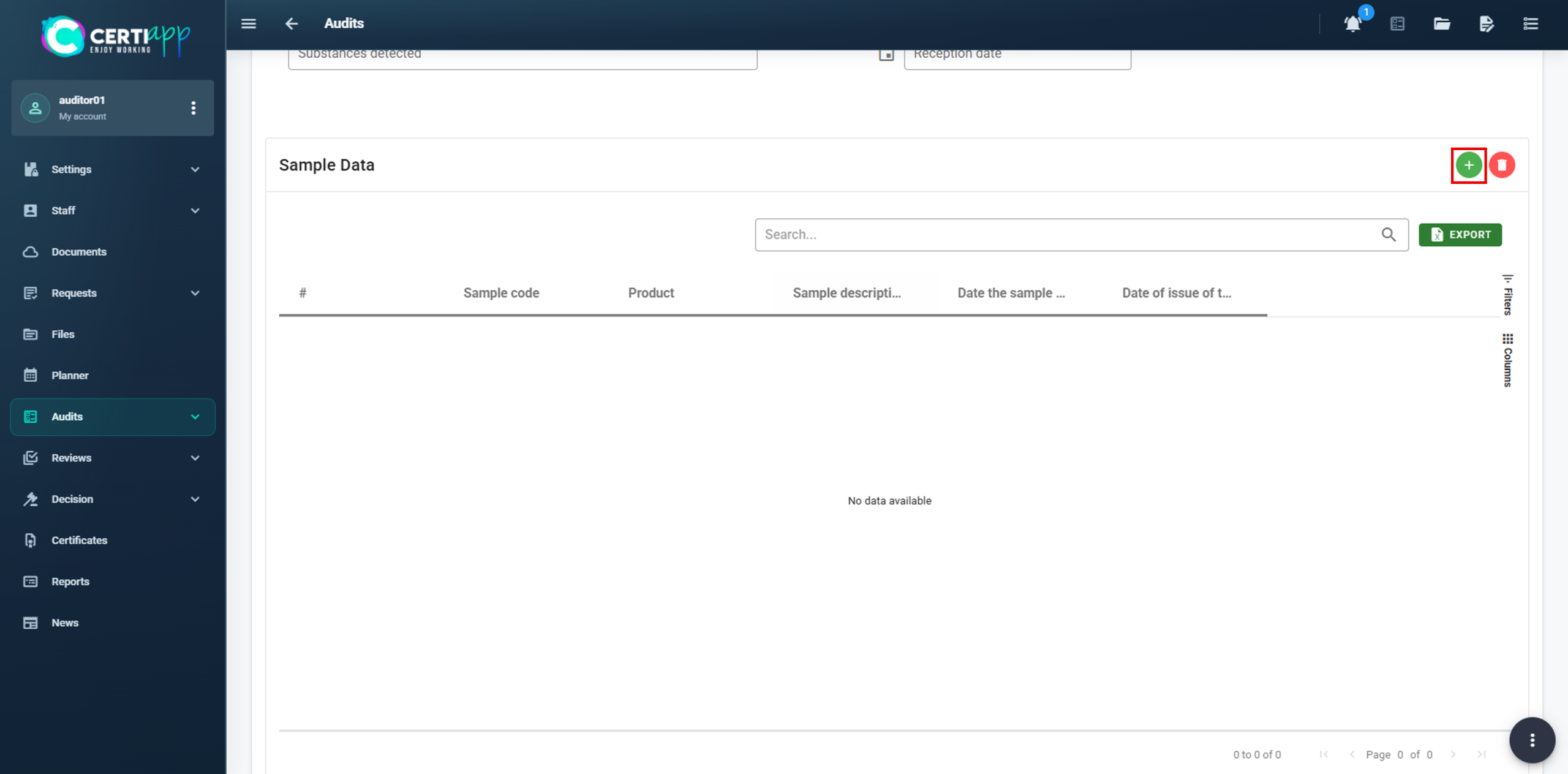
Click on ➕ and enter:
- The sample code: the audit code followed by “_SA” and the sample number (for example, FWS-HORECA000001/26_1/1_SA01).
- The product it belongs to and a brief description.
- The date it was sent to the laboratory and the date of the results.
Click on Save. To delete a sample, select it and click on 🗑️.
III. Explanatory video
📄 Full details in the User Guide for Auditors, Technical Reviewers and Decision-Makers, section 3.2.2.
Learn what to check before closing the audit and what happens afterwards.
I. Before you start
✅ The CAP must be evaluated and the audit status must be Final.
✅ The final reports must be downloaded.
II. Process step by step
Step 1. Check everything
Review that all the data in the audit is complete and saved: General tab, signatures, checklists, CAP and samples.
Step 2. Close the audit
Click on Close Audit. A message warns you that, once closed, no data can be modified and that a technical review of the file is generated automatically. Confirm to continue.
⚠️ Important: closing the audit cannot be undone easily. To reopen it, the technical review must first be deleted from Reviews, and then the audit reopened with the ↗️ icon in Audits.
III. Explanatory video
📄 Full details in the User Guide for Auditors, Technical Reviewers and Decision-Makers, section 3.2.2.
Module 4 – Technical Review
Learn where to follow your audit in CERTIAPP and what each audit status means for you.
I. Before you start
✅ Your Certification Body must have assigned you the Reviewer role for the Brand.
✅ The auditor must have closed the audit. The review is generated automatically when the audit is closed.
✅ Keep the deadline in mind: from the operator’s CAP submission, there are 28 days to reach the final decision. The auditor uses up to 7 of them, and the rest are shared between you and the decision-maker.
II. Process step by step
Step 1. Find the file
Step 2. Review the audit
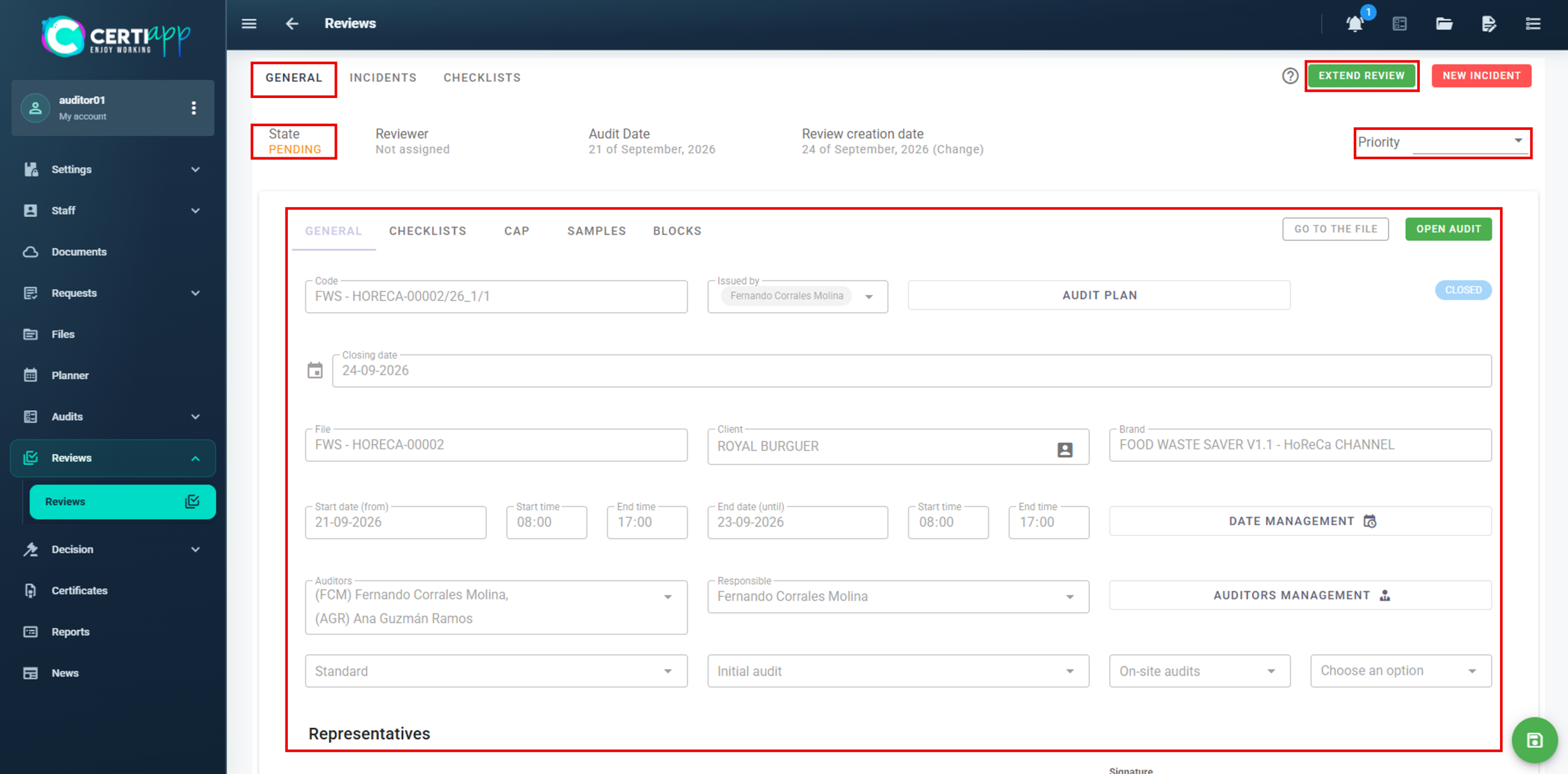
Step 3. Report an issue (if needed)
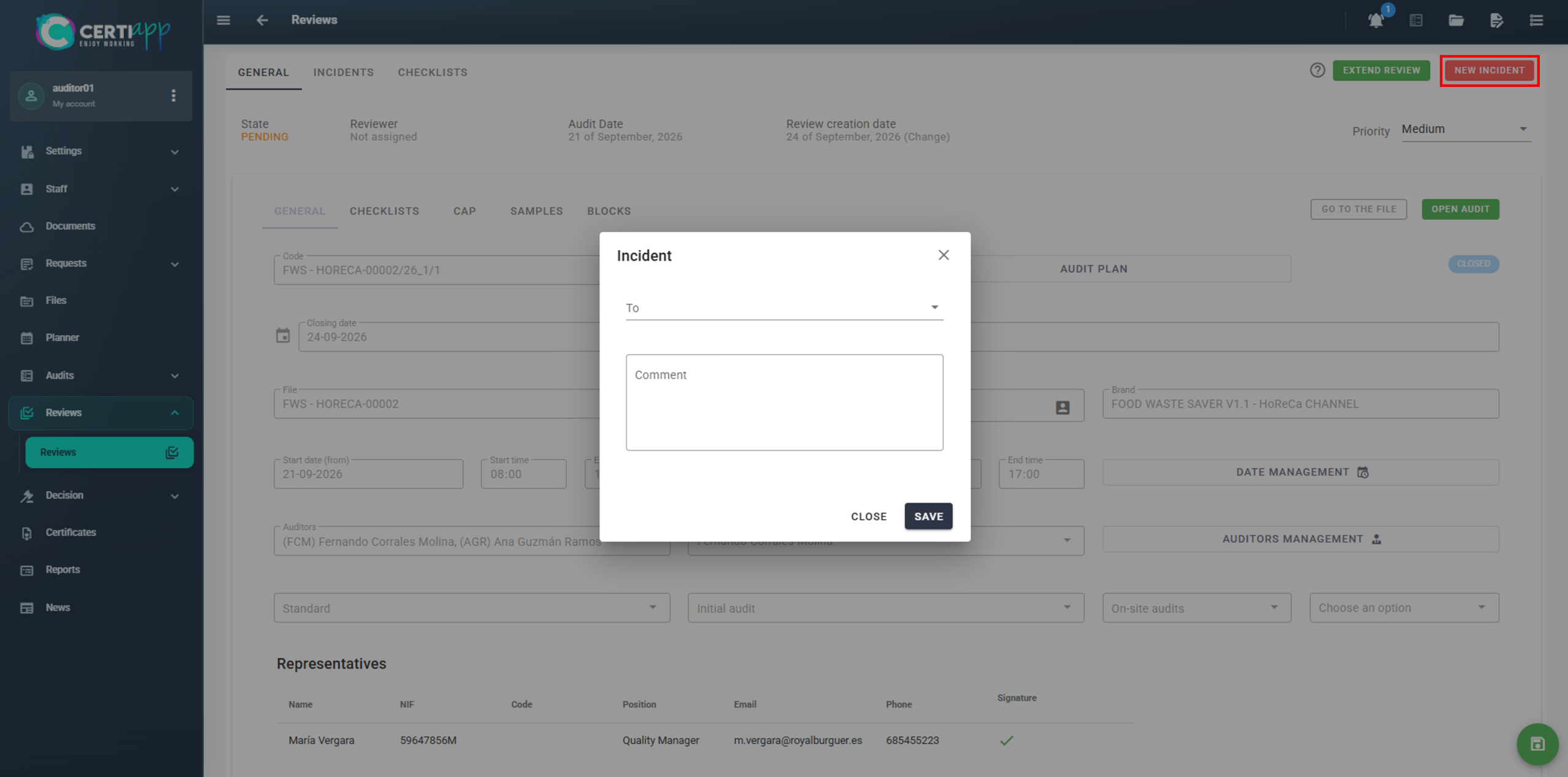
Step 4. Open the review form
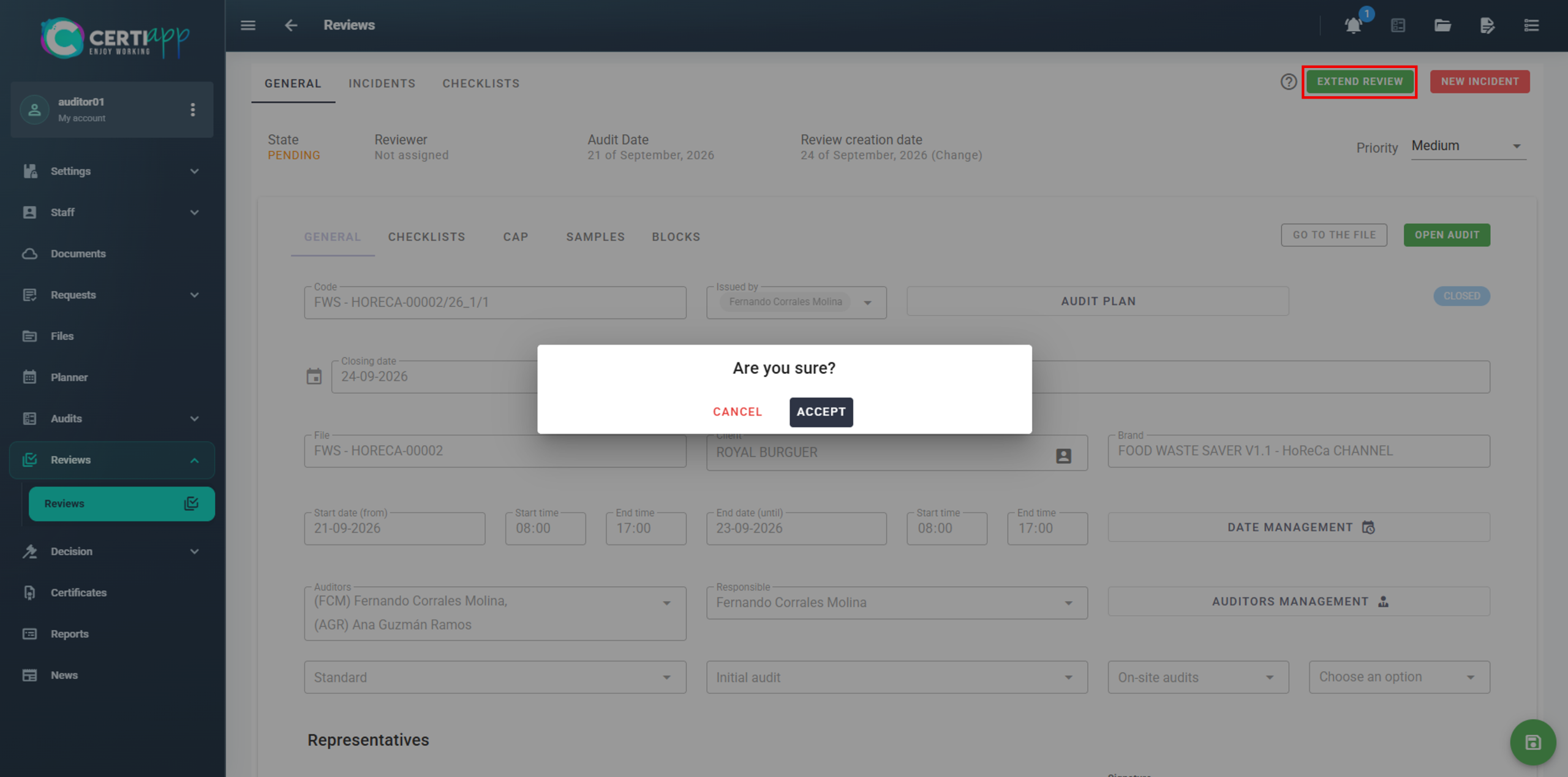
Step 5. Record your result
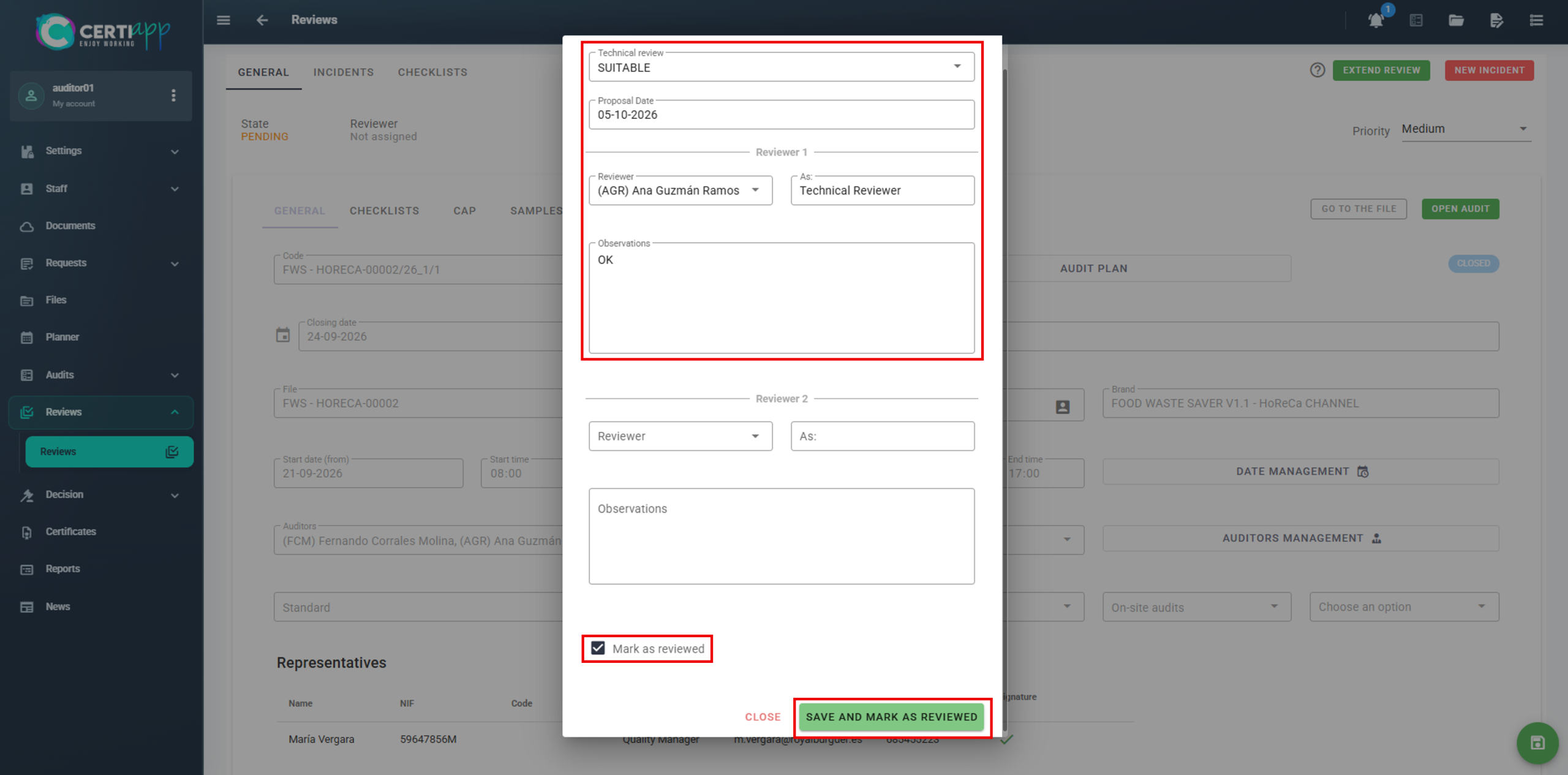
In the Technical Review window:
- Select Suitable or Not Suitable.
- Enter the date of the review.
- Select yourself as the responsible reviewer and check that your role shows as Reviewer.
- Write your observations or comments.
- Tick Mark as Reviewed.
Click on Save and Mark as Reviewed.
💡 If the result is Not Suitable: the operator is informed of the unfavorable result, and the certification process ends.
III. Explanatory video
📄 Full details in the User Guide for Auditors, Technical Reviewers and Decision-Makers, section 3.3.
Module 5 – Decision and Certificate
Learn how to record the certification decision for a file.
I. Before you start
✅ Your Certification Body must have assigned you the Decision Maker role for the Brand.
✅ The technical reviewer must have completed the review. The file appears in Decision as soon as the review shows Closed Approved.
✅ Keep the 28-day deadline from the CAP submission in mind.
II. Process step by step
Step 1. Find the file
Step 2. Record the decision
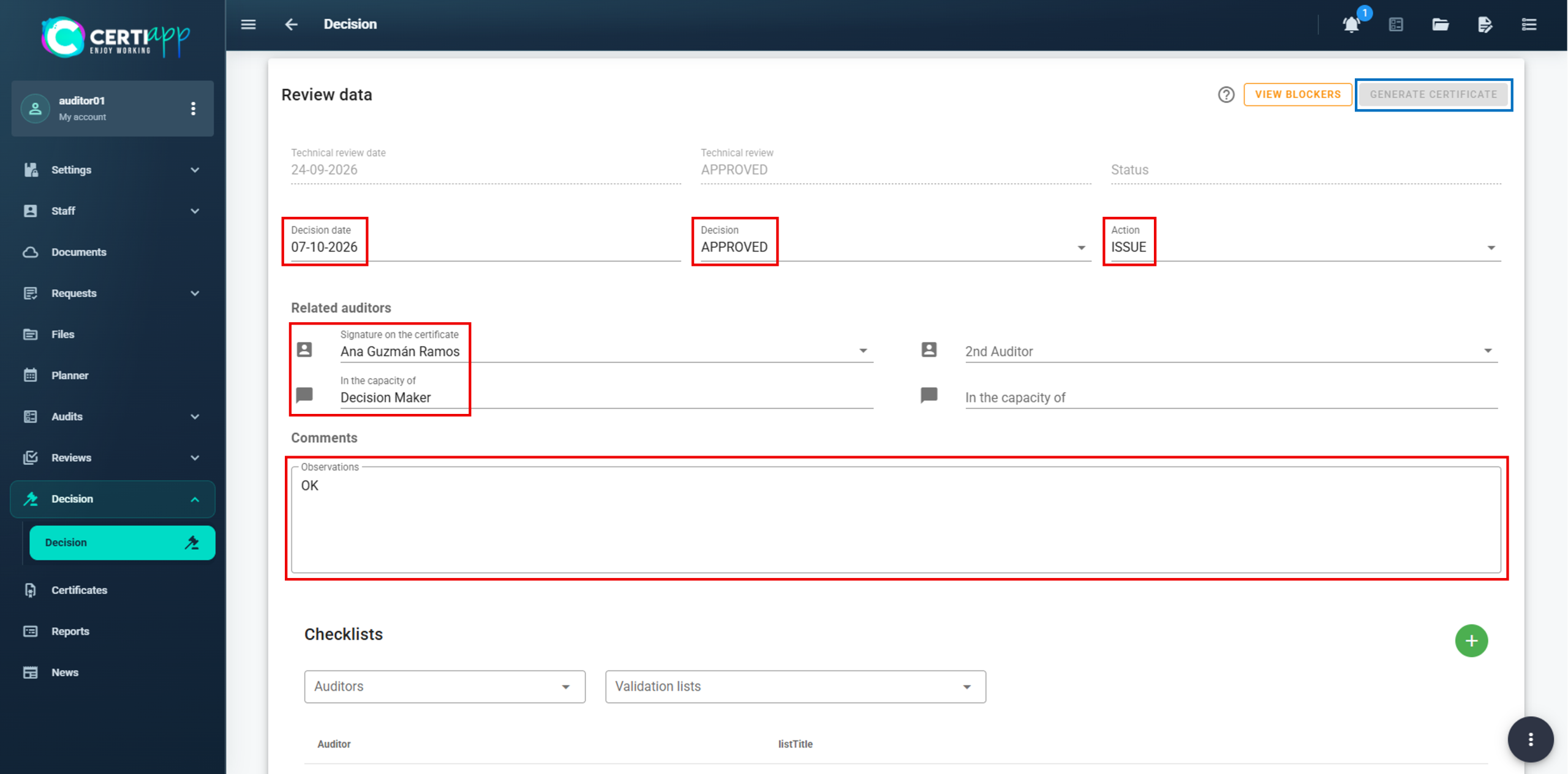
- Enter the decision date.
- After reviewing all the information in the file, select Approved or Not Approved.
- Select the action to take according to the result.
- Write your comments.
💡 If the decision is Not Approved: the operator is informed of the unfavorable result, and the certification process ends.
💡 Ignore the Checklist section at the bottom of the screen. It plays no role at this stage. Click on Save.
✅ Done! If the decision is favorable, the next step is to generate the certificate. If it is unfavorable, the process ends here once the operator has been informed.
III. Explanatory video
📄 Full details in the User Guide for Auditors, Technical Reviewers and Decision-Makers, section 3.4.
Learn what must be in place before the certificate can be generated, and how to generate it on time.
I. Before you start
The Generate Certificate button only unlocks when two conditions are met:
✅ The Royalty Fee has been paid and assigned to the operator. Your Certification Body manages this through the CONFICERT web platform.
✅ The operator has signed the Brand Use License Agreement and returned it to the Certification Body, after being informed of the favorable decision.
II. Process step by step
Step 1. Find the file
III. Explanatory video
📄 Full details in the User Guide for Auditors, Technical Reviewers and Decision-Makers, section 3.4.
Learn how to complete the certificate data, plan the next audit, and make the certificate active and public.
I. Before you start
✅ The certificate must have been generated (see Generating the certificate).
II. Process step by step
Step 1. Complete the certificate dates
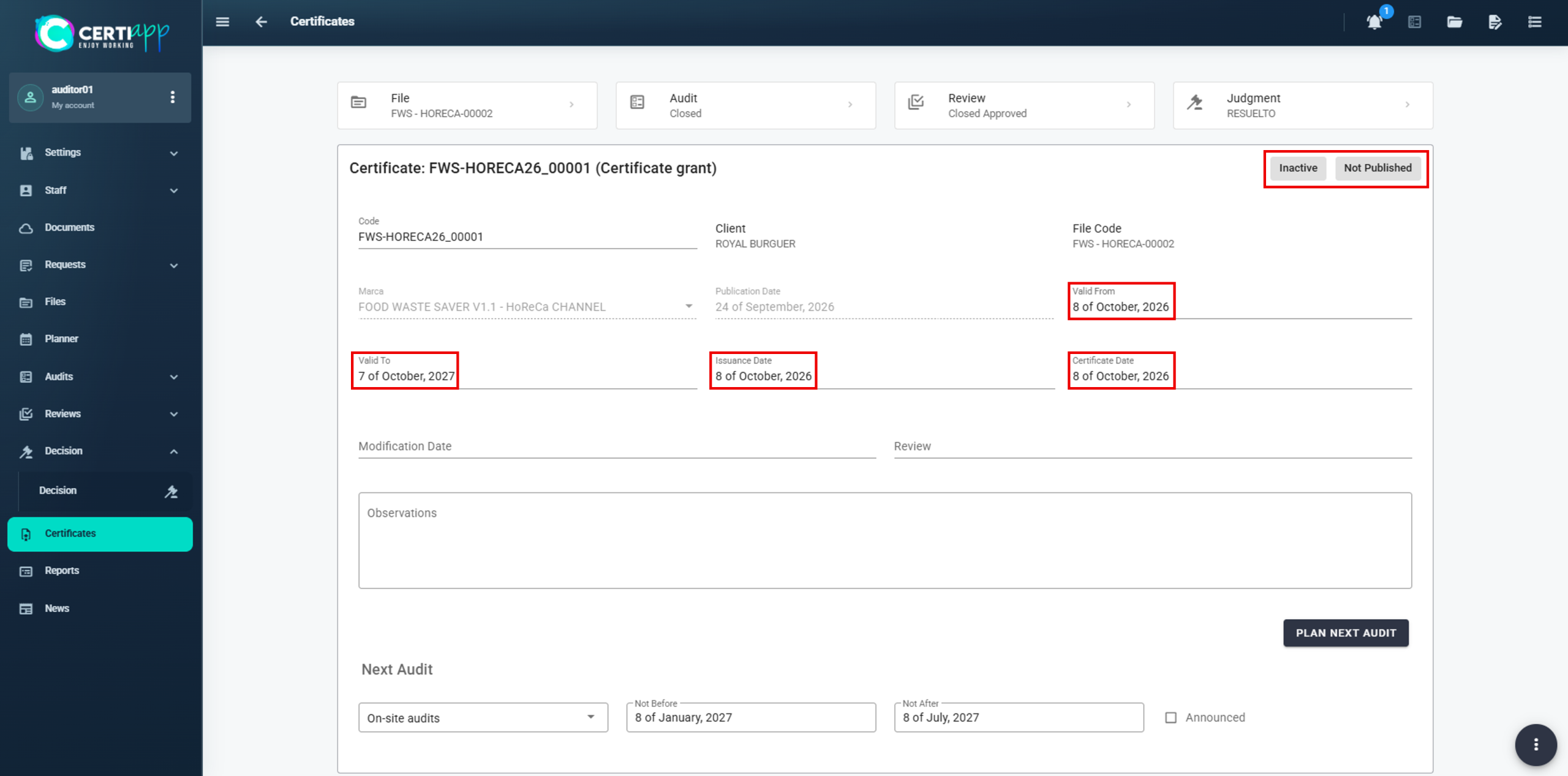
Step 2. Plan the next audit
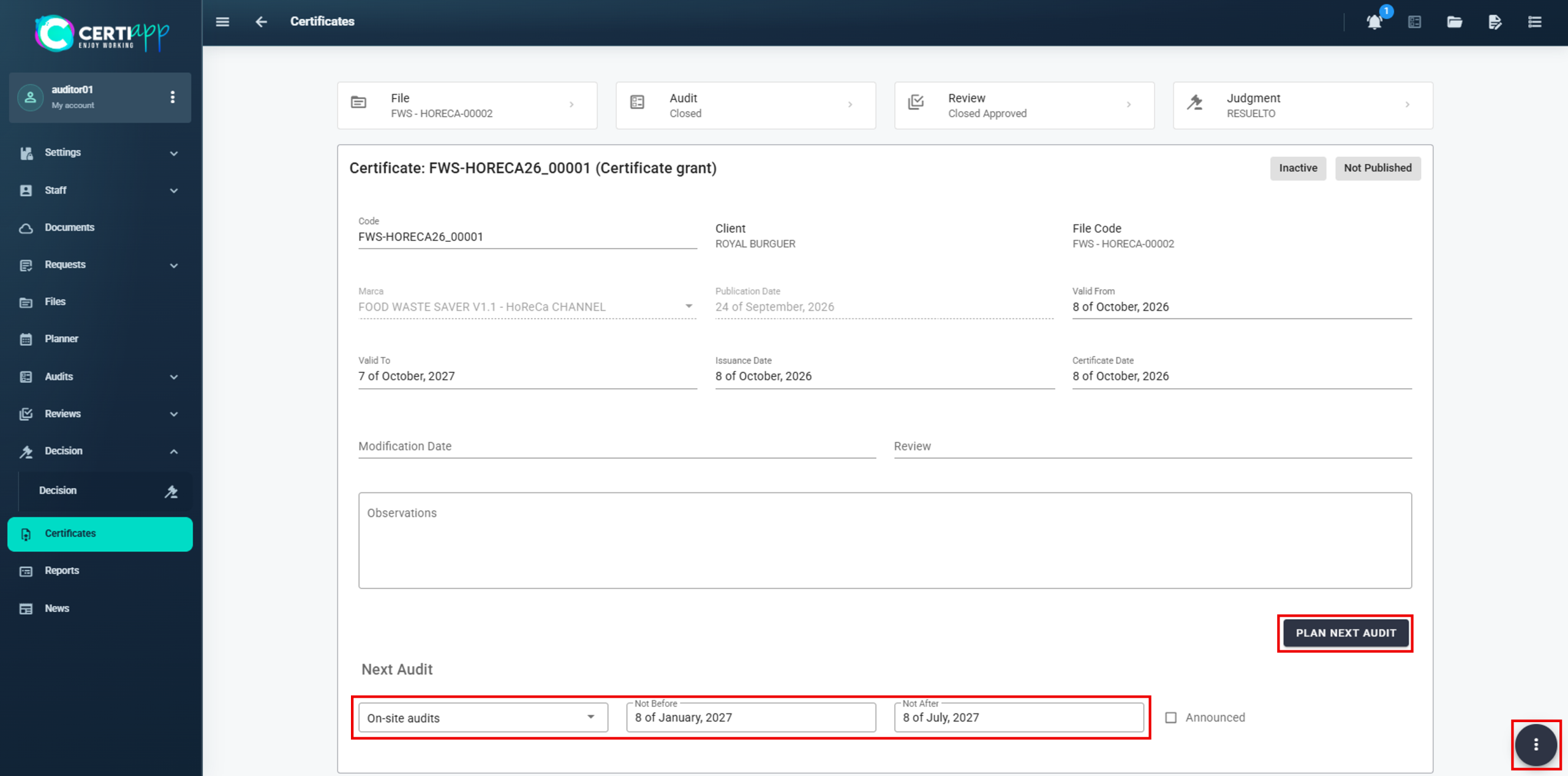
Step 3. Activate and publish
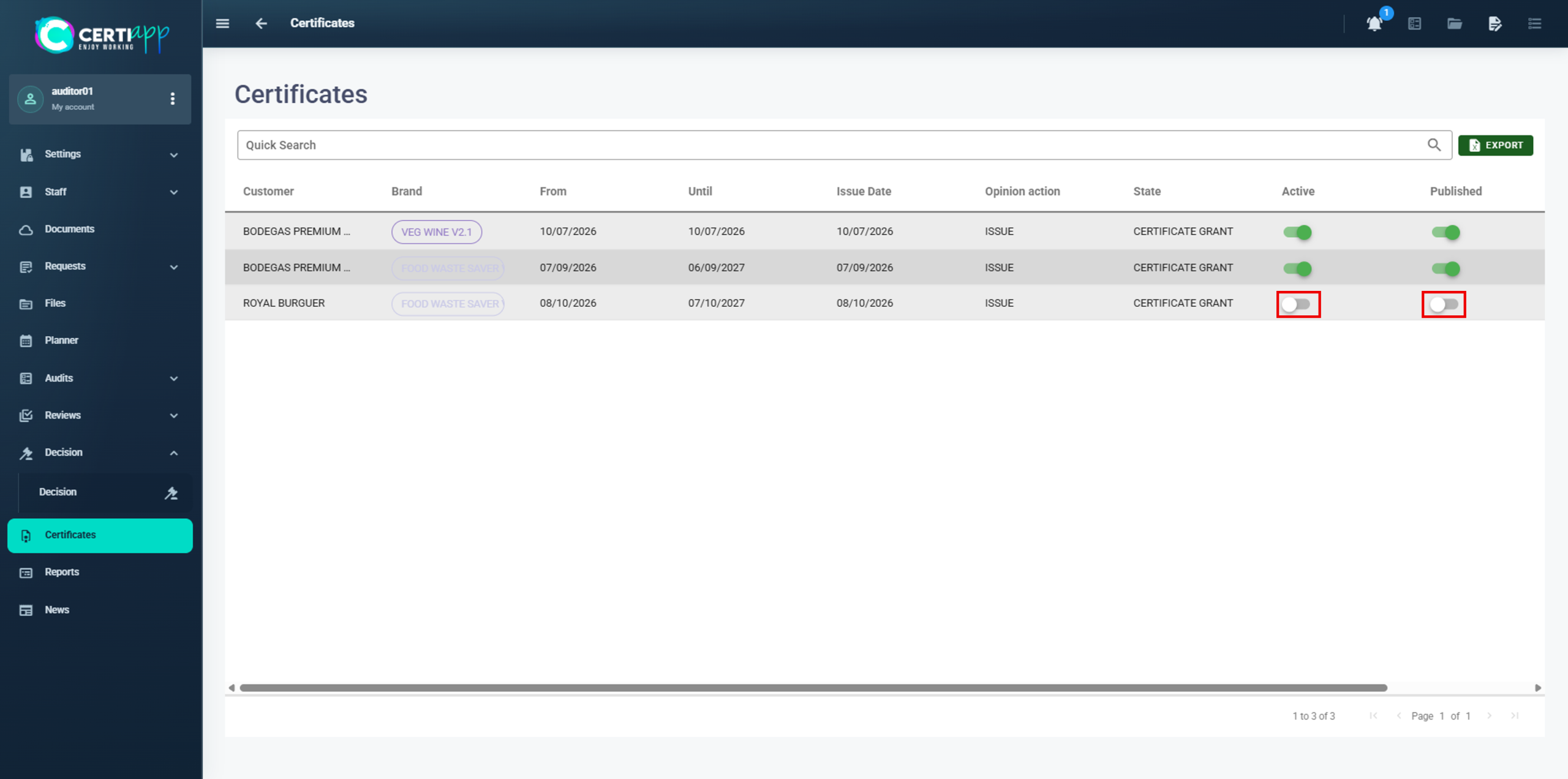
Step 4. Check and download
Step 5. Prepare the publication on the Transparency Portal
Once the certificate is issued:
- The Certification Body sends the operator the internal and public audit reports, and informs it that the certificate is available in its Certificates section.
- The operator is asked for its graphic material: company logo, photos of the certified product or images of the service, a company description and any other relevant documents. The operator sends this material to the Certification Body or to the decision-maker.
- The Certification Body sends this material, together with the public audit report and the certificate, to the CONFICERT administration team at conficert5@conficert.org, for publication on the CONFICERT Transparency Portal.
✅ Done! The certification process for this file is complete. The certificate will soon be visible on the Transparency Portal.
III. Explanatory video
📄 Full details in the User Guide for Auditors, Technical Reviewers and Decision-Makers, section 3.5.
Still have questions?
Check the frequently asked questions for operators or contact your Certification Body.
1. Who provides my username and password to access CERTIAPP?
Certification Bodies receive them from CONFICERT. Operators and Evaluation Staff receive them from their Certification Body.
2. In what language should information be entered on the platform?
In English: the request, the additional information, and the checklist evaluation.
3. Can I change my password?
Yes, in “My Data” › “Personal Data” › “Change Password”. The email address with which the account was registered must not be changed.
4. What do the Planned, Open, and Closed audit statuses mean?
✓ Planned: the audit has been created.
✓ Open: the auditor has started it.
✓ Closed: the CAP has been evaluated and the audit has been completed.
5. What types of Non-Conformity are there?
Minor, serious, and critical (K.O.). A critical Non-Conformity prevents the certification process from continuing, although the audit may still be completed that day.
6. Where can I find the process documents?
All exchanged documents (request, contract, evidence) are in “Documents” and can be filtered by name, type, or module.
1. How many checklists are created in a multi-site or group audit?
One per operator, not per site.
2. What is the difference between the "Observations" and "Comments" fields?
“Observations” is internal and is not visible to the operator. “Comments” appears in the checklist and is visible to the operator.
3. What type of Non-Conformity does each rating generate?
✓ Regular requirement: B or C generates a minor Non-Conformity.
✓ Major requirement: B generates a minor Non-Conformity, and C a serious Non-Conformity.
✓ Essential requirement: B generates a serious Non-Conformity, and C a critical (K.O.) Non-Conformity.
4. What is the minimum pass threshold for the audit?
70% for an initial audit and 80% for a renewal audit. After the CAP, the operator must reach 100% compliance.
5. What is the difference between the internal and public checklists?
The internal checklist contains all explicit comments and is for the CB’s use. The public checklist omits sensitive information and is published on the Transparency Portal. The auditor must review its wording before sending it.
6. How much time does the auditor have to evaluate the CAP?
A maximum of 7 days, within the total of 28 days until the final decision.
7. Can a signature be modified once recorded?
No. Once recorded, a signature cannot be edited.
8. Is sample registration mandatory?
No, sample registration (Samples) is voluntary and optional.
9. How do I reopen a closed audit?
First delete the technical review from “Reviews”, then click on the reopen icon.
Need help?
If you have any questions about using CERTIAPP or encounter an issue on the platform, we are here to help.
*Evaluation Staff: for questions about how the platform works, technical issues, or questions about the guides, write to us at conficert5@conficert.org
To help us respond faster, please include your role, the CERTIAPP section where the issue arises, and, if possible, a screenshot.
Frequently asked questions
1. Who provides my username and password to access CERTIAPP?
Certification Bodies receive them from CONFICERT. Operators and Evaluation Staff receive them from their Certification Body.
2. In what language should information be entered on the platform?
In English: the request, the additional information, and the checklist evaluation.
3. Can I change my password?
Yes, in “My Data” › “Personal Data” › “Change Password”. The email address with which the account was registered must not be changed.
4. What do the Planned, Open, and Closed audit statuses mean?
✓ Planned: the audit has been created.
✓ Open: the auditor has started it.
✓ Closed: the CAP has been evaluated and the audit has been completed.
5. What types of Non-Conformity are there?
Minor, serious, and critical (K.O.). A critical Non-Conformity prevents the certification process from continuing, although the audit may still be completed that day.
6. Where can I find the process documents?
All exchanged documents (request, contract, evidence) are in “Documents” and can be filtered by name, type, or module.
1. Why can't I create a request?
The membership and the Annual Authorization Fee to Certify a Brand must be current, and the operator must have been assigned the Brand Registration and Certification Fee.
2. Which options must be enabled in the initial settings?
The three options in “Audit References”. If they are not enabled, problems will arise when evaluating the CAP.
3. Which role should I assign to each auditor?
✓ “Auditor Admin”: if the person will act as auditor, reviewer, and decision-maker, or only as auditor.
✓ “Reviewer”: if they will carry out only technical reviews.
✓ “Decision Maker”: if they will carry out only decision-making.
The roles must match the competencies assigned for each Brand.
4. How far in advance must the audit plan be sent?
At least 48 hours in advance.
5. Do I have to send the request document to the operator?
Yes. Once approved, it is downloaded in Word, reviewed, converted to PDF, sent to the operator, and saved in the operator’s document manager.
6. Why isn't the "Generate Certificate" button enabled?
The Royalty Fee must be paid and assigned to the operator, and the Brand Use License Agreement must be signed.
7. How much time is there to issue the certificate?
A maximum of 72 hours from when the above requirements are met.
8. What must be sent to CONFICERT after issuing the certificate?
The public audit report, the certificate, and the operator’s graphic material, to conficert5@conficert.org, for publication on the Transparency Portal.
1. How many checklists are created in a multi-site or group audit?
One per operator, not per site.
2. What is the difference between the "Observations" and "Comments" fields?
“Observations” is internal and is not visible to the operator. “Comments” appears in the checklist and is visible to the operator.
3. What type of Non-Conformity does each rating generate?
✓ Regular requirement: B or C generates a minor Non-Conformity.
✓ Major requirement: B generates a minor Non-Conformity, and C a serious Non-Conformity.
✓ Essential requirement: B generates a serious Non-Conformity, and C a critical (K.O.) Non-Conformity.
4. What is the minimum pass threshold for the audit?
70% for an initial audit and 80% for a renewal audit. After the CAP, the operator must reach 100% compliance.
5. What is the difference between the internal and public checklists?
The internal checklist contains all explicit comments and is for the CB’s use. The public checklist omits sensitive information and is published on the Transparency Portal. The auditor must review its wording before sending it.
6. How much time does the auditor have to evaluate the CAP?
A maximum of 7 days, within the total of 28 days until the final decision.
7. Can a signature be modified once recorded?
No. Once recorded, a signature cannot be edited.
8. Is sample registration mandatory?
No, sample registration (Samples) is voluntary and optional.
9. How do I reopen a closed audit?
First delete the technical review from “Reviews”, then click on the reopen icon.
1. What must I do before completing the request?
Review “My Data”, give LOPD consent, sign the certification contract, and register all facilities.
2. Where do I sign the certification contract?
In “Documents”, by clicking on the 📝 icon in the upper right corner. It is downloaded in Word format, signed, and sent to the CB’s email address.
3. What is LOPD consent, and when should I give it?
It is acceptance of the Organic Law on Data Protection (LOPD). Check it in “My Data” › “LOPD”, save, and notify the CB. It must be done before the request is opened.
4. Is it mandatory to register technicians?
No, it is a voluntary, informational record. The username and password it asks for can be filled in with any value, since no access profiles are created.
5. How many facilities must I register?
At least 2 for a single site (one fiscal and one facility), and at least 3 for a multi-site operator or group of operators.
6. My office and my facility are at the same address. Do I register only one?
No. Two records must be created even if the address is the same: one of the fiscal type and another of the facility type.
7. Why doesn't my facility appear when completing the request?
It must be registered in “Facilities” as the Facility type and marked as active.
8. Who creates the request?
Always the Certification Body. The operator completes it from “View Request”.
9. Can I modify the request after submitting it?
Only while it is in “Pending” status. Once approved, the CB must be asked to reopen it.
10. We are a group of operators. Who manages the account?
The Lead Operator (OPERATOR 1), which is the user with which the profile was created. It manages the entire process on behalf of the group.
11. How much time do I have to resolve the Non-Conformities?
A maximum of 28 days. The deadline and the days remaining are shown in the Non-Conformity pack itself.
12. How do I know whether I have responded to all the Non-Conformities?
The pack counter shows, for example, “4/4”: the number of NCs with a corrective action out of the total number of NCs.
13. I have uploaded my corrective actions. What should I do now?
Inform the auditor so that they can evaluate them. If changes are requested, they can be edited with “Edit” while the deadline is still open.
14. What happens if I do not submit my corrective actions on time?
When the deadline expires, editing is closed automatically. The auditor may extend the deadline if deemed necessary.
15. What must I sign before receiving the certificate?
The Brand Use License Agreement, which the CB sends once the certification decision is favorable.
16. Where do I download my certificate?
In “Certificates”, using the “Download” button.