

CertiApp Academy - Operators
GUIDES AND RESOURCES FOR OPERATORS
Learn to manage your certification in CertiApp, step by step
Learn how to manage your certification process in CERTIAPP: from reviewing your account details and completing your request to resolving Non-Conformities and downloading your certificate.
Who is this for? Administrative and technical staff of operators applying for or maintaining a CONFICERT certification.
Your role in the process
Phase 0
Setup
Phase 1
Phase 1 - Request
Phase 2
Phase 2 – Audit
Phase 3
Decision
Phase 4
Phase 4 – Certification
Your Certification Body creates your request, plans your audit, and issues your certificate. Your role is to keep your information up to date, complete your request, and respond to any Non-Conformities within the established deadlines.
Full Operator User Guide
Download the complete guide with all the steps and screenshots.
Modules and lessons
Module 1 – Getting Started
Learn how to access CERTIAPP for the first time using the credentials provided by your Certification Body.
I. Before you start
✅ You must have logged in to CERTIAPP with the credentials provided by your Certification Body.
✅ Have the full addresses of your head office and all facilities to be audited at hand.
✅ This step must be completed before submitting your certification request.
II. Process step by step
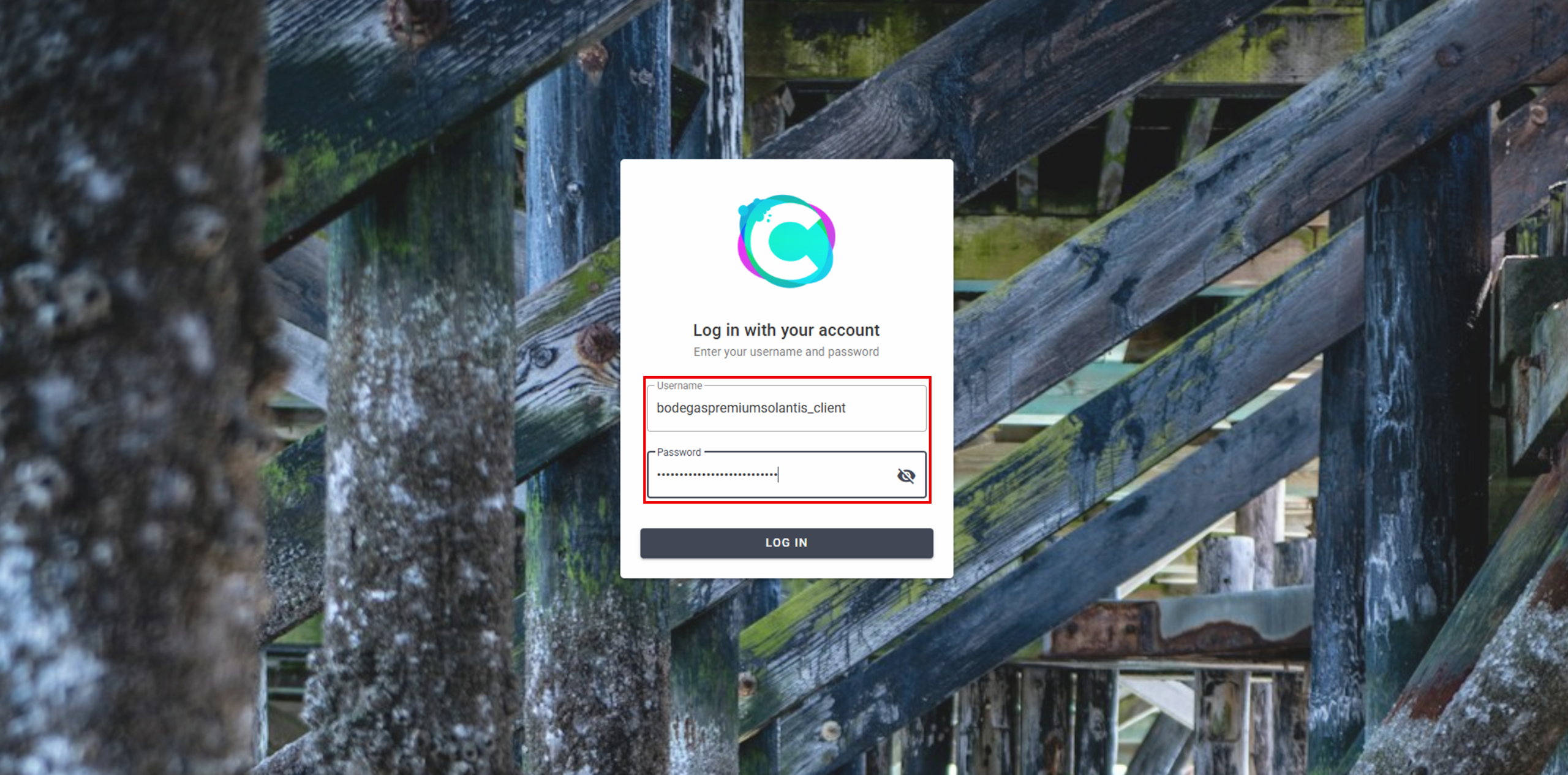
Step 1. Go to the CERTIAPP login page
Open the CERTIAPP platform at Certiapp or click on Go to the platform in CertiApp Academy.
Step 2. Enter your credentials
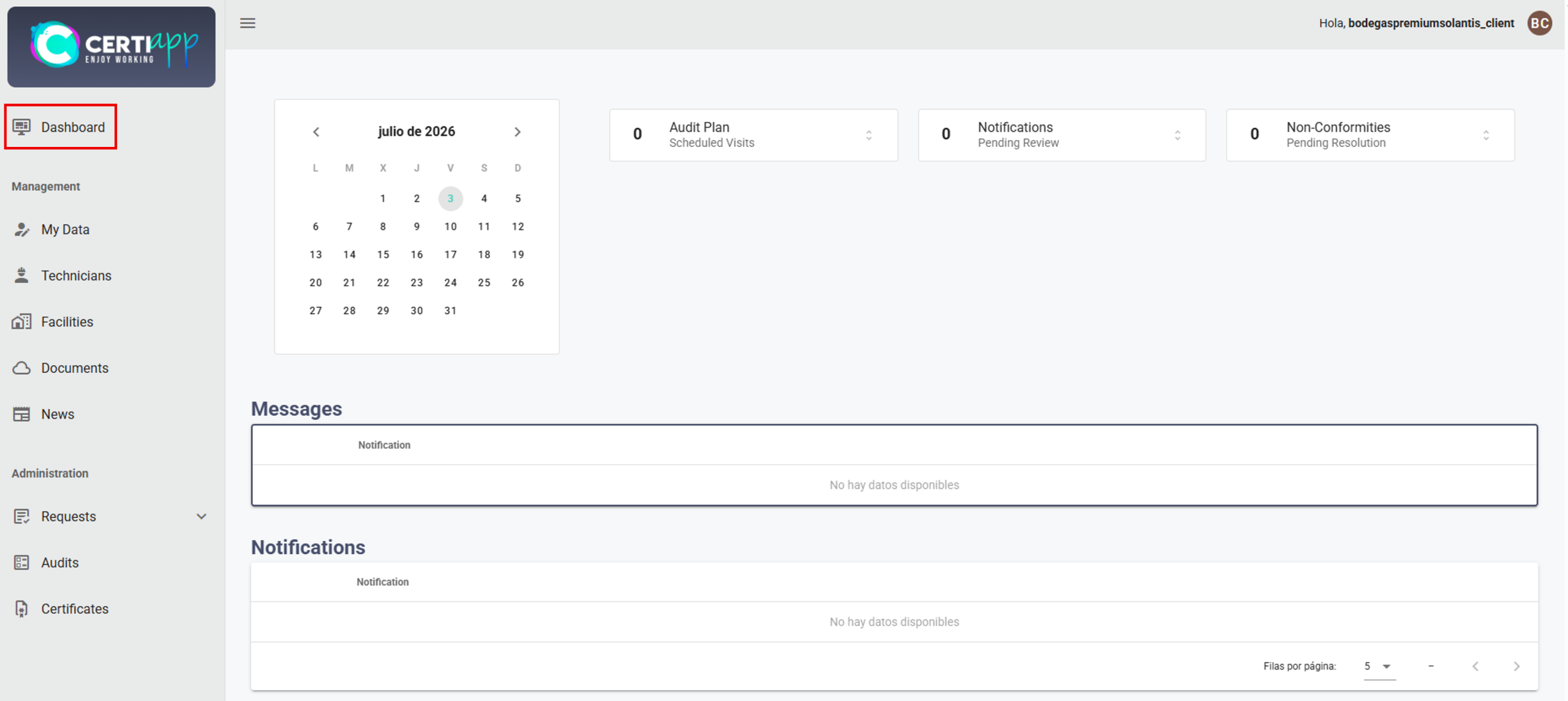
Step 3. Check that you have accessed your account
Step 4. Change your password (recommended)
For security reasons, it is recommended that you change the password provided by your Certification Body. Go to Management › My Data, click on Modify and, in the Personal Data section, click on Change Password. Enter the new password, repeat it to confirm it, and click on Save My Data.
⚠️ Important: do not change the email address with which your account was registered.
✅ Done! You can now access CERTIAPP and start your certification process.
III. Explanatory video
📄 Full details in the Operator User Guide, sections 2.2.1 and 3.1.
Get to know the main sections of CERTIAPP available to your operator profile and what each one is used for.
I. Before you start
✅ You must have logged in to CERTIAPP (see Login).
II. Process step by step
Step 1. Dashboard
The Dashboard shows a summary of your account’s activity. It includes:
- A calendar with the planned and announced audits scheduled by your Certification Body.
- The messages and notifications received.
- A summary of the Audit Plans, which you must receive at least 48 hours before the audit date.
- The notifications pending review.
- The Non-Conformities pending resolution, which are generated when you receive the Non-Conformity pack after the audit.
Step 2. Management
The Management section contains your account information and documents:
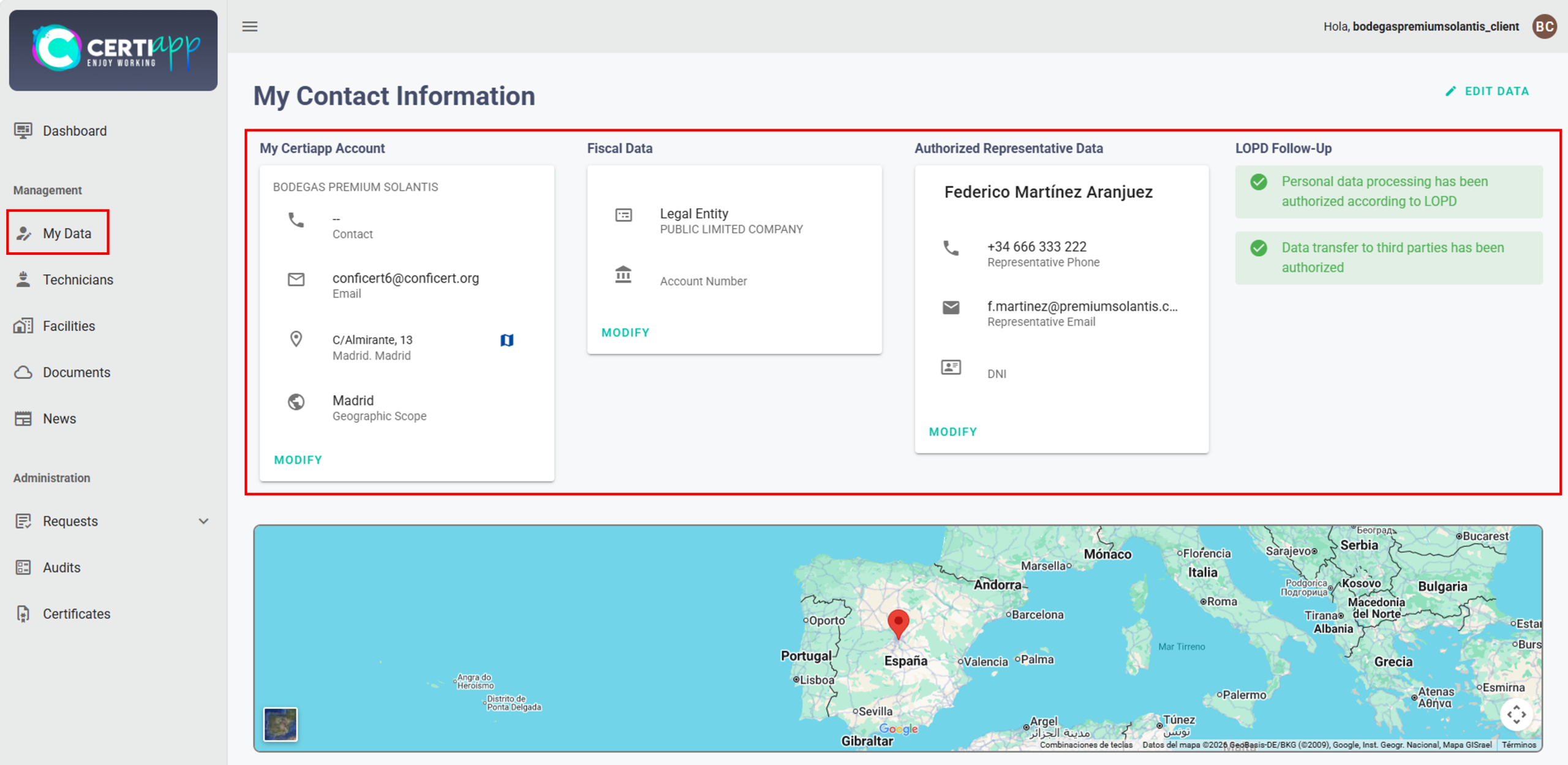
1) My Data: your contact information, tax data, representative details, and LOPD consent.
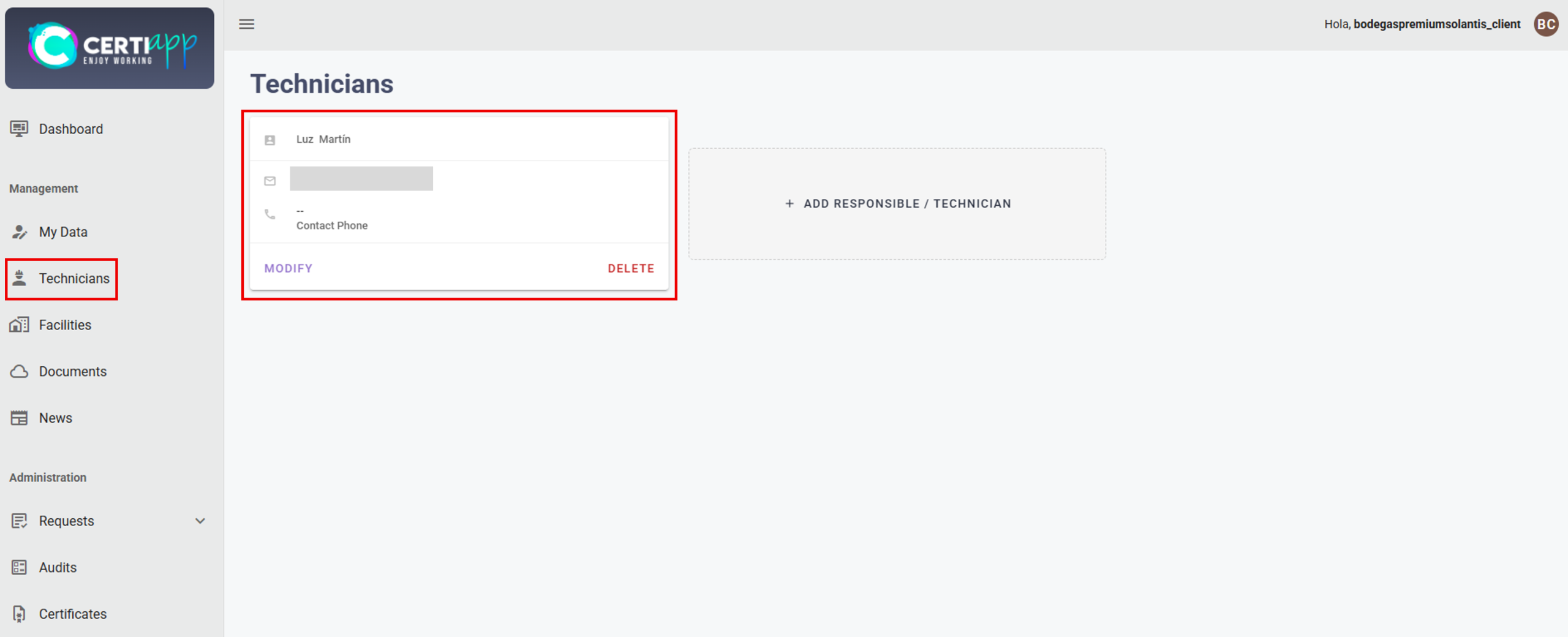
2) Technicians: an optional record of the technicians and persons in charge involved in the process.
3) Facilities: your head office and all facilities to be audited.
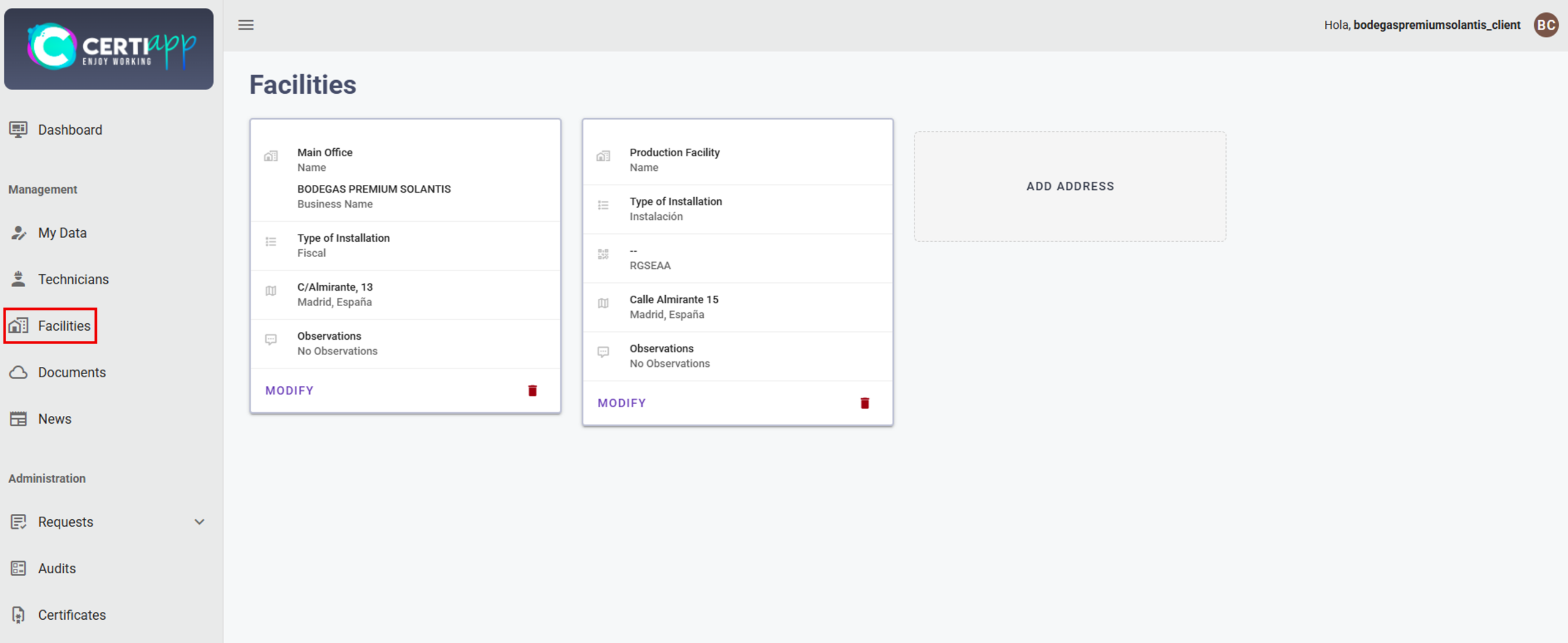
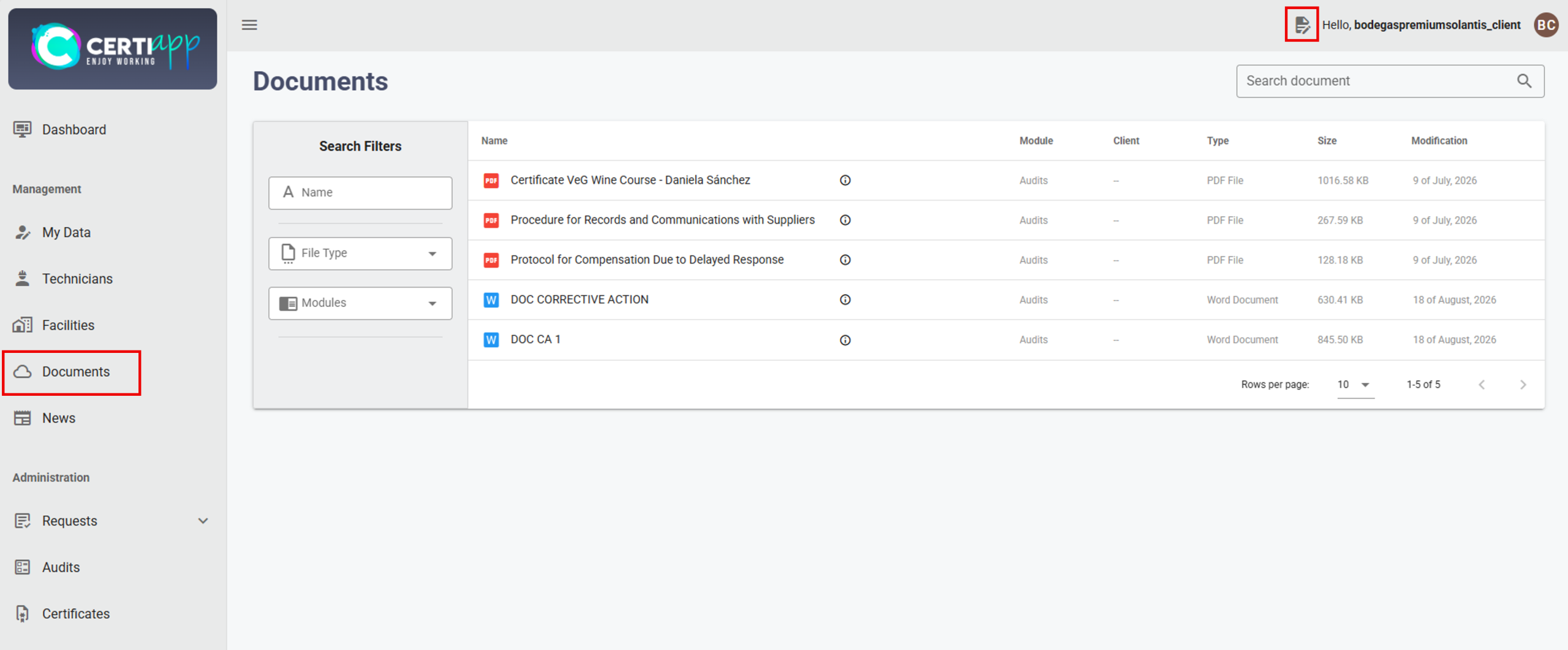
4) Documents: all documents exchanged through CERTIAPP, including the certification contract, the request, and the evidence for Non-Conformities.
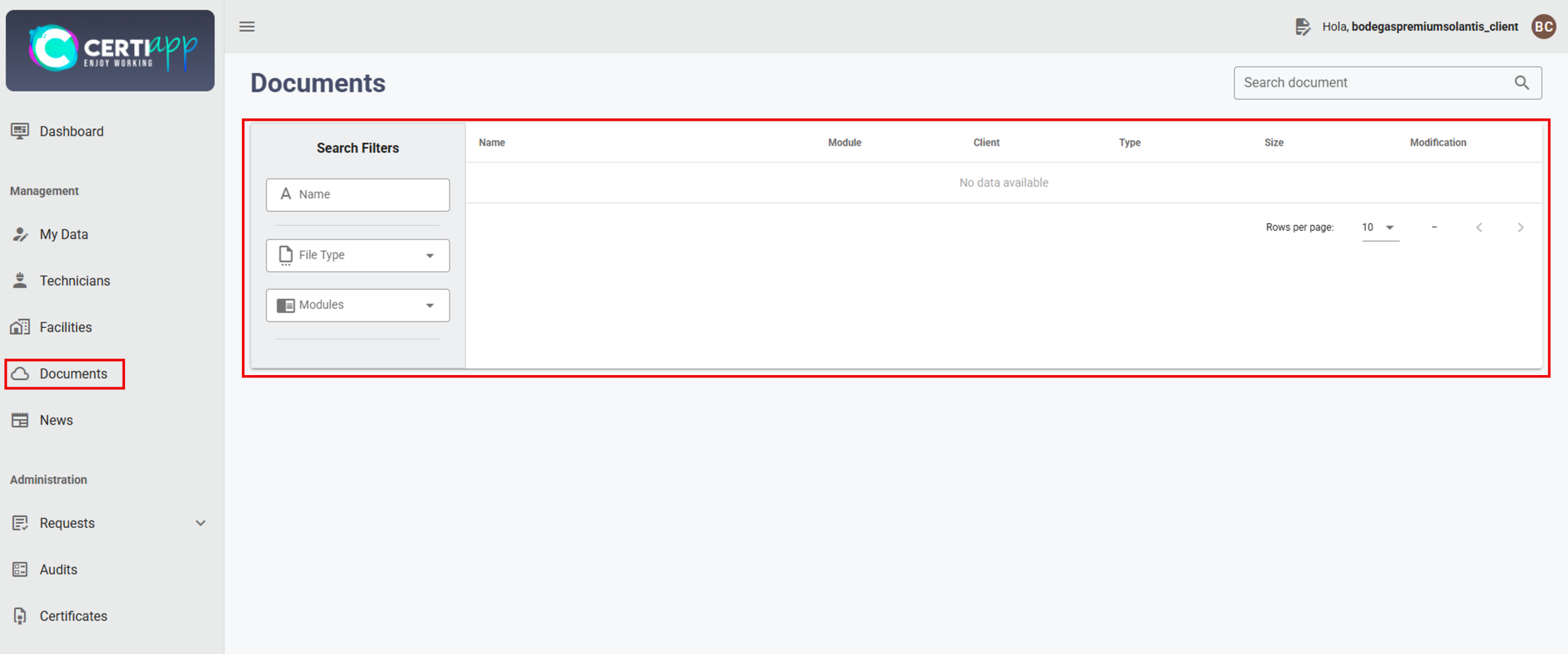
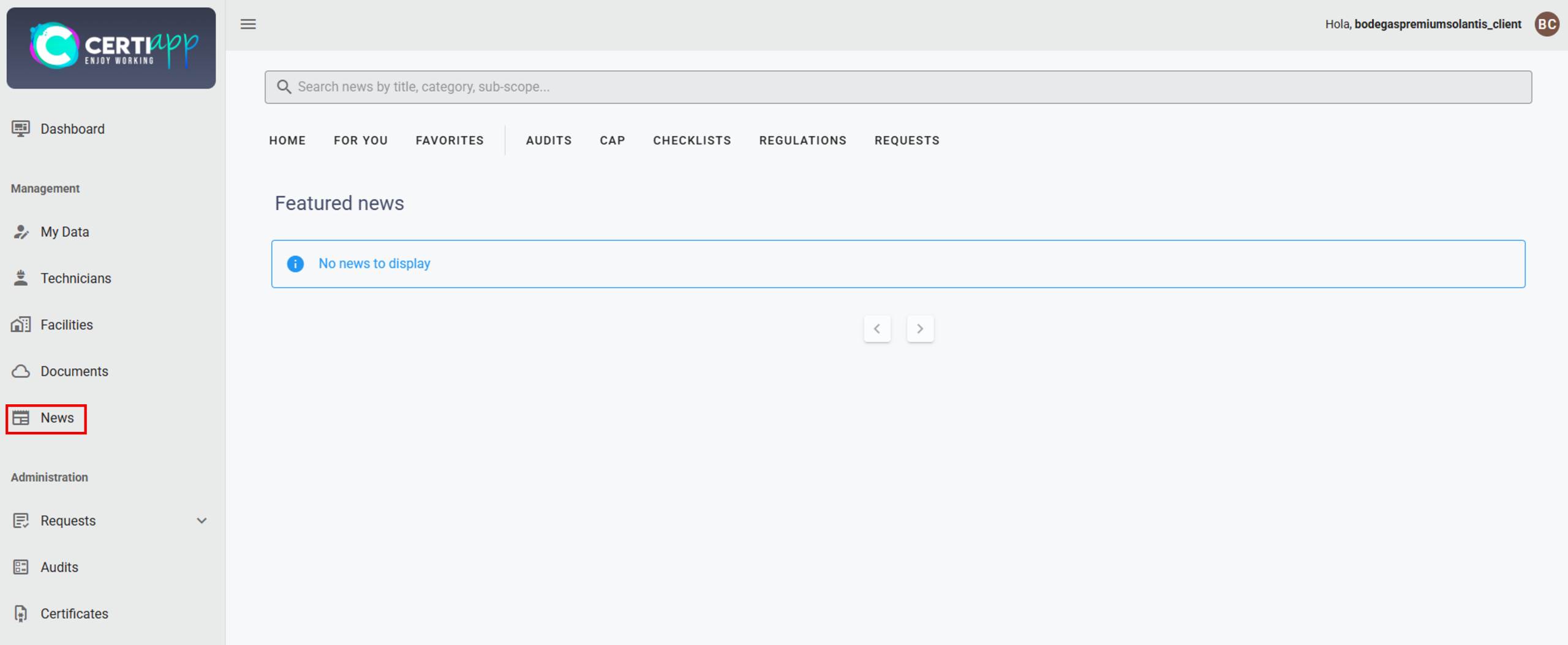
5) News: news and announcements shared by CONFICERT.
Step 3. Administration
The Administration section is where you manage your certification process:
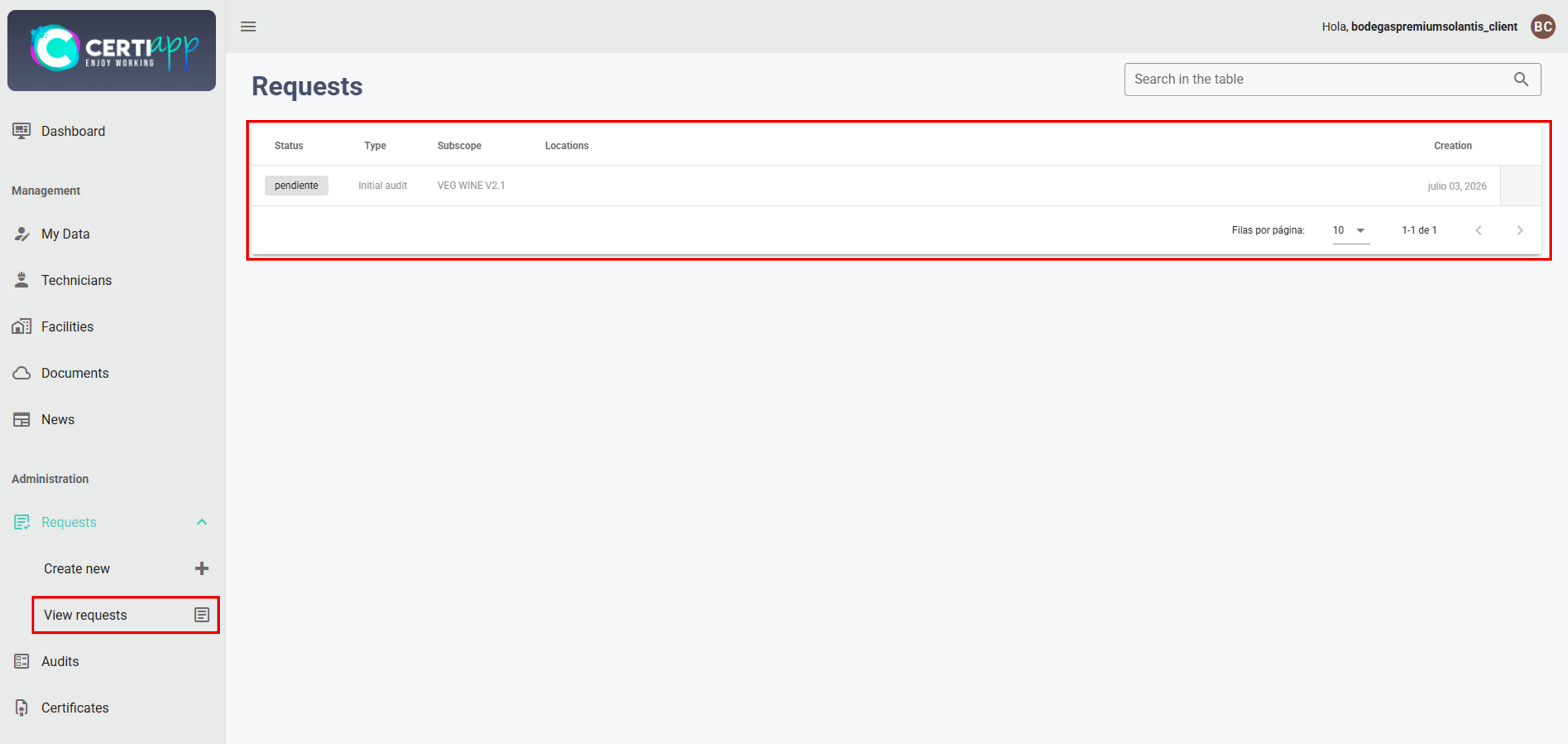
1) Request: the certification requests opened by your Certification Body, which you must complete from View request.
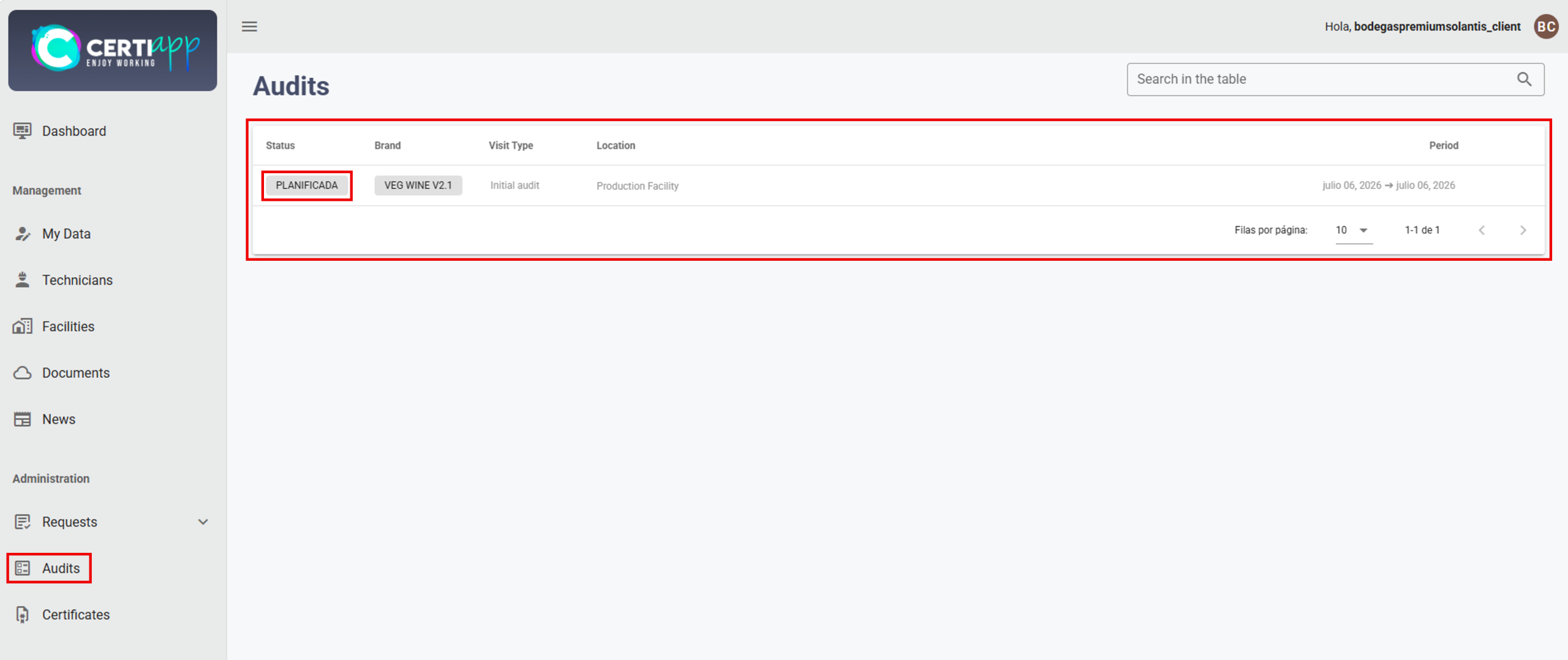
2) Audits: your audits and their status (Planned, Open, or Closed), and where you resolve Non-Conformities.
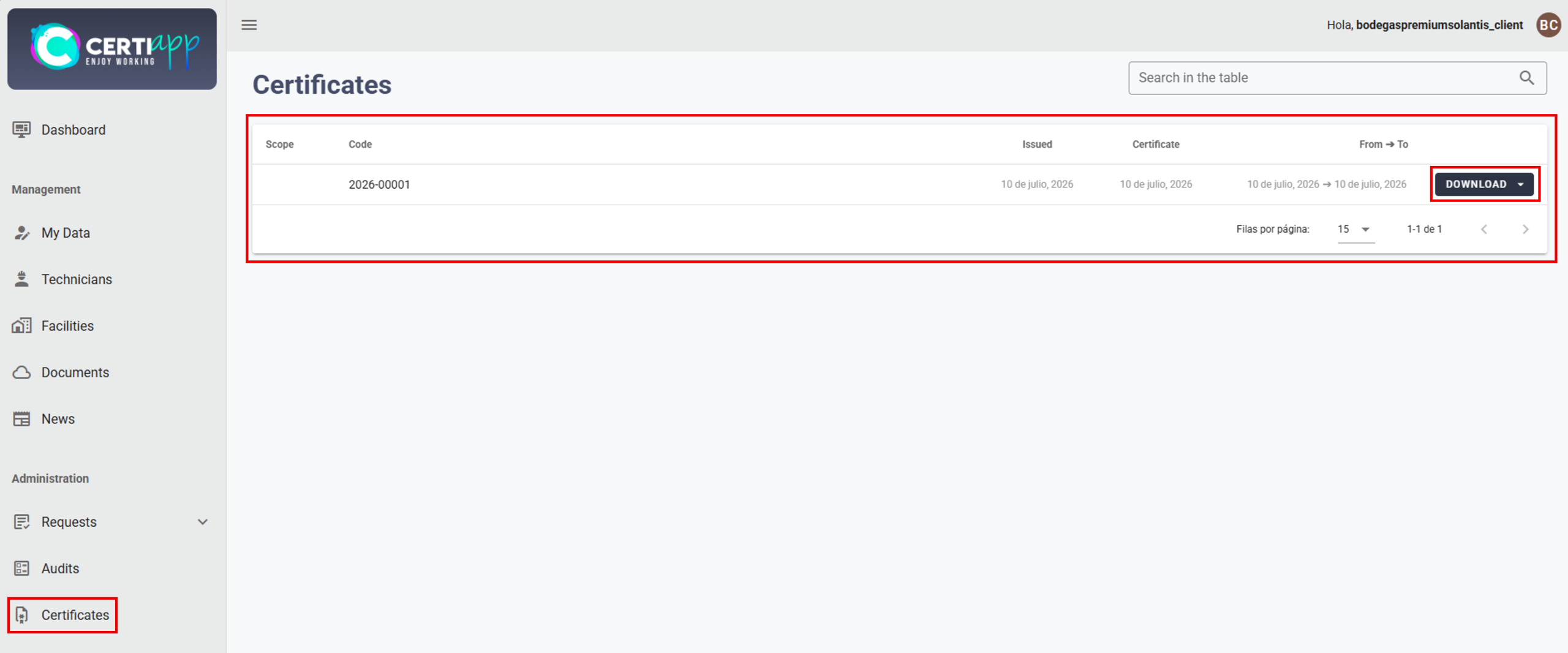
3) Certificates: the certificates obtained, available for download.
⚠️ Important: the request is always created by your Certification Body. Your task is to complete it, so the Create new option is not for operators.
✅ Done! You now know the main tools of CERTIAPP. The next step is to review your account details.
III. Explanatory video
📄 Full details in the Operator User Guide, section 2.
Module 2 – Account Data
Learn how to check and update your account information, including your fiscal data and representative details.
I. Before you start
✅You must have logged in to CERTIAPP (see Login).
✅ Your data were loaded beforehand by your Certification Body when creating your account. Your task is to check that they are correct.
II. Process step by step
Step 1. Go to My Data
Open Management › My Data. This section shows a summary of your account: an overview of the account, your fiscal data, the details of your authorized representative, and your LOPD consent.
Review each section carefully. If any information is incorrect or incomplete, you can edit it yourself or ask your Certification Body to do so.
Step 2. Edit your data
Click on Modify. A window will open with four sections where you can edit the necessary information:
- Personal Data: account details and password.
- Fiscal Information: your company’s tax data.
- Representative Data: details of your authorized representative.
- LOPD: data protection consent (see LOPD consent).
Step 3. Change your password (optional)
Step 4. Save the changes
Click on Save My Data to save the information.
⚠️ Important: any change made in this section must be communicated to the Certification Body with which you are carrying out your certification process.
✅ Done! Your account information is now up to date.
III. Explanatory video
📄 Full details in the Operator User Guide, sections 2.2.1 and 3.2.
Learn how to give your consent under the Organic Law on Data Protection (LOPD), a required step before your certification request can be opened.
I. Before you start
✅ You must have reviewed your account information (see Reviewing My Data).
✅ This step must be completed before your certification request is opened.
II. Process step by step
Step 1. Open the LOPD section and give your consent
Step 2. Notify your Certification Body
Inform your Certification Body that you have given your LOPD consent, so that it can open your certification request.
⚠️ Important: your Certification Body cannot open your request until you have given this consent.
✅ Done! Your data protection consent has been recorded.
III. Explanatory video
📄 Full details in the Operator User Guide, section 2.2.1.
Get to know the main sections of CERTIAPP available to your operator profile and what each one is used for.
I. Before you start
✅ You must have logged in to CERTIAPP (see Login).
✅ This record is voluntary and for information purposes only. You can skip this lesson if you do not need it.
II. Process step by step
Step 1. Go to Technicians and add a new one
Step 2. Complete the technician's details
Step 3. Edit a technician (if needed)
To change a technician’s details, click on Modify, edit the information, and click on Save.
✅ Done! Your technicians are now registered.
III. Explanatory video
📄 Full details in the Operator User Guide, sections 2.2.2 and 3.4.
Learn how to register your head office and all the facilities to be audited, so that they are available when completing your certification request.
I. Before you start
✅ You must have logged in to CERTIAPP (see Login).
✅ Have the full addresses of your head office and all facilities to be audited at hand.
✅ This step must be completed before submitting your certification request.
II. Process step by step
Step 1. Go to "Facilities" and check how many facilities you need
Open Management › Facilities. This section shows all the facilities declared in the certification process, such as the head office and the facilities to be audited.
There must always be at least two records: one of the fiscal type (head office) and one of the facility type.
✅ Single-site individual operators: at least 2 facilities (1 fiscal + 1 facility).
✅ Multi-site operators or groups of operators: at least 3 facilities (1 fiscal + 2 facility).
⚠️ Important: if your head office and your facility are at the same address, you must still create two separate records: one of the office (fiscal) type and another of the facility type.
Step 2. Check the facilities already registered
Step 3. Register a new facility
Click on Add Address. Fill in the requested fields, select the address type, and mark the address as active. Then click on Save.
⚠️ Important: facilities to be audited must be of the Facility type and marked as active. Otherwise, they will not appear in the Location field when completing your request.
Step 4. Repeat for each facility and notify your Certification Body
Repeat step 3 for each additional facility. Once finished, inform your Certification Body of any facility added or modified.
✅ Done! Your facilities are now ready to be selected when completing your certification request.
III. Explanatory video
📄 Full details in the Operator User Guide, sections 2.2.3 and 3.5.
Module 3 – Contract & Request
Learn how to download, check, and sign your certification contract, which must be signed before completing your request.
I. Before you start
✅ You must have checked that your account information is correct (see Reviewing My Data).
✅ The contract must be signed before completing your certification request.
II. Process step by step
Step 2. Open the contract
Step 3. Download the contract
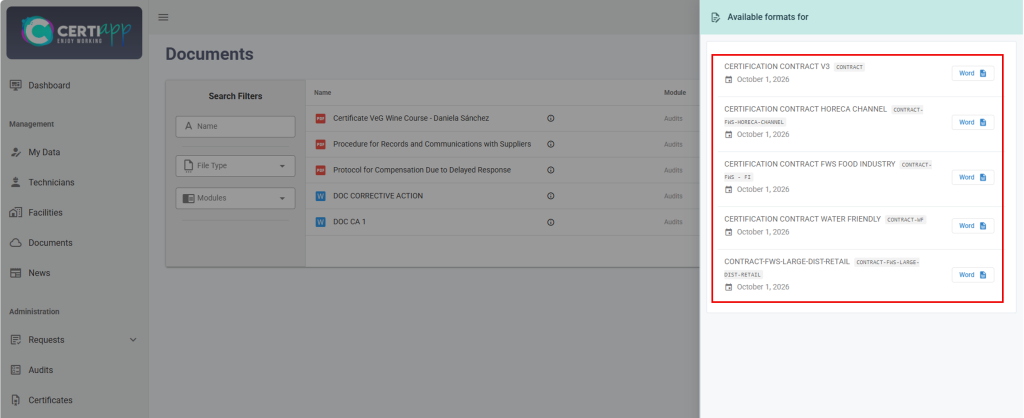
Step 4. Check your information and send the contract
Open the document and check that your company’s information appears correctly in the corresponding fields.
Once you have confirmed that everything is correct, sign the contract and send it to the email address of your Certification Body indicated, for filing and validation.
✅ Done! Once your Certification Body has received the signed contract, you can continue with your certification request.
III. Explanatory video
📄 Full details in the Operator User Guide, sections 2.2.4 and 3.3.
Learn how to open your certification request and complete its first sections, including the description of your operator type.
I. Before you start
✅ You must have given your LOPD consent and signed the certification contract.
✅ All facilities to be audited must be registered as Facility type and marked as active (see Facilities).
✅ Your Certification Body must have opened your request.
✅ The entire request must be completed in English.
II. Process step by step
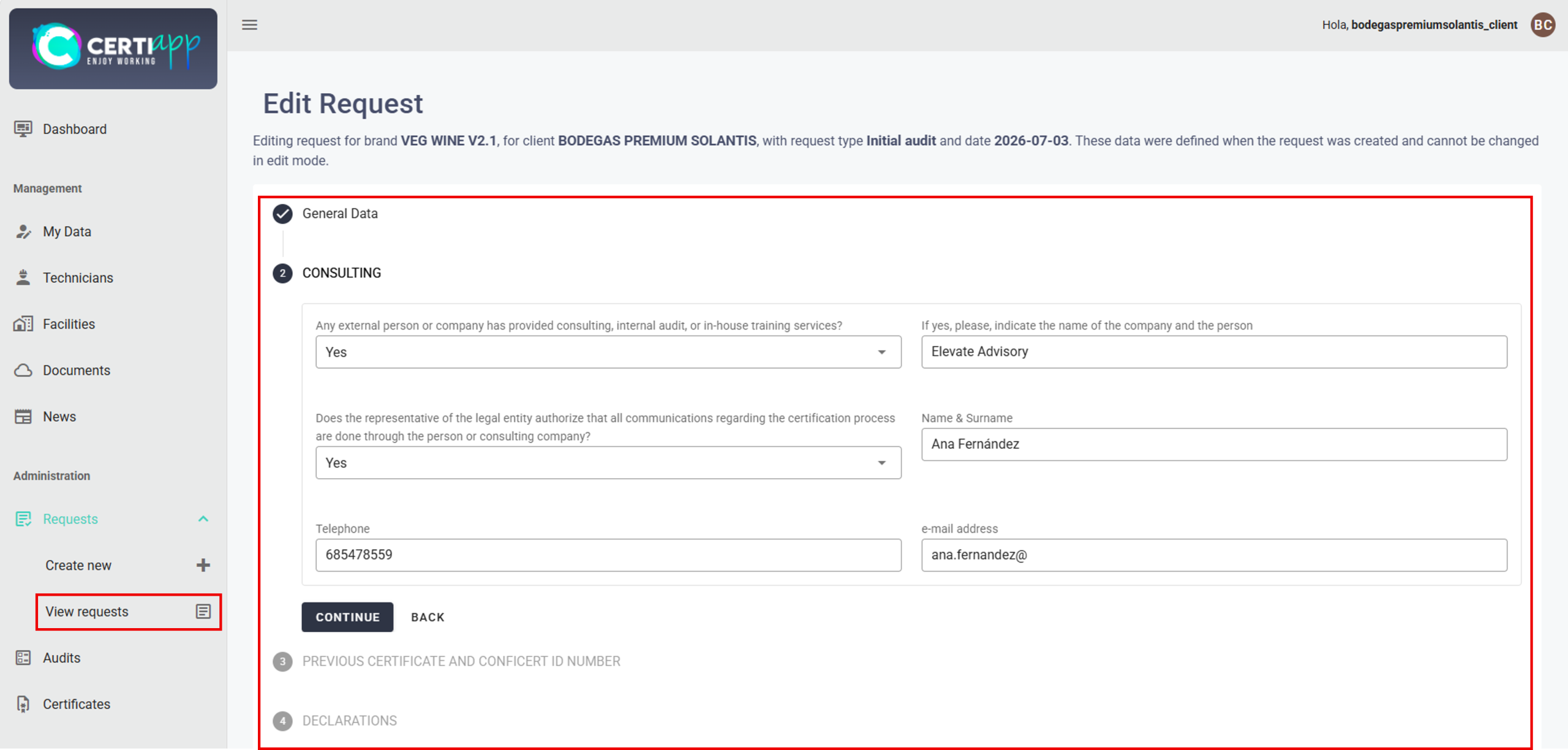
Step 1. Open your request
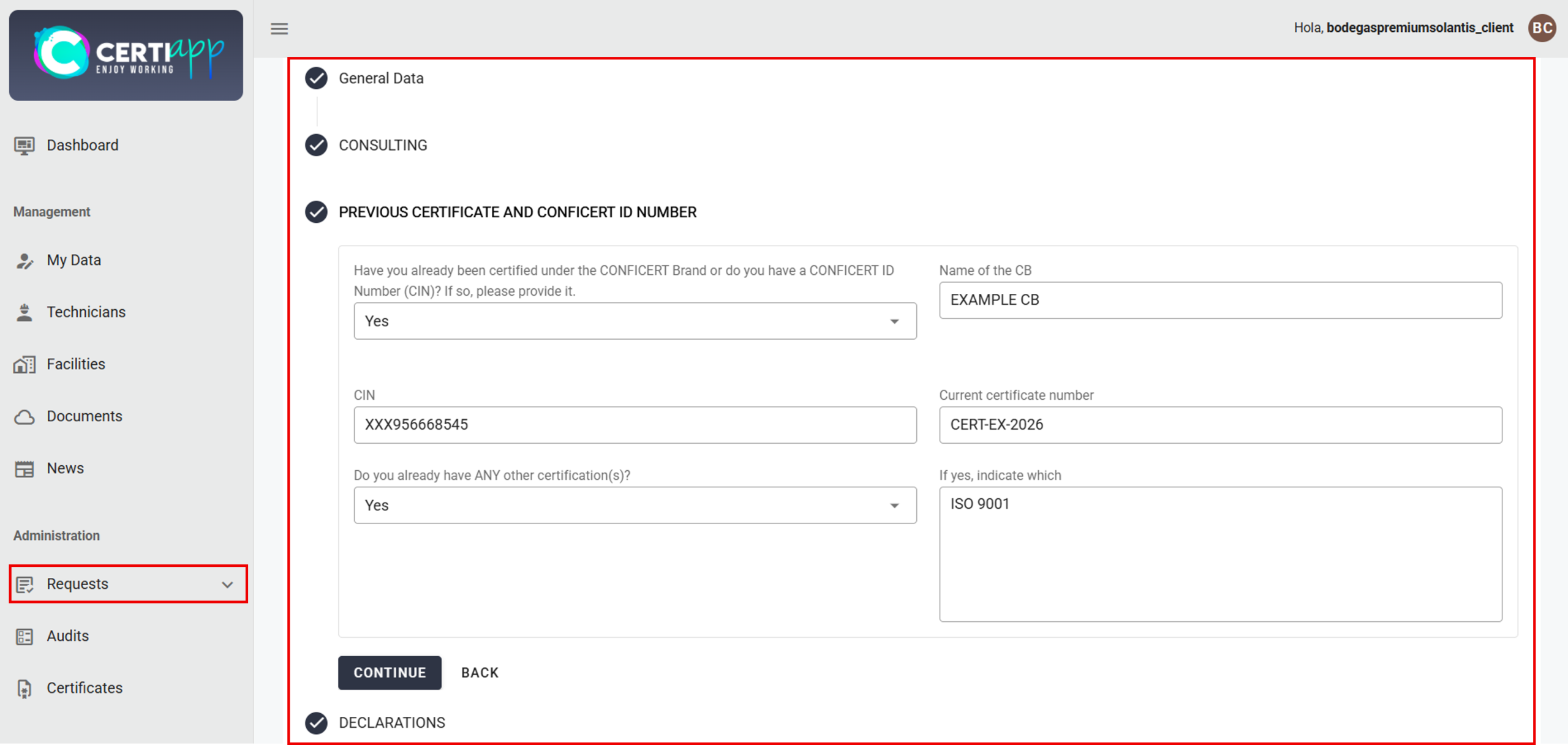
Step 3. Complete the "Previous Certificate and CONFICERT ID Number" section
Step 5. Complete the "Operator Description" table
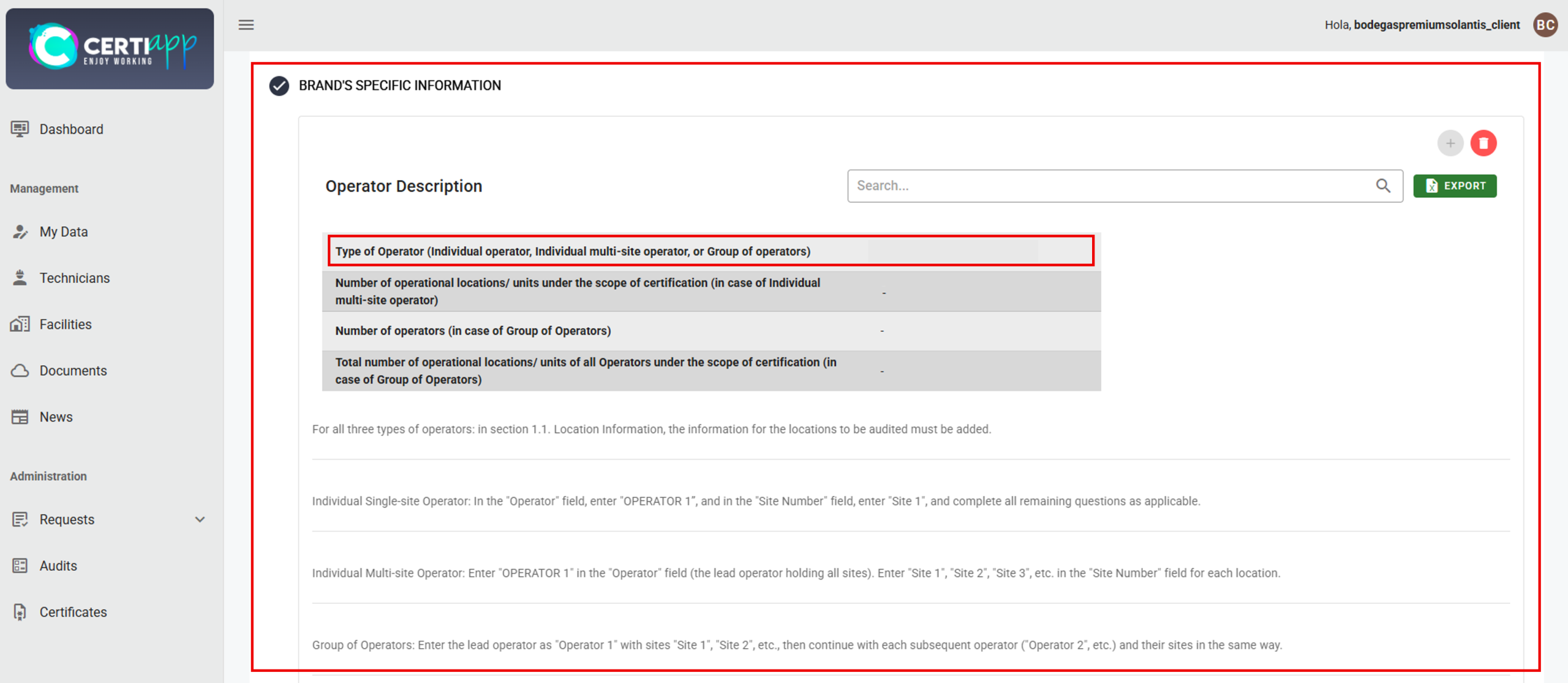
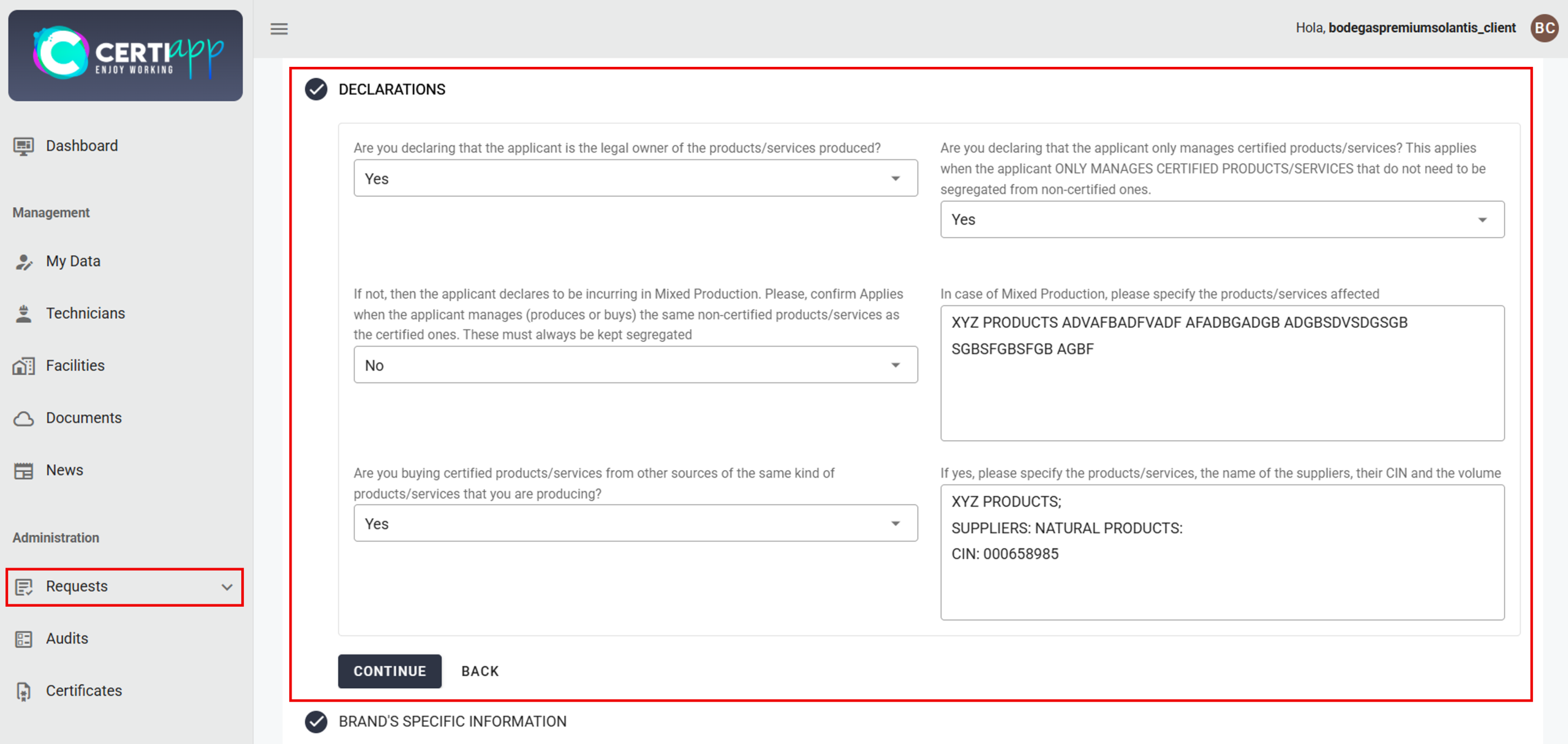
This table is part of the Brand’s Specific Information section. In question 1, select your operator type and complete the questions that apply:
✅ Single-site individual operator: complete only question 1. Leave the remaining boxes empty.
✅ Multi-site individual operator: complete questions 1 and 2. In question 2, indicate the number of locations/operating units under the certification scope.
✅ Group of operators: complete questions 1, 3, and 4.
- In question 3, indicate the total number of operators in the group, including the lead operator.
- In question 4, indicate the total number of sites of all operators in the group.
⚠️ Important: the data in the Brand’s Specific Information section define your audit plan. Complete them with special care.
💡 Note: in a group of operators, the user with which the account was created is the Lead Operator, who manages the entire certification process on behalf of the group.
Step 6. Continue according to your operator type
The next table, “Requested Information of the Brand”, is completed differently for each operator type. Continue with the lesson that applies to you.
III. Explanatory video
📄 Full details in the Operator User Guide, sections 3.6.1 to 3.6.4.
Learn how to complete the “Requested Information of the Brand” table if you are an individual operator with a single site to be audited.
I. Before you start
✅ You must have completed the general sections of the request (see Completing the request: general sections).
✅ Your facility must be registered as Facility type and marked as active.
II. Process step by step
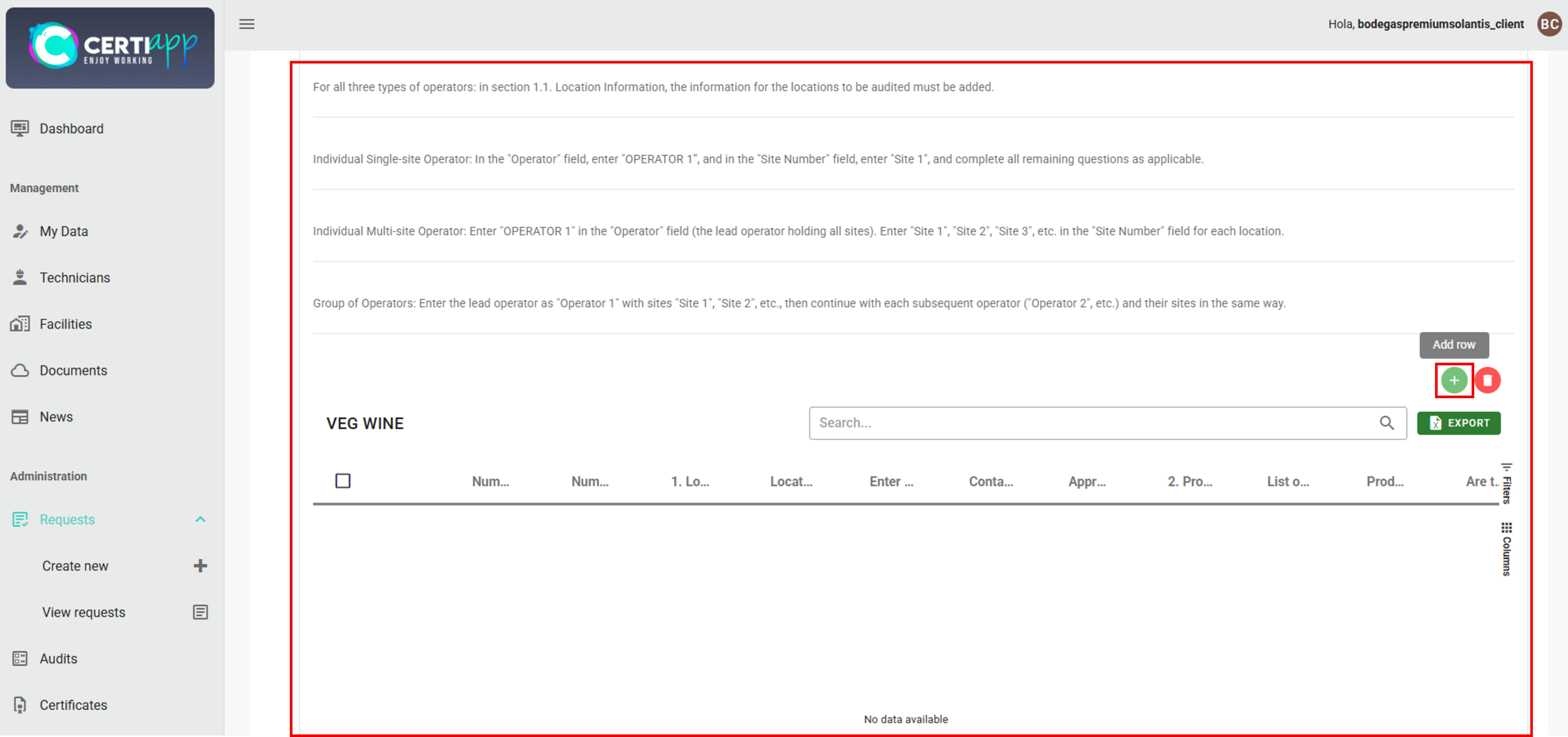
Step 1. Add a row
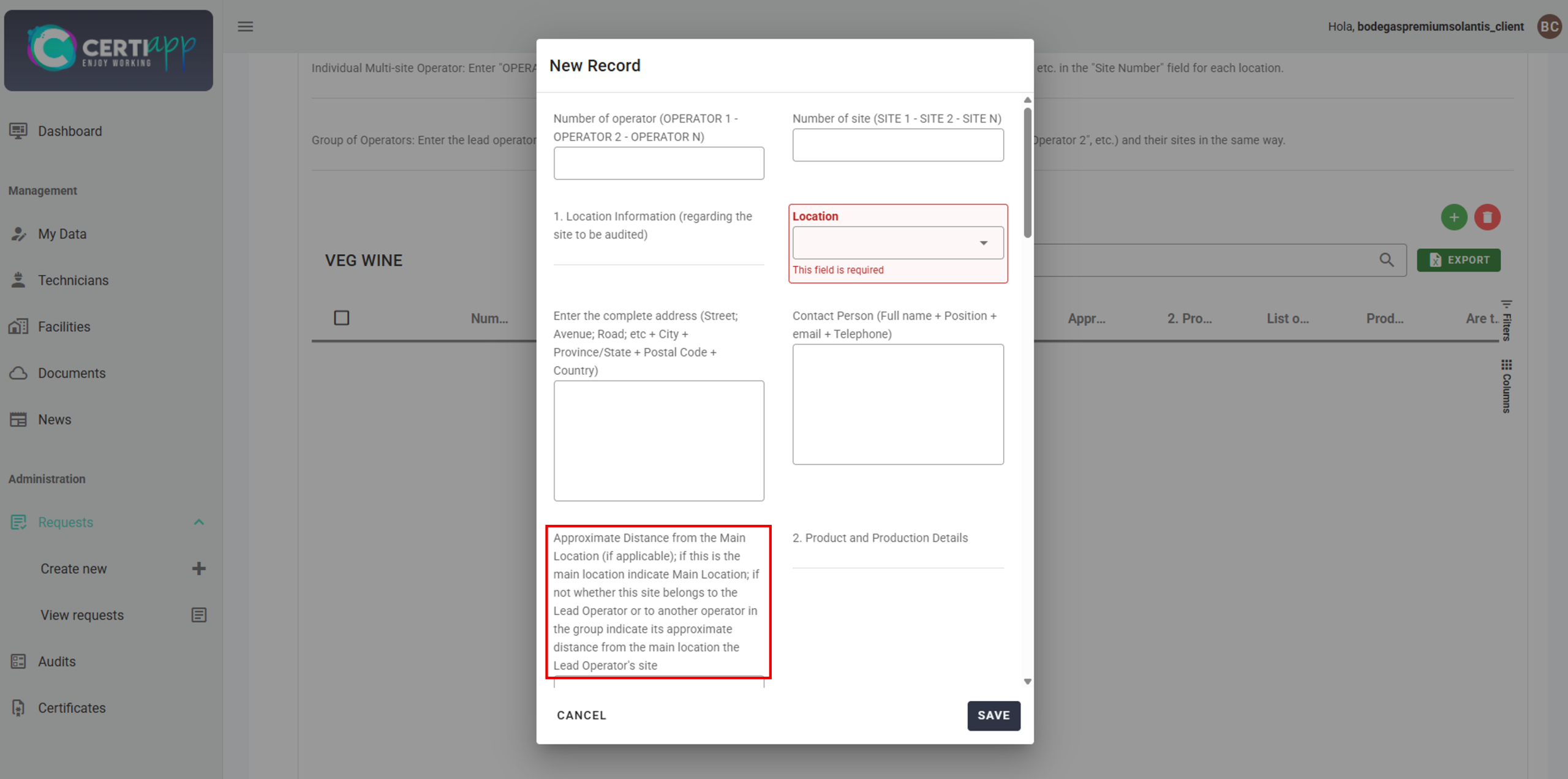
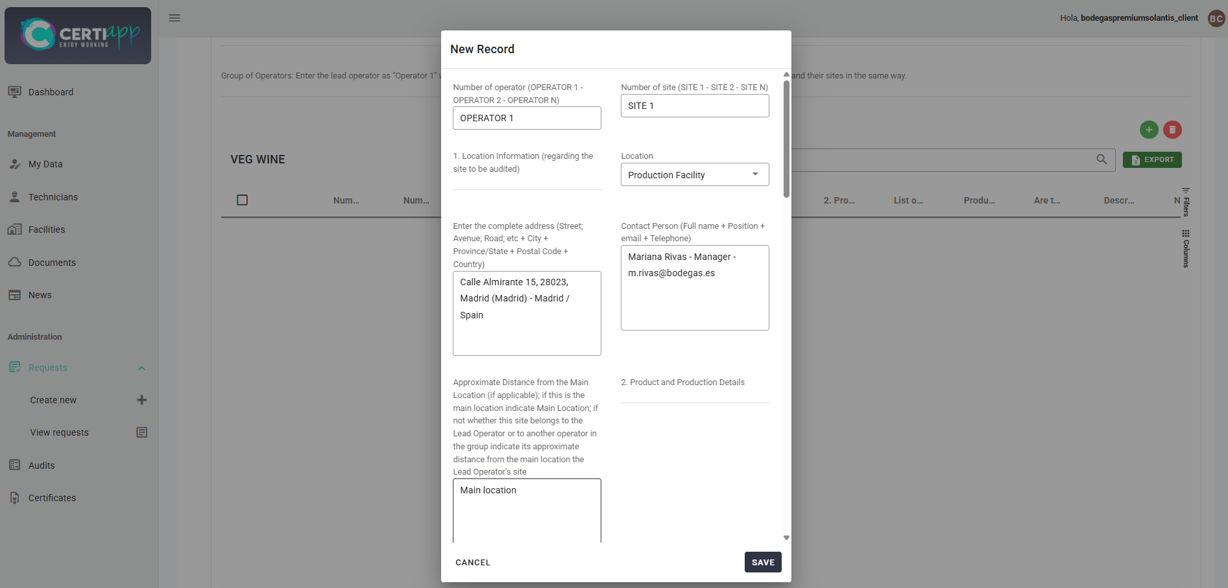
Step 2. Enter the operator and site number
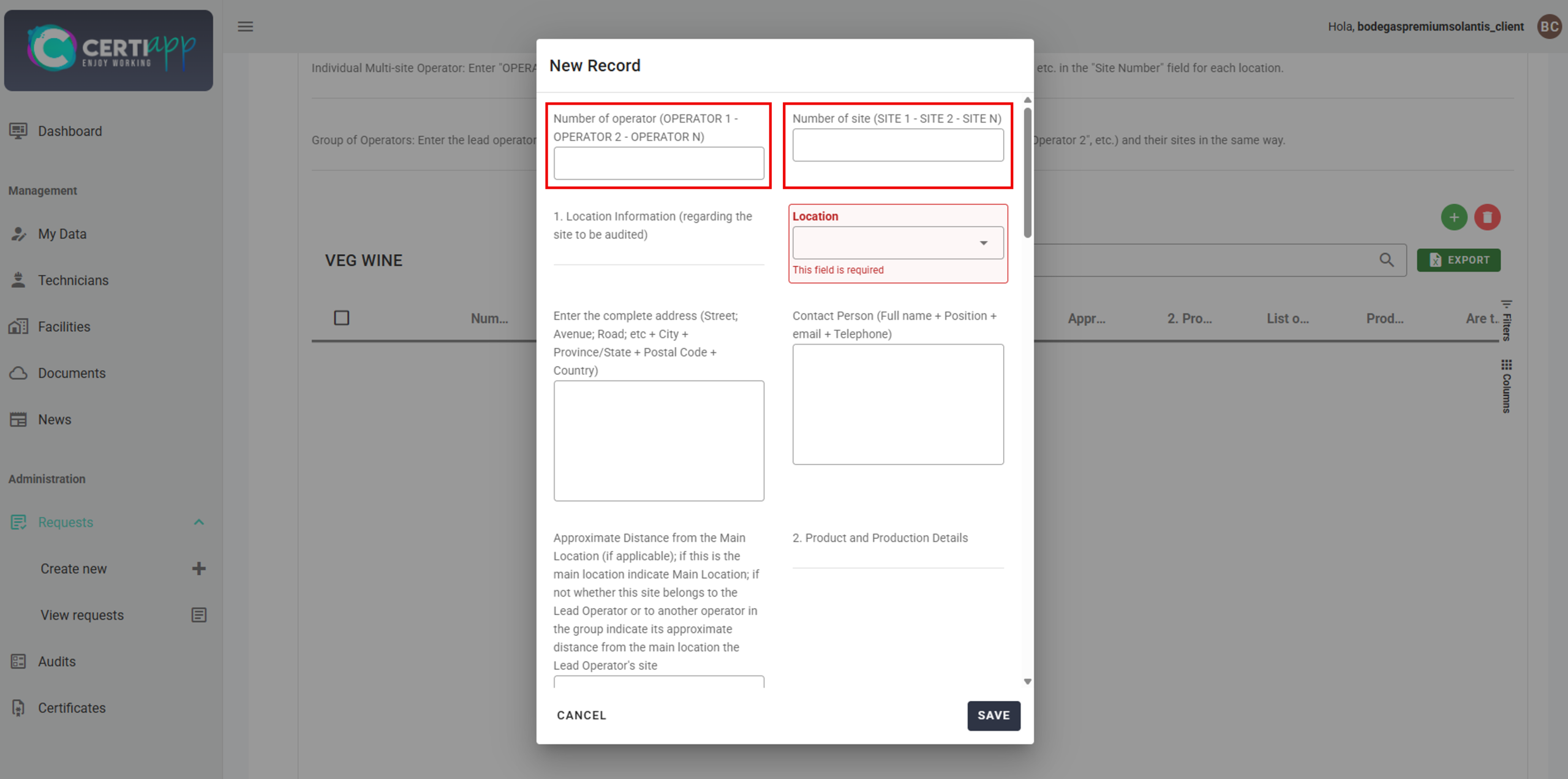
Step 3. Select the location and complete the details
In Location, select your facility. Then complete the location address (street/avenue, province, postal code, and country) and the contact person (name, position, email, and phone number).
⚠️ Important: if your facility does not appear in Location, check that it is registered as Facility type and marked as active (see Facilities).
Step 4. Indicate the main location
Step 5. Complete the remaining questions and save
Answer the remaining questions on production or work details, which vary depending on the Brand to be certified. Then click on Save.
✅ Done! The information will appear in a single row in the table. Continue with Confirming and submitting the request.
III. Explanatory video
📄 Full details in the Operator User Guide, section 3.6.4.
Learn how to complete the “Requested Information of the Brand” table if you are an individual operator with more than one site to be audited.
I. Before you start
✅ You must have completed the general sections of the request (see Completing the request: general sections).
✅ Your facility must be registered as Facility type and marked as active.
II. Process step by step
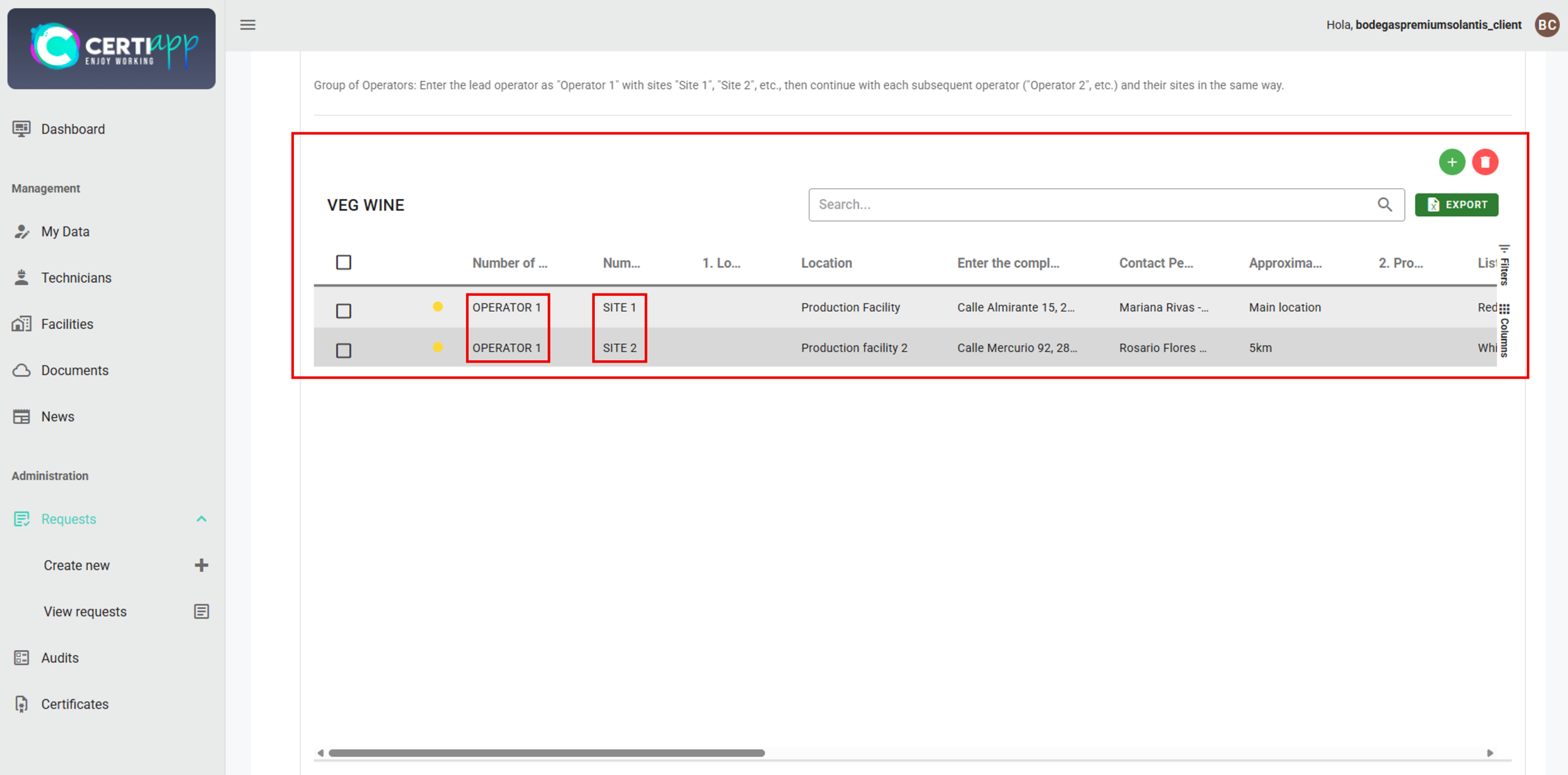
Step 1. Understand the numbering
Step 2. Add your first site
In the “Requested Information of the Brand” table, click on the + icon and complete:
- Number of Operator: OPERATOR 1
- Number of Site: SITE 1
- Location: your main facility, together with its address and contact person.
- Approximate distance to the main location: enter Main Location.
⚠️ Important: Site 1 must always be your main location.
Answer the questions on production or work details, which vary depending on the Brand, and click on Save.
Step 3. Add your second site
Click on + again and complete:
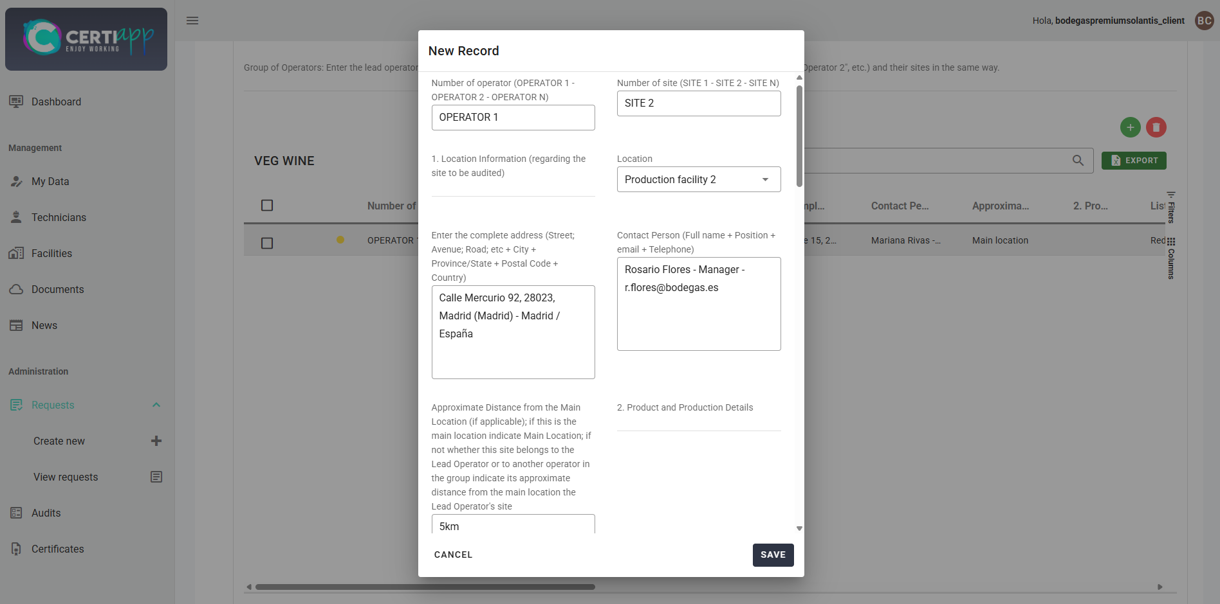
- Number of Operator: OPERATOR 1
- Number of Site: SITE 2
- Location: the corresponding facility (for example, “Production Facility 2”), together with its address and contact person.
- Approximate distance to the main location: the distance between this site and Site 1.
⚠️ Important: in the question “Does anyone in the company have the official Brand course completed?”, if you already answered it for Site 1, enter “-“. The training course certificate is per operator, not per site.
Answer the remaining questions and click on Save.
III. Explanatory video
📄 Full details in the Operator User Guide, section 3.6.4.
Learn how to complete the “Requested Information of the Brand” table if you are an individual operator with more than one site to be audited.
I. Before you start
✅ You must have completed the general sections of the request (see Completing the request: general sections).
✅ All facilities of all operators in the group must be registered as Facility type and marked as active.
✅ Have the list of operators in the group and the sites belonging to each one at hand.
II. Process step by step
Step 1. Understand the numbering
✅ OPERATOR 1 is always the Lead Operator, who manages the account in CERTIAPP. The other operators are numbered from OPERATOR 2 onwards.
✅ Sites are numbered continuously across the whole group. For example, if Operator 1 has Sites 1 and 2, the first site of Operator 2 will be SITE 3.
✅ Always use capital letters.
Step 2. Add Site 1 of Operator 1
In the “Requested Information of the Brand” table, click on the + icon and complete:
- Number of Operator: OPERATOR 1
- Number of Site: SITE 1
- Location: the main facility, together with its address and contact person.
- Approximate distance to the main location: enter Main Location.
Click on Save.
⚠️ Important: Site 1 of Operator 1 must always be the main location of the group.
Step 3. Add the other sites of Operator 1
Click on + and complete:
- Number of Operator: OPERATOR 1
- Number of Site: SITE 2
- Location: the corresponding facility, together with its address and contact person.
- Approximate distance to the main location: the distance from the main site.
In the question “Does anyone in the company have the official Brand course completed?”, enter “-“. Click on Save.
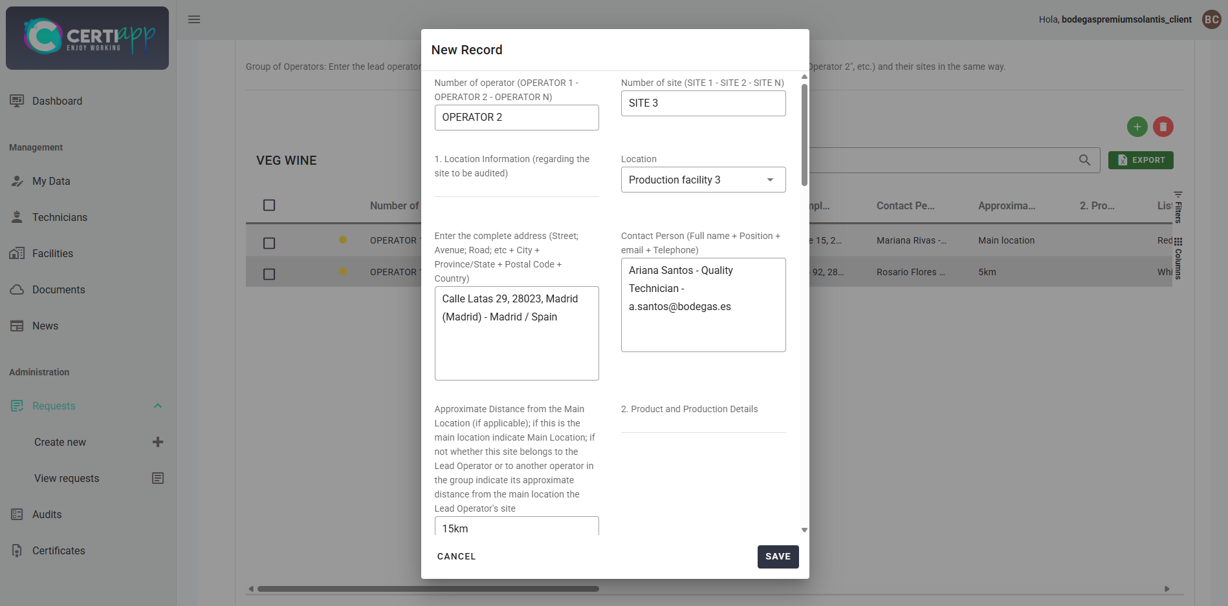
Step 4. Add the sites of Operator 2
Click on + and complete:
- Number of Operator: OPERATOR 2
- Number of Site: SITE 3, continuing the numbering.
- Location: the corresponding facility (for example, “Production Facility 3”), together with its address, contact person, and approximate distance from the main site of Operator 1.
In the question on the official Brand course, enter “-“. Click on Save.
Step 5. Repeat for each additional operator and site
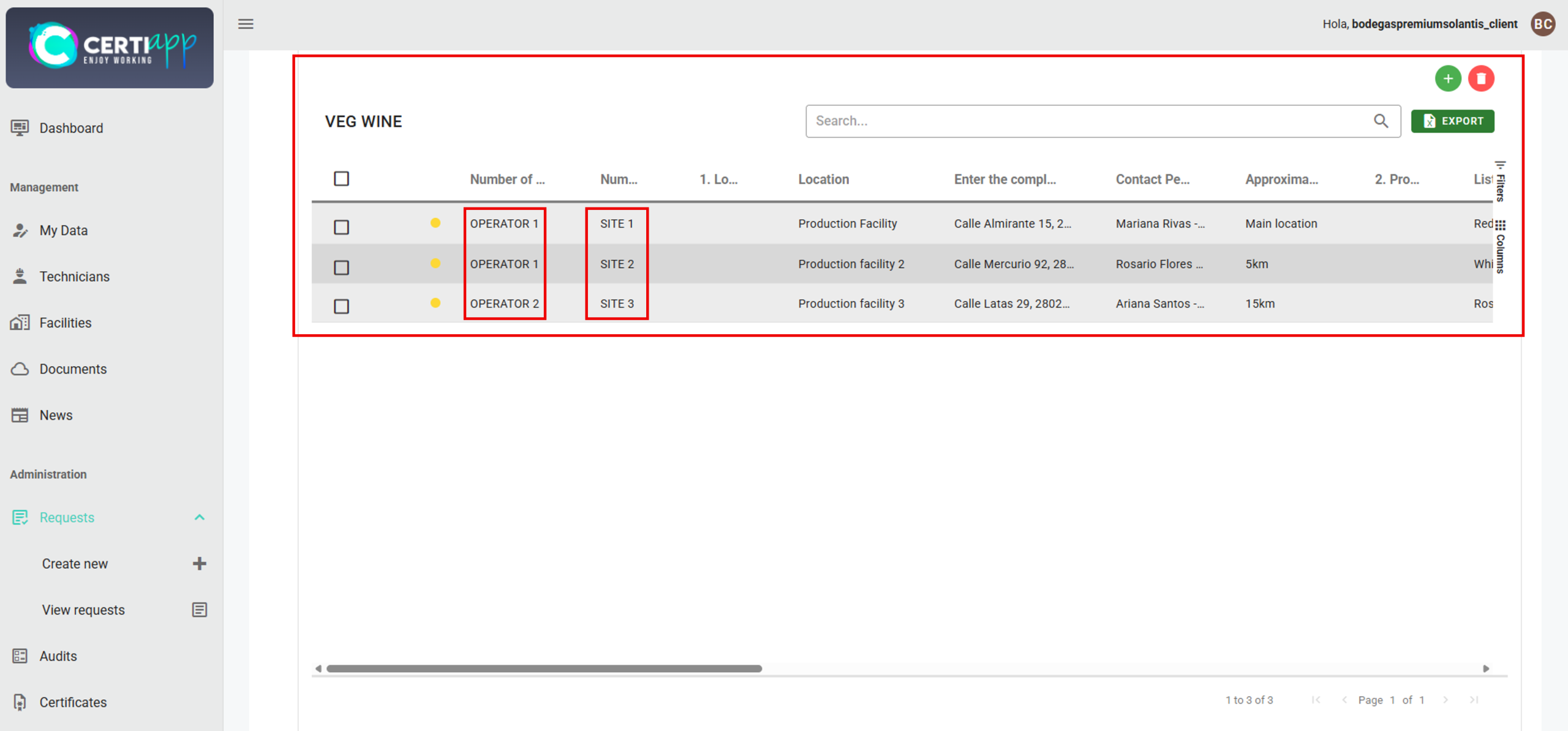
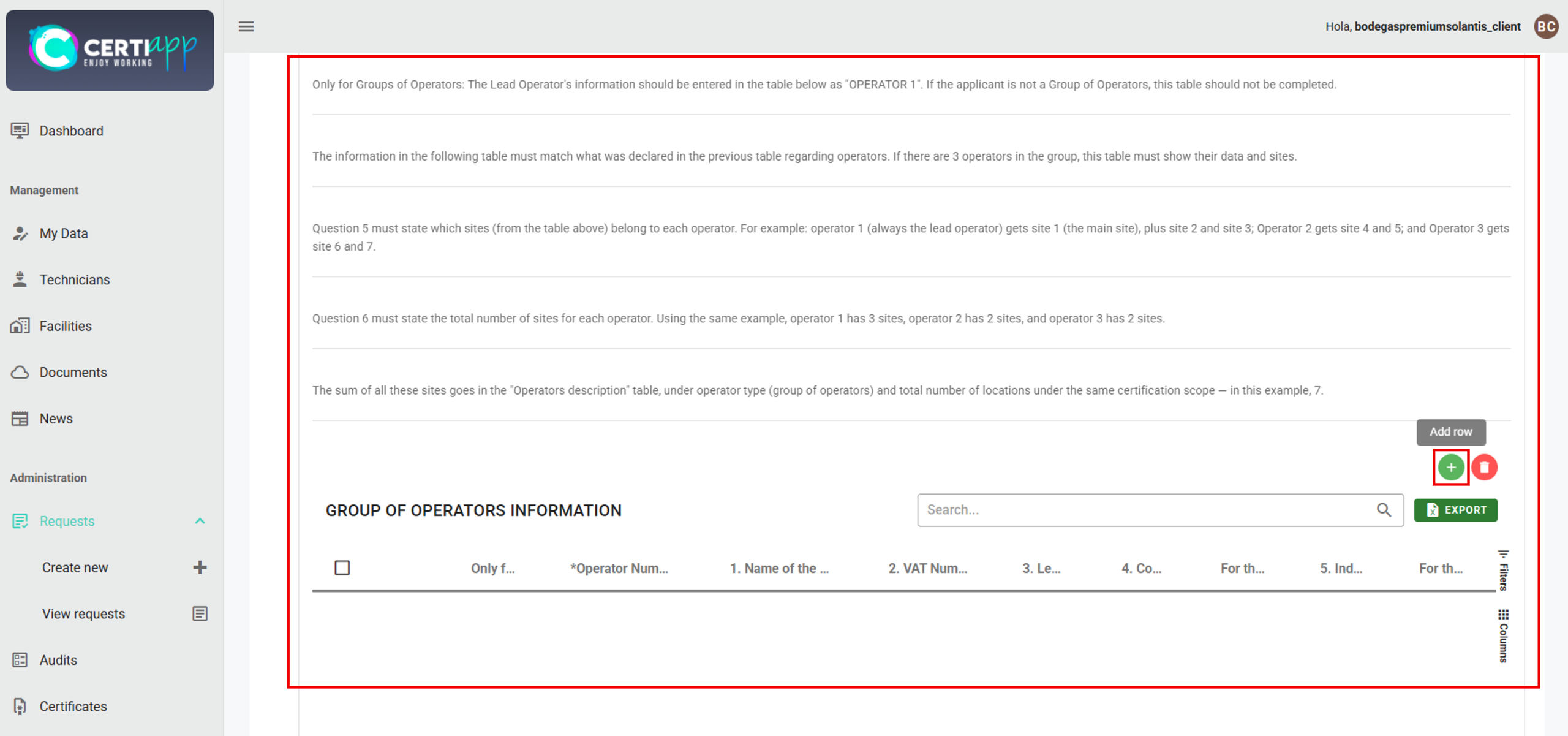
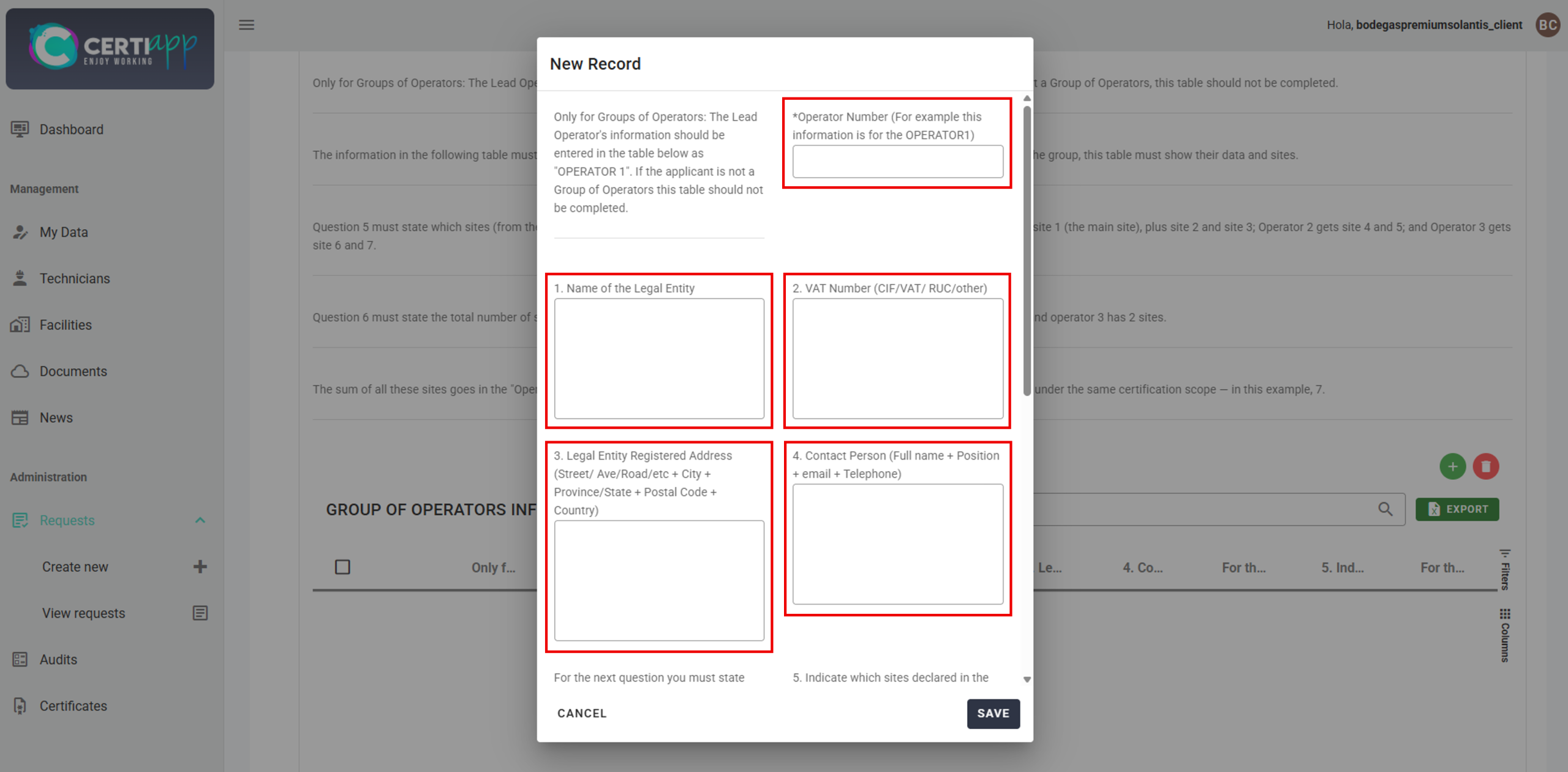
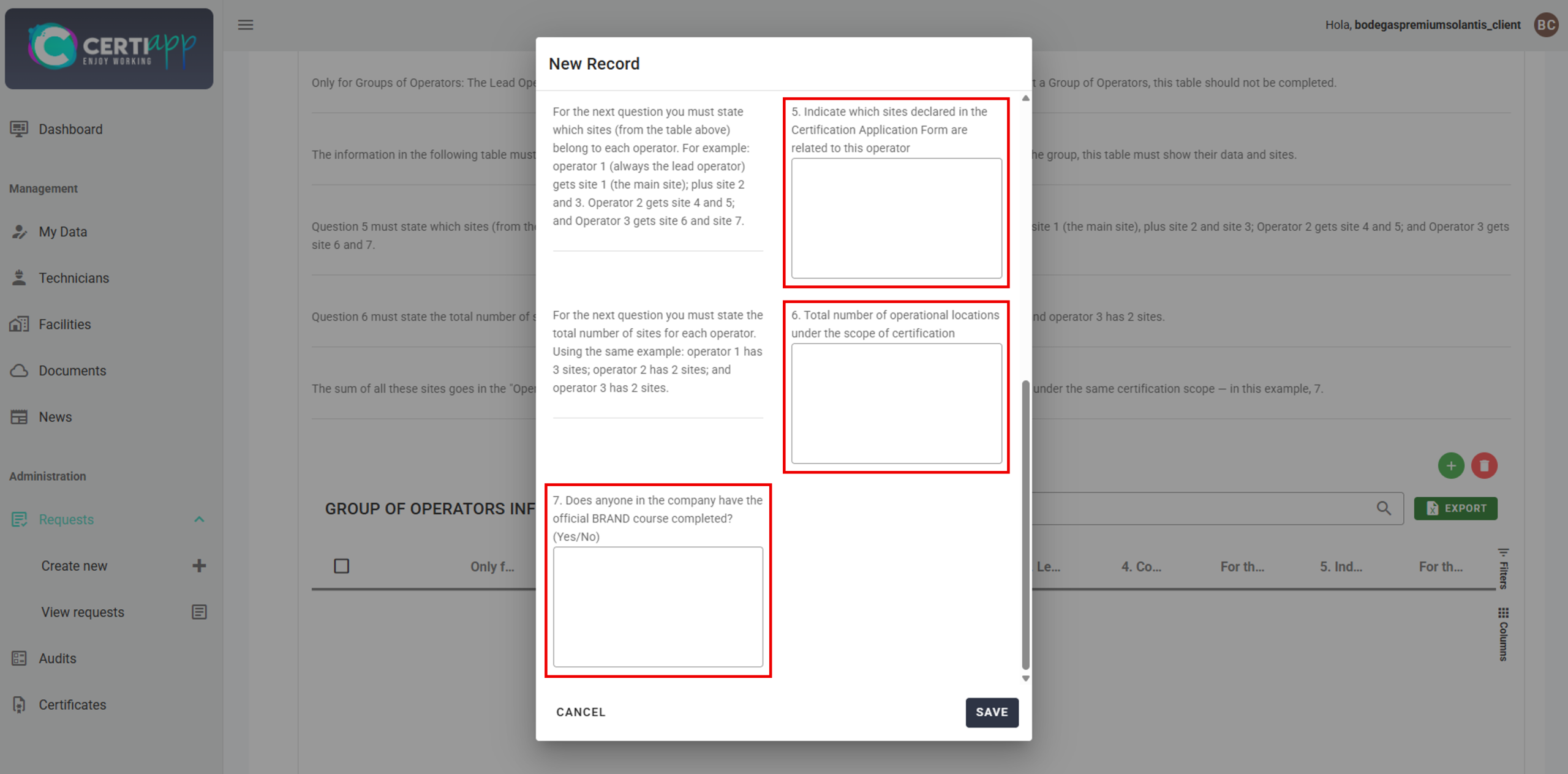
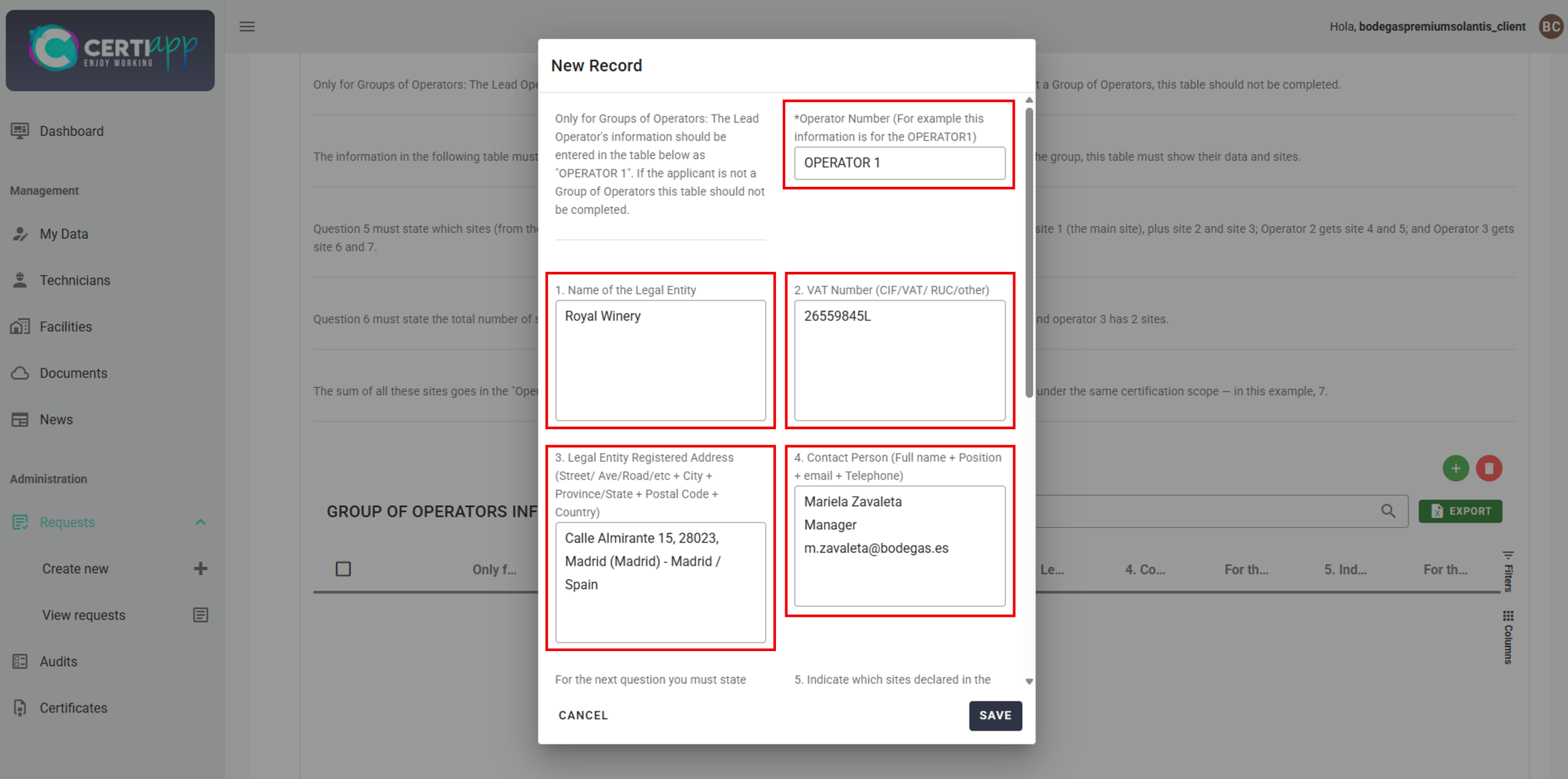
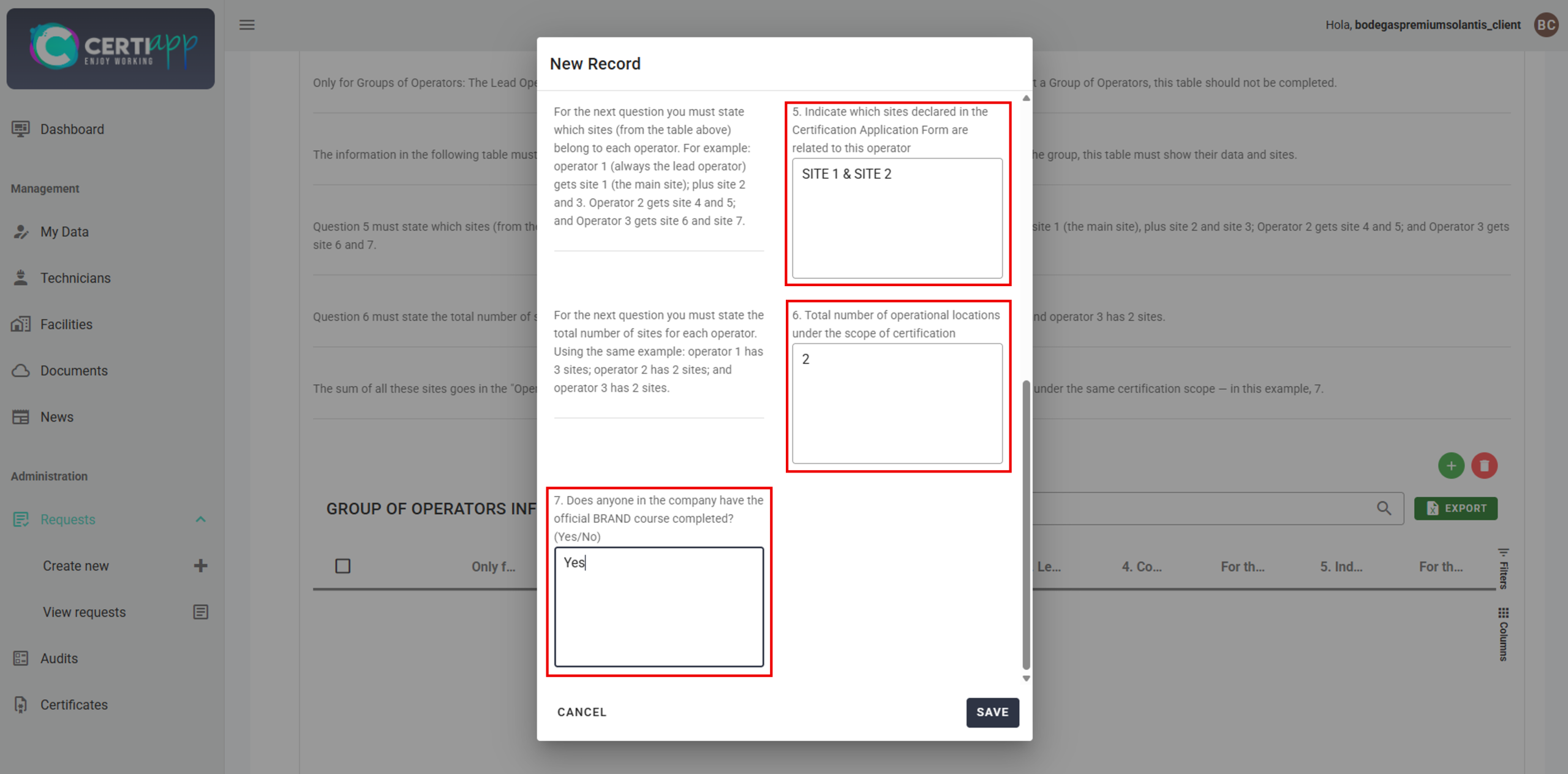
Step 6. Complete the "Group of Operators Information" table
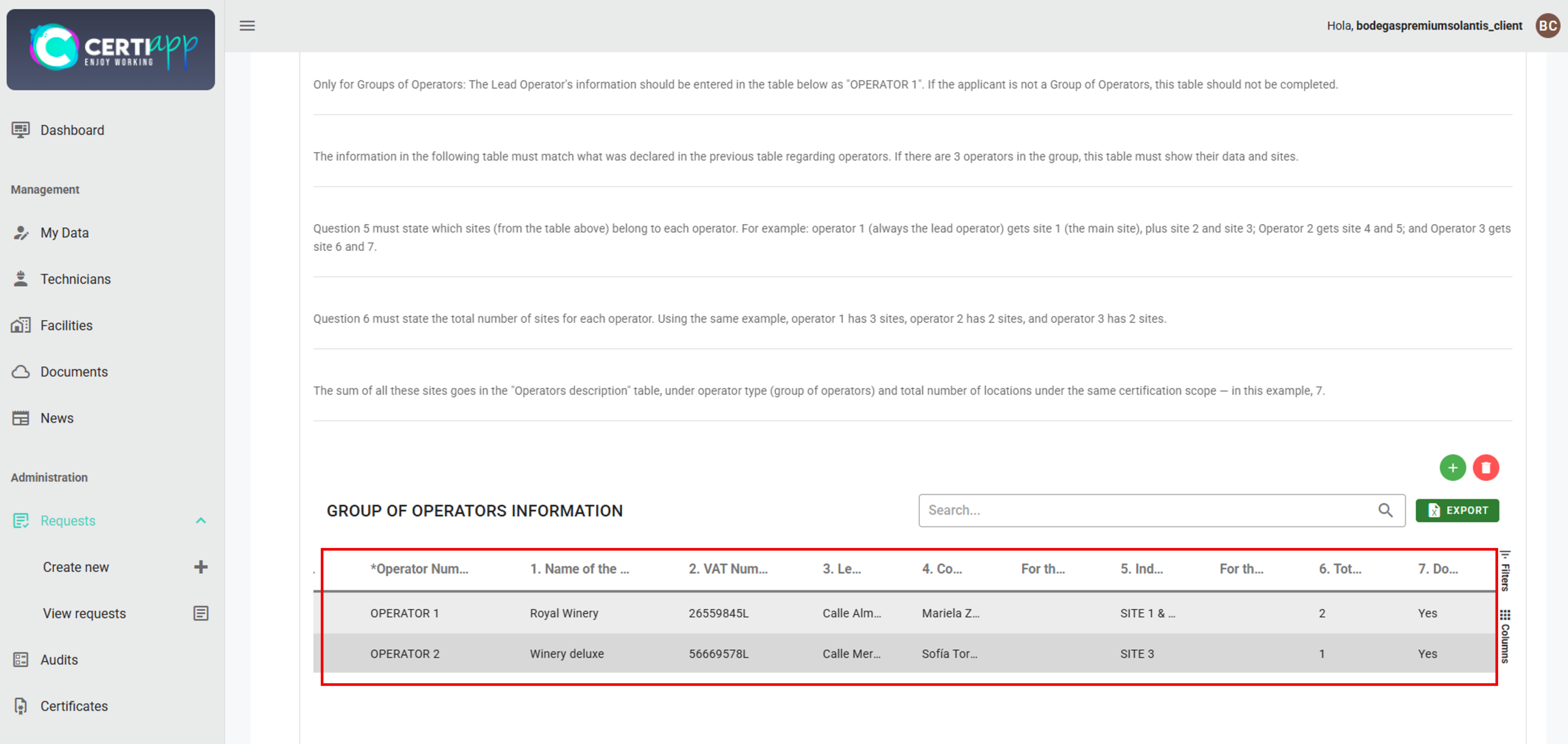
This table is completed only by groups of operators. Click on the + icon and, for each operator, complete:
- Operator Number: for example, OPERATOR 1.
- Question 5: the sites belonging to this operator, as declared in the previous table (for example, “SITE 1 and SITE 2”).
- Question 6: the total number of sites belonging to this operator (in this example, 2).
- Question on the official Brand course: answer Yes or No for this operator.
💡 Note: the question on the official Brand course is answered per operator in this table, not per site.
✅ Done! All operators and sites in your group are now registered. Continue with Confirming and submitting the request.
III. Explanatory video
📄 Full details in the Operator User Guide, section 3.6.4.
Learn how to complete the final sections of your request, review all the information, and submit it to your Certification Body.
I. Before you start
✅ You must have completed the general sections and the tables corresponding to your operator type.
II. Process step by step
Step 1. Complete the "Additional Information" section
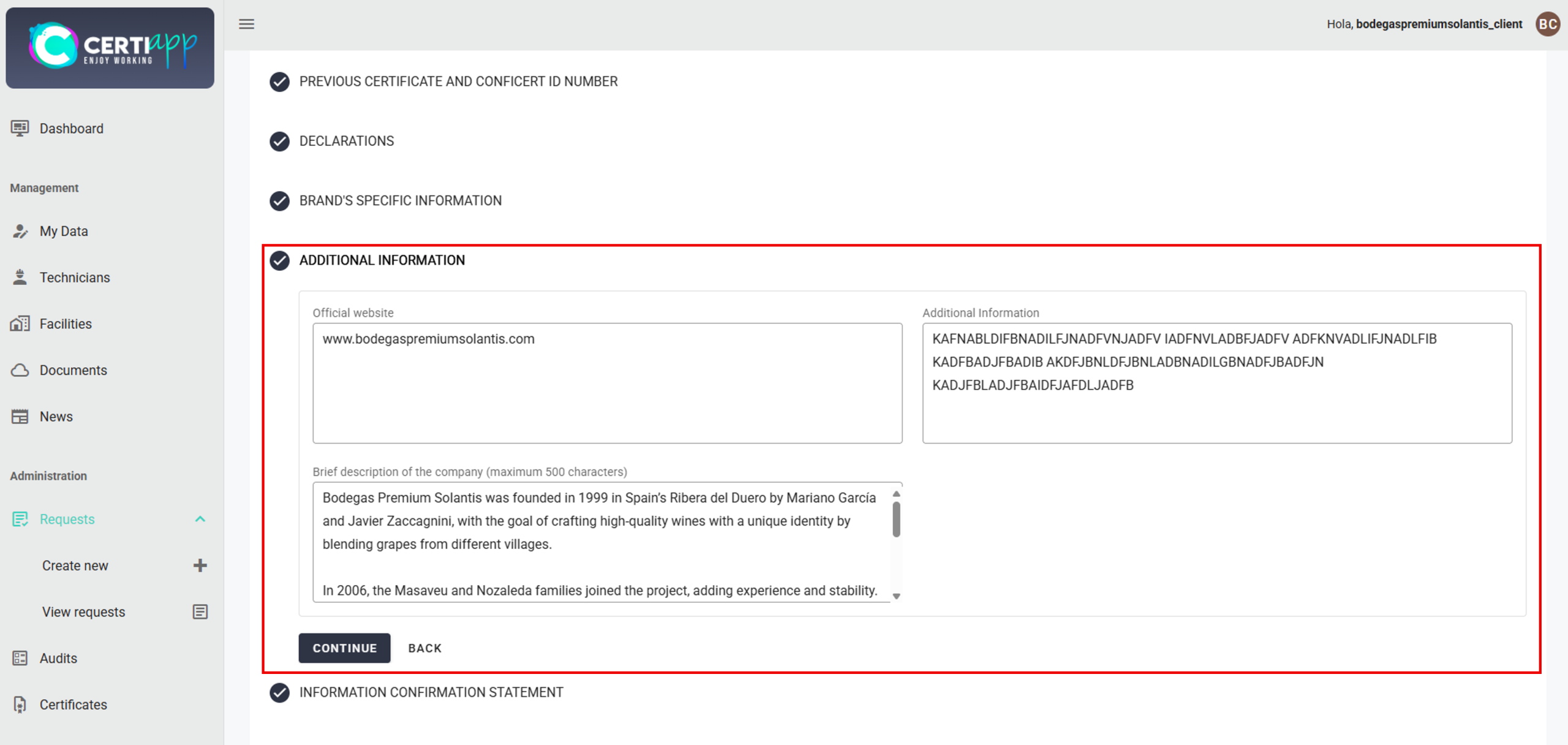
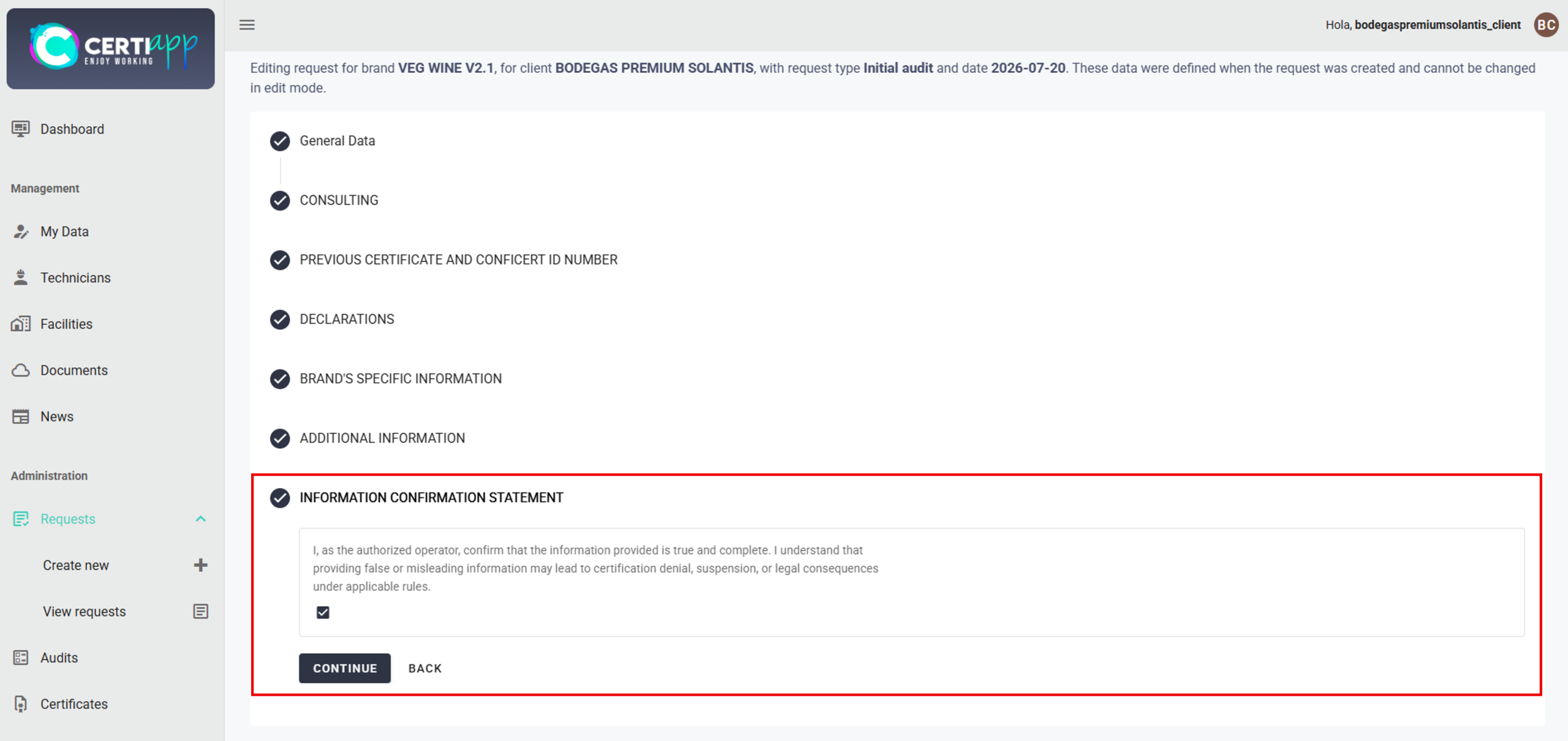
Step 2. Accept the "Information Confirmation Statement"
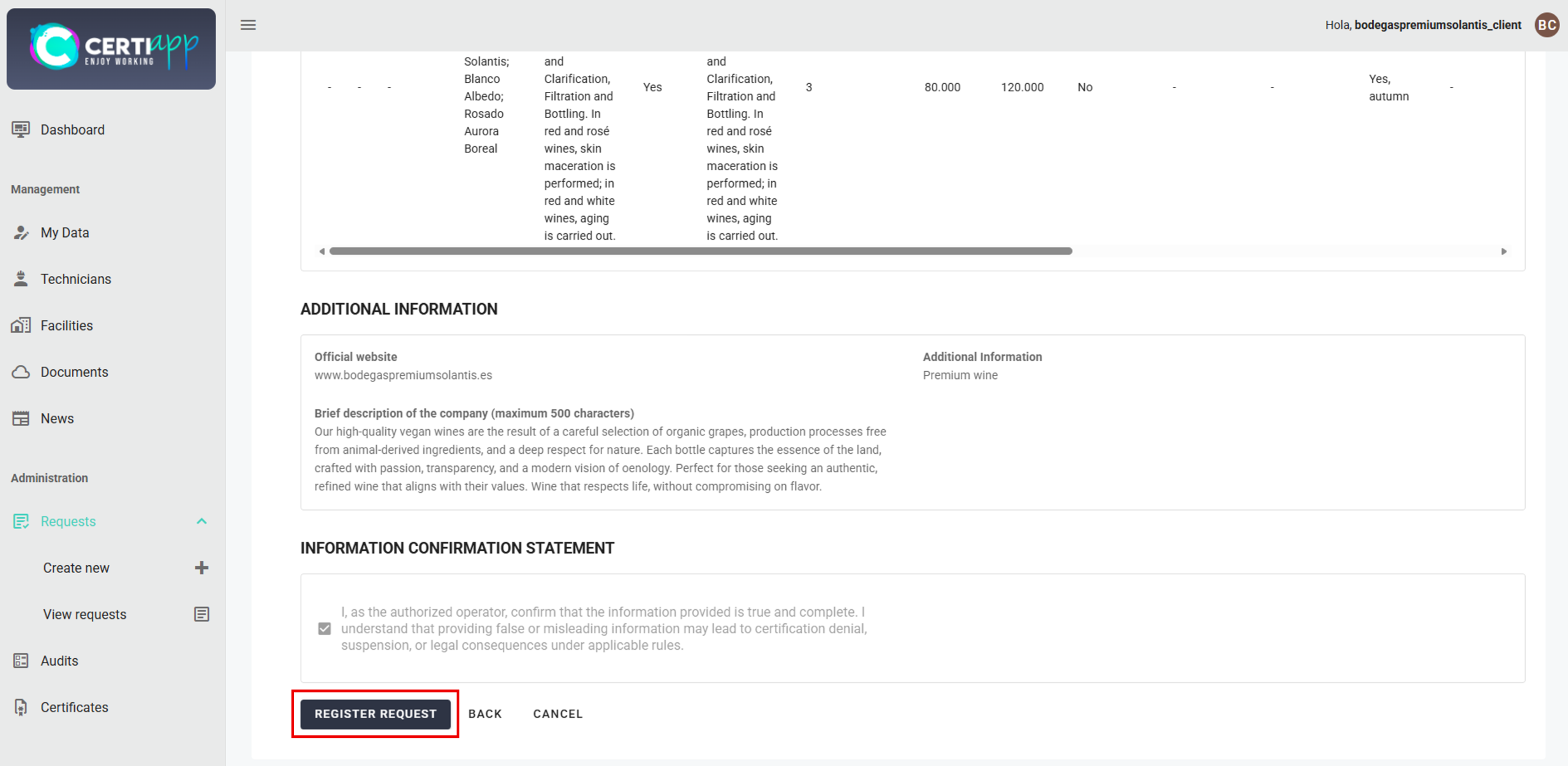
Step 3. Review the summary
Step 4. Register the request
Step 5. Notify your Certification Body
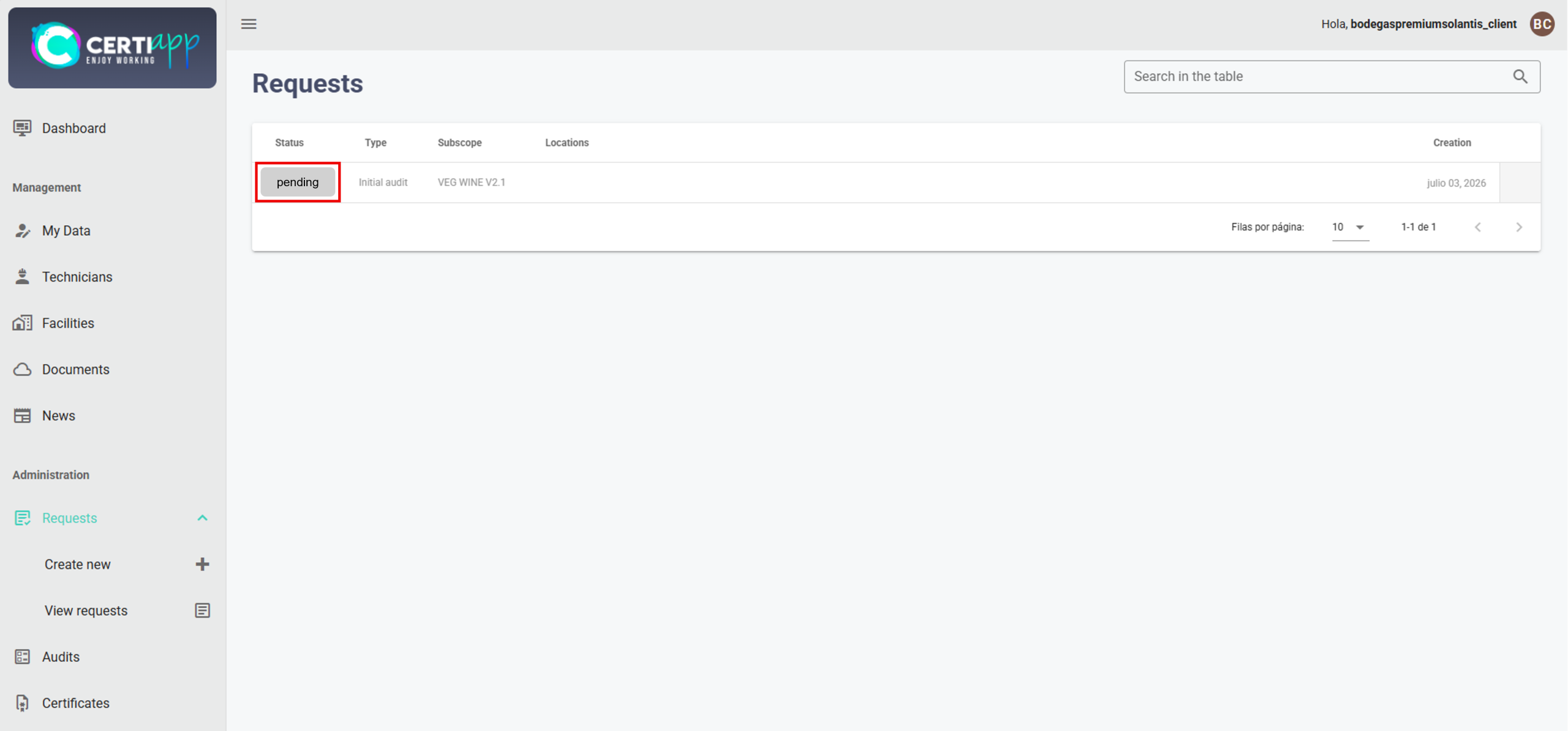
Inform your Certification Body that you have completed the request so that it can review it. Until it is approved, the request will remain in “Pending” status.
💡 Note: once your Certification Body approves the request, its status will change to “Approved” and it can no longer be edited. Your Certification Body will then send you the request in PDF format, which will also be available in Documents.
✅ Done! Your request has been submitted. The next step is the audit.
III. Explanatory video
📄 Full details in the Operator User Guide, sections 3.6.5 and 3.6.6.
Module 4 – Audit and NC
Learn where to follow your audit in CERTIAPP and what each audit status means for you.
I. Before you start
✅ Your request must have been approved by your Certification Body.
✅ Your Certification Body must have planned your audit.
II. Process step by step
Step 1. Go to Audits and understand the audit status
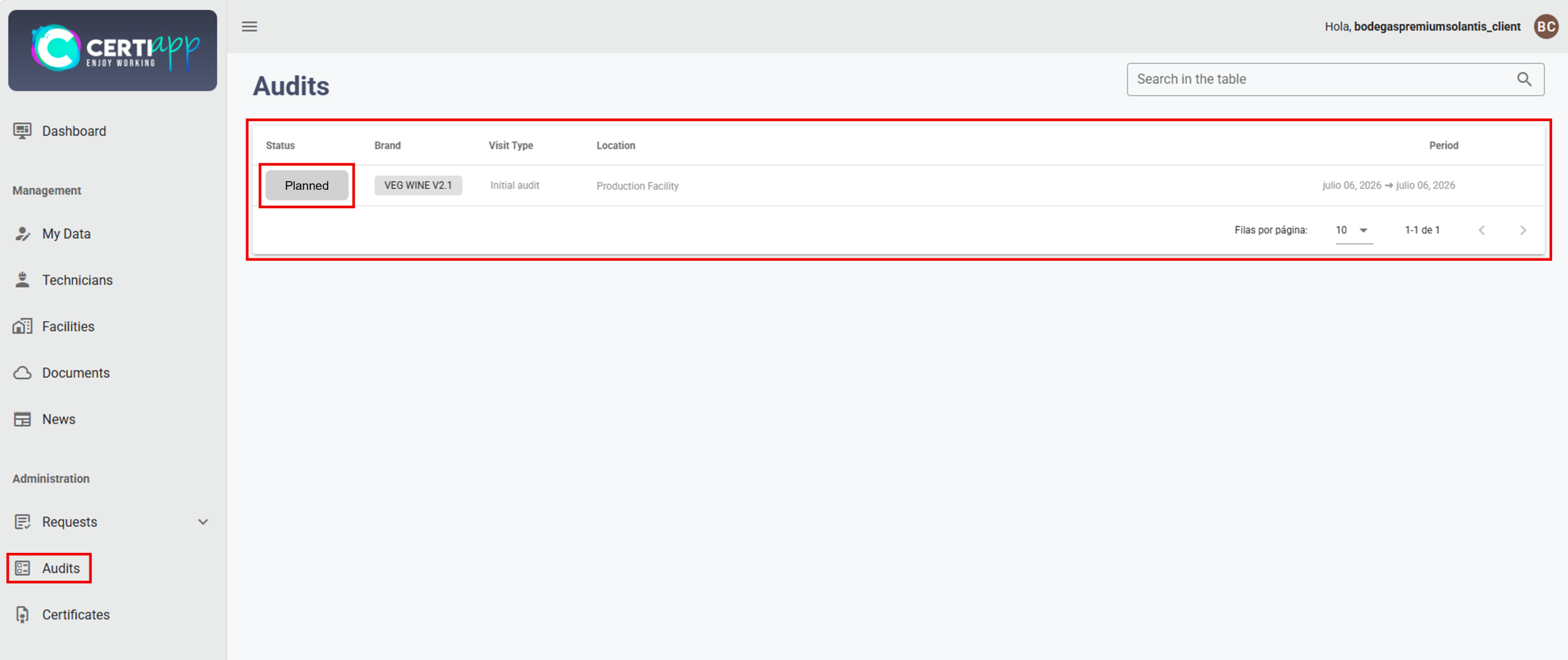
Open Administration › Audits. This section shows all your audits and their status.
✅ Planned: the audit has been scheduled. It will remain in this status until the auditor starts the process.
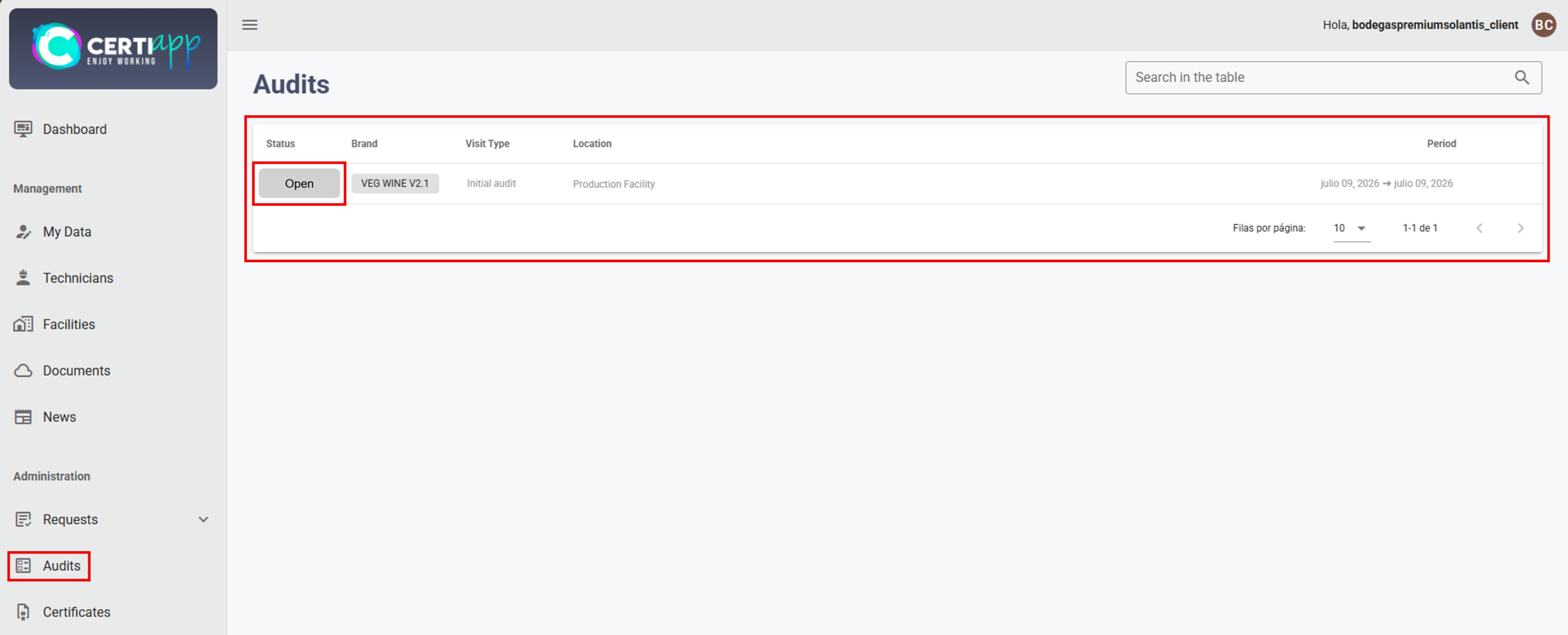
✅ Open: the auditor has started the audit. After the audit, the auditor will send you a Non-Conformity (NC) pack, which you must resolve in this same section.
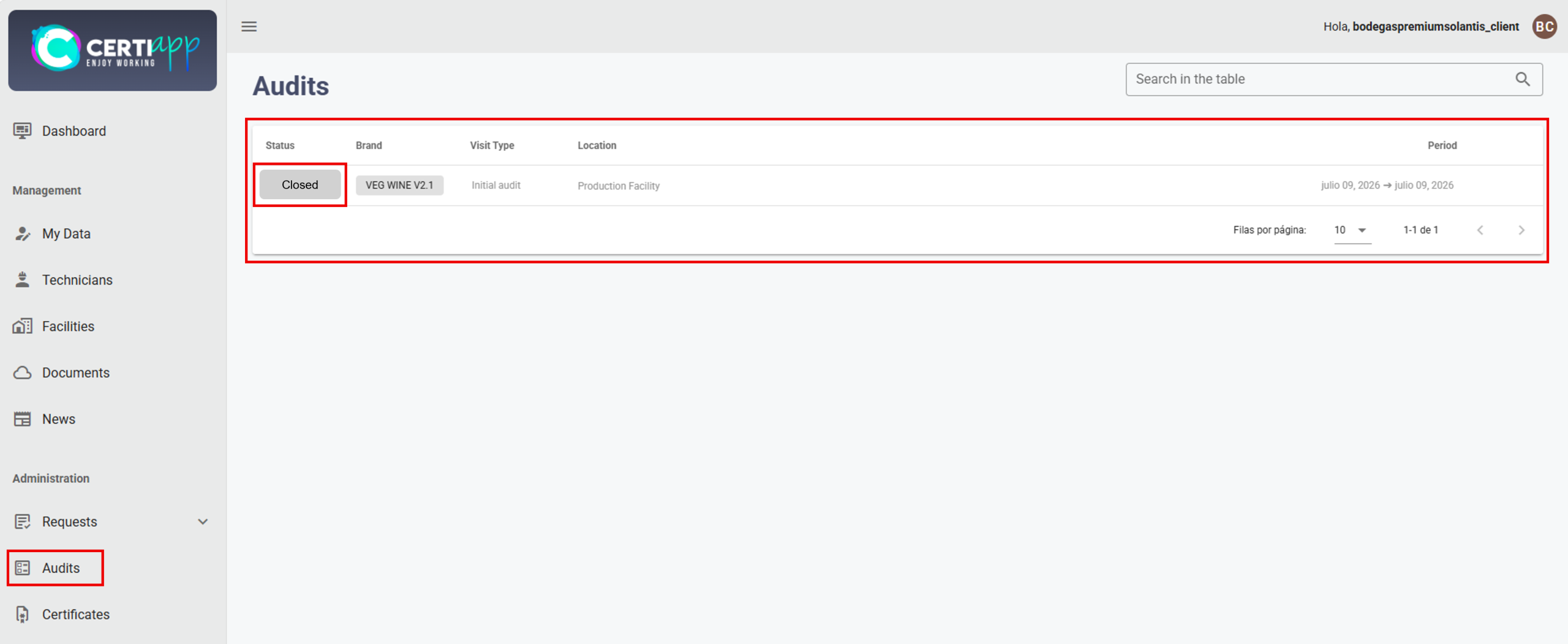
✅ Closed: the auditor has evaluated your corrective actions and closed the audit. The auditor will then send you the audit report.
⚠️ Important: you will only receive an NC pack for minor or serious Non-Conformities. If a critical (K.O.) Non-Conformity is detected (Level C in an essential requirement), the audit day can be completed, but the certification process cannot continue, in accordance with the CONFICERT General Regulations.
✅ Done! You now know how to follow your audit. If you receive an NC pack, continue with Resolving Non-Conformities.
III. Explanatory video
📄 Full details in the Operator User Guide, section 2.3.2.
Learn how to view the Non-Conformities detected during your audit and submit your corrective actions within the deadline.
I. Before you start
✅ Your audit must be in Open status, and the auditor must have sent you the Non-Conformity pack.
✅ Have the evidence documents (photos, records, procedures, etc.) for each corrective action at hand.
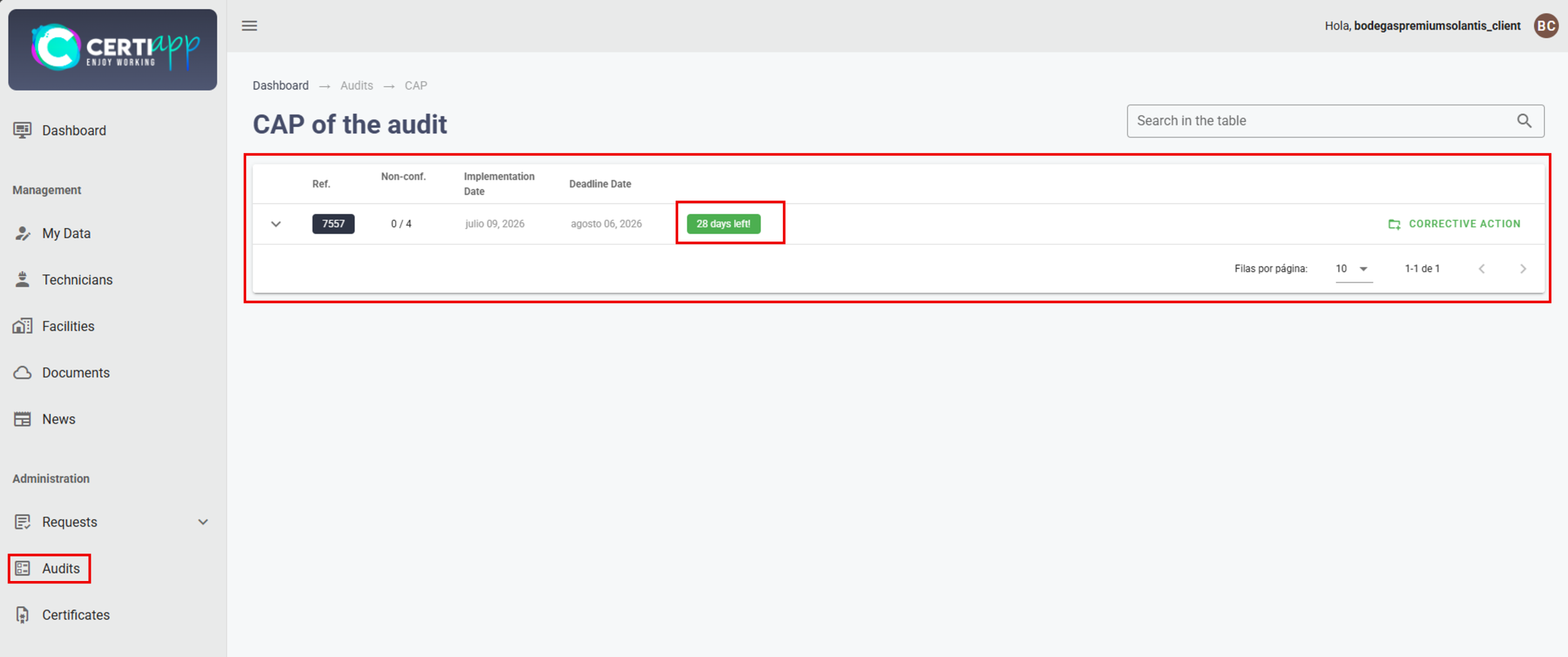
✅ You have a maximum of 28 days to submit your corrective actions.
II. Process step by step
Step 1. Open the Non-Conformity pack
Go to Administration › Audits, open your audit, and click on the corresponding NC group. It shows the number of Non-Conformities, the deadline for submitting the resolution, and the days remaining.
💡 Note: NC packs are grouped by operator, not by site. Individual operators (single-site or multi-site) will see a single group. Groups of operators will see a separate group for each operator.
Step 2. View the details of each Non-Conformity and add a corrective action
Step 3. Complete the corrective action
Step 4. Repeat for each Non-Conformity
Step 5. Notify the auditor
Once all corrective actions have been added, inform the auditor so that they can evaluate them. If the auditor asks you to change any action, edit it as indicated.
⚠️ Important: when the deadline expires, editing is closed automatically. If you need more time, contact your auditor before the deadline, since the auditor may extend it if deemed necessary.
Step 6. Wait for the audit to be closed
III. Explanatory video
📄 Full details in the Operator User Guide, section 3.7.
Module 5 – Certificate
Learn what the Brand Use License Agreement is and when you need to sign it in order to receive your certificate.
I. Before you start
✅ Your audit must be Closed, and your file must have gone through the technical review and the certification decision.
✅ Your Certification Body will contact you once the certification decision is favorable.
II. Process step by step
Step 1. Wait for the certification decision
After the audit is closed, your file is reviewed by a technical reviewer and evaluated by a decision-maker. Your Certification Body will inform you the final decision.
Step 2. Receive the agreement
If the decision is favorable, your Certification Body will send you the Brand Use License Agreement. This agreement sets out the conditions under which you may use the certified Brand.
Step 3. Review and sign the agreement
Read the agreement carefully, check that your company’s information is correct, and sign it.
Step 4. Return the signed agreement
Send the signed agreement back to your Certification Body.
⚠️ Important: your certificate cannot be issued until the signed agreement has been received. Once all requirements are met, your Certification Body has a maximum of 72 hours to issue the certificate.
✅ Done! Your certificate will be issued shortly.
III. Explanatory video
📄 More information in the CONFICERT General Rules.
Learn where to find and download your certificate, and what happens after it is issued.
I. Before you start
✅ You must have signed and returned the Brand Use License Agreement.
✅ Your Certification Body must have informed you that your certificate has been issued.
II. Process step by step
Step 1. Go to Certificates and download your certificate
Open Administration › Certificates. This section shows all the certificates you have obtained.
Click on Download next to the corresponding certificate.
Step 2. Send the material for the Transparency Portal
Your Certification Body will ask you for material to publish your certification on the CONFICERT Transparency Portal:
- Your company logo.
- Photographs of the certified product or, for services, related images.
- A document with your company description.
- Any other document you consider relevant or wish to share.
This material will be published together with your public audit report and your certificate.
💡 Note: your Certification Body will also send you the internal and public audit reports.
Step 3. Prepare for the annual renewal
Certification is renewed every year. Your Certification Body will plan your next audit and open a new request when the time comes, starting the cycle again.
✅ Congratulations! You have completed the certification process in CERTIAPP.
III. Explanatory video
📄 Full details in the Operator User Guide, section 3.8.
¿Aún tiene preguntas?
Check the frequently asked questions for operators or contact your Certification Body.
1. Who provides my username and password to access CERTIAPP?
Certification Bodies receive them from CONFICERT. Operators and Evaluation Staff receive them from their Certification Body.
2. In what language should information be entered on the platform?
In English: the request, the additional information, and the checklist evaluation.
3. Can I change my password?
Yes, in “My Data” › “Personal Data” › “Change Password”. The email address with which the account was registered must not be changed.
4. What do the Planned, Open, and Closed audit statuses mean?
✓ Planned: the audit has been created.
✓ Open: the auditor has started it.
✓ Closed: the CAP has been evaluated and the audit has been completed.
5. What types of Non-Conformity are there?
Minor, serious, and critical (K.O.). A critical Non-Conformity prevents the certification process from continuing, although the audit may still be completed that day.
6. Where can I find the process documents?
All exchanged documents (request, contract, evidence) are in “Documents” and can be filtered by name, type, or module.
1. What must I do before completing the request?
Review “My Data”, give LOPD consent, sign the certification contract, and register all facilities.
2. Where do I sign the certification contract?
In “Documents”, by clicking on the 📝 icon in the upper right corner. It is downloaded in Word format, signed, and sent to the CB’s email address.
3. What is LOPD consent, and when should I give it?
It is acceptance of the Organic Law on Data Protection (LOPD). Check it in “My Data” › “LOPD”, save, and notify the CB. It must be done before the request is opened.
4. Is it mandatory to register technicians?
No, it is a voluntary, informational record. The username and password it asks for can be filled in with any value, since no access profiles are created.
5. How many facilities must I register?
At least 2 for a single site (one fiscal and one facility), and at least 3 for a multi-site operator or group of operators.
6. My office and my facility are at the same address. Do I register only one?
No. Two records must be created even if the address is the same: one of the fiscal type and another of the facility type.
7. Why doesn't my facility appear when completing the request?
It must be registered in “Facilities” as the Facility type and marked as active.
8. Who creates the request?
Always the Certification Body. The operator completes it from “View Request”.
9. Can I modify the request after submitting it?
Only while it is in “Pending” status. Once approved, the CB must be asked to reopen it.
10. We are a group of operators. Who manages the account?
The Lead Operator (OPERATOR 1), which is the user with which the profile was created. It manages the entire process on behalf of the group.
11. How much time do I have to resolve the Non-Conformities?
A maximum of 28 days. The deadline and the days remaining are shown in the Non-Conformity pack itself.
12. How do I know whether I have responded to all the Non-Conformities?
The pack counter shows, for example, “4/4”: the number of NCs with a corrective action out of the total number of NCs.
13. I have uploaded my corrective actions. What should I do now?
Inform the auditor so that they can evaluate them. If changes are requested, they can be edited with “Edit” while the deadline is still open.
14. What happens if I do not submit my corrective actions on time?
When the deadline expires, editing is closed automatically. The auditor may extend the deadline if deemed necessary.
15. What must I sign before receiving the certificate?
The Brand Use License Agreement, which the CB sends once the certification decision is favorable.
16. Where do I download my certificate?
In “Certificates”, using the “Download” button.
CertiApp Academy - Operators
GUIDES AND RESOURCES FOR OPERATORS
Learn to manage your certification in CertiApp, step by step
Learn how to manage your certification process in CERTIAPP: from reviewing your account details and completing your request to resolving Non-Conformities and downloading your certificate.
Who is this for? Administrative and technical staff of operators applying for or maintaining a CONFICERT certification.
Your role in the process
Phase 0
Setup
Phase 1
Phase 1 - Request
Phase 2
Phase 2 – Audit
Phase 3
Decision
Phase 4
Phase 4 – Certification
Your Certification Body creates your request, plans your audit, and issues your certificate. Your role is to keep your information up to date, complete your request, and respond to any Non-Conformities within the established deadlines.
Full Operator User Guide
Download the complete guide with all the steps and screenshots.
Modules and lessons
Module 1 – Getting Started
Learn how to access CERTIAPP for the first time using the credentials provided by your Certification Body.
I. Before you start
✅ You must have logged in to CERTIAPP with the credentials provided by your Certification Body.
✅ Have the full addresses of your head office and all facilities to be audited at hand.
✅ This step must be completed before submitting your certification request.
II. Process step by step
Step 1. Go to the CERTIAPP login page
Open the CERTIAPP platform at Certiapp or click on Go to the platform in CertiApp Academy.
Step 2. Enter your credentials
Step 3. Check that you have accessed your account
Step 4. Change your password (recommended)
For security reasons, it is recommended that you change the password provided by your Certification Body. Go to Management › My Data, click on Modify and, in the Personal Data section, click on Change Password. Enter the new password, repeat it to confirm it, and click on Save My Data.
⚠️ Important: do not change the email address with which your account was registered.
✅ Done! You can now access CERTIAPP and start your certification process.
III. Explanatory video
📄 Full details in the Operator User Guide, sections 2.2.1 and 3.1.
Get to know the main sections of CERTIAPP available to your operator profile and what each one is used for.
I. Before you start
✅ You must have logged in to CERTIAPP (see Login).
II. Process step by step
Step 1. Dashboard
The Dashboard shows a summary of your account’s activity. It includes:
- A calendar with the planned and announced audits scheduled by your Certification Body.
- The messages and notifications received.
- A summary of the Audit Plans, which you must receive at least 48 hours before the audit date.
- The notifications pending review.
- The Non-Conformities pending resolution, which are generated when you receive the Non-Conformity pack after the audit.
Step 2. Management
The Management section contains your account information and documents:
1) My Data: your contact information, tax data, representative details, and LOPD consent.
2) Technicians: an optional record of the technicians and persons in charge involved in the process.
3) Facilities: your head office and all facilities to be audited.
4) Documents: all documents exchanged through CERTIAPP, including the certification contract, the request, and the evidence for Non-Conformities.
5) News: news and announcements shared by CONFICERT.
Step 3. Administration
The Administration section is where you manage your certification process:
1) Request: the certification requests opened by your Certification Body, which you must complete from View request.
2) Audits: your audits and their status (Planned, Open, or Closed), and where you resolve Non-Conformities.
3) Certificates: the certificates obtained, available for download.
⚠️ Important: the request is always created by your Certification Body. Your task is to complete it, so the Create new option is not for operators.
✅ Done! You now know the main tools of CERTIAPP. The next step is to review your account details.
III. Explanatory video
📄 Full details in the Operator User Guide, section 2.
Module 2 – Account Data
Learn how to check and update your account information, including your fiscal data and representative details.
I. Before you start
✅You must have logged in to CERTIAPP (see Login).
✅ Your data were loaded beforehand by your Certification Body when creating your account. Your task is to check that they are correct.
II. Process step by step
Step 1. Go to My Data
Open Management › My Data. This section shows a summary of your account: an overview of the account, your fiscal data, the details of your authorized representative, and your LOPD consent.
Review each section carefully. If any information is incorrect or incomplete, you can edit it yourself or ask your Certification Body to do so.
Step 2. Edit your data
Click on Modify. A window will open with four sections where you can edit the necessary information:
- Personal Data: account details and password.
- Fiscal Information: your company’s tax data.
- Representative Data: details of your authorized representative.
- LOPD: data protection consent (see LOPD consent).
Step 3. Change your password (optional)
Step 4. Save the changes
Click on Save My Data to save the information.
⚠️ Important: any change made in this section must be communicated to the Certification Body with which you are carrying out your certification process.
✅ Done! Your account information is now up to date.
III. Explanatory video
📄 Full details in the Operator User Guide, sections 2.2.1 and 3.2.
Learn how to give your consent under the Organic Law on Data Protection (LOPD), a required step before your certification request can be opened.
I. Before you start
✅ You must have reviewed your account information (see Reviewing My Data).
✅ This step must be completed before your certification request is opened.
II. Process step by step
Step 1. Open the LOPD section and give your consent
Step 2. Notify your Certification Body
Inform your Certification Body that you have given your LOPD consent, so that it can open your certification request.
⚠️ Important: your Certification Body cannot open your request until you have given this consent.
✅ Done! Your data protection consent has been recorded.
III. Explanatory video
📄 Full details in the Operator User Guide, section 2.2.1.
Get to know the main sections of CERTIAPP available to your operator profile and what each one is used for.
I. Before you start
✅ You must have logged in to CERTIAPP (see Login).
✅ This record is voluntary and for information purposes only. You can skip this lesson if you do not need it.
II. Process step by step
Step 1. Go to Technicians and add a new one
Step 2. Complete the technician's details
Step 3. Edit a technician (if needed)
To change a technician’s details, click on Modify, edit the information, and click on Save.
✅ Done! Your technicians are now registered.
III. Explanatory video
📄 Full details in the Operator User Guide, sections 2.2.2 and 3.4.
Learn how to register your head office and all the facilities to be audited, so that they are available when completing your certification request.
I. Before you start
✅ You must have logged in to CERTIAPP (see Login).
✅ Have the full addresses of your head office and all facilities to be audited at hand.
✅ This step must be completed before submitting your certification request.
II. Process step by step
Step 1. Go to "Facilities" and check how many facilities you need
Open Management › Facilities. This section shows all the facilities declared in the certification process, such as the head office and the facilities to be audited.
There must always be at least two records: one of the fiscal type (head office) and one of the facility type.
✅ Single-site individual operators: at least 2 facilities (1 fiscal + 1 facility).
✅ Multi-site operators or groups of operators: at least 3 facilities (1 fiscal + 2 facility).
⚠️ Important: if your head office and your facility are at the same address, you must still create two separate records: one of the office (fiscal) type and another of the facility type.
Step 2. Check the facilities already registered
Step 3. Register a new facility
Click on Add Address. Fill in the requested fields, select the address type, and mark the address as active. Then click on Save.
⚠️ Important: facilities to be audited must be of the Facility type and marked as active. Otherwise, they will not appear in the Location field when completing your request.
Step 4. Repeat for each facility and notify your Certification Body
Repeat step 3 for each additional facility. Once finished, inform your Certification Body of any facility added or modified.
✅ Done! Your facilities are now ready to be selected when completing your certification request.
III. Explanatory video
📄 Full details in the Operator User Guide, sections 2.2.3 and 3.5.
Module 3 – Contract & Request
Learn how to download, check, and sign your certification contract, which must be signed before completing your request.
I. Before you start
✅ You must have checked that your account information is correct (see Reviewing My Data).
✅ The contract must be signed before completing your certification request.
II. Process step by step
Step 2. Open the contract
Step 3. Download the contract
Step 4. Check your information and send the contract
Open the document and check that your company’s information appears correctly in the corresponding fields.
Once you have confirmed that everything is correct, sign the contract and send it to the email address of your Certification Body indicated, for filing and validation.
✅ Done! Once your Certification Body has received the signed contract, you can continue with your certification request.
III. Explanatory video
📄 Full details in the Operator User Guide, sections 2.2.4 and 3.3.
Learn how to open your certification request and complete its first sections, including the description of your operator type.
I. Before you start
✅ You must have given your LOPD consent and signed the certification contract.
✅ All facilities to be audited must be registered as Facility type and marked as active (see Facilities).
✅ Your Certification Body must have opened your request.
✅ The entire request must be completed in English.
II. Process step by step
Step 1. Open your request
Go to Administration › Request › View request and click on the request opened by your Certification Body.
⚠️ Important: the request can only be edited while its status is “Pending”. Once it is “Approved”, it can no longer be modified.
Learn how to complete the “Requested Information of the Brand” table if you are an individual operator with a single site to be audited.
Step 3. Complete the "Previous Certificate and CONFICERT ID Number" section
Step 5. Complete the "Operator Description" table
This table is part of the Brand’s Specific Information section. In question 1, select your operator type and complete the questions that apply:
✅ Single-site individual operator: complete only question 1. Leave the remaining boxes empty.
✅ Multi-site individual operator: complete questions 1 and 2. In question 2, indicate the number of locations/operating units under the certification scope.
✅ Group of operators: complete questions 1, 3, and 4.
- In question 3, indicate the total number of operators in the group, including the lead operator.
- In question 4, indicate the total number of sites of all operators in the group.
⚠️ Important: the data in the Brand’s Specific Information section define your audit plan. Complete them with special care.
💡 Note: in a group of operators, the user with which the account was created is the Lead Operator, who manages the entire certification process on behalf of the group.
Step 6. Continue according to your operator type
The next table, “Requested Information of the Brand”, is completed differently for each operator type. Continue with the lesson that applies to you.
III. Explanatory video
📄 Full details in the Operator User Guide, sections 3.6.1 to 3.6.4.
Learn how to complete the “Requested Information of the Brand” table if you are an individual operator with a single site to be audited.
I. Before you start
✅ You must have completed the general sections of the request (see Completing the request: general sections).
✅ Your facility must be registered as Facility type and marked as active.
II. Process step by step
Step 1. Add a row
Step 2. Enter the operator and site number
Step 3. Select the location and complete the details
In Location, select your facility. Then complete the location address (street/avenue, province, postal code, and country) and the contact person (name, position, email, and phone number).
⚠️ Important: if your facility does not appear in Location, check that it is registered as Facility type and marked as active (see Facilities).
Step 4. Indicate the main location
Step 5. Complete the remaining questions and save
Answer the remaining questions on production or work details, which vary depending on the Brand to be certified. Then click on Save.
✅ Done! The information will appear in a single row in the table. Continue with Confirming and submitting the request.
III. Explanatory video
📄 Full details in the Operator User Guide, section 3.6.4.
Learn how to complete the “Requested Information of the Brand” table if you are an individual operator with more than one site to be audited.
I. Before you start
✅ You must have completed the general sections of the request (see Completing the request: general sections).
✅ Your facility must be registered as Facility type and marked as active.
II. Process step by step
Step 1. Understand the numbering
Step 2. Add your first site
In the “Requested Information of the Brand” table, click on the + icon and complete:
- Number of Operator: OPERATOR 1
- Number of Site: SITE 1
- Location: your main facility, together with its address and contact person.
- Approximate distance to the main location: enter Main Location.
⚠️ Important: Site 1 must always be your main location.
Answer the questions on production or work details, which vary depending on the Brand, and click on Save.
Step 3. Add your second site
Click on + again and complete:
- Number of Operator: OPERATOR 1
- Number of Site: SITE 2
- Location: the corresponding facility (for example, “Production Facility 2”), together with its address and contact person.
- Approximate distance to the main location: the distance between this site and Site 1.
⚠️ Important: in the question “Does anyone in the company have the official Brand course completed?”, if you already answered it for Site 1, enter “-“. The training course certificate is per operator, not per site.
Answer the remaining questions and click on Save.
III. Explanatory video
📄 Full details in the Operator User Guide, section 3.6.4.
Learn how to complete the “Requested Information of the Brand” table if you are an individual operator with more than one site to be audited.
I. Before you start
✅ You must have completed the general sections of the request (see Completing the request: general sections).
✅ All facilities of all operators in the group must be registered as Facility type and marked as active.
✅ Have the list of operators in the group and the sites belonging to each one at hand.
II. Process step by step
Step 1. Understand the numbering
✅ OPERATOR 1 is always the Lead Operator, who manages the account in CERTIAPP. The other operators are numbered from OPERATOR 2 onwards.
✅ Sites are numbered continuously across the whole group. For example, if Operator 1 has Sites 1 and 2, the first site of Operator 2 will be SITE 3.
✅ Always use capital letters.
Step 2. Add Site 1 of Operator 1
In the “Requested Information of the Brand” table, click on the + icon and complete:
- Number of Operator: OPERATOR 1
- Number of Site: SITE 1
- Location: the main facility, together with its address and contact person.
- Approximate distance to the main location: enter Main Location.
Click on Save.
⚠️ Important: Site 1 of Operator 1 must always be the main location of the group.
Step 3. Add the other sites of Operator 1
Click on + and complete:
- Number of Operator: OPERATOR 1
- Number of Site: SITE 2
- Location: the corresponding facility, together with its address and contact person.
- Approximate distance to the main location: the distance from the main site.
In the question “Does anyone in the company have the official Brand course completed?”, enter “-“. Click on Save.
Step 4. Add the sites of Operator 2
Click on + and complete:
- Number of Operator: OPERATOR 2
- Number of Site: SITE 3, continuing the numbering.
- Location: the corresponding facility (for example, “Production Facility 3”), together with its address, contact person, and approximate distance from the main site of Operator 1.
In the question on the official Brand course, enter “-“. Click on Save.
Step 5. Repeat for each additional operator and site
Step 6. Complete the "Group of Operators Information" table
This table is completed only by groups of operators. Click on the + icon and, for each operator, complete:
- Operator Number: for example, OPERATOR 1.
- Question 5: the sites belonging to this operator, as declared in the previous table (for example, “SITE 1 and SITE 2”).
- Question 6: the total number of sites belonging to this operator (in this example, 2).
- Question on the official Brand course: answer Yes or No for this operator.
💡 Note: the question on the official Brand course is answered per operator in this table, not per site.
✅ Done! All operators and sites in your group are now registered. Continue with Confirming and submitting the request.
III. Explanatory video
📄 Full details in the Operator User Guide, section 3.6.4.
Learn how to complete the final sections of your request, review all the information, and submit it to your Certification Body.
I. Before you start
✅ You must have completed the general sections and the tables corresponding to your operator type.
II. Process step by step
Step 1. Complete the "Additional Information" section
Step 2. Accept the "Information Confirmation Statement"
Step 3. Review the summary
Step 4. Register the request
Step 5. Notify your Certification Body
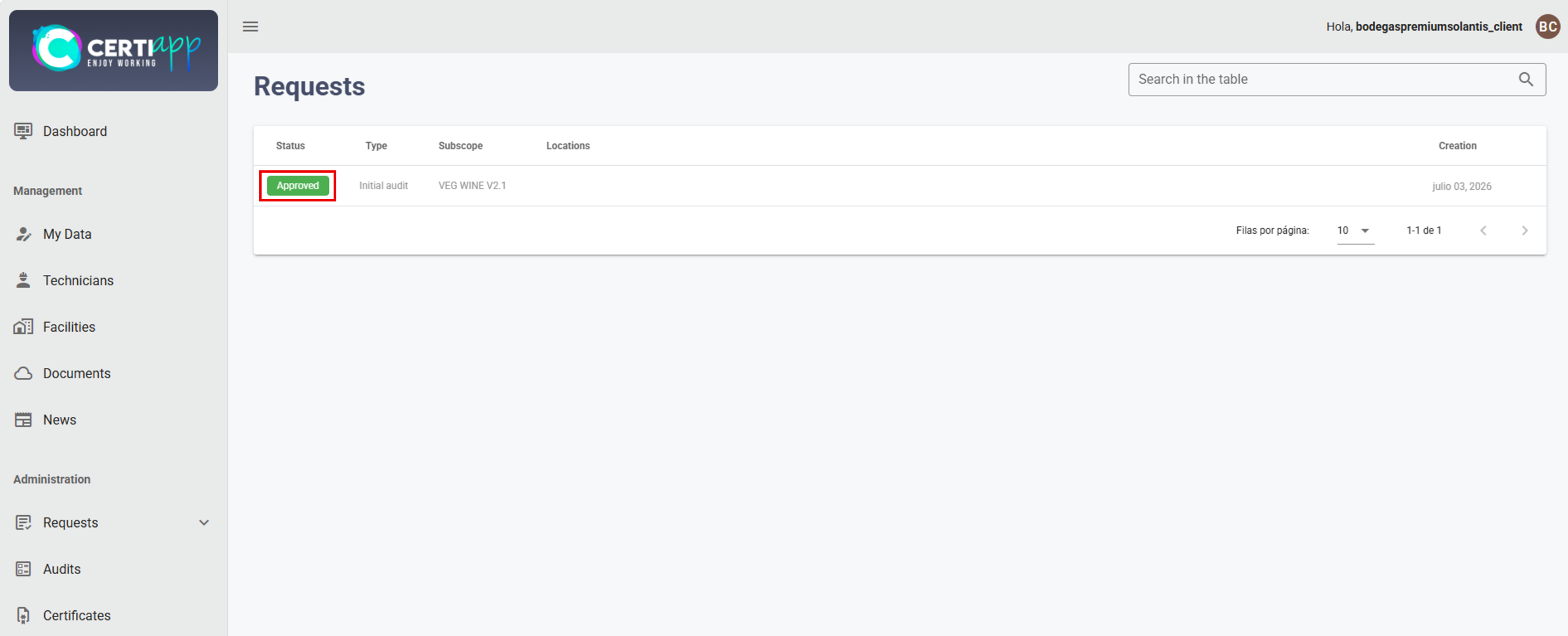
Inform your Certification Body that you have completed the request so that it can review it. Until it is approved, the request will remain in “Pending” status.
💡 Note: once your Certification Body approves the request, its status will change to “Approved” and it can no longer be edited. Your Certification Body will then send you the request in PDF format, which will also be available in Documents.
✅ Done! Your request has been submitted. The next step is the audit.
III. Explanatory video
📄 Full details in the Operator User Guide, sections 3.6.5 and 3.6.6.
Module 4 – Audit and NC
Learn where to follow your audit in CERTIAPP and what each audit status means for you.
I. Before you start
✅ Your request must have been approved by your Certification Body.
✅ Your Certification Body must have planned your audit.
II. Process step by step
Step 1. Go to Audits and understand the audit status
Open Administration › Audits. This section shows all your audits and their status.
✅ Planned: the audit has been scheduled. It will remain in this status until the auditor starts the process.
✅ Open: the auditor has started the audit. After the audit, the auditor will send you a Non-Conformity (NC) pack, which you must resolve in this same section.
✅ Closed: the auditor has evaluated your corrective actions and closed the audit. The auditor will then send you the audit report.
⚠️ Important: you will only receive an NC pack for minor or serious Non-Conformities. If a critical (K.O.) Non-Conformity is detected (Level C in an essential requirement), the audit day can be completed, but the certification process cannot continue, in accordance with the CONFICERT General Regulations.
✅ Done! You now know how to follow your audit. If you receive an NC pack, continue with Resolving Non-Conformities.
III. Explanatory video
📄 Full details in the Operator User Guide, section 2.3.2.
Learn how to view the Non-Conformities detected during your audit and submit your corrective actions within the deadline.
I. Before you start
✅ Your audit must be in Open status, and the auditor must have sent you the Non-Conformity pack.
✅ Have the evidence documents (photos, records, procedures, etc.) for each corrective action at hand.
✅ You have a maximum of 28 days to submit your corrective actions.
II. Process step by step
Step 1. Open the Non-Conformity pack
Go to Administration › Audits, open your audit, and click on the corresponding NC group. It shows the number of Non-Conformities, the deadline for submitting the resolution, and the days remaining.
💡 Note: NC packs are grouped by operator, not by site. Individual operators (single-site or multi-site) will see a single group. Groups of operators will see a separate group for each operator.
Step 2. View the details of each Non-Conformity and add a corrective action
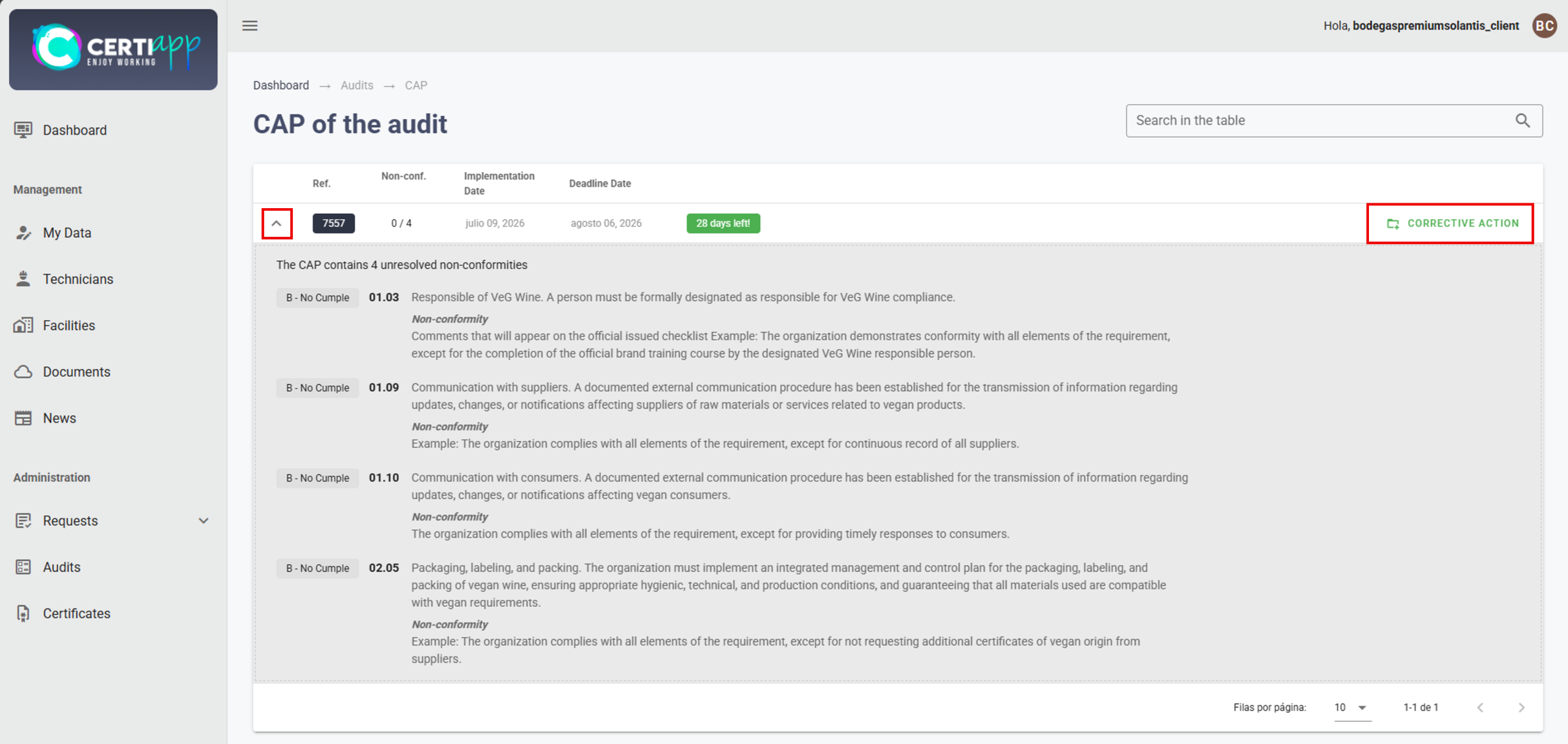
Step 3. Complete the corrective action
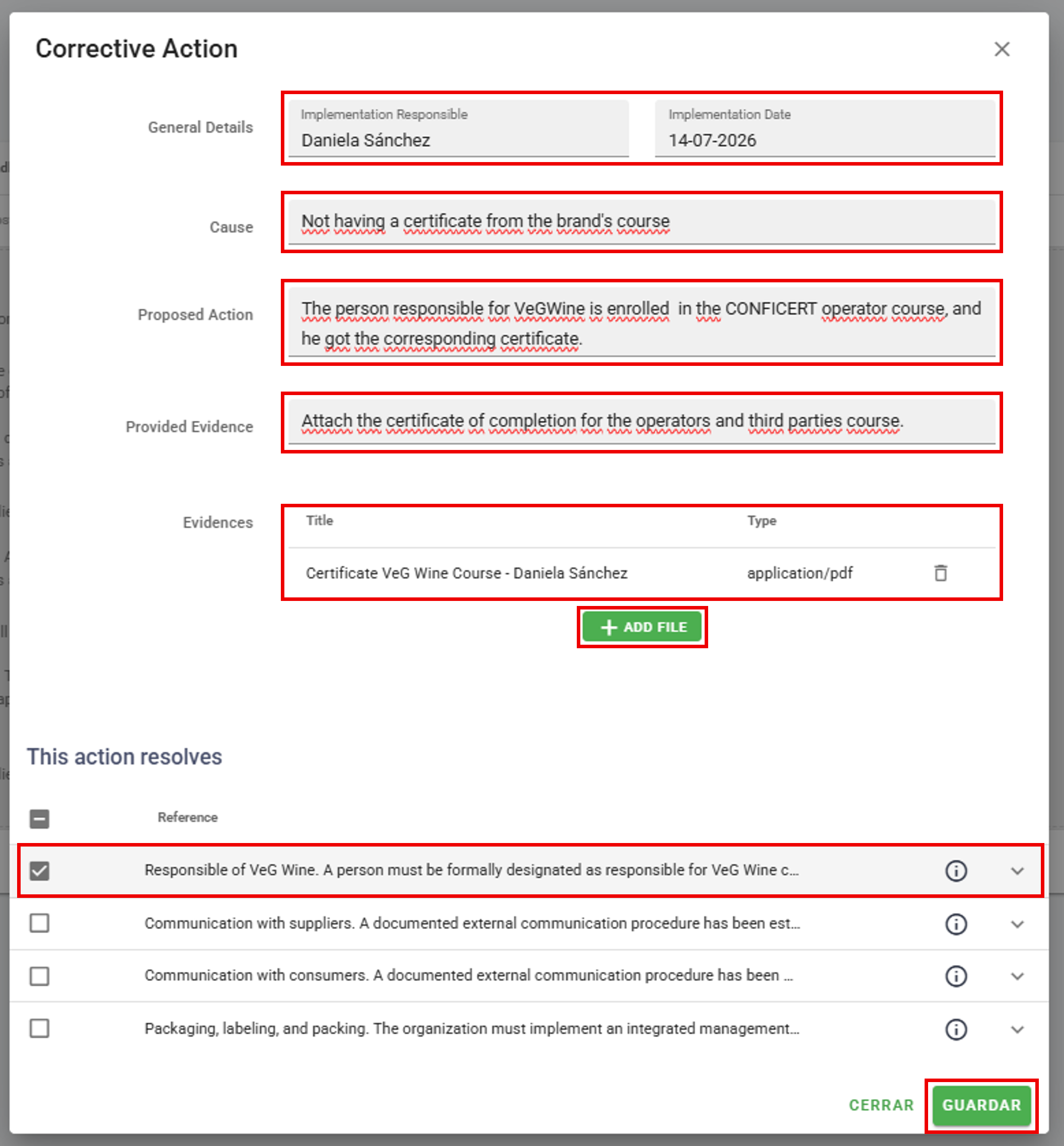
Step 4. Repeat for each Non-Conformity
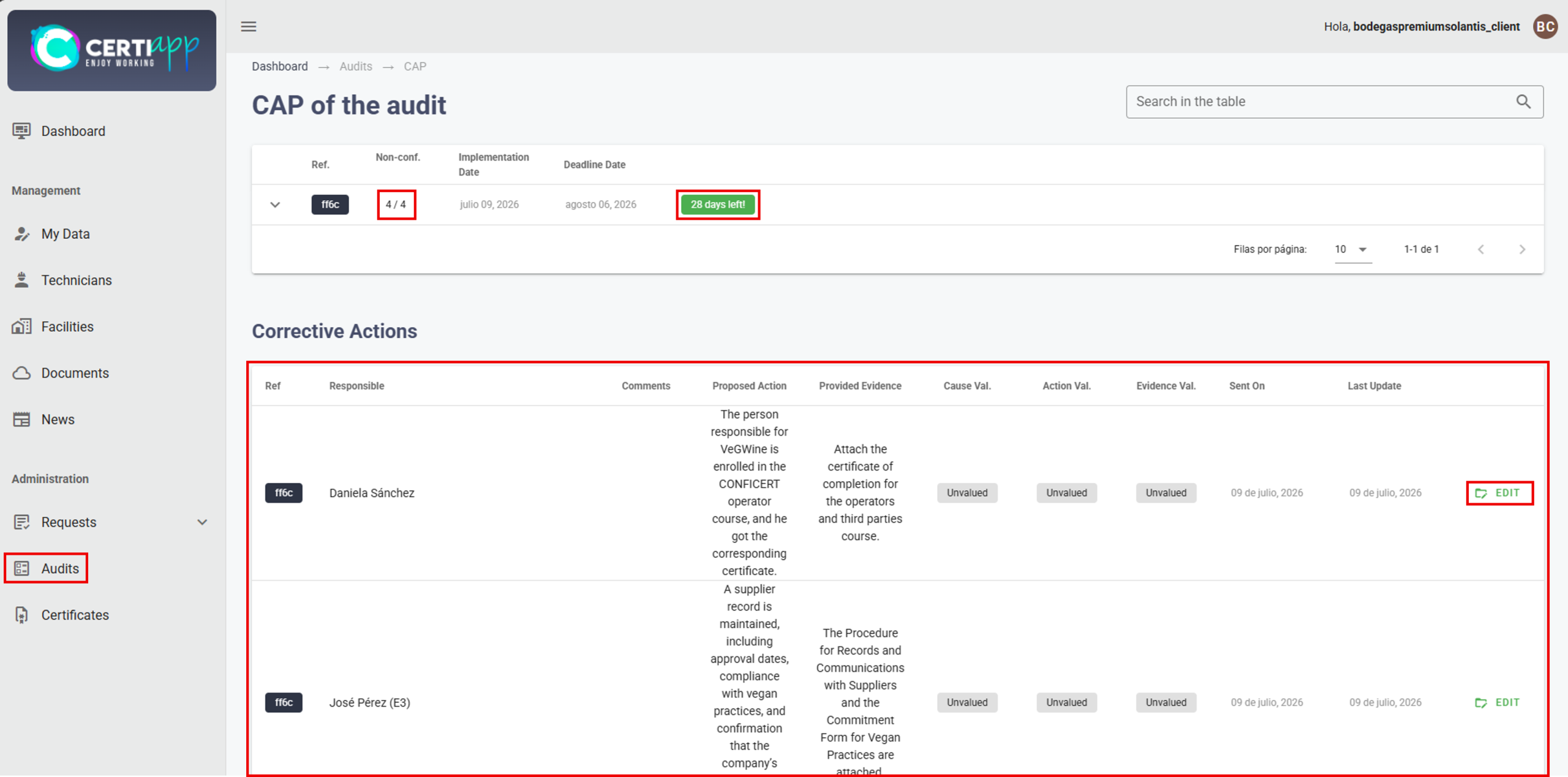
Step 5. Notify the auditor
Once all corrective actions have been added, inform the auditor so that they can evaluate them. If the auditor asks you to change any action, edit it as indicated.
⚠️ Important: when the deadline expires, editing is closed automatically. If you need more time, contact your auditor before the deadline, since the auditor may extend it if deemed necessary.
Step 6. Wait for the audit to be closed
III. Explanatory video
📄 Full details in the Operator User Guide, section 3.7.
Module 5 – Certificate
Learn what the Brand Use License Agreement is and when you need to sign it in order to receive your certificate.
I. Before you start
✅ Your audit must be Closed, and your file must have gone through the technical review and the certification decision.
✅ Your Certification Body will contact you once the certification decision is favorable.
II. Process step by step
Step 1. Wait for the certification decision
After the audit is closed, your file is reviewed by a technical reviewer and evaluated by a decision-maker. Your Certification Body will inform you the final decision.
Step 2. Receive the agreement
If the decision is favorable, your Certification Body will send you the Brand Use License Agreement. This agreement sets out the conditions under which you may use the certified Brand.
Step 3. Review and sign the agreement
Read the agreement carefully, check that your company’s information is correct, and sign it.
Step 4. Return the signed agreement
Send the signed agreement back to your Certification Body.
⚠️ Important: your certificate cannot be issued until the signed agreement has been received. Once all requirements are met, your Certification Body has a maximum of 72 hours to issue the certificate.
✅ Done! Your certificate will be issued shortly.
III. Explanatory video
📄 More information in the CONFICERT General Rules.
Learn where to find and download your certificate, and what happens after it is issued.
I. Before you start
✅ You must have signed and returned the Brand Use License Agreement.
✅ Your Certification Body must have informed you that your certificate has been issued.
II. Process step by step
Step 1. Go to Certificates and download your certificate
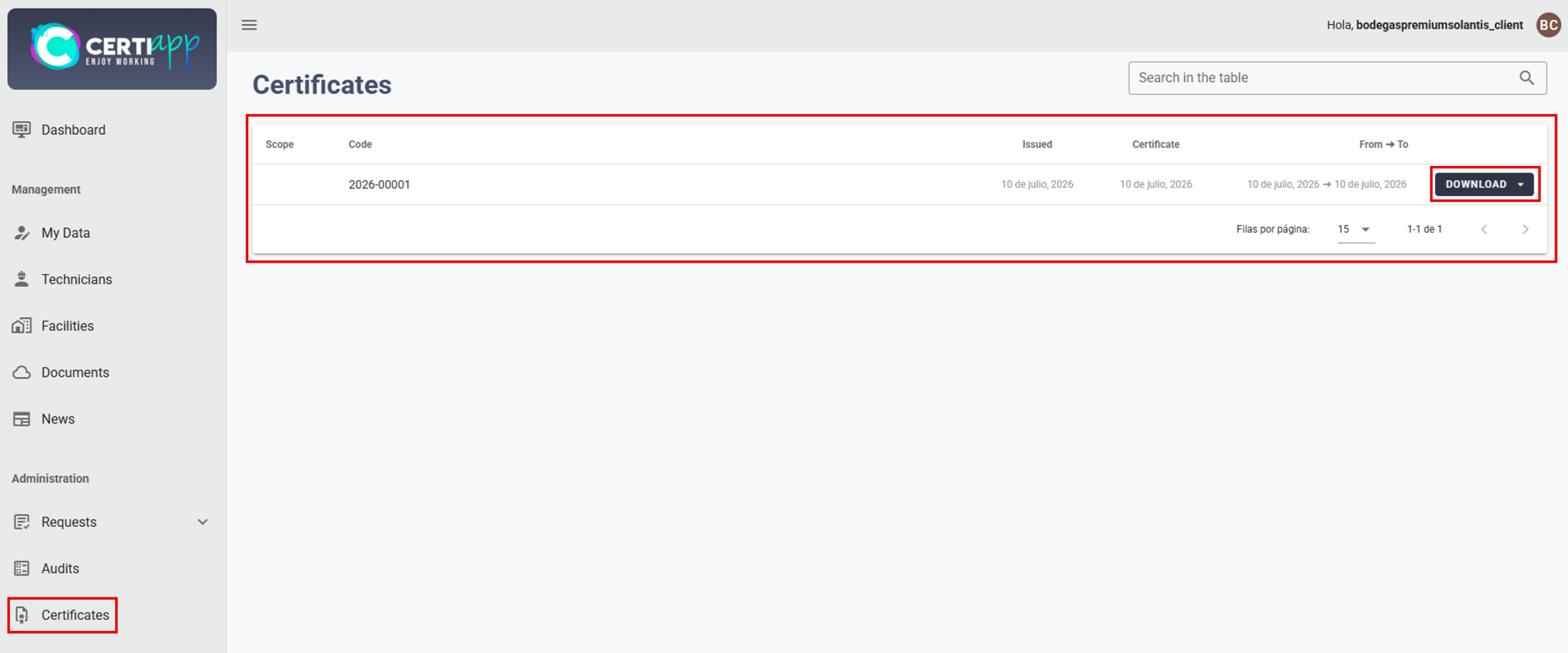
Open Administration › Certificates. This section shows all the certificates you have obtained.
Click on Download next to the corresponding certificate.
Step 2. Send the material for the Transparency Portal
Your Certification Body will ask you for material to publish your certification on the CONFICERT Transparency Portal:
- Your company logo.
- Photographs of the certified product or, for services, related images.
- A document with your company description.
- Any other document you consider relevant or wish to share.
This material will be published together with your public audit report and your certificate.
💡 Note: your Certification Body will also send you the internal and public audit reports.
Step 3. Prepare for the annual renewal
Certification is renewed every year. Your Certification Body will plan your next audit and open a new request when the time comes, starting the cycle again.
✅ Congratulations! You have completed the certification process in CERTIAPP.
III. Explanatory video
📄 Full details in the Operator User Guide, section 3.8.
¿Aún tiene preguntas?
Check the frequently asked questions for operators or contact your Certification Body.
1. Who provides my username and password to access CERTIAPP?
Certification Bodies receive them from CONFICERT. Operators and Evaluation Staff receive them from their Certification Body.
2. In what language should information be entered on the platform?
In English: the request, the additional information, and the checklist evaluation.
3. Can I change my password?
Yes, in “My Data” › “Personal Data” › “Change Password”. The email address with which the account was registered must not be changed.
4. What do the Planned, Open, and Closed audit statuses mean?
✓ Planned: the audit has been created.
✓ Open: the auditor has started it.
✓ Closed: the CAP has been evaluated and the audit has been completed.
5. What types of Non-Conformity are there?
Minor, serious, and critical (K.O.). A critical Non-Conformity prevents the certification process from continuing, although the audit may still be completed that day.
6. Where can I find the process documents?
All exchanged documents (request, contract, evidence) are in “Documents” and can be filtered by name, type, or module.
1. What must I do before completing the request?
Review “My Data”, give LOPD consent, sign the certification contract, and register all facilities.
2. Where do I sign the certification contract?
In “Documents”, by clicking on the 📝 icon in the upper right corner. It is downloaded in Word format, signed, and sent to the CB’s email address.
3. What is LOPD consent, and when should I give it?
It is acceptance of the Organic Law on Data Protection (LOPD). Check it in “My Data” › “LOPD”, save, and notify the CB. It must be done before the request is opened.
4. Is it mandatory to register technicians?
No, it is a voluntary, informational record. The username and password it asks for can be filled in with any value, since no access profiles are created.
5. How many facilities must I register?
At least 2 for a single site (one fiscal and one facility), and at least 3 for a multi-site operator or group of operators.
6. My office and my facility are at the same address. Do I register only one?
No. Two records must be created even if the address is the same: one of the fiscal type and another of the facility type.
7. Why doesn't my facility appear when completing the request?
It must be registered in “Facilities” as the Facility type and marked as active.
8. Who creates the request?
Always the Certification Body. The operator completes it from “View Request”.
9. Can I modify the request after submitting it?
Only while it is in “Pending” status. Once approved, the CB must be asked to reopen it.
10. We are a group of operators. Who manages the account?
The Lead Operator (OPERATOR 1), which is the user with which the profile was created. It manages the entire process on behalf of the group.
11. How much time do I have to resolve the Non-Conformities?
A maximum of 28 days. The deadline and the days remaining are shown in the Non-Conformity pack itself.
12. How do I know whether I have responded to all the Non-Conformities?
The pack counter shows, for example, “4/4”: the number of NCs with a corrective action out of the total number of NCs.
13. I have uploaded my corrective actions. What should I do now?
Inform the auditor so that they can evaluate them. If changes are requested, they can be edited with “Edit” while the deadline is still open.
14. What happens if I do not submit my corrective actions on time?
When the deadline expires, editing is closed automatically. The auditor may extend the deadline if deemed necessary.
15. What must I sign before receiving the certificate?
The Brand Use License Agreement, which the CB sends once the certification decision is favorable.
16. Where do I download my certificate?
In “Certificates”, using the “Download” button.
Frequently asked questions
1. Who provides my username and password to access CERTIAPP?
Certification Bodies receive them from CONFICERT. Operators and Evaluation Staff receive them from their Certification Body.
2. In what language should information be entered on the platform?
In English: the request, the additional information, and the checklist evaluation.
3. Can I change my password?
Yes, in “My Data” › “Personal Data” › “Change Password”. The email address with which the account was registered must not be changed.
4. What do the Planned, Open, and Closed audit statuses mean?
✓ Planned: the audit has been created.
✓ Open: the auditor has started it.
✓ Closed: the CAP has been evaluated and the audit has been completed.
5. What types of Non-Conformity are there?
Minor, serious, and critical (K.O.). A critical Non-Conformity prevents the certification process from continuing, although the audit may still be completed that day.
6. Where can I find the process documents?
All exchanged documents (request, contract, evidence) are in “Documents” and can be filtered by name, type, or module.
1. Why can't I create a request?
The membership and the Annual Authorization Fee to Certify a Brand must be current, and the operator must have been assigned the Brand Registration and Certification Fee.
2. Which options must be enabled in the initial settings?
The three options in “Audit References”. If they are not enabled, problems will arise when evaluating the CAP.
3. Which role should I assign to each auditor?
✓ “Auditor Admin”: if the person will act as auditor, reviewer, and decision-maker, or only as auditor.
✓ “Reviewer”: if they will carry out only technical reviews.
✓ “Decision Maker”: if they will carry out only decision-making.
The roles must match the competencies assigned for each Brand.
4. How far in advance must the audit plan be sent?
At least 48 hours in advance.
5. Do I have to send the request document to the operator?
Yes. Once approved, it is downloaded in Word, reviewed, converted to PDF, sent to the operator, and saved in the operator’s document manager.
6. Why isn't the "Generate Certificate" button enabled?
The Royalty Fee must be paid and assigned to the operator, and the Brand Use License Agreement must be signed.
7. How much time is there to issue the certificate?
A maximum of 72 hours from when the above requirements are met.
8. What must be sent to CONFICERT after issuing the certificate?
The public audit report, the certificate, and the operator’s graphic material, to conficert5@conficert.org, for publication on the Transparency Portal.
1. How many checklists are created in a multi-site or group audit?
One per operator, not per site.
2. What is the difference between the "Observations" and "Comments" fields?
“Observations” is internal and is not visible to the operator. “Comments” appears in the checklist and is visible to the operator.
3. What type of Non-Conformity does each rating generate?
✓ Regular requirement: B or C generates a minor Non-Conformity.
✓ Major requirement: B generates a minor Non-Conformity, and C a serious Non-Conformity.
✓ Essential requirement: B generates a serious Non-Conformity, and C a critical (K.O.) Non-Conformity.
4. What is the minimum pass threshold for the audit?
70% for an initial audit and 80% for a renewal audit. After the CAP, the operator must reach 100% compliance.
5. What is the difference between the internal and public checklists?
The internal checklist contains all explicit comments and is for the CB’s use. The public checklist omits sensitive information and is published on the Transparency Portal. The auditor must review its wording before sending it.
6. How much time does the auditor have to evaluate the CAP?
A maximum of 7 days, within the total of 28 days until the final decision.
7. Can a signature be modified once recorded?
No. Once recorded, a signature cannot be edited.
8. Is sample registration mandatory?
No, sample registration (Samples) is voluntary and optional.
9. How do I reopen a closed audit?
First delete the technical review from “Reviews”, then click on the reopen icon.
1. What must I do before completing the request?
Review “My Data”, give LOPD consent, sign the certification contract, and register all facilities.
2. Where do I sign the certification contract?
In “Documents”, by clicking on the 📝 icon in the upper right corner. It is downloaded in Word format, signed, and sent to the CB’s email address.
3. What is LOPD consent, and when should I give it?
It is acceptance of the Organic Law on Data Protection (LOPD). Check it in “My Data” › “LOPD”, save, and notify the CB. It must be done before the request is opened.
4. Is it mandatory to register technicians?
No, it is a voluntary, informational record. The username and password it asks for can be filled in with any value, since no access profiles are created.
5. How many facilities must I register?
At least 2 for a single site (one fiscal and one facility), and at least 3 for a multi-site operator or group of operators.
6. My office and my facility are at the same address. Do I register only one?
No. Two records must be created even if the address is the same: one of the fiscal type and another of the facility type.
7. Why doesn't my facility appear when completing the request?
It must be registered in “Facilities” as the Facility type and marked as active.
8. Who creates the request?
Always the Certification Body. The operator completes it from “View Request”.
9. Can I modify the request after submitting it?
Only while it is in “Pending” status. Once approved, the CB must be asked to reopen it.
10. We are a group of operators. Who manages the account?
The Lead Operator (OPERATOR 1), which is the user with which the profile was created. It manages the entire process on behalf of the group.
11. How much time do I have to resolve the Non-Conformities?
A maximum of 28 days. The deadline and the days remaining are shown in the Non-Conformity pack itself.
12. How do I know whether I have responded to all the Non-Conformities?
The pack counter shows, for example, “4/4”: the number of NCs with a corrective action out of the total number of NCs.
13. I have uploaded my corrective actions. What should I do now?
Inform the auditor so that they can evaluate them. If changes are requested, they can be edited with “Edit” while the deadline is still open.
14. What happens if I do not submit my corrective actions on time?
When the deadline expires, editing is closed automatically. The auditor may extend the deadline if deemed necessary.
15. What must I sign before receiving the certificate?
The Brand Use License Agreement, which the CB sends once the certification decision is favorable.
16. Where do I download my certificate?
In “Certificates”, using the “Download” button.