

CertiApp Academy - Certification Bodies

GUIDES AND RESOURCES FOR CERTIFICATION BODIES

Learn to manage the certification process in CertiApp, step by step

Learn how to manage the CONFICERT certification process in CERTIAPP as a Certification Body: from setting up your account, staff and clients to managing requests, creating audits and closing the certification cycle.

Who is this for? Scheme Managers and Administrative Managers of Certification Bodies authorized to certify CONFICERT Brands.

Your role in the process

Phase 0

Setup

Phase 0 – Setup

Configure your account, register your auditors and clients, and keep your fees up to date.

Phase 1

Request

Phase 1 – Request

Create the request, help the operator complete it, and approve it.

Phase 2

Audit

Phase 2 – Audit

Create the audit, assign the team, and send the Audit Plan to the operator.

Phase 3

Decision

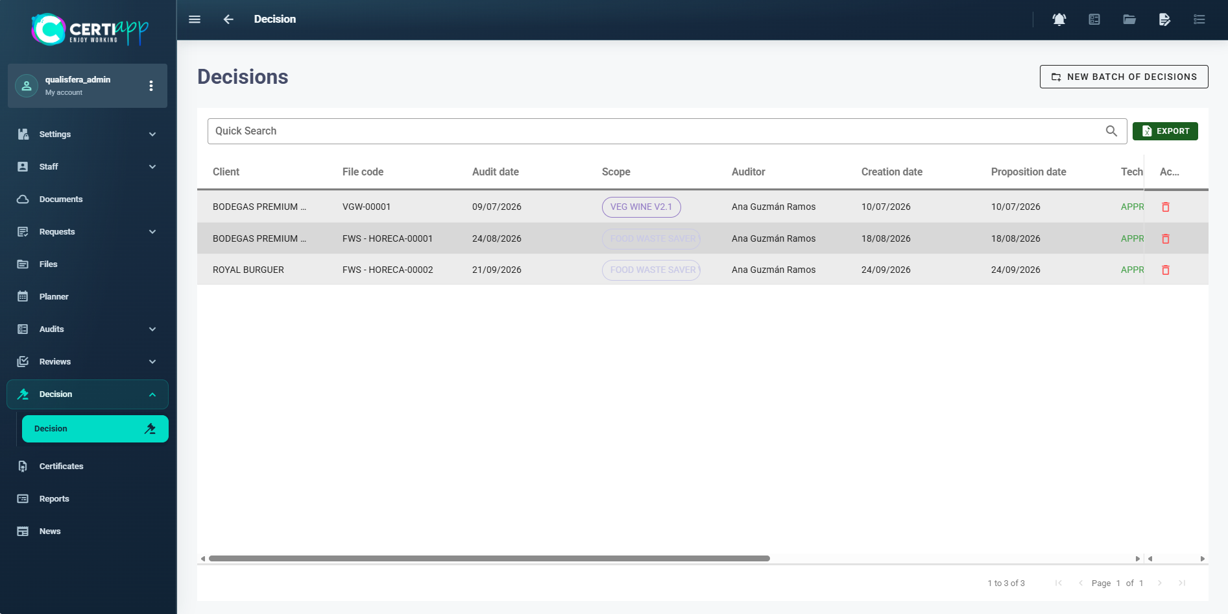
Phase 3 – Decision

Evaluation Staff · Technical review and certification decision.

Phase 4

Certification

Phase 4 – Certification

Royalty Fee, License Agreement and publication on the Transparency Portal.

As a Certification Body, you manage the administrative side of the whole process: you register the client, open the request, create the audit and make sure everything is in place for the certificate to be issued and published. The audit, the technical review and the decision are carried out by your evaluation staff.

→ Are you an auditor, technical reviewer or decision-maker? Go to Evaluation Staff

User Guide for Certification Bodies

CERTIAPP Platform

Download the complete guide with all the steps and screenshots.

CONFICERT platform

Fees and payments: authorization fee, Registration and Certification Fee, and Royalty Fee.

Modules and lessons

Module 1 – Getting Started

Learn how to access CERTIAPP using the credentials provided by the CONFICERT administration team.

I. Before you start

✅ Your Certification Body must be a CONFICERT member, with its membership up to date.

✅ The CONFICERT administration team must have created your account and given you your username and password.

II. Process step by step

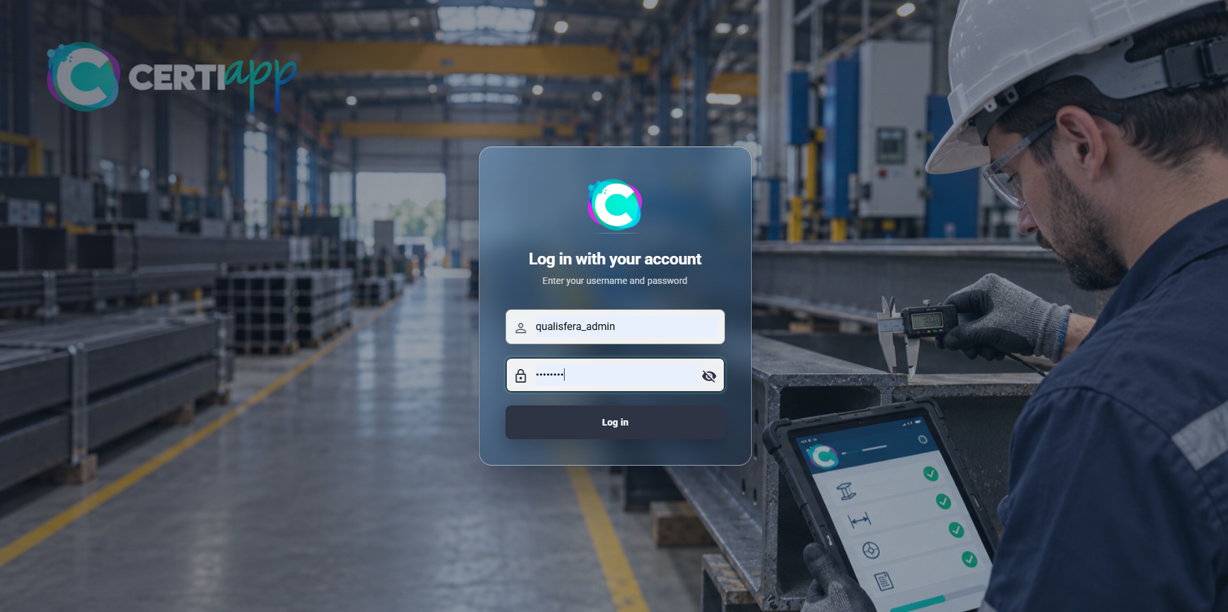
Open the CERTIAPP platform at Certiapp or click on Go to the platform in CertiApp Academy.

Enter the username and password provided by the CONFICERT administration team and click on Log in.

⚠️ Important: if you have not received your credentials or cannot log in, contact the CONFICERT team at conficert5@conficert.org.

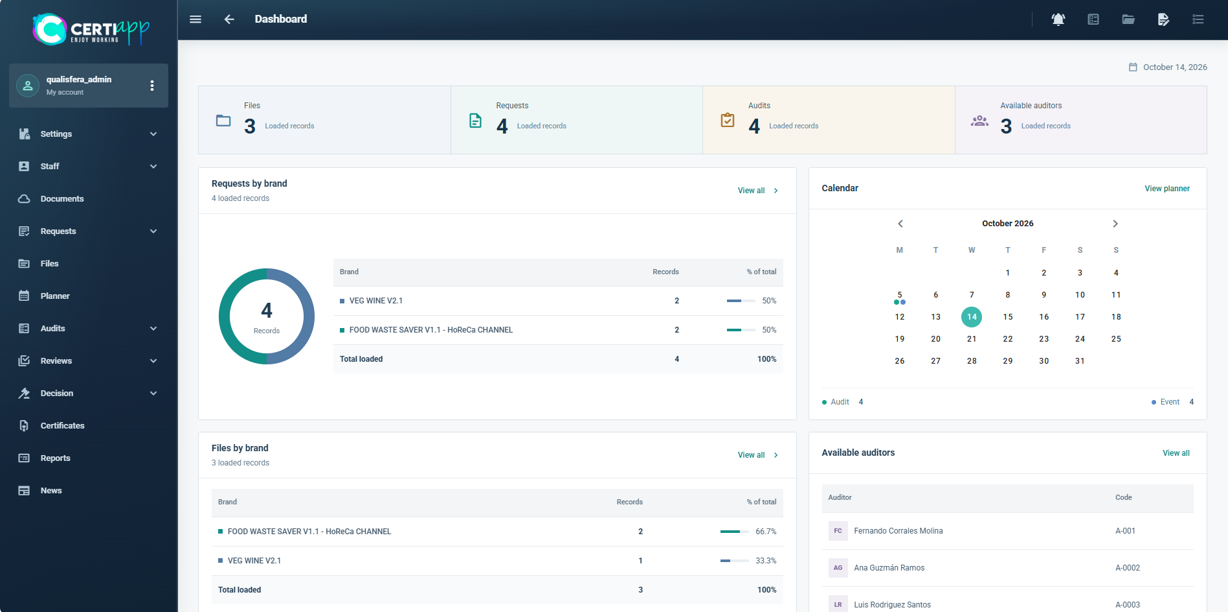
✅ Done! You are now on the General Dashboard. In the next lesson, you will learn what each section of the menu is for.

III. Explanatory video

📄 Full details in the User Guide for Certification Bodies – CERTIAPP Platform, section 3.1.

Get to know the CERTIAPP menu: where you manage your staff, clients, requests and files, and which sections require no action.

I. Before you start

✅ You must be logged in to CERTIAPP (see Login).

II. Process step by step

A summary of your account’s activity: a calendar with the scheduled audits and events, the news published by CONFICERT, the available auditors, and the number of files and requests.

This is where you register the people you work with:

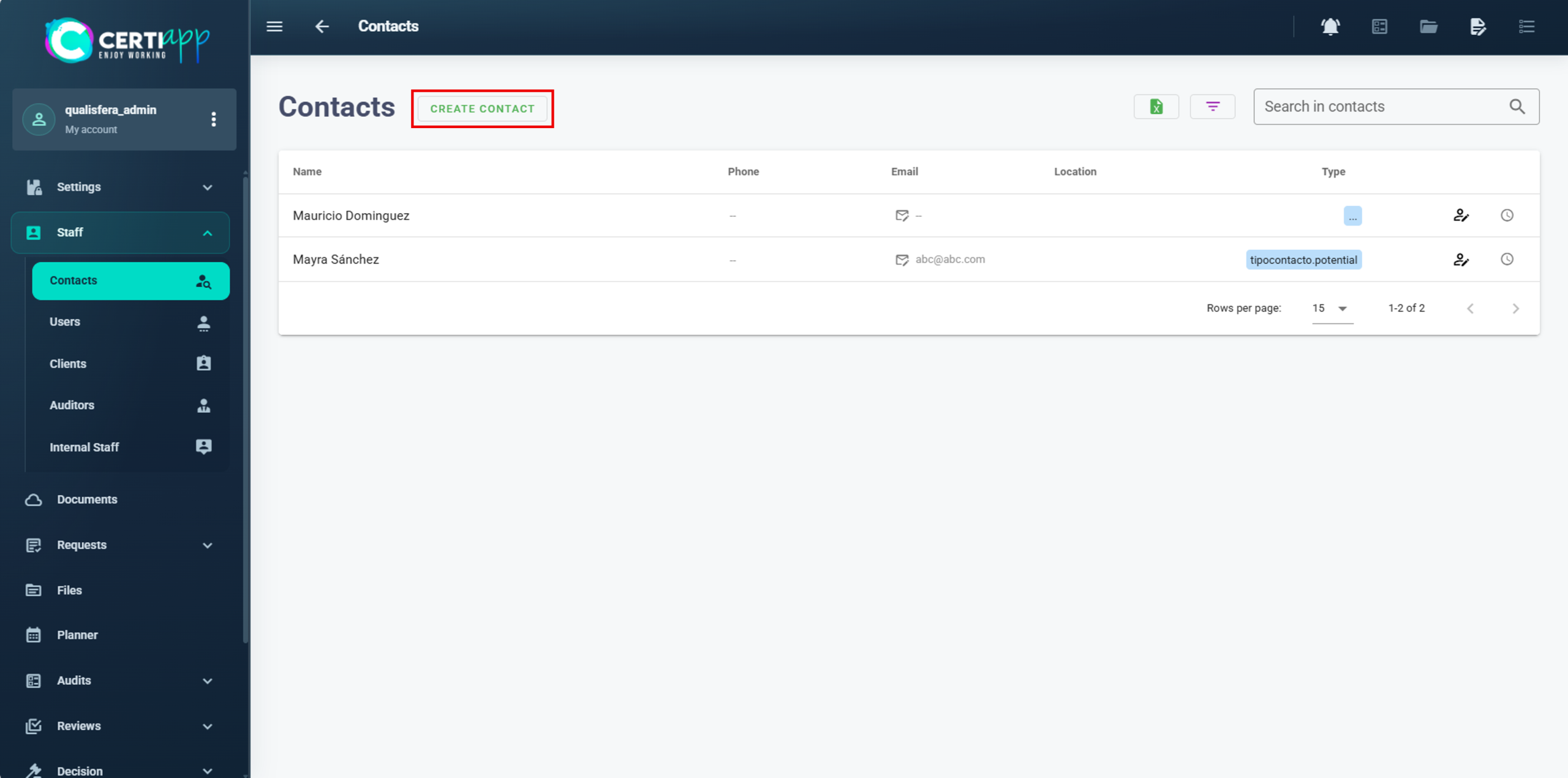
✅ Contacts: prospective clients and any other contacts. You can attach documents, such as an initial quotation.
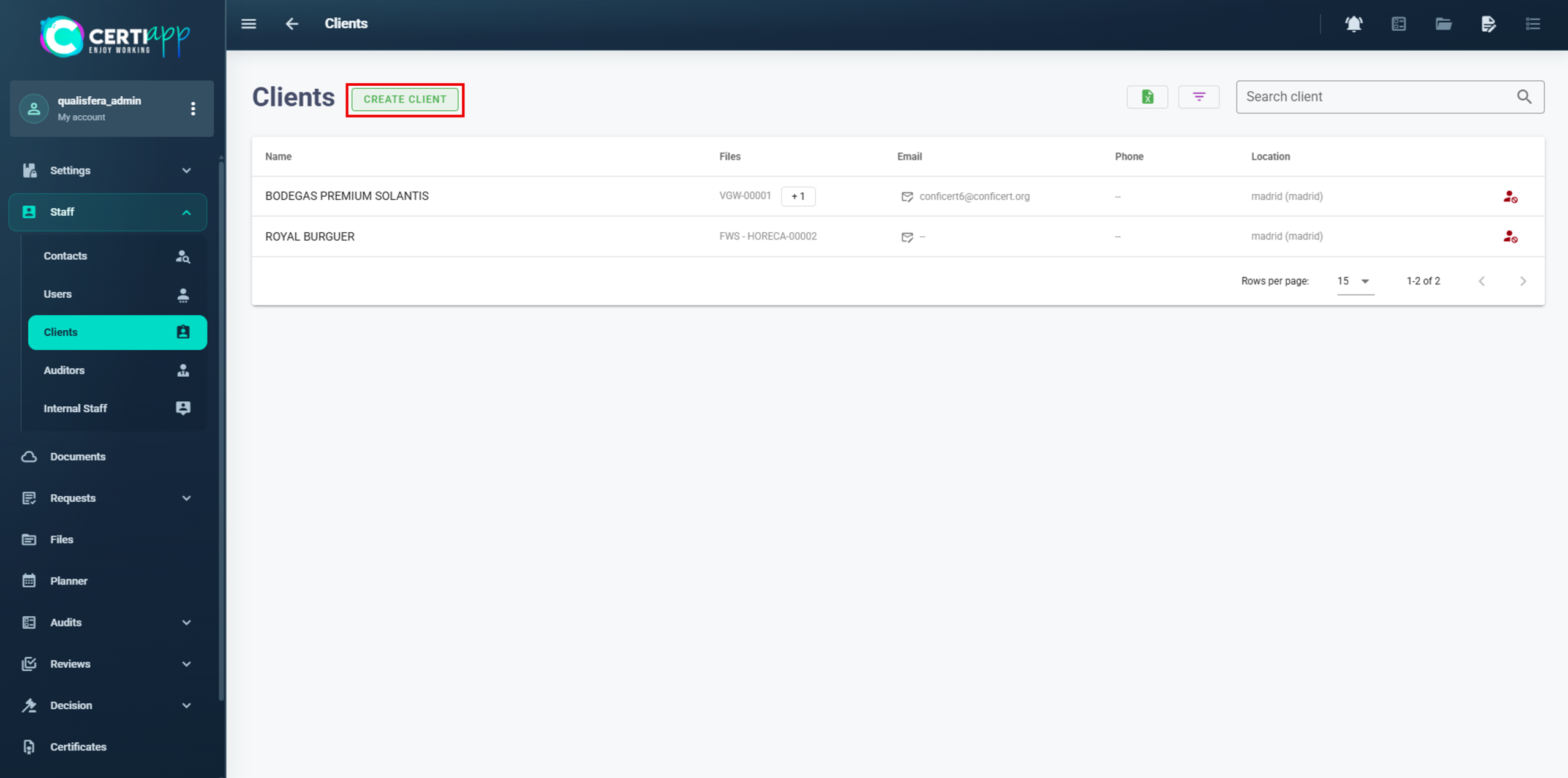
✅ Clients: your operator clients, with their contact details, access data, tax details, addresses and licensed Brands.
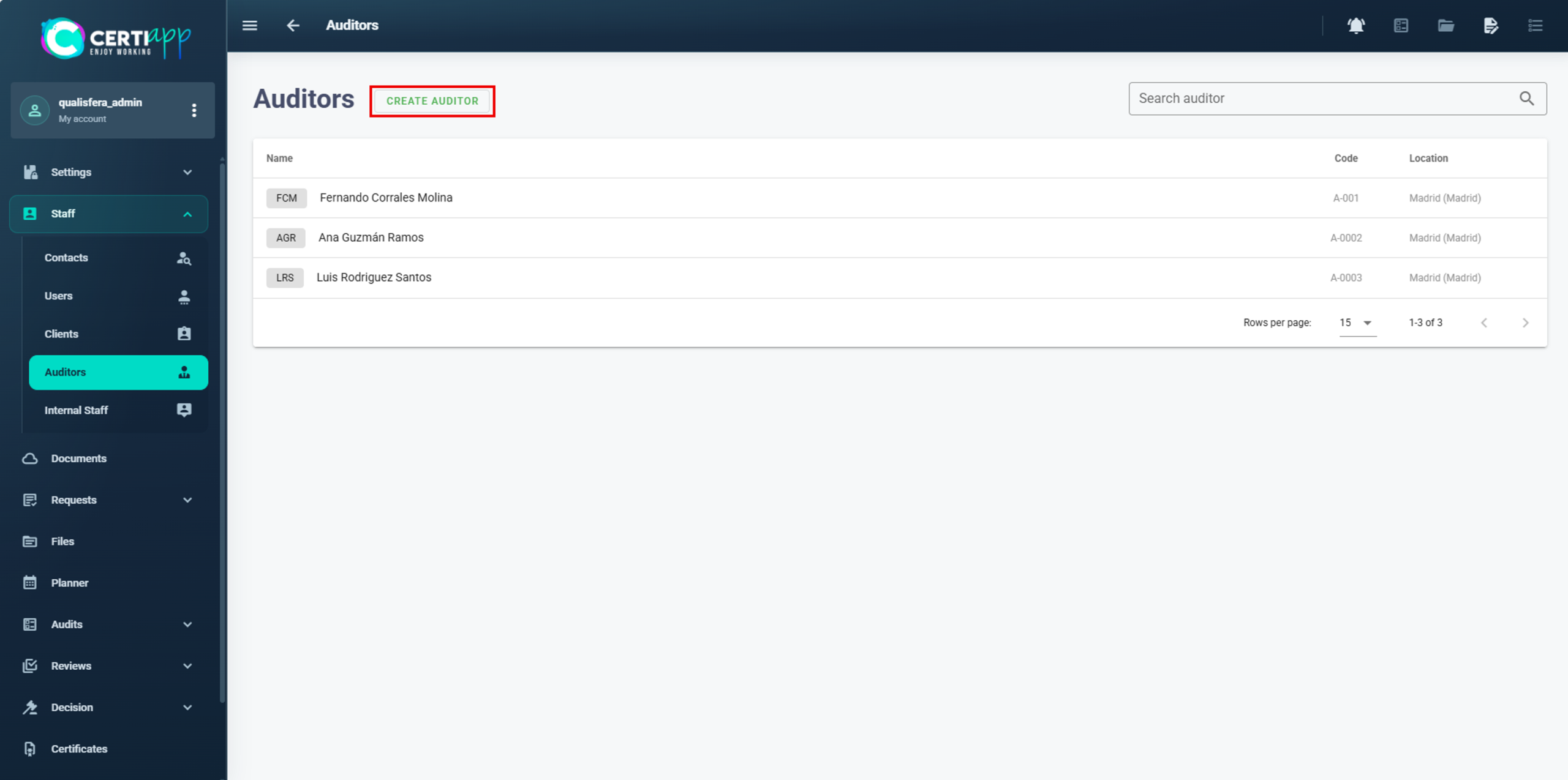
✅ Auditors: your evaluation staff, with their roles, competencies by Brand and incompatibilities.
✅ Users: all the users created from your account.
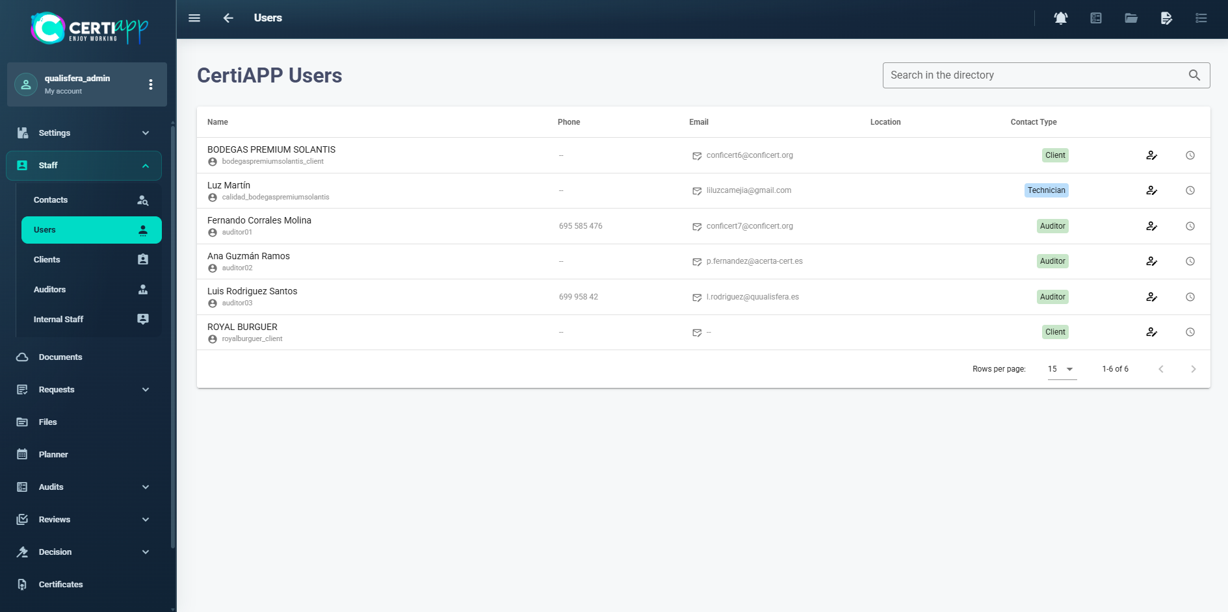
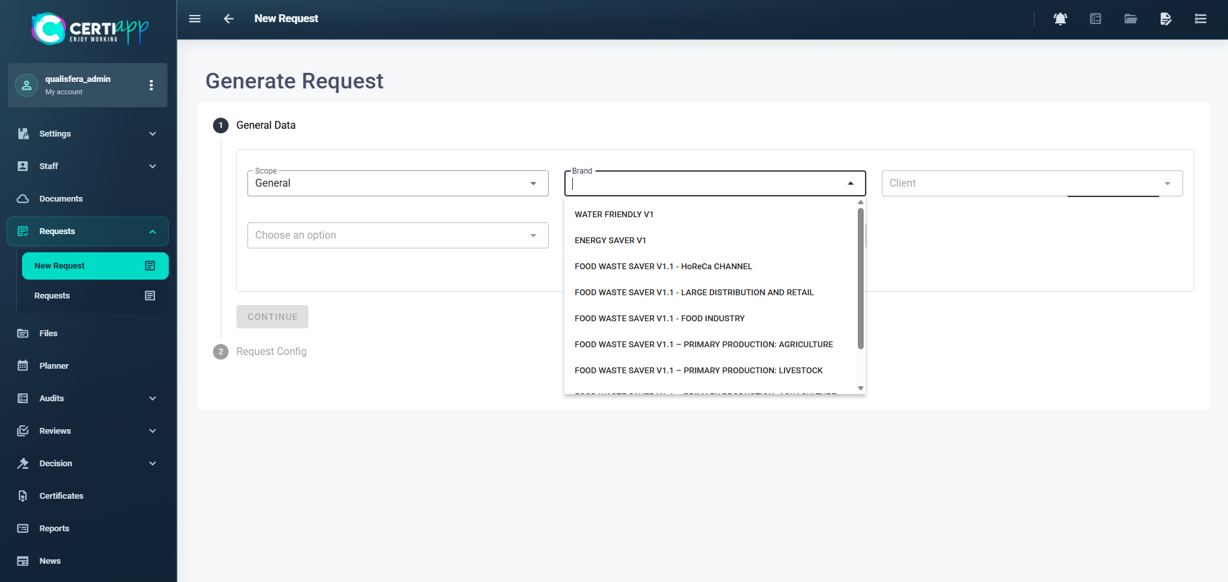
✅ New Request: create a request for an operator, selecting the Brand and the client.
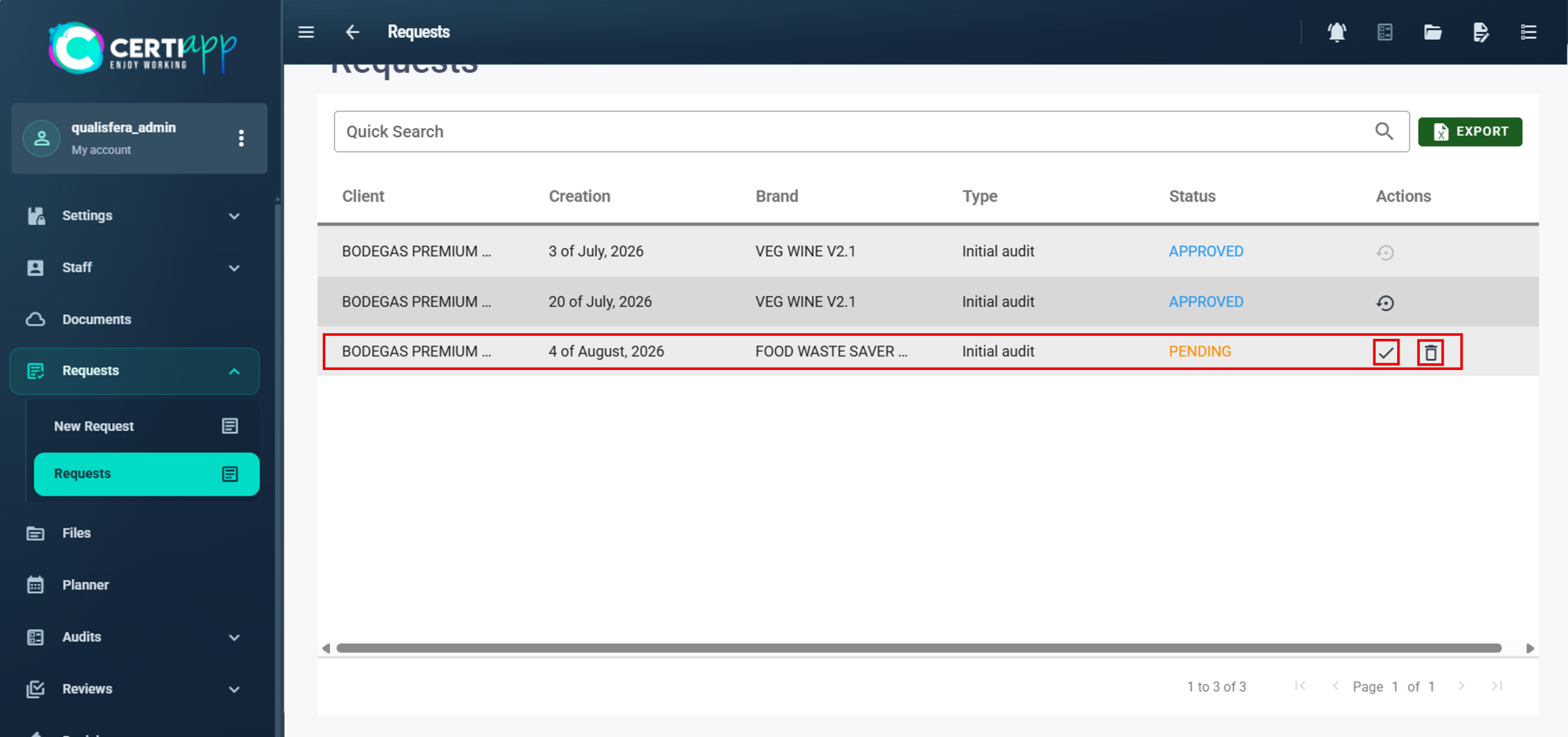
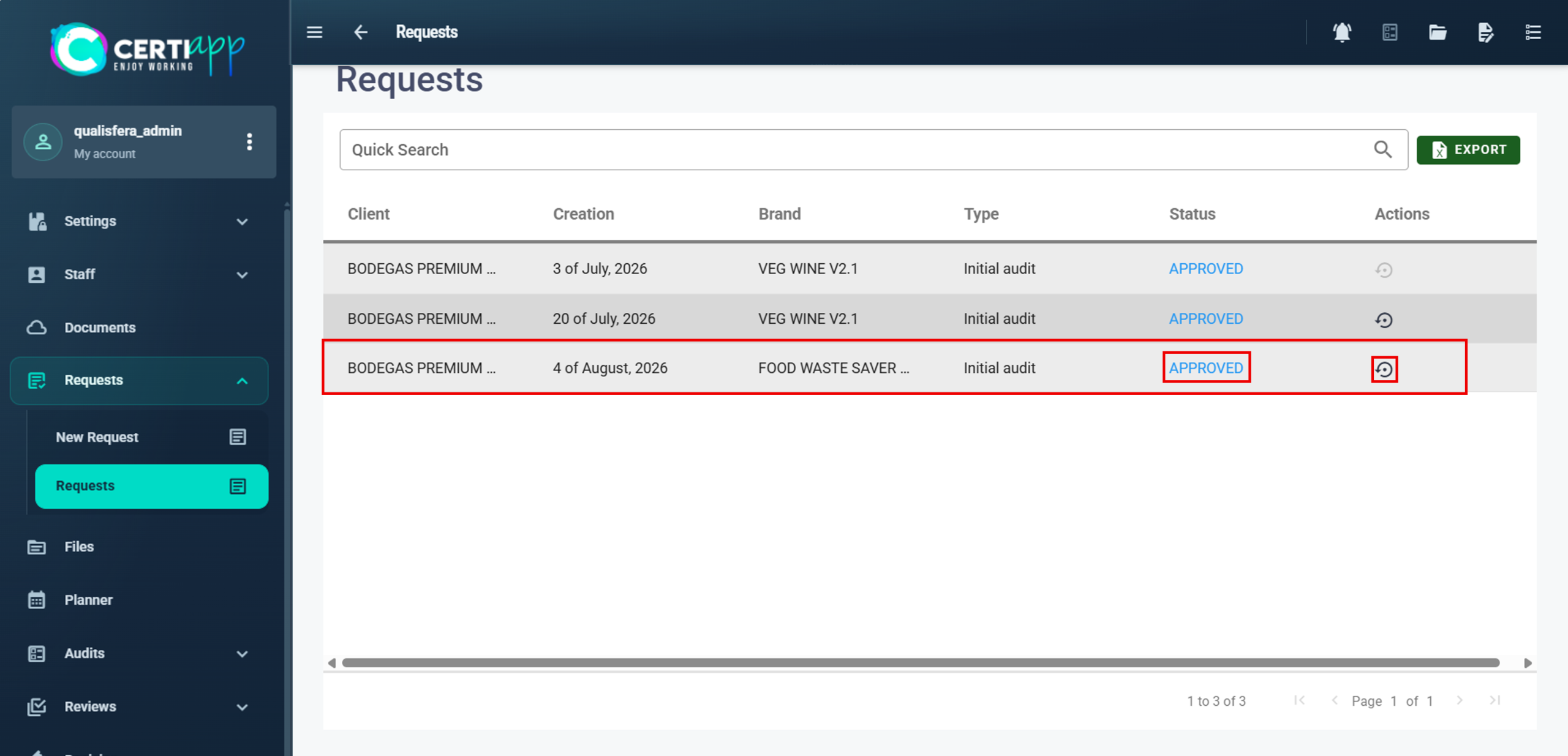
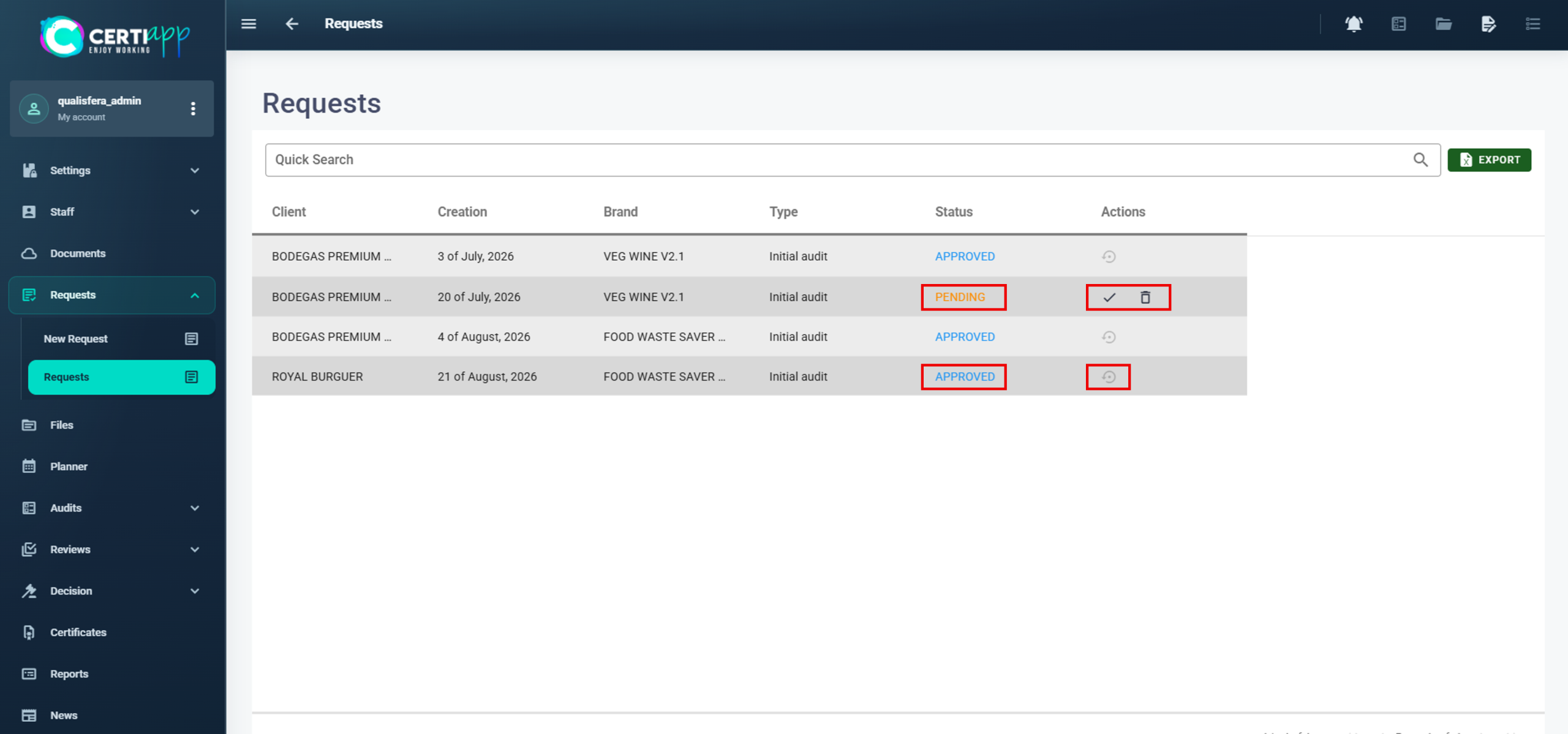
✅ Request: all registered requests, with their status (Approved or Pending). From here, you can approve (✔️), delete (🗑️) or reopen (🔄) a request.
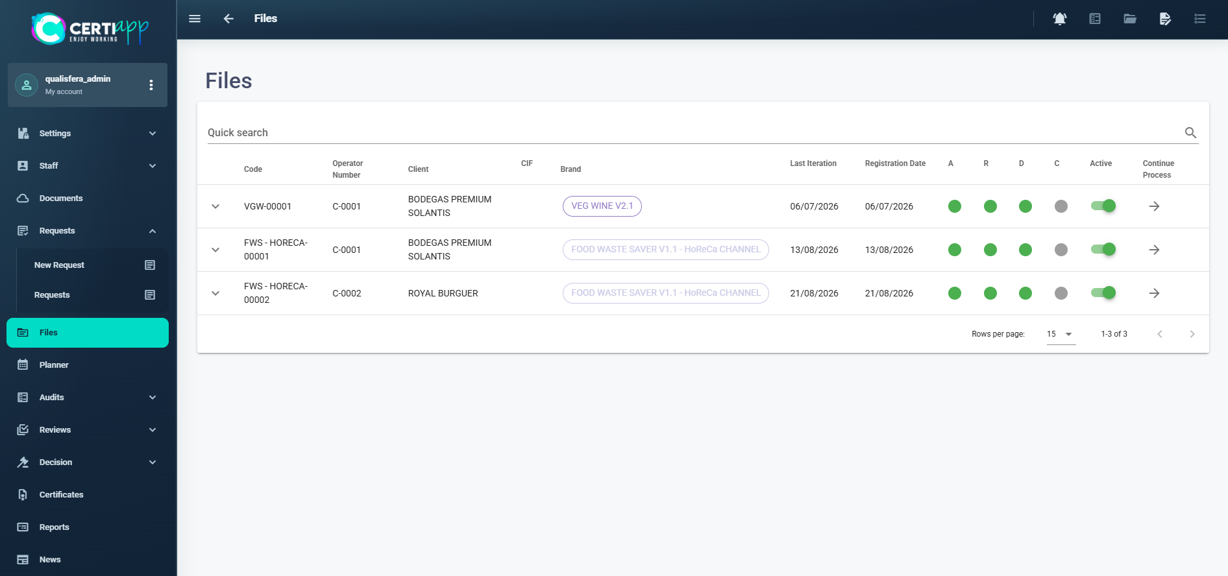
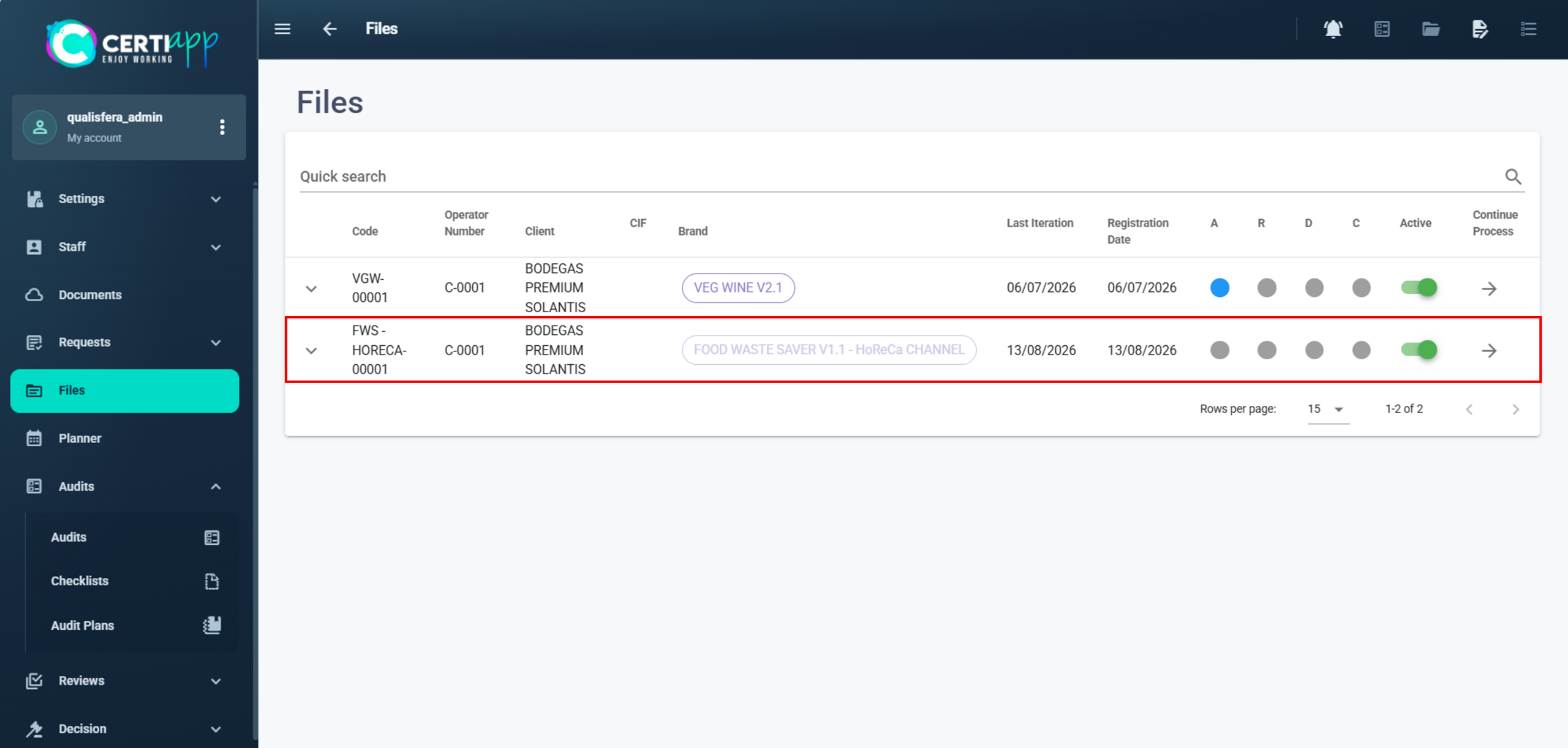
Once a request is approved, a file is generated for each operator and Brand. You can follow the progress of each file through four stages:

  • A: Audit.
  • R: Review.
  • D: Decision.
  • C: Certificate.

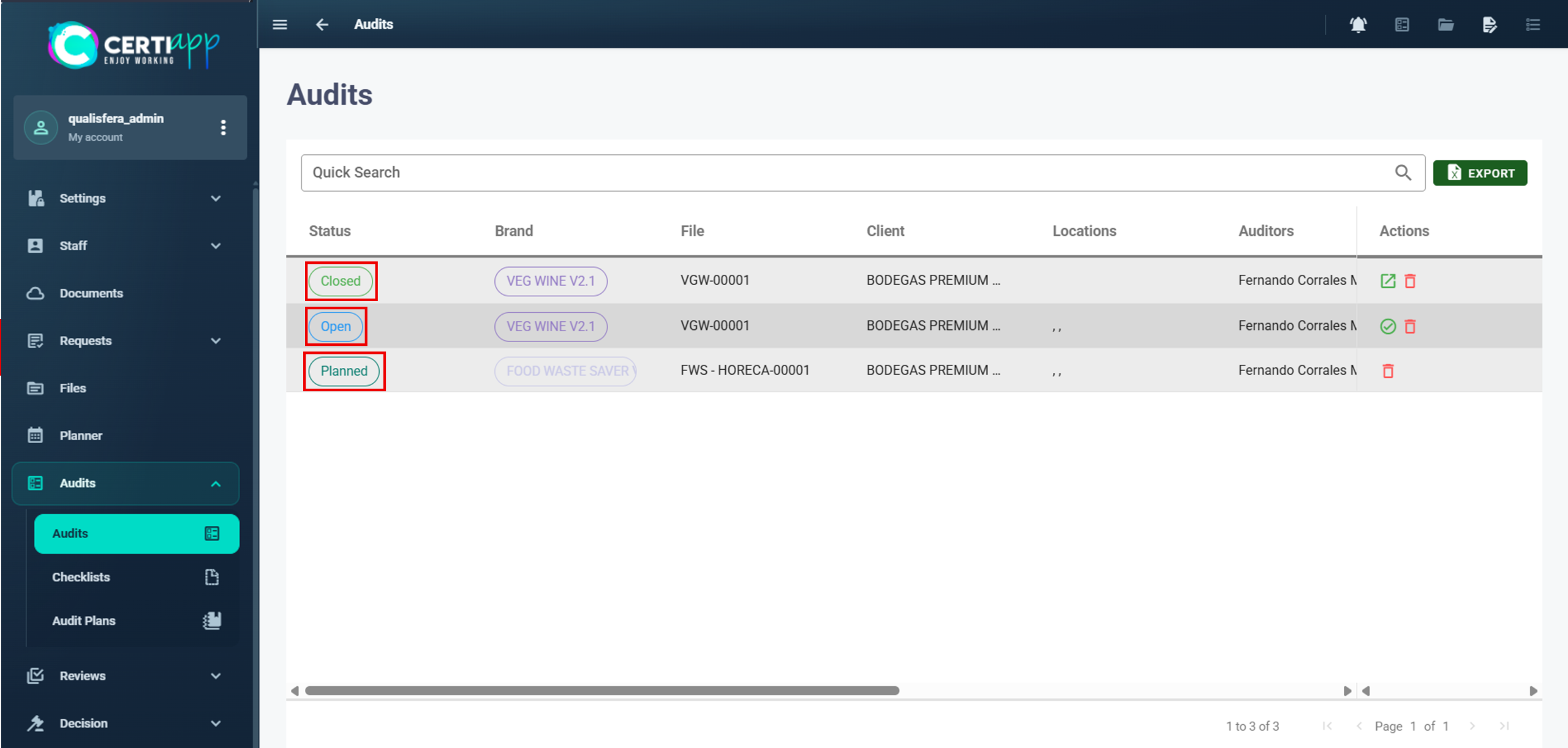
✅ Audits: all audits of all clients, with their status, Brand, file number and lead auditor.
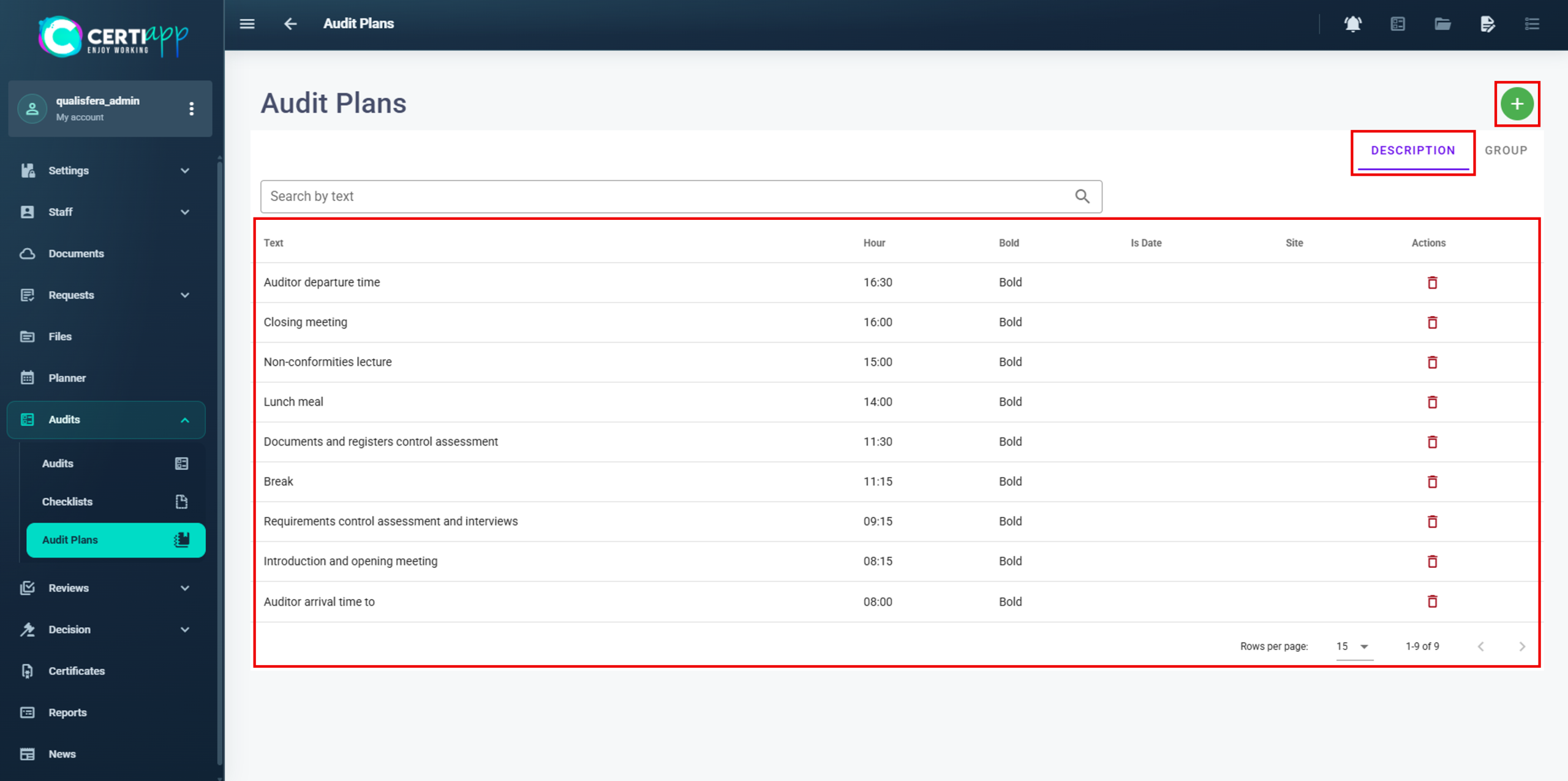
✅ Audit plans: the activity templates you use to build each Audit Plan.
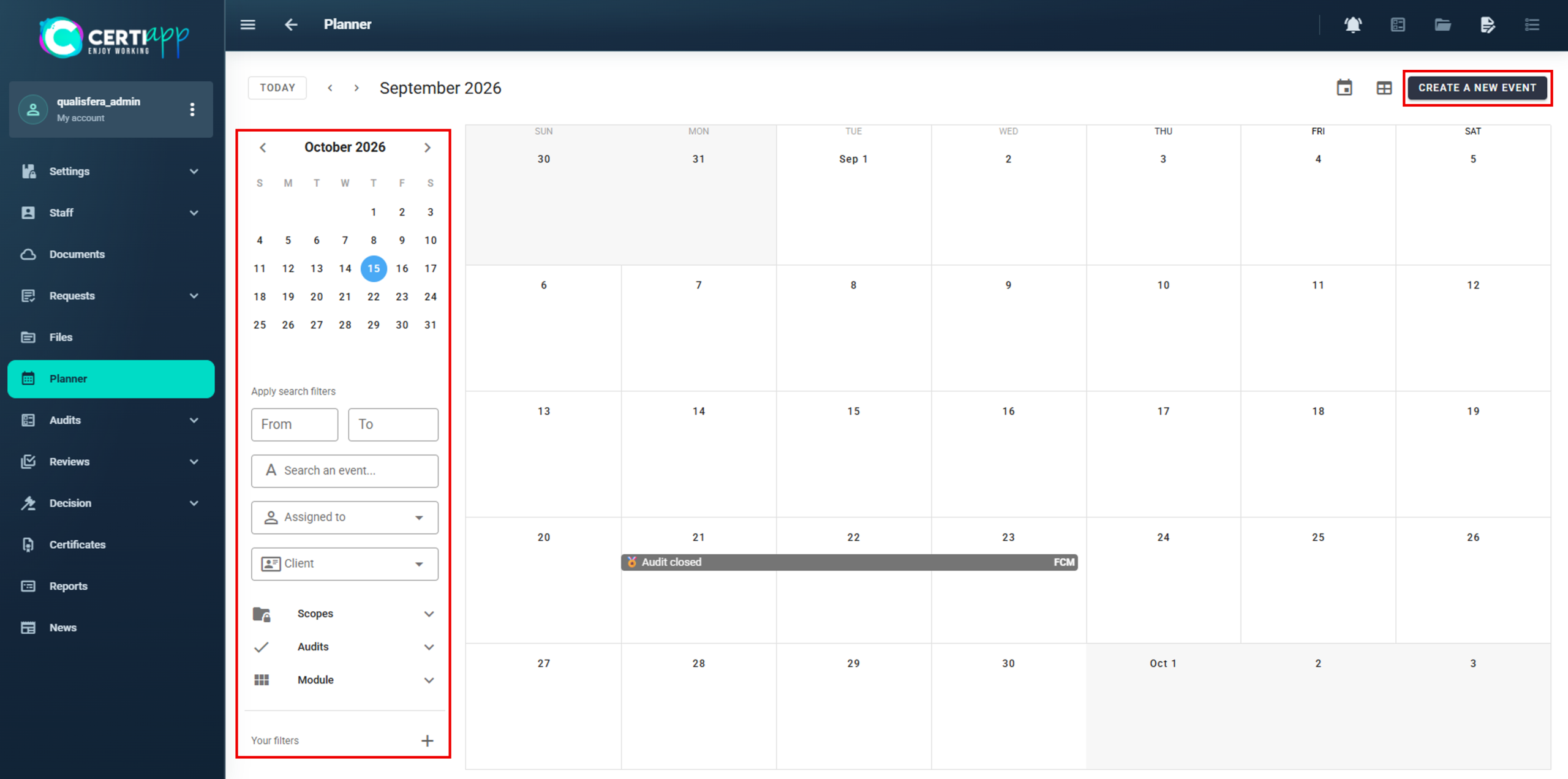
✅ Planner: an interactive calendar where audits appear automatically. You can also create your own events.
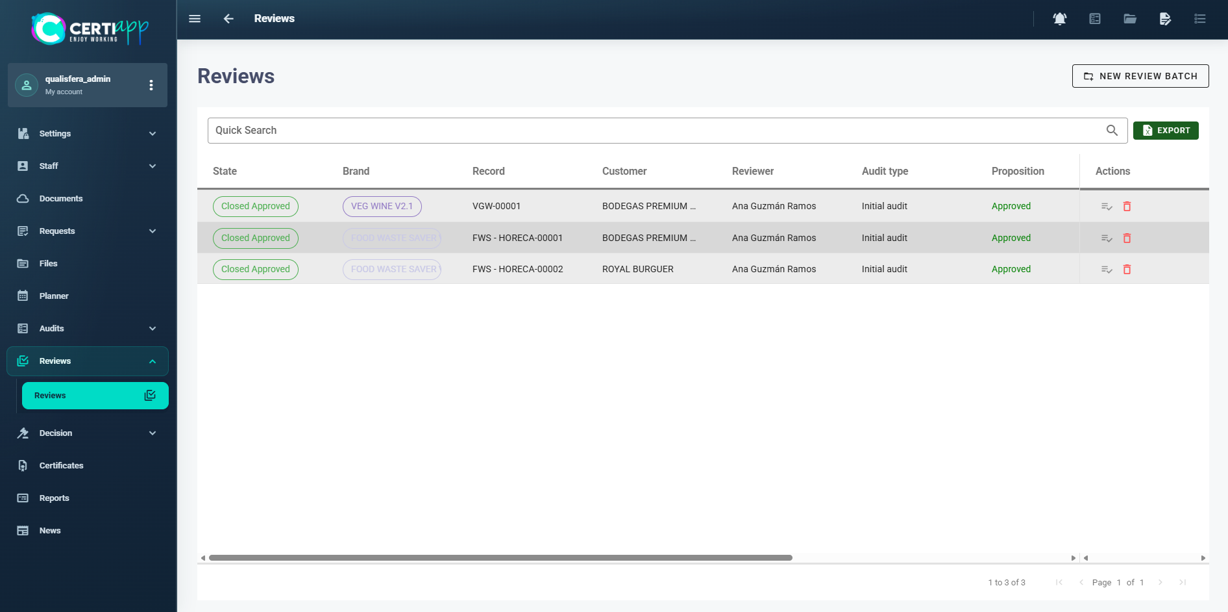
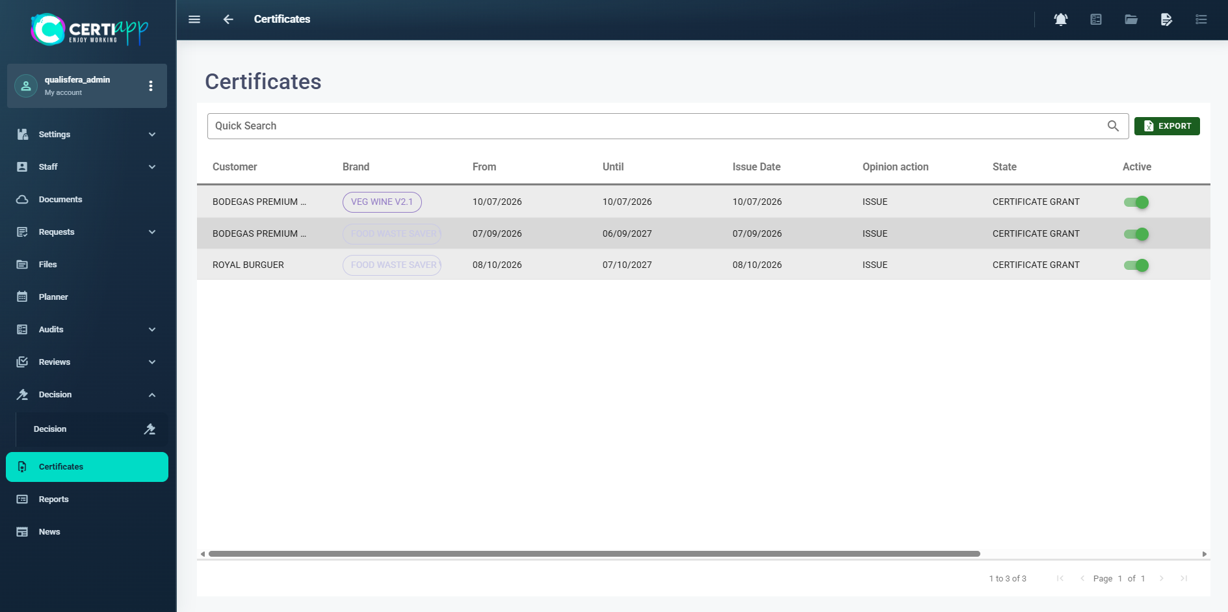
These sections show the files in technical review, the files pending a decision, and the certificates issued. They are managed by your evaluation staff (see the Evaluation Staff section).

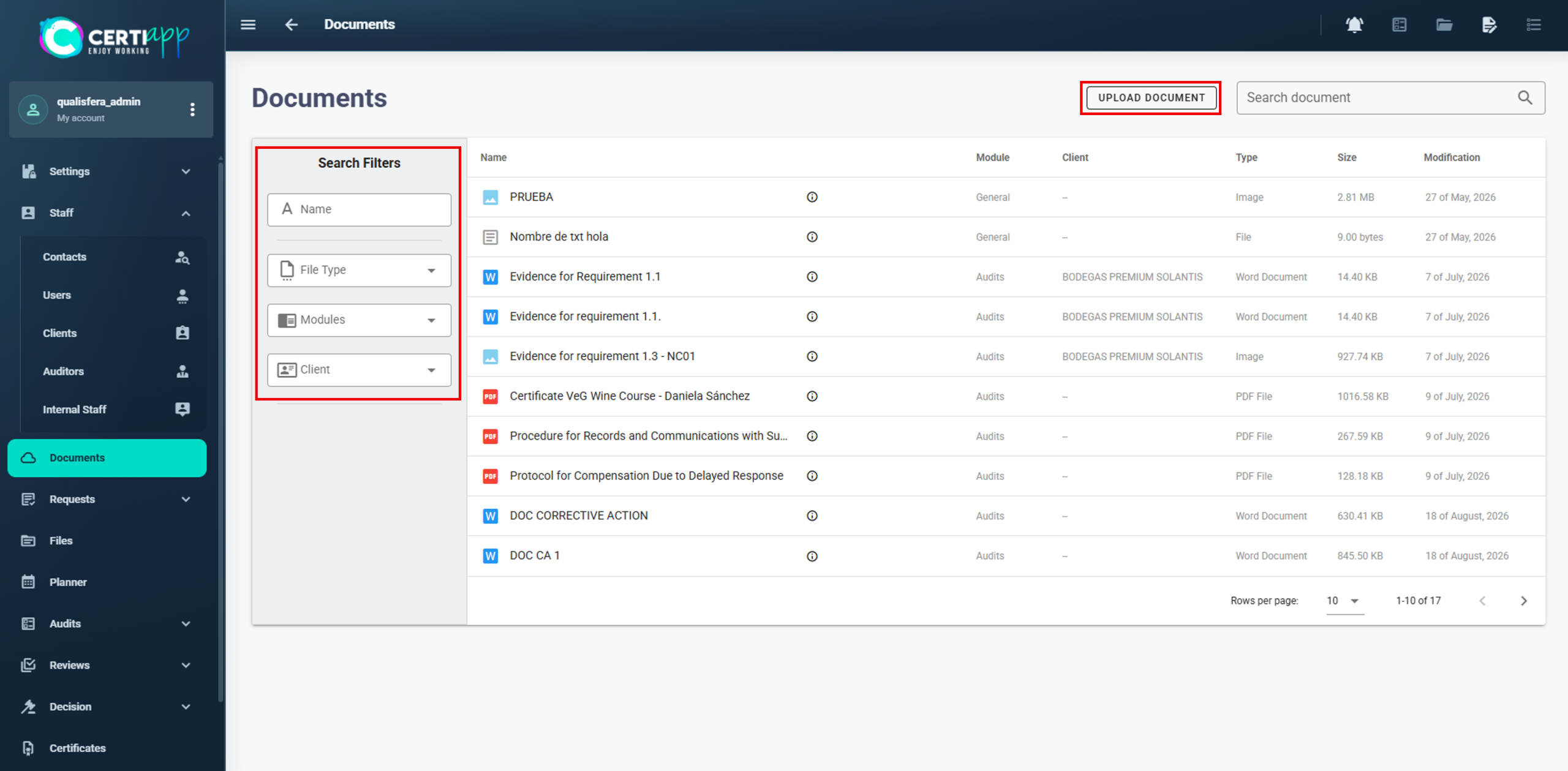
✅ Documents: all documents exchanged with operators or uploaded to the platform. You can filter them by name, type, module or client.
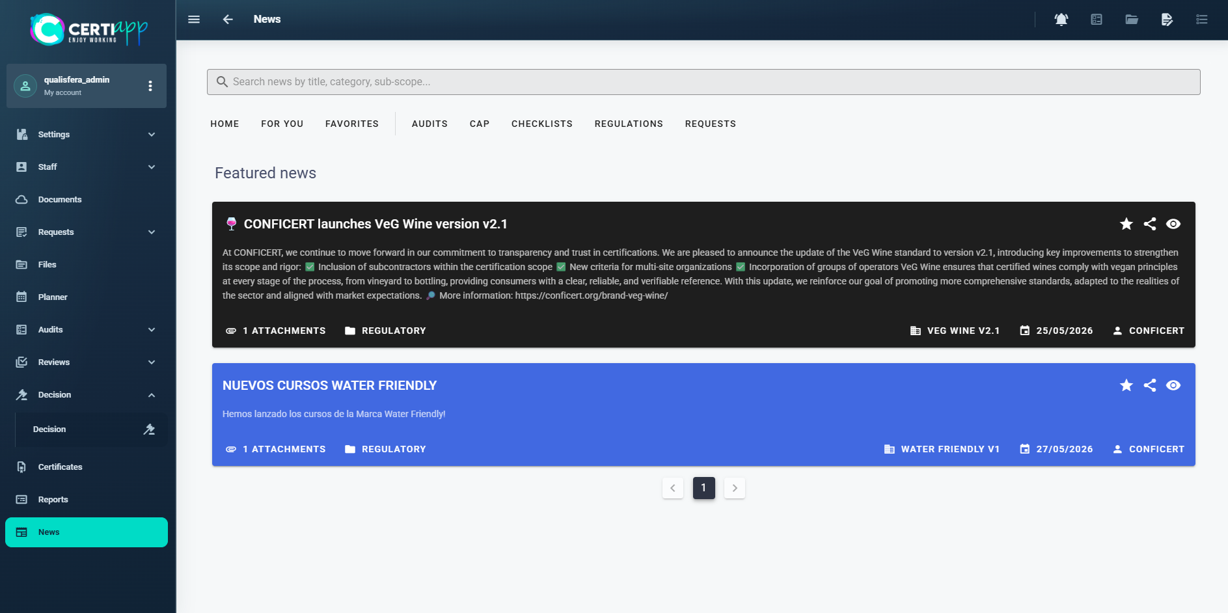
✅ News: the announcements that CONFICERT sends to Certification Bodies.
💡 Sections that require no action: Settings, Internal Staff, Report and Checklist. The checklists of your authorized Brands are loaded automatically.

✅ Done! You now know your way around CERTIAPP. Before you start working, complete the initial settings of your account.

III. Explanatory video

📄 Full details in the User Guide for Certification Bodies – CERTIAPP Platform, section 2.

Learn how to configure your account before you start working: company data, locations, audit preferences and representative.

I. Before you start

✅ You must be logged in to CERTIAPP.

✅ Have your Certification Body’s company details, addresses and representative’s details at hand.

✅ Complete these settings before using any other tool.

II. Process step by step

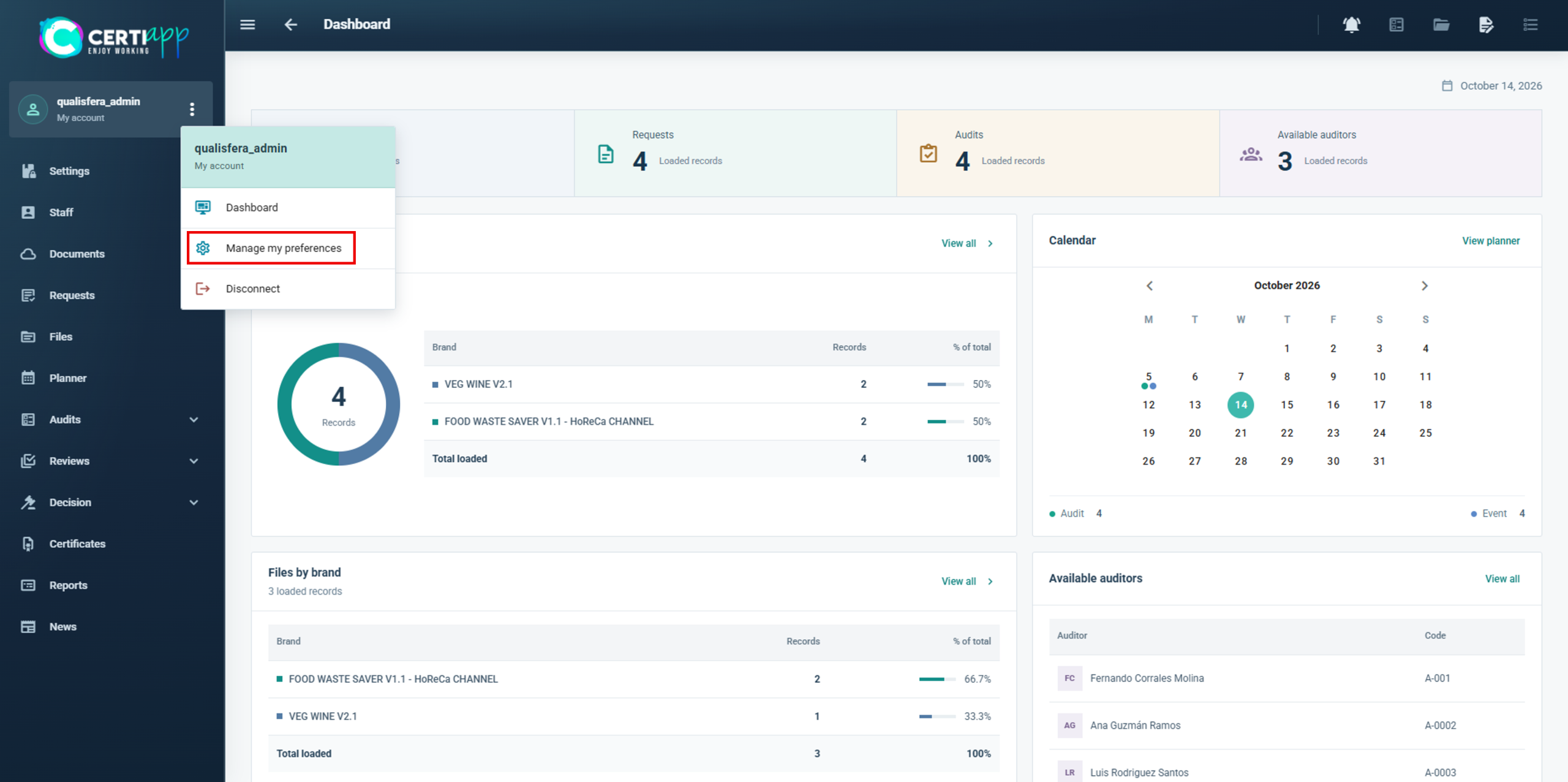
Go to Manage My Preferences.

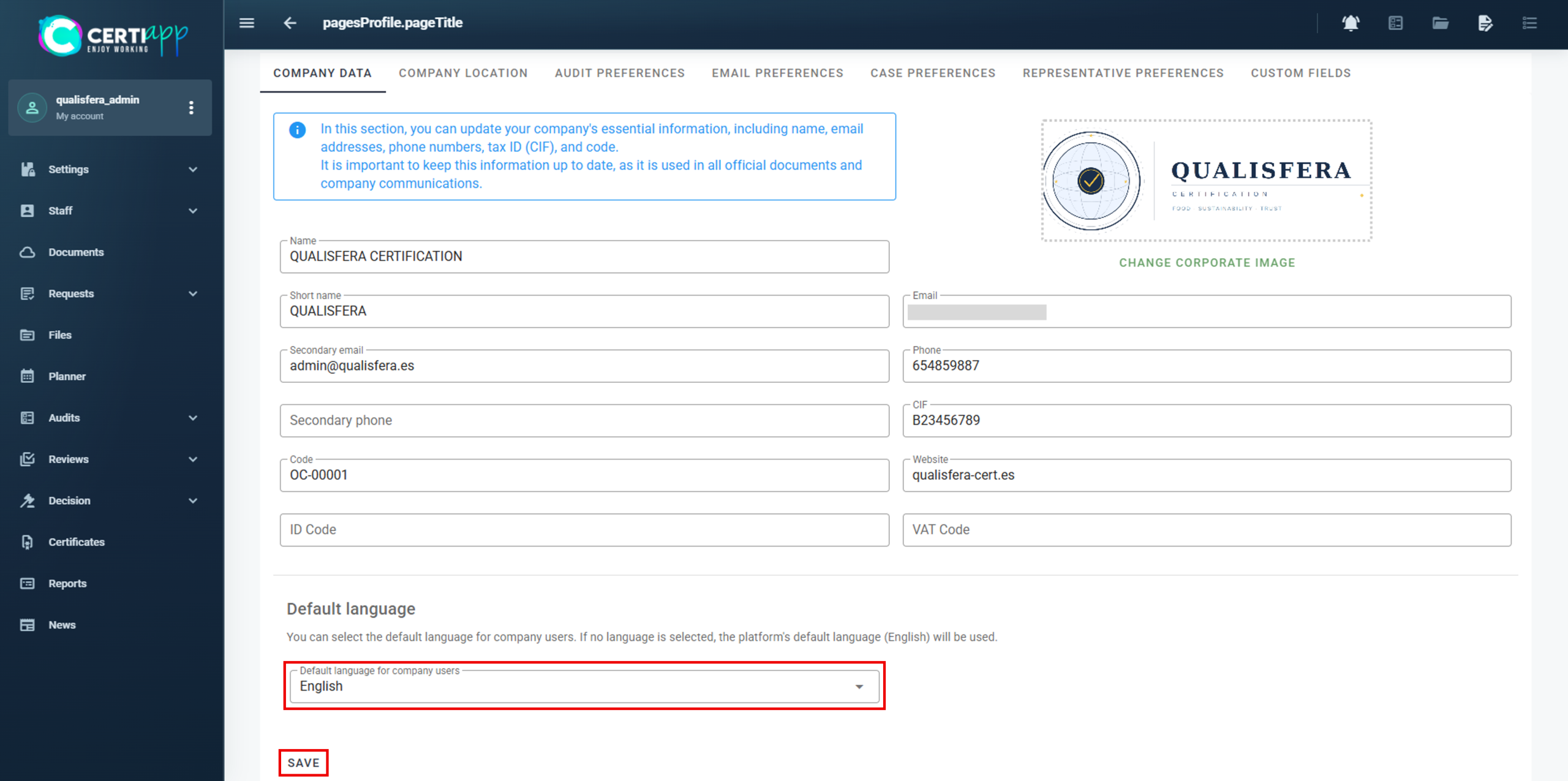
Complete the highlighted fields, except Code and ID Code, which are assigned by CONFICERT. Change the language to English. Click on Save.

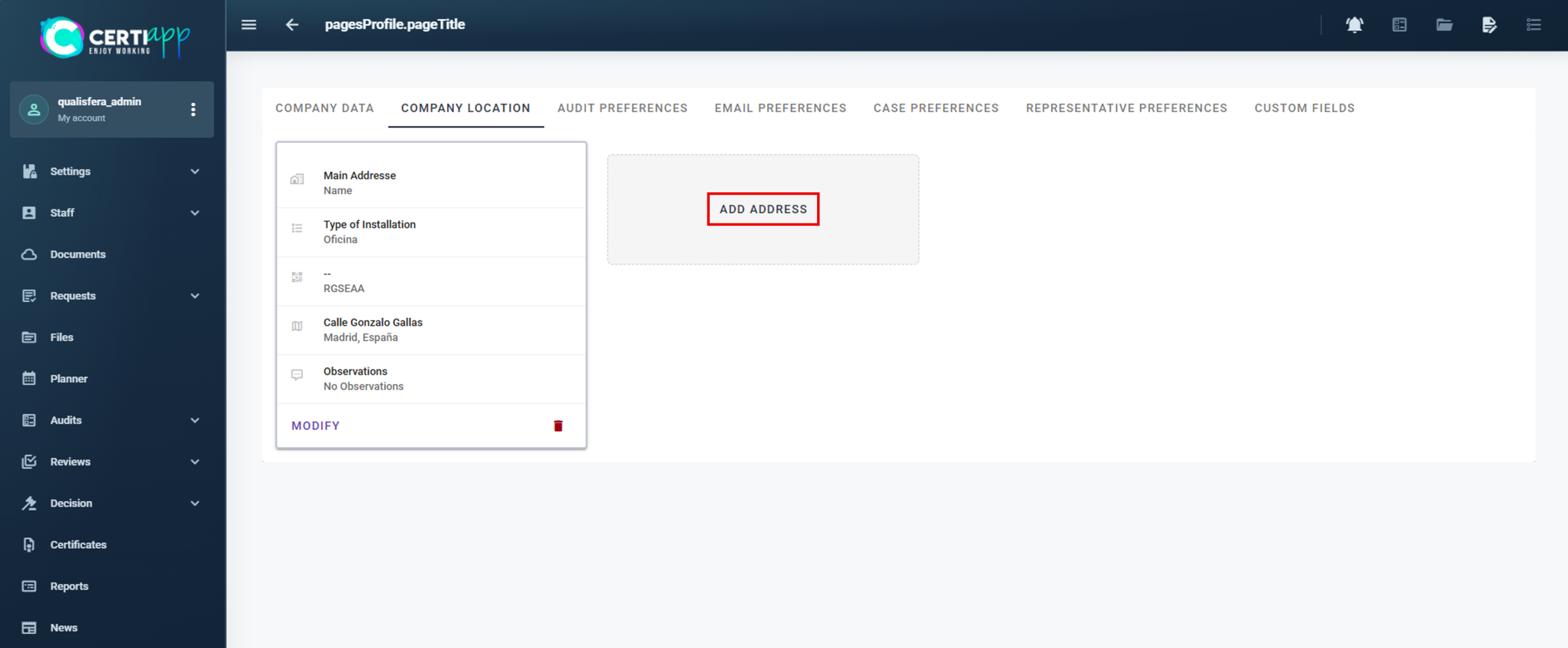
Add all the addresses of your Certification Body.

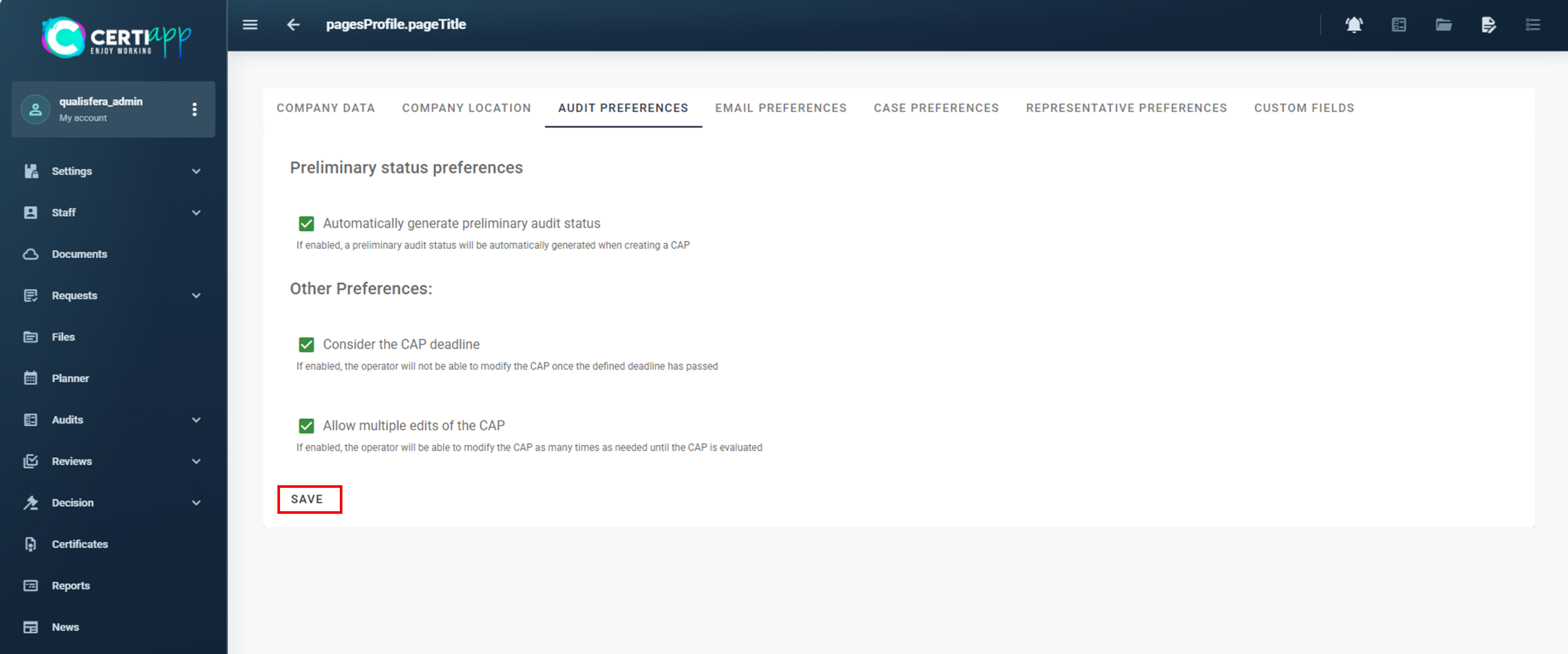
Enable the three options:

✅ Automatically generate preliminary Audit status.

✅ Consider the CAP deadline.

✅ Allow multiple edits of the CAP.

Click on Save.

⚠️ Important: all three options must be enabled. Otherwise, your auditors will have problems when evaluating the operators’ Corrective Action Plans (CAP).

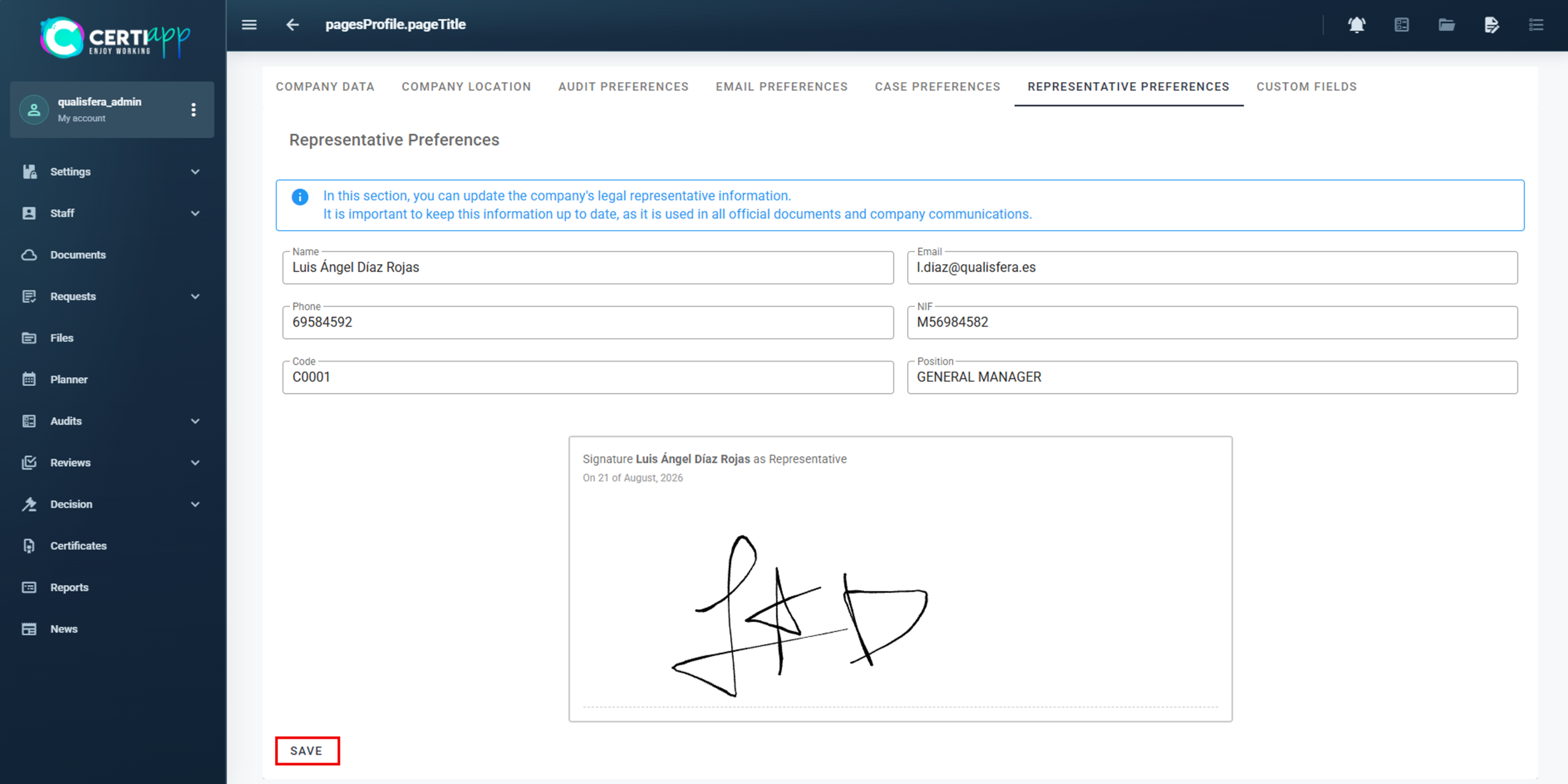
Complete all the fields with the details of your Certification Body’s representative and click on Save.

⚠️ Do not modify: leave the Email Preferences, Case Preferences and Custom Fields sections as they are.

✅ Done! Your account is ready. The next step is to make sure you have the annual authorization fee for each Brand you are going to certify.

III. Explanatory video

📄 Full details in the User Guide for Certification Bodies – CERTIAPP Platform, section 3.2.

Learn how to register your auditors on the CONFICERT website and assign them the training courses they need for each Brand.

I. Before you start

✅ This process is done in your private area on the CONFICERT website (www.conficert.org), not in CERTIAPP.

✅ Your membership must be up to date.

✅ To be authorized for a Brand, you need a Scheme Manager and at least two auditors for that Brand, all of whom have completed the CONFICERT training courses.

II. Process step by step

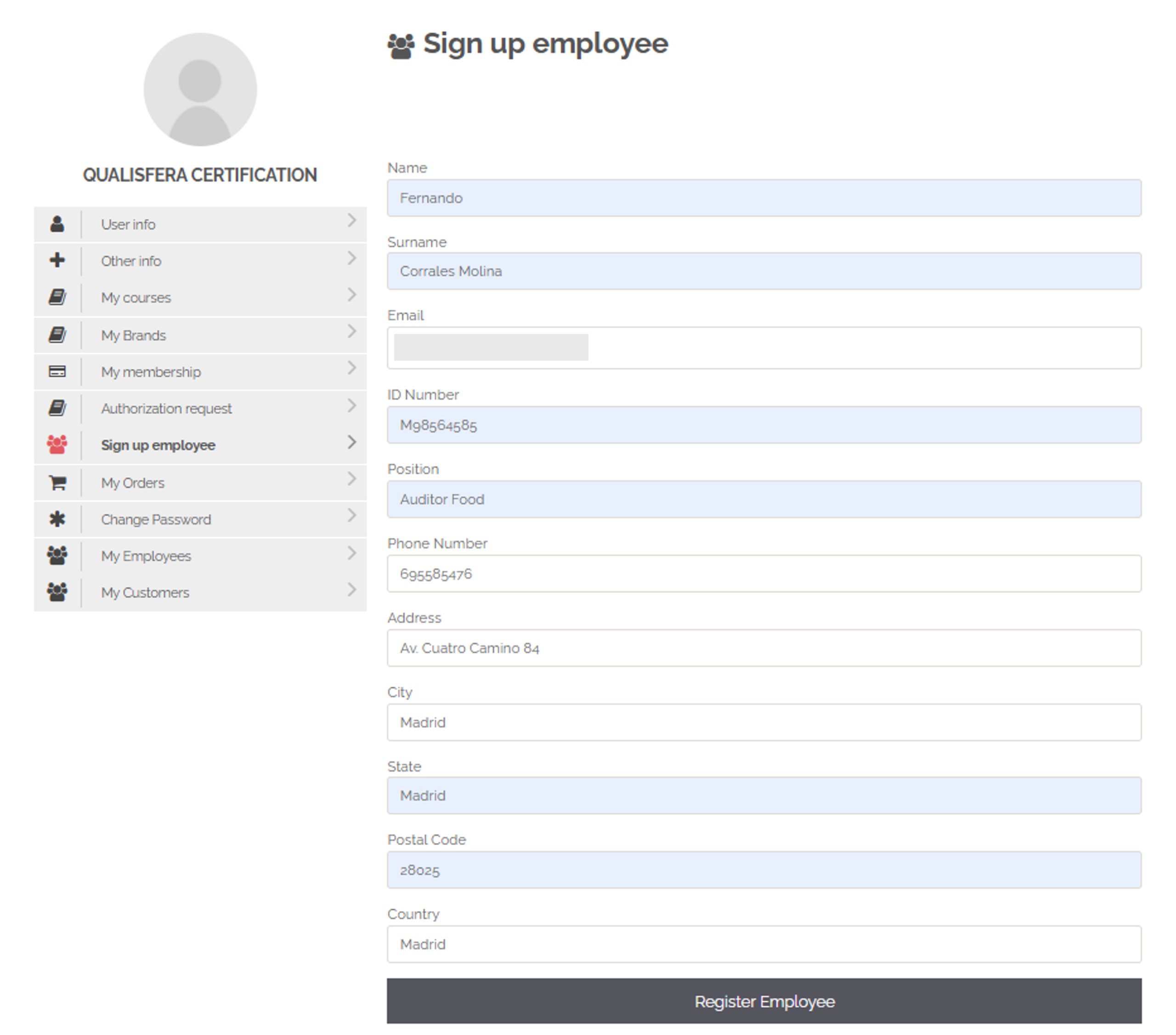
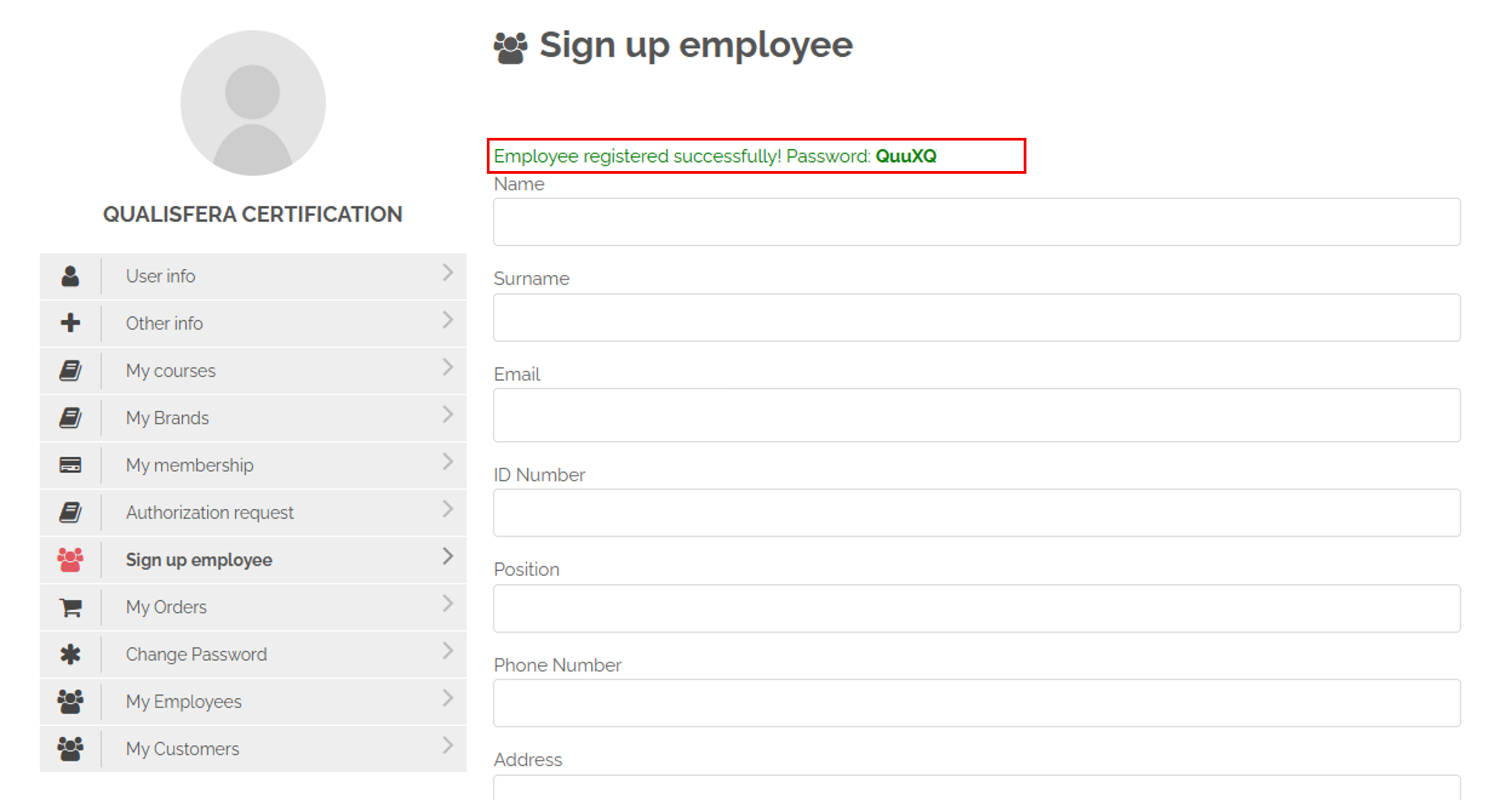
On your Privet Area and go to Sign Up Employee and complete the form with the auditor’s details: first name, last name, email, identification number, position, phone number, address, city, state, postal code and country. Click on Register Employee.

A confirmation message appears: “Employee registered successfully! Password: XXXXXXXXX”. This password gives the employee access to the CONFICERT website. They can change it later from their profile or with Lost your password? on the login screen.

💡 Tip: the employee’s username is their email address. Keep an internal record of your auditors and their credentials.

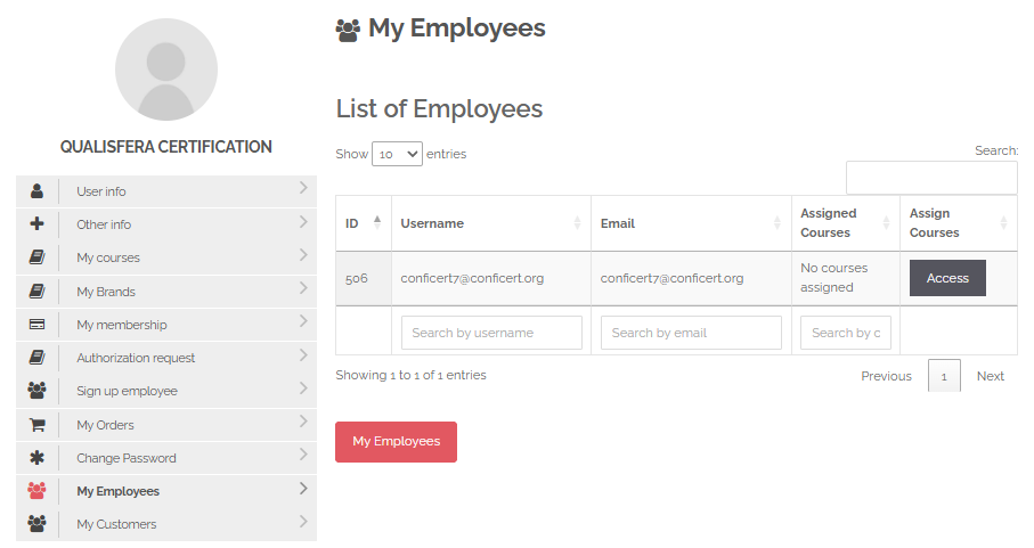
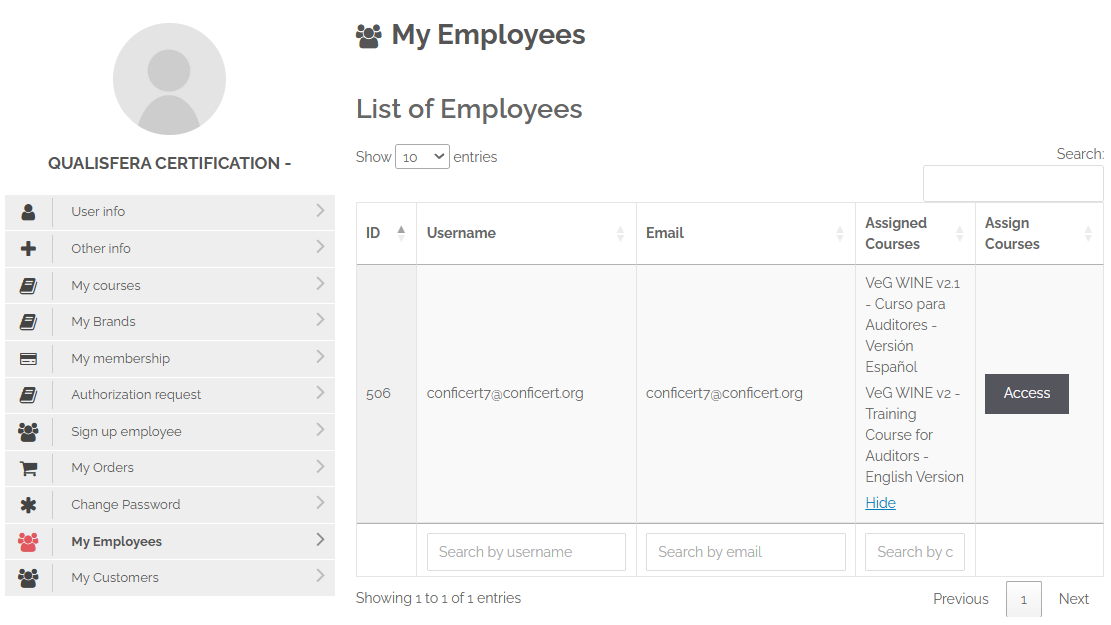
Go to My Employees and check that the employee appears in the list.

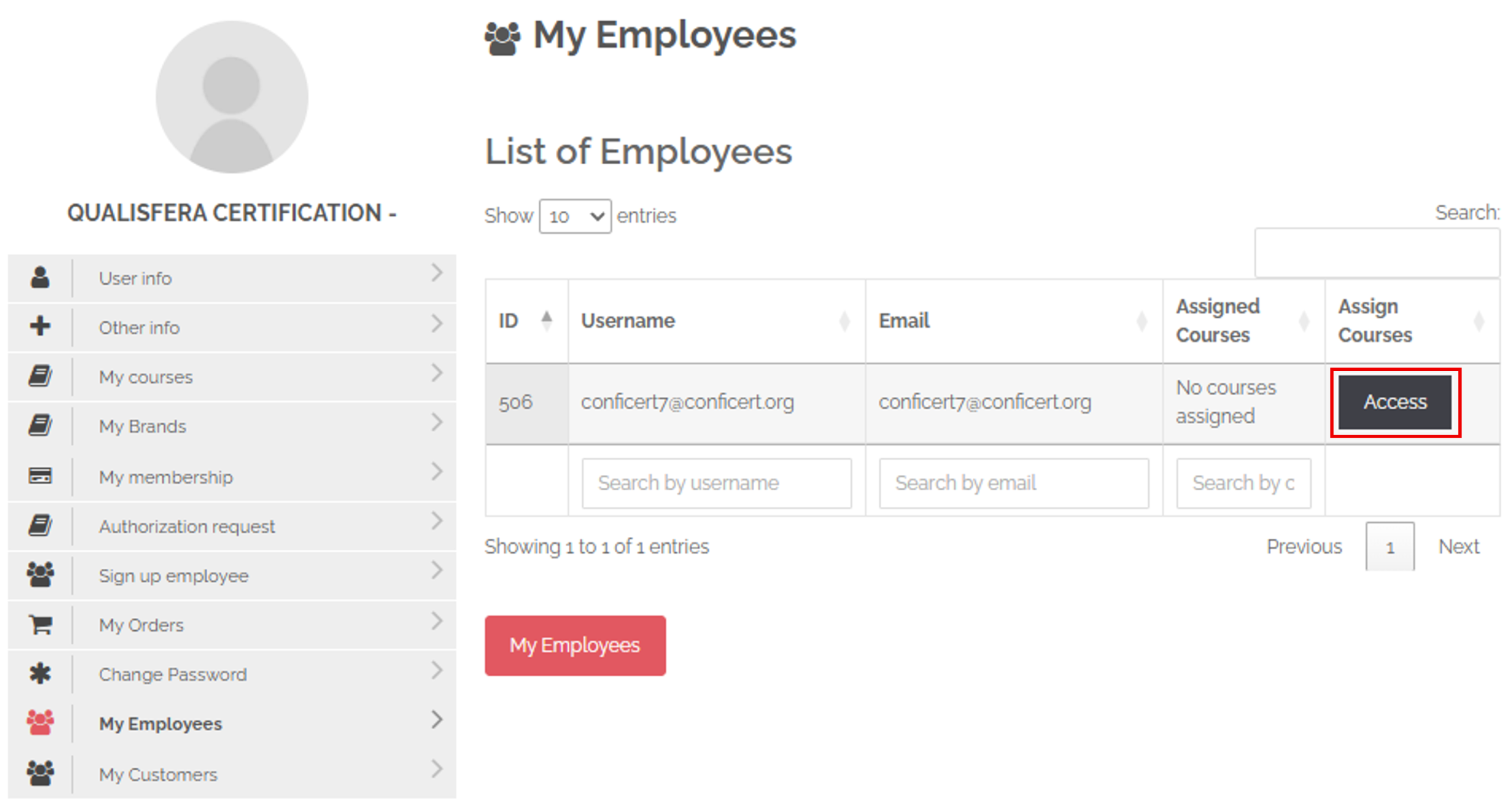
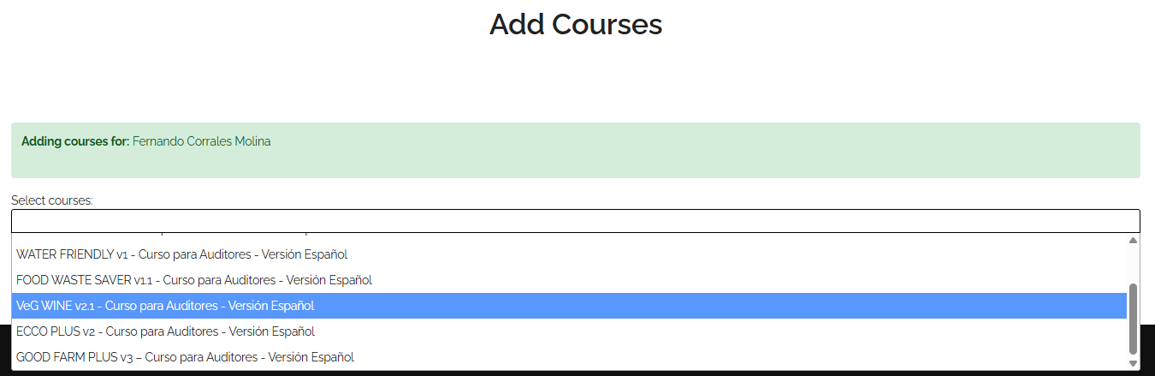
In My Employees, click on Access in the employee’s row. In Add Course, open the Select Courses drop-down and find the course by scrolling or by typing keywords.

If the employee is a Scheme Manager and auditor, or will audit more than one scheme, you can select several courses at once. Click on Create Order.

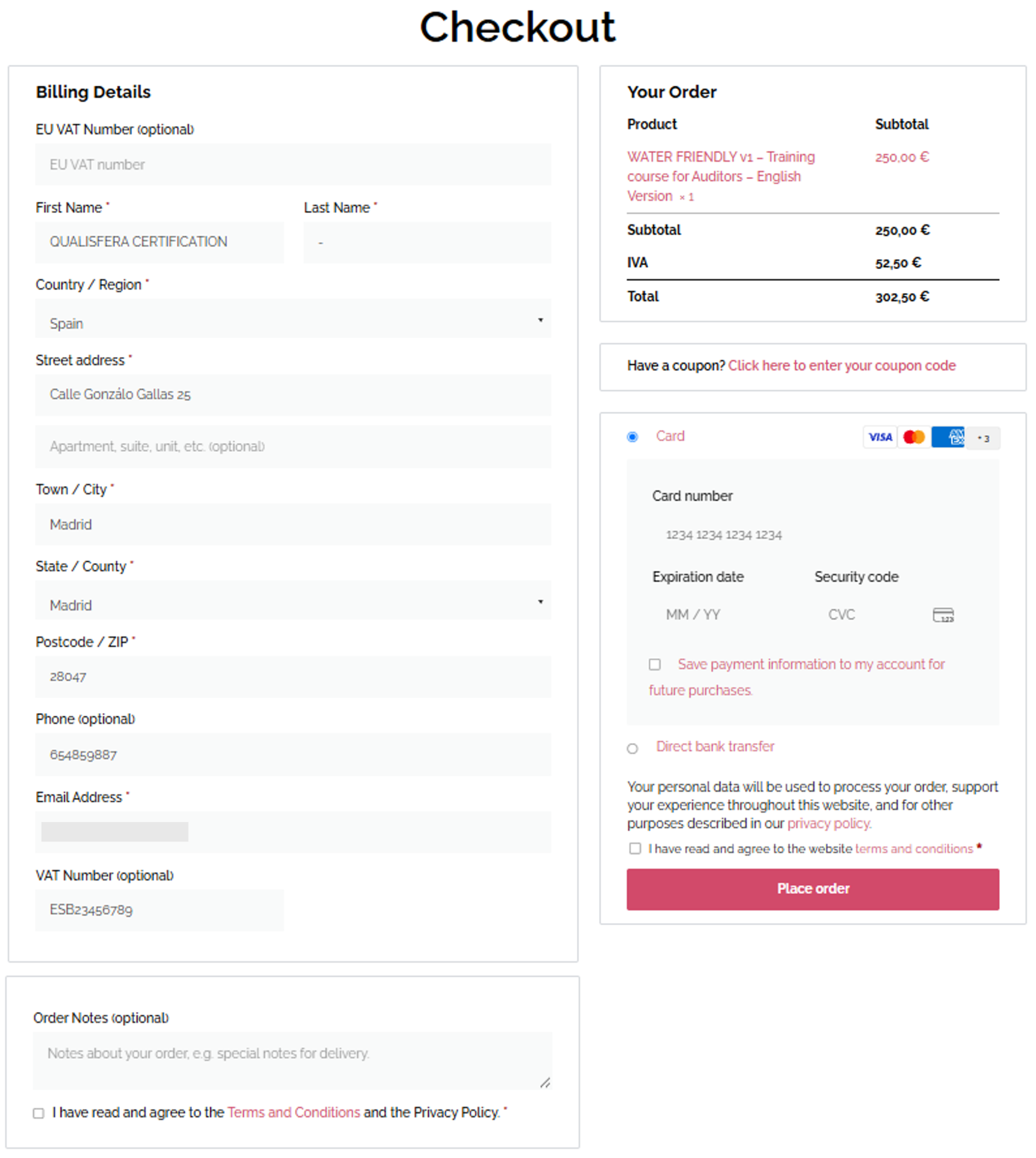
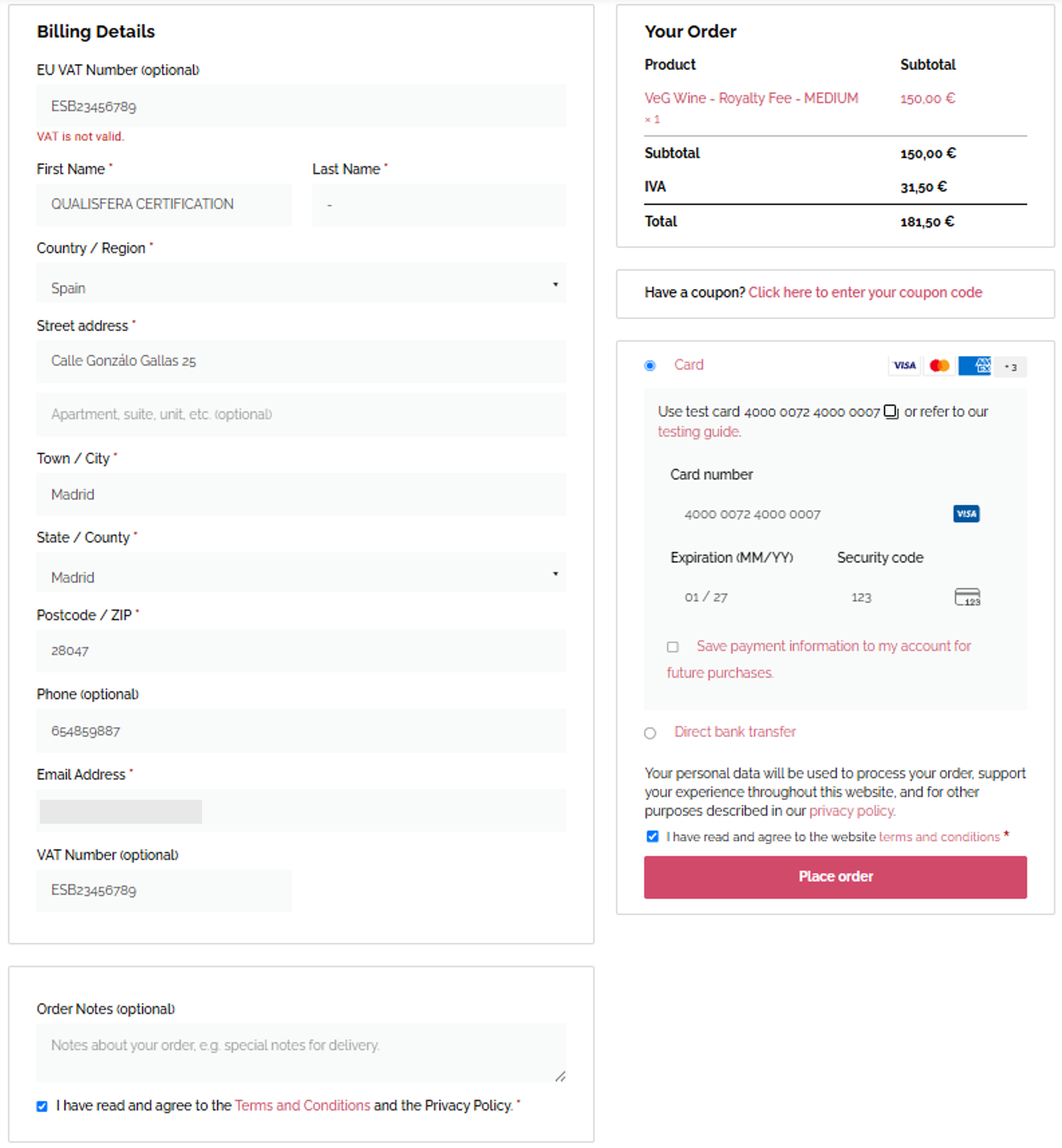
At the checkout, complete the tax details. If you wish, add a note to the order or enter a discount coupon. Choose card or bank transfer, accept the terms and conditions, and click on Place Order.

💡 Tip: card payments are completed immediately, and the invoice can be downloaded at once. For bank transfers, see section 3.2 of the web platform guide.

Go back to My Employees and check that the courses appear in the Assigned Courses column.

✅ Done! Your auditors can now complete their training. Once you meet all the Brand’s requirements, you can request authorization and purchase the annual authorization fee.

III. Explanatory video

📄 Full details in the User Guide for Certification Bodies – CONFICERT web platform, sections 4.4 and 4.5.

Learn how to request authorization for a Brand and purchase the annual fee that allows you to certify it in CERTIAPP.

I. Before you start

✅ This process is done in your private area on the CONFICERT website.

✅ Your annual membership must be up to date.

✅ You must meet the Brand’s authorization requirements, including a Scheme Manager and at least two trained auditors.

✅ Without this fee, you cannot create requests for that Brand in CERTIAPP.

II. Process step by step

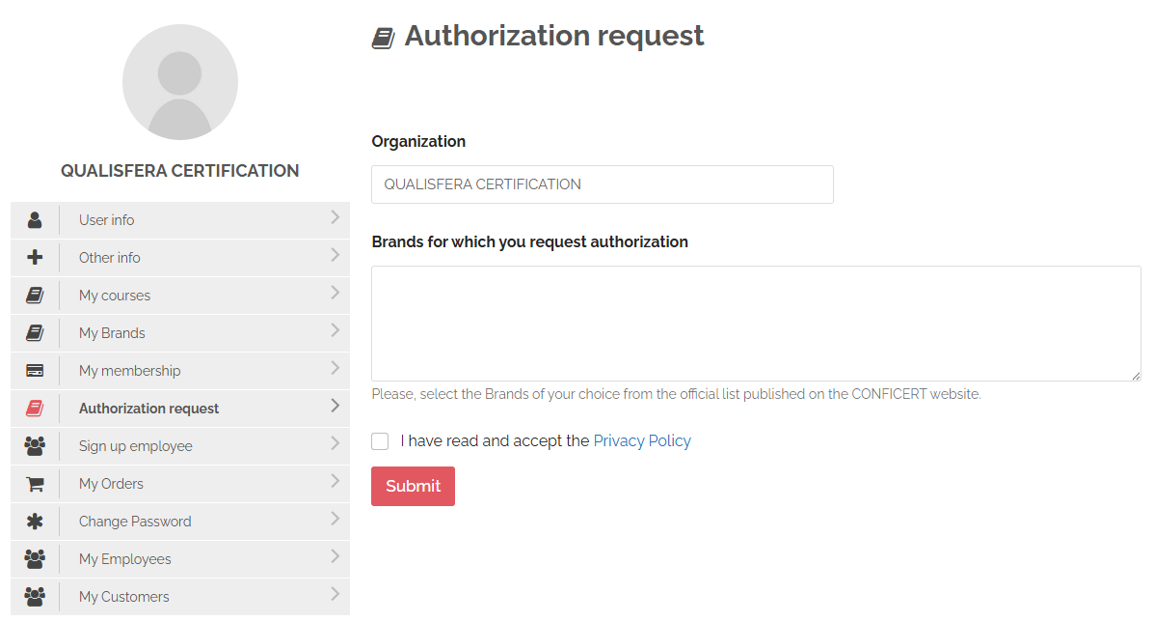
Send your authorization request through Authorization Request or, preferably, by email to conficert5@conficert.org. Wait for the CONFICERT board and team to confirm that you meet the Brand’s requirements.

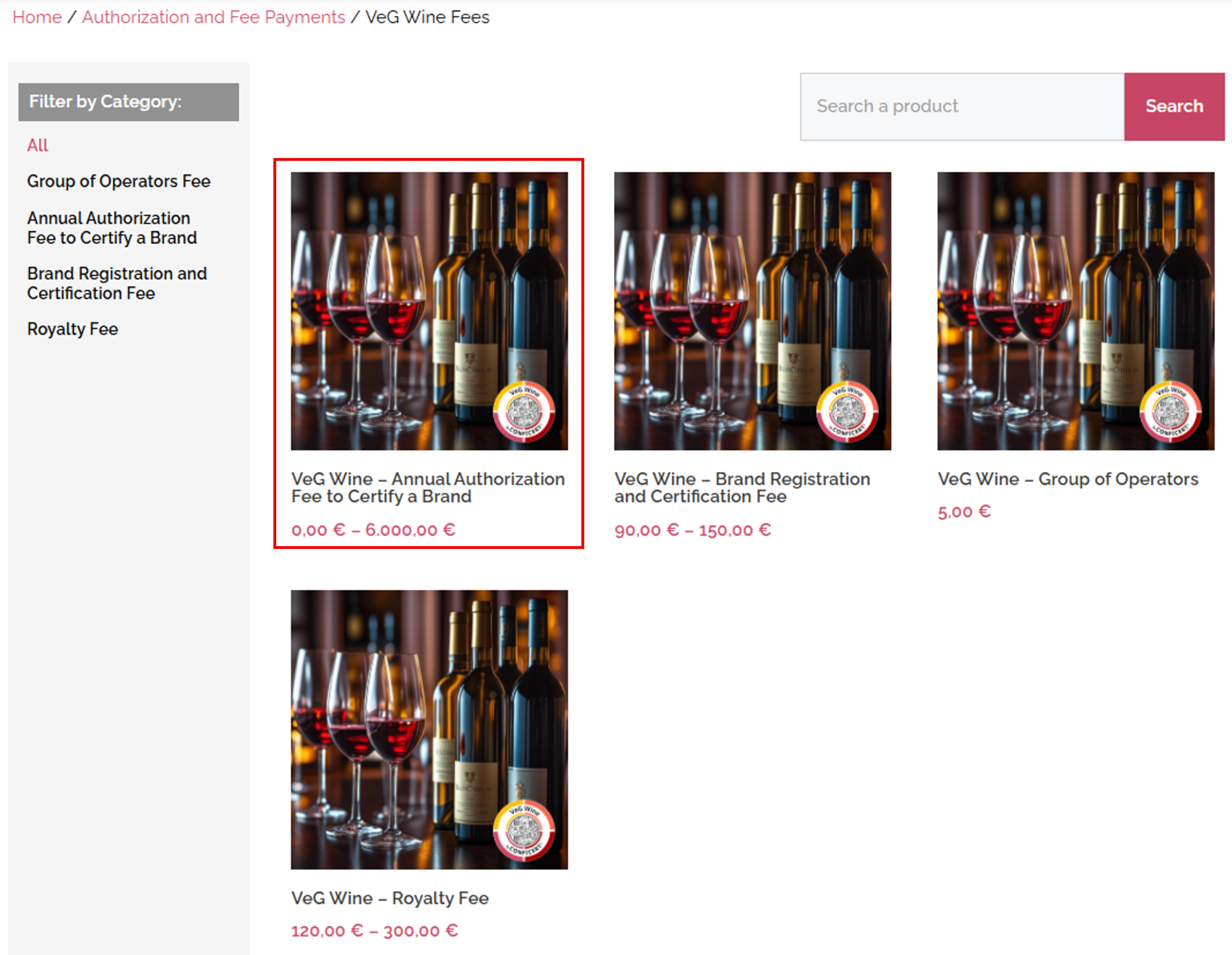
Go to My Brands and click on Authorization & Fee Payments. Select the Brand and the Annual Authorization Fee to Certify a Brand.

💡 Tip: use the category filter on the left and click on Annual Authorization Fee to Certify a Brand to see all the fees at once.

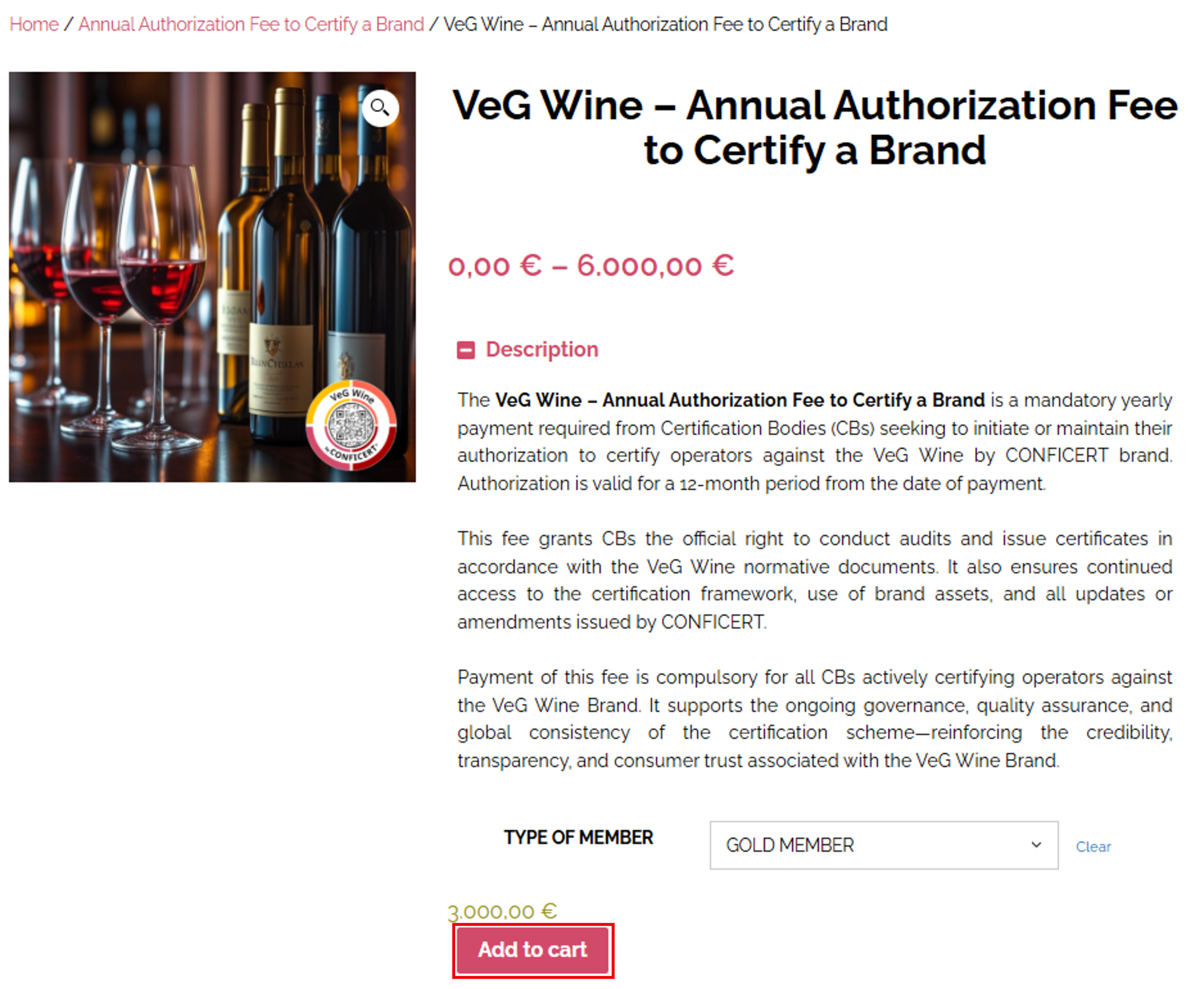
Select your membership type (for example, Gold) and click on Add to Cart. If you have been authorized for other Brands, add them now.

⚠️ Brands with several scopes: you must purchase the fee for every scope, in the same order. Food Waste Saver, for example, has 6 scopes, so you need 6 fees. Platinum members pay no fee. Other members should contact the CONFICERT team if they have not yet received their coupons.

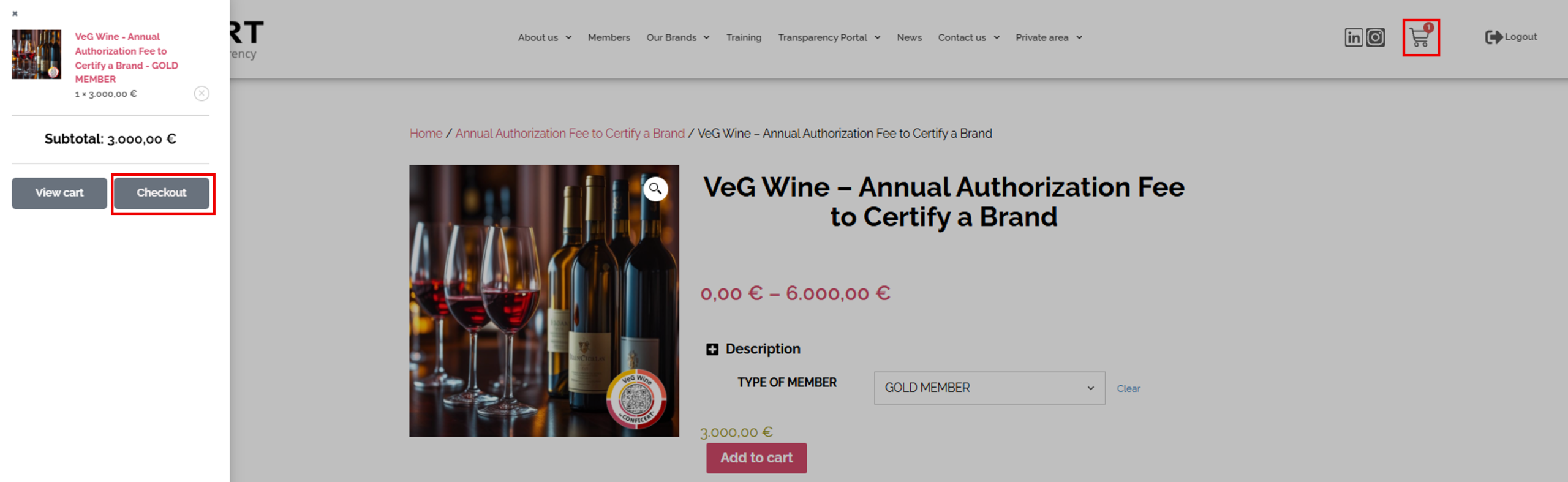
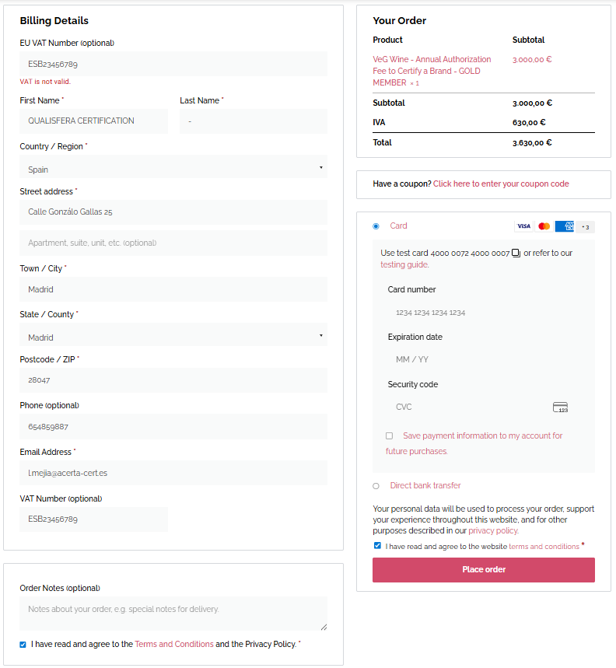
Click on the cart icon in the top right corner. At the checkout, complete the billing details, accept both terms and conditions checkboxes, choose the payment method and click on Place Order.

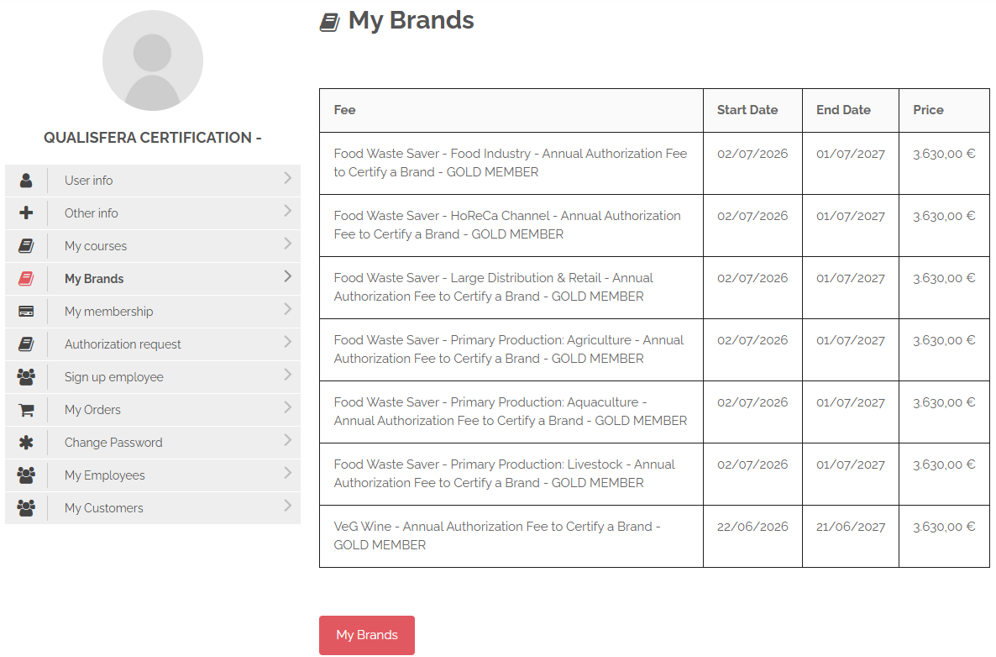
Go to My Brands and check the Brand, the start date, the expiry date and the amount paid.

⚠️ Important: if this fee expires, your access to the Brand in CERTIAPP is blocked. Before renewing, contact conficert5@conficert.org to confirm that you can keep the authorization.

✅ Done! The Brand is now available in CERTIAPP. Next, register your auditors on the platform.

III. Explanatory video

📄 Full details in the User Guide for Certification Bodies – CONFICERT web platform, section 4.6.

Module 2 – Staff

Learn how to create your auditors’ profiles in CERTIAPP and assign their roles: auditor, technical reviewer and/or decision-maker.

I. Before you start

✅ Have each auditor’s personal details, address, experience and training at hand.

✅ Decide which roles each person will perform: auditor, technical reviewer and/or decision-maker.

II. Process step by step

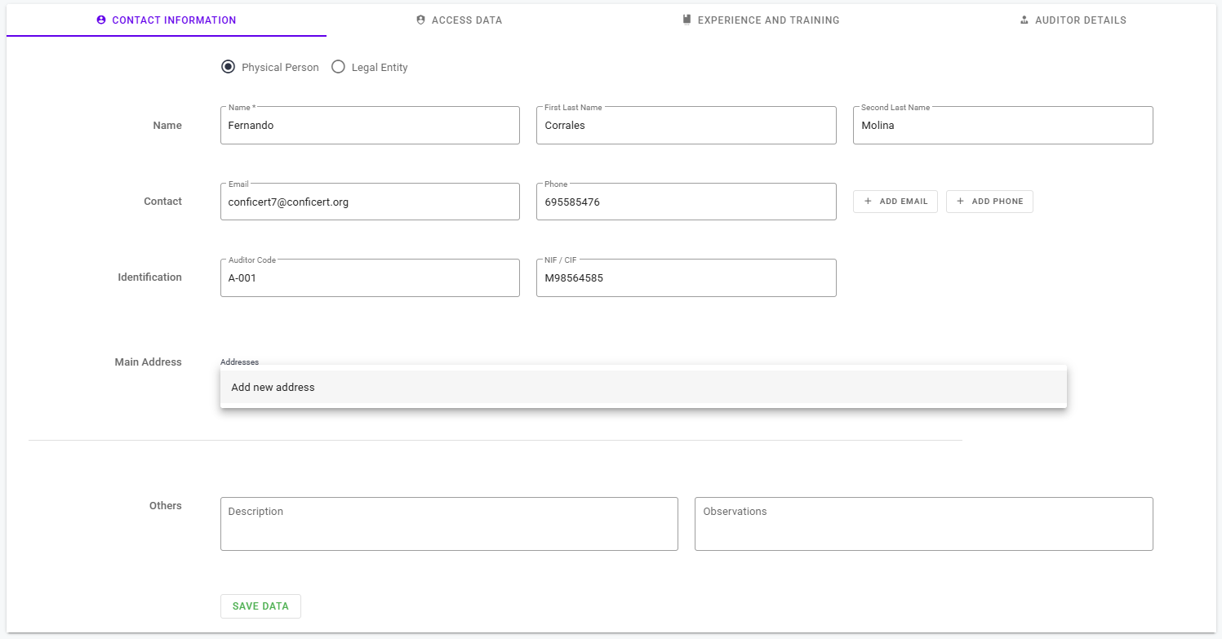
Go to Staff › Auditors and click on Create Auditor.

Complete:

✅ First and last name, email and phone number. Use Add Email or Add Phone if you need more than one.

✅ Auditor Code, which is your internal control code, and the NIF/CIF.

✅ An address, set as fiscal or office and marked as active.

✅ In Others, a description or remarks, if needed.

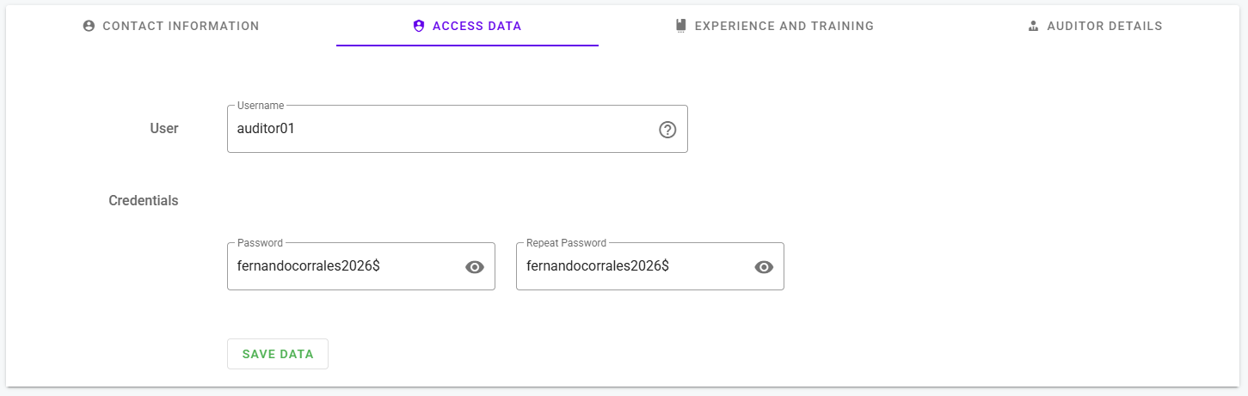
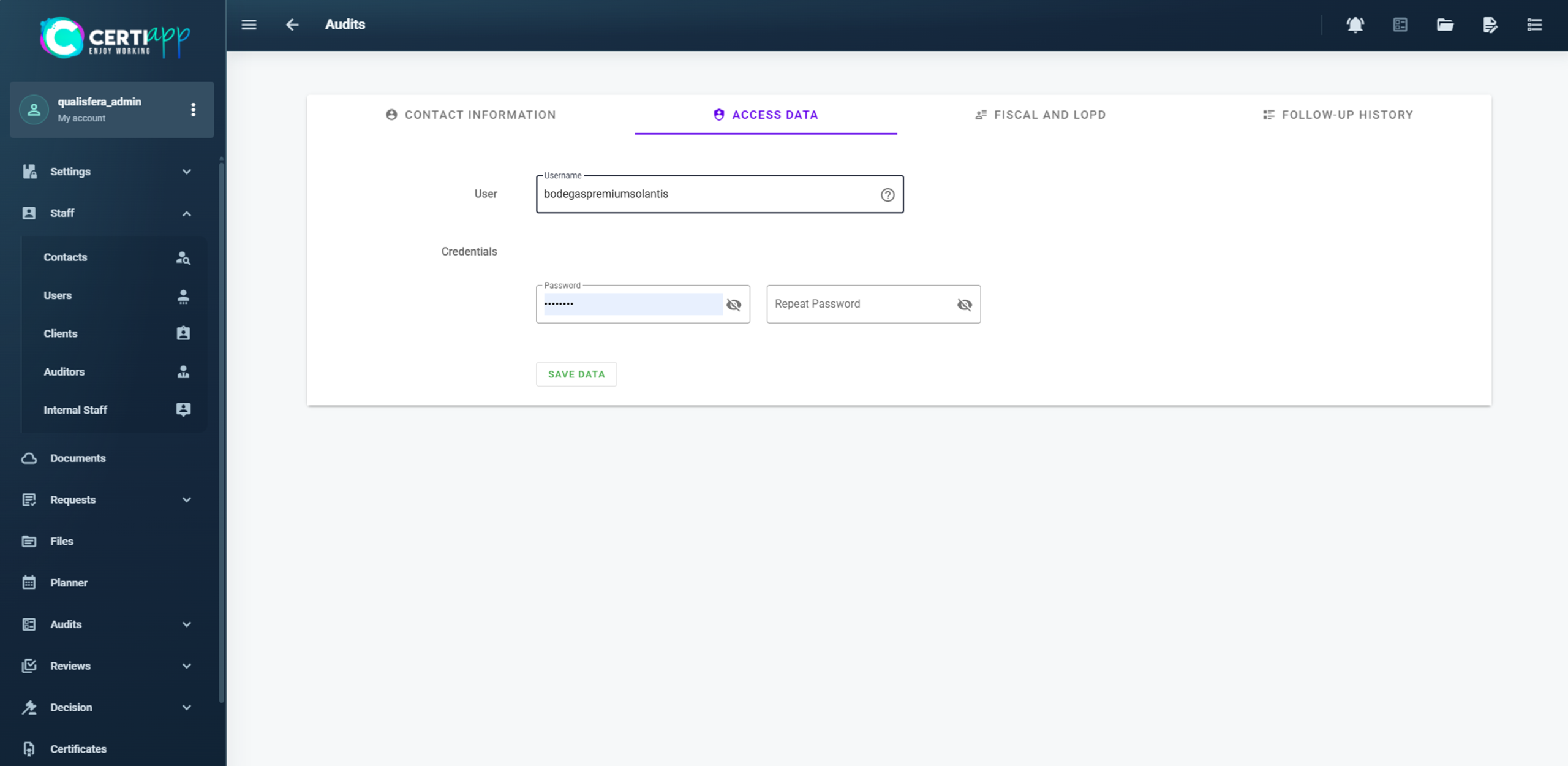
Create the auditor’s username and password for CERTIAPP.

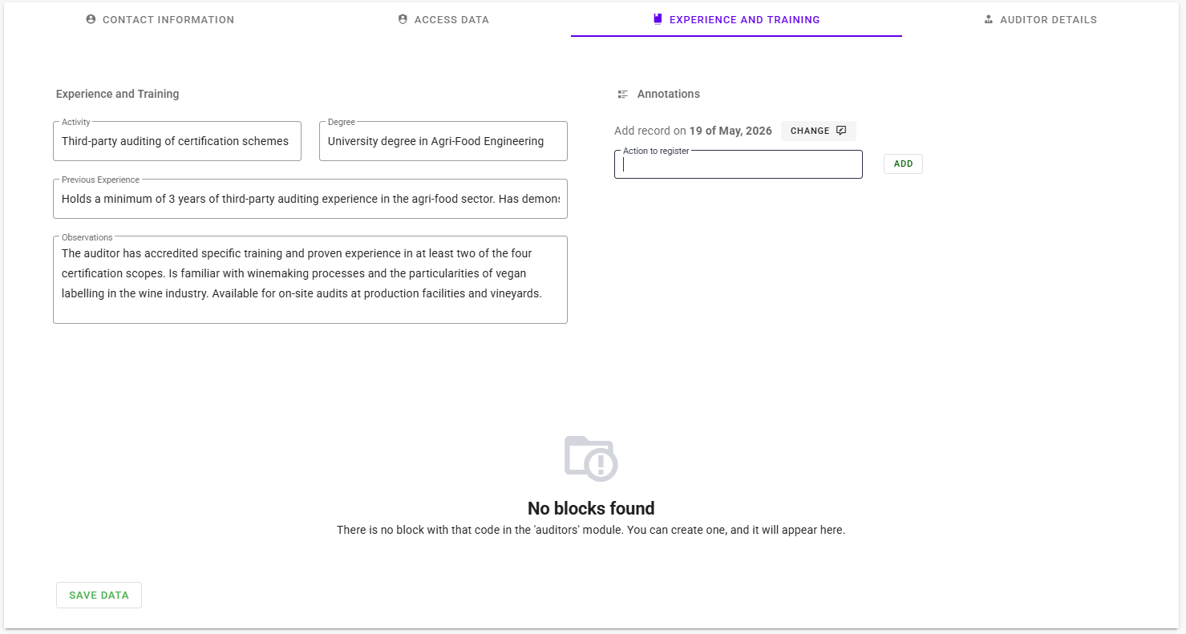
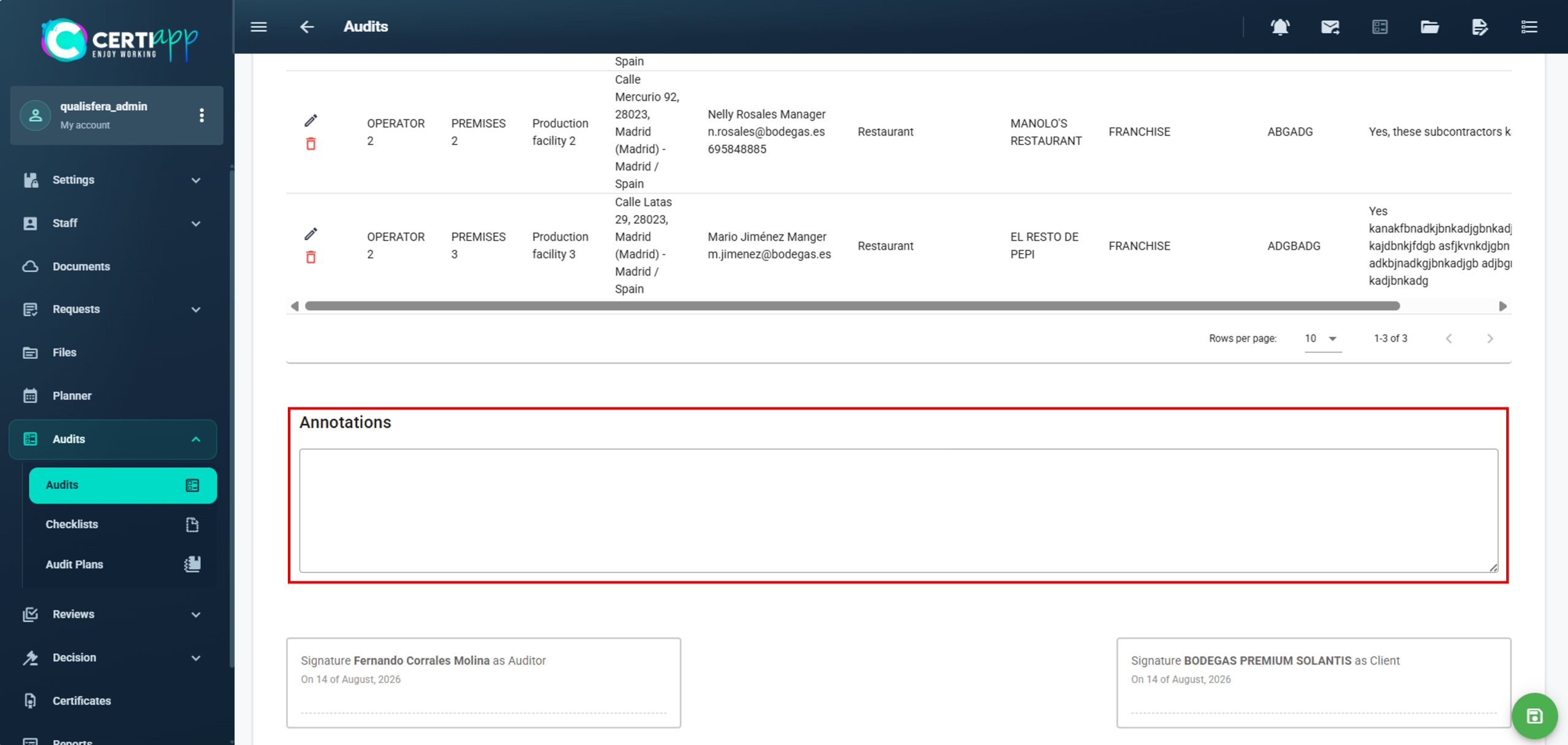
Briefly describe the auditor’s experience and training. In Annotations, you can record follow-up actions related to this auditor. This field is optional.

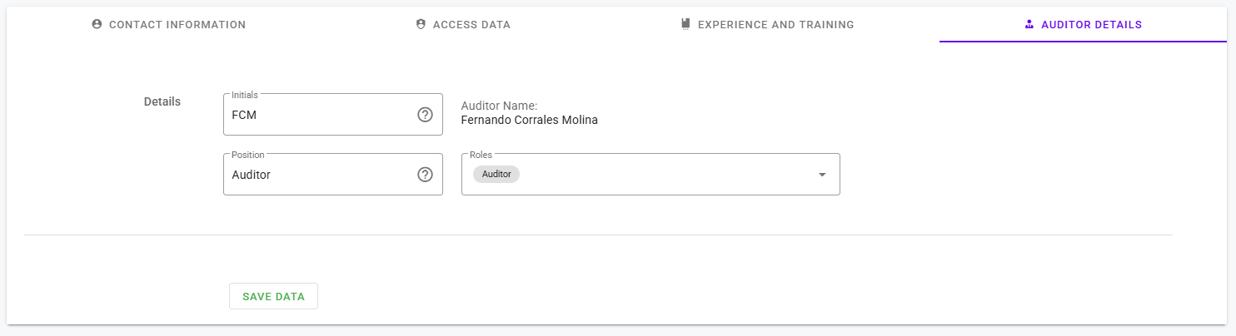
Enter the auditor’s initials and job title, and select the role in Roles:

  • Auditor Admin: if the person will act as auditor, reviewer and decision-maker, or as auditor only.
  • Reviewer: if the person will act as technical reviewer only.
  • Decision Maker: if the person will act as decision-maker only.

Optionally, add the auditor’s signatures. Save the profile.

⚠️ Independence rules (General Regulations): for each file, the technical reviewer must be a different person from the auditor who carried out the audit. The decision-maker cannot have taken part in the evaluation, but can be the same person as the technical reviewer.

✅ Done! The auditor’s profile is created. Next, assign their competencies for each Brand.

III. Explanatory video

📄 Full details in the User Guide for Certification Bodies – CERTIAPP Platform, section 2.3.4.

Learn how to assign each auditor’s roles by Brand and record any conflicts of interest with operators.

I. Before you start

✅ The auditor’s profile must be created (see Registering auditors).

✅ Your auditors only appear as available in an audit, review or decision if their competencies for that Brand are set up.

II. Process step by step

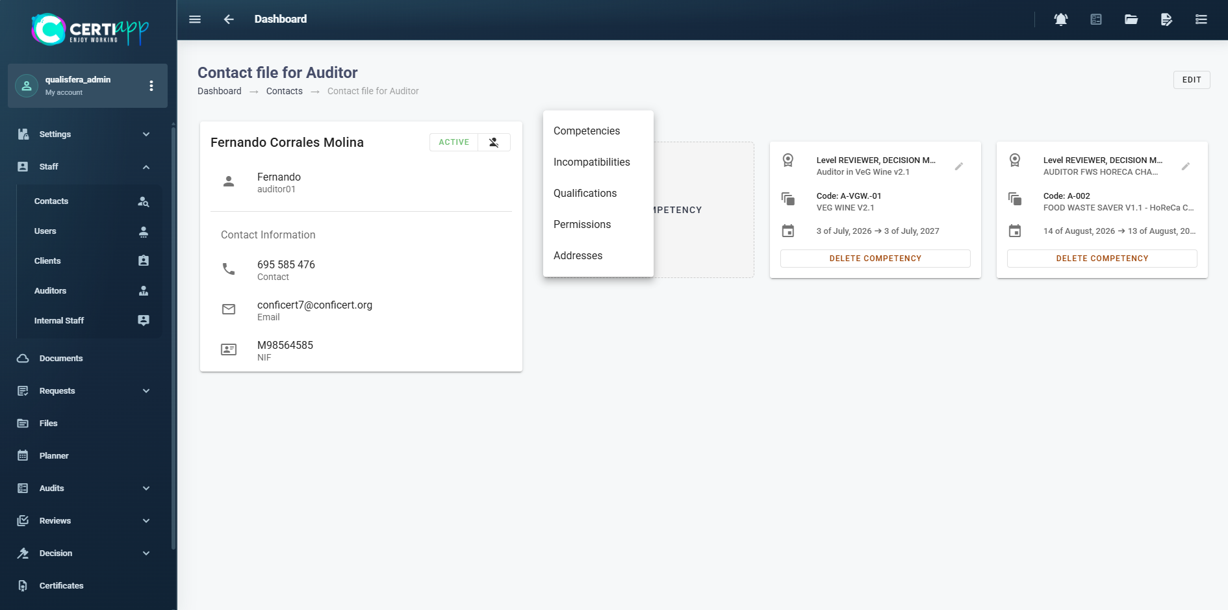
In Staff › Auditors, open the auditor. A drop-down menu appears with the options Competencies, Incompatibilities, Addresses, Qualifications and Permissions.

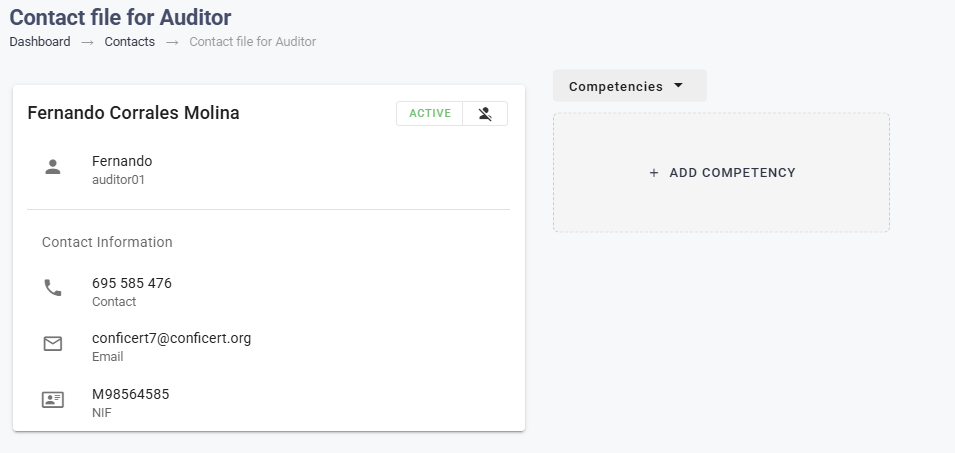
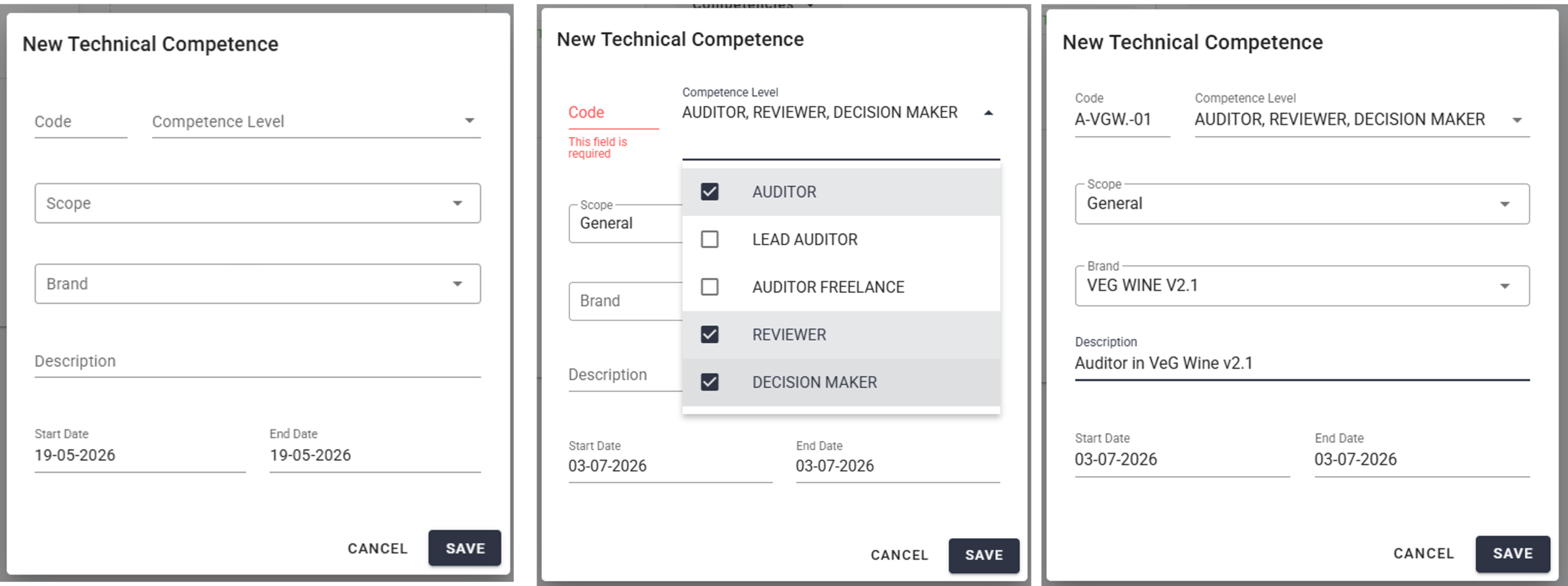
In Competencies, click on Add Competency. Enter an internal control code and, for the Brand, select the roles in Competence Level: Auditor, Reviewer and/or Decision Maker. Add a description and the start and end dates. Click on Save.

For example, if the auditor will act as auditor, reviewer and decision-maker for VeG Wine, select all three roles for that Brand.

⚠️ Important: repeat this step for each Brand. The roles you assign must match the roles selected in Auditor Details when the profile was created.

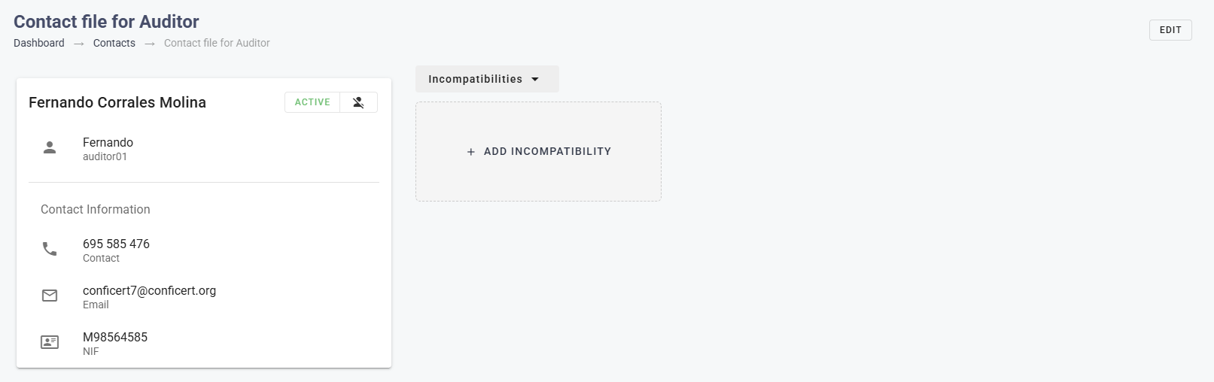
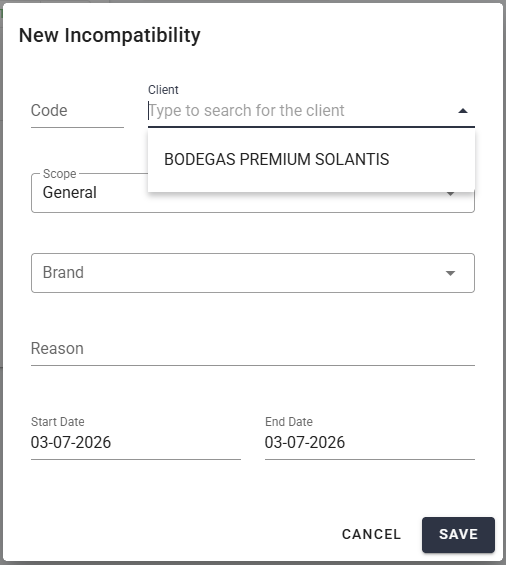
If the auditor has a conflict of interest with an operator, for family or other reasons, go to Incompatibilities and click on Add Incompatibility. Enter an internal control code, the operator, the Brand, the reason, and the start and end dates.

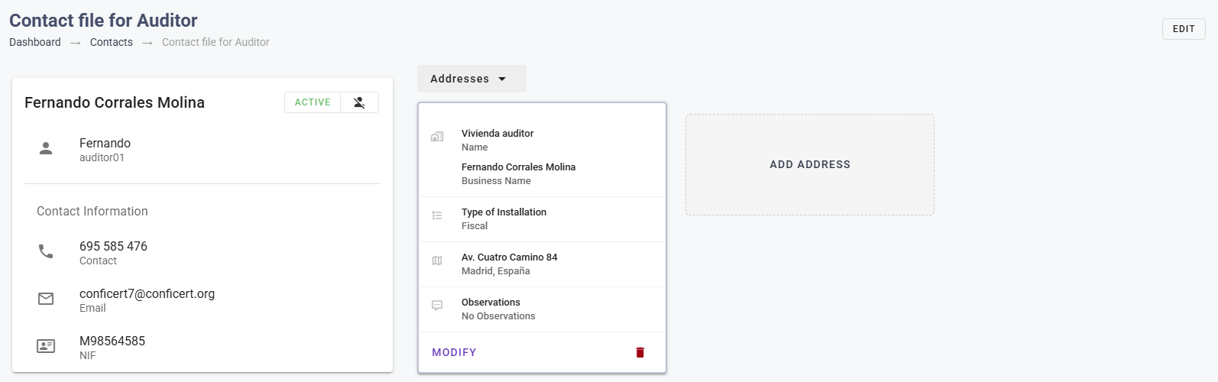
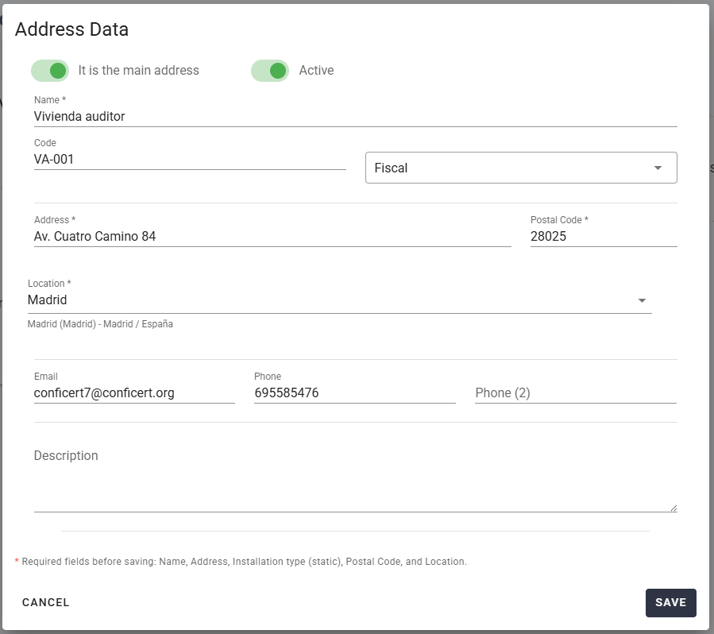
The home address entered when creating the profile is already registered. To add another one, go to Addresses and click on Add Address.

💡 Sections that require no action: Qualifications and Permissions.

✅ Done! Your auditor is fully set up. Repeat these lessons for each member of your evaluation staff.

III. Explanatory video

📄 Full details in the User Guide for Certification Bodies – CERTIAPP Platform, section 2.3.4.

Learn how to register prospective clients and other contacts, and attach documents such as quotations.

I. Before you start

✅ Registering contacts is optional. Use it, for example, for an operator that has asked you for a quotation but is not yet a client.

✅ Auditors, clients and internal staff are managed in their own sections, not here.

II. Process step by step

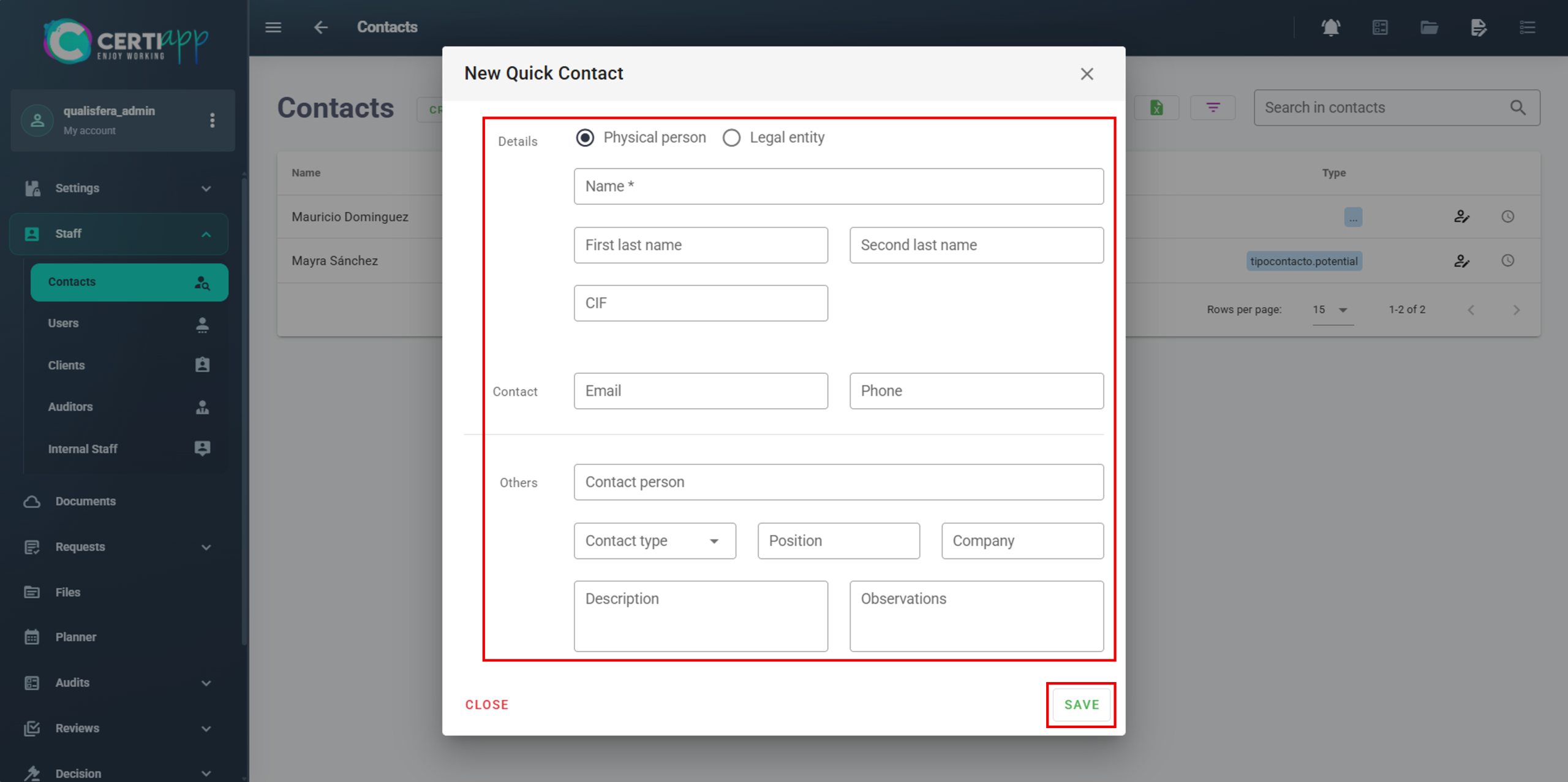
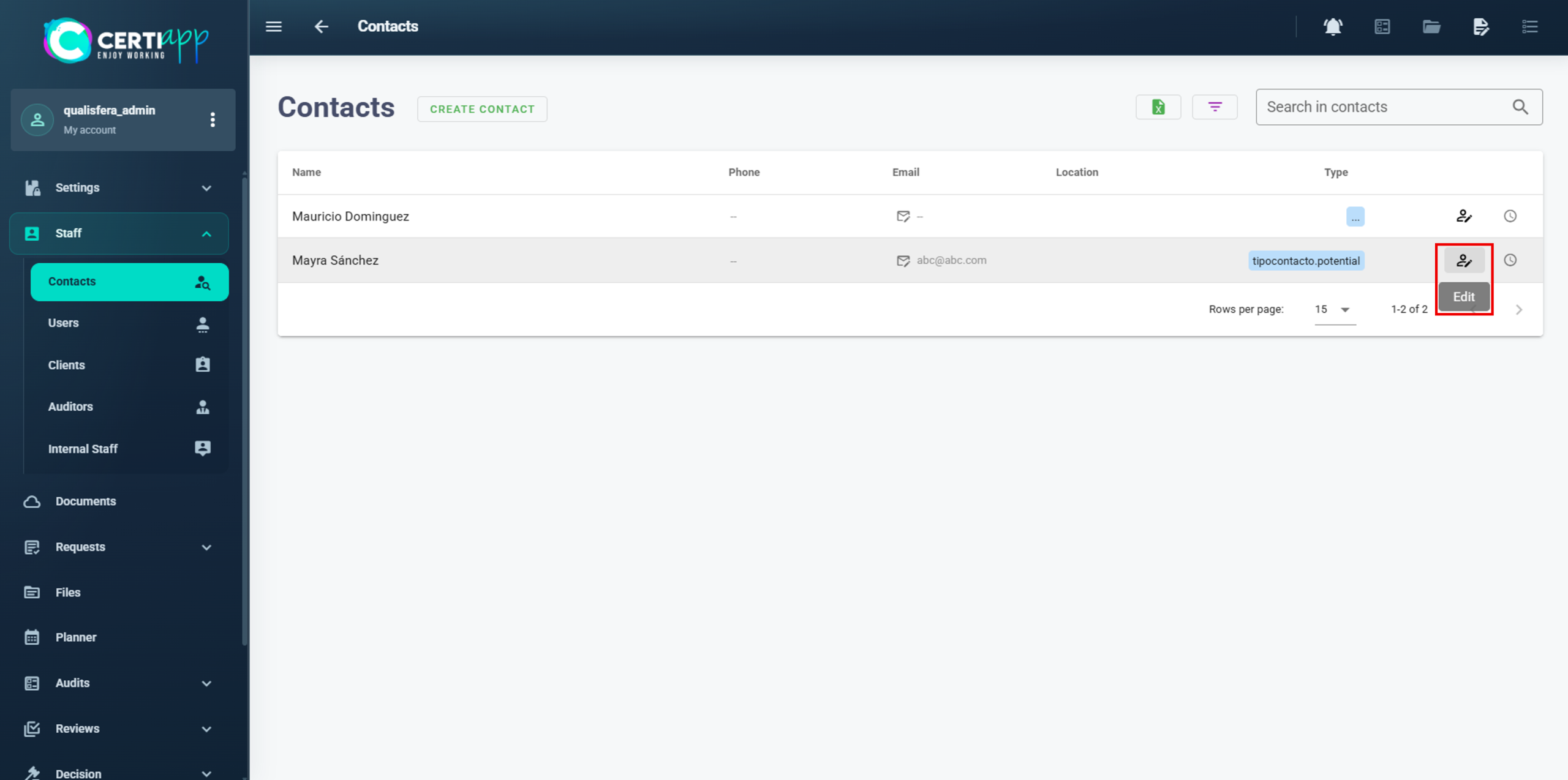
Go to Staff › Contacts and click on Create Contact. Complete the relevant fields and click on Save.

Click on the ✏️ icon next to the contact.

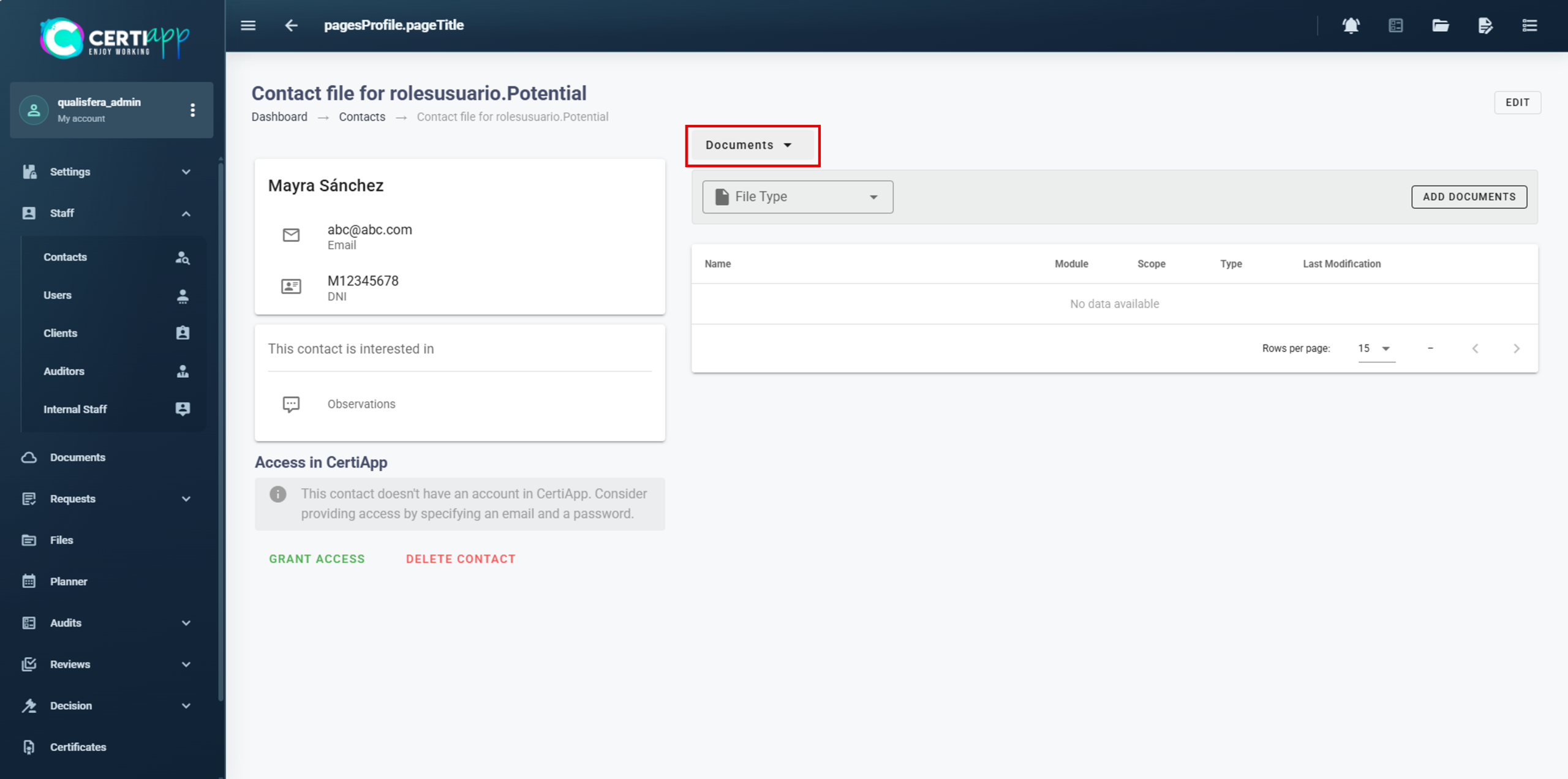
Click on the contact to see its summary, then on Add Document. In the pop-up window, attach the files and, if you wish, notify the contact by email or with an in-system notification.

💡 Tip: according to the General Regulations, the quotation accepted by the operator must be recorded in the CONFICERT systems. Attaching it here keeps it on record from the start.

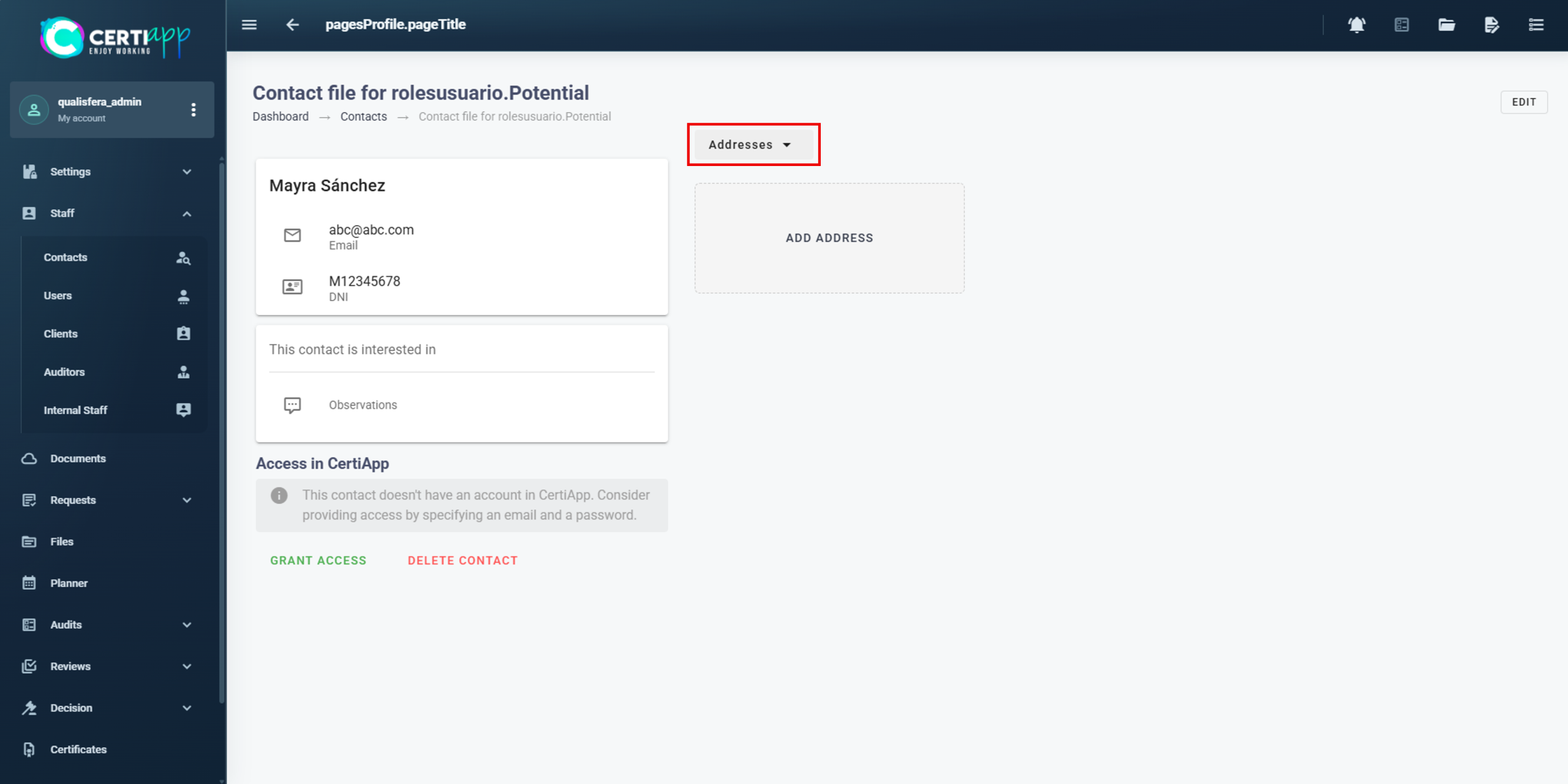
You can also add addresses related to the contact.

✅ Done! When the contact accepts your quotation, you can register them as a client.

III. Explanatory video

📄 Full details in the User Guide for Certification Bodies – CERTIAPP Platform, section 2.3.1.

Module 3 – Clients

Learn how to register an operator as a client in CERTIAPP, create its access credentials and get its CONFICERT Identification Number (CIN).

I. Before you start

✅ The operator must have accepted your quotation.

✅ Have the operator’s company details, tax details and representative’s details at hand.

II. Process step by step

Go to Staff › Clients and click on Create Client.

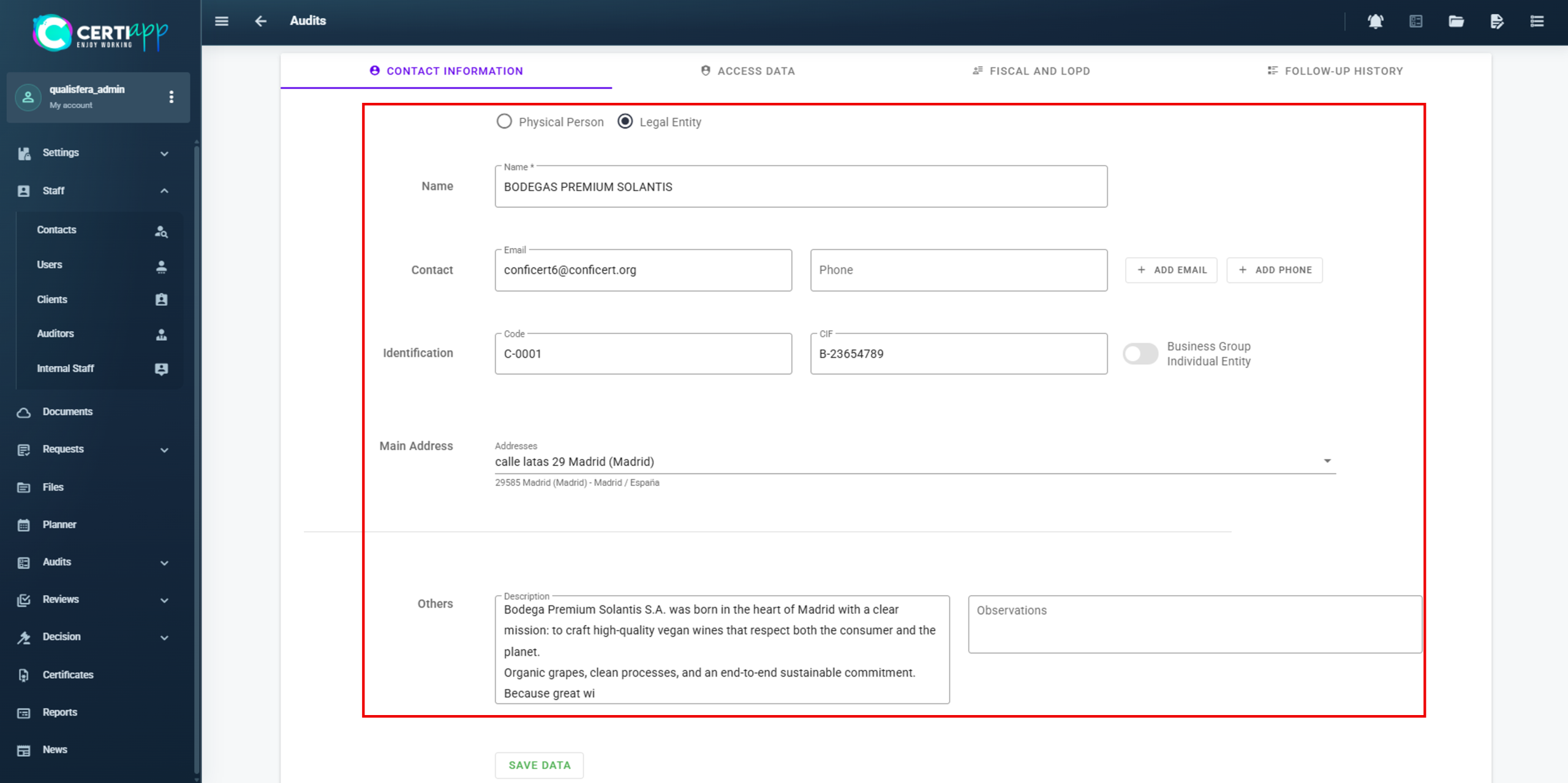
Complete the operator’s details:

  • In Identification – Code, assign your internal code.
  • In the address section, mark the address as Fiscal, as the Main Address, and as active.
  • In Others, add a description of the company and any relevant remarks.

Create the operator’s username and password. The operator can change the password later from its own profile.

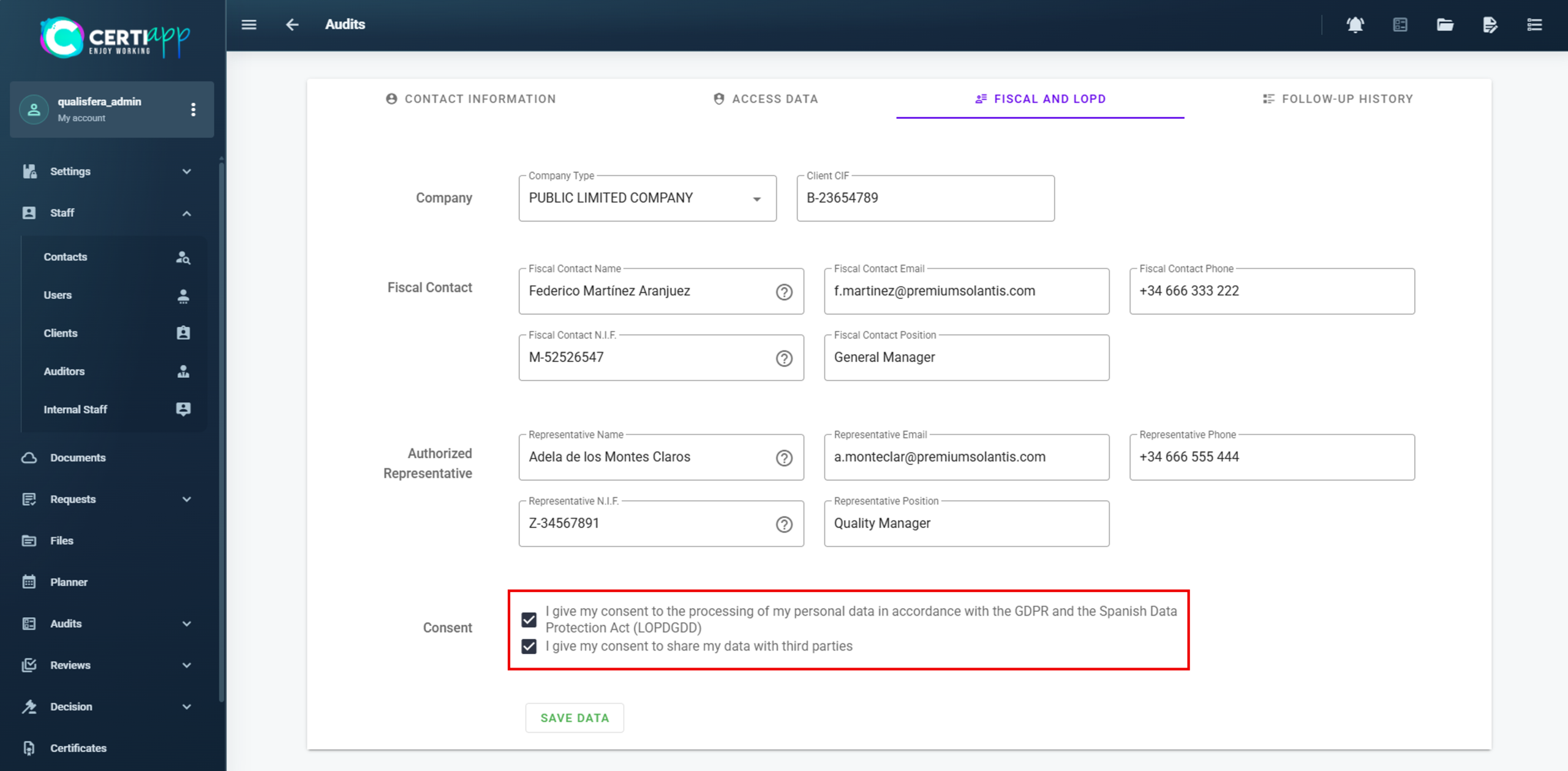
Complete the tax details and the representative’s details.

⚠️ Important: leave the Consent options unticked. The operator must tick them itself when it reviews its details and gives its consent.

Record the steps taken with the client, for example “quotation sent” or “quotation accepted”. If a step is not in the list, type it in Action to Register and click on Add.

Click on Save Data. A tab appears with the internal code you assigned (for example, C-0001) and the CIN (for example, 0000005034).

Send the operator its username, password and CIN, so that it can log in, check its details and correct any errors.

⚠️ Deadlines (General Regulations):

  • You have 72 hours to send the CIN to an operator registered for the first time.

💡 Get to know the client’s menu:

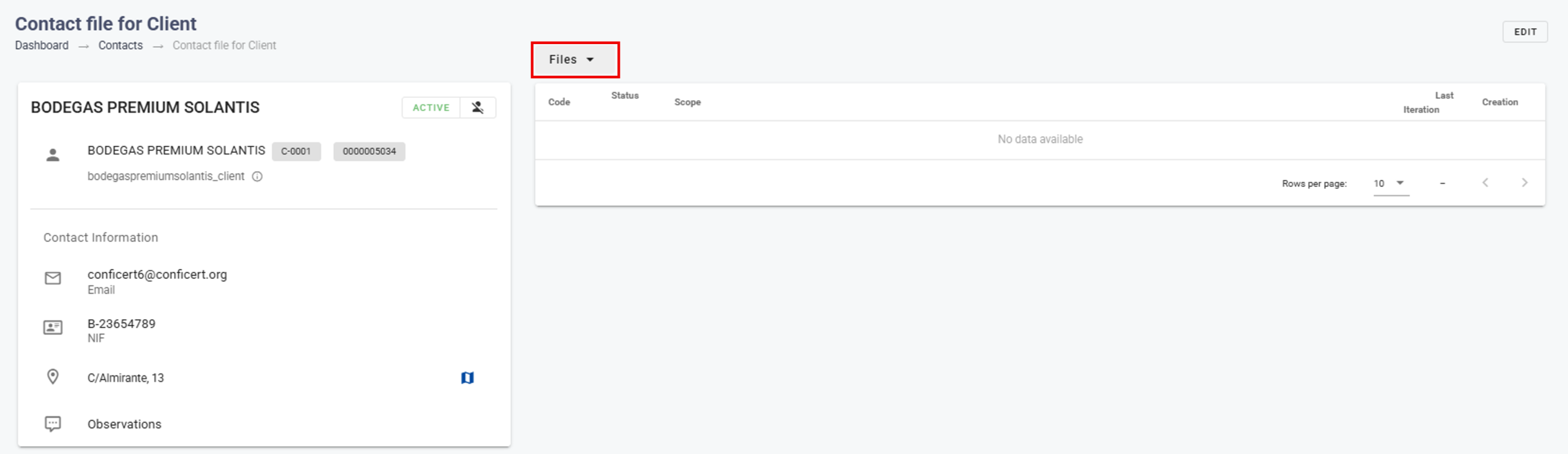
✔️ Files: all of the client’s files 
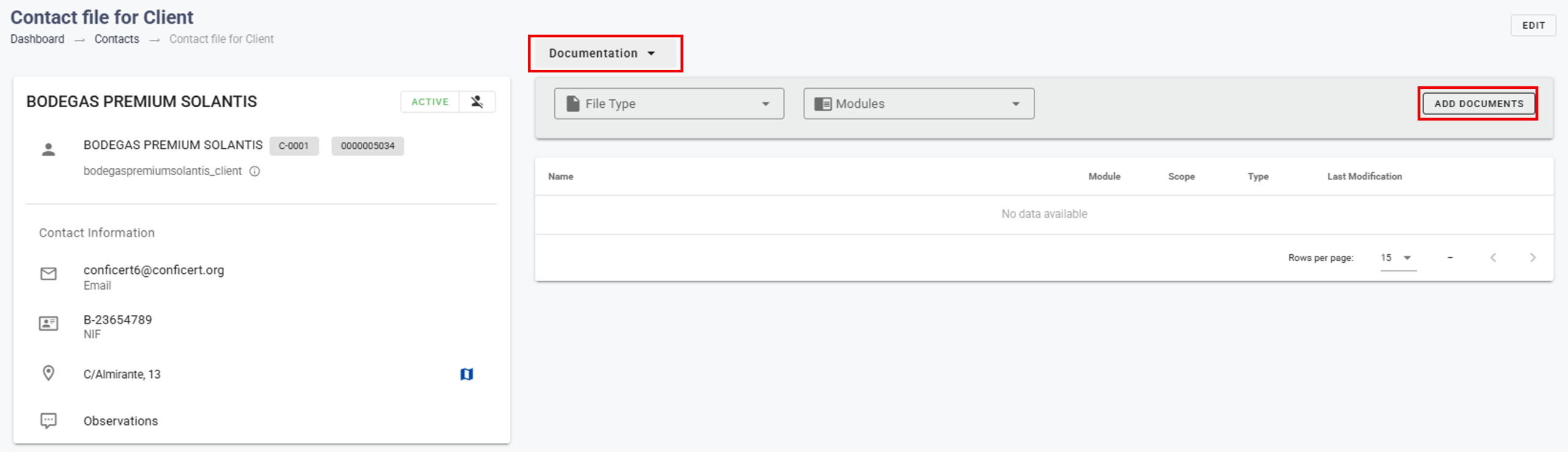
✔️ Documentation: all documents related to the client. You can upload new ones with Add Document.
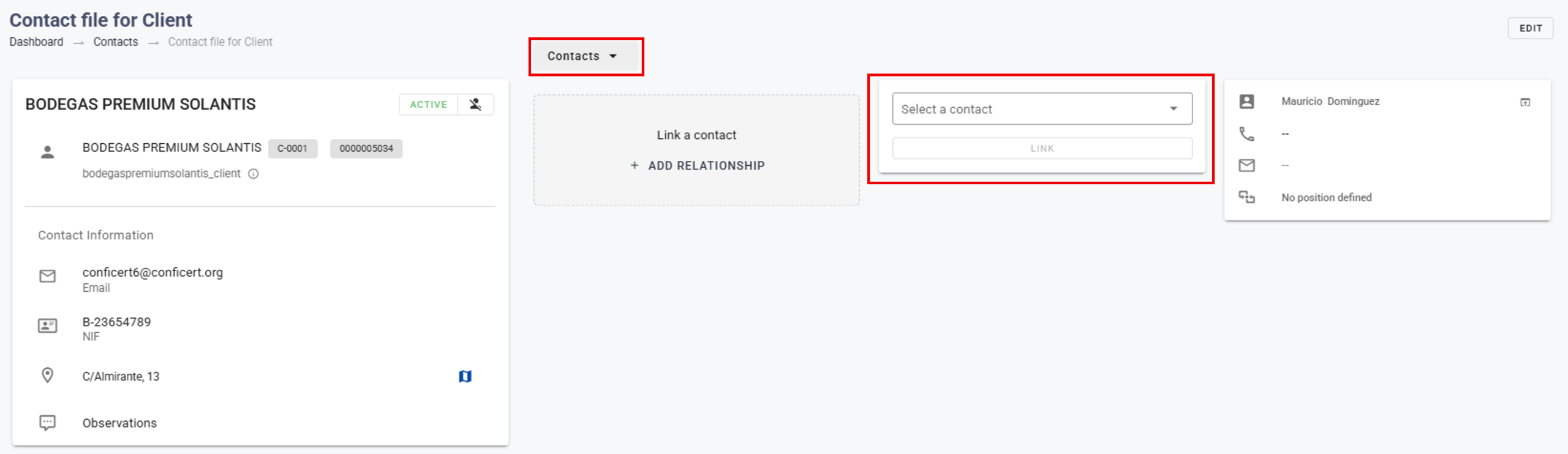
✔️ Contacts: the operator’s contact persons.
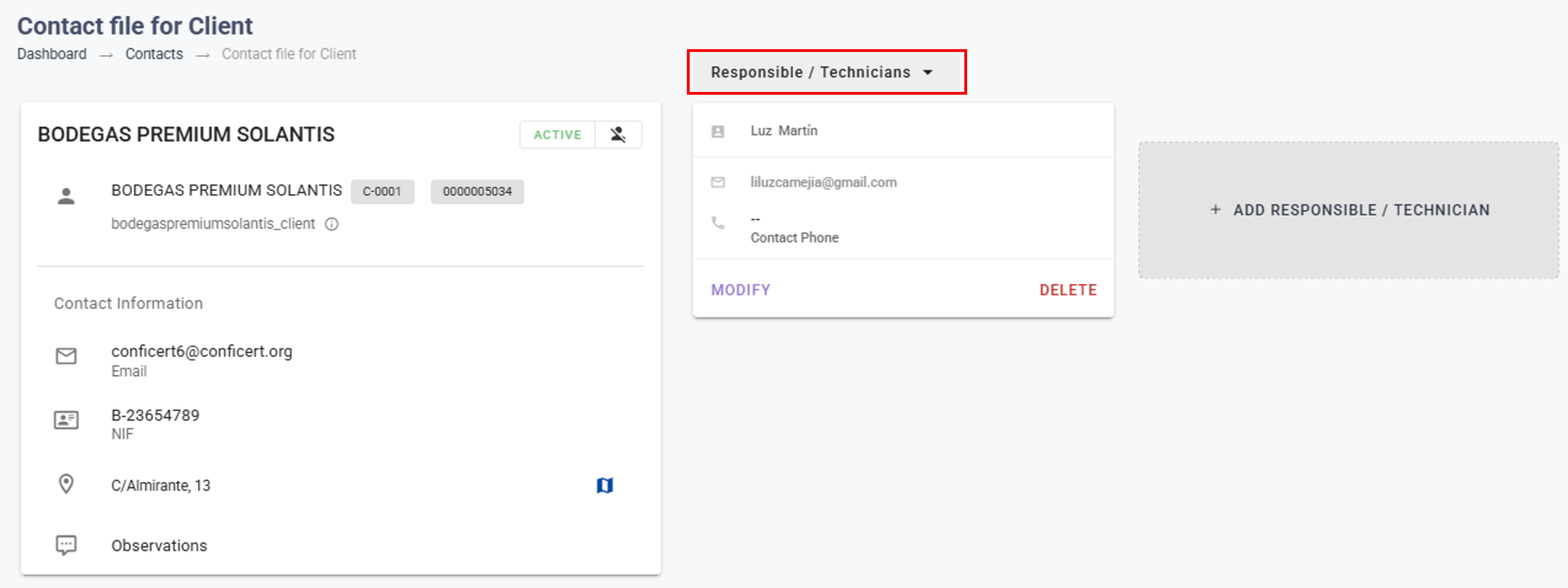
✔️ Responsible/Technicians: the operator’s managers and technicians for the audit. This field is optional.
✔️ Addresses: the operator’s sites (see the next lesson).
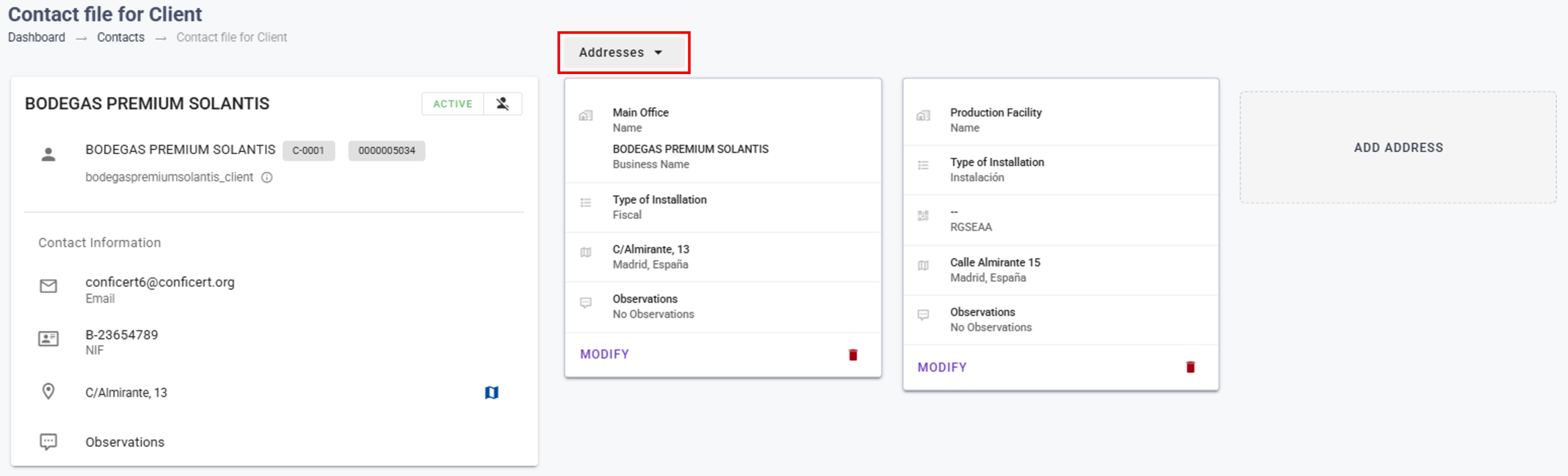
✔️ Licences: the Brands the operator is authorized to be certified in.
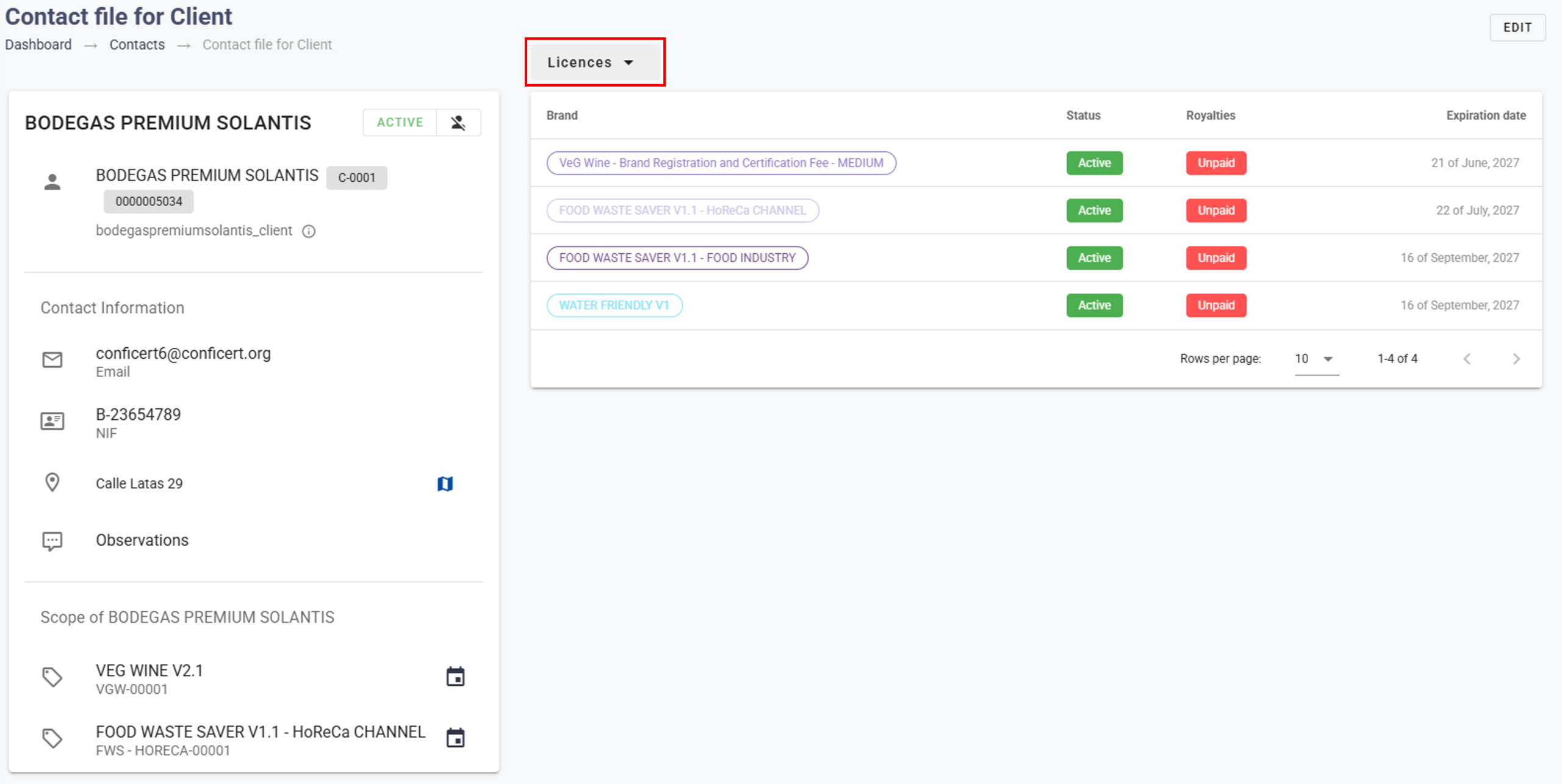
✅ Done! The client is registered. Next, register the sites that will be audited.

III. Explanatory video

📄 Full details in the User Guide for Certification Bodies – CERTIAPP Platform, sections 2.3.3 and 3.6.

Learn how to register the operator’s sites so they are available when completing the request and creating the audit.

I. Before you start

✅ The client must be registered (see Registering an operator client).

✅ Have the list of all the sites to be audited at hand. For a group of operators, include the sites of every member.

II. Process step by step

Open the client and select Addresses in the drop-down menu. The fiscal address entered during registration is already shown.

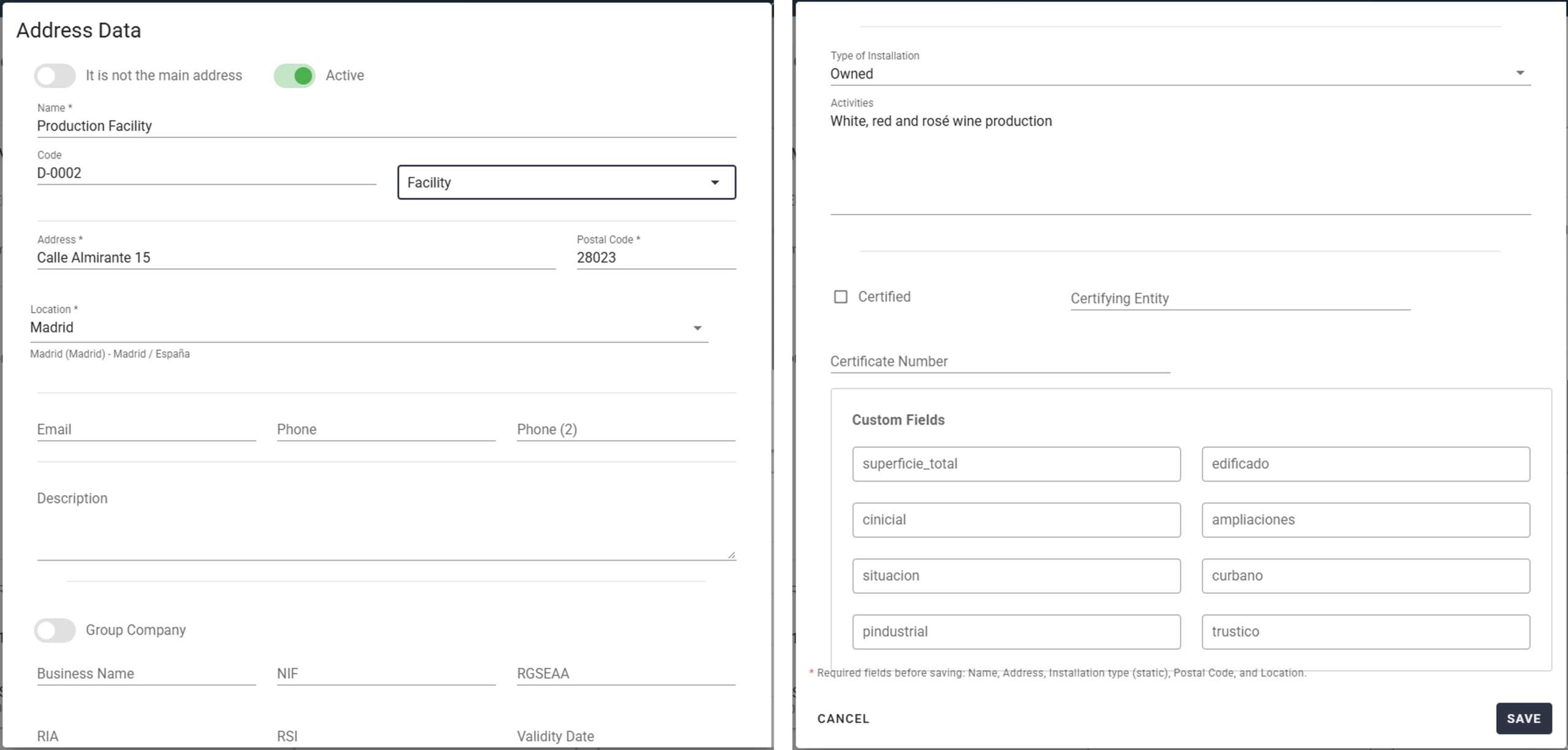
Click on Add Address and complete the mandatory fields:

  • Location name.
  • Internal control code.
  • Type: Facility.
  • Address, postal code and location.

Optionally, add the email, phone number and description of the contact person for that site.

Make sure the address is marked as Active, and save.

⚠️ Important: only addresses of the Facility type that are marked as Active appear in the request and in the audit. If a site is missing or has the wrong type, it cannot be selected later.

Repeat Steps 2 and 3 until all the sites to be audited are registered.

💡 Tip: the operator can also add or correct its addresses from its own profile. Check them before creating the request.

✅ Done! The operator’s sites are ready. Next, assign the Registration and Certification Fee so that you can open the request.

III. Explanatory video

📄 Full details in the User Guide for Certification Bodies – CERTIAPP Platform, section 2.3.3.

Learn how to assign the Brand Registration and Certification Fee to an operator, the payment that allows you to open its request and file in CERTIAPP.

I. Before you start

✅ This process is done in your private area on the CONFICERT website.

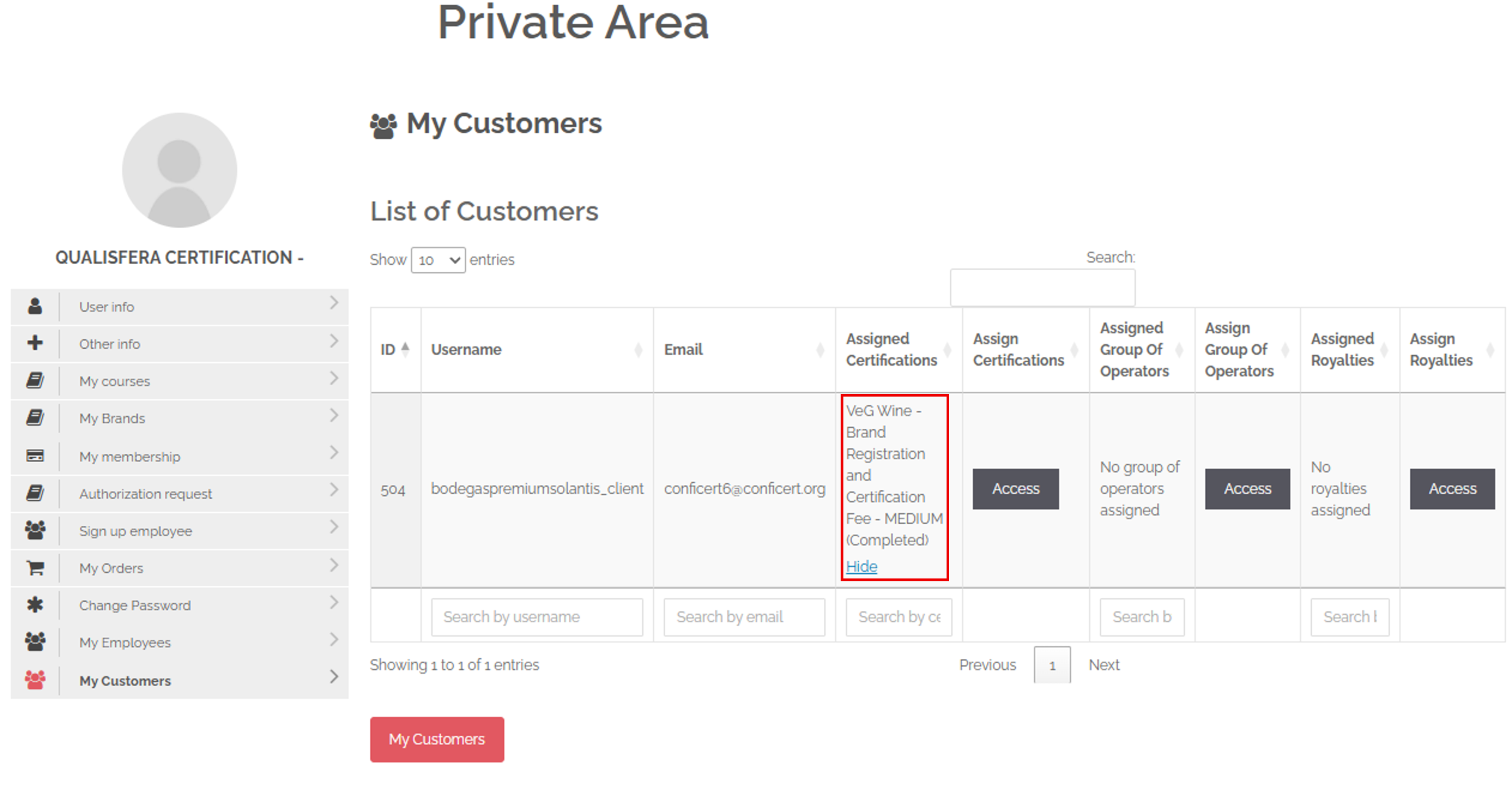
✅ The operator must be registered as a client in CERTIAPP. It then appears automatically in My Customers.

✅ The Certification Contract must be signed by both parties. According to the General Regulations, you pay this fee only after checking that the contract is signed.

✅ You must hold the annual authorization fee for the Brand.

II. Process step by step

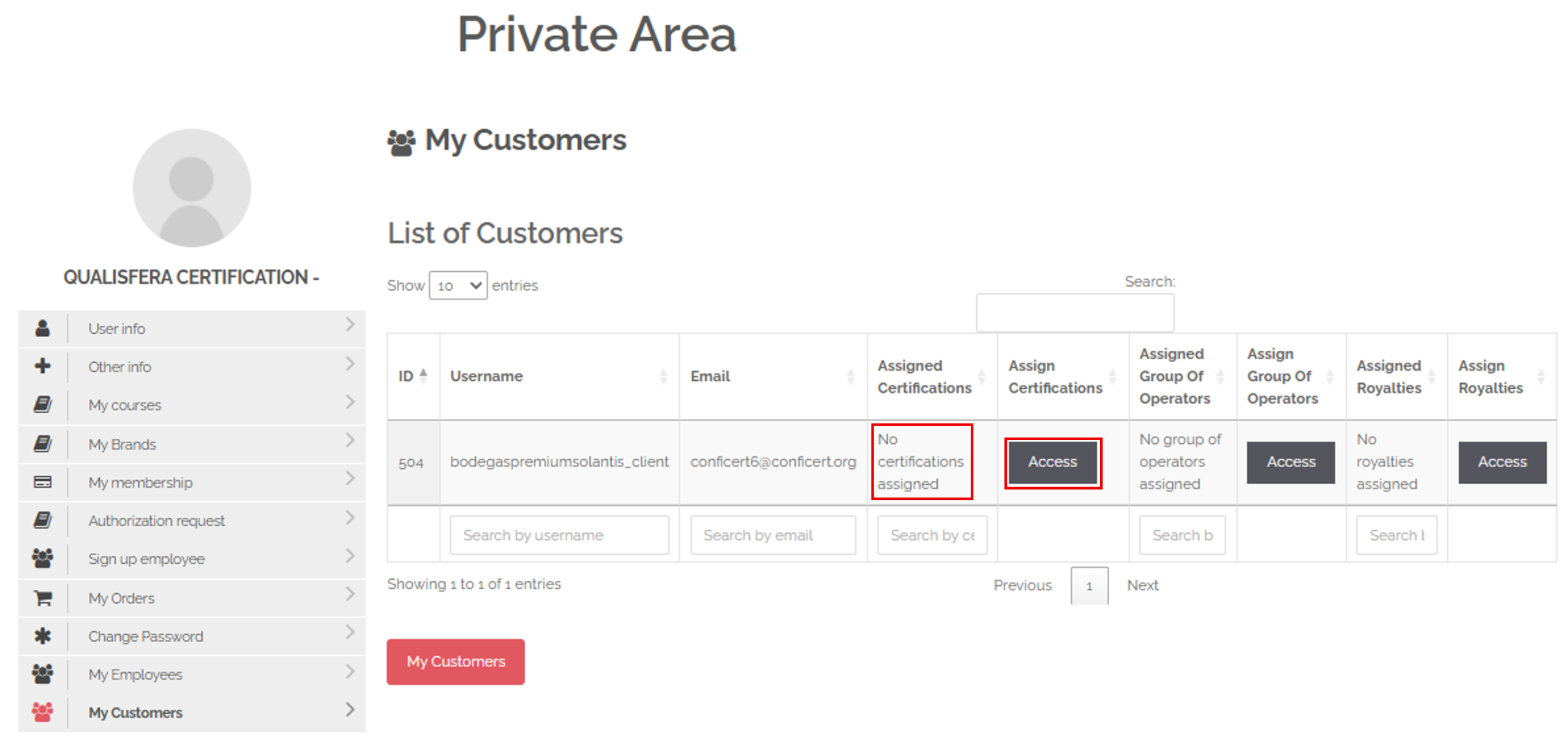
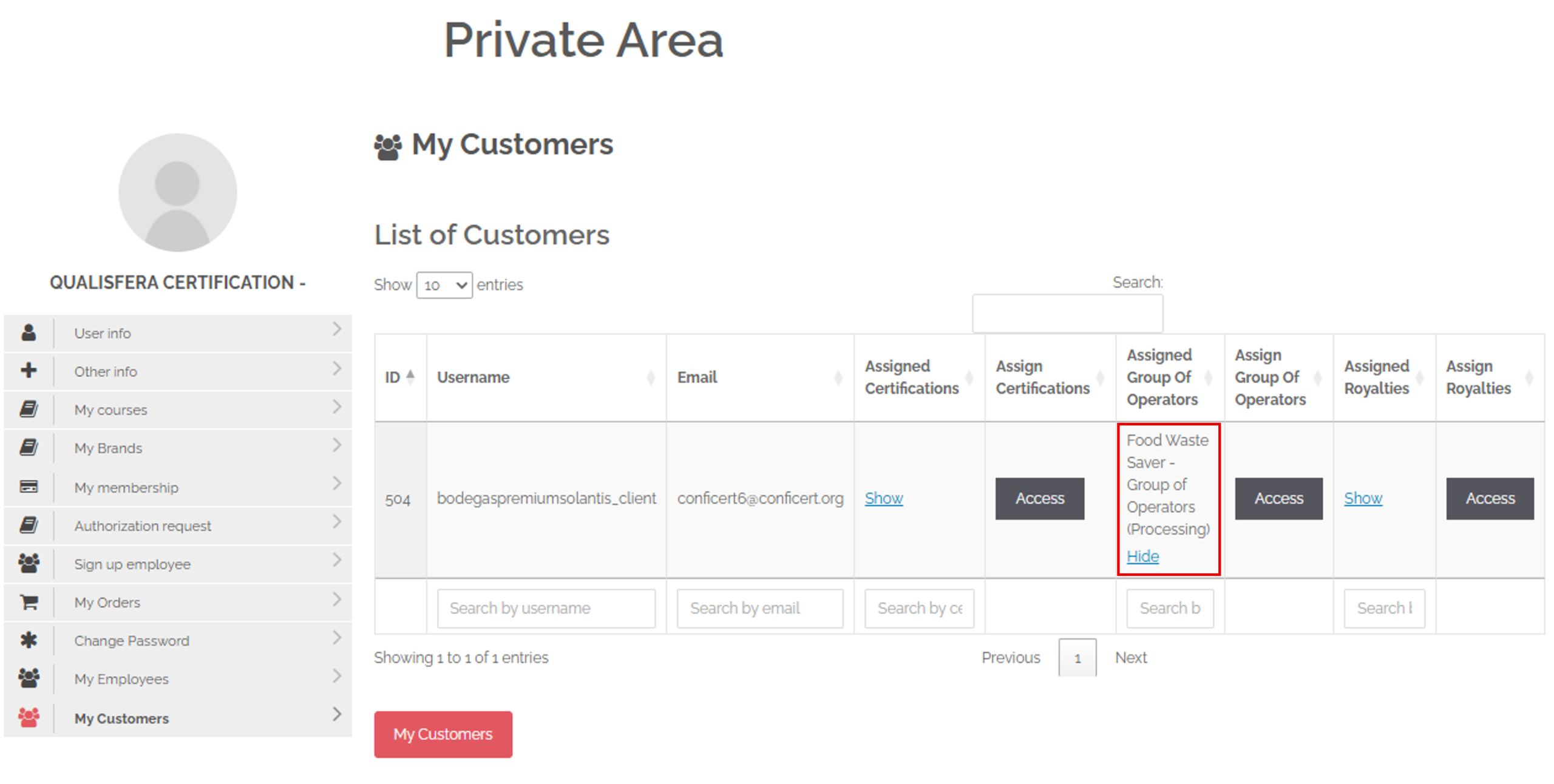
On your Privet Area and go to My Customers and find the operator’s row. If the Assigned Certifications column shows “No certifications assigned”, the operator has no fee yet. Click on Access.

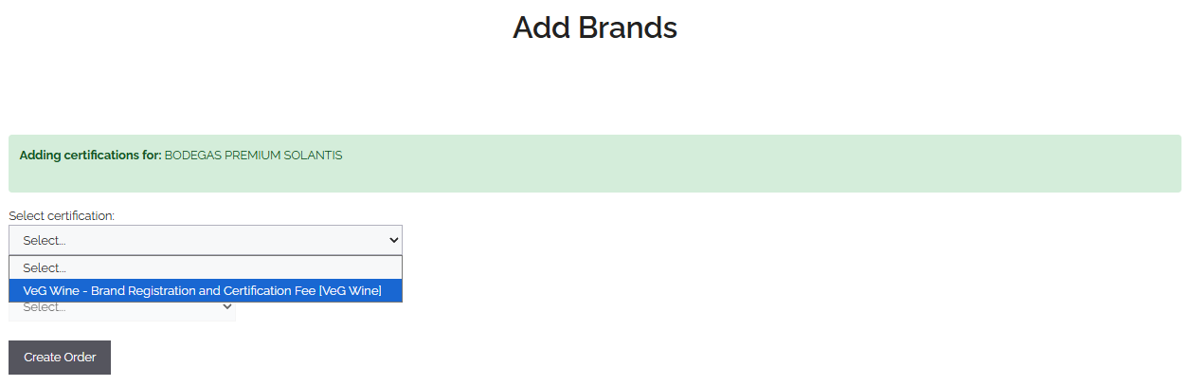
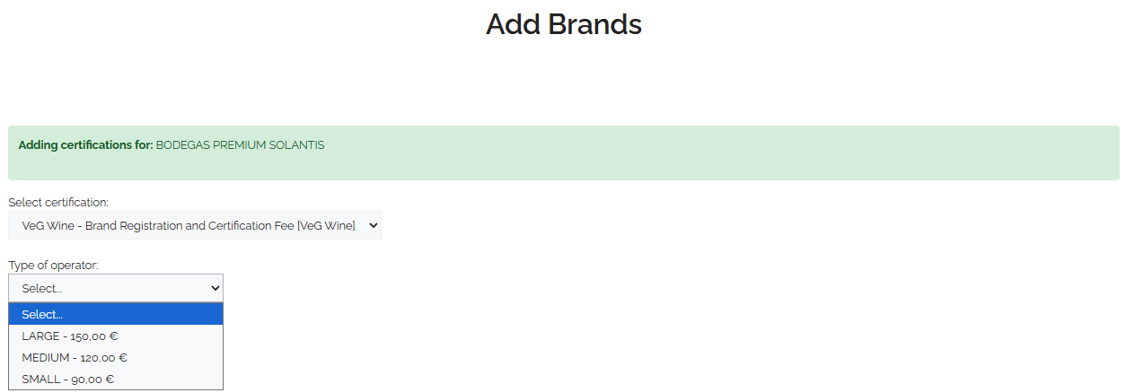
In the Add Brands window, select:

  • The Brand fee. Only the Brands you are authorized for are shown.
  • The operator size.
  • For multi-scope Brands, the scope in which the operator will be certified.

Click on Create Order.

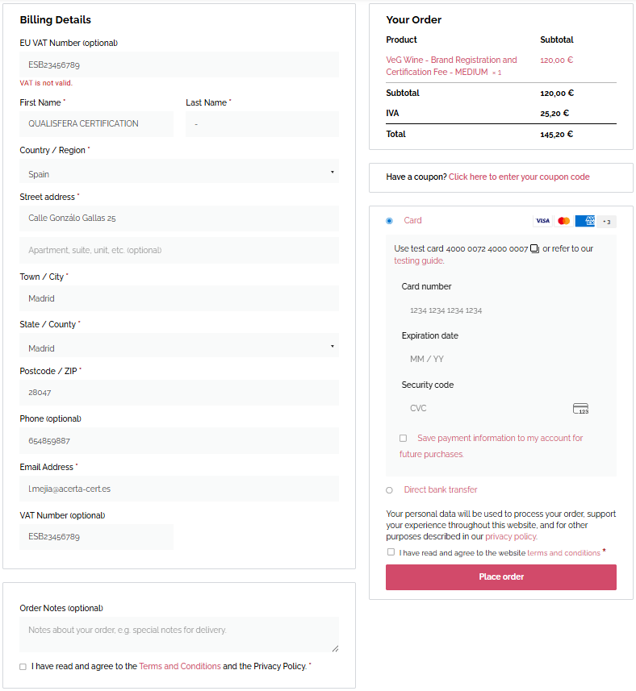
At the checkout, complete the billing details, optionally add a note, accept the terms and conditions, choose the payment method and click on Place Order.

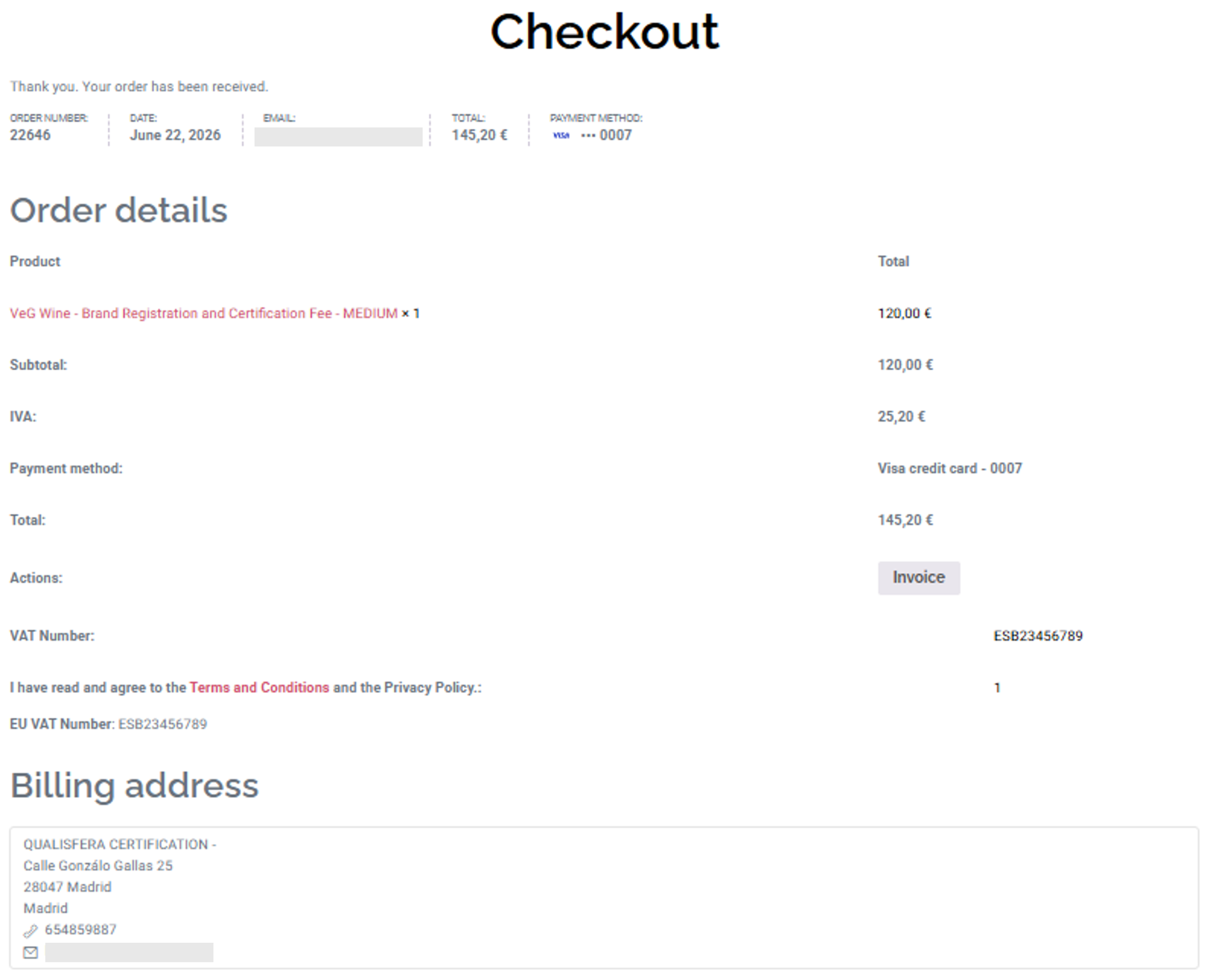
Go back to My Customers. In the operator’s row, click on Show in the Assigned Certifications column to see the assigned Brand.

💡 More than one Brand or scope: repeat the process for each Brand or scope. All the fees appear in the operator’s row.

💡 Special cases:

  • Multi-site operator: the payment is exactly the same.
  • Group of operators: only the lead operator appears in My Customers. Assign this fee to the lead operator in the usual way. The Group of Operators Fee is paid later, together with the Royalty Fee (see Module 6).

✅ Done! The operator can now formally start its certification process. Next, create its request in CERTIAPP.

III. Explanatory video

📄 Full details in the User Guide for Certification Bodies – CONFICERT web platform, sections 4.7 and 5.

Module 4 – Request

Learn how to open a request for an operator and complete its first sections, so that the operator can review and finish it.

I. Before you start

✅ Your membership is up to date and you hold the annual authorization fee for the Brand.

✅ The operator has the Brand Registration and Certification Fee assigned.

✅ The operator’s sites are registered as active Facility addresses.

II. Process step by step

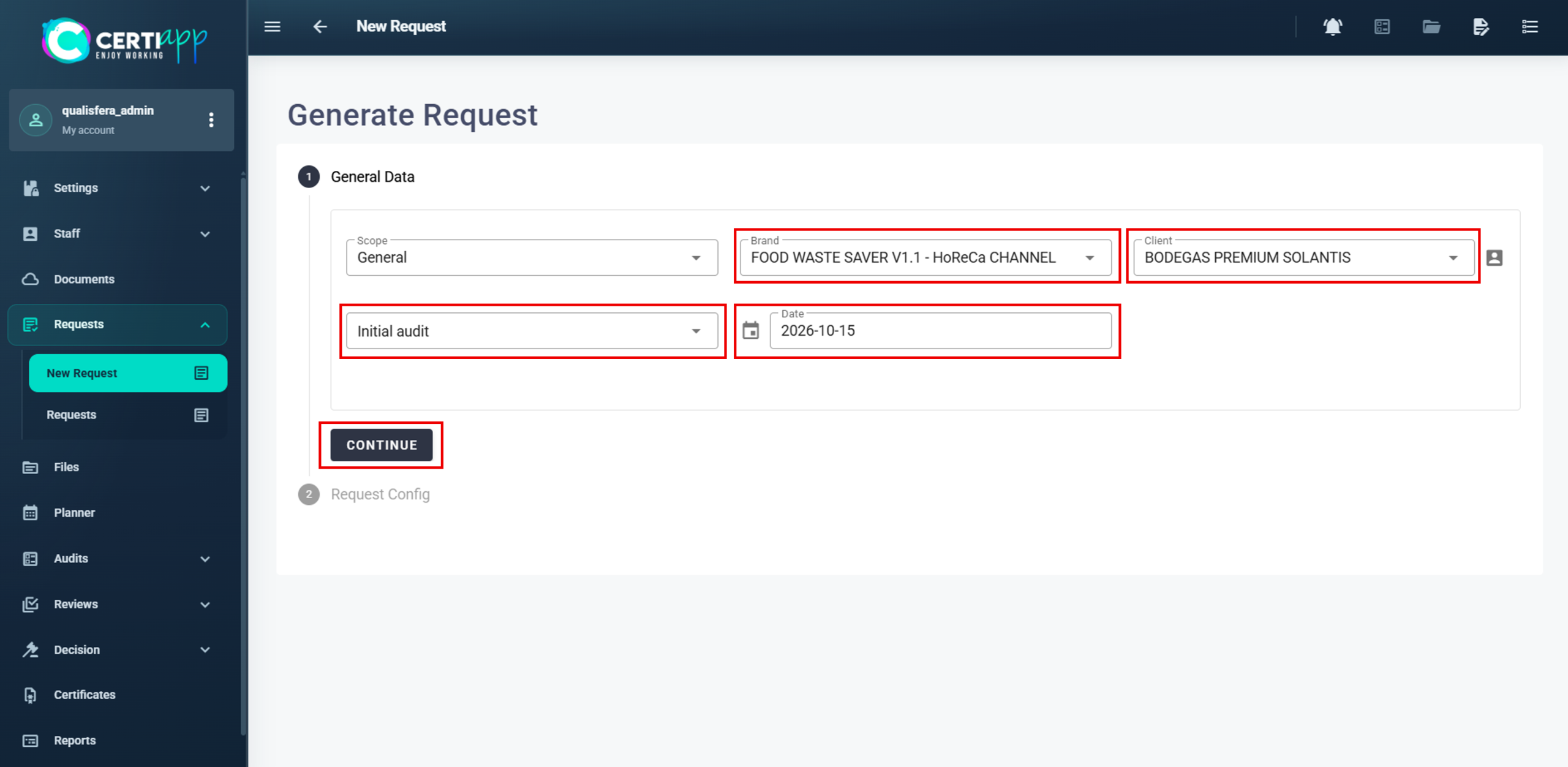
Go to Request › New Request and complete:

  • Brand: the Brand and the specific sub-scope. Only the Brands you are authorized for are shown.
  • Client: the operator. Only clients with the fee assigned for that Brand are shown.
  • Whether it is an initial certification or a renewal.

The date is set automatically to the day the request is created.

💡 Renewals (General Regulations): for each renewal, the operator must submit a new request and sign a new Certification Contract before the current certificate expires.

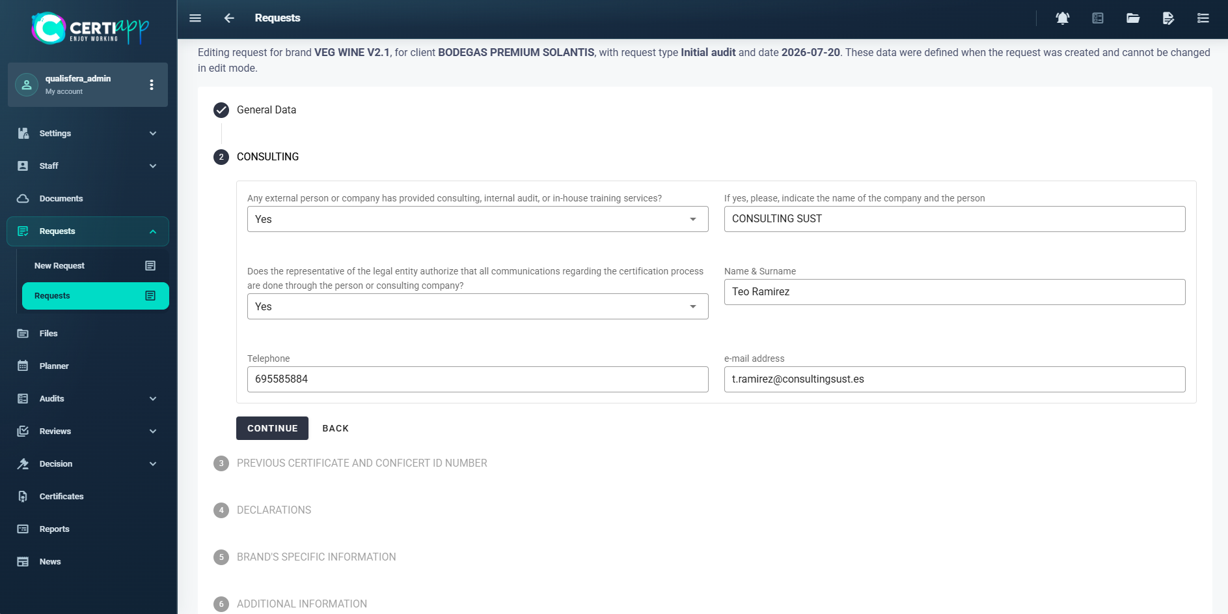
The operator completes the request, but you can help by filling in the initial data:

✔️ Consulting: answer the questions.
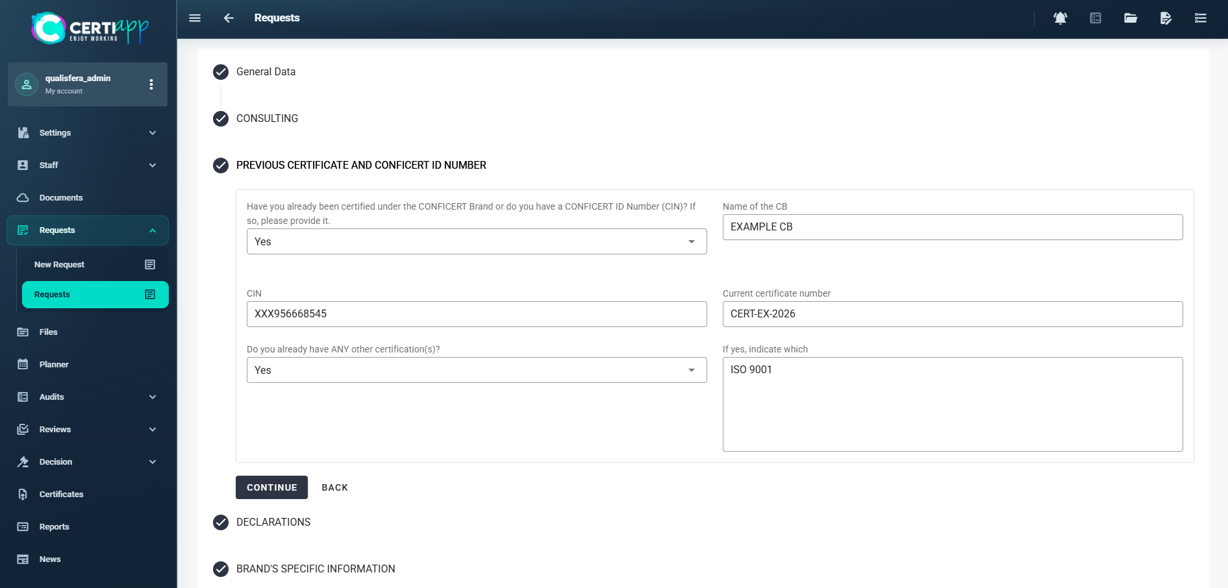
✔️ Previous Certificate and CONFICERT ID Number: indicate whether the operator holds any previous certification, from CONFICERT or otherwise, and complete the fields.
✔️ Declarations: answer the questions.
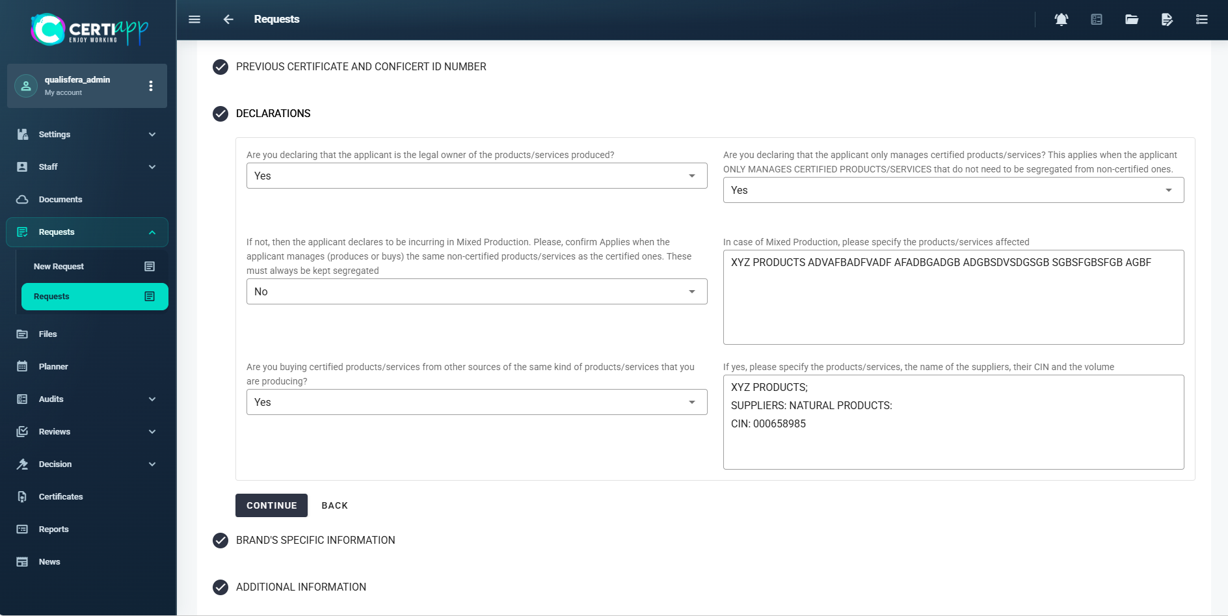
This section defines the audit, so it requires special attention. How you complete it depends on the operator type. See the next two lessons:

  • Brand’s Specific Information: individual operator.
  • Brand’s Specific Information: group of operators.

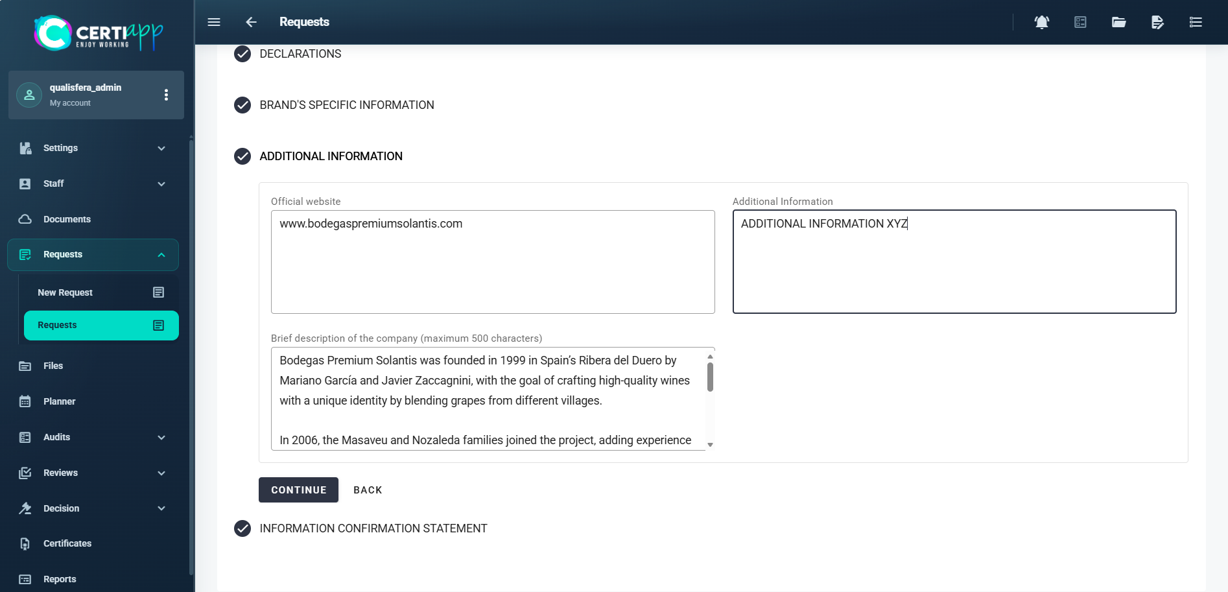
If applicable, complete the operator’s website, any other relevant information and a brief description of the company.

⚠️ Important: all the information in this section must be written in English.

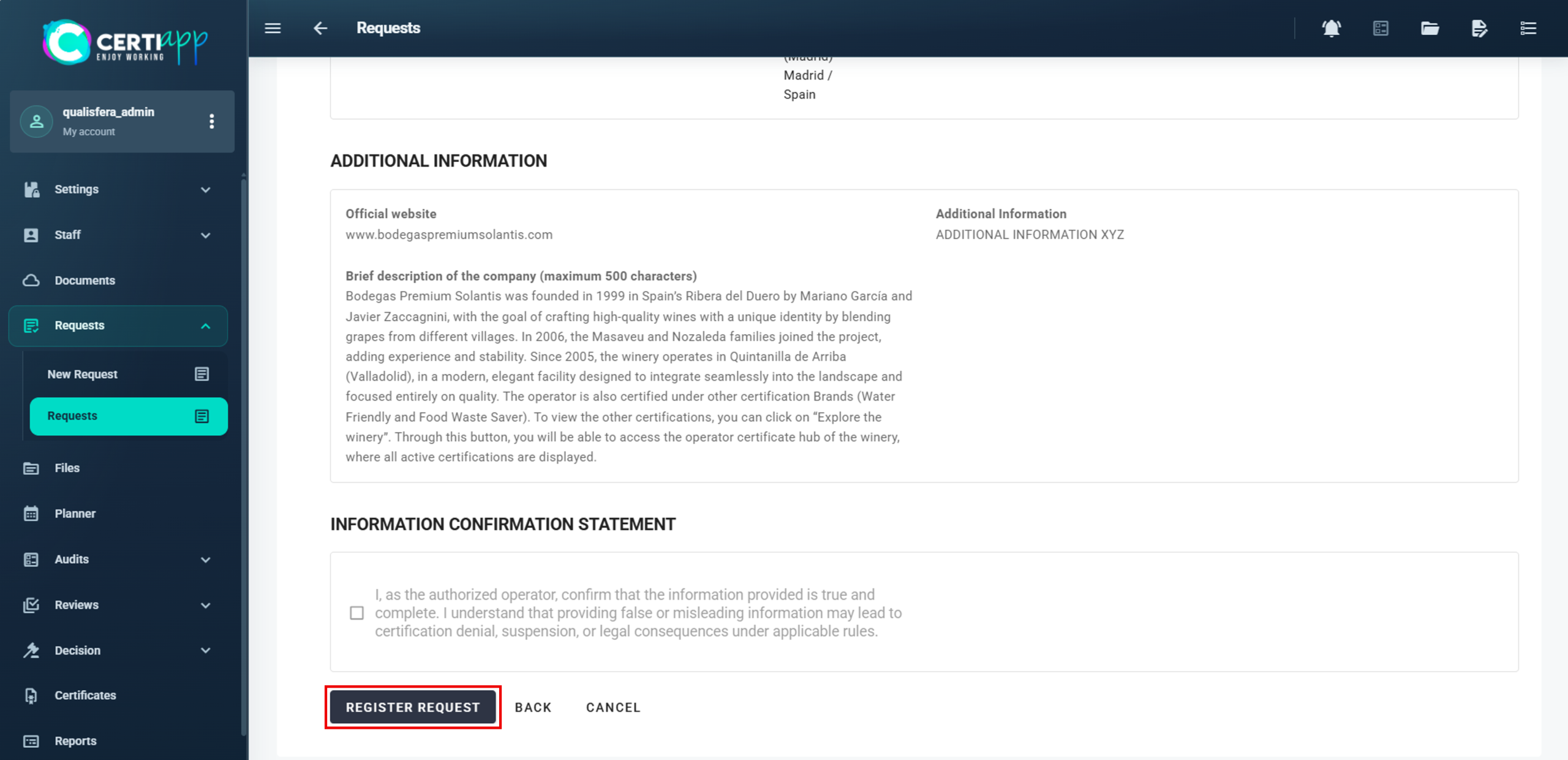
Click on Continue to see a summary of the request. To change something, click on Back. If everything is correct, click on Register Request.

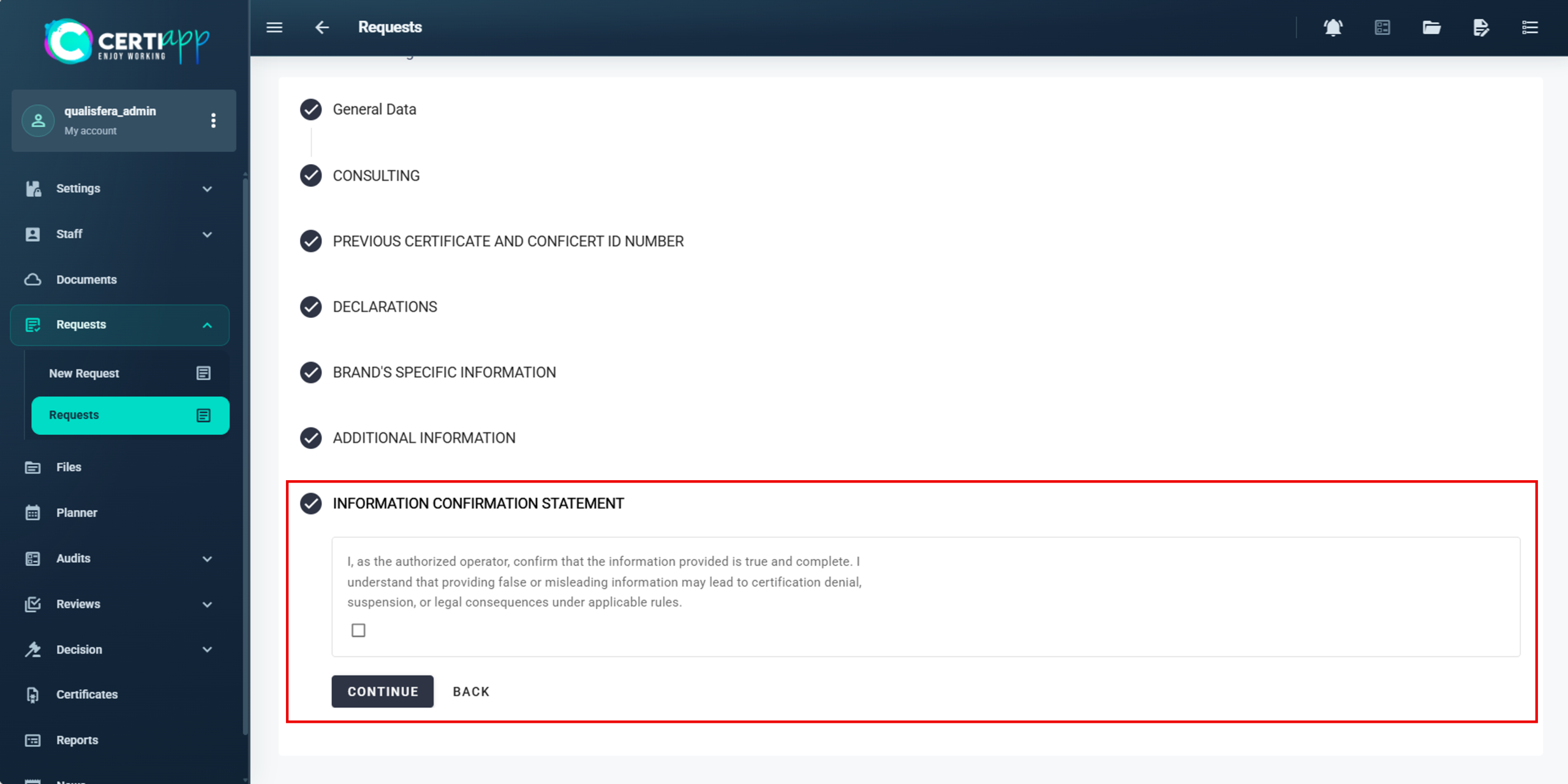
⚠️ Important: the Information Confirmation Statement must always be completed by the operator, even if you have filled in the rest of the request. It is the operator’s declaration that all the information is true.

Let the operator know that the request is partially completed and that it must review it, complete anything missing and accept the Information Confirmation Statement.

✅ Done! The request is in Pending status. When the operator has finished it, you can review and approve it.

III. Explanatory video

📄 Full details in the User Guide for Certification Bodies – CERTIAPP Platform, sections 2.5 and 3.8.

Learn how to complete the Brand’s Specific Information for a single-site or multi-site operator. This data defines the audit.

I. Before you start

✅ Know the number of sites to be audited. For some Brands, such as Food Waste Saver – HoReCa Channel, you also need the number of kitchens

✅ All sites must be registered as active Facility addresses.

✅ Identify the main location. It is always site number 1.

II. Process step by step

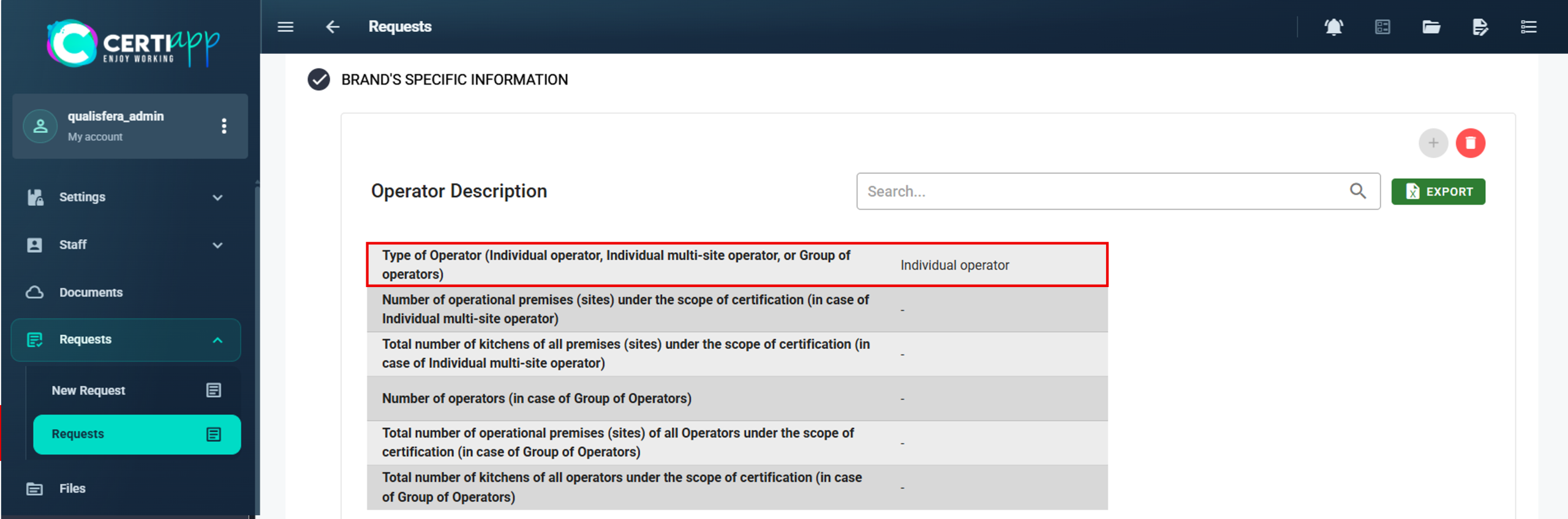
In question 1, select the operator type:

✅ Individual Operator (single site): complete only question 1 and leave the rest blank.
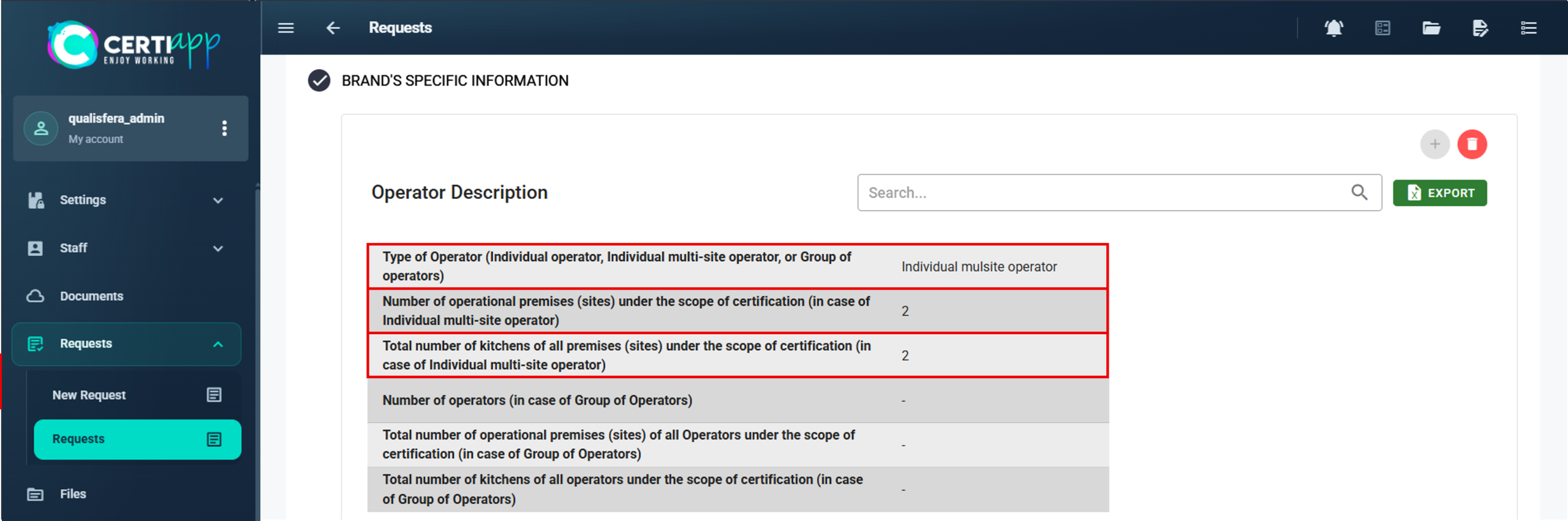
✅ Multi-site: complete question 1 and question 2, the number of sites. For Brands such as Food Waste Saver – HoReCa Channel, also complete question 3, the total number of kitchens.
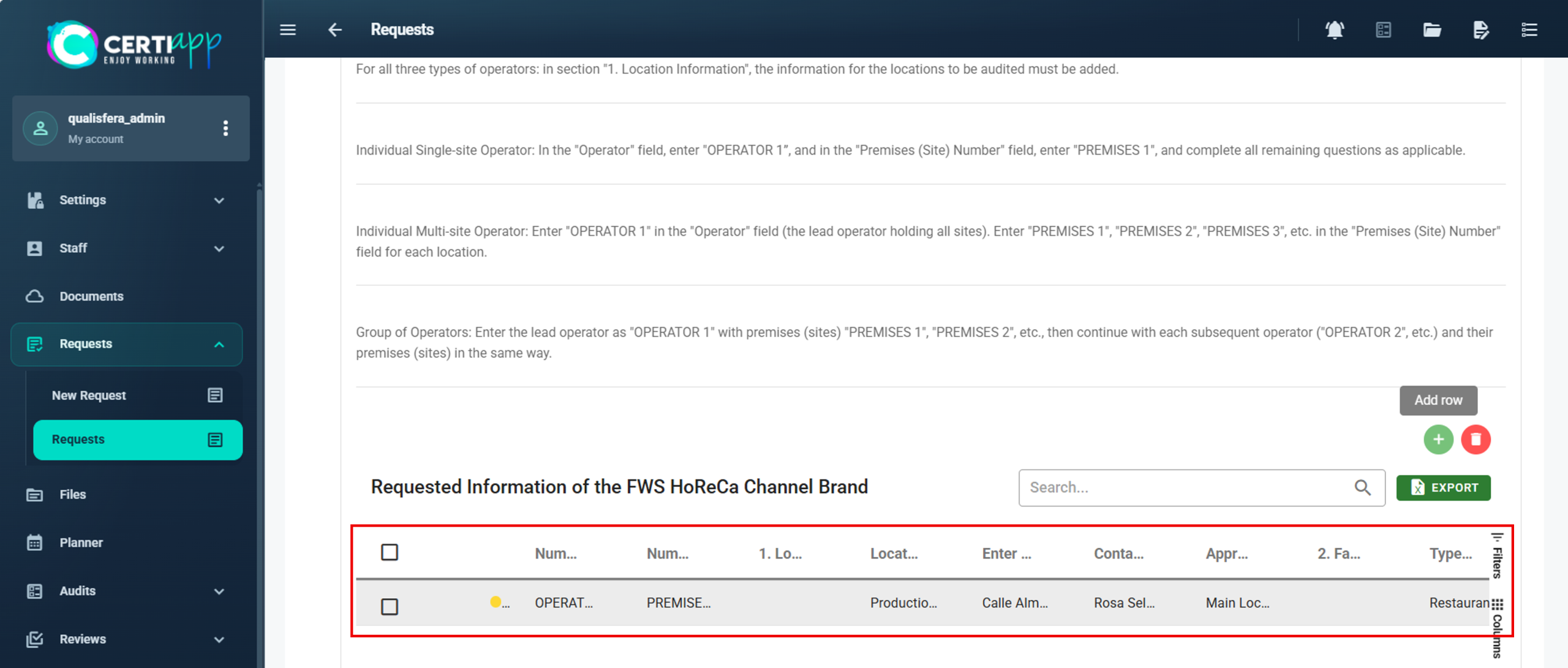
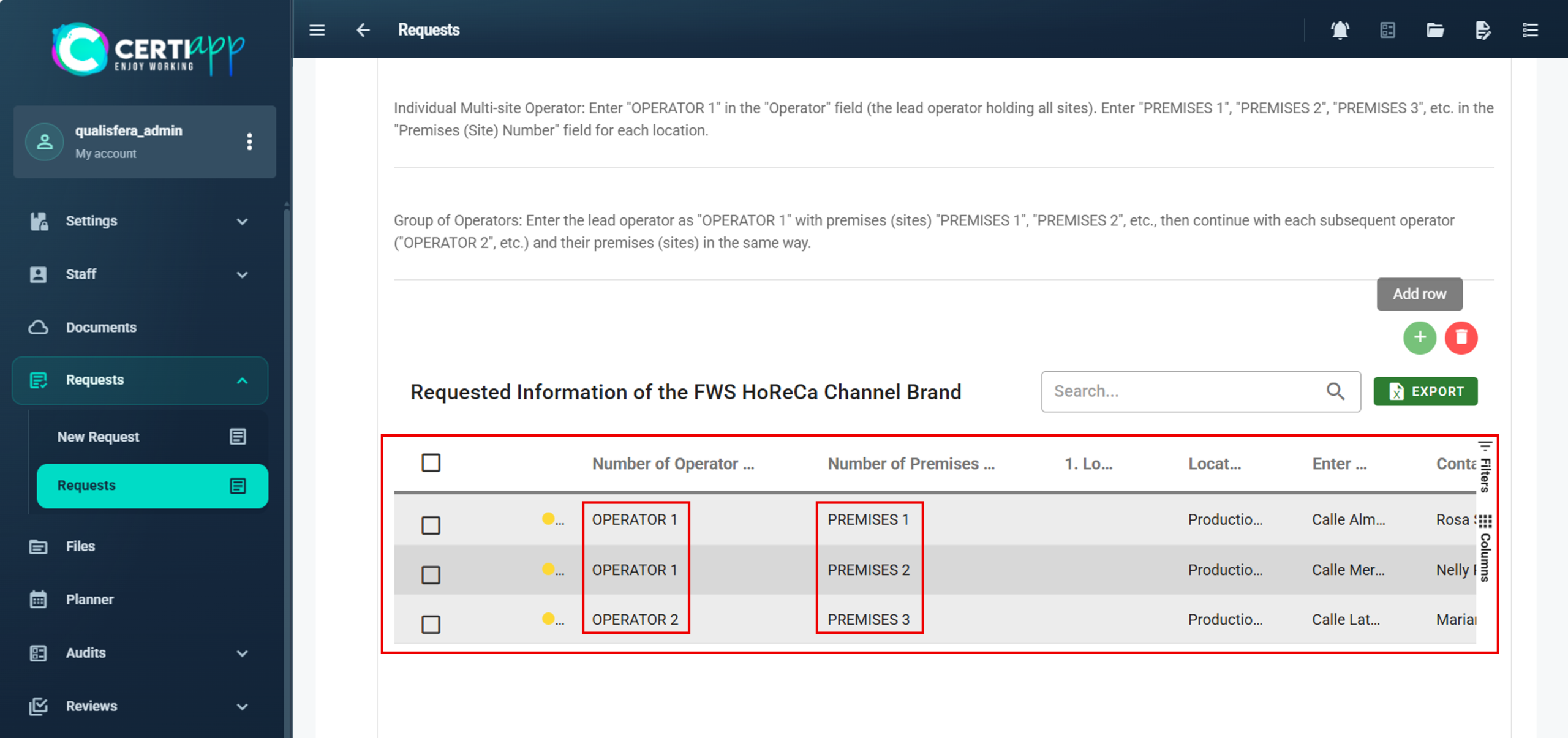
This table defines the audit plan. Each row is one site. Click on + to add a row.
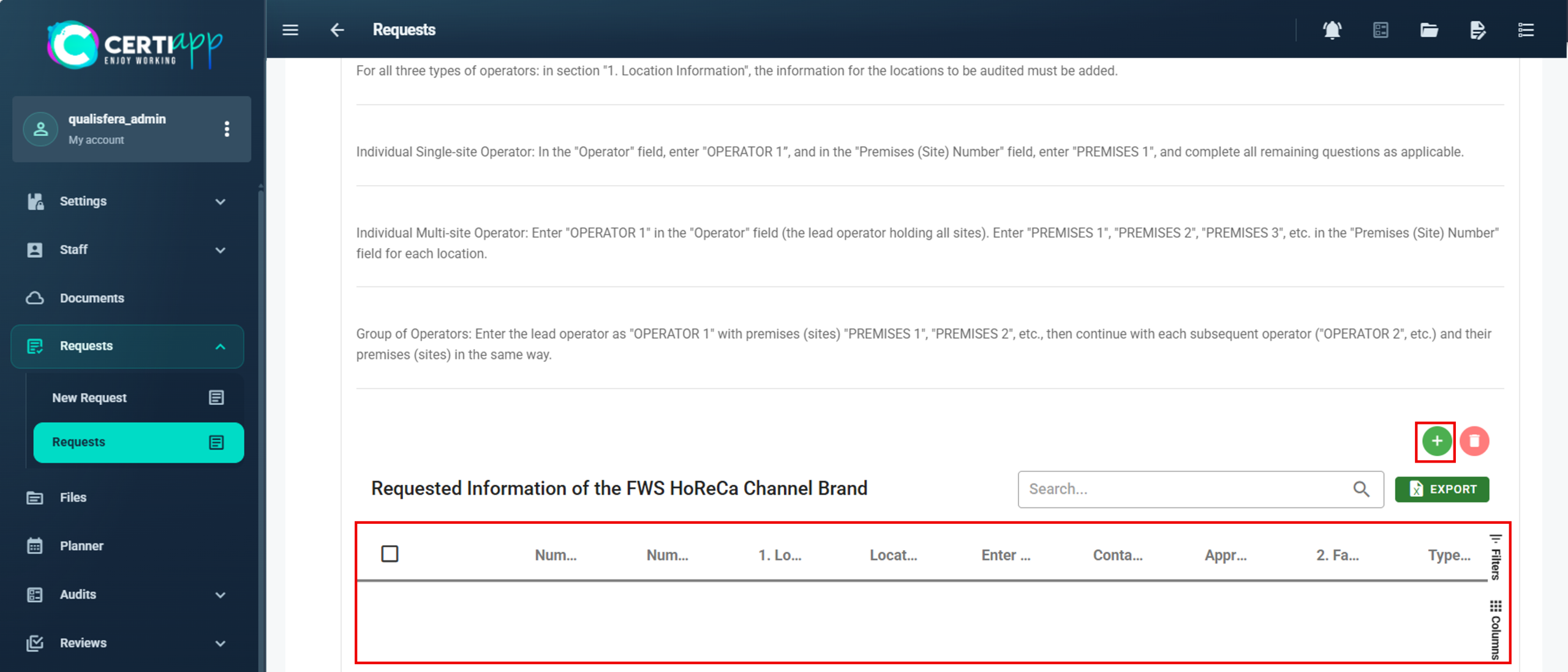
Every row has these common questions:

  • Operator number: OPERATOR 1, always in capital letters.
  • Site number: use the term that appears in the Brand’s request (for example, PREMISES, SITE or OPERATIONAL UNIT), followed by the number: PREMISES 1, SITE 1, OPERATIONAL UNIT 1… Always use capital letters.
  • Location: the registered Facility address for that site.
  • Location address and contact person.
  • Approximate distance to the main location: Main Location for PREMISES 1, or the distance from it for the rest.

The remaining questions, about production or work, depend on the Brand.

💡 Note: each Brand uses its own term for sites. The examples in this lesson use PREMISES. Replace it with the term in your request.
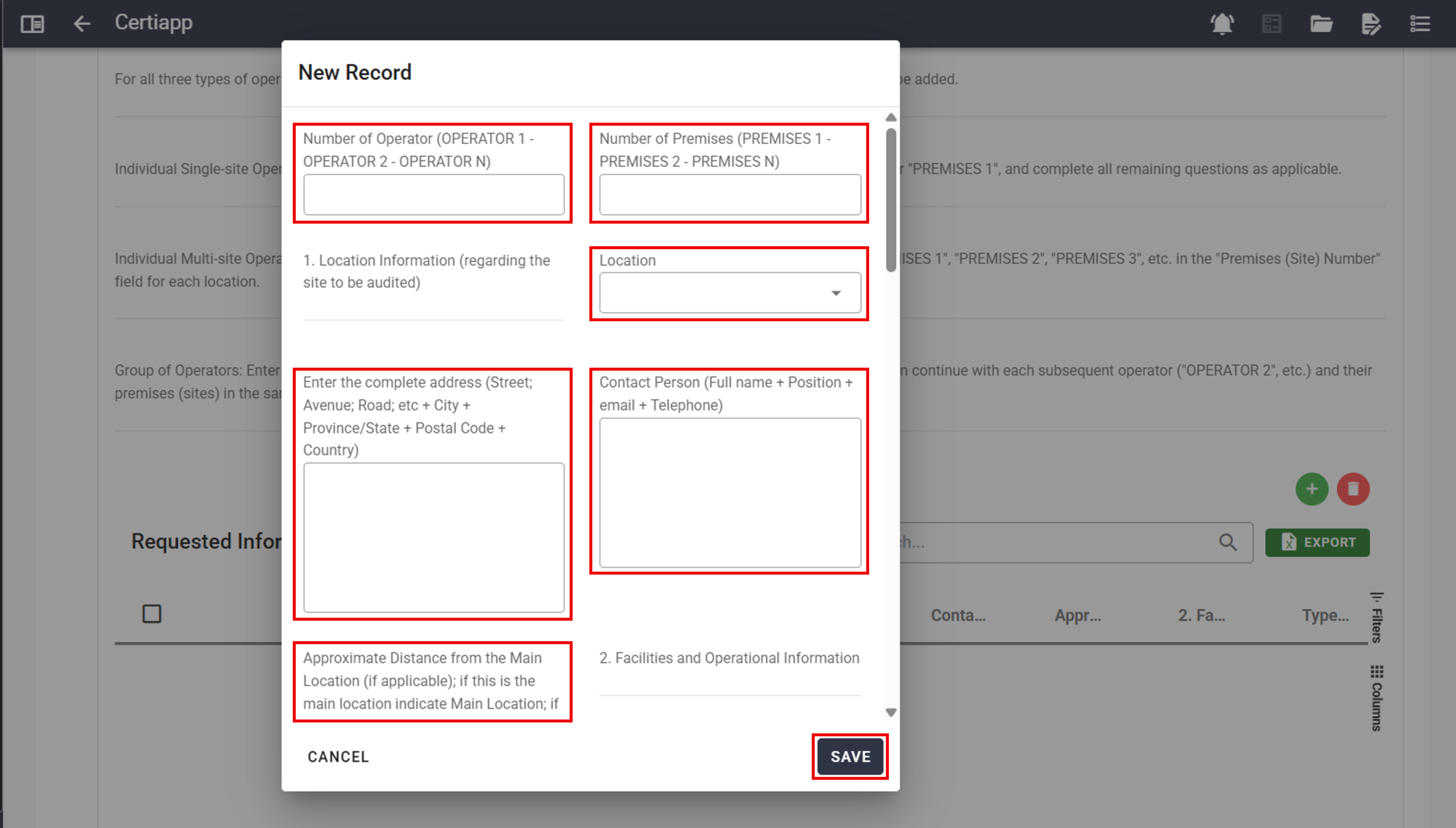
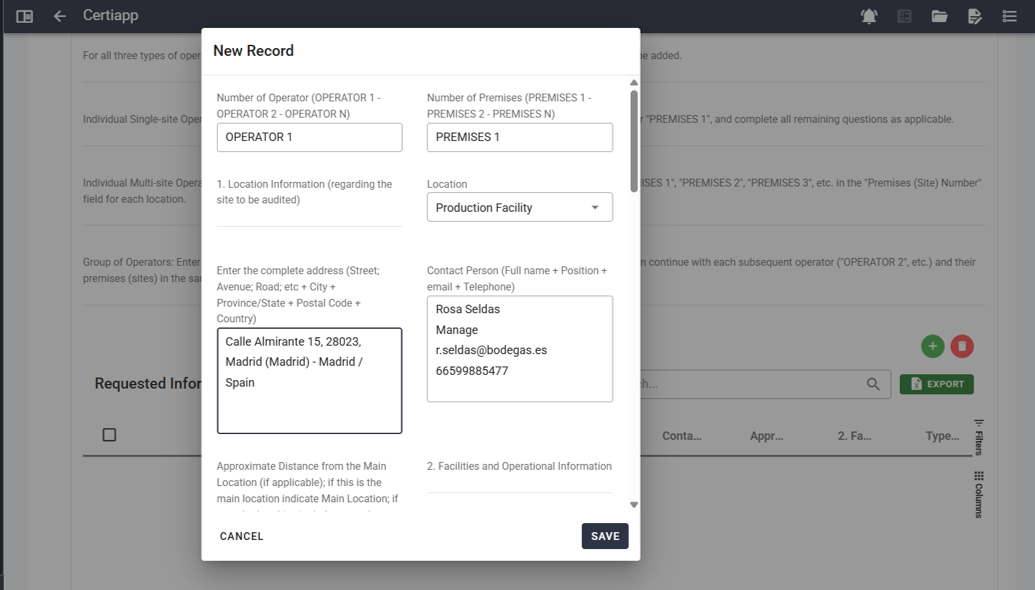
Add one row with OPERATOR 1 and PREMISES 1. Select the location, complete the address and contact person, and enter Main Location. Complete the Brand’s questions and click on Save.

✅ First row: OPERATOR 1 and PREMISES 1. This is always the Main Location. Complete everything and click on Save.

✅ Next rows: keep OPERATOR 1 and change the site to PREMISES 2, PREMISES 3… Select the location, and add the address, the contact person and the distance to the main location. Click on Save.
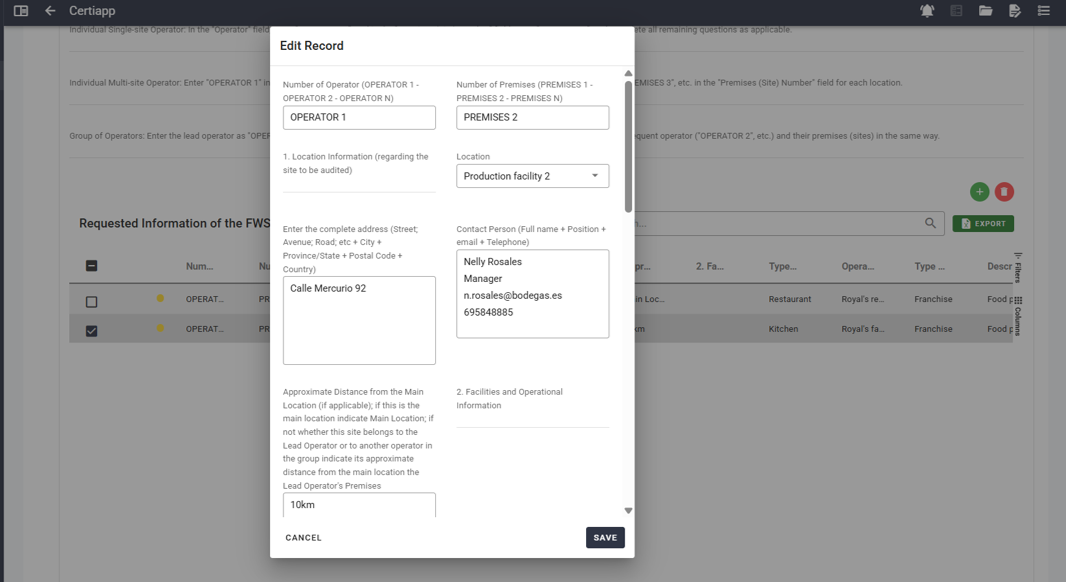
⚠️ Important: the question “Does anyone in the company have the official Brand course completed?” is answered only once, in PREMISES 1, because the course belongs to the operator, not to the site. In the other rows, enter “-”.
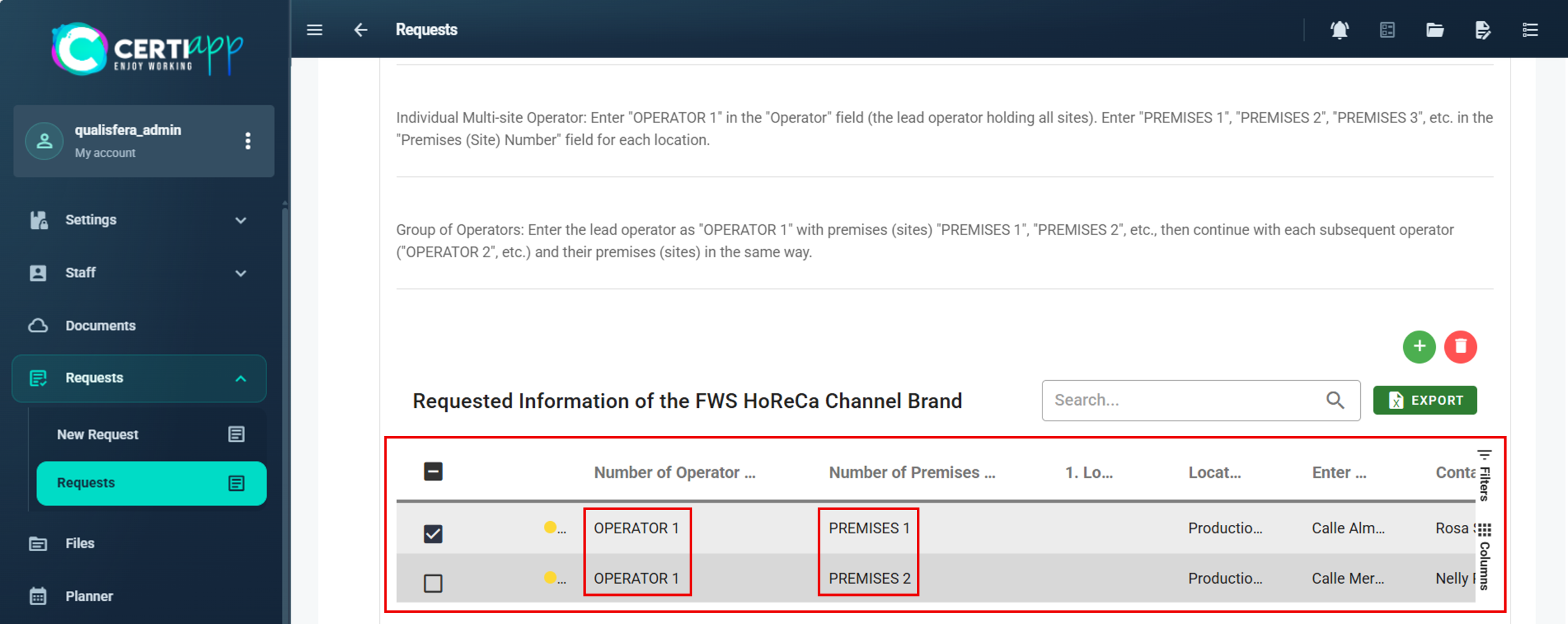
⚠️ Do not complete the Group of Operators Information table. It is only for groups of operators.

✅ Done! Continue with the Additional Information section and register the request (see Creating the request, Steps 4 to 6).

III. Explanatory video

📄 Full details in the User Guide for Certification Bodies – CERTIAPP Platform, section 3.8.4.

Learn how to number the operators and sites of a group and complete the three tables of the Brand’s Specific Information.

I. Before you start

✅ The Lead Operator is the client registered in CERTIAPP. It manages the process on behalf of the whole group and is always OPERATOR 1.

✅ Have this information at hand: the number of operators, the sites of each one and, if the Brand requires it, the number of kitchens.

✅ All sites must be registered as active Facility addresses.

✅ Check which term the Brand uses for sites (PREMISES, SITE, OPERATIONAL UNIT…). The examples in this lesson use PREMISES.

💡 Example used in this lesson: OPERATOR 1 (lead operator) has 2 sites. OPERATOR 2 has 1 site.

II. Process step by step

Step 1. Operator Description table

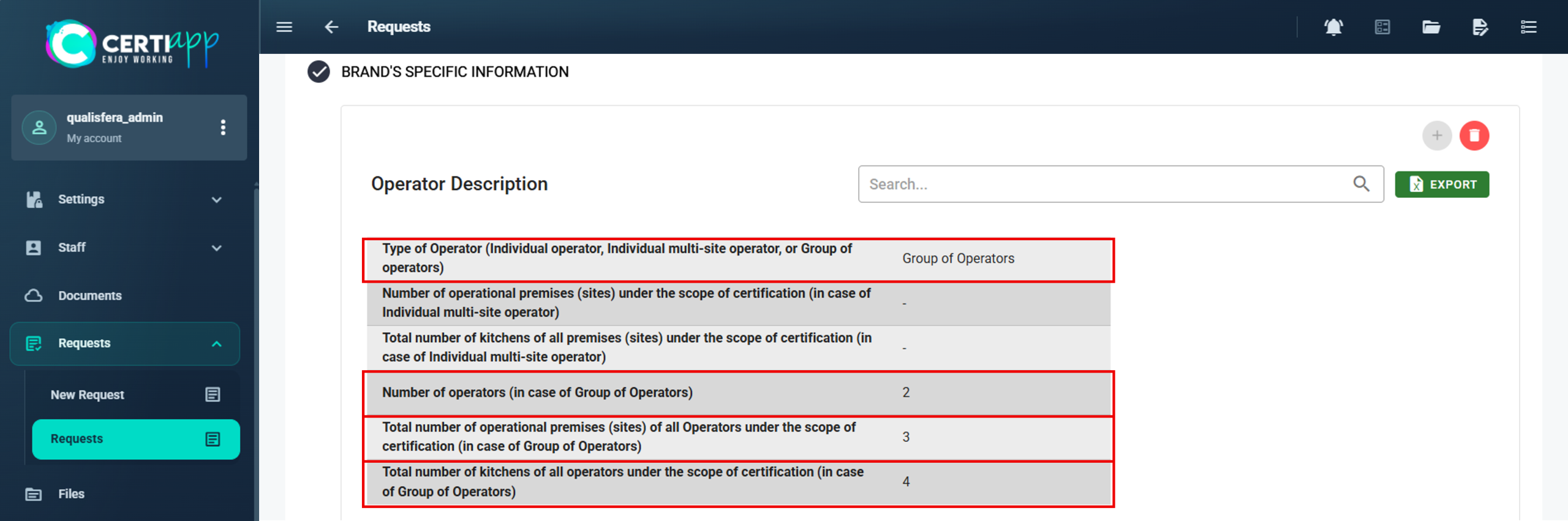
In question 1, select Group of Operators and complete:

  • Question 4: total number of operators, including the lead operator. Example: 2.
  • Question 5: total number of sites of all operators. Example: 3.
  • Question 6: total number of kitchens of all operators, if the Brand requires it.

This table defines the audit plan. Each row is one site. Click on + to add a row.

✅ Row 1: OPERATOR 1 and PREMISES 1, the Main Location of the whole group. Complete everything and click on Save.

✅ Row 2: OPERATOR 1 and PREMISES 2. Add the location, the address, the contact person and the distance to the main location. Click on Save.

⚠️ Important: in the rows of this table, do not answer “Does anyone in the company have the official Brand course completed?”. Enter “-”. For groups, this question is answered in the third table.

✅ Row 3: OPERATOR 2 and PREMISES 3. The site numbering continues across the whole group; it does not restart for each operator. Add the location, the address, the contact person and the distance to the main site of OPERATOR 1. Click on Save.
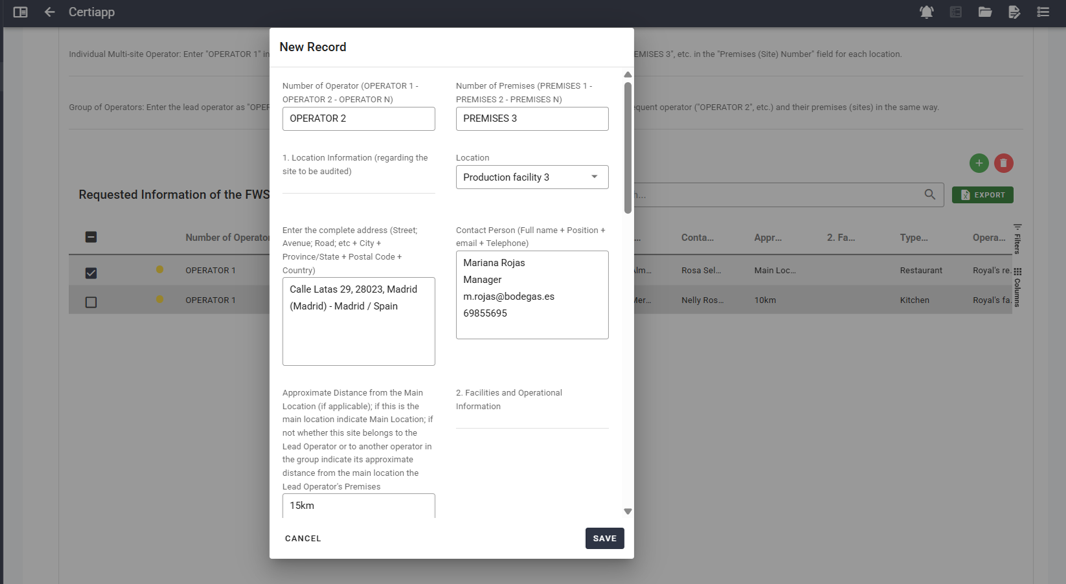
Repeat for each additional operator and site.
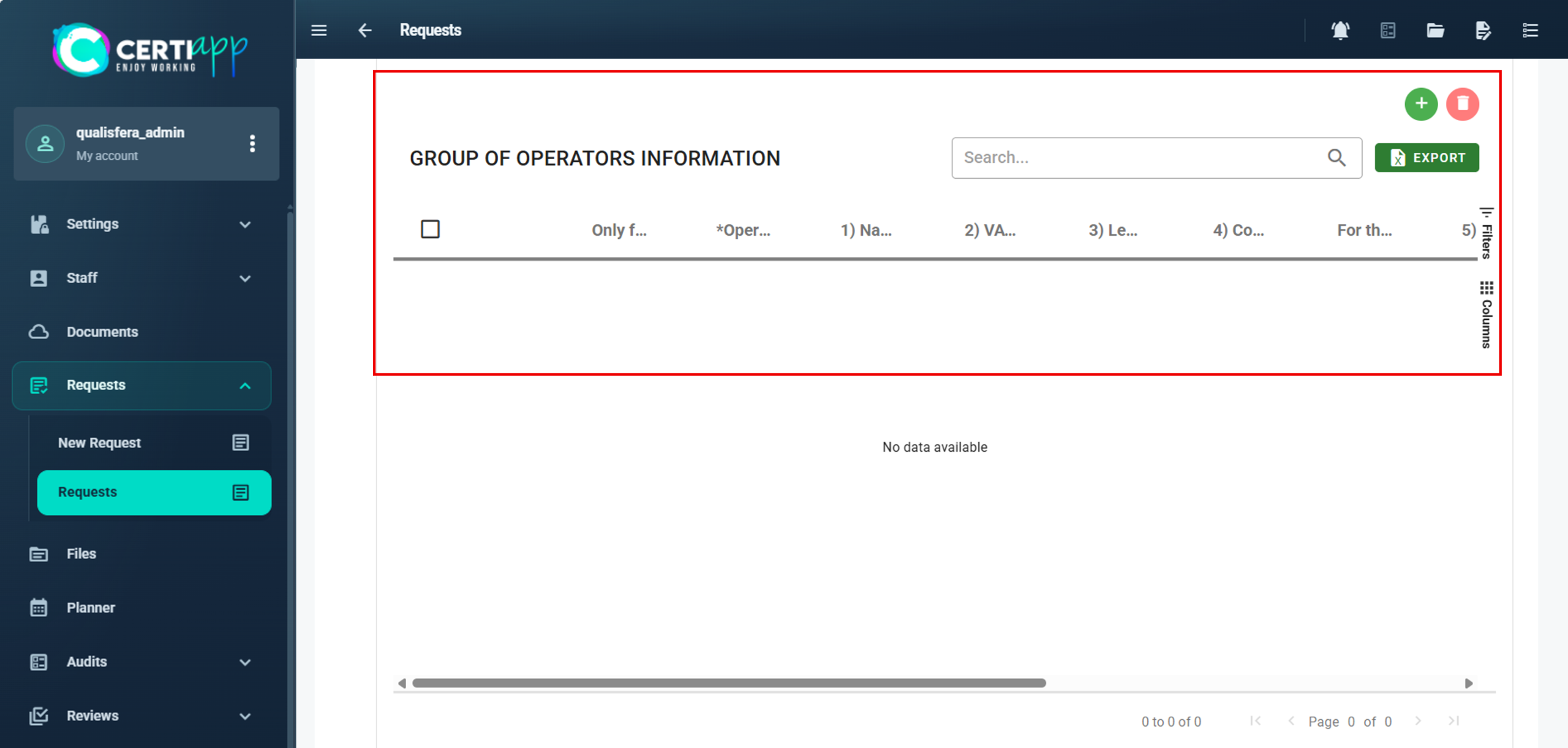
Click on + to add one row per operator.
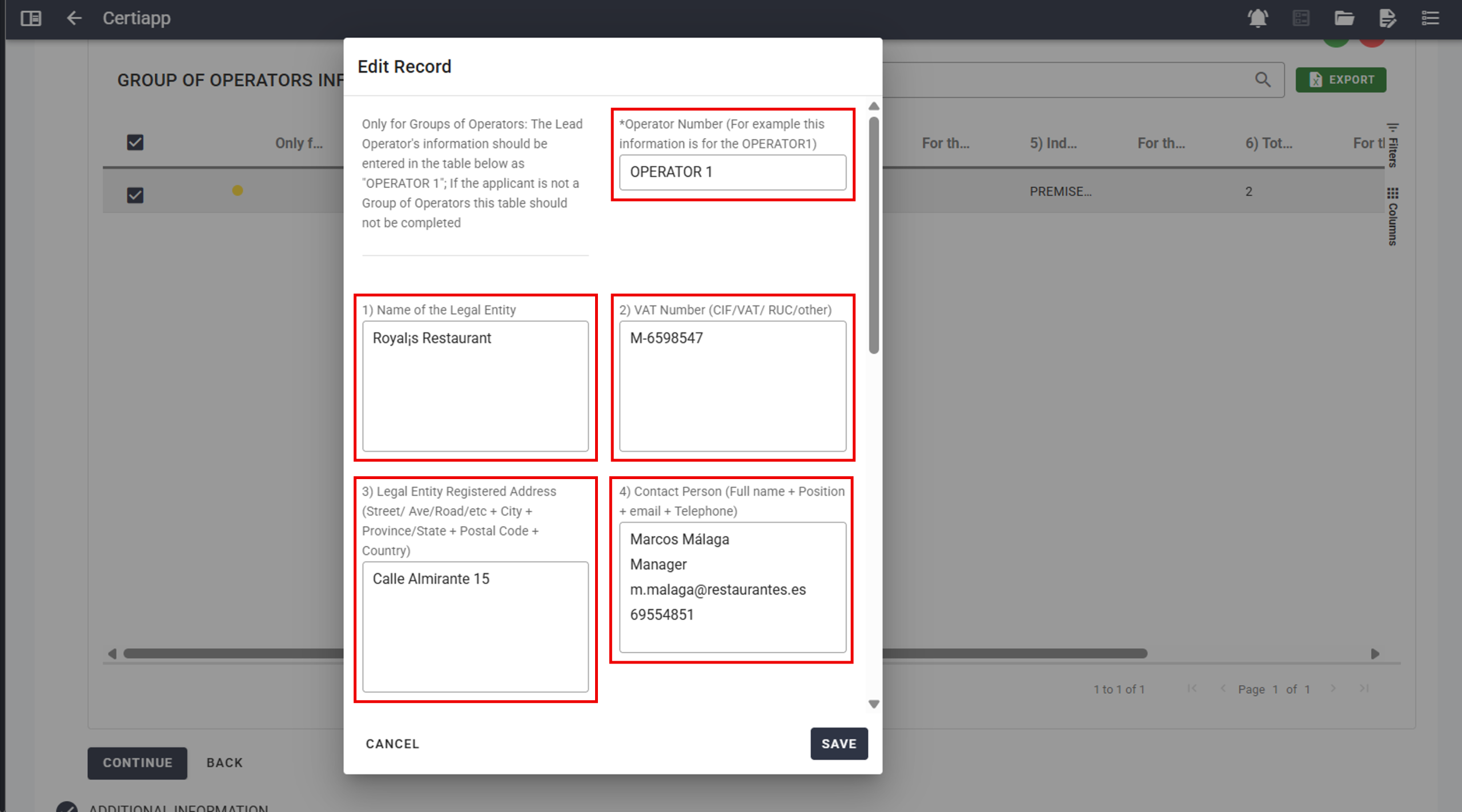
In each row:

✔️ Operator Number: OPERATOR 1, OPERATOR 2…, in capital letters.
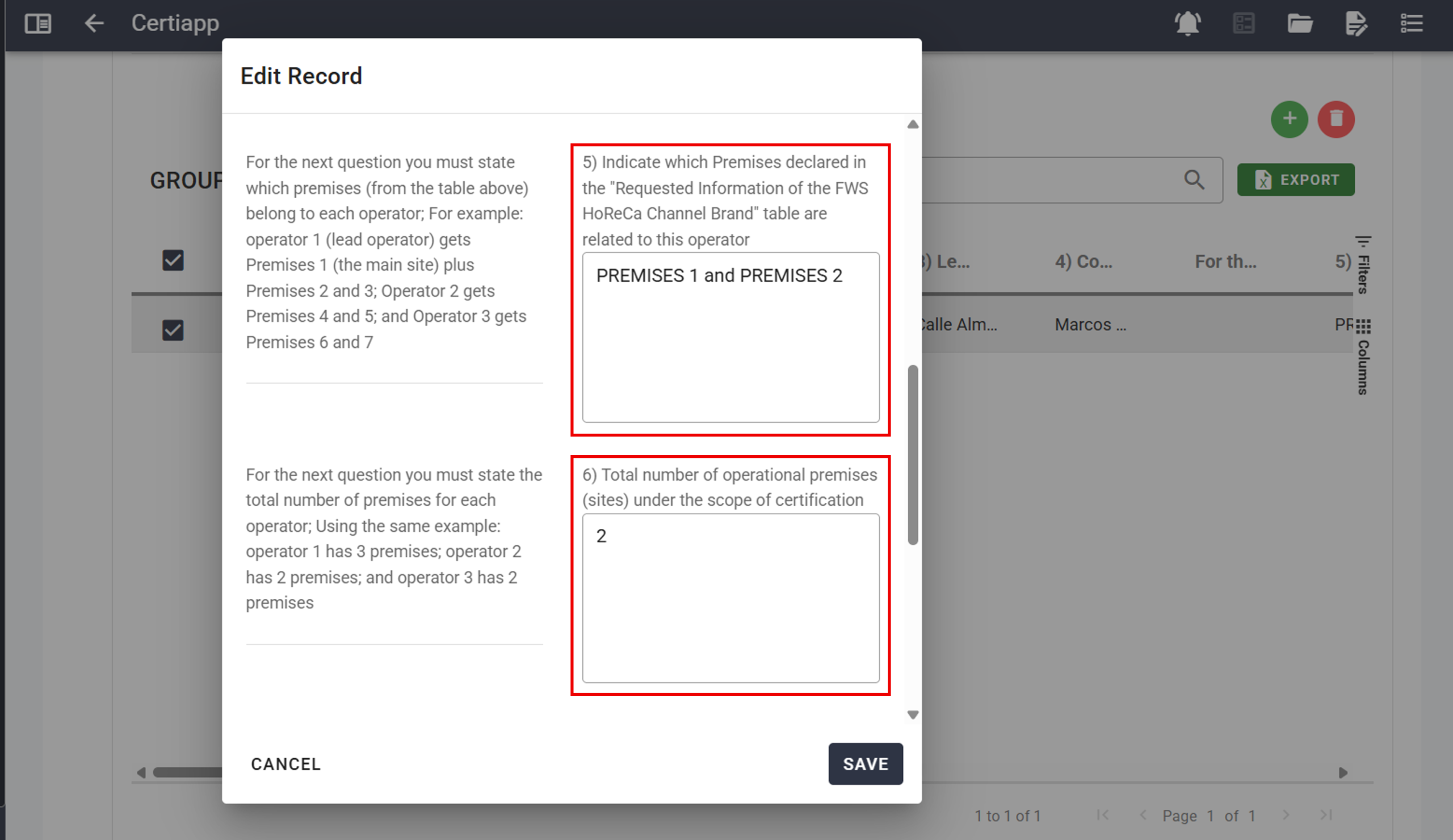
✔️ Question 5: the operator’s sites, as declared in the previous table. Example for OPERATOR 1: PREMISES 1 and PREMISES 2.

✔️ Question 6: the operator’s total number of sites. Example: 2.
✔️Question 7: the operator’s total number of kitchens.

✔️ Official Brand course: Yes or No for each operator.
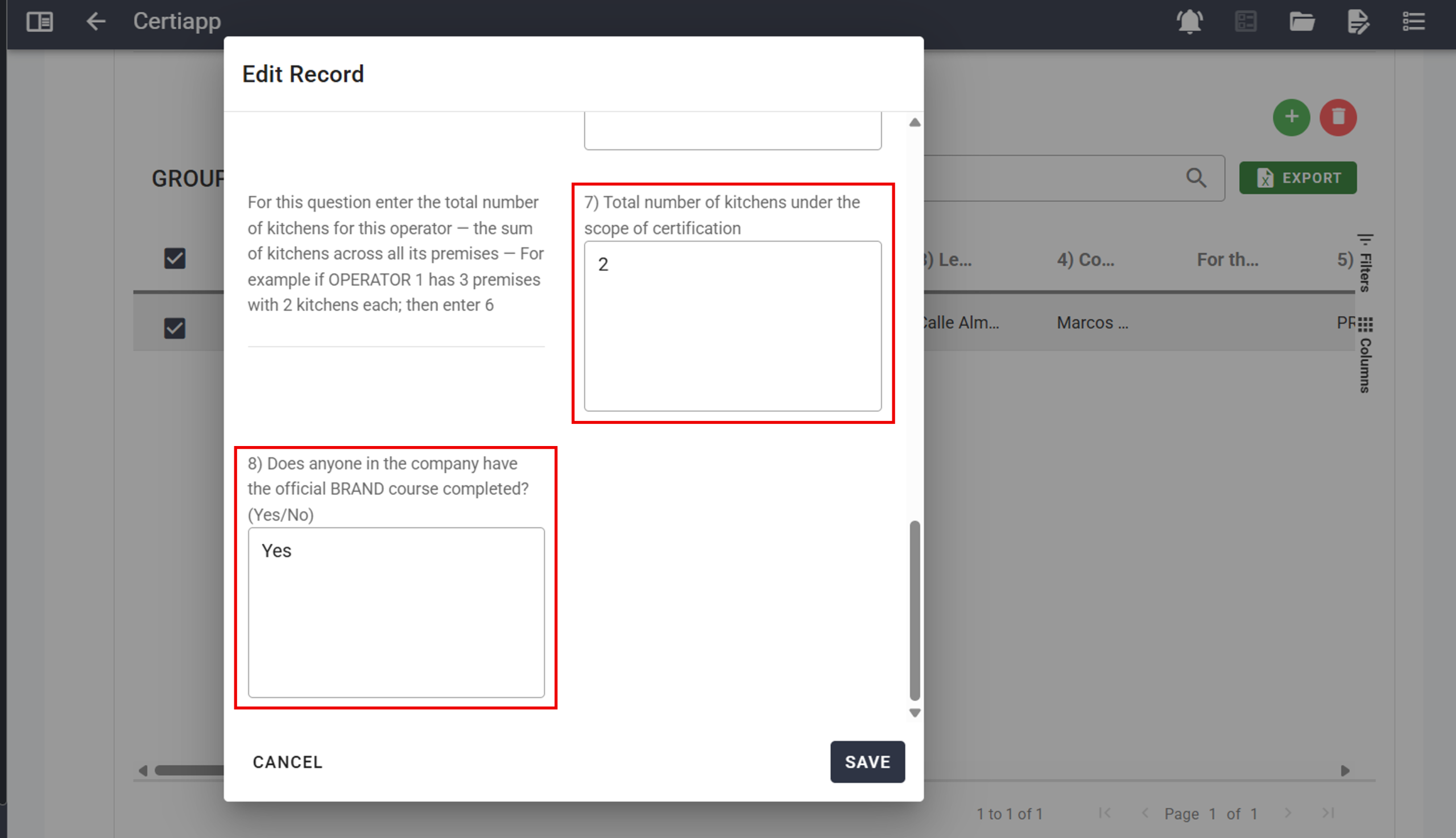
Click on Save and repeat for each operator.
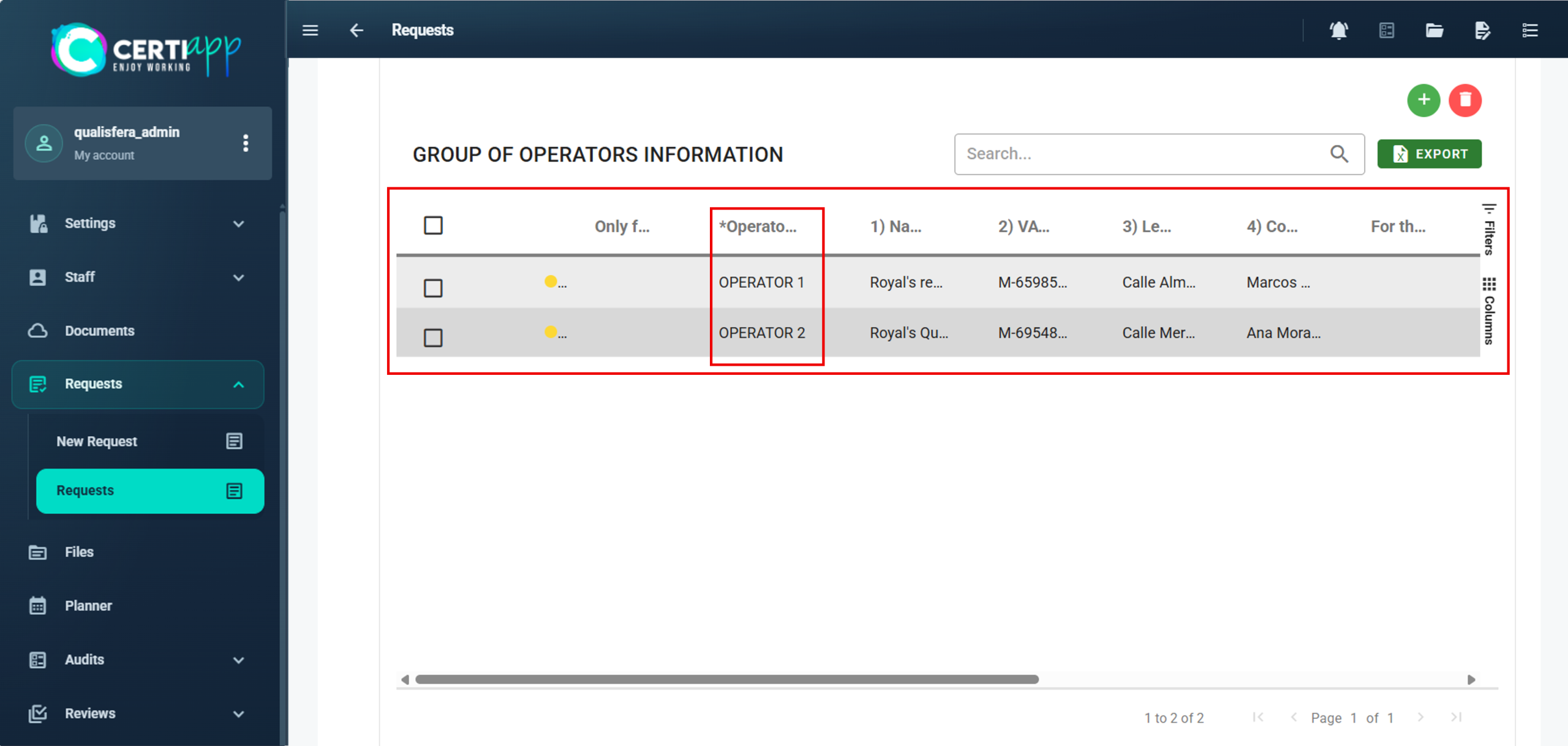
✅ Done! Continue with the Additional Information section and register the request (see Creating the request, Steps 4 to 6).

III. Explanatory video

📄 Full details in the User Guide for Certification Bodies – CERTIAPP Platform, section 3.8.4.

Learn how to review and approve the request, reopen it if something needs to be corrected, and issue the Request document.

I. Before you start

✅ The operator must have completed the request, accepted the Information Confirmation Statement, and let you know.

II. Process step by step

Go to Request › Request and open the request, which is in Pending status. Check that all the data entered by the operator is correct, especially the Brand’s Specific Information.

💡 Tip: while the request is Pending, you can still edit it.

Click on the ✔️ icon. The status changes to Approved, and the file for that operator and Brand is generated automatically in Files.

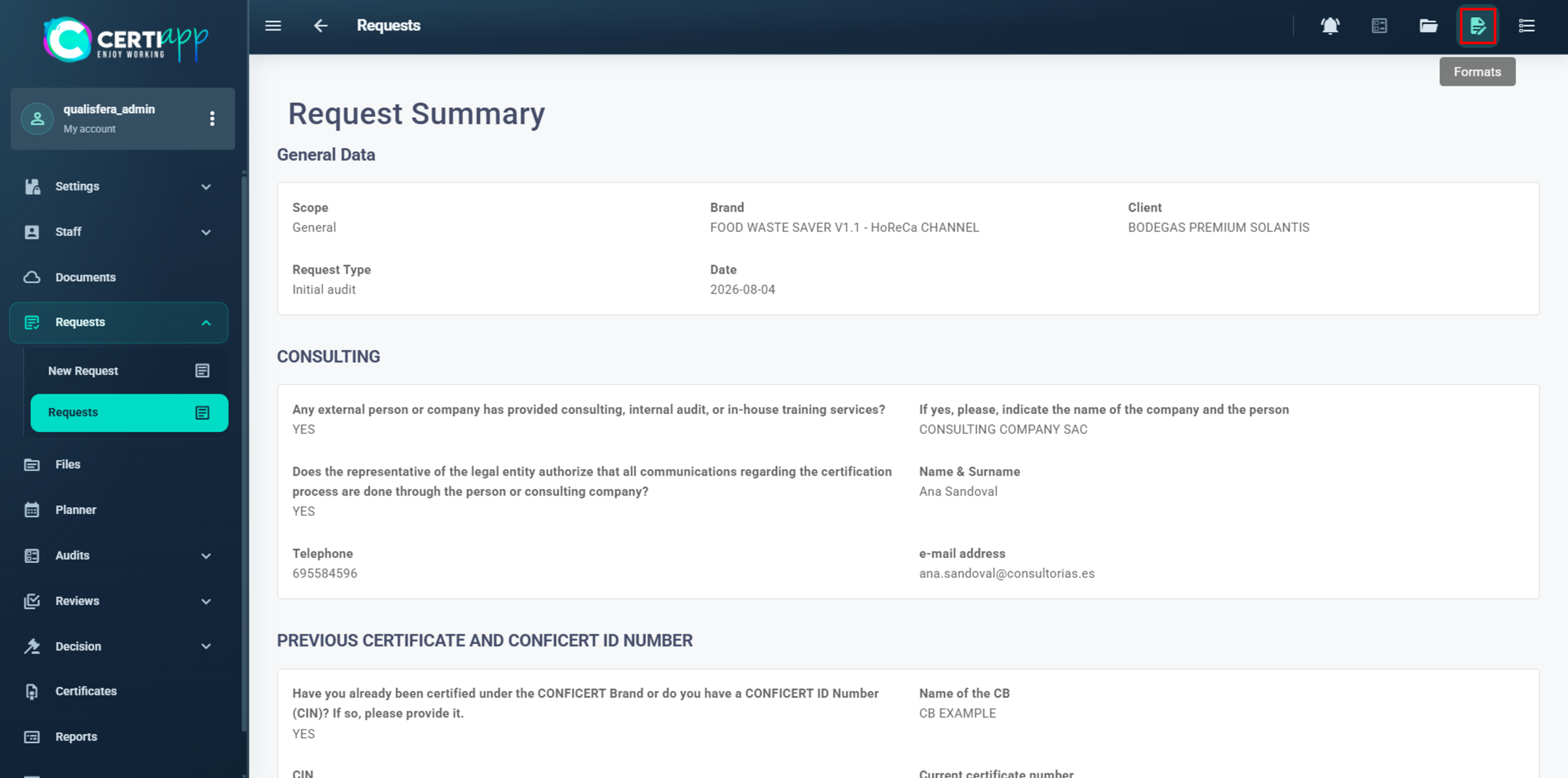
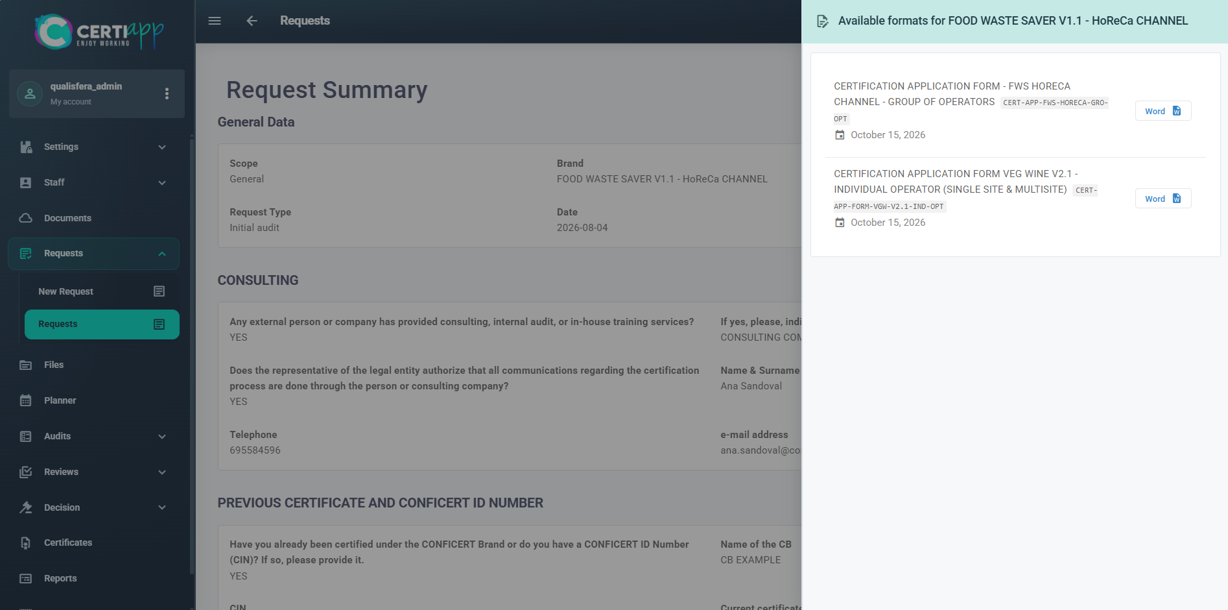
Open the approved request and click on the 📃 icon in the top right corner. Download the format for the operator type; the type is shown in the document name. The document is generated in Word.

Review the document, convert it to PDF and send it to the operator. Also save it in the operator’s Documentation to keep the traceability of the file.

💡 Other actions in the request list:

  • 🔄 Reopen: to correct data in an approved request. This is only possible if no audit has been opened yet.
  • 🗑️ Delete: to delete a request.

✅ Done! The file is ready. Next, prepare the audit.

III. Explanatory video

📄 Full details in the User Guide for Certification Bodies – CERTIAPP Platform, sections 2.5.2, 3.8 and 3.9.

Module 5 – Audit Setup

Learn how to prepare the activity templates you will use to build the Audit Plan for each audit.

I. Before you start

✅ You only need to create the templates once. You can then reuse them in every audit and adapt them to each case.

✅ Have a standard audit agenda at hand: opening meeting, site visit, document review, closing meeting, and so on.

II. Process step by step

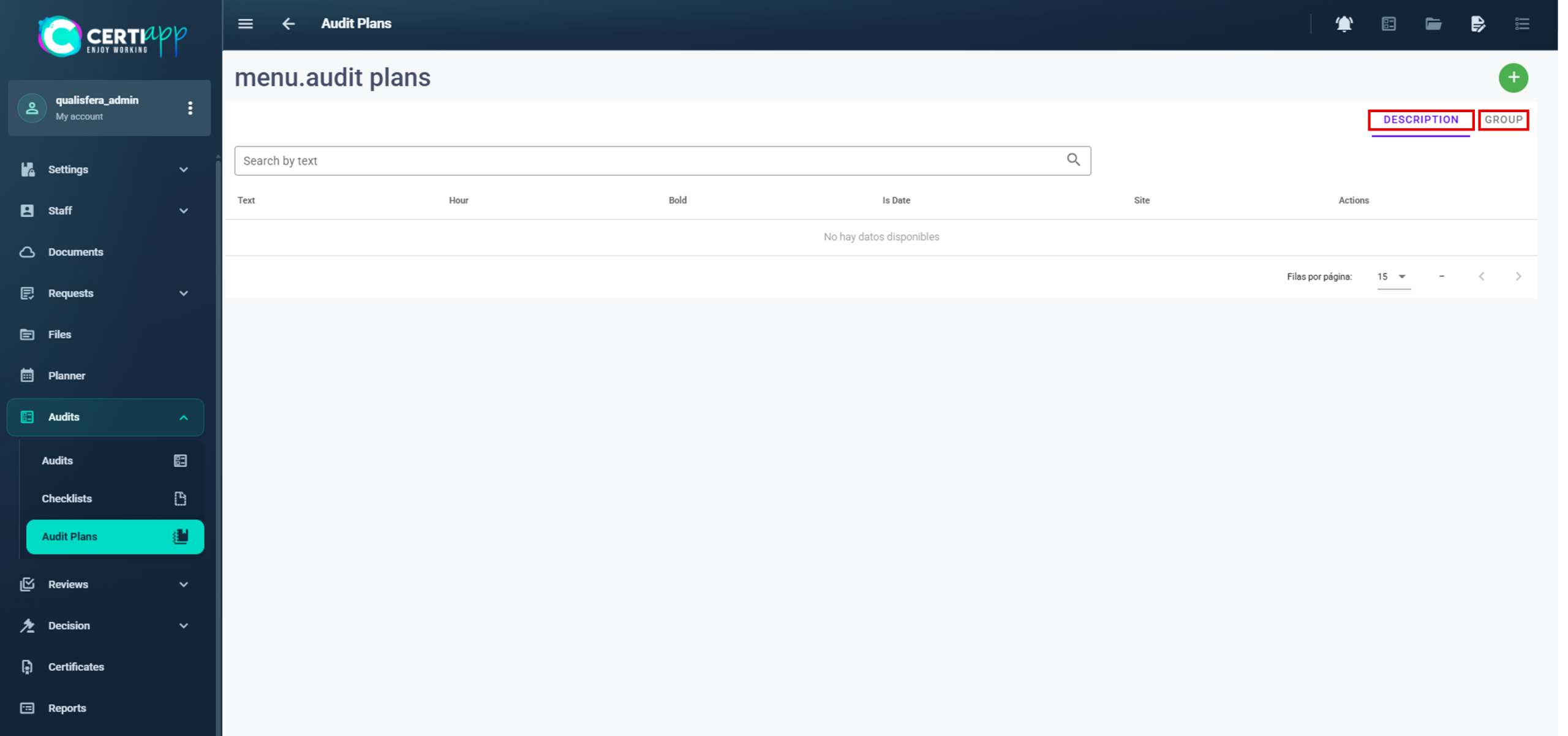
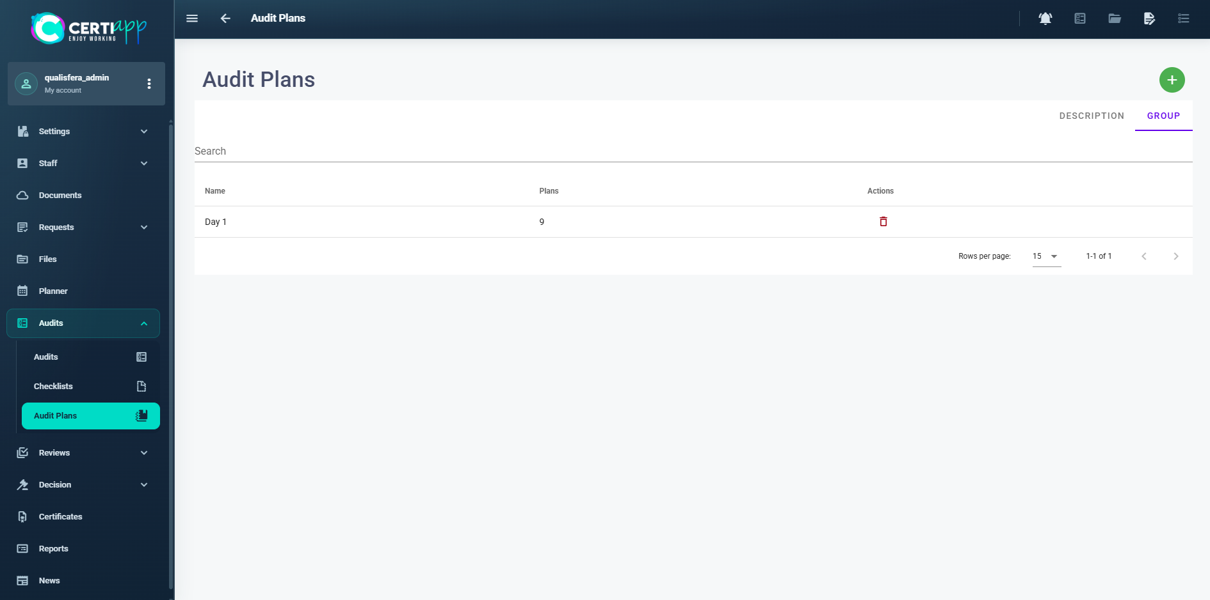
Go to Audits › Audit plans. This section has two parts: Description and Group.

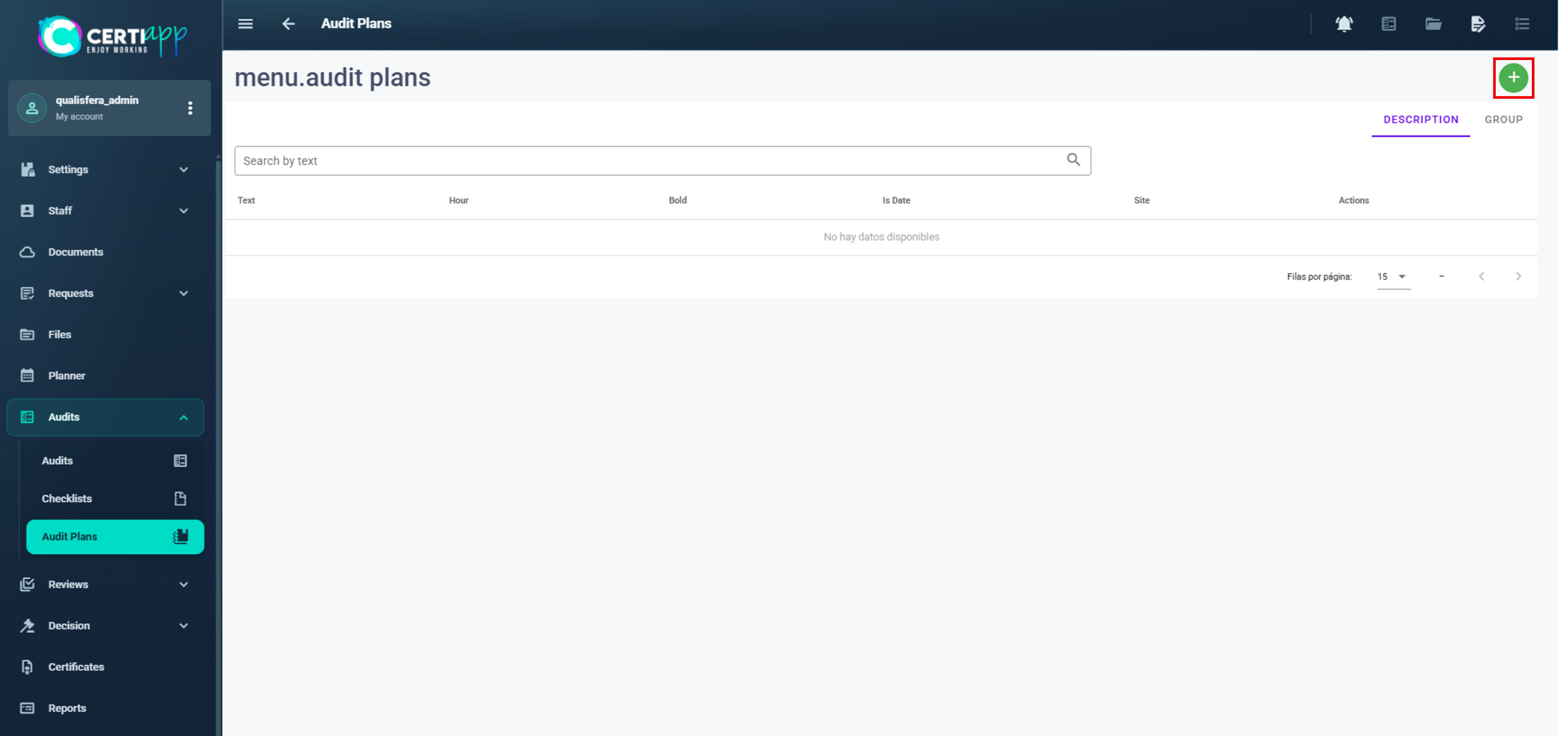
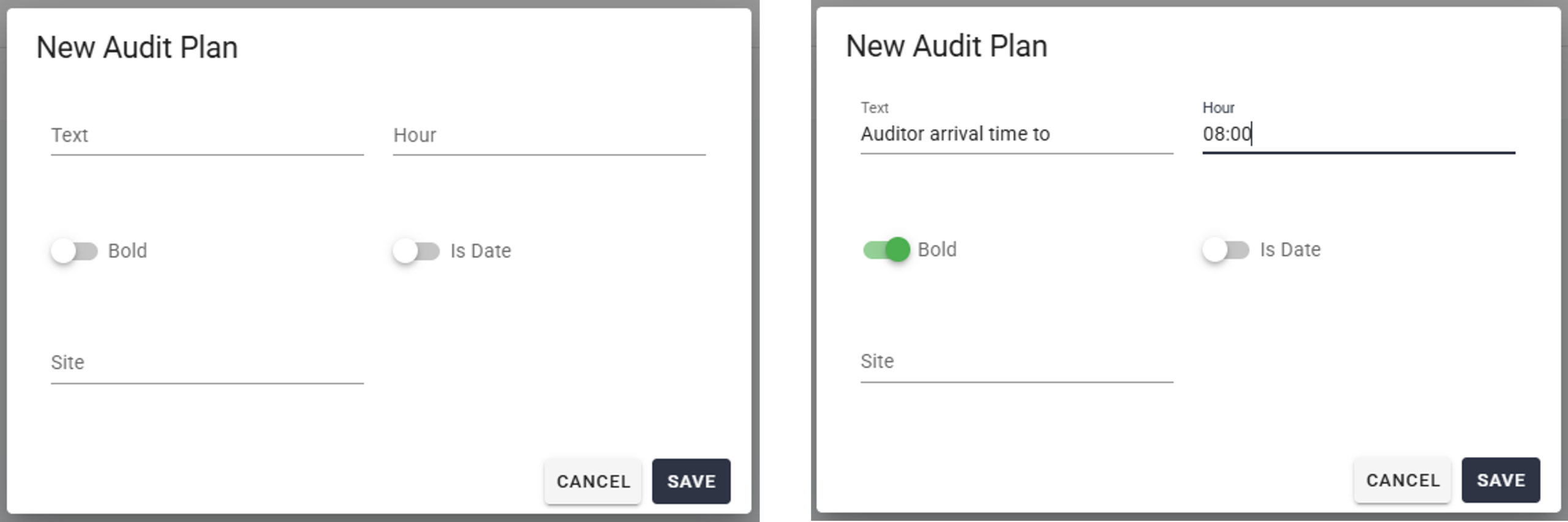
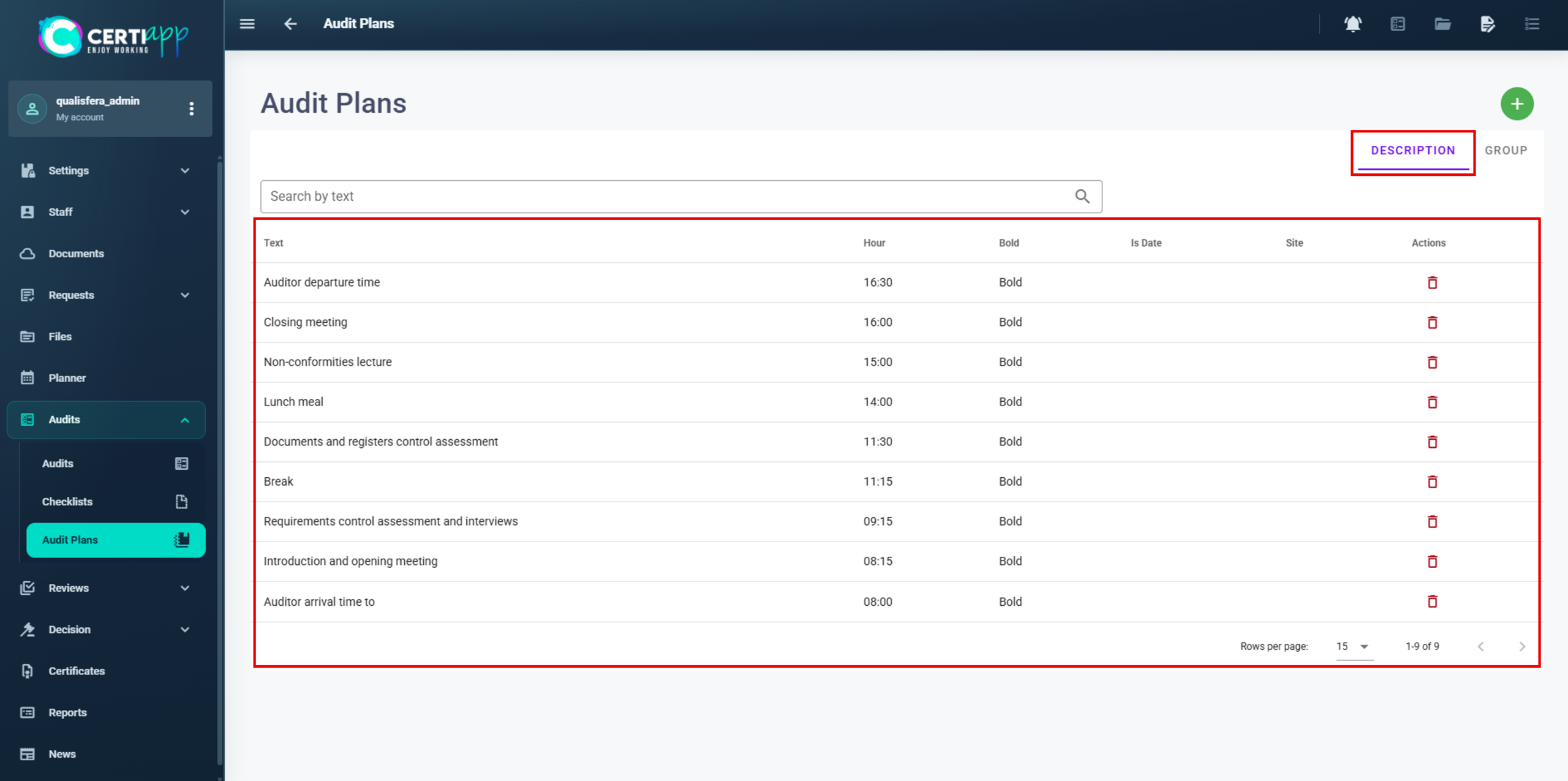
In Description, click on + to add a line for each activity of the audit day, point by point. These lines work as a template: when you assign them to an audit, you can still change the text or the time.

In Group, group the lines you have created by day or by any other criterion you find useful.
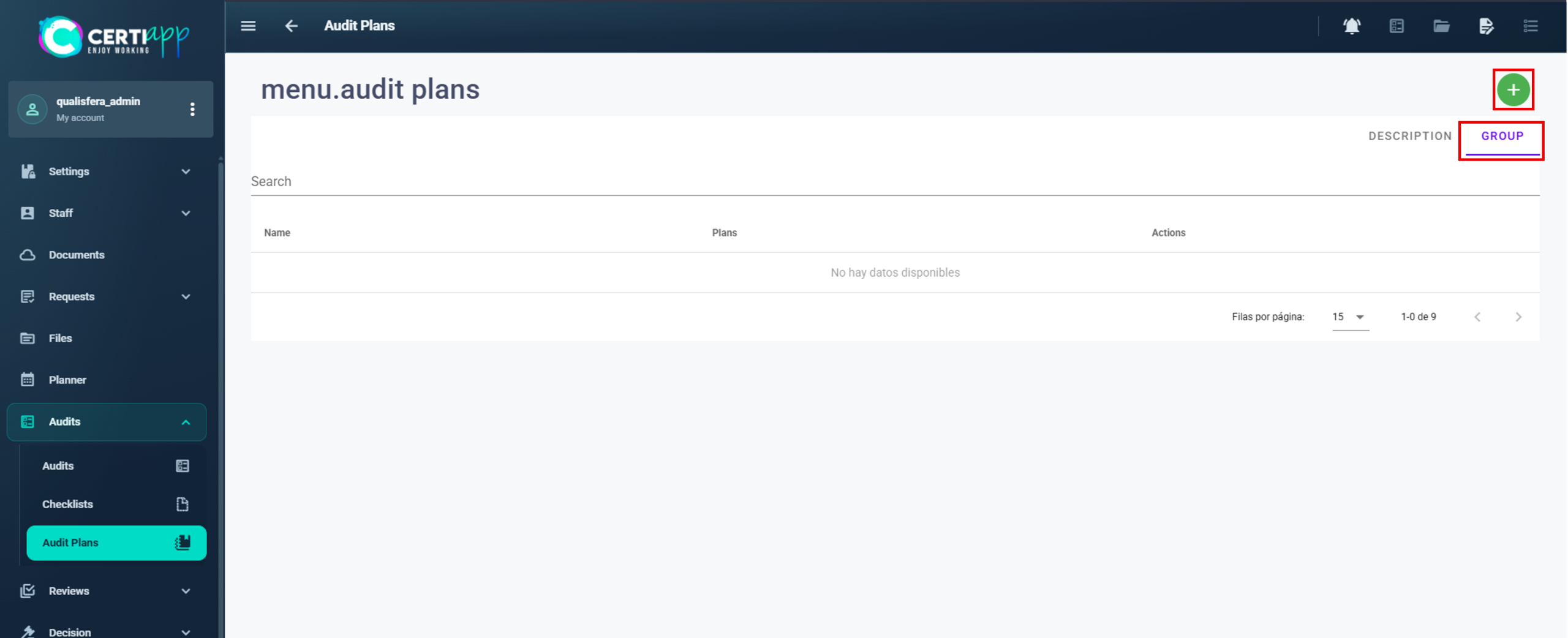
When you open a group, you see all the activities for that day.
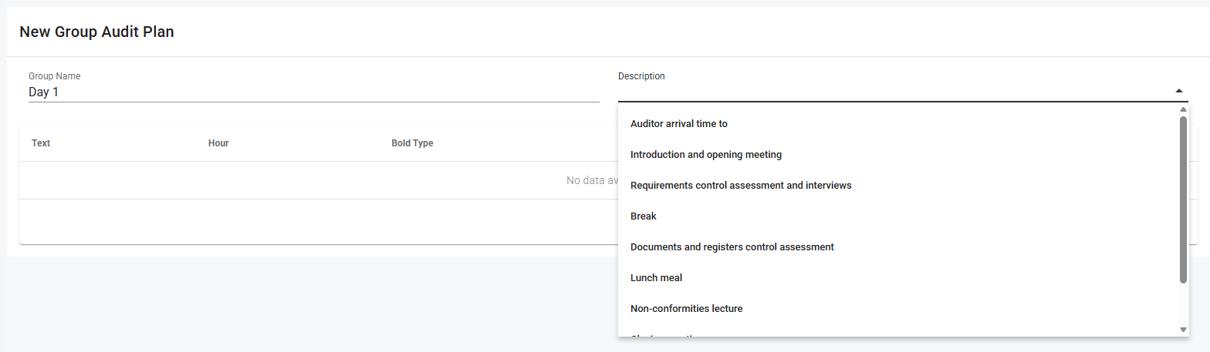
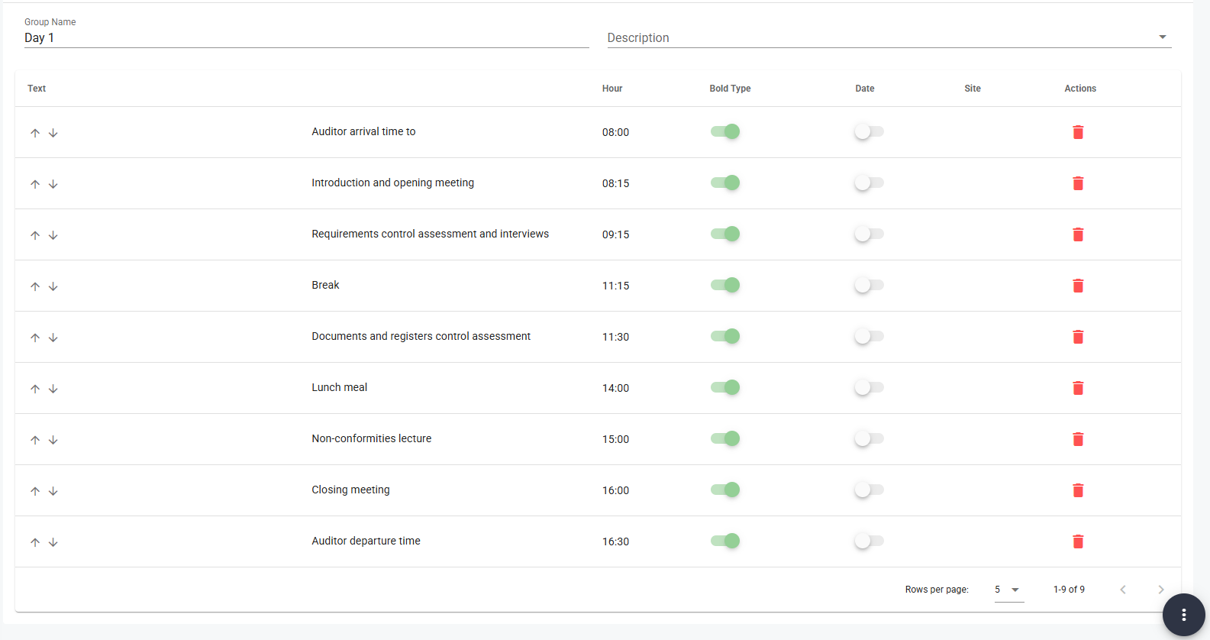
💡 Tip: create a group for each type of audit you usually carry out, such as a 1-day audit or a 2-day audit. Setting up each new Audit Plan will then take only a few clicks.

✅ Done! Your templates are ready. Next, create the audit from the operator’s file.

III. Explanatory video

📄 Full details in the User Guide for Certification Bodies – CERTIAPP Platform, section 2.8.3.

Learn how to create the audit from the operator’s file and assign the audit team.

I. Before you start

✅ The request must be approved, so that the file has been generated.

✅ Your auditors must be registered, with their competencies set up for the Brand.

✅ Agree the audit date with the operator.

II. Process step by step

Go to Files and open the operator’s file. Scroll down to see its information.

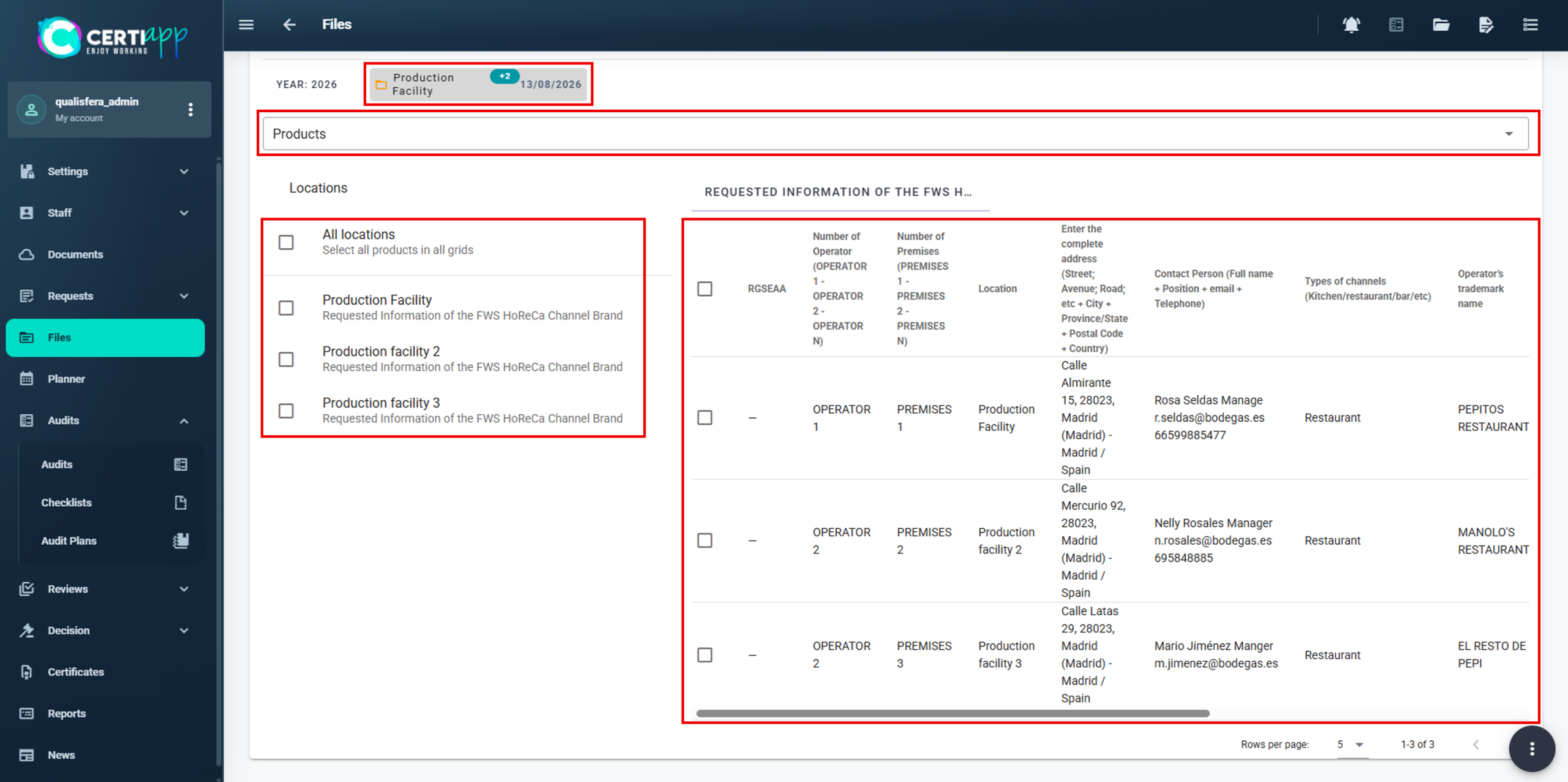
Each file covers one operator and one Brand, and is organized in yearly iterations: the first one is the initial certification and the following ones are the renewals.

In the drop-down menu, open Products and check that all the sites declared in the request are there.

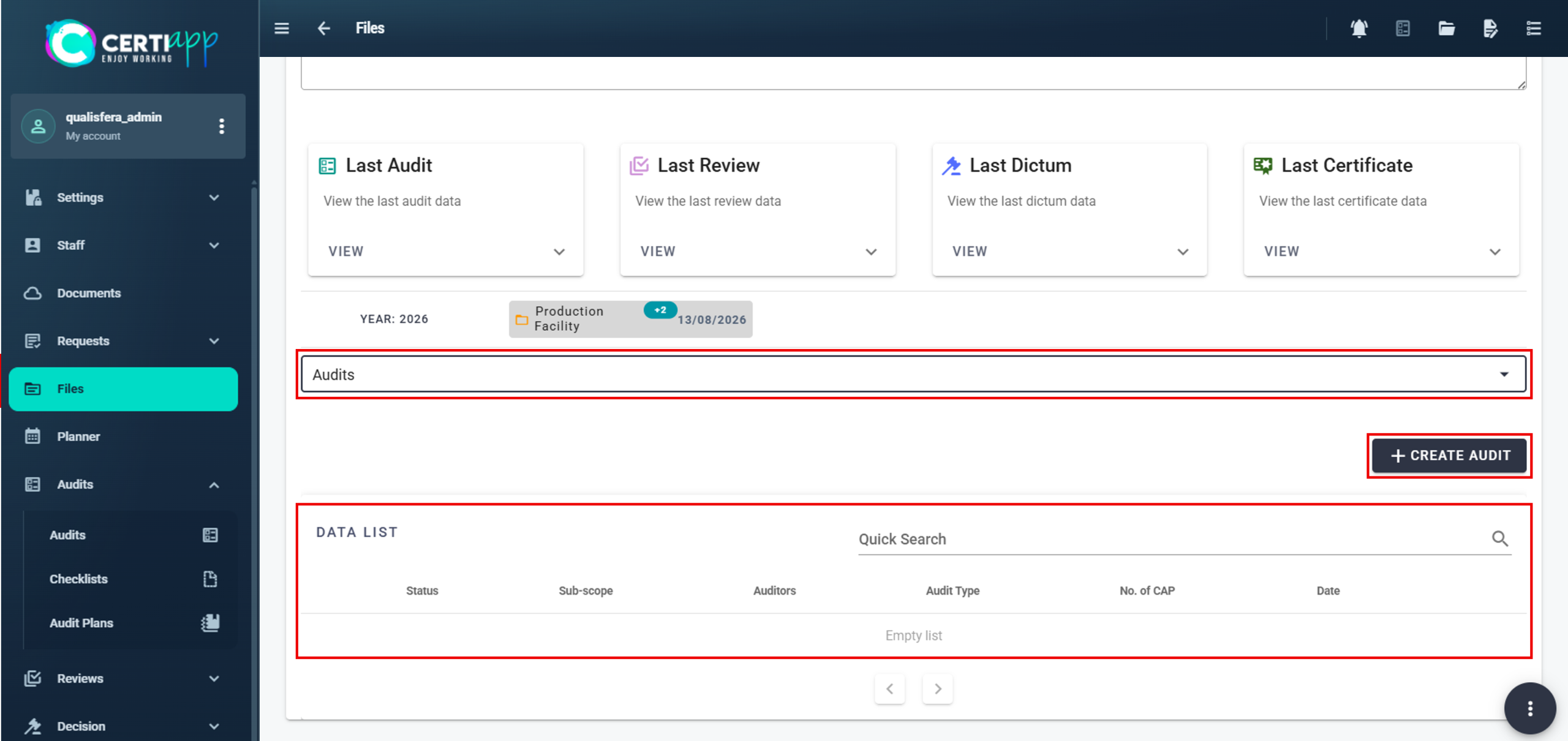
Select Audits and click on Create Audit.

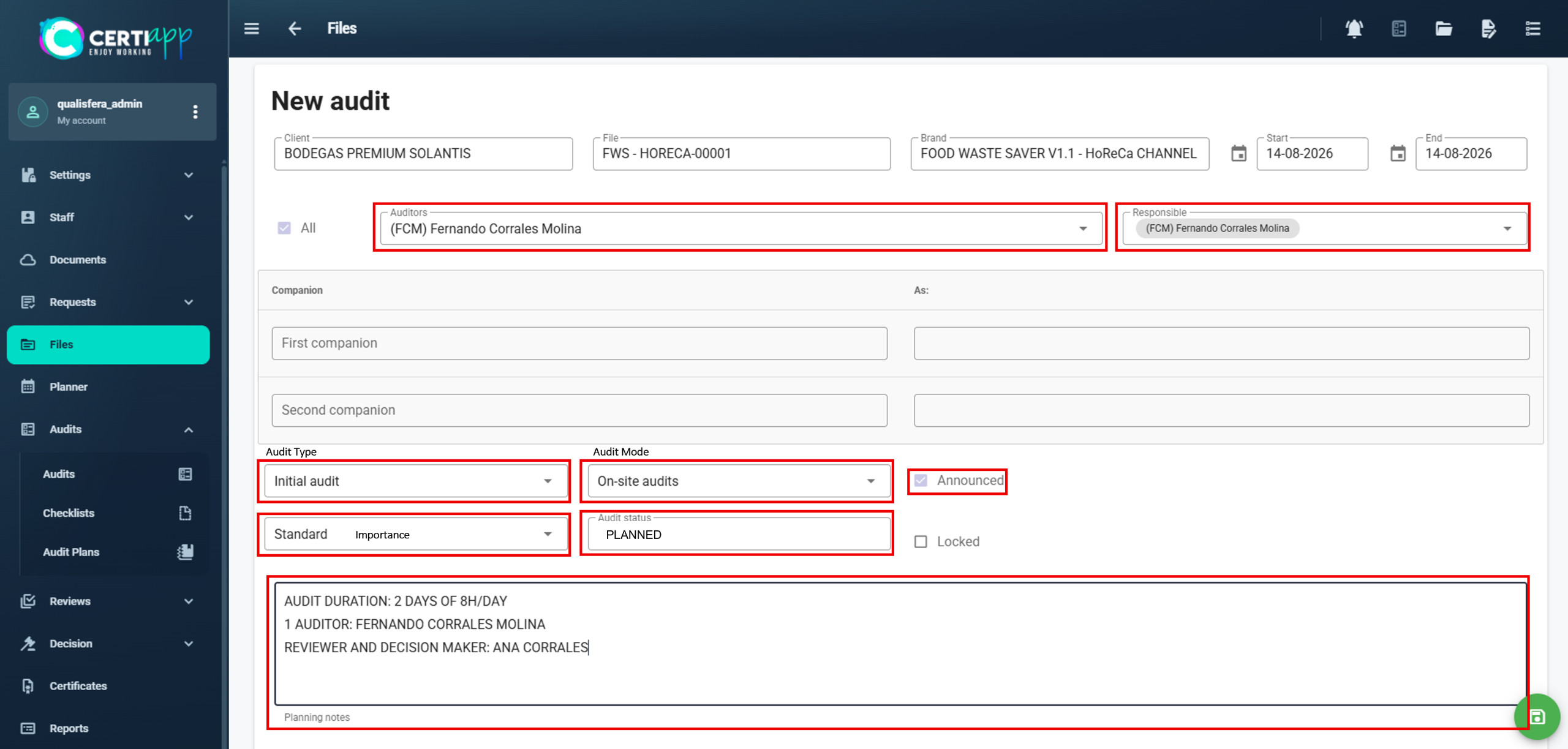
In the window that opens, complete:

  • Auditor(s): the auditors assigned to the audit.
  • Lead auditor: only one person.
  • Observers: optional.
  • Type, modality and importance of the audit.
  • Announced: always select this option. Initial and renewal audits are always announced.
  • Planning notes: optional.

Leave the status as Planned. It is set by default and must not be changed.

⚠️ Modality (General Regulations):

  • Initial and renewal audits are always announced.
  • Initial audits must be carried out on-site or combined, never remotely.
  • For a remote audit, you must send the operator a specific Agreement, which the operator must sign. Record it in the operator’s file.

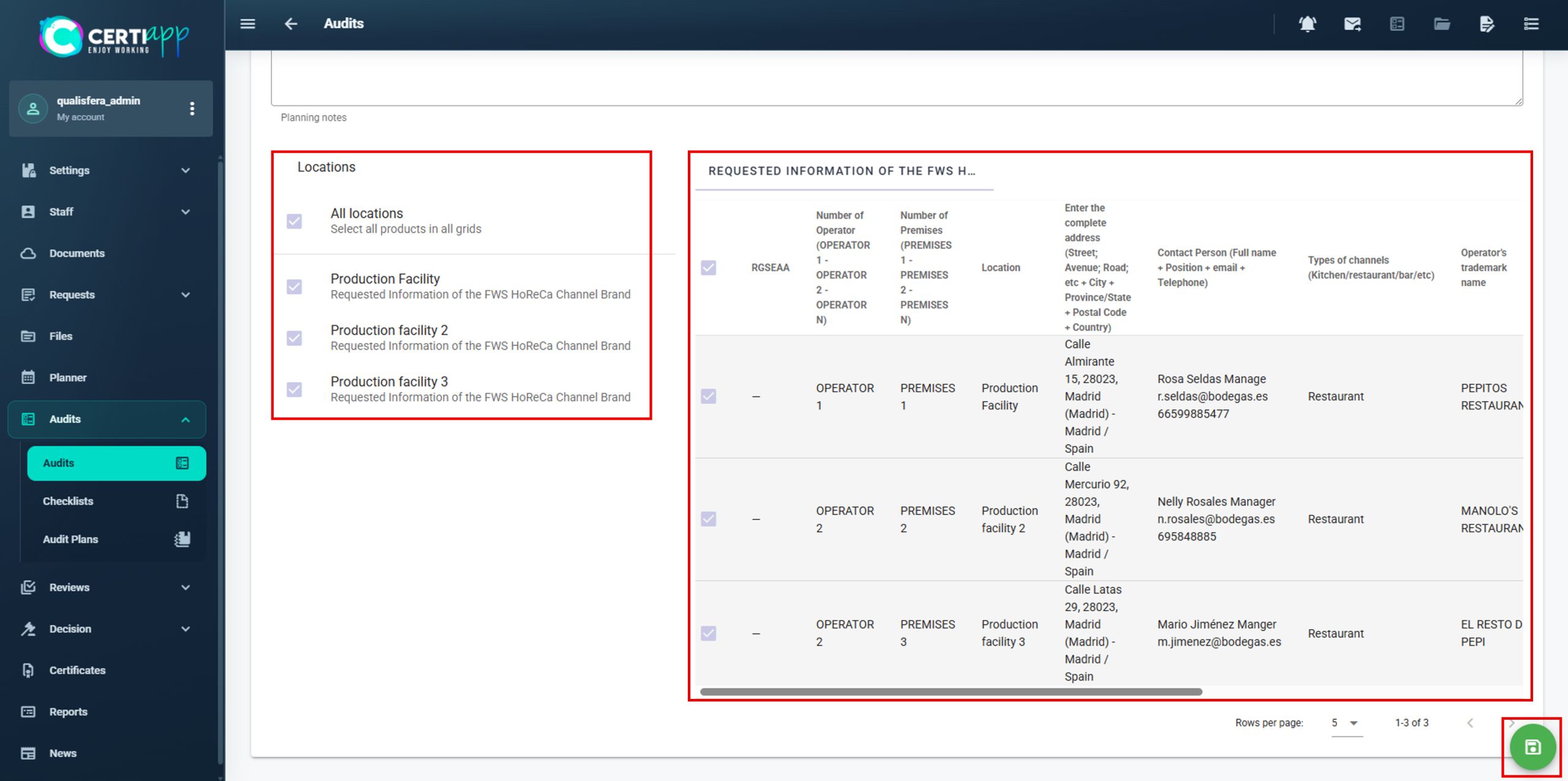
Scroll down and select all the available sites.

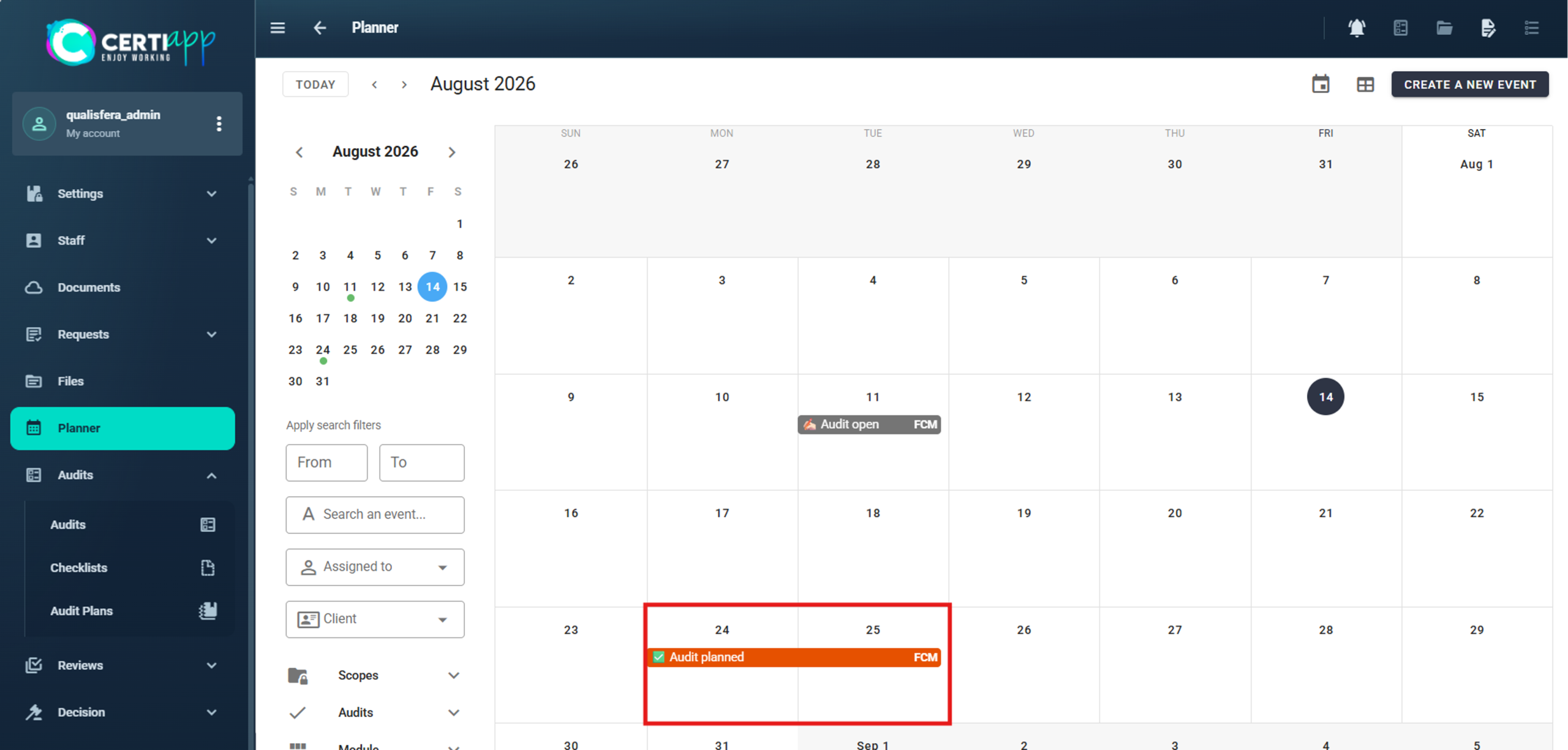
Click on the save icon (green circle). The audit appears in the Planner in Planned status, with the initials of the assigned auditor.

💡 Renewal audits (General Rules): they must take place within the window of 120 days before and 120 days after the certificate’s expiry date. The second half of the window only applies if the certificate has been extended. There must be at least 180 days between two renewal audits.

✅ Done! The audit is created. Next, set up the Audit Plan and send it to the operator.

III. Explanatory video

📄 Full details in the User Guide for Certification Bodies – CERTIAPP Platform, section 3.10.

Learn how to complete the Audit Plan, set the audit dates and send the plan to the operator on time.

I. Before you start

✅ The audit must be created (see Creating the audit).

✅ Your audit plan templates must be ready (see Audit plan templates).

✅ The plan must reach the operator at least 48 hours before the audit.

✅ Decide who will act as technical reviewer and decision-maker for this file.

II. Process step by step

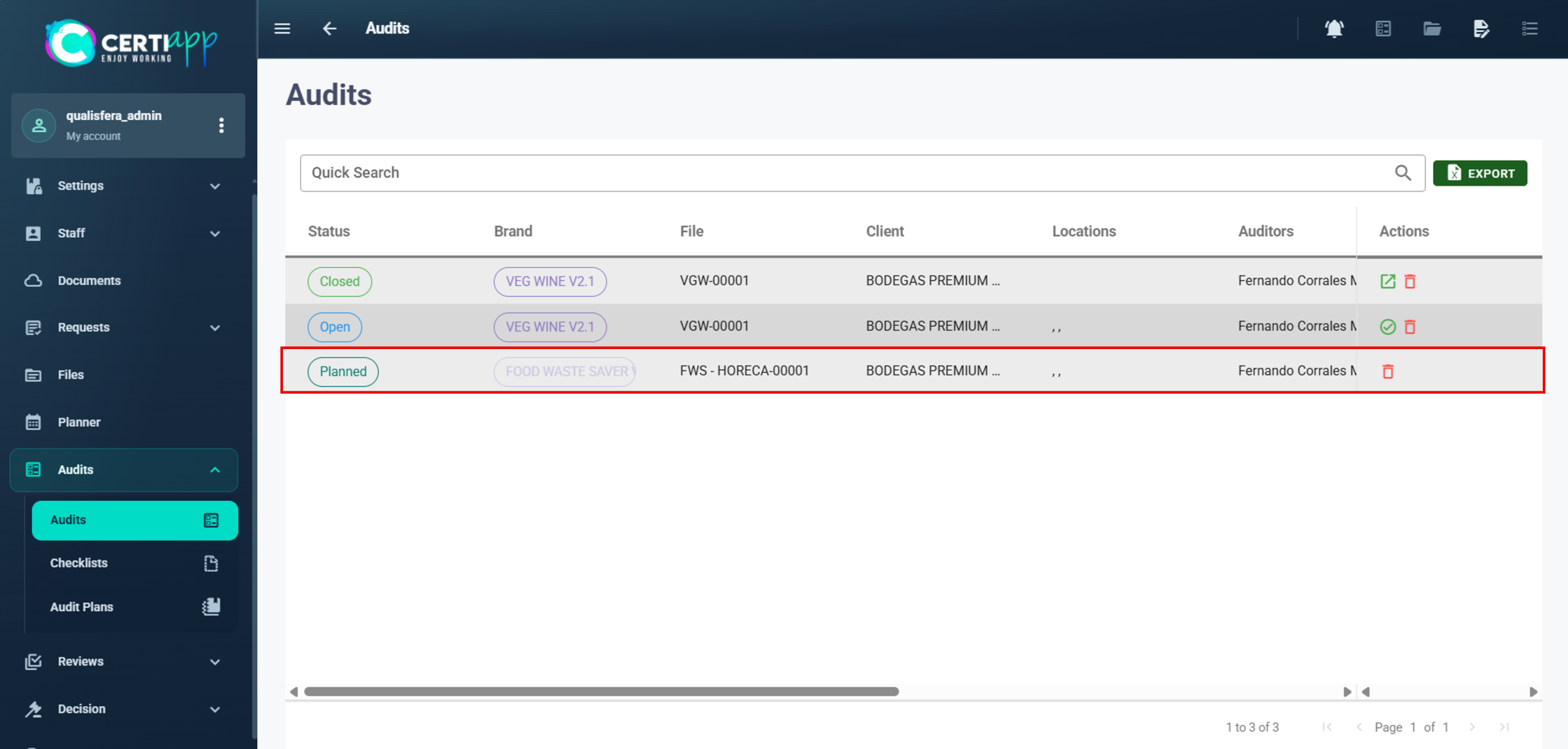
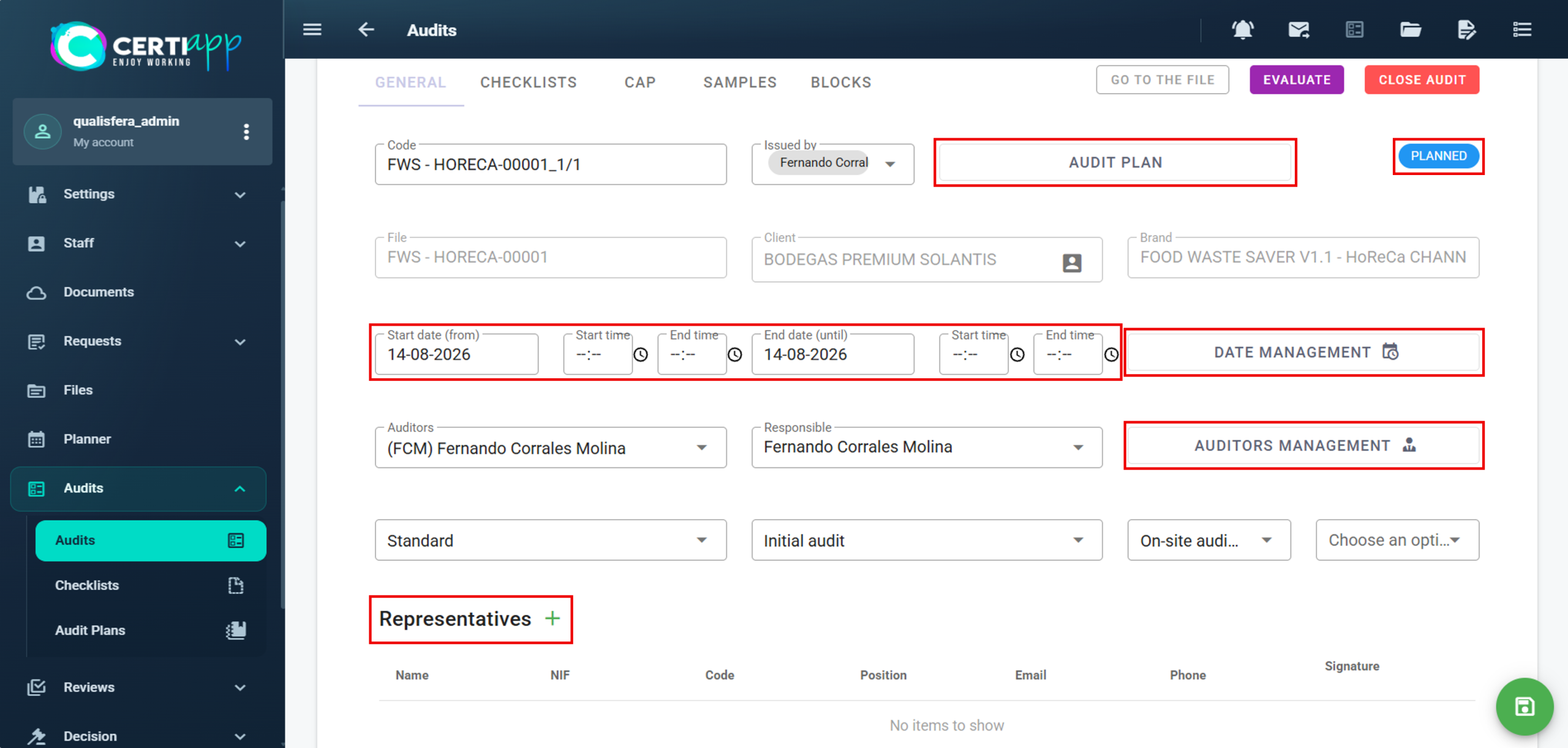
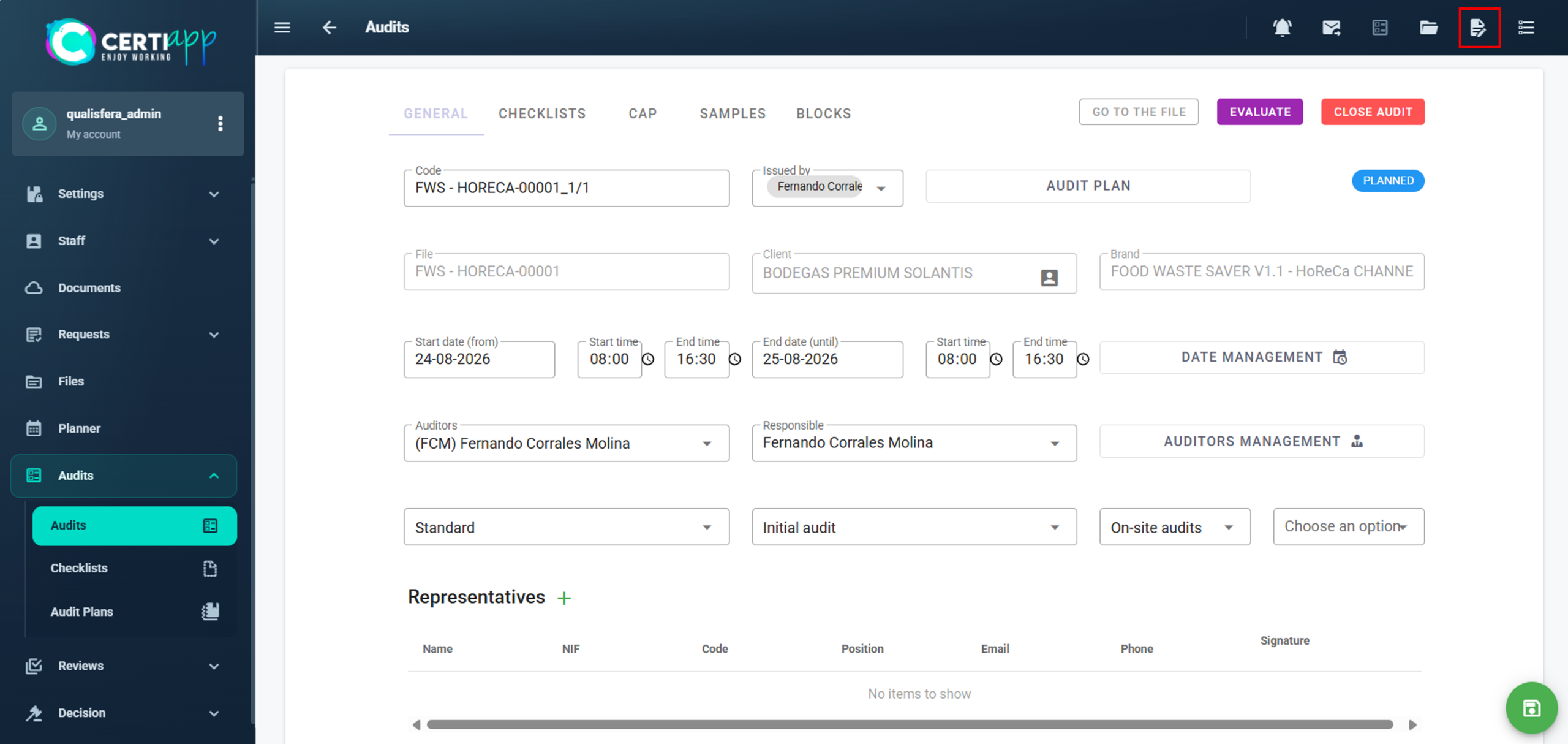
Go to Audits and open the audit in Planned status. In the General section, the audit code is generated automatically, and Issued By shows the lead auditor.

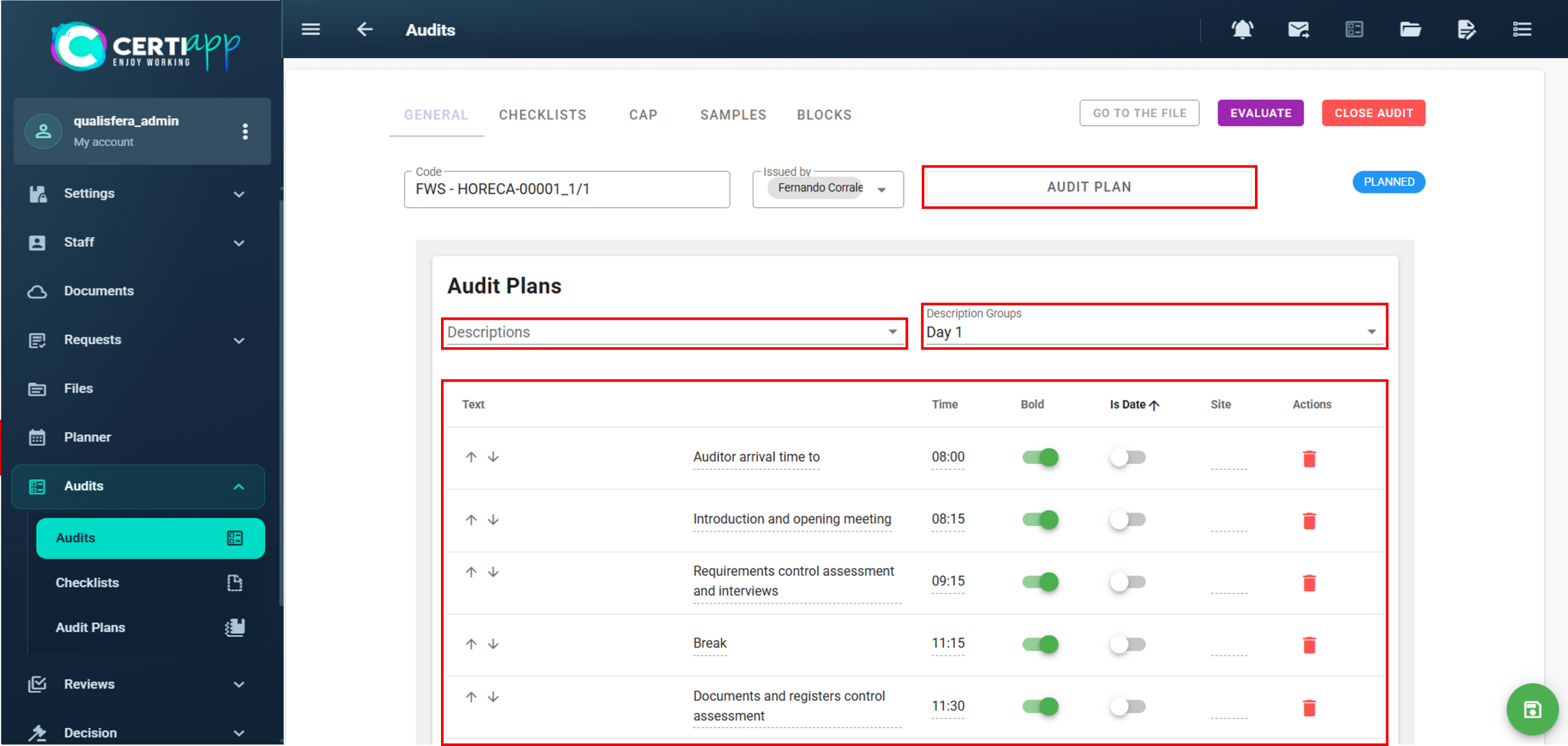
In Audit Plan, select the activities by line (Descriptions) or by group (Description Groups). Then adjust each activity: edit the text if needed (for example, to tell day 1 from day 2), and set the time and the site where it will take place.

✅ 1- or 2-day audit: complete Start Date and End Date.

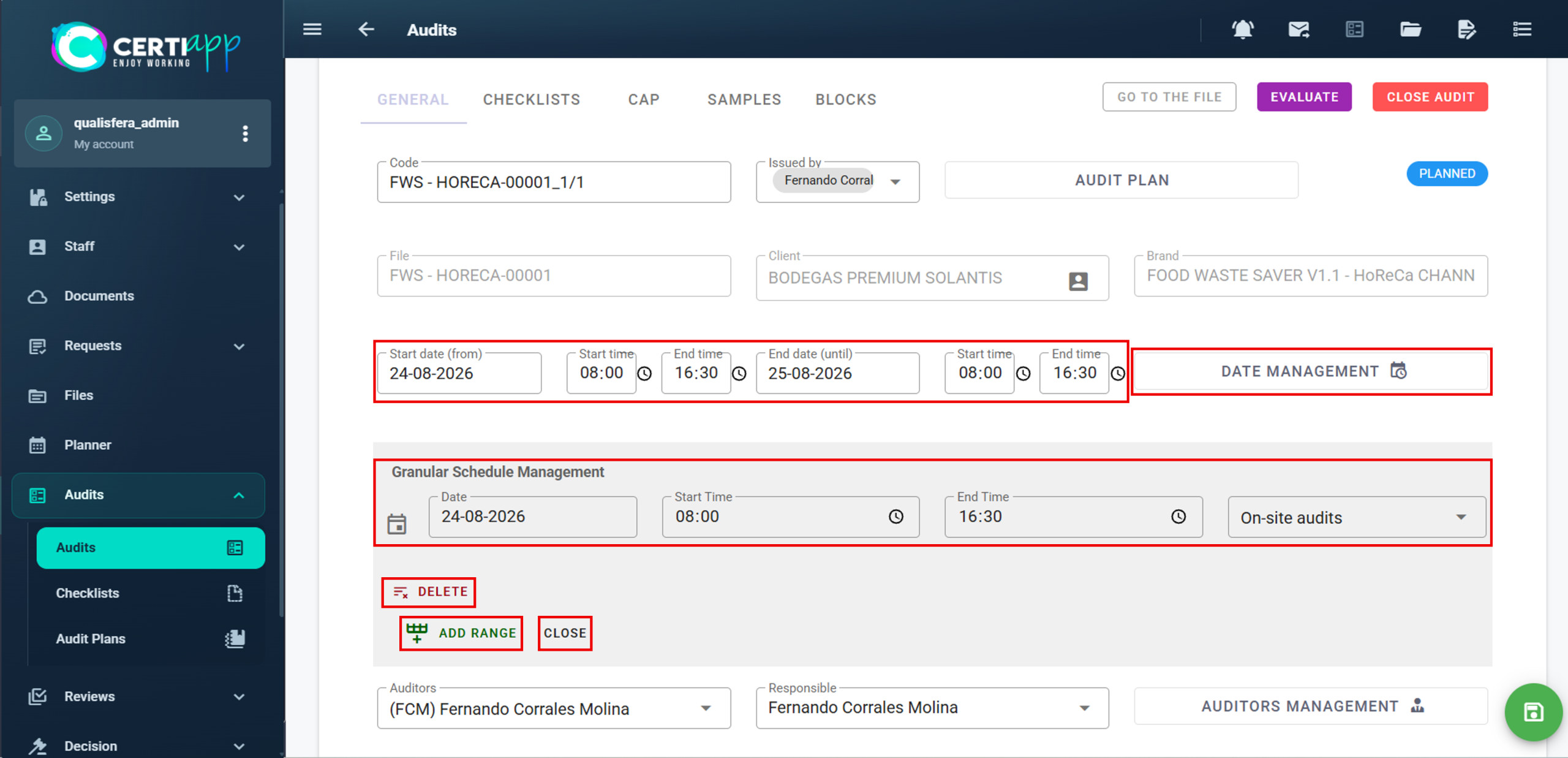
✅ Audit of 3 days or more: use Date Management to set the start and end of each day. Click on Add Range to add a row, Delete to remove the last one, and Close when you finish.

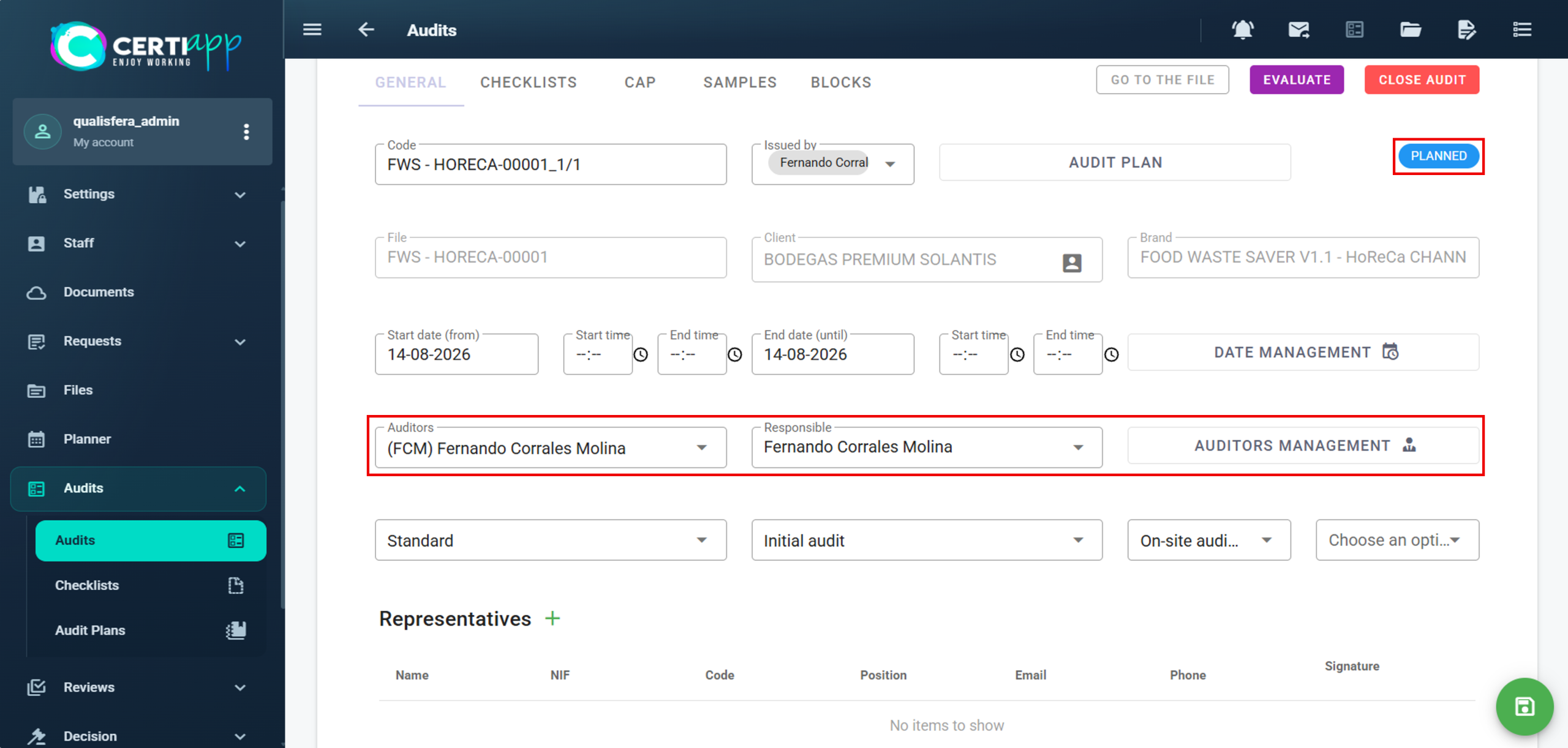
In Auditors Management, select all the people linked to this audit:

  • The auditor(s).
  • The technical reviewer.
  • The decision-maker.

⚠️ Independence rules (General Rules): the technical reviewer must be a different person from the auditor who carries out the audit. The decision-maker cannot have taken part in the evaluation, but can be the same person as the technical reviewer.

Add any notes related to the audit.

Click on the 📝 icon in the top right corner and download the Audit Plan.

Send the Audit Plan to the operator at least 48 hours before the audit.

⚠️ Important: the 48-hour notice is required by the General Regulations for all announced audits.

✅ Done! Your part of the audit setup is complete. From here, the auditor conducts the audit, evaluates the checklist and the CAP, and closes the audit from their own profile (see the Evaluation Staff section).

III. Explanatory video

📄 Full details in the User Guide for Certification Bodies – CERTIAPP Platform, section 3.11.

Module 6 – Closing the Cycle

Learn how to track each file through the audit, review, decision and certificate stages, and keep an eye on the deadlines.

I. Before you start

✅ The audit must have been created (see Module 5).

✅ From this point on, the audit, the technical review and the decision are carried out by your evaluation staff. Your role is to follow the file and make sure the deadlines are met.

II. Process step by step

Go to Files. For each file, you can see the stage reached in its latest iteration, and whether that iteration is active or inactive:

  • A: Audit.
  • R: Review.
  • D: Decision.
  • C: Certificate.

Open the file to see its code and dates. In the drop-down menu:

✅ Audits: the status of each audit: Planned, Open (checklist assigned) or Closed (audit and CAP evaluation completed).
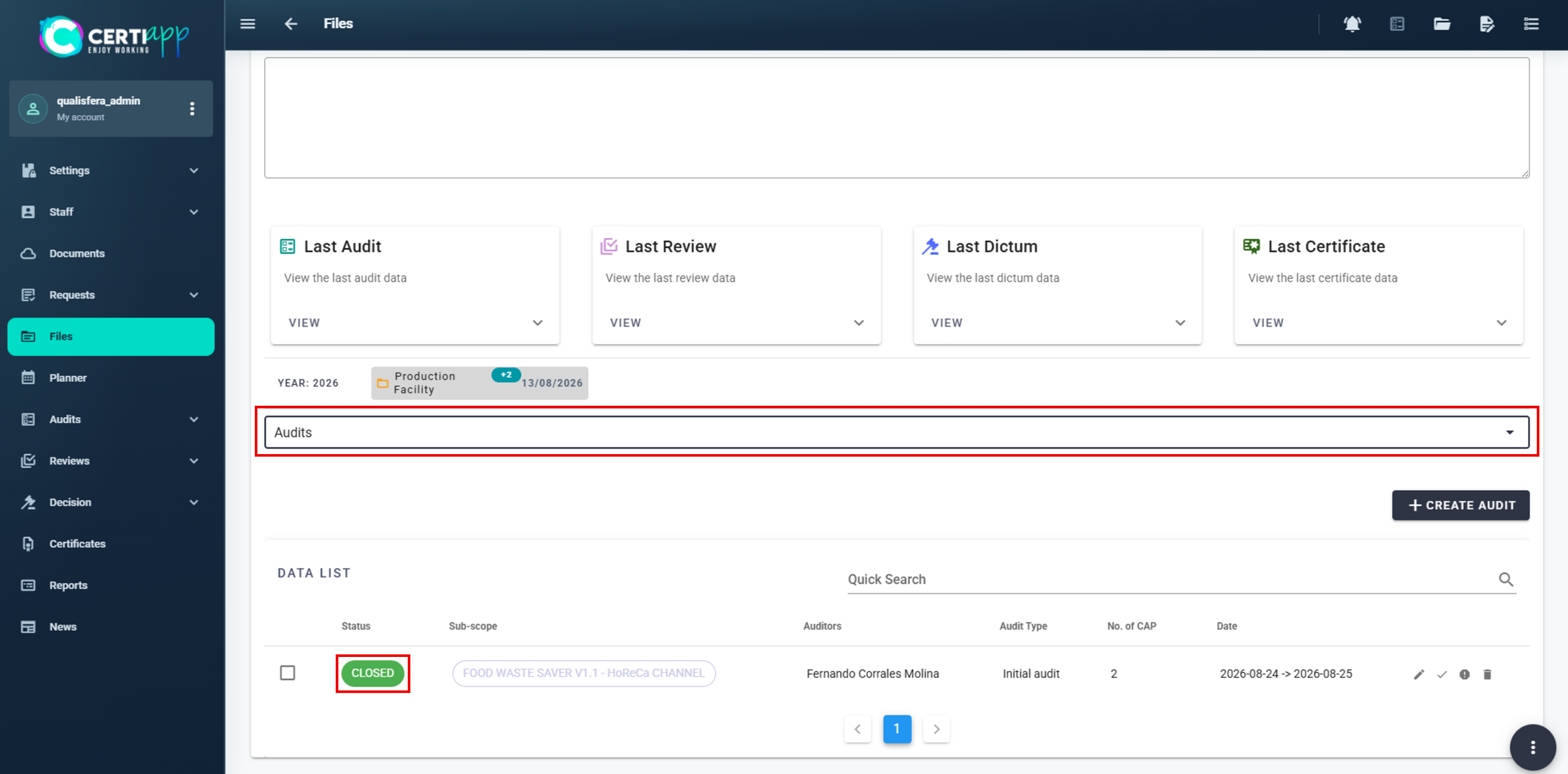
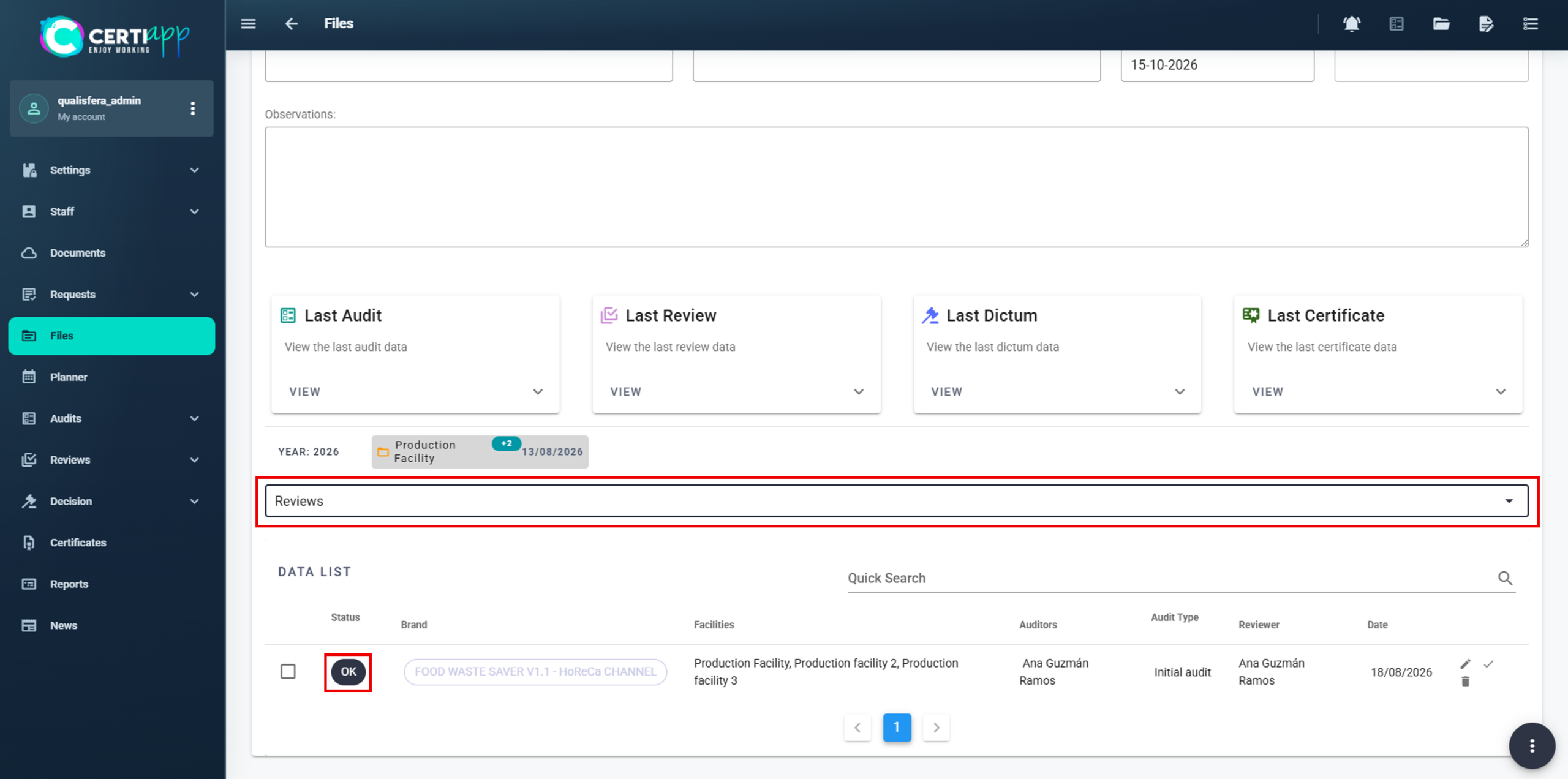
✅ Reviews: when the file moves to technical review.
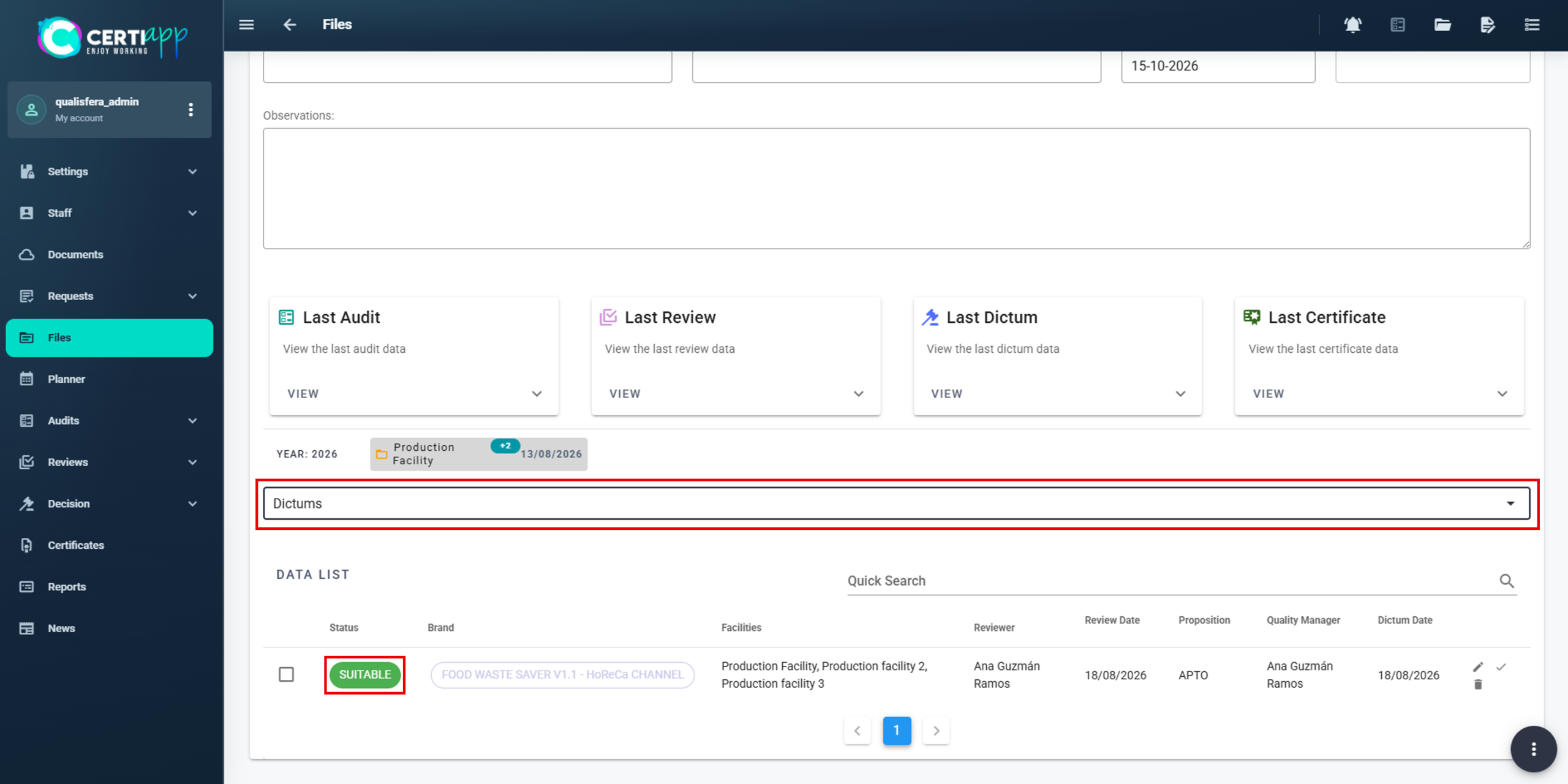
✅ Dictums: when the file moves to decision, and the result: Suitable or Not Suitable.
These are the deadlines set in the General Regulations:

StageDeadline
Operator submits the CAP28 days from the end of the audit
Auditor evaluates the CAP7 days maximum
Technical review and decision28 days from the CAP submission, including the auditor’s 7 days
No Non-Conformities28 days from the end of the audit

💡 Tip: the Audits, Reviews and Decision sections show every file at each stage for all your clients. Use them for a quick overview.

⚠️ If the result is unfavorable: the operator is informed, and the certification process ends. If the operator did not reach the minimum score in the audit and wants to try again, the new audit cannot take place until 90 days after the previous one was closed.

✅ Done! When the decision is favorable, the next step is to get everything ready for the certificate.

III. Explanatory video

📄 Full details in the User Guide for Certification Bodies – CERTIAPP Platform, section 2.6.

Learn what must be in place before the certificate can be generated: the signed License Agreement and the Royalty Fee.

I. Before you start

✅ The decision-maker must have approved the certification.

✅ The Royalty Fee is paid in your private area on the CONFICERT website.

✅ Until both requirements are met, the Generate Certificate button stays locked in CERTIAPP.

II. Process step by step

Let the operator know that the certification decision is favorable and send it the Brand Use License Agreement.

The operator completes, signs and dates the Agreement, and returns it to you. Save it in the operator’s Documentation in CERTIAPP.

⚠️ Important: according to the General Rules, any delay caused by the operator not returning the Agreement or not paying on time is the operator’s sole responsibility.

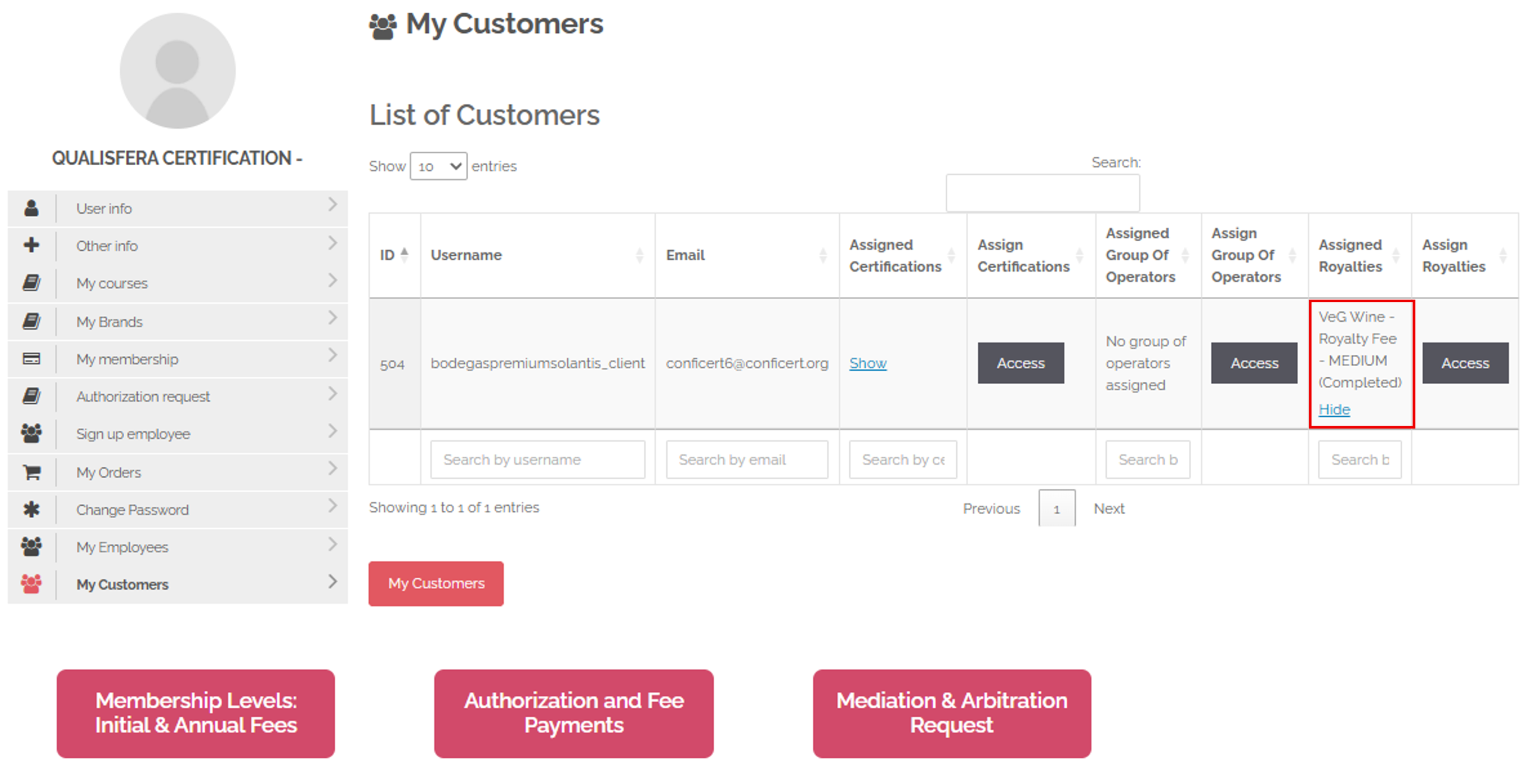
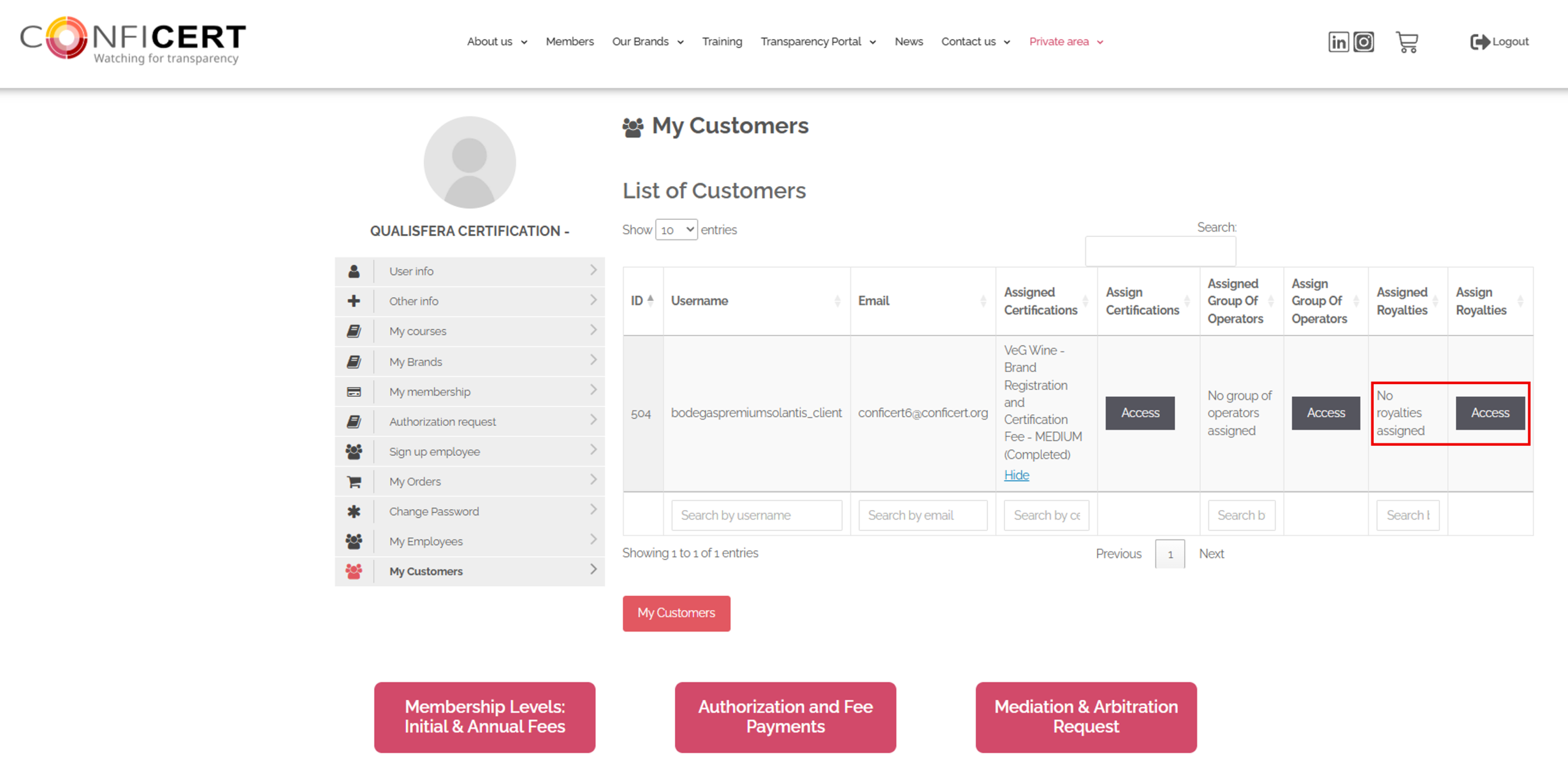
On your Privet Area, go to My Customers and find the operator’s row. If Assigned Royalties shows “No royalties assigned”, click on Access.
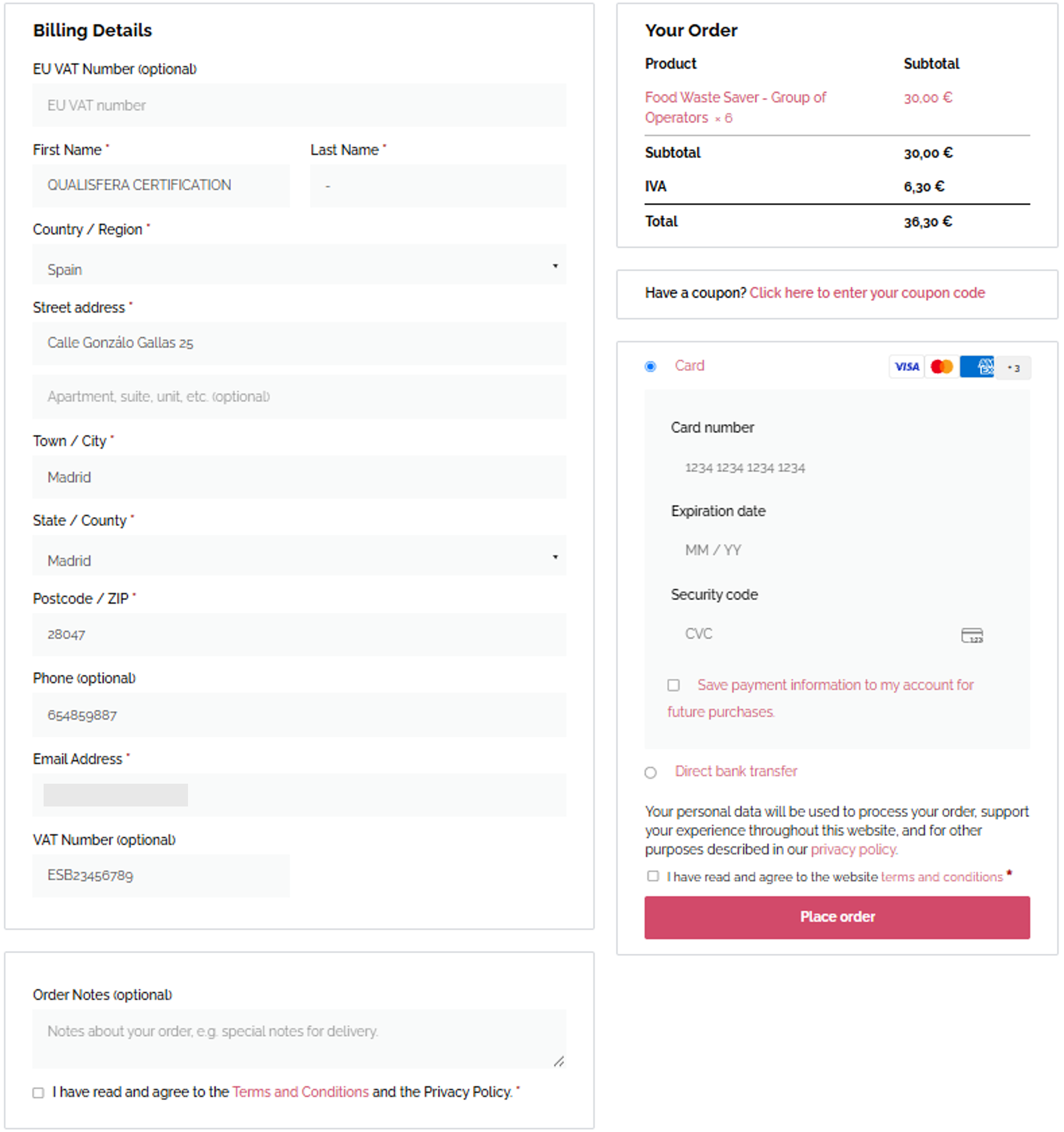
In Add Brands, select the Brand fee, the operator size and, for multi-scope Brands, the scope. Click on Create Order.
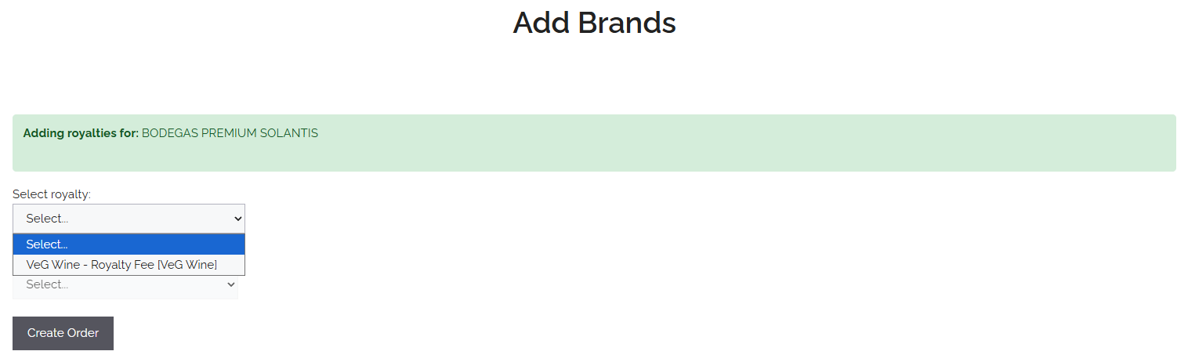
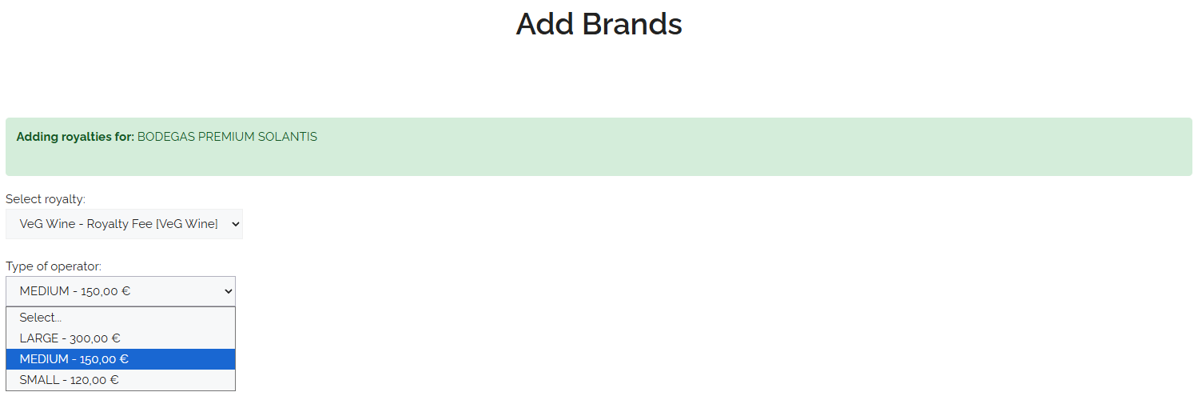
Complete the payment.

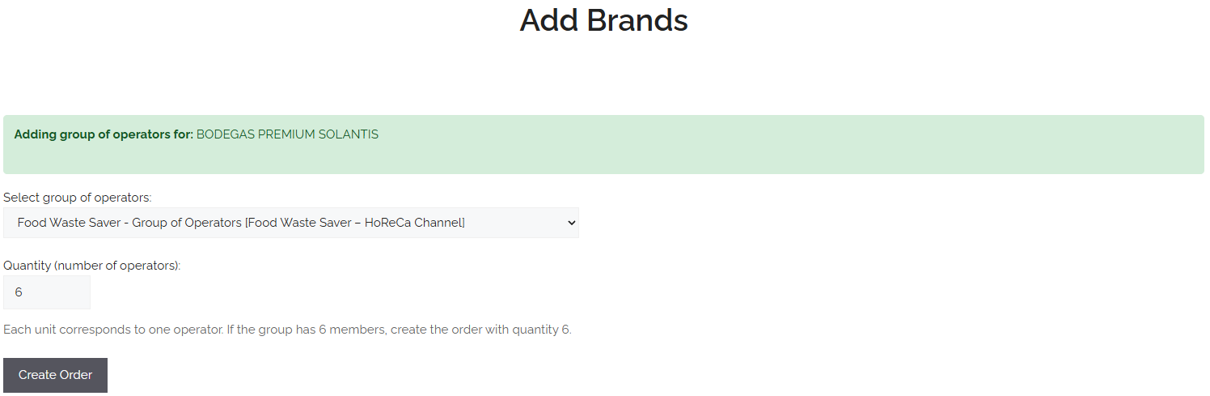
For a group, pay this fee at the same time as the Royalty Fee. In the lead operator’s row, click on Access in Assigned Group of Operators.
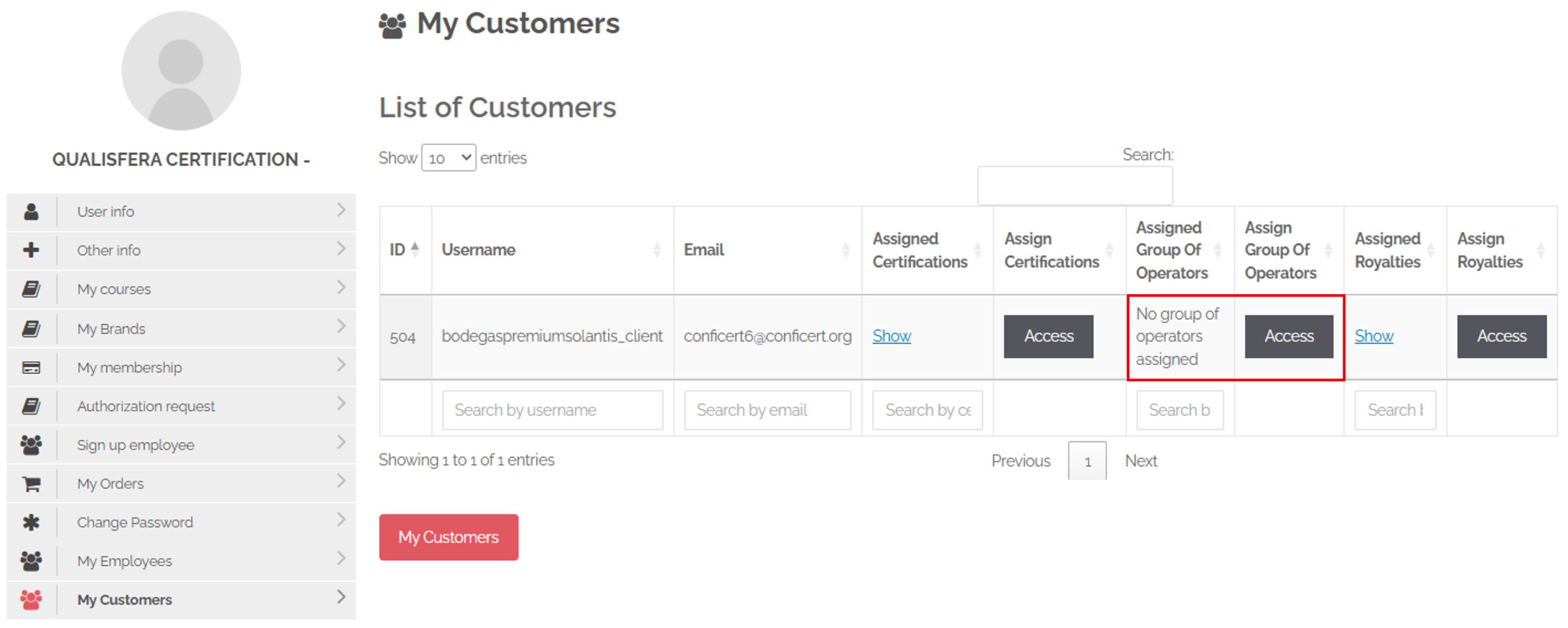
Select the Brand and enter the number of operators in the group. The price is multiplied by that number. Click on Create Order.
Complete the payment.
💡 Note: Some Brands or scopes do not allow certification as a group, so check this first.

In My Customers, click on Show in Assigned Royalties (and in Assigned Group of Operators, for groups) to see the assigned fees.

✅ Done! The Generate Certificate button is now unlocked. Let the decision-maker know that the certificate must be issued within a maximum of 72 hours.

III. Explanatory video

📄 Full details in the User Guide for Certification Bodies – CONFICERT web platform, sections 4.8 and 5.2.

Learn which documents and materials to collect after the certificate is issued, and how to send them to CONFICERT for publication.

I. Before you start

✅ The decision-maker must have generated the certificate, and set it as Active and Published.

II. Process step by step

Let the operator know that the certificate has been issued and is available in its profile, in the Certificates section. Send it the internal audit report and the public audit report.

Ask the operator to send you, or the decision-maker, its graphic material:

  • Company logo.
  • For a product: photos of the certified product. For a service: related images.
  • A document describing the company.
  • Any other relevant document the operator wishes to share.

Send this material, together with the public audit report and the certificate, to the CONFICERT administration team at conficert5@conficert.org.

Within a maximum of 48 business hours, CONFICERT:

  • Sends you the Brand’s official graphic material (seals, logos and other authorized elements). Deliver it to the operator.
  • Publishes the certificate and a summary of the final audit report on the CONFICERT Transparency Portal.

💡 Remember: the certificate is valid for one year minus one day. To keep it, the operator must pass a renewal audit every year. The decision-maker plans it with Plan Next Audit when issuing the certificate.

✅ Done! The certification cycle is complete. You have finished the Certification Bodies course.

III. Explanatory video

📄 Full details in the User Guide for Certification Bodies – CERTIAPP Platform, section 3.15.

Still have questions?

Check the frequently asked questions for Certification Bodies or contact the CONFICERT team.

Certification Bodies receive them from CONFICERT. Operators and Evaluation Staff receive them from their Certification Body.

In English: the request, the additional information, and the checklist evaluation.

Yes, in “My Data” › “Personal Data” › “Change Password”. The email address with which the account was registered must not be changed.

✓ Planned: the audit has been created.

✓ Open: the auditor has started it.

✓ Closed: the CAP has been evaluated and the audit has been completed.

Minor, serious, and critical (K.O.). A critical Non-Conformity prevents the certification process from continuing, although the audit may still be completed that day.

All exchanged documents (request, contract, evidence) are in “Documents” and can be filtered by name, type, or module.

The membership and the Annual Authorization Fee to Certify a Brand must be current, and the operator must have been assigned the Brand Registration and Certification Fee.

The three options in “Audit References”. If they are not enabled, problems will arise when evaluating the CAP.

✓ “Auditor Admin”: if the person will act as auditor, reviewer, and decision-maker, or only as auditor.

✓ “Reviewer”: if they will carry out only technical reviews.

✓ “Decision Maker”: if they will carry out only decision-making.

The roles must match the competencies assigned for each Brand.

At least 48 hours in advance.

Yes. Once approved, it is downloaded in Word, reviewed, converted to PDF, sent to the operator, and saved in the operator’s document manager.

The Royalty Fee must be paid and assigned to the operator, and the Brand Use License Agreement must be signed.

A maximum of 72 hours from when the above requirements are met.

The public audit report, the certificate, and the operator’s graphic material, to conficert5@conficert.org, for publication on the Transparency Portal.

Contact our team

If you have any questions about using CERTIAPP or encounter an issue on the platform, we are here to help.

*Certification Bodies: for questions about how the platform works, technical issues, or questions about the guides, write to us at conficert5@conficert.org

To help us respond faster, please include your role, the CERTIAPP section where the issue arises, and, if possible, a screenshot.

CertiApp Academy - Certification Bodies

GUIDES AND RESOURCES FOR CERTIFICATION BODIES

Learn to manage the certification process in CertiApp, step by step

Learn how to carry out your role in CERTIAPP: from conducting the audit and evaluating the Corrective Action Plan to the technical review, the certification decision and the issuance of the certificate.

Who is this for? Auditors, Technical Reviewers and Decision-Makers of Certification Bodies working under the CONFICERT scheme.

Your role in the process

Phase 0

Setup

Phase 0 – Setup

Configure your account, register your auditors and clients, and keep your fees up to date.

Phase 1

Request

Phase 1 – Request

Create the request, help the operator complete it, and approve it.

Phase 2

Audit

Phase 2 – Audit

Create the audit, assign the team, and send the Audit Plan to the operator.

Phase 3

Decision

Phase 4

Certification

Phase 4 – Certification

Royalty Fee, License Agreement and publication on the Transparency Portal.

As a Certification Body, you manage the administrative side of the whole process: you register the client, open the request, create the audit and make sure everything is in place for the certificate to be issued and published. The audit, the technical review and the decision are carried out by your evaluation staff.

→ Are you an auditor, technical reviewer or decision-maker? Go to Evaluation Staff

User Guide for Certification Bodies

CERTIAPP Platform

Download the complete guide with all the steps and screenshots.

CONFICERT platform

Fees and payments: authorization fee, Registration and Certification Fee, and Royalty Fee.

Modules and lessons

Module 1 – Getting Started

Module 2 – Account Data

Module 3 – Contract & Request

Module 4 – Audit and NC

Module 5 – Certificate

Still have questions?

Check the frequently asked questions for Certification Bodies or contact the CONFICERT team.

Certification Bodies receive them from CONFICERT. Operators and Evaluation Staff receive them from their Certification Body.

In English: the request, the additional information, and the checklist evaluation.

Yes, in “My Data” › “Personal Data” › “Change Password”. The email address with which the account was registered must not be changed.

✓ Planned: the audit has been created.

✓ Open: the auditor has started it.

✓ Closed: the CAP has been evaluated and the audit has been completed.

Minor, serious, and critical (K.O.). A critical Non-Conformity prevents the certification process from continuing, although the audit may still be completed that day.

All exchanged documents (request, contract, evidence) are in “Documents” and can be filtered by name, type, or module.

The membership and the Annual Authorization Fee to Certify a Brand must be current, and the operator must have been assigned the Brand Registration and Certification Fee.

The three options in “Audit References”. If they are not enabled, problems will arise when evaluating the CAP.

✓ “Auditor Admin”: if the person will act as auditor, reviewer, and decision-maker, or only as auditor.

✓ “Reviewer”: if they will carry out only technical reviews.

✓ “Decision Maker”: if they will carry out only decision-making.

The roles must match the competencies assigned for each Brand.

At least 48 hours in advance.

Yes. Once approved, it is downloaded in Word, reviewed, converted to PDF, sent to the operator, and saved in the operator’s document manager.

The Royalty Fee must be paid and assigned to the operator, and the Brand Use License Agreement must be signed.

A maximum of 72 hours from when the above requirements are met.

The public audit report, the certificate, and the operator’s graphic material, to conficert5@conficert.org, for publication on the Transparency Portal.

Need help?

If you have any questions about using CERTIAPP or encounter an issue on the platform, we are here to help.

*Certification Bodies: for questions about how the platform works, technical issues, or questions about the guides, write to us at conficert5@conficert.org

To help us respond faster, please include your role, the CERTIAPP section where the issue arises, and, if possible, a screenshot.

Frequently asked questions

Certification Bodies receive them from CONFICERT. Operators and Evaluation Staff receive them from their Certification Body.

In English: the request, the additional information, and the checklist evaluation.

Yes, in “My Data” › “Personal Data” › “Change Password”. The email address with which the account was registered must not be changed.

✓ Planned: the audit has been created.

✓ Open: the auditor has started it.

✓ Closed: the CAP has been evaluated and the audit has been completed.

Minor, serious, and critical (K.O.). A critical Non-Conformity prevents the certification process from continuing, although the audit may still be completed that day.

All exchanged documents (request, contract, evidence) are in “Documents” and can be filtered by name, type, or module.

The membership and the Annual Authorization Fee to Certify a Brand must be current, and the operator must have been assigned the Brand Registration and Certification Fee.

The three options in “Audit References”. If they are not enabled, problems will arise when evaluating the CAP.

✓ “Auditor Admin”: if the person will act as auditor, reviewer, and decision-maker, or only as auditor.

✓ “Reviewer”: if they will carry out only technical reviews.

✓ “Decision Maker”: if they will carry out only decision-making.

The roles must match the competencies assigned for each Brand.

At least 48 hours in advance.

Yes. Once approved, it is downloaded in Word, reviewed, converted to PDF, sent to the operator, and saved in the operator’s document manager.

The Royalty Fee must be paid and assigned to the operator, and the Brand Use License Agreement must be signed.

A maximum of 72 hours from when the above requirements are met.

The public audit report, the certificate, and the operator’s graphic material, to conficert5@conficert.org, for publication on the Transparency Portal.

One per operator, not per site.

“Observations” is internal and is not visible to the operator. “Comments” appears in the checklist and is visible to the operator.

✓ Regular requirement: B or C generates a minor Non-Conformity.

✓ Major requirement: B generates a minor Non-Conformity, and C a serious Non-Conformity.

✓ Essential requirement: B generates a serious Non-Conformity, and C a critical (K.O.) Non-Conformity.

70% for an initial audit and 80% for a renewal audit. After the CAP, the operator must reach 100% compliance.

The internal checklist contains all explicit comments and is for the CB’s use. The public checklist omits sensitive information and is published on the Transparency Portal. The auditor must review its wording before sending it.

A maximum of 7 days, within the total of 28 days until the final decision.

No. Once recorded, a signature cannot be edited.

No, sample registration (Samples) is voluntary and optional.

First delete the technical review from “Reviews”, then click on the reopen icon.

1. What must I do before completing the request?

Review “My Data”, give LOPD consent, sign the certification contract, and register all facilities.

In “Documents”, by clicking on the 📝 icon in the upper right corner. It is downloaded in Word format, signed, and sent to the CB’s email address.

It is acceptance of the Organic Law on Data Protection (LOPD). Check it in “My Data” › “LOPD”, save, and notify the CB. It must be done before the request is opened.

No, it is a voluntary, informational record. The username and password it asks for can be filled in with any value, since no access profiles are created.

At least 2 for a single site (one fiscal and one facility), and at least 3 for a multi-site operator or group of operators.

No. Two records must be created even if the address is the same: one of the fiscal type and another of the facility type.

It must be registered in “Facilities” as the Facility type and marked as active.

Always the Certification Body. The operator completes it from “View Request”.

Only while it is in “Pending” status. Once approved, the CB must be asked to reopen it.

The Lead Operator (OPERATOR 1), which is the user with which the profile was created. It manages the entire process on behalf of the group.

A maximum of 28 days. The deadline and the days remaining are shown in the Non-Conformity pack itself.

The pack counter shows, for example, “4/4”: the number of NCs with a corrective action out of the total number of NCs.

Inform the auditor so that they can evaluate them. If changes are requested, they can be edited with “Edit” while the deadline is still open.

When the deadline expires, editing is closed automatically. The auditor may extend the deadline if deemed necessary.

The Brand Use License Agreement, which the CB sends once the certification decision is favorable.

In “Certificates”, using the “Download” button.